Renewal
Download
Modo Foco
Tamanho da Fonte
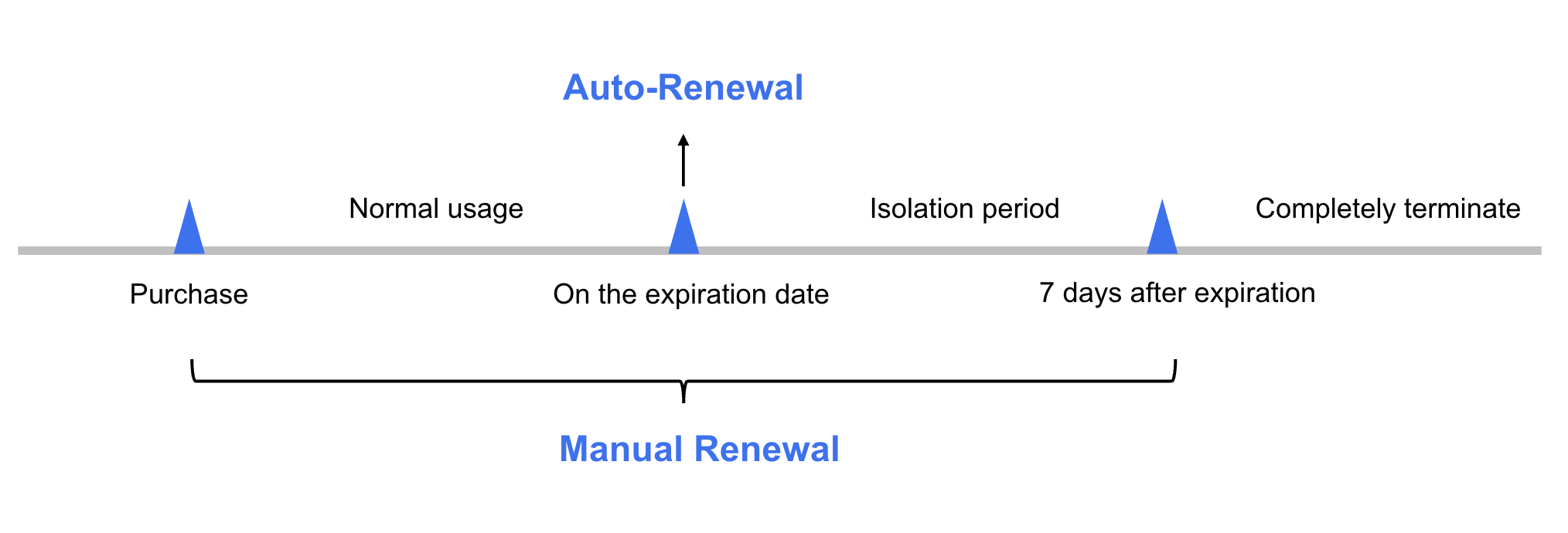
If you do not renew a yearly/monthly subscription instance in advance or have insufficient account balance to complete auto-renewal before the expiration date, the instance will enter the isolated status. You need to complete the renewal promptly to recover the instance to the normal status. If renewal is not completed during the isolation period, the system will automatically release all instance resources after the isolation period ends. All data will be cleared and cannot be recovered.
Note:
Postpaid by hour instances do not require renewal. You only need to ensure a sufficient available account balance. For specific steps on account top-up, see Online Top-up.
Renewal
Two renewal methods are supported: manual renewal and auto-renewal. The details are as follows:
Manual renewal: For a yearly/monthly subscription instance, you can manually renew it at any time from the time of purchase until it is completely deleted to extend its service period.
Auto-renewal: After you enable auto-renewal for a yearly/monthly subscription instance, if your account balance is sufficient, the instance will be automatically renewed on the expiration date.
Note:
Manual Renewal
Manual Renewal in the CKafka Console
1. Log in to the CKafka console.
2. In the left sidebar, select Instance List, select the target region, and click Renew in the Operation column of the target instance.
3. In the pop-up window, select the renewal duration. You can also enable Auto-Renewal for the instance.
4. Click OK. After you complete the payment on the order payment page, the renewal will be completed.
Manual Renewal in Billing Center
1. Log in to the CKafka console.
2. In the upper-right corner of the page, hover over Cost, click Renewal Management in the drop-down box, and go to the Billing Center.
3. In the renewal management page, select the expiration time range, search for and select Message Service CKafka. On the Manual Renewal tab, you can manually renew the instance.
Renew a single instance: Click Renew in the Operation column of the target instance.
Renew multiple instances in batches: Select the instances that you want to renew and click Batch Renewal in the upper-left corner.
4. In the pop-up window, select the renewal duration and click Batch Renewal. After you complete the payment on the order payment page, the renewal will be completed.
Auto-Renewal
Auto-renewal reduces the management costs of manual renewal and prevents instances from being automatically deleted due to missed manual renewals.
Enabling Auto-Renewal When Purchasing an Instance
You can choose to enable auto-renewal on the page for purchasing CKafka instances. For specific steps to purchase an instance, see Creating an Instance.
When switching the billing mode of an instance from postpaid by hour to yearly/monthly subscription, you can also choose to enable auto-renewal. For specific steps to switch the billing mode, see Changing from Postpaid by Hour to Monthly Subscription.
Enabling Auto-Renewal in Billing Center
If you do not enable auto-renewal when purchasing an instance, you can choose to enable auto-renewal for the instance as long as it has not expired and is in the running status. The operation steps are as follows:
1. Log in to the CKafka console.
2. In the upper-right corner of the page, hover over Cost, click Renewal Management in the drop-down box, and go to the Billing Center.
3. In the renewal management page, select the expiration time range, search for and select Message Queue CKafka. On the Manual Renewal tab, you can enable auto-renewal for the instance.
Enable auto-renewal for a single instance: Click Set as Auto-renewal in the Operation column of the target instance.
Enable auto-renewal for multiple instances in batches: Select the instances for which you want to enable auto-renewal and click Set as Auto-renewal in the upper-left corner.
4. In the pop-up window, select I have read and agree to the Auto-renewal Rules and click OK to complete the process of enabling auto-renewal.
Ajuda e Suporte
Esta página foi útil?
Você também pode entrar em contato com a Equipe de vendas ou Enviar um tíquete em caso de ajuda.
comentários