Mastering OpenClaw | A Quick Guide to Integrating OpenClaw (Clawdbot) into QQ on the Cloud
Preliminary Preparations
Before configuring QQ for OpenClaw (Clawdbot), please check the following:
- Do you already have a Tencent QQ account?
- Do you have already deployed and configured OpenClaw on a Lighthouse server instance (overseas regions recommended), and is it version 2026.2.3 or higher?
Note for first-time users: If you haven’t deployed OpenClaw yet, start with Tencent Cloud OpenClaw first. You can launch your OpenClaw instance in seconds with one click, then come back to this guide to explore more advanced use cases.
If you already have a previously deployed OpenClaw application template, but it is not the latest version, you can refer to the tutorial to update the version: How to Update the Server OpenClaw Application Version
Step 1. Configure the OpenClaw Model
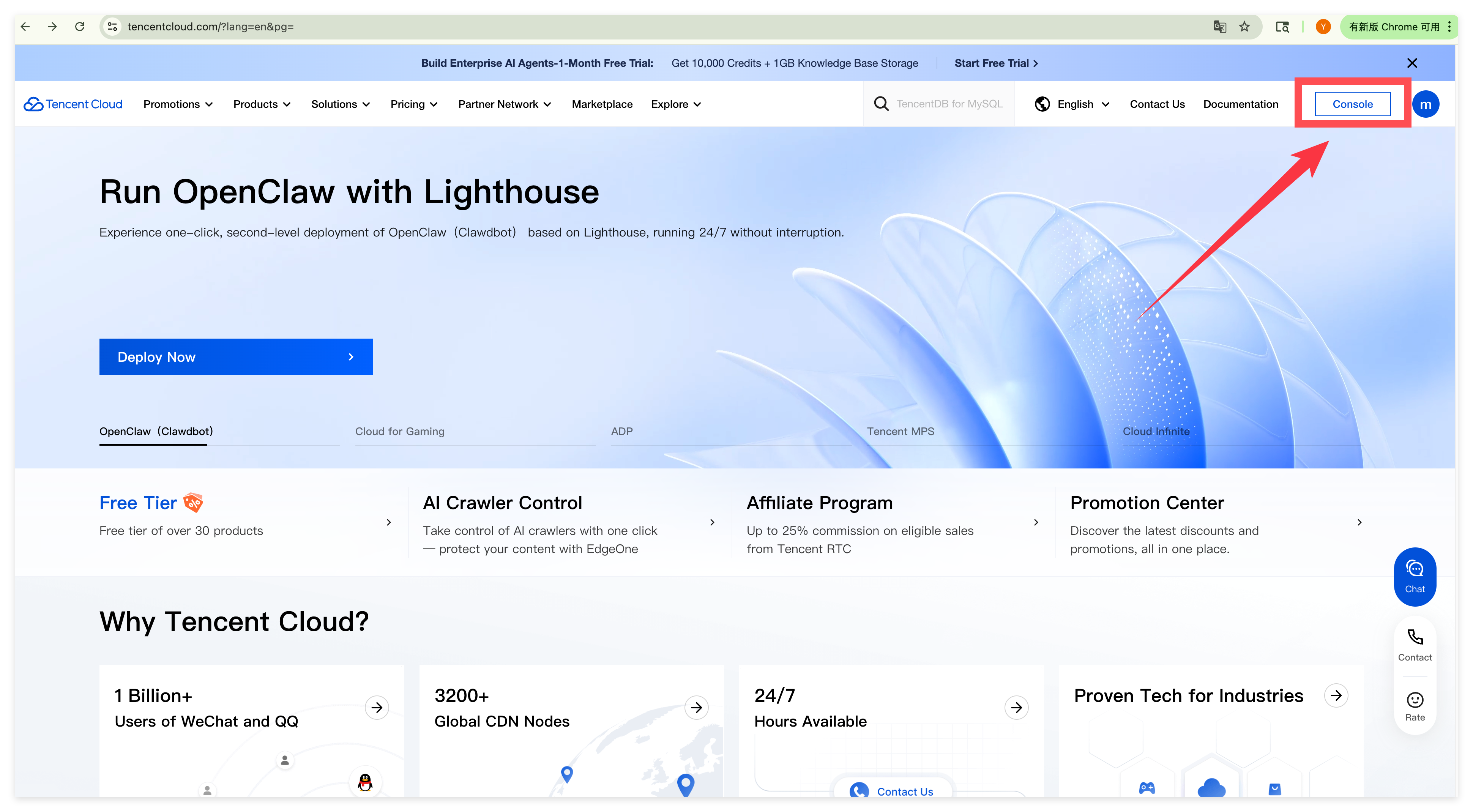
1.Log in and enter the Console.
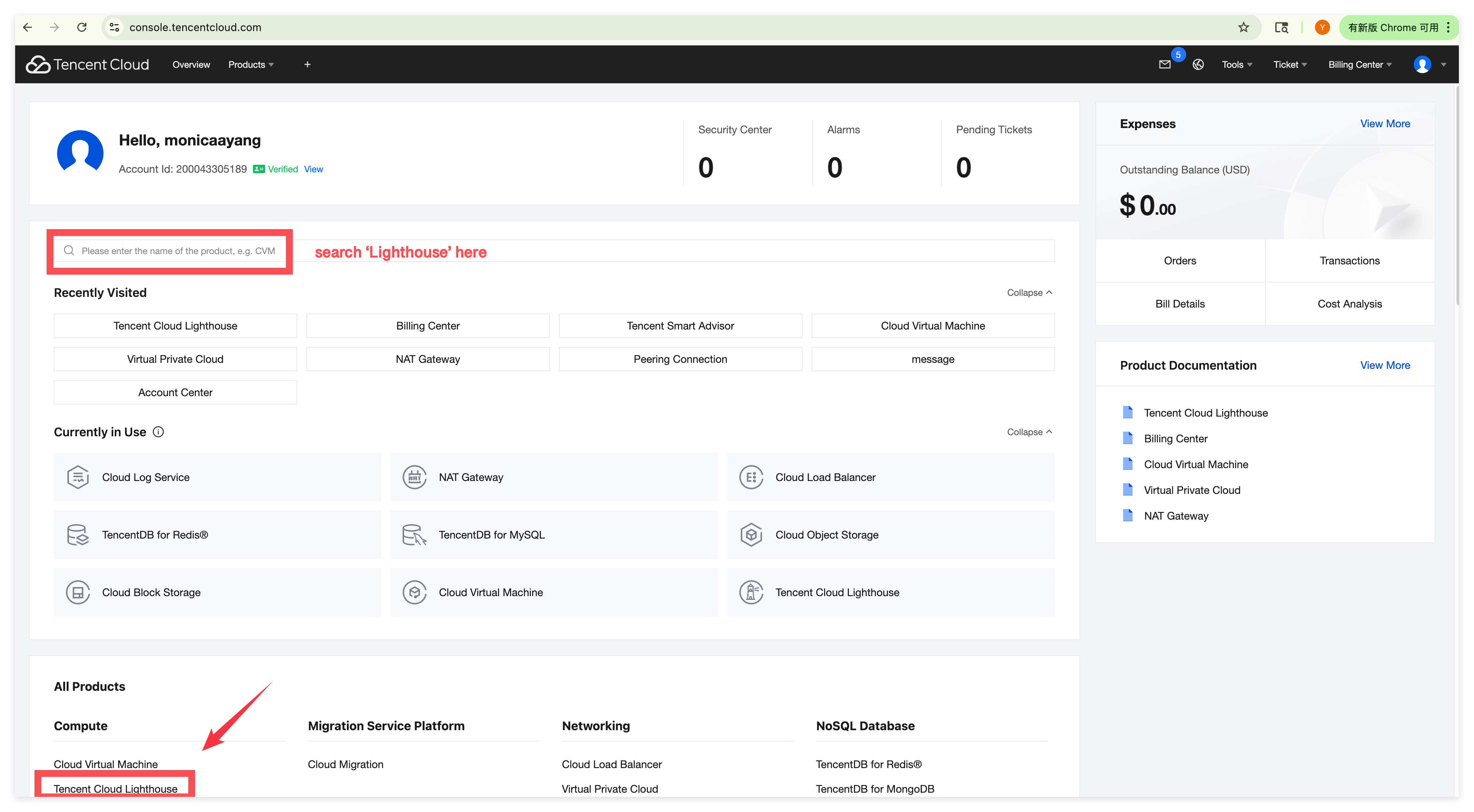
2.Locate "Tencent Cloud Lighthouse".
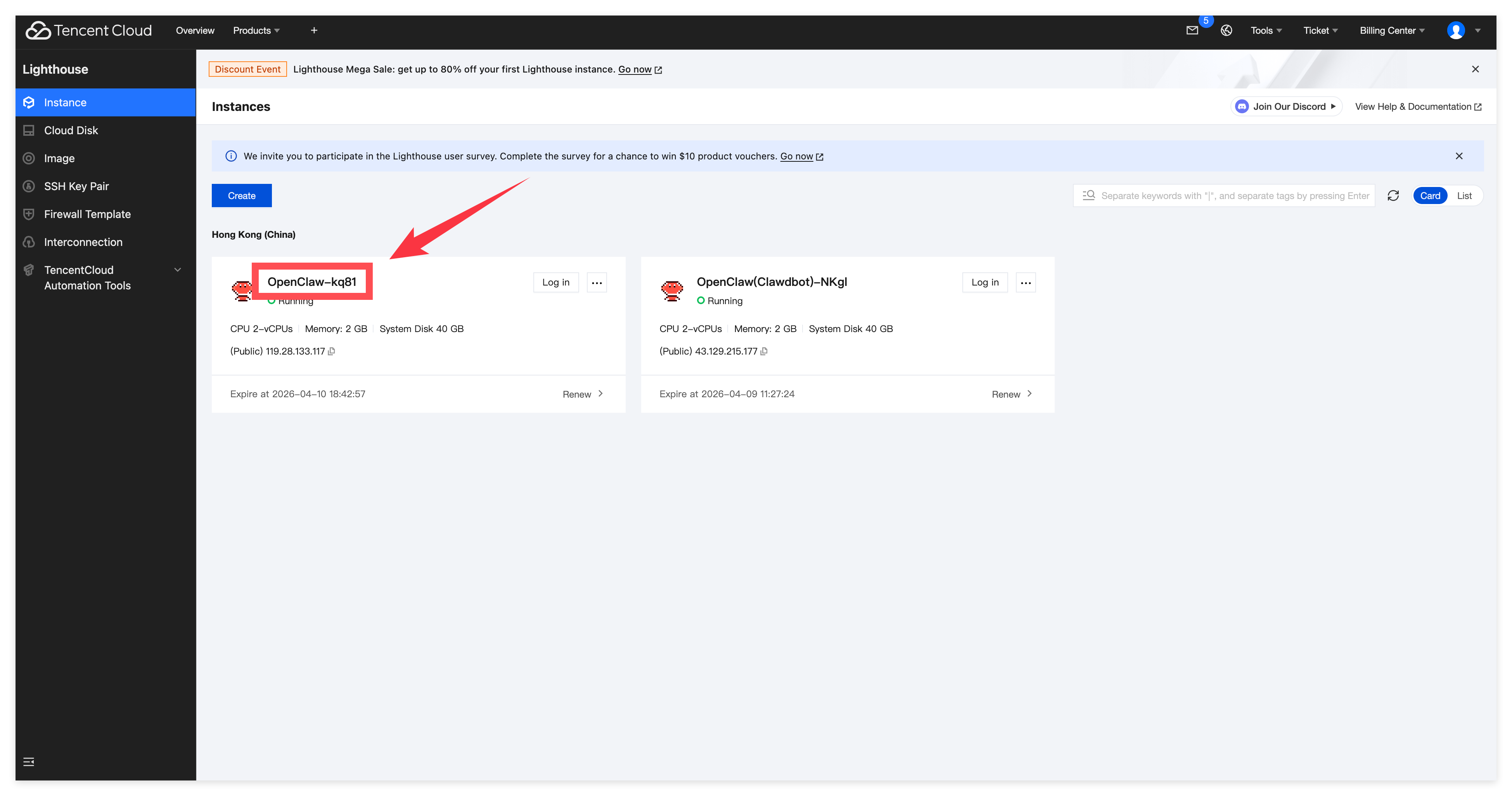
3.Find the Instance you just purchased.
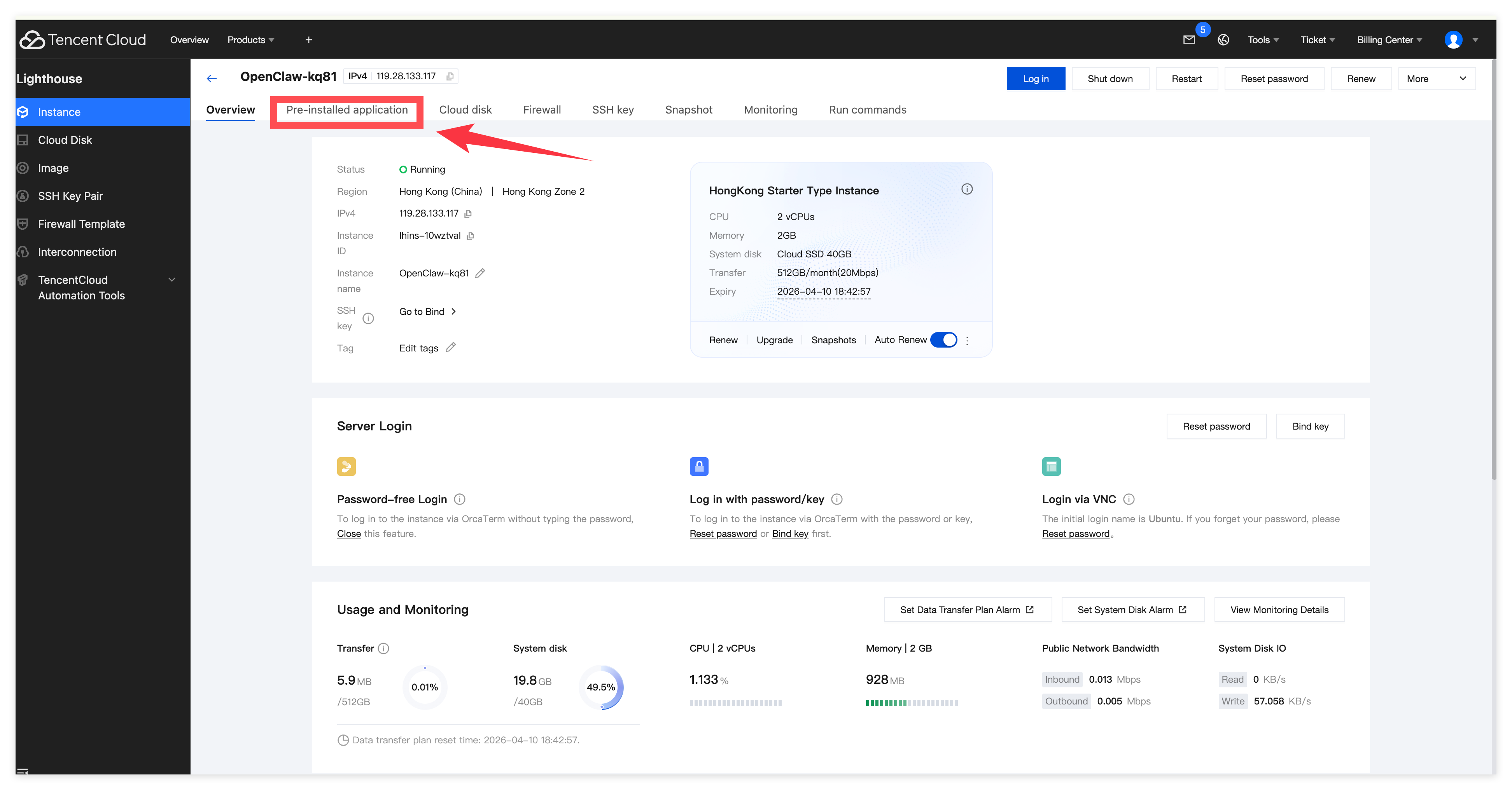
4.Go to the "Pre-installed application" tab.
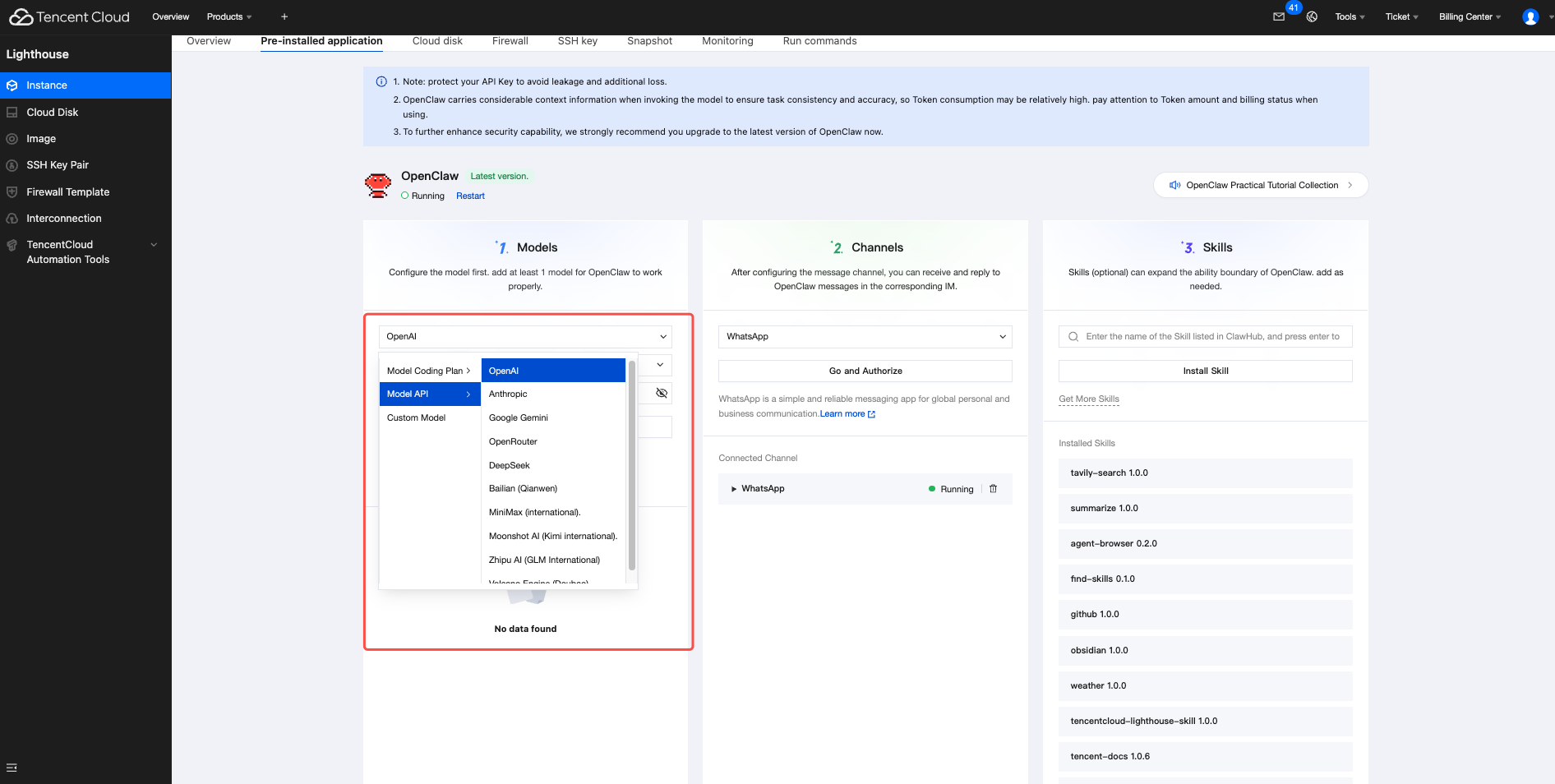
5.Choose a suitable model/existing API
The Models list only displays models that are available for use in this region:
due to access or service restrictions on some models in specific regions, the system will not display models that are not currently supported in the current region.
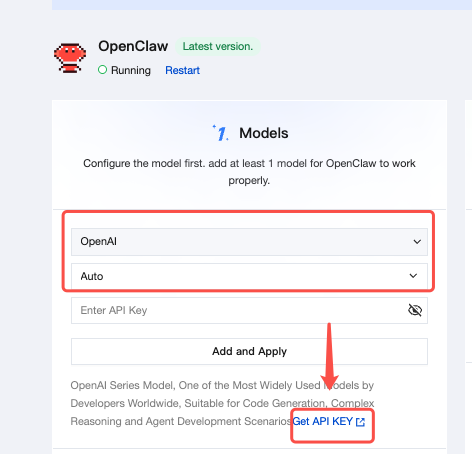
If this is your first time using this service, after selecting a suitable model, click "Get API KEY" below to purchase the model's credit limit and obtain the key.
Step 2: Integrating with QQ
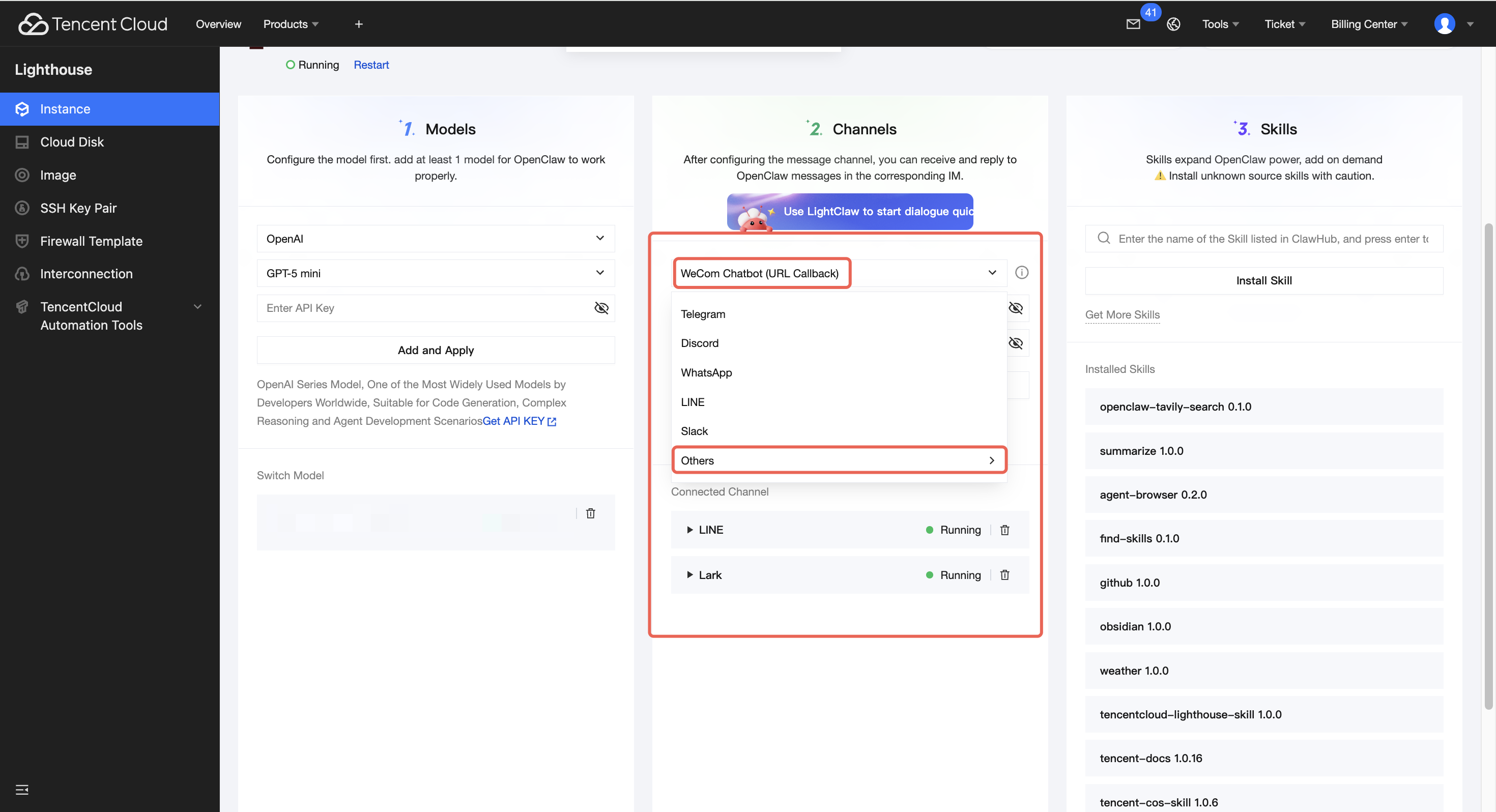
1.In the application channel settings, select QQ
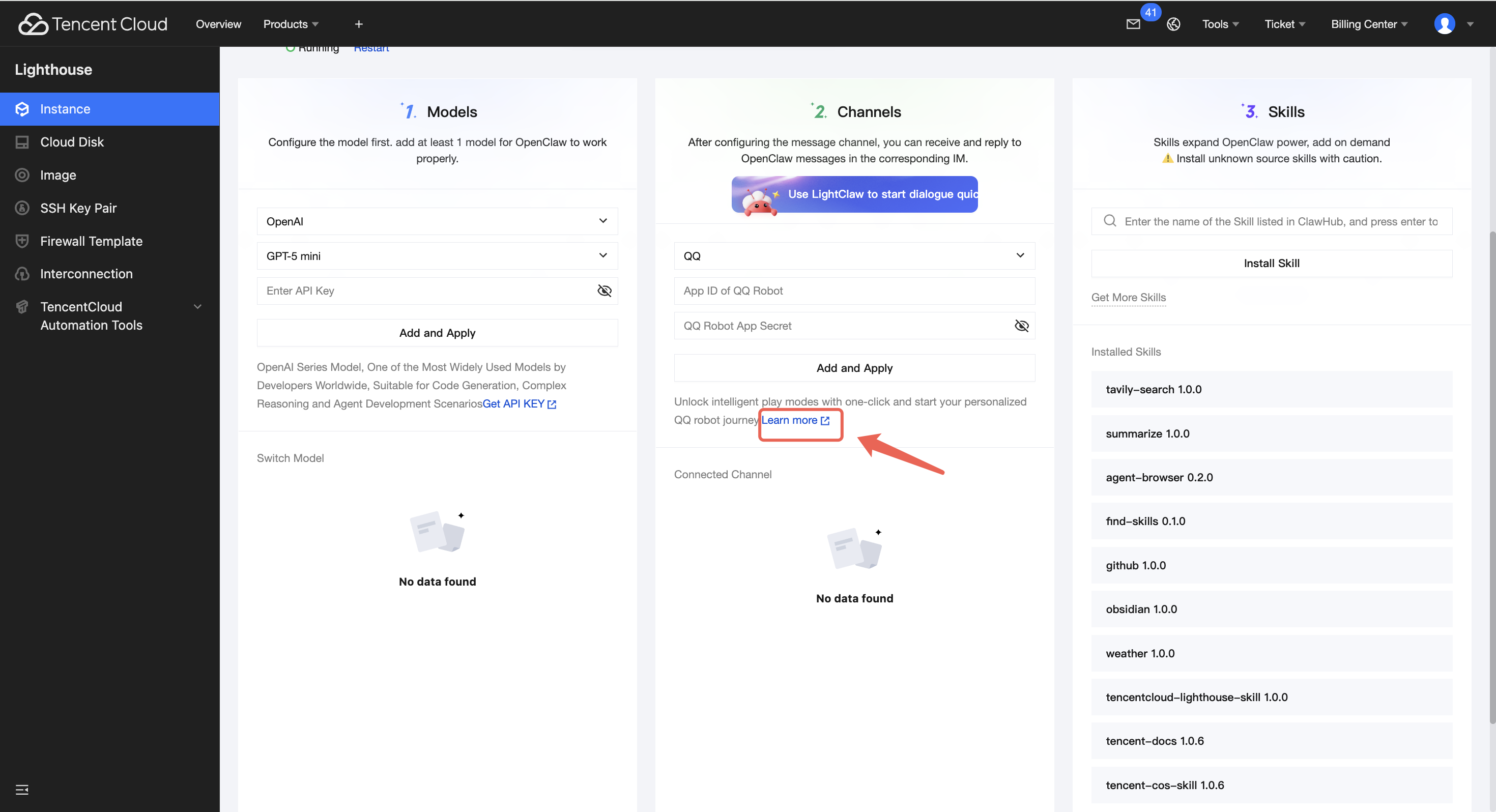
2.Click Learn More
3.Register on the QQ Open Platform.
Go to the official website of Tencent QQ Open Platform. You can scan the QR code in the image with your mobile QQ app to register/log in.
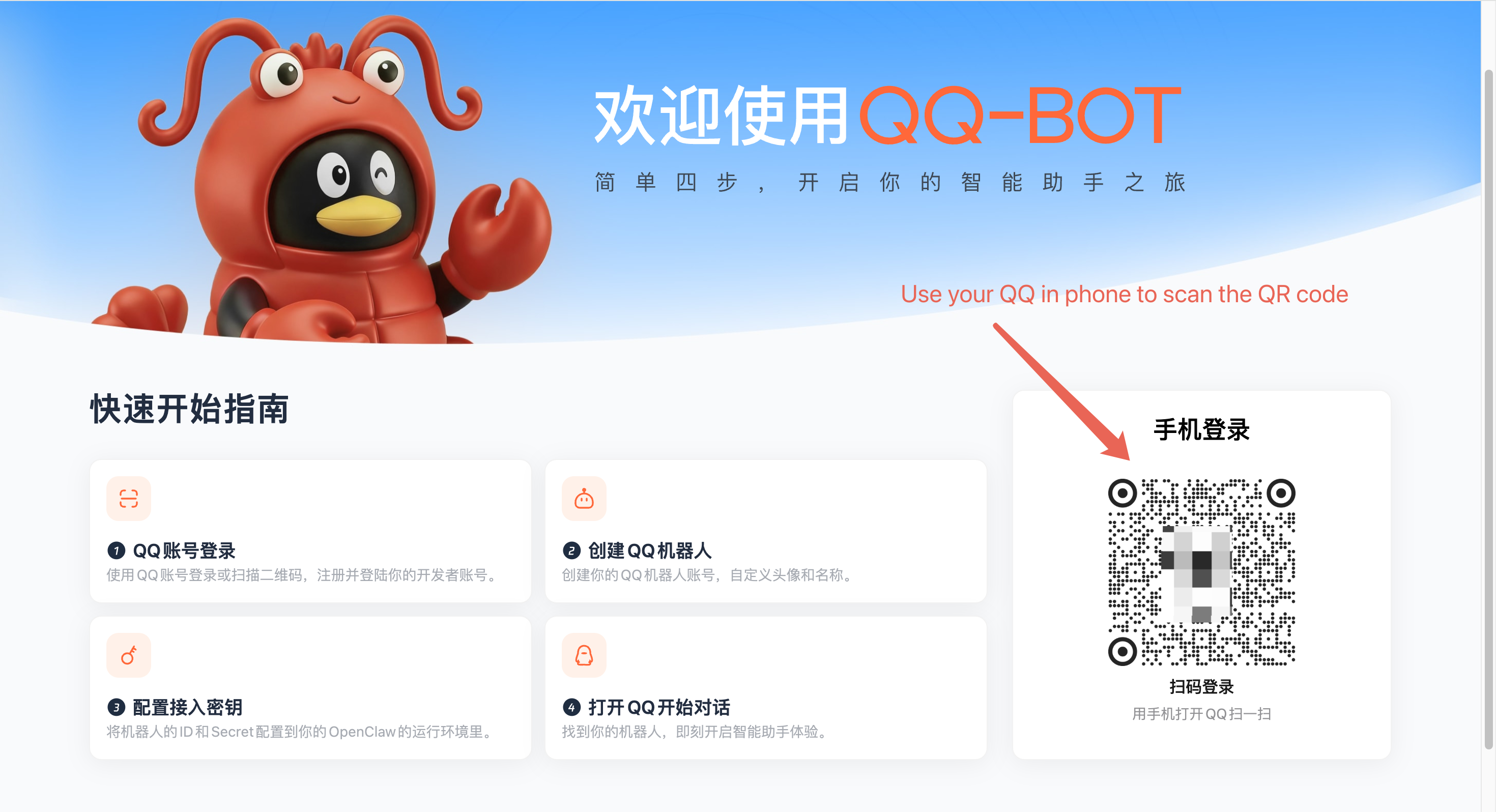
Note: If you have not yet registered for the QQ Open Platform, after scanning the QR code, the system will automatically complete the QQ Open Platform registration process and bind the QQ account you used to scan the QR code to the platform account.
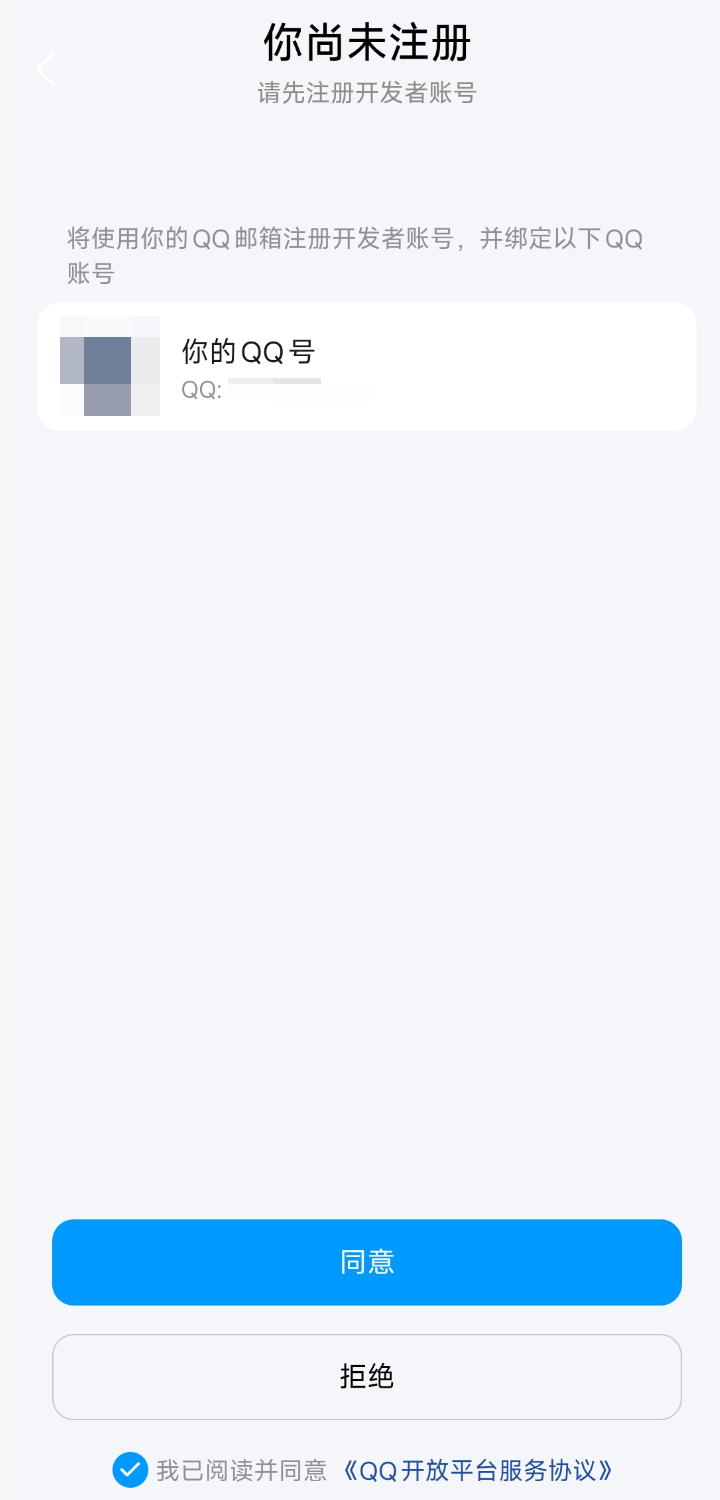
After scanning the QR code with your mobile QQ app and selecting "Agree," you will complete the registration and be taken to the QQ robot configuration page.
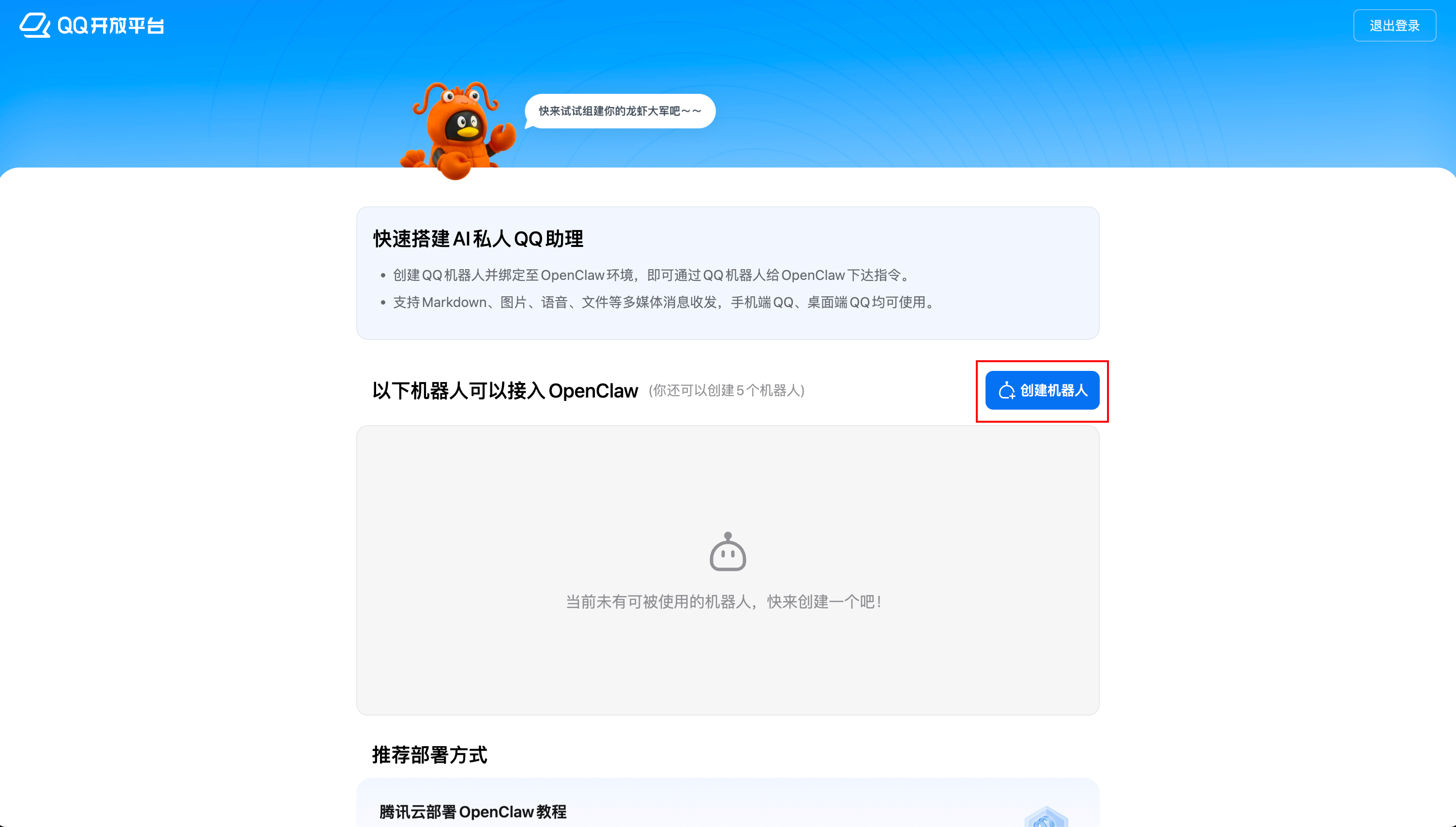
4.Creating a QQBot Robot
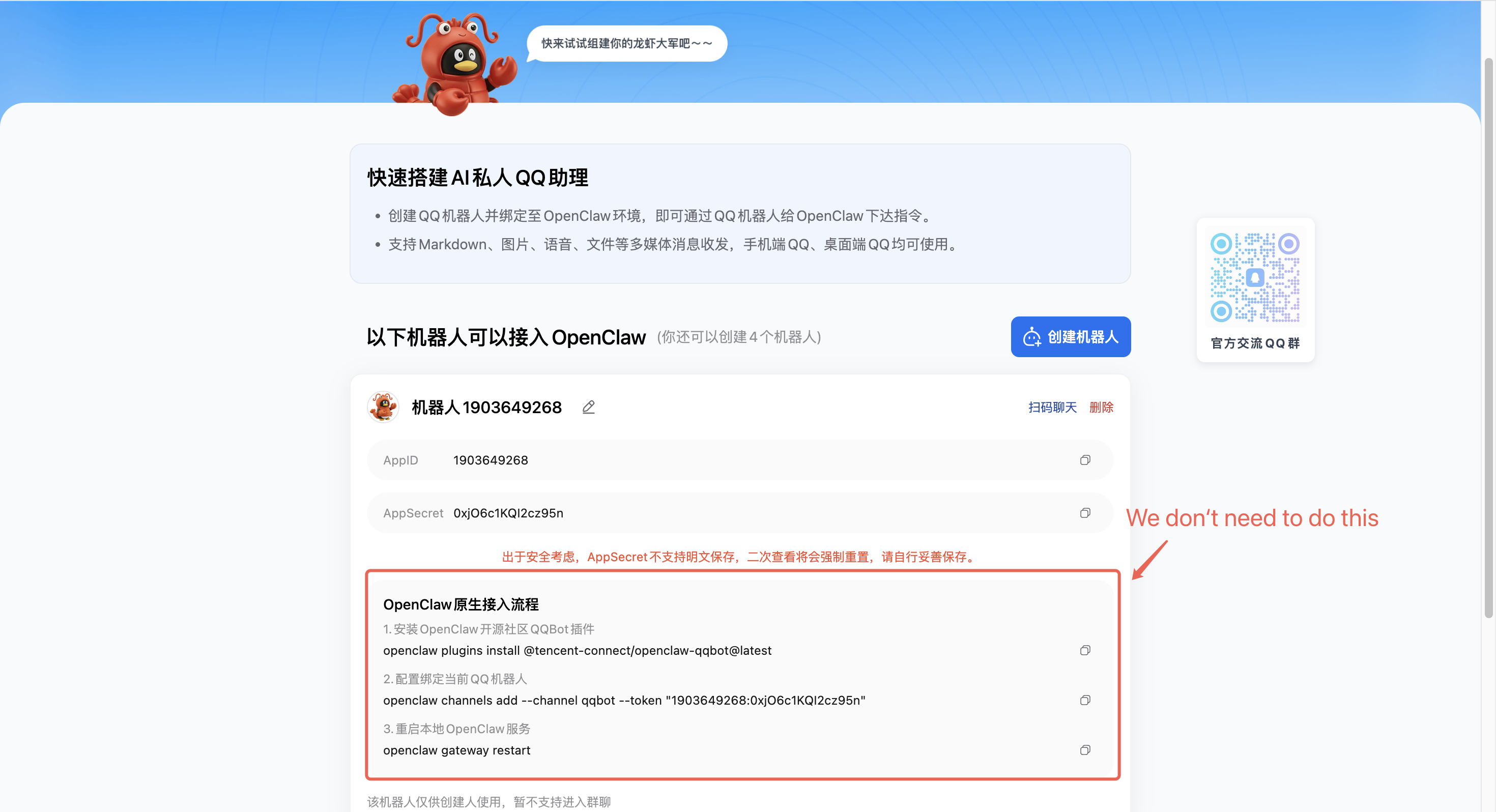
On the QQ Robot page of the QQ Open Platform, you can click "Create Robot" to directly create a new QQ robot.
After the robot is created, find the "AppID" and "AppSecret" parameters on the page, and click the "Copy" button on the right to save them to your personal notepad or memo (please keep them safe and do not disclose them, pay attention to data security), as they will be needed in subsequent steps.
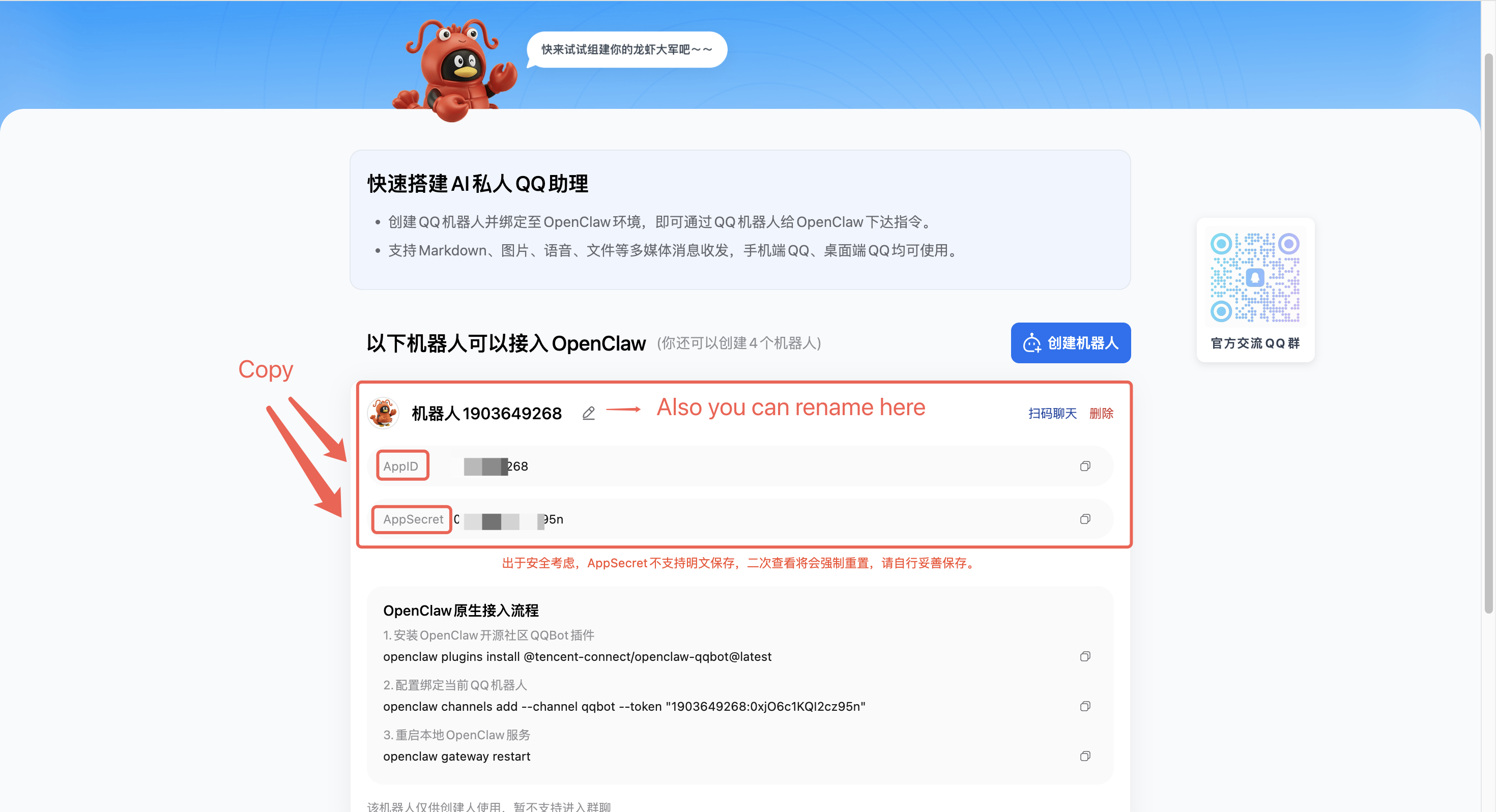
Note: If you are using the Tencent Light Cloud OpenClaw application template, you do not need to execute the three command lines shown in the "OpenClaw Native Access Process" on the robot management page.
- Back in the QQ app, you'll see that the newly created QQ bot has been added to your message list and will send its first message.
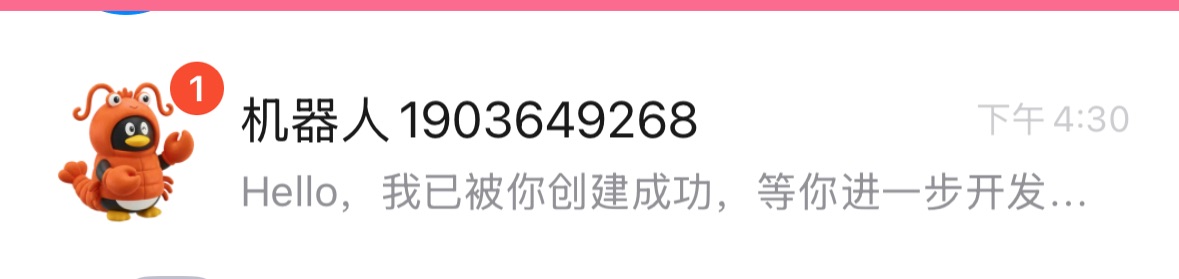
At this point, you will not be able to interact with the bot normally; you will be prompted with "This bot has gone to Mars, please try again later," because the QQ bot has not yet integrated with the previously deployed OpenClaw application. You need to continue with the following steps to configure the QQ bot's AppID and AppSecret for the OpenClaw application.
The next step is to configure the model and channel (i.e., channel, such as QQ) for the already deployed OpenClaw.
6.Channel Configuration (Configuring QQ Robot App ID and App Secret)
Go to the "Application Management" tab. In the "Channel Configuration" input box, select "QQ" and enter the QQ Robot App ID and App Secret obtained in the previous steps. Click "Add," then "Apply," and confirm the operation. After waiting for several tens of seconds, the page will display "Saved Successfully," indicating that the configuration is complete.
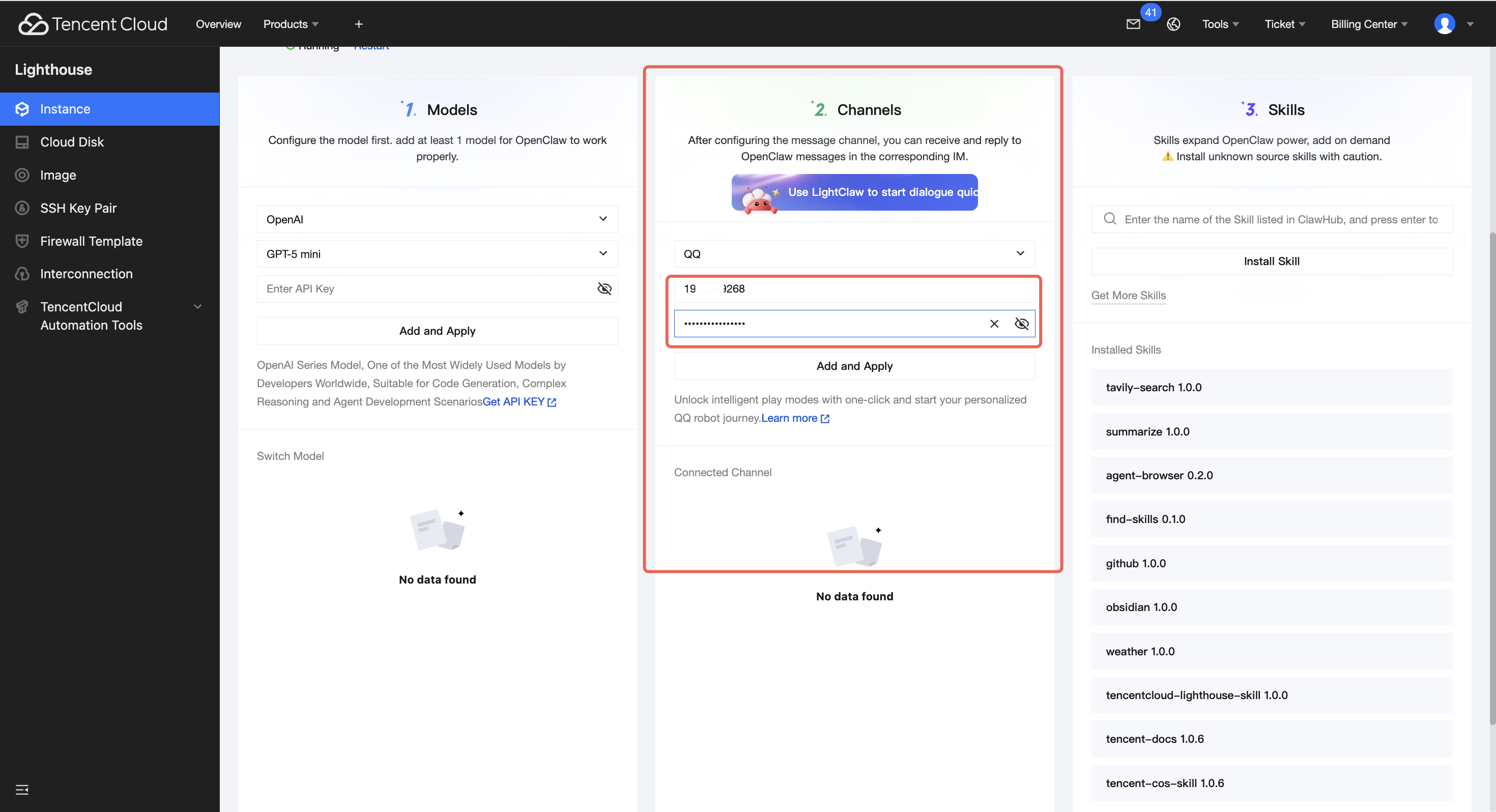
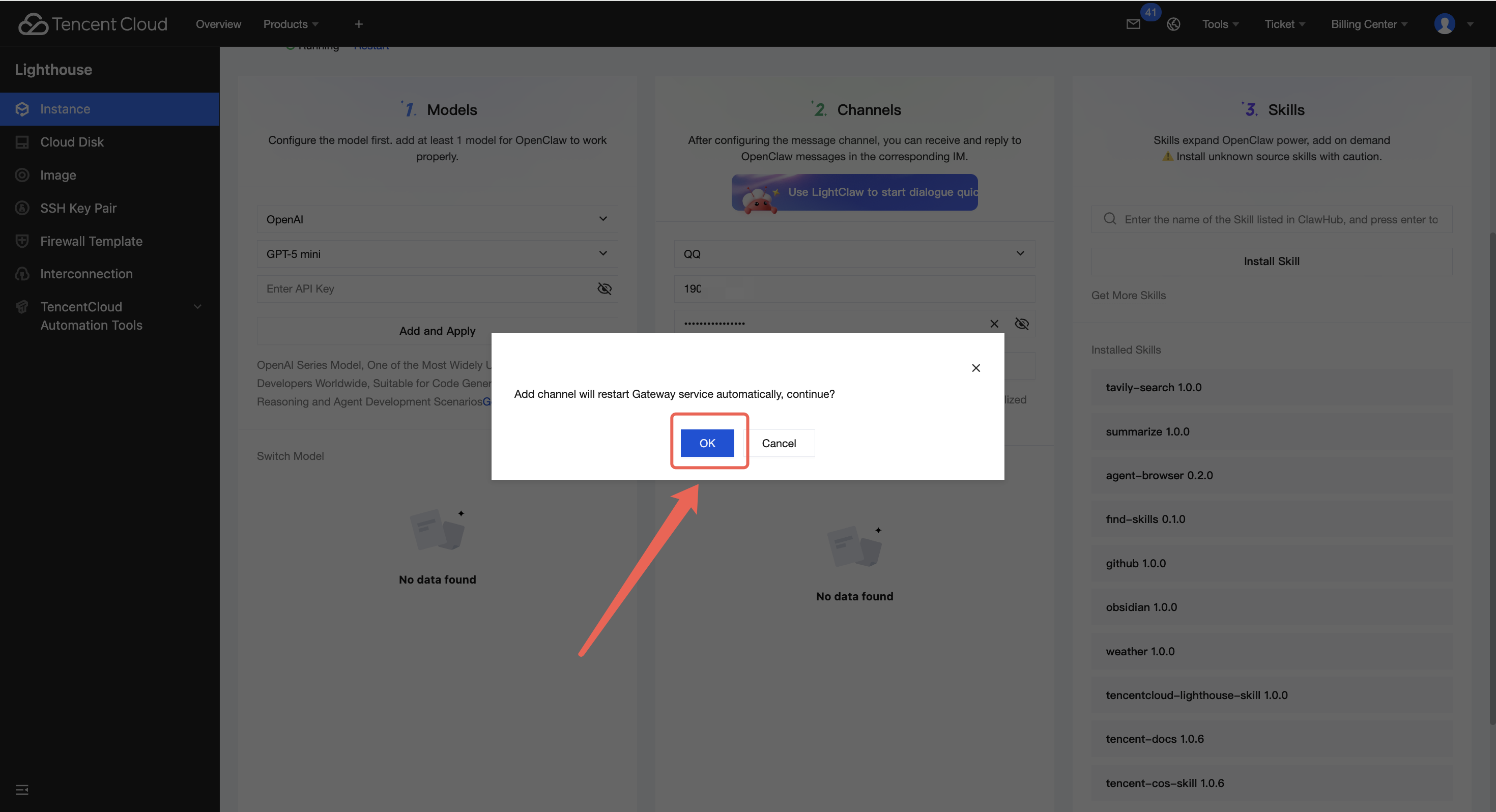
Note: OpenClaw supports configuring multiple channels on the same server, such as simultaneously connecting QQ Robot and Lark Robot. Therefore, if the server currently being configured has already connected other channels, you can continue to add more channels.
Interacting with the QQ Robot in QQ
After configuring the QQ Robot's App ID and App Secret, you can try chatting one-on-one with the QQ Robot that has integrated OpenClaw within the QQ software. If the QQ Robot can converse in an AI-driven manner, it means you have successfully integrated the OpenClaw application with the QQ Robot.
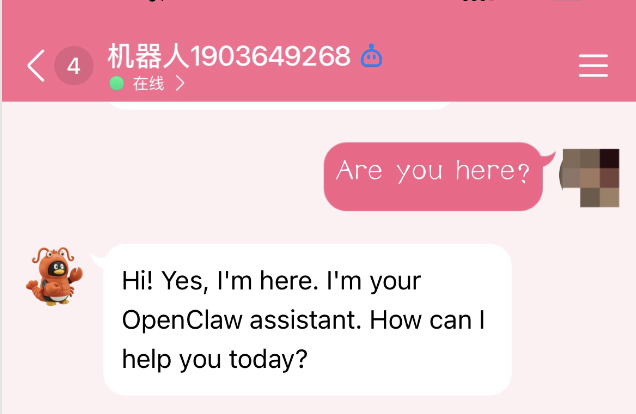
Note: It is not recommended to add QQ bots to QQ group chats for conversational interaction at this time.
Supported Message Types
After integrating OpenClaw with QQ based on the previous steps, the QQ bot not only supports basic text message receiving and replying, but also supports more message types as shown below:
QQ Bot Supported Message Types
| Feature | Supported |
|---|---|
| Receive text messages | ✅ Supported |
| Receive images | ✅ Supported |
| Receive files | ✅ Supported |
| Reply with text messages | ✅ Supported |
| Reply with images | ✅ Supported |
| Reply content supports Markdown format | ✅ Supported |
| Proactive messaging (e.g., scheduled reminders) | ✅ Supported |
| Voice messages | ✅ Supported |
| Reply with files | ✅ Supported |
| Message quoting (history reference) | ❌ Not supported |
Note:
The table above only represents the types of messages that the QQ bot can send and receive.
Whether tasks like image or file processing can actually be completed depends on whether the configured model supports those capabilities.
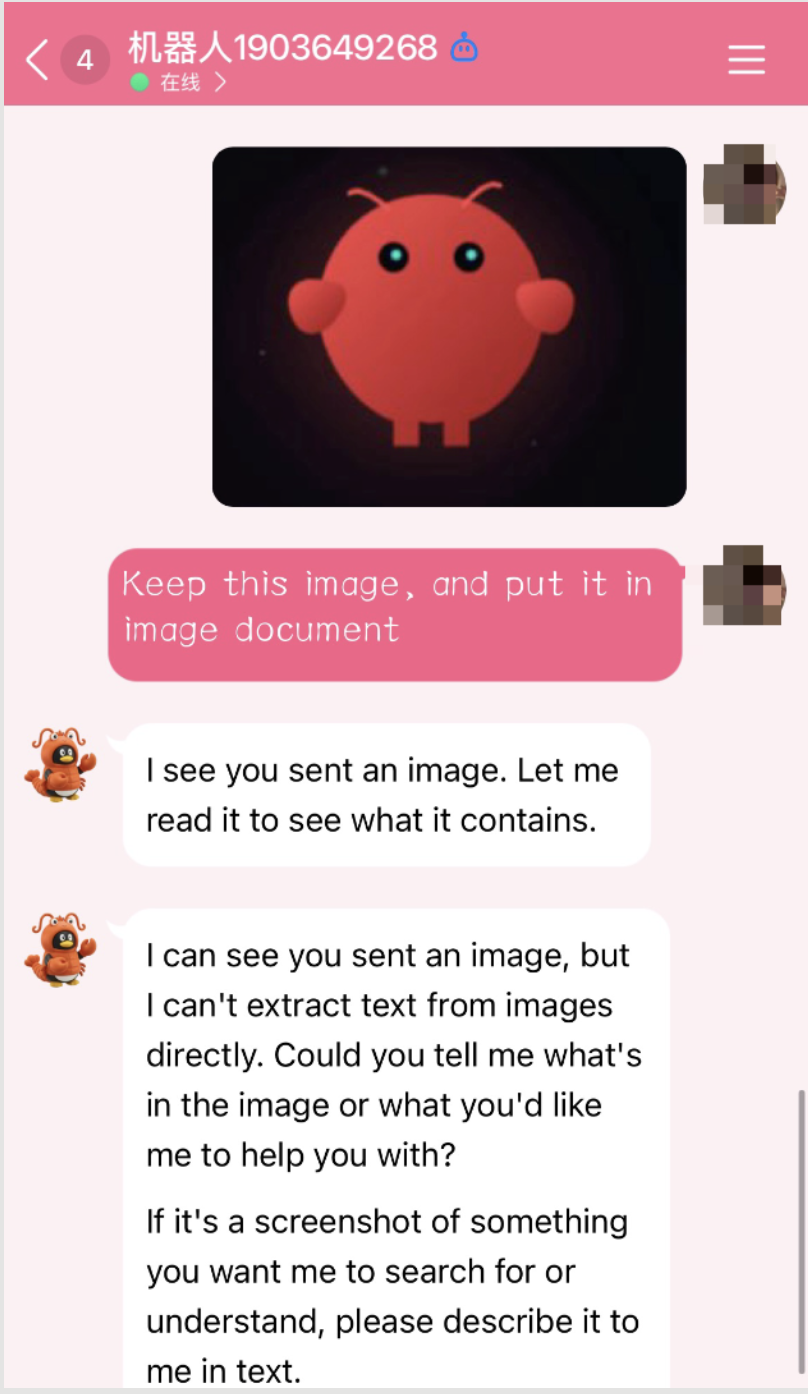
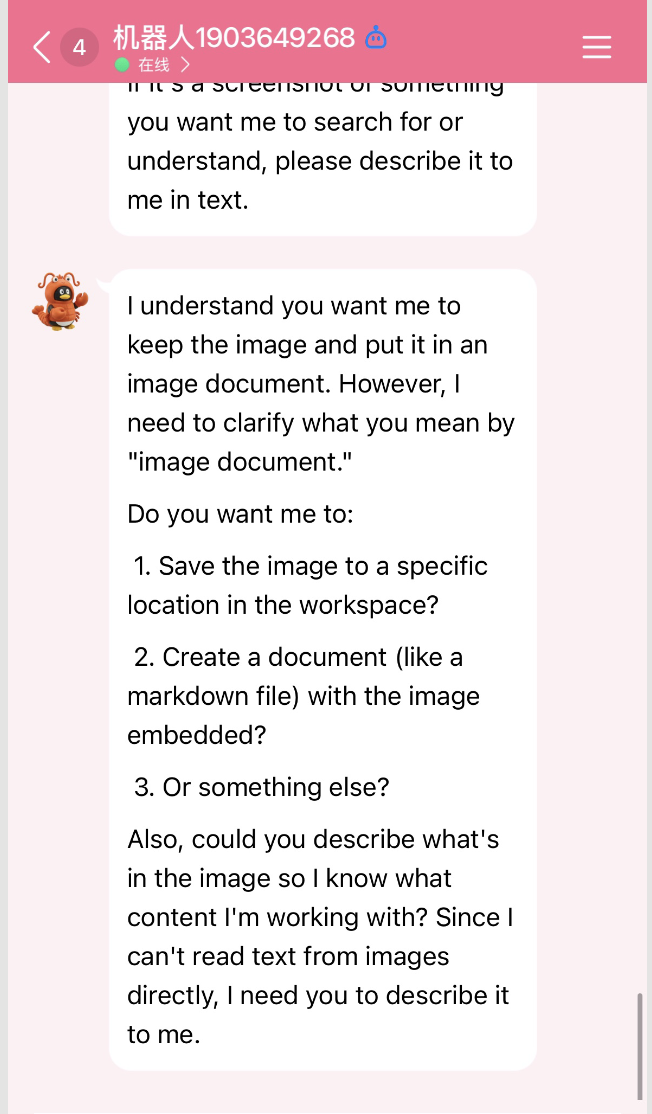
Example: Receiving Images and Files
The QQ bot can receive images and files.
Note:
QQ only acts as a communication channel.
Whether the task can be completed depends on the model capability.
For example, you need to configure a model that supports image understanding if you want OpenClaw to analyze images received via QQ.
Example: Sending Images and Files
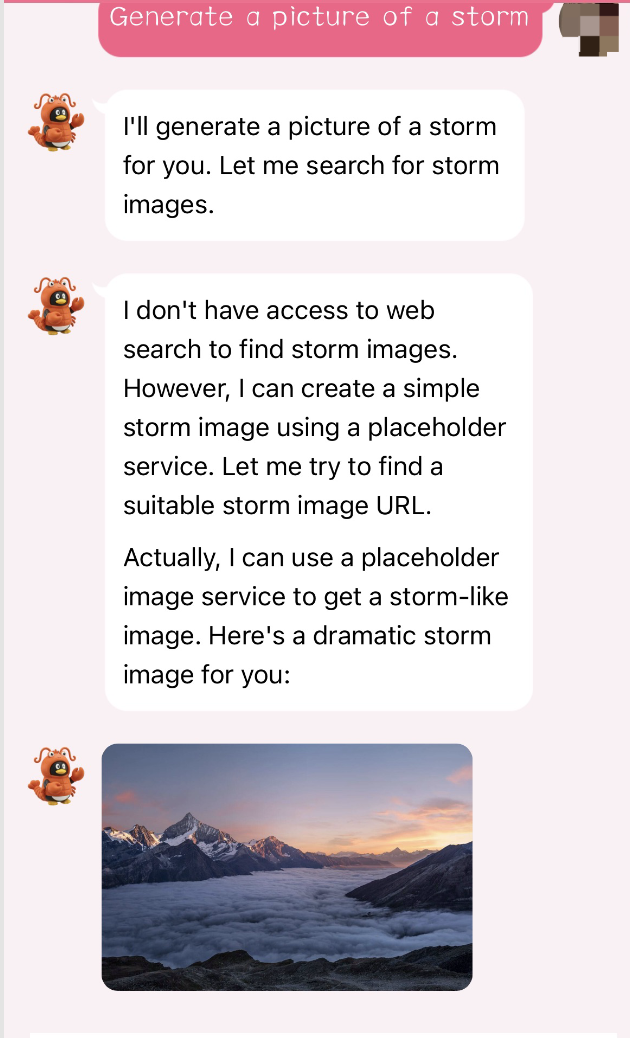
The QQ bot can also send images and files.
Note:
QQ only acts as a communication channel.
Whether the task can be completed depends on the model capability.
For example, you need to configure a model that supports image generation if you want OpenClaw to generate and send images via QQ.
Common Issues and Solutions
Error:
"My 'soul' is offline. Please check your host service deployment environment."
Possible Causes:
- The QQ bot App ID and App Secret were not added to OpenClaw.
- Incorrect QQ bot App ID or App Secret was configured.
Solution:
- Follow the tutorial steps and ensure correct configuration.
Issue:
The bot does not respond after completing all setup steps
Possible Cause:
- Model configuration issue, causing no response from the QQ bot.
Solution:
- Configure the Model API Key in the Lighthouse console:
- Navigate to: Application Management → Model Configuration
- Refer to: OpenClaw one-click deployment guide (Model API Key configuration)
Verify Model Configuration
If you are unsure whether the model configuration is effective:
- Log in to your Lighthouse server
- Use the OpenClaw TUI tool to test interaction
Refer to:
OpenClaw deployment guide → Interact with OpenClaw via TUI
Welcome to join the discussion!
A Discord has been created, and everyone is welcome to join and explore advanced ways to use Moltbot (Clawdbot) together!

🚀 Developer Community & Support
1️⃣ OpenClaw Developer Community
Unlock advanced tips on Discord
Click to join the community
Note: After joining, you can get the latest plugin templates and deployment playbooks
2️⃣ Dedicated Support
Join WhatsApp / WeCom for dedicated technical support
| Channel | Scan / Click to join |
|---|---|
| WhatsApp Channel |

|
| WeCom (Enterprise WeChat) |

|
Learn more on the official page: Tencent Cloud OpenClaw