Note:
The Workflows section of the MPS console has been replaced with Schemes, which offers easier and more flexible settings. To configure a scheme, go to Schemes.
Overview
After you set up a workflow, media files uploaded to the specified bucket and directory will be processed automatically, and the results will be uploaded to the specified bucket and directory. Workflows can include tasks such as transcoding, screenshot taking, animated screenshot generating, moderation, content recognition, content analysis, and watermarking.
Creating a Workflow
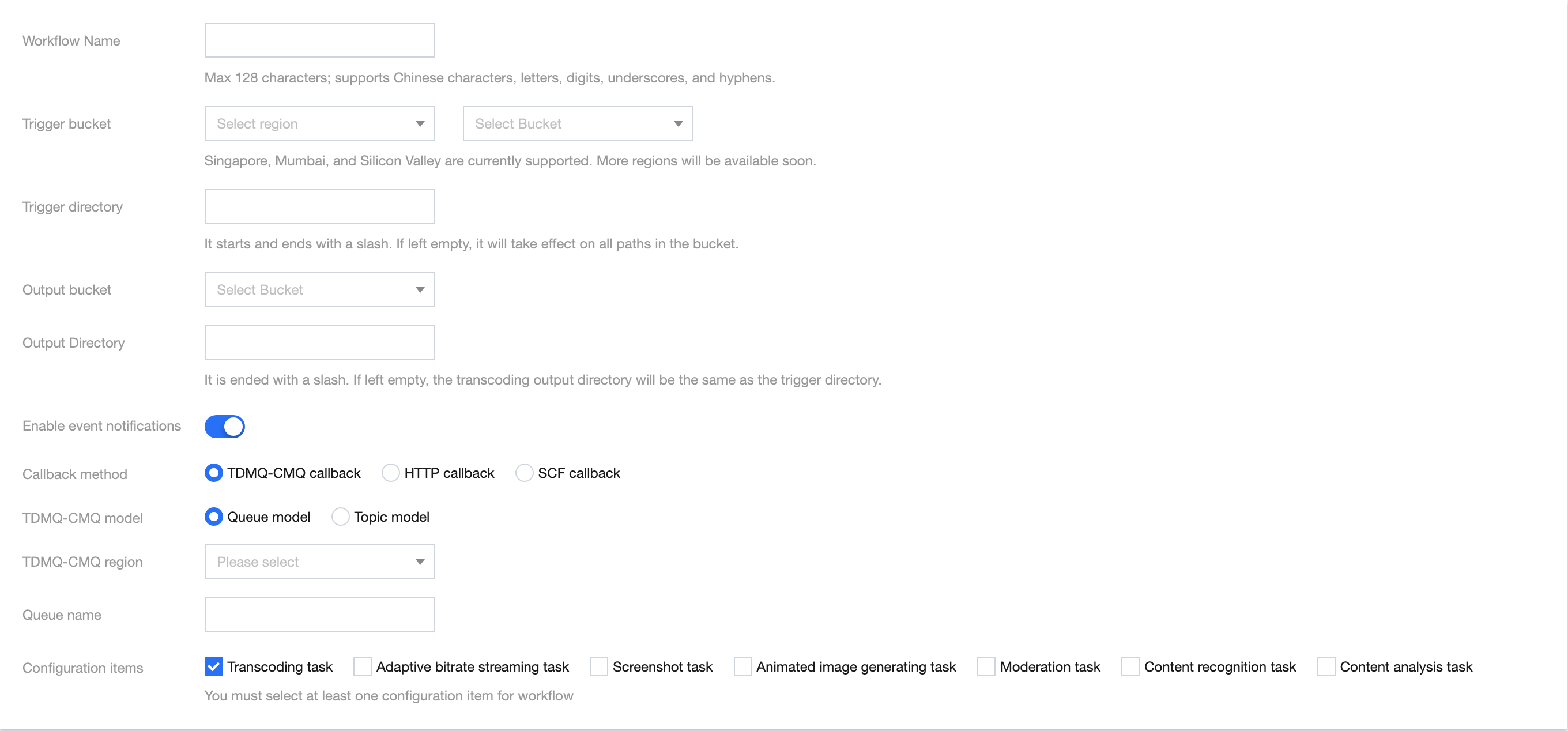
1. Log in to the MPS console and select Workflows on the left sidebar. 2. Click Create Workflow to enter the workflow creation page and set the workflow name, trigger bucket, trigger directory, output bucket, output directory, event notifications and tasks.
The table below lists the information needed to configure a workflow.
|
Workflow name | Yes | Max 128 characters; supports Chinese characters, letters, digits, underscores, and hyphens. Example: "MPS" |
Trigger bucket | Yes | Select a bucket created under the current `APPID`. After the workflow is enabled, videos uploaded to this bucket will be processed automatically. |
Trigger directory | No | A string that ends with (/). If it is left empty, the workflow will be applied to all directories under the selected trigger bucket. |
Output bucket | Yes | By default, the output bucket is the same as the trigger bucket. You can also select a bucket in the same region under the same `APPID`. After a workflow is executed, the processed videos will be stored in this bucket. |
Output directory | No | A string that ends with (/). If it is left empty, the output directory will be the same as the trigger directory. |
Event notifications | No | Disabled by default. For detailed instructions on how to configure event notifications, see callback configuration below. To enable TDMQ-CMQ event notifications, you need to activate Tencent Distributed Message Queue and create a model. After TDMQ-CMQ event notifications are enabled, the specified message queue will receive notifications about video processing events. |
Configuration items | Yes | From transcoding, screenshot taking, animated image generation, moderation, content recognition, and content analysis, select at least one task for configuration. For details, see task configuration below. |
|
TDMQ-CMQ callbacks | TDMQ-CMQ model: Select “Queue model”. or “Topic model”. TDMQ-CMQ region: Select Guangzhou, Shanghai, Beijing, Shanghai Finance, Shenzhen Finance, Hong Kong (China), Chengdu, North America, or west US. Queue name/Topic name: Enter a custom name. |
HTTP callbacks | When calling the notification configuration API TaskNotifyConfig, set `NotifyType` to `URL` and `NotifyUrl` to the HTTP callback address. |
SCF callbacks | You can click Go to SCF console to configure a function in the SCF console. For detailed directions, see MPS Task Callback Notification.
SCF callback configuration applies to all workflows and is not saved specifically for the current workflow. |
Event Notifications
Receiving event notifications via CMQ
Event notifications are disabled by default. To receive notifications via CMQ, click the toggle next to Enable Event Notifications, select queue or topic model for CMQ Model, and set the model name and region. MPS event notifications will be sent to the specified queue or topic.
You can receive event notifications via CMQ only after you activate the CMQ service and create a queue or topic model. For more information, please see CMQ > Getting Started. Receiving event notifications via SCF
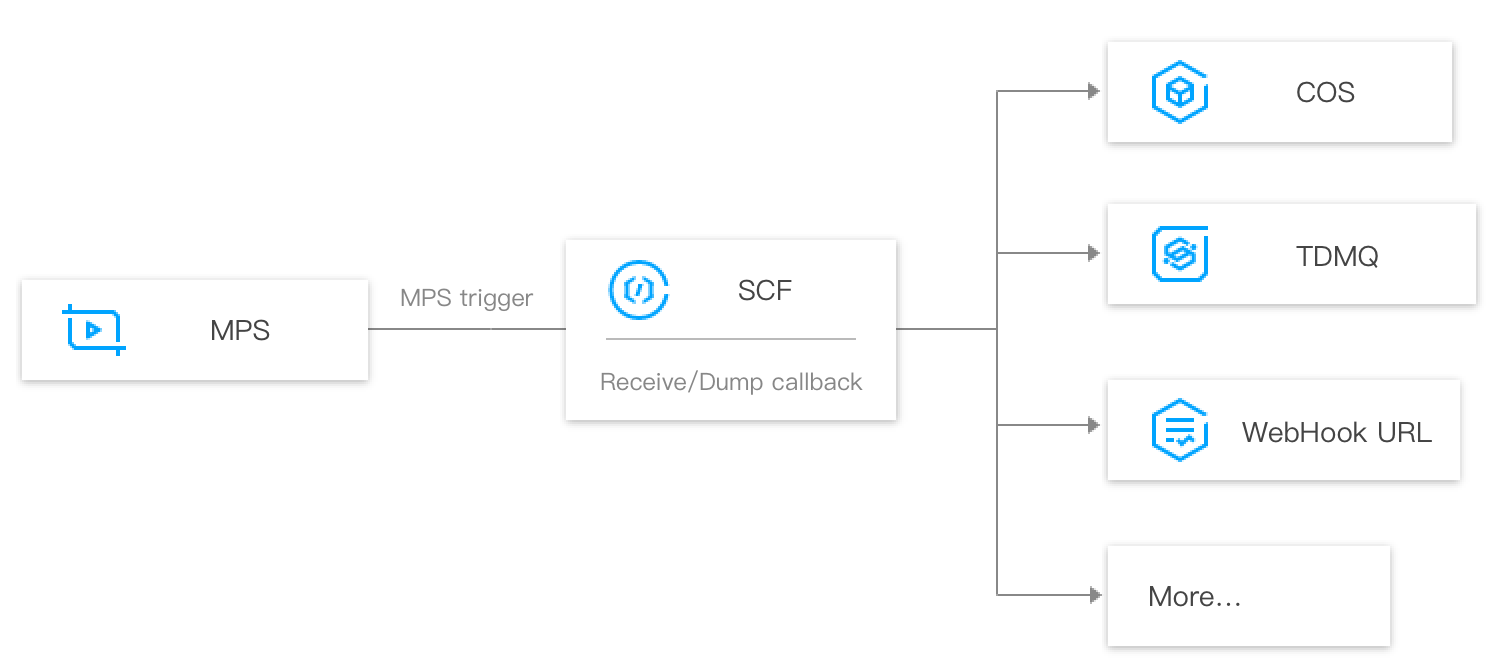
SCF allows quick handling of the event notifications generated by MPS. The figure below shows the data flow.
Events are pushed to SCF by the MPS trigger and are handled by serverless functions. Use cases
CLS can deliver the data in log topics to SCF via an MPS log trigger to enable operations such as notification sending, status monitoring, and alarm handling.
|
| Backing up the called back tasks of MPS to COS via SCF in a timely manner |
Video task callback notifications | Receiving MPS data messages in real time and sending the messages to users via WeCom or email. |
Managing Workflows
1. Log in to the MPS console and select Workflows on the left sidebar. 2. The workflow list displays information including workflow name, trigger bucket, region, trigger directory, creation time, and status. You can sort workflows by creation time, search for a workflow by name, and view, edit, or delete a workflow.
Enable a workflow
Workflows are disabled by default. To enable a workflow, click the toggle in the Enable column.
After a workflow is enabled, it will be automatically executed for videos uploaded to the trigger bucket.
Disable a workflow
To disable a workflow, click the toggle in the Enable column.
After a workflow is disabled, it will no longer be automatically executed on videos uploaded to the trigger bucket.
Edit a workflow
Click Edit in the Operation column of the target workflow to modify its name, trigger bucket, trigger directory, output bucket, output directory, event notification settings, and tasks.
You cannot edit or delete an enabled workflow.
Delete a workflow
Click Delete in the Operation column of the target workflow to delete it.
After a workflow is deleted, it will no longer be automatically executed on videos uploaded to the trigger bucket.
You cannot edit or delete an enabled workflow.