Viewing and Managing Tickets
When you need to view submitted tickets and pending tickets, you can check them through ticket management, further process the tickets, and view ticket details.
Prerequisites
SQL changes, data import, data export, or permission request tickets have been submitted. For detailed steps, see Data Change, Data Import, Data Export, and Apply For Instance Permissions.
Directions
1. Log in to the DMC console.
2. In the top menu bar, select Ticket Management.
3. View the list of submitted tickets and pending tickets.
At the top of the page, click Pending Tickets to view only the tickets requiring the current user’s action.
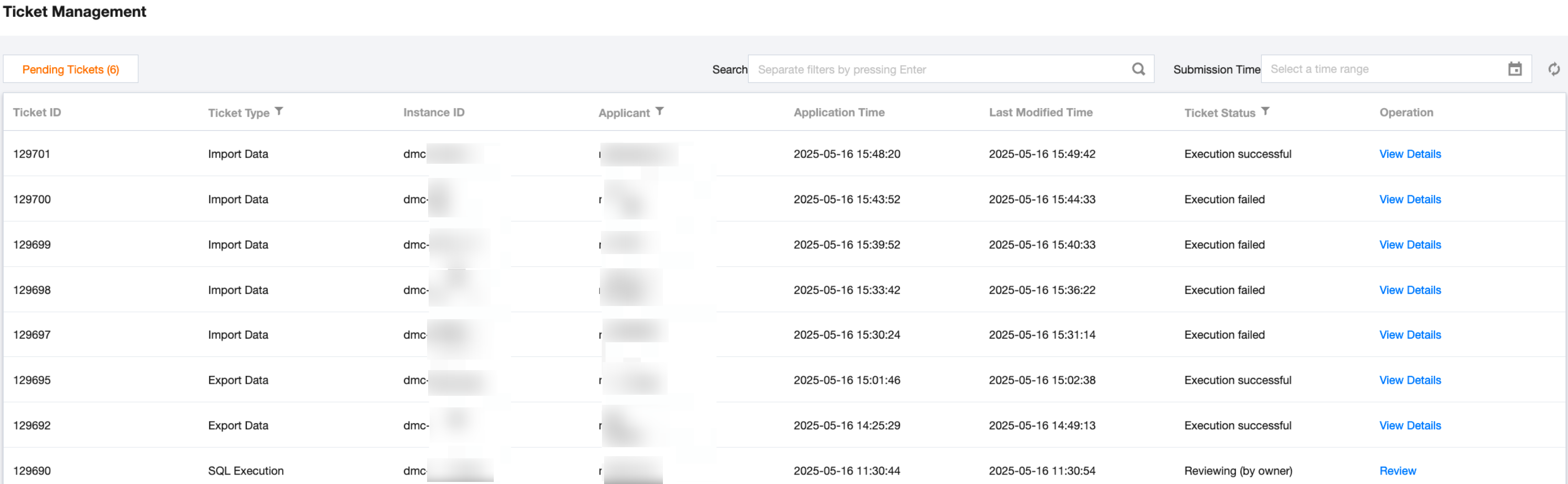
The main parameters are described as follows:
Parameter | Description |
Ticket Type | Submitted ticket types, including SQL changes, data imports, data exports, or permission requests. |
Ticket Status | Includes the following statuses: Initializing: Indicates that the ticket is being generated. Reviewing: Indicates that the ticket is under approval; wait patiently. Approved: Indicates that the approval process is complete, and the next steps can be taken. Rejected: Indicates that the submitted ticket request has been rejected. Click View Details in the operation column to check the rejection reason. Checking SQL: This status applies only to SQL change ticket types, indicating that after the ticket request is submitted, it has entered the preview and SQL checking phase. SQL check passed: This status applies only to SQL change ticket types, indicating that the SQL execution part requires improvement. Click View Details in the corresponding operation column of the ticket to view the ticket details and check information. Rehearsal execution failed: This status applies only to SQL change ticket types, indicating that the pre-execution of SQL has failed. Click Modify in the corresponding operation column of the ticket to view the ticket details and failure information. SQL check failed: This status applies only to SQL change ticket types, indicating that there are syntax errors in the executed SQL. Click Modify in the corresponding operation column of the ticket to view the ticket details and error information. To be executed: Indicates that the ticket has been approved. If the execution method is selected as Auto-execute after approval when submitting the ticket, wait briefly for the status to change to in progress. If the execution method is selected as Manually execute after approval when submitting the ticket, click Execute in the corresponding operation column of the ticket. Executing: Indicates that SQL changes, data import, data export, or permission development are in progress. Wait briefly for the execution result. Execution successful: Indicates that the ticket has been executed successfully. Execution failed: Indicates that the ticket execution has failed. Click View Details in the corresponding operation column of the ticket to check the ticket details and execution results. Canceled: Indicates that the ticket has been closed. Other. |
Operation | Supported operations include: Approval: The operating user should have the role of instance DBA, instance owner, or administrator. For specific steps, see Approve Work Order. Modify: The operating user must be the one who submitted the ticket application. When the ticket status is pre-execution failed or SQL check failed, modifications are required. For specific steps, see Data Modification. Execution: The operating user should be the one who submitted the ticket application. If the execution mode is selected as Manual execution after approval during submission and the ticket status is To be executed, the user needs to proceed with the execution. View Details: Provides further insights into ticket details, operation history, ticket closure, SQL check results, approval progress, or execution results. |
Help and Support
Was this page helpful?
You can also Contact sales or Submit a Ticket for help.
Help us improve! Rate your documentation experience in 5 mins.
Feedback