Managing Instances
Overview
This document introduces instance management, resource management, and data management on dev machine instances in TI-ONE.
Instance Management
After you add an instance, a new instance record will be added to the dev machine list. On this page, you can view the instance name, billing mode, used resources, tags, status, running time, last editing time, and monitoring metrics and logs. You can also perform actions such as opening, stopping, editing, copying, and deleting dev machine instances.
Click the Monitoring and Logging tab to view the resource monitoring status and log details of a dev machine.
Monitoring metrics include CPU usage, memory usage, GPU usage, video memory usage, and system disk usage. System disk usage refers to the system disk usage of the Pod where the current dev machine instance is located when the node of the instance has a local data disk, or refers to the system disk usage of the node used by the dev machine instance when the node of the instance has no local data disk.
Click Open to access a dev machine instance. Currently, either Jupyter Notebook or VS Code is used to open a dev machine instance for online coding.
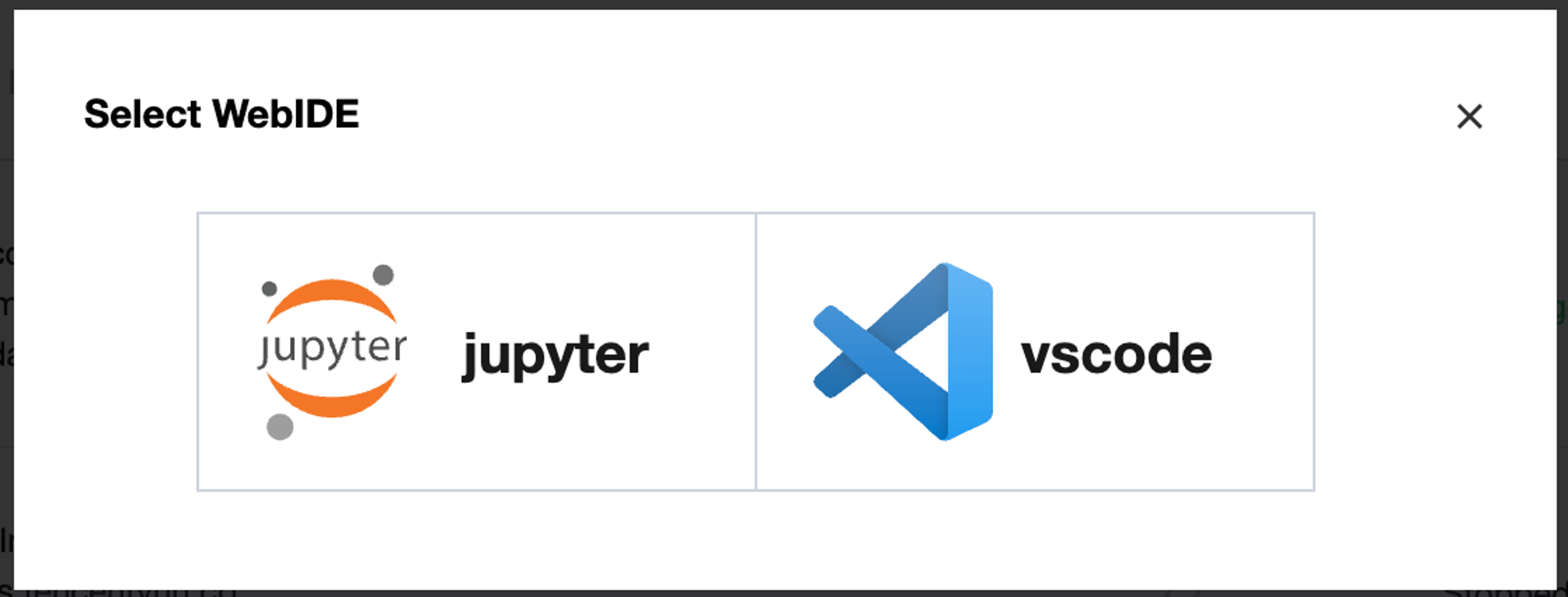
Click Stop to stop a dev machine instance. After the instance is stopped, the data in the non-mounted persistent storage path will be cleared. Please save data promptly, or move data to a persistent storage path or save an image before the instance is stopped.
Click Edit to edit some configurations.
Click Delete to destroy this instance record.
Click Copy to copy the instance configurations with one click and quickly create a dev machine.
Click Save Image to save a dev machine instance as an image. You can choose one of the kernel environments to save the instance to the Tencent Container Registry Personal Edition or Enterprise Edition. Please note that the saved image will not include files located under the paths of the mounted external storage devices, such as CBS, CFS, CFS Turbo, GooseFSx, and GooseFS, as well as files and data under the data directory. You can click the name of the dev machine instance to view its image-building record on the image-building record page.
Click Remote Connection to view the remote access address of a dev machine instance.
You can enable the Automatic Stop setting for an instance. After automatic stop is enabled, the instance will automatically stop when its running time exceeds the specified duration. Please note that stopped computing resources will not be charged, but charges will still apply for storage resources. The automatic stop duration range is 1 to 24 hours, and the value should be an integer. You can set the automatic stop time when adding a new instance. In the instance list, you can click the little clock icon next to the running duration to enable, disable, or reset the automatic stop time.
Resource Management
You can switch resource specifications in postpaid mode for dev machines in TI-ONE and adjust resources based on requirements to reduce usage costs. The following shows the operation procedure:
1. On the dev machine list page, select the instance for which you want to switch resources, and click Stop to release the current computing resources.
2. After the instance is stopped, click Edit to go to the settings page, where you can re-select resources and then click Confirm.
3. After resources are updated, click Start to restart the dev machine.
Notes
1. A pay-as-you-go instance is billed based on the selected resource configuration and usage duration. After resources are switched, the resources before switching are no longer billed. The platform generates fees based on the updated resource configuration and usage duration.
2. After an instance is stopped or restarted, the data in the non-mounted persistent storage path will be cleared. Please save data promptly, move the data to a persistent storage path or save an image before the instance is stopped or restarted.
For example, if your dev machine instance has configured
/home/tione/notebook as the container mounting path, after the instance is stopped or restarted, only the data in the /home/tione/notebook path will be persistent, and the data in other paths will be cleared.
Cloud Disk Data Management
In pay-as-you-go mode, if you select Premium Disk or Cloud SSD, and the storage volume size during creation. For running instances, you can adjust the storage size based on requirements. The steps are as follows:
1. On the dev machine list page, select the instance for which you want to adjust the storage size, and then click Stop.
2. After the instance is stopped, click Edit to go to the settings page, where you can increase the storage size, and then click Confirm.
3. After resources are updated, click Start to restart the dev machine.
Notes
You can increase the storage size of the hard disk, but cannot reduce the storage size. To reduce the storage size of the hard disk, create a new dev machine instance with the desired storage size.
When a dev machine stops running, the storage fee will still be incurred for cloud disk. The billing stops once the instance is deleted.
Local Disk Data Management
In yearly/monthly subscription billing mode, for some models with a built-in local disk (mostly bare metal models), you can specify node scheduling on the page when creating a dev machine. After scheduling, the local disk on the node will be mounted to a container as a storage directory (you can still customize the mounting path within the container). After the instance is stopped, the data on the local disk on the node will not be cleared. You need to manually clean up the data in the dev machine. In addition, the local disk data is shared among different dev machines.
Help and Support
Was this page helpful?
You can also Contact sales or Submit a Ticket for help.
Help us improve! Rate your documentation experience in 5 mins.
Feedback