Link WhatsApp to Desk
Download
포커스 모드
폰트 크기
Desk supports WhatsApp access. After access, it will host the messages sent by managed users to WhatsApp.
Note:
When your business has multiple consultation entry points, it is recommended that you choose this method to unify the user inquiries from multiple channels (for example: in-APP customer service, WhatsApp, etc.) of your business to our workbench. The final achieved effect is that employees can reply to inquiries from multiple channels simultaneously in one workbench, enhancing the reply efficiency.
Integration Steps
1. Click and enter WhatsApp Group, then submit your request.
2. After activation, please complete the configuration on the Tencent Cloud SMS console according to the access process.
3. After completing the configuration in Tencent Cloud SMS console, visit management panel, click Client Configuration > WhatsApp in the left sidebar, and click Link WhatsApp.
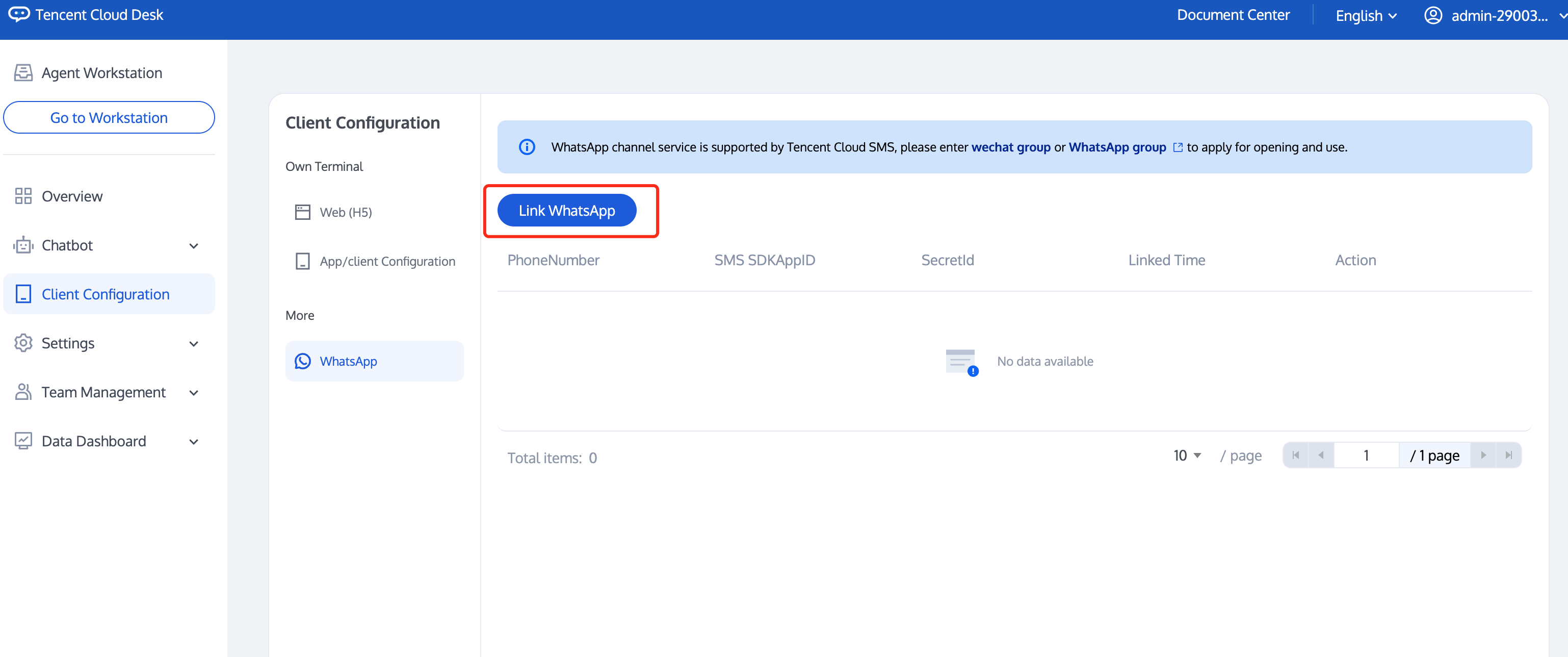
4. In the pop-up window, fill in the required information correctly:
PhoneNumber. Please enter the mobile phone number that has been bound to the WABA ID in Tencent Cloud SMS console > WhatsApp Messages.
SMS SDKAppID. Go to Tencent Cloud SMS console > Application management > Application list to obtain the SMS SDKAppID.
SecretId. See Get SecretId and SecretKey.
SecretKey, refer to Get Secretld and SecretKey.
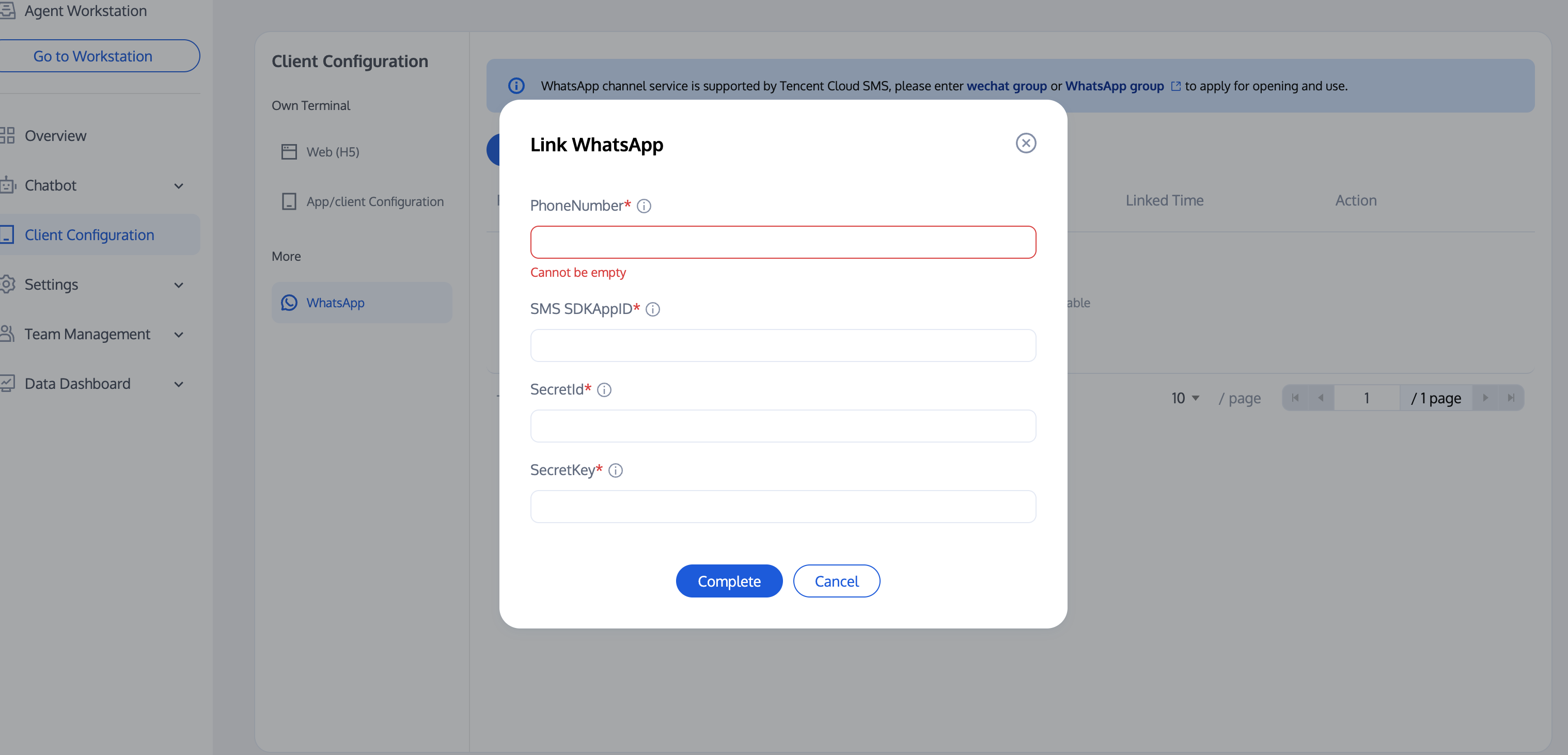
5. Refresh the page after successful authorization. Display the already bound WhatsApp PhoneNumber, indicating that the linking has been successful.
Get Secretld and SecretKey
For business security, it is recommended that your business separately create Secretld and SecretKey for the WhatsApp channel. The specific acquisition method is as follows:
Creating Policies
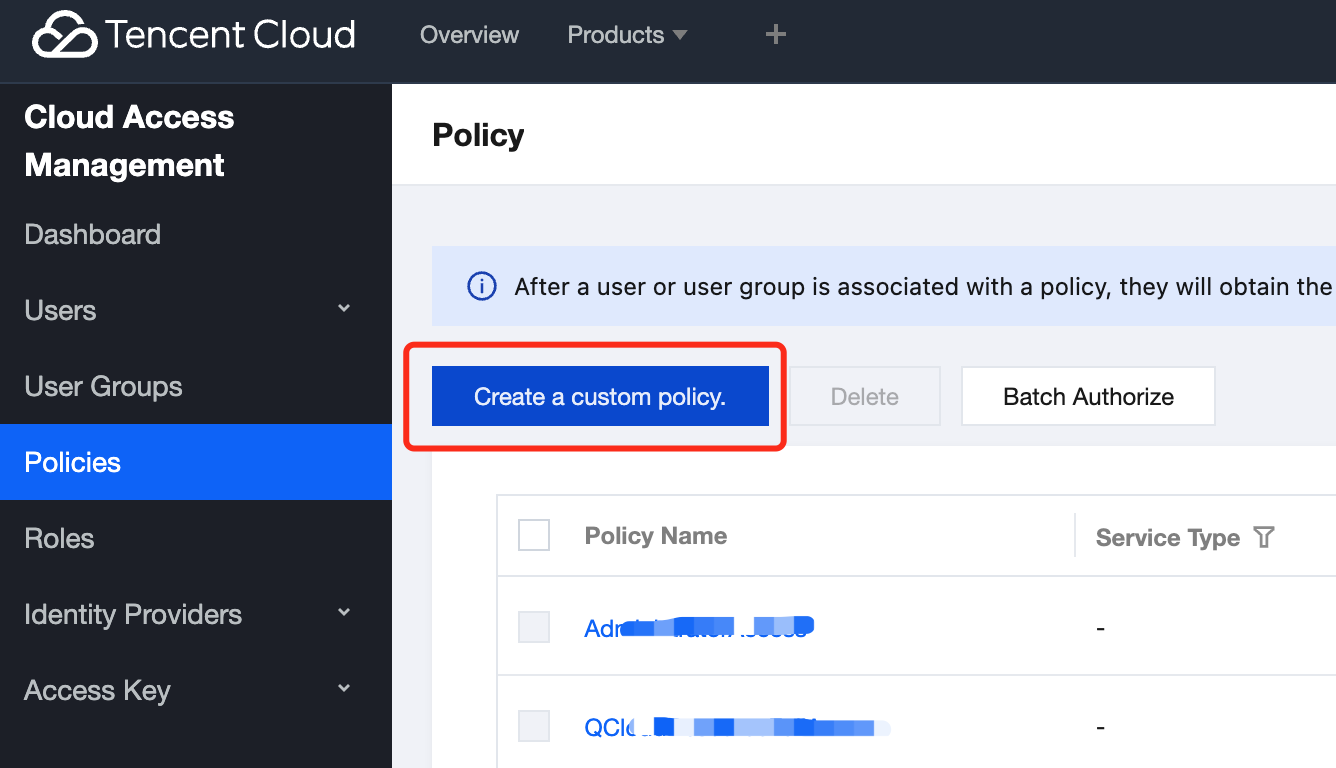
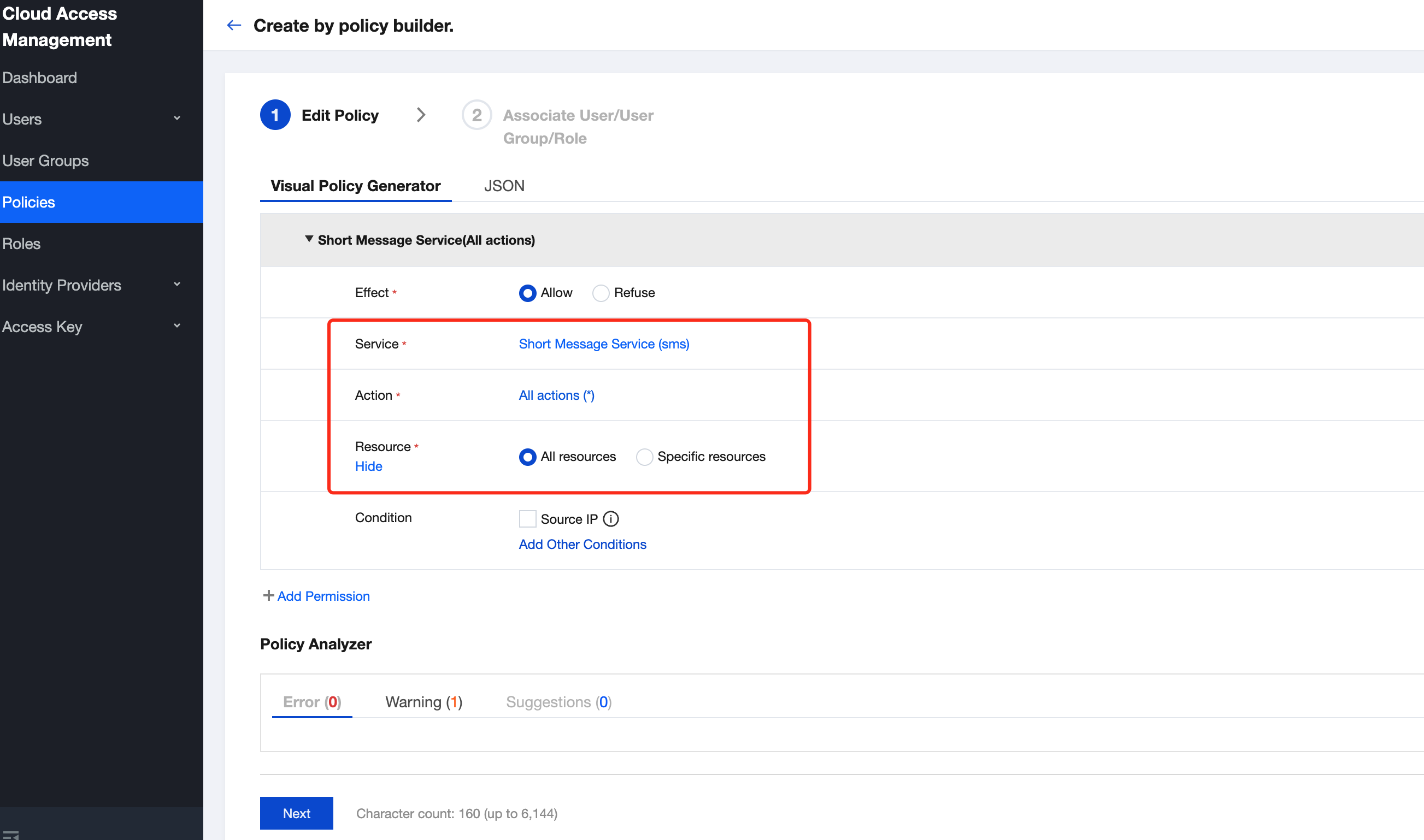
1. Go to Cloud Access Management, and in the left sidebar, click Policies > Create Custom Policy.
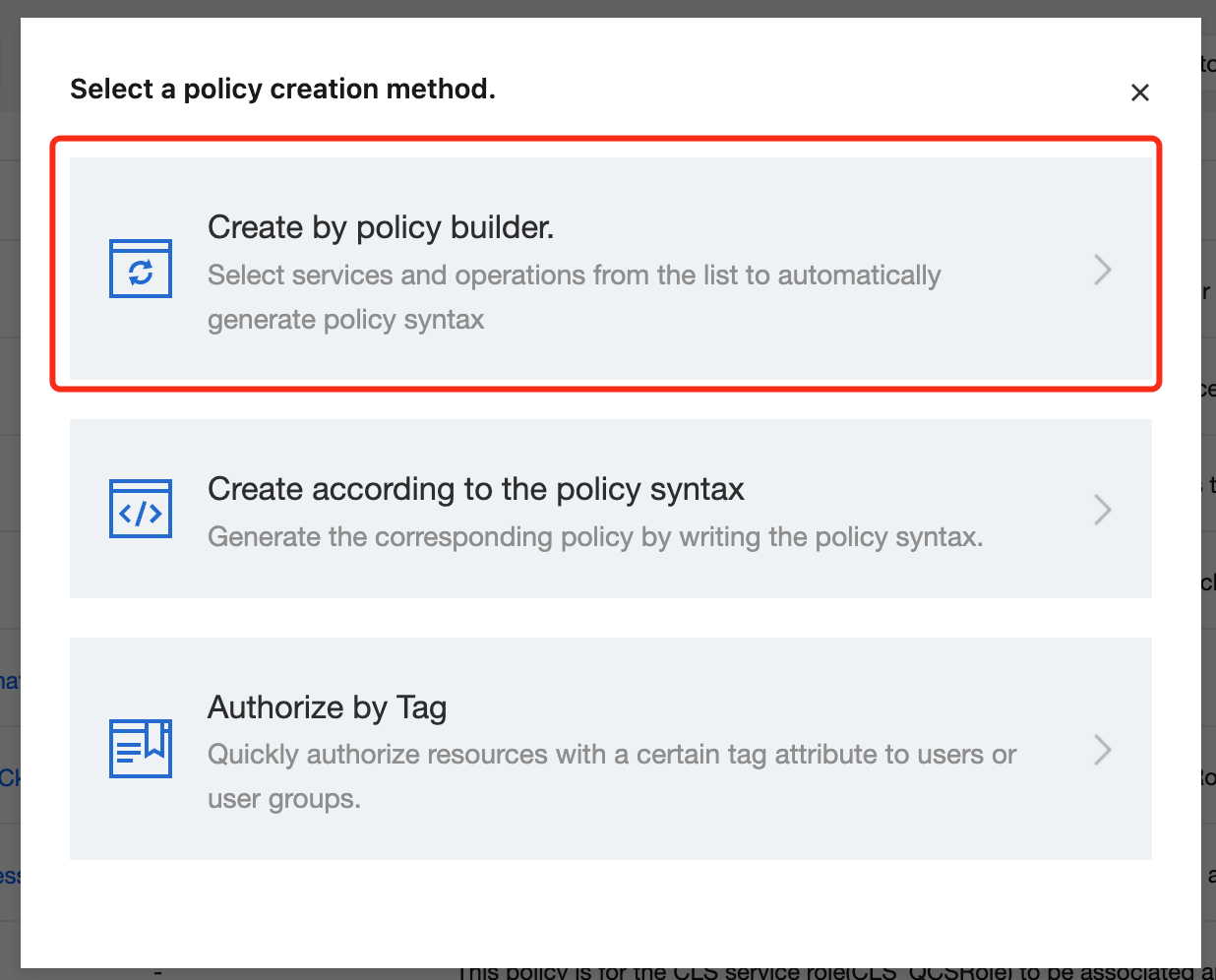
2. In the pop-up window for creating a policy, select create by policy generator.
3. In the Visual Strategy Generator, select the SMS service, check all operations, and select all resources.
Create a User and Bind a Policy
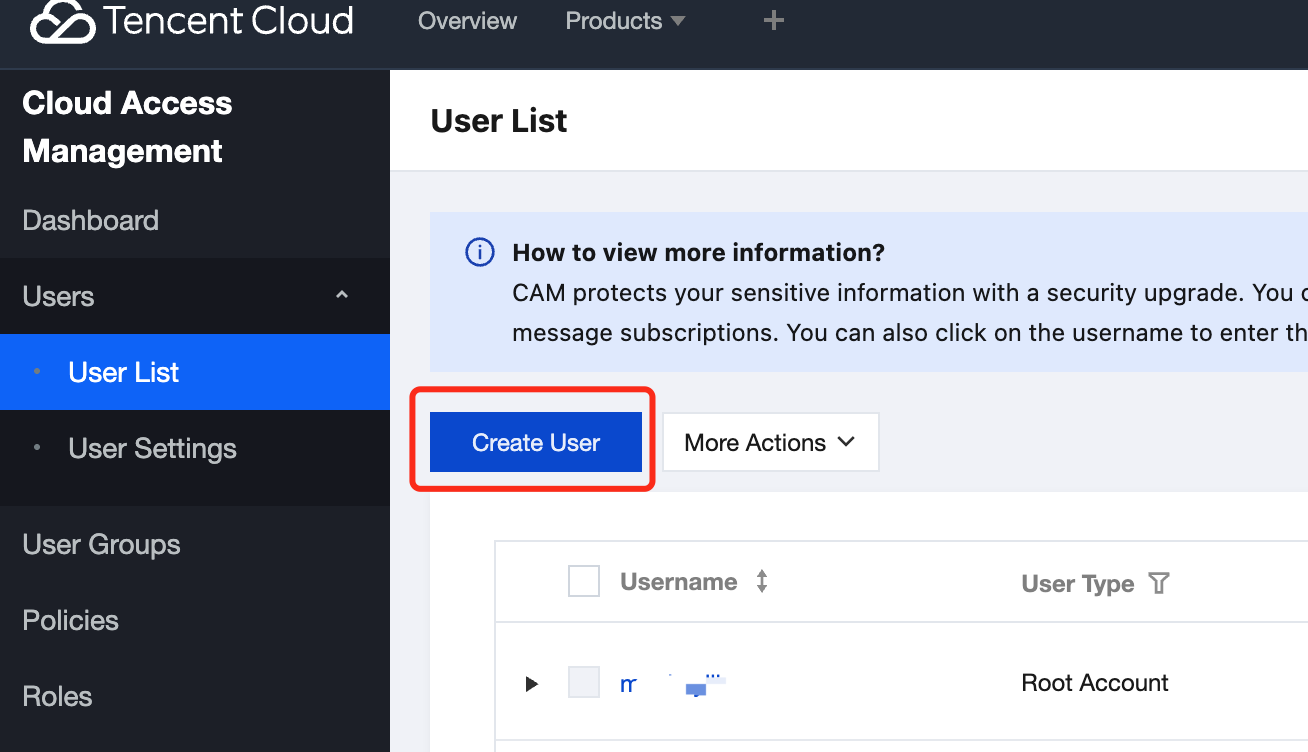
1. Access Management: In the left sidebar, click Users > List of Users > Create User.
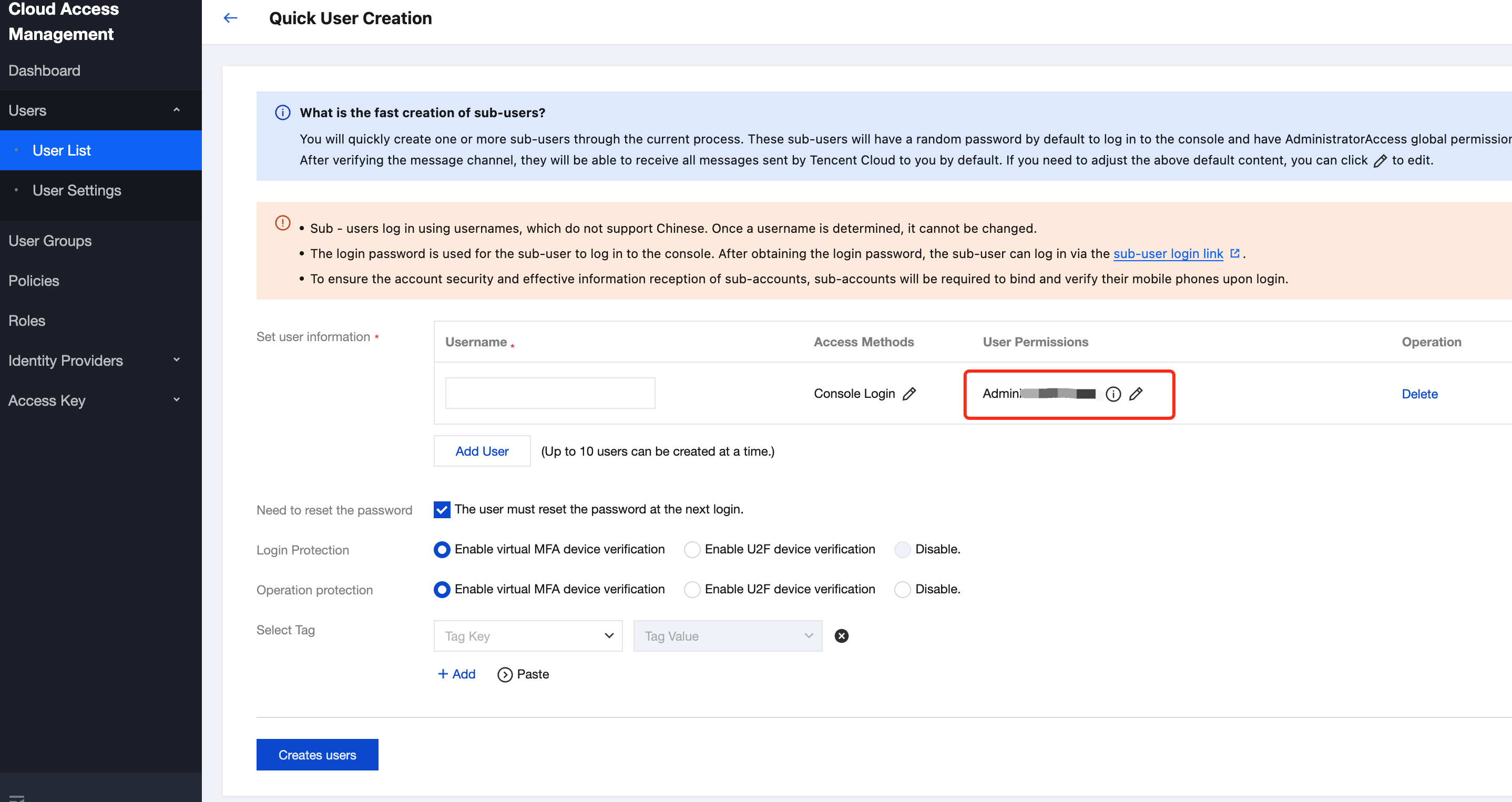
2. Bind a policy to the newly created user.
Generate Secretld and SecretKey
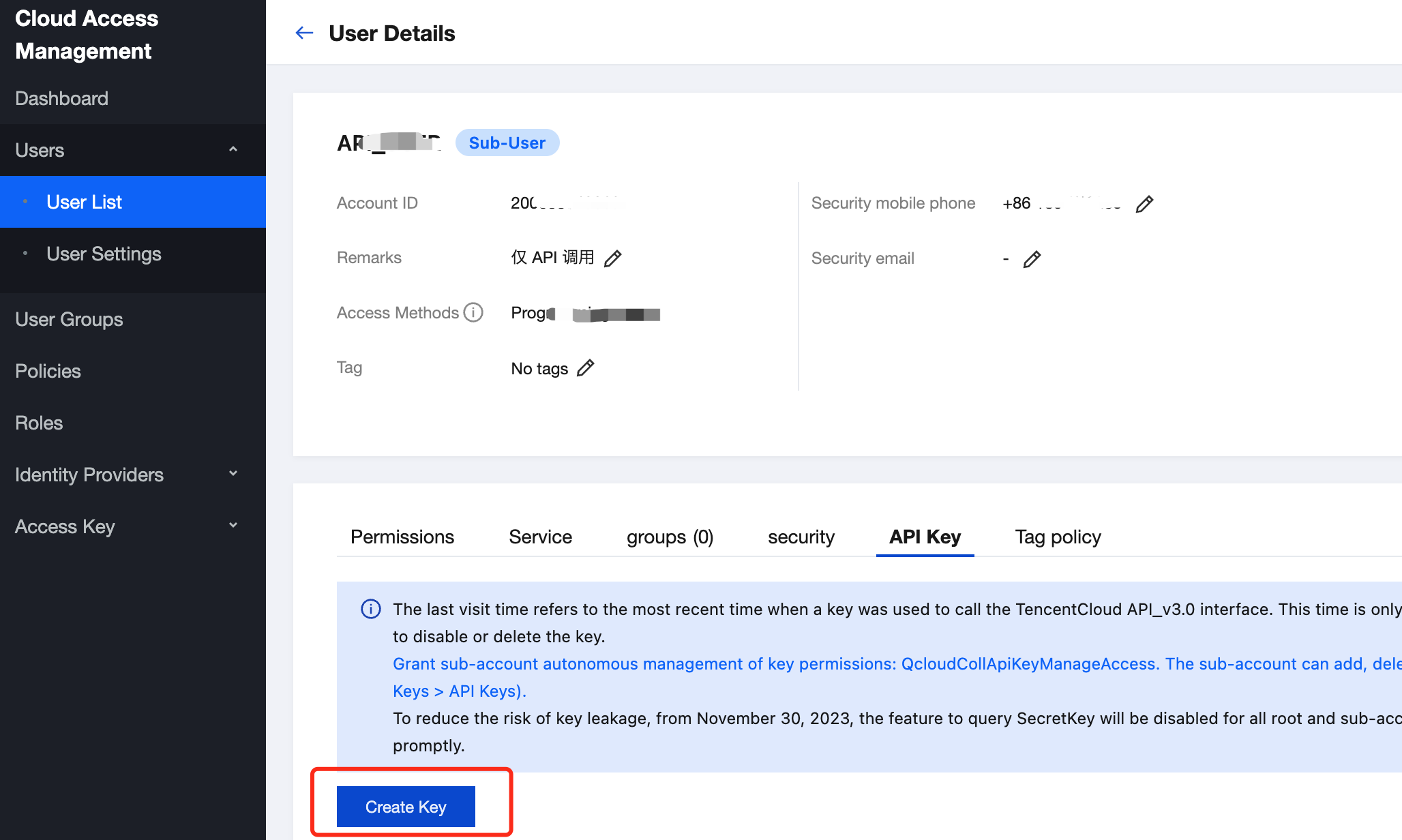
1. In the left sidebar of Cloud Access Management, click Users > List of Users. Click the name of the newly created user to enter the user details page. Click API key.
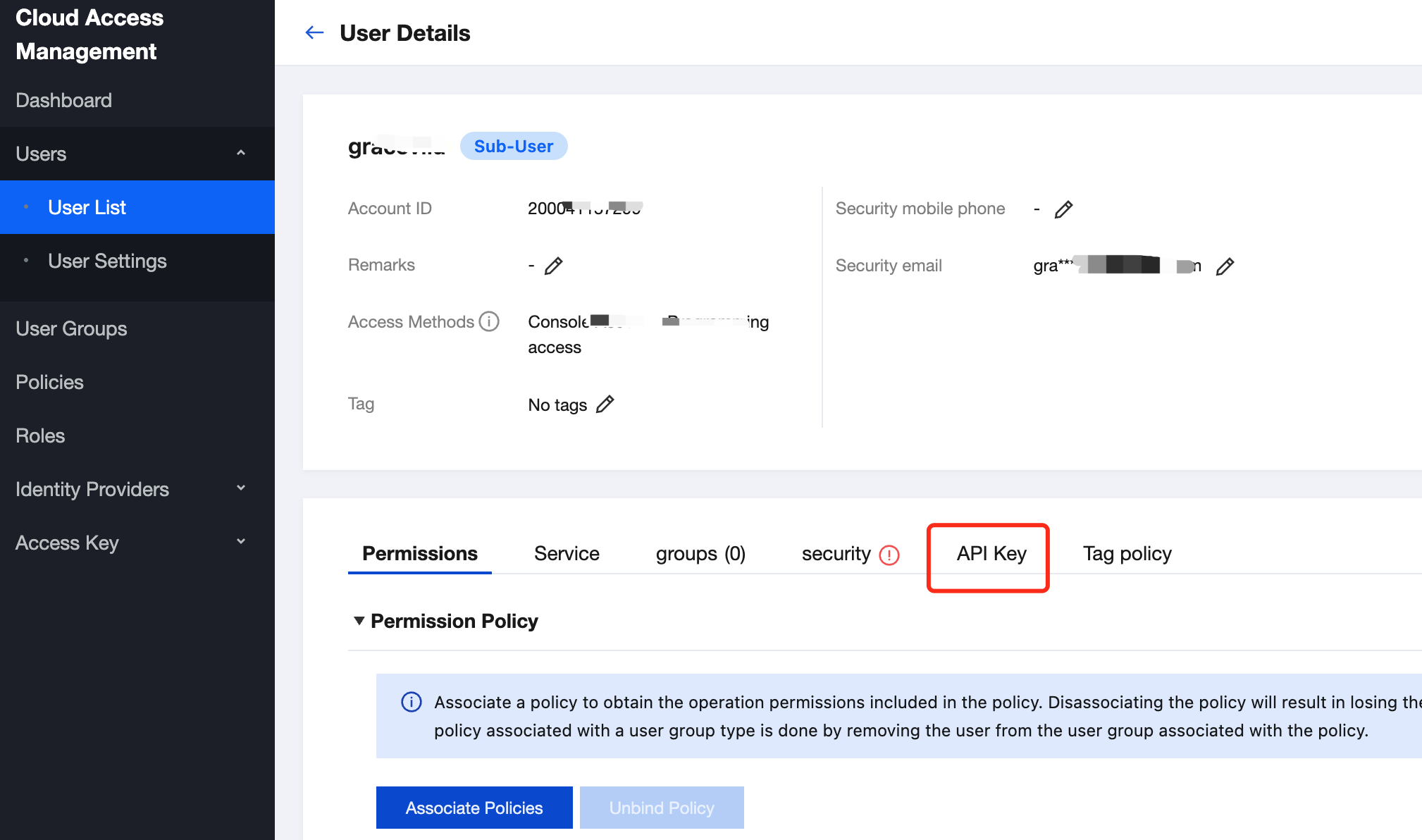
2. Click Create Key to obtain the Secretld and SecretKey.
피드백