If your current website does not have an HTTPS certificate purchased, you can apply for a free certificate to test HTTPS support.
Note:
1. Free certificates are issued by TrustAsia and Let's Encrypt, which do not support downloading nor provide SLA guarantees. For more reliable certificate assurance, proceed to purchase SSL Certificates.
2. The certificate has a validity period of 90 days. The platform will automatically apply for renewal 15 days before expiration and requires no manual updates. If you are currently using NS access, automatic renewal will be unavailable for the applied wildcard certificate after you switch to CNAME access. Please reapply for the certificate upon failure to trigger renewal.
Free certificates support three verification methods:
Automatic Verification: Automatic verification can complete free certificate application and deployment after the NS server takes effect or the domain CNAME takes effect. Depending on the site's access method, automatic verification adopts different verification methods to apply for free certificates from the CA.
If the current site uses NS access/DNSPod managed access, EdgeOne will automatically add the required verification records for certificate application in the current DNS server. Ensure the current DNS server status is normal and takes effect. EdgeOne will initiate certificate application verification within one hour.
If the current site uses CNAME access, EdgeOne will automatically generate verification files for CA certificate validation at the edge nodes. To complete CA verification, ensure that a CNAME record pointing to EdgeOne is configured for the domain within one hour and avoid using split-line/split-region resolution.
Note:
In CNAME access mode, when a free certificate is applied for using automatic verification, HTTPS access for this domain will be temporarily unavailable before the free certificate application is completed.
DNS Delegation Verification: Applicable only in CNAME access mode. You may choose to delegate the resolution records of subdomains required for CA verification to EdgeOne's designated domain via CNAME records. EdgeOne will maintain the DNS verification records required by the CA on this domain. This method applies when users wish to complete free certificate applications before acceleration takes effect or to apply for wildcard certificates in CNAME access mode.
File Verification: Applicable only in CNAME access mode. This verification method requires creating a specified file containing verification values at a designated path under the current domain and ensuring the file is publicly accessible. After the initial application is successful, subsequent domains must still correctly resolve CNAME to EdgeOne to ensure free certificates can be automatically renewed. This method is primarily used when applying for free certificates in CNAME access mode but unable to use DNS delegation verification.
Example Scenario 1: Applying for Free Certificates Using Automatic Verification
For example: the current domain example.com uses CNAME access to connect to EdgeOne. Since the domain currently has no HTTPS certificate, you can apply for EdgeOne's free certificate to provide HTTPS encrypted protection for users. If the domain has low traffic and can temporarily accept unavailability of HTTPS access, you may apply for a free certificate using automatic verification. Refer to the following steps:
1. Log in to the Tencent Cloud EdgeOne console, enter Service Overview in the left menu bar, and click the site to be configured under Website Security Acceleration.
2. In the left sidebar, click Domain Name Service > Domain Name Management.
3. On the Domain Name Management page, select the domain name to configure the certificate for, and click Configure in the HTTPS column.
4. In the HTTPS configuration, locate the edge HTTPS certificate card and click Configure.
5. Select Apply for Free Certificate as the configuration method, choose Automatic Verification as the verification method, and click Save.
6. Return to the Domain Name Management page, refer to Modify CNAME Resolution to configure CNAME records for the current domain, and avoid using split-line/split-region resolution.
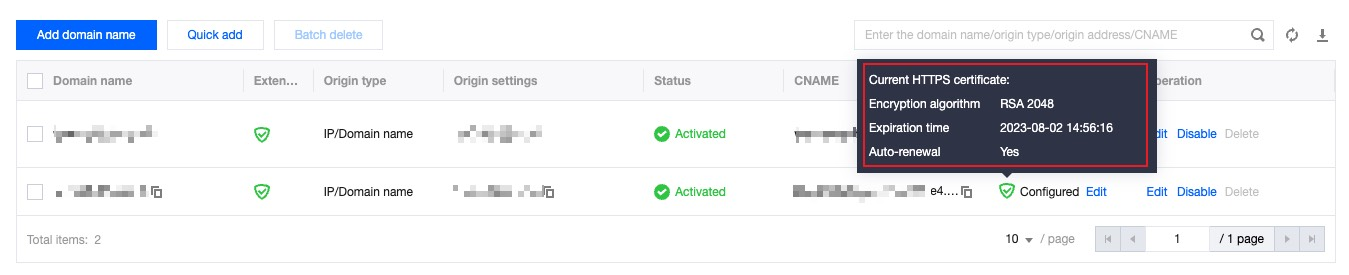
7. Wait for the domain's CNAME to take effect. The free certificate will be automatically deployed after the CA issues the certificate. After deployment is complete, re-enter the HTTPS configuration page to view the current certificate status as Configured.
Example Scenario 2: Apply for a Free Certificate Using DNS Delegation Verification
For example: the current domain example.com uses CNAME access to connect to EdgeOne, with its DNS resolution hosted on Tencent Cloud DNS. Since the domain currently has no HTTPS certificate, you can apply for EdgeOne's free certificate to provide HTTPS encrypted protection for users. As this domain requires HTTPS access, HTTPS certificate deployment must be completed in advance. Therefore, select the DNS Delegation Verification method to apply for a free certificate. Refer to the following steps:
1. Log in to the Tencent Cloud EdgeOne console, enter Service Overview in the left menu bar, and click the site to be configured under Website Security Acceleration.
2. In the left sidebar, click Domain Name Service > Domain Name Management.
3. On the Domain Name Management page, select the domain name to configure the certificate for, and click Configure in the HTTPS column.
4. In the HTTPS configuration, locate the edge HTTPS certificate card and click Configure.
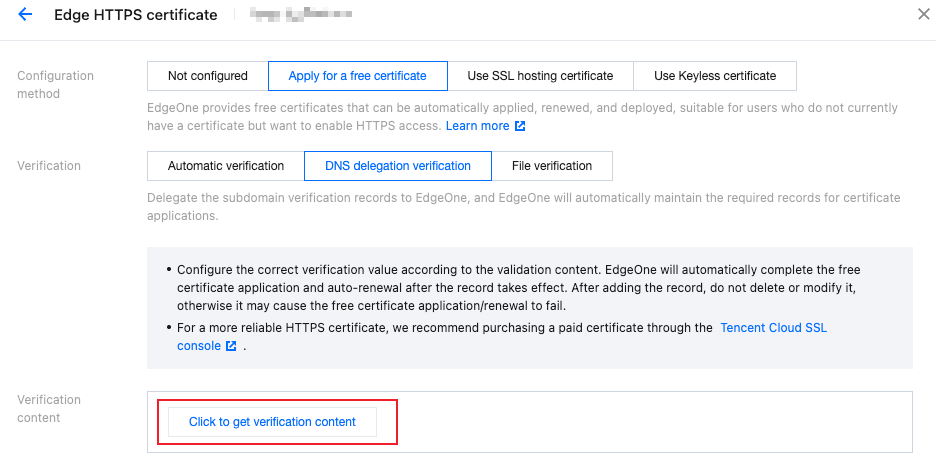
5. Select Apply for Free Certificate as the configuration method, choose DNS Delegation Verification as the verification method, and click Obtain Verification Content.
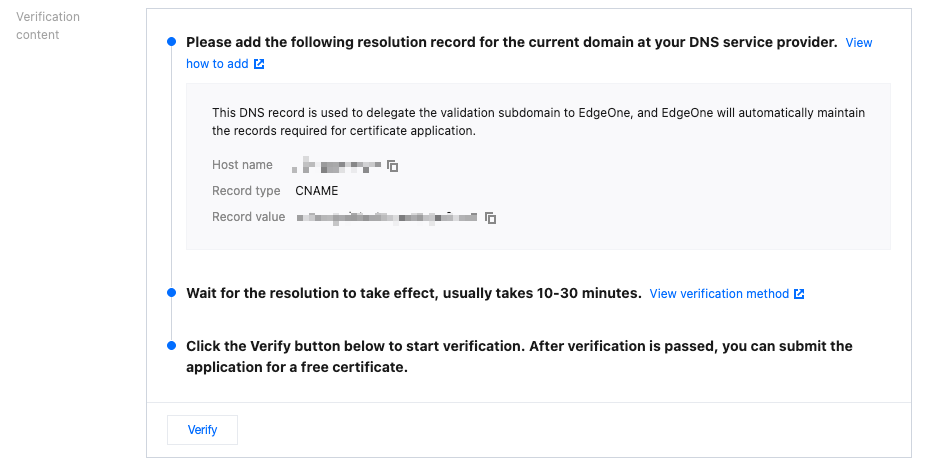
6. View the verification content to be configured. At your current DNS provider, configure the specified DNS record to delegate the resolution of the verification domain to EdgeOne's designated domain. For example: in this sample, the domain's resolution is hosted on Tencent Cloud DNS. Refer to the following steps for configuration. If the domain is hosted with another provider, see the corresponding provider's documentation:
6.1 Log in to Tencent Cloud DNS console, in the Authoritative DNS section, click the domain name to be configured to go to the DNS configuration.
6.2 In the Record Management section, click Add Record to add a CNAME record. Set the Host Record and Record Value to the record information provided in the obtained verification content.
6.3 Click Confirm. The item has been added.
7. After the corresponding verification record is added, it usually takes 10-30 minutes for the record to take effect. We recommend using tools to verify the propagation status (for example: DNS diagnostic tools or other mdig tools) to confirm the record is correctly configured. Note that local verification alone cannot guarantee global DNS propagation. The CA may reject certificate issuance if it cannot detect the DNS record. We recommend proceeding to the next step only after the record is fully propagated.
8. Click Verify. After the verification is passed, the free certificate application is completed.
9. Click Save to deploy the certificate to the current domain. After the domain deployment completes, the domain will be accessible via HTTPS.
Example Scenario 3: Applying for a Free Certificate Using File Verification
For example: the domain example.com is connected to EdgeOne via CNAME. Since this domain currently lacks an HTTPS certificate, you can use EdgeOne's free certificate to provide HTTPS encryption for users. As users can only access this domain via HTTPS, the HTTPS certificate deployment must be completed beforehand. Therefore, select file verification to apply for a free certificate. Refer to the following steps:
1. Log in to the Tencent Cloud EdgeOne console, enter Service Overview in the left menu bar, and click the site to be configured under Website Security Acceleration.
2. In the left sidebar, click Domain Name Service > Domain Name Management.
3. On the Domain Name Management page, select the domain name to configure the certificate for, and click Configure in the HTTPS column.
4. In the HTTPS configuration, locate the edge HTTPS certificate card and click Configure.
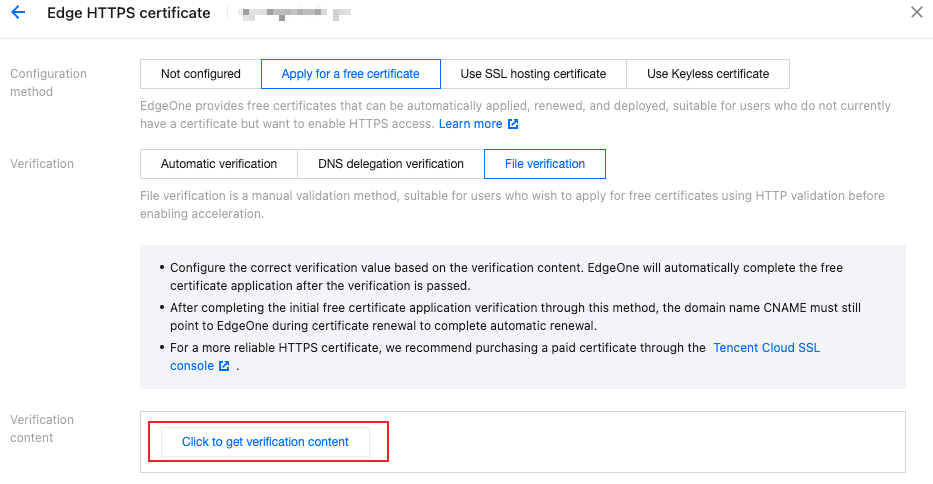
5. Select Apply for Free Certificate as the configuration method, choose File Verification as the verification method, and click Obtain Verification Content.
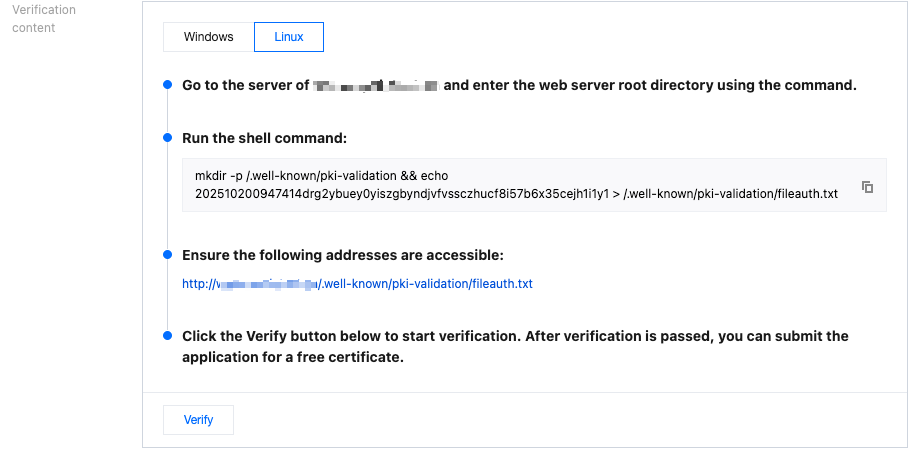
6. View the verification content that needs to be configured. For file verification, you must upload the required TXT file to the specified directory of your current domain site. Taking a Linux server as an example, the configuration method is as follows:
6.1 On the origin server, go to the website's root directory, which refers to the folder storing the current website files, rather than the system's root directory.
6.2 Copy the shell command to create the verification file required on the server.
7. After adding the corresponding verification record, you can click the verification URL below to confirm whether the verification file can be successfully accessed. Once the verification file is confirmed accessible and the content is correct, proceed to the next step.
8. Click Verify. After successful verification, the free certificate application is completed. Then click Save to deploy the certificate to the current domain. Once the domain deployment is complete, the domain will be accessible via HTTPS.
Reference
Common reasons for free certificate application failures
If the free certificate application fails, you can troubleshoot the issue based on the failure prompts and the following causes and solutions:
Note:
In addition to the common failure reasons below, it is recommended to also check these two potential causes, which will also affect the issuance of free certificates:
If your domain name is configured with DNSSEC, please verify and ensure that DNSSEC is correctly configured. Otherwise, the free certificate application will fail because the domain name cannot be resolved correctly.
Check whether the current domain name has CAA records configured. If CAA records are already configured, ensure that TrustAsia and Let's Encrypt are permitted to issue free certificates. For example: if the domain name only allows certificates to be issued by TrustAsia and Let's Encrypt, add the following two CAA records: 0 issue "digicert.com" or 0 issue "letsencrypt.org".
Failure prompt
Possible failure causes
Solution
The current site only supports applying for wildcard domain certificates via DNS Delegation Verification. Please reselect the verification method for the free certificate.
Since free wildcard domain certificates only support application via DNS verification, if the site switches from NS access mode to CNAME access, DNS Delegation Verification must be used for application. Failure to configure DNS delegation records will result in certificate application failure.
Reapply for the free certificate, select the DNS Delegation Verification method, and complete the corresponding DNS delegation record configuration.
DNS delegation record verification failed. Please ensure that DNS delegation records have been added. If you have already added them, wait for the records to take effect before retrying.
DNS Delegation Verification records have not yet been configured or have been deleted, resulting in certificate application failure.
Reapply for the free certificate, select the DNS Delegation Verification method, and complete the corresponding DNS delegation record configuration.
If you have previously applied for free certificates from TrustAsia or Let's Encrypt, any manually added TXT records may cause the resolution of TXT records to be incorrect.
Check whether TXT records exist under the host records _dnsauth or _acme-challenge for the current domain. If present, delete the previously added TXT records, then wait for a period of time before retrying.
DNS records have not yet taken effect. It typically takes 5-10 minutes for DNS record configurations to propagate, with a maximum duration of up to 48 hours.
After the DNS records take effect, then proceed with verification.
Waiting for the CA to issue the certificate, please try again later.
The CA verification has been submitted, and we are waiting for the CA to issue the certificate.
Wait for a period of time before retrying.
CA verification has completely failed or exceeded the time limit. Please reapply for the certificate.
The CA rejected the certificate issuance and closed the current application order because it could not validate the verification value during submission, resulting in the failure of this certificate application.
Reapply for the certificate.
Automatic verification failed. Please ensure that the domain name CNAME is configured and avoid using split-line resolution. If it is already added, wait for the CNAME to take effect before retrying the verification.
Due to the fact that CA validation servers are primarily located outside the Chinese mainland, if the domain is configured with split-line/split-region resolution, the validation authority will be unable to access the designated verification file, resulting in validation failure.
Option 1: Point domain resolution globally to EO, especially in North America.
Option 2: Apply for a free certificate using the DNS Delegation Verification method.
The CNAME was not correctly configured according to the instructions.
The CNAME has been correctly configured. After the DNS resolution record is set up, it typically takes 5-10 minutes for the changes to take effect. You must wait until the configuration is fully propagated before it can pass verification.
Once the configuration is confirmed to be correct, you can wait for the DNS settings to fully take effect.
The domain name is configured with a security policy that explicitly allows access only from specified regions, preventing the CA from accessing the required verification value and resulting in application failure.
Option 1: Check the current domain's security policy and disable the policy blocking CA verification requests.
Option 2: Apply for a free certificate using the DNS Delegation Verification method.
The DNS server is not correctly pointing to EdgeOne.
Primarily occurs in NS access mode. Because the NS servers for the current domain have not been correctly pointed to EdgeOne, DNS records cannot take effect properly, resulting in certificate verification failure.
Modify the NS servers to point to EdgeOne.
The DNS server is not correctly pointing to DNSPod.
Primarily occurs in DNSPod hosted access mode. Because the NS servers for the current domain have not been correctly pointed to DNSPod, DNS records cannot take effect properly, resulting in certificate verification failure.
Modify the NS servers to point to DNSPod.
DNS verification failed. Please try again later.
May be due to the current DNS records not having taken effect yet. After NS servers are switched, it typically takes 0-48 hours for the NS servers to fully propagate before the corresponding DNS records can take effect.
After the NS servers have fully taken effect, reapply for a free certificate.
File verification failed.
When the file verification method is used, the specified file location is inaccessible or the accessed file content is incorrect.
Ensure the specified verification file is accessible when file verification is used.
TXT verification record creation failed.
In NS/DNSPod managed access mode, when applying for a free certificate, EdgeOne will automatically create the required TXT records for certificate verification in DNSPod. Creation may fail due to reasons such as record conflicts or TXT record length exceeding the limit.
1.Check whether any existing records conflict with the TXT verification record to be created and delete the conflicting records.
2.Check the number of existing TXT records under the host record to be created. The total length of TXT records in DNSPod cannot exceed 4096 bytes. Delete redundant TXT records and retry.
3.If in DNSPod managed access mode, check whether the preset role TEO_QCSLinkedRoleInDnspodAccessEO exists. EdgeOne will automatically create the required TXT records for verification through this role.
Application failed. Please try again.
Other unknown errors.
Reapply for the free certificate. If you still cannot apply, contact us to further confirm the reason.