Using Tencent Cloud TCHouse-D Through the Console
Download
Mode fokus
Ukuran font
This document describes how to use Tencent Cloud TCHouse-D through the console to create, manage, and execute SQL commands in the SQL workspace.
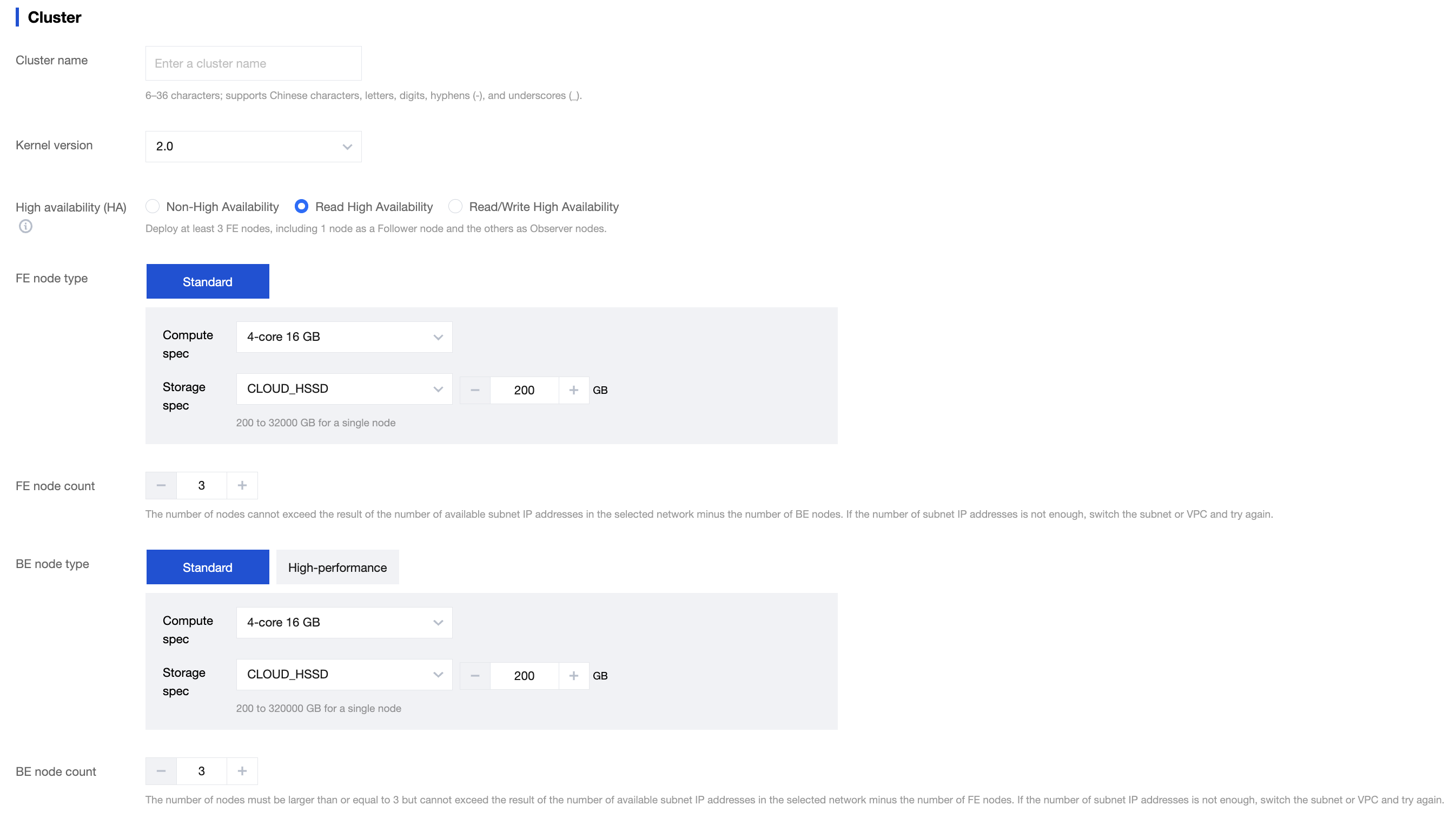
Creating Cluster
1. On the Tencent Cloud TCHouse-D introduction page, click Buy Now. Alternatively, log in to the Tencent Cloud TCHouse-D console and click Create Cluster to go to the purchase page for configuration and purchase.
2. After completing the basic configuration, cluster configuration, and log configuration, the system will display the corresponding configuration costs. Click Activate to create a cluster.
View Cluster Information
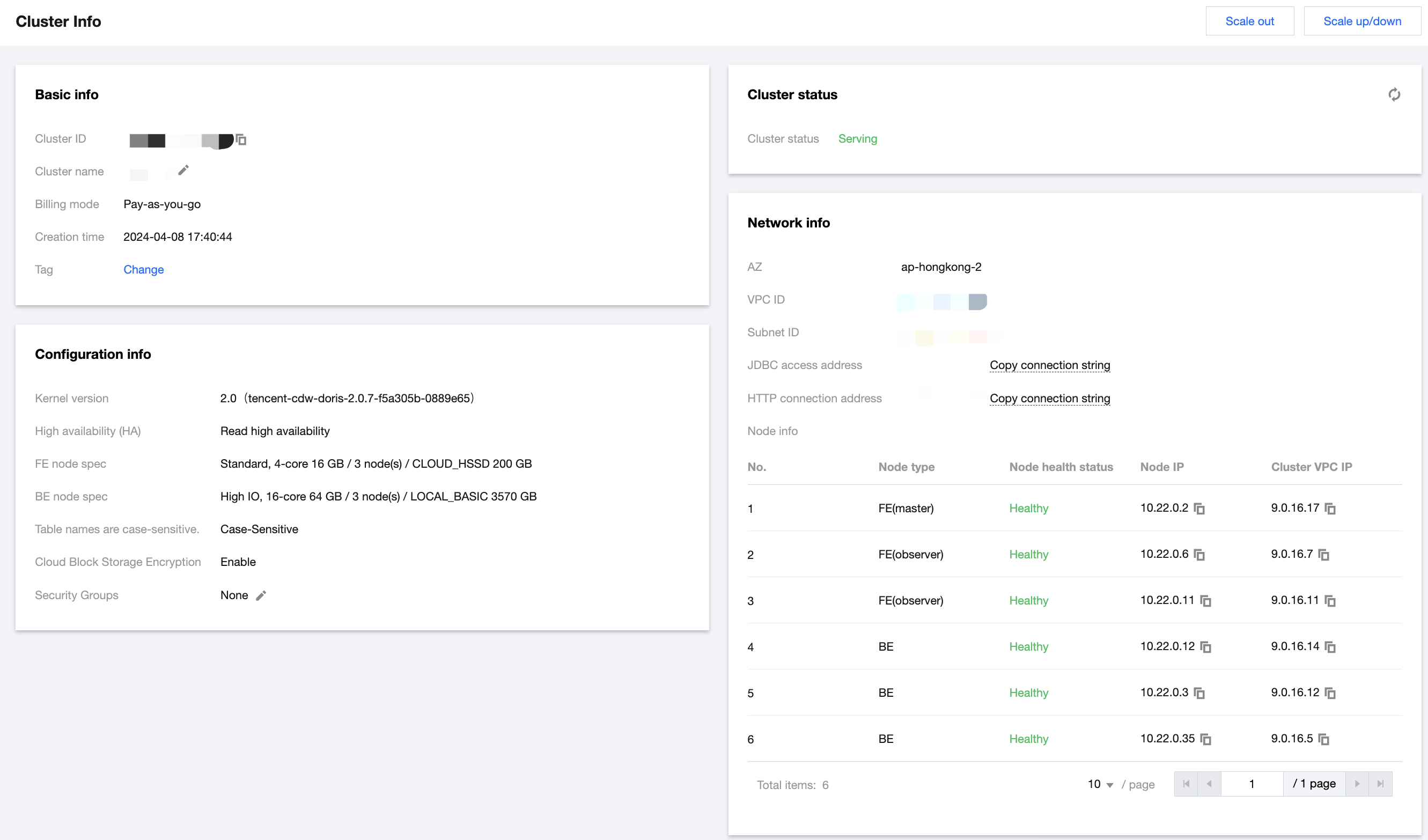
1. After the cluster is created, you can access the Tencent Cloud TCHouse-D console and select the region where the cluster is located to view the status information of all clusters in that region from the cluster list.

2. In the cluster list, click Resource ID/Name to view the basic cluster information, cluster status, configuration information, and network information.
Cluster Operation
In the console, you can conveniently manage account permissions, configure monitoring and alarms, modify configurations, and manage nodes. For details, see the Operation Guide section.
Managing Account Permissions
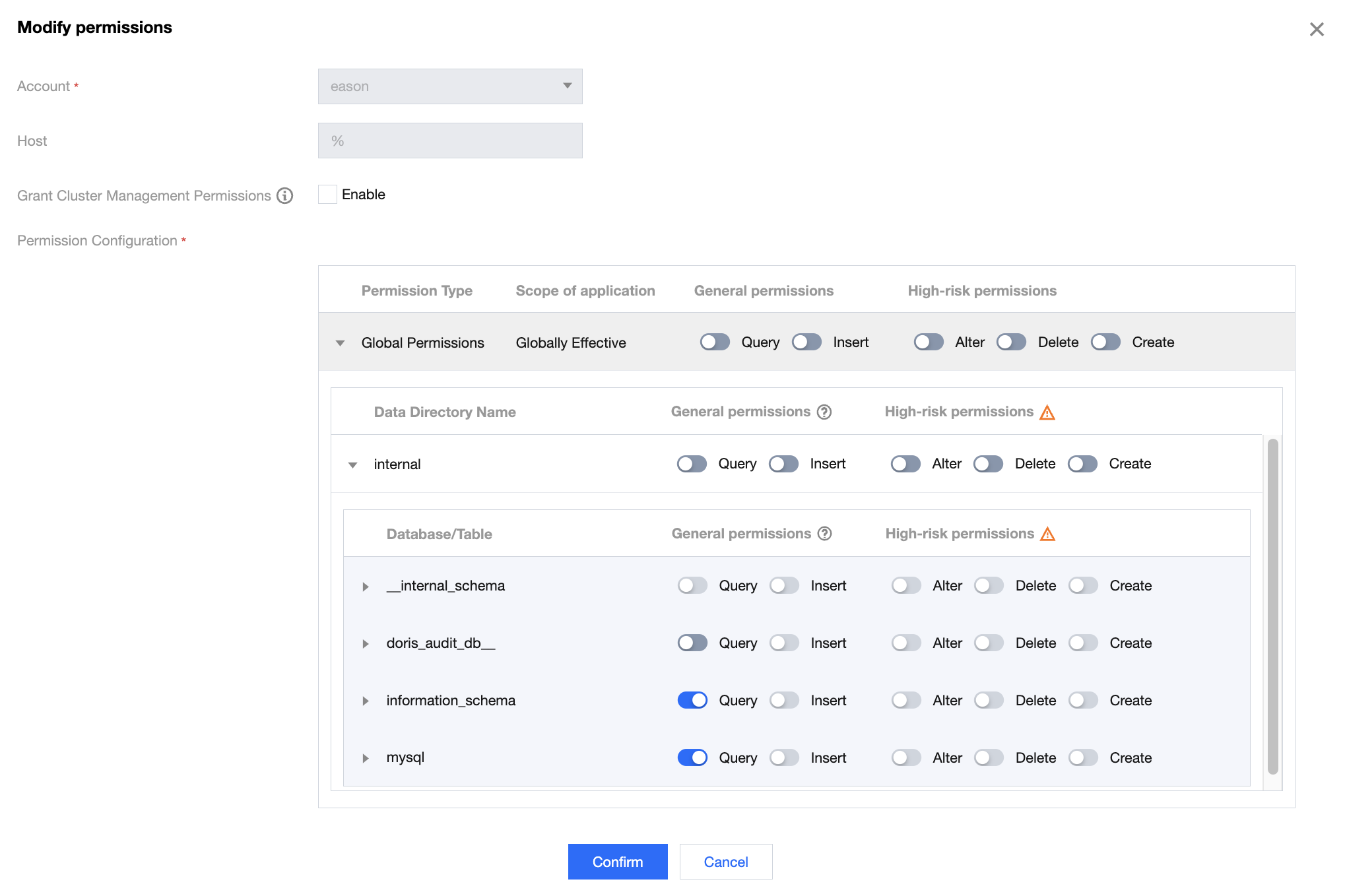
1. Tencent Cloud TCHouse-D offers a visual interface in the console, allowing for convenient and efficient account and permission management of clusters.
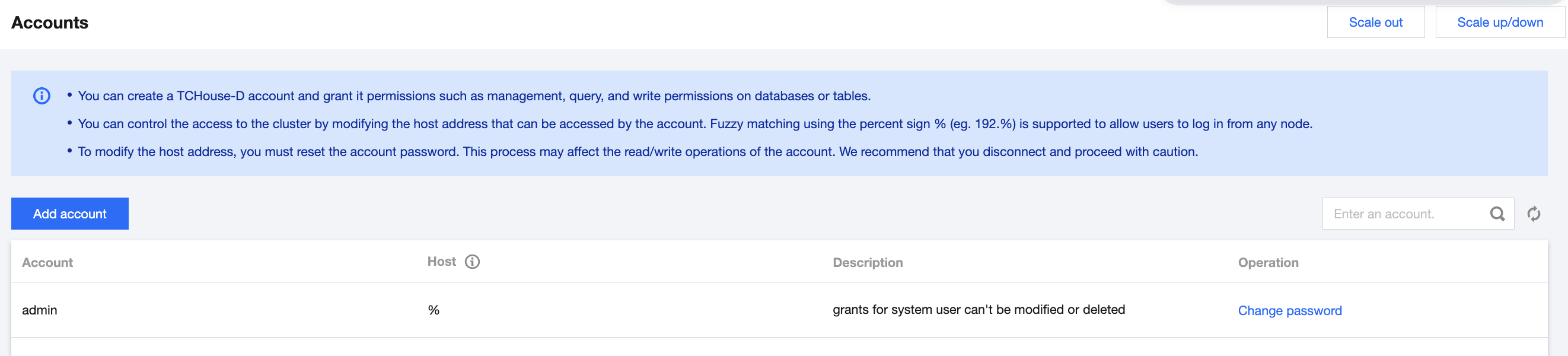
2. Click Add Account, fill in the database account, password, confirm password, and description (optional), and click Confirm to add an account. Click Modify Permissions to go to the permission modification window, where you can also view permissions.
Monitoring and Alarm Configuration
1. Tencent Cloud TCHouse-D provides a wealth of monitoring indicators to help you understand the operation status of the cluster. You can configure alarms for indicators to check operation information in real time, achieving rapid response. Click Resource ID/Name of the cluster to view cluster details, and click Cluster Monitoring to view the performance indicators of the cluster.
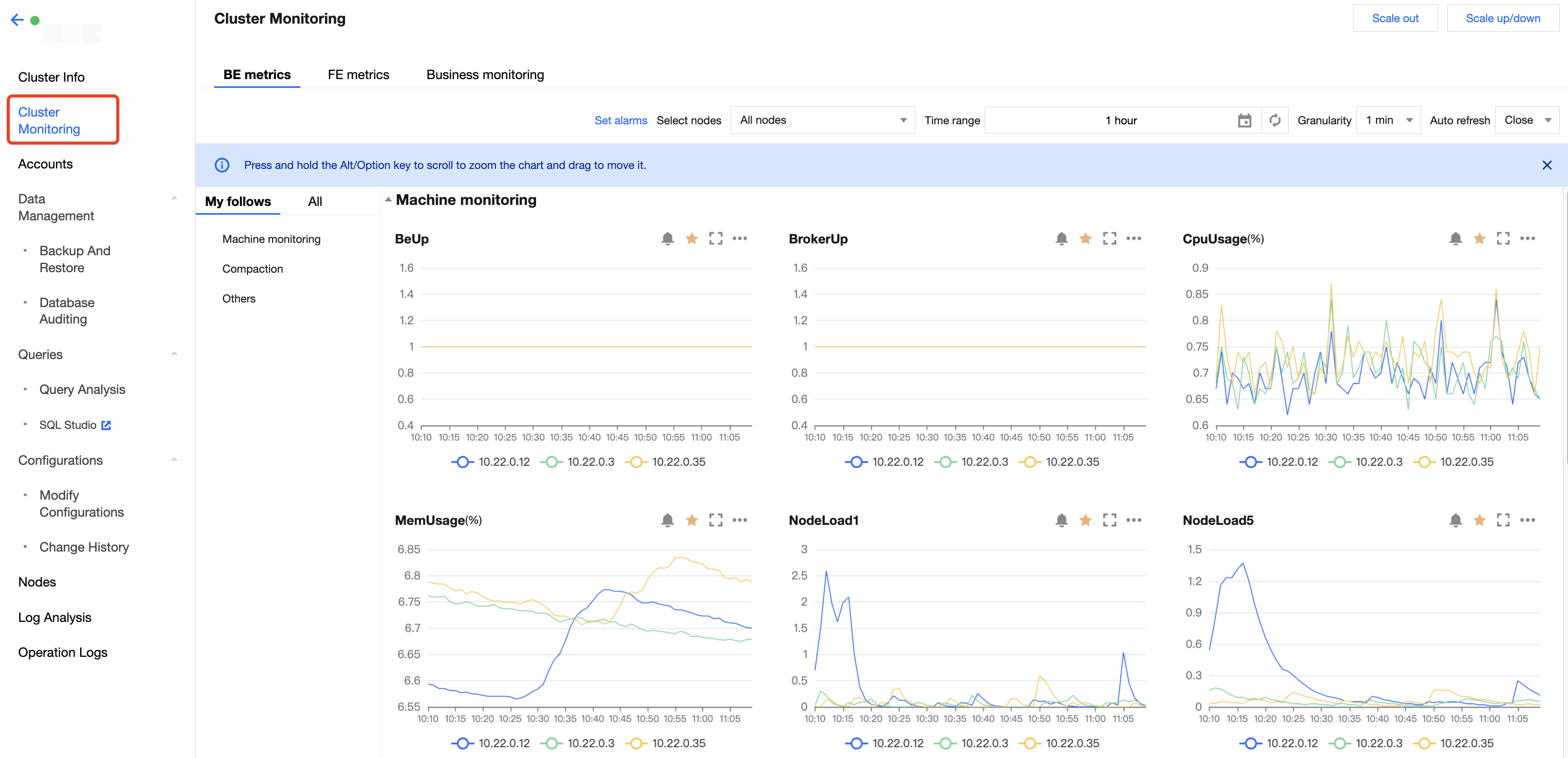
2. Flexible and comprehensive alarm policies can be created, so that exception alarms can be reported for all monitoring indicators. In the cluster monitoring page, click Set Alarm to create a new alarm policy.

Modifying Configuration
1. Tencent Cloud TCHouse-D supports flexible parameter configuration methods. You can comprehensively and intuitively set the parameters of BE/FE/Broker in the console, and view historical modification records. In the cluster list, click Resource ID/Name to view cluster details, and select Configurations > Modify Configurations from the left list to go to the parameter configuration page.
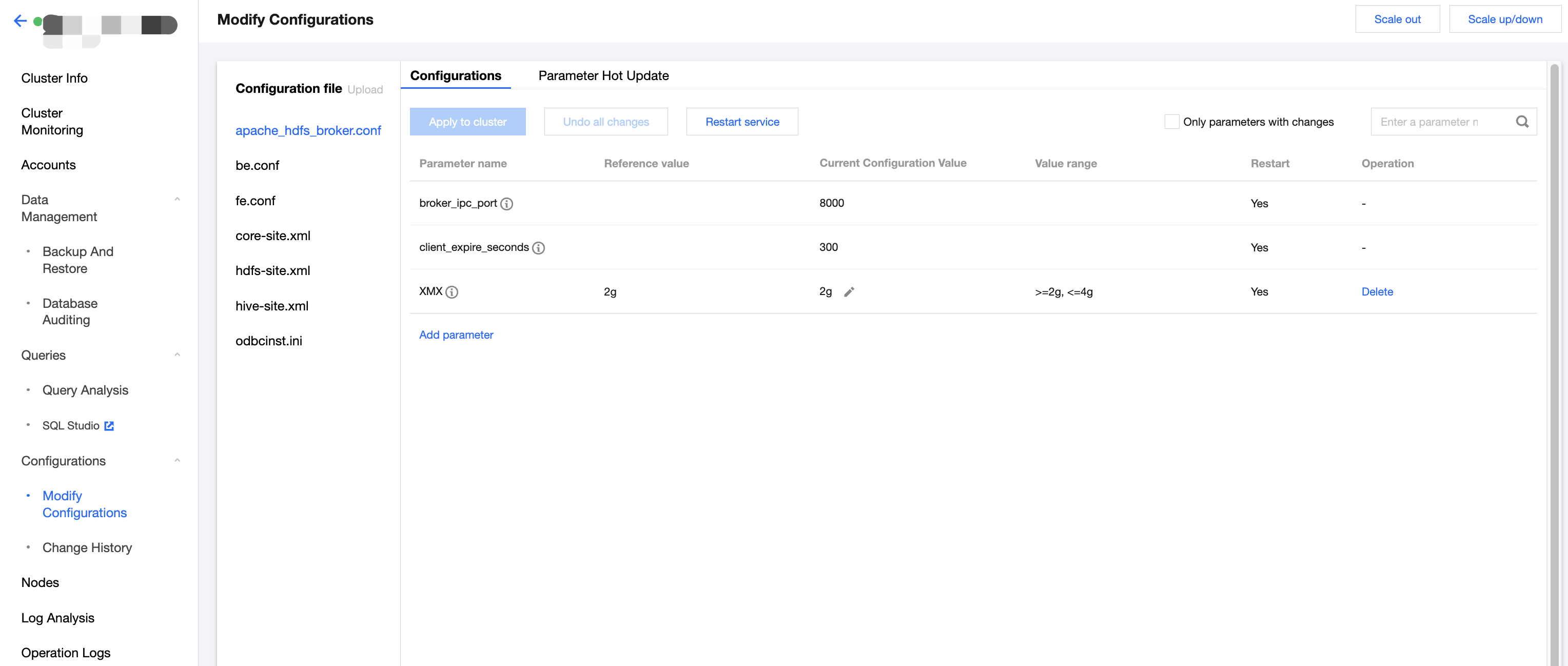
2. For the configuration parameters corresponding to Broker, BE, and FE, modifications to the configuration file and hot updates to the parameters are supported. An entire XML configuration file can be modified.
Node Operations
1. The node management page displays the status list of each role in the cluster. The roles include FE, BE, and BROKER. The health status, process status, node IP address, and the most recent restart time (the last time the service was manually restarted on the role management page) are displayed for each role.
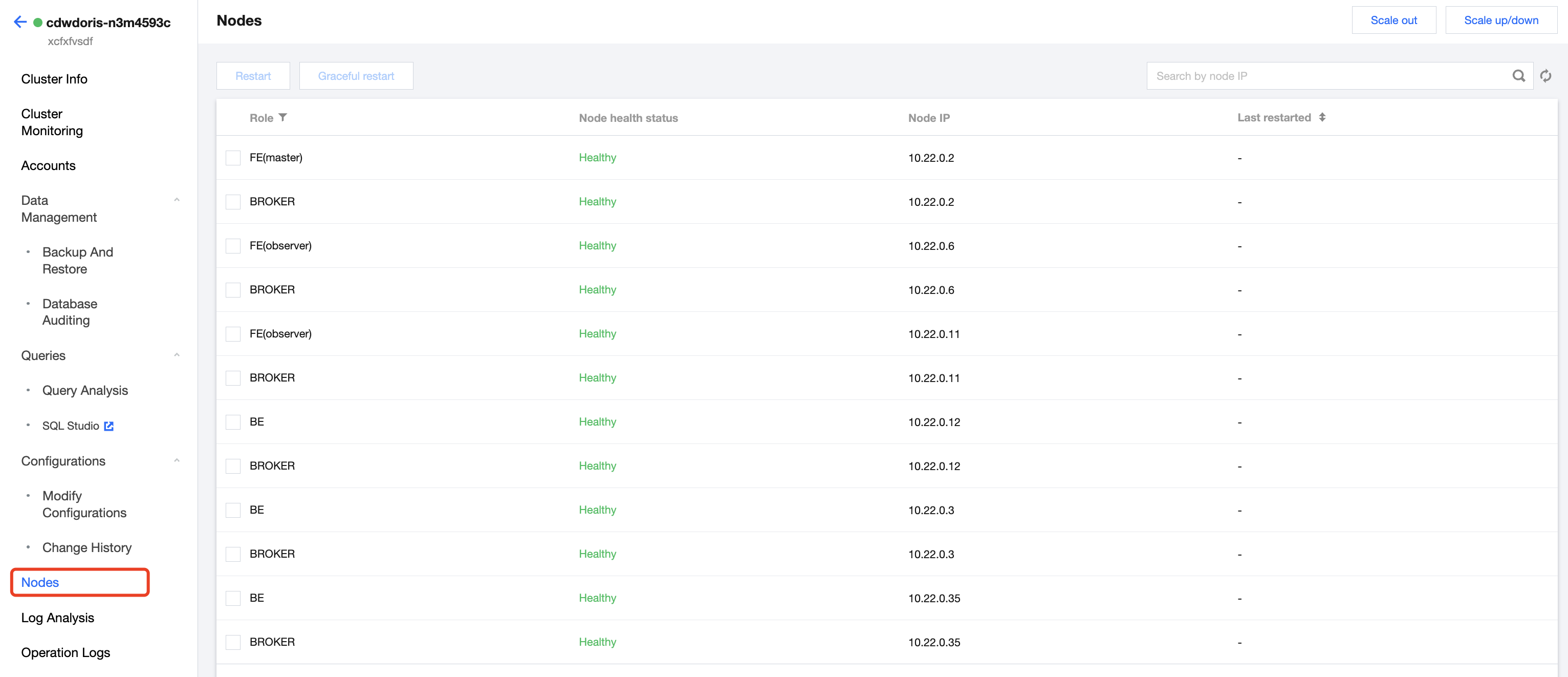
2. You can restart each node. The restart methods include immediate restart, graceful restart, and rolling restart, and batch execution for the same type of nodes is supported.
Executing SQL Commands
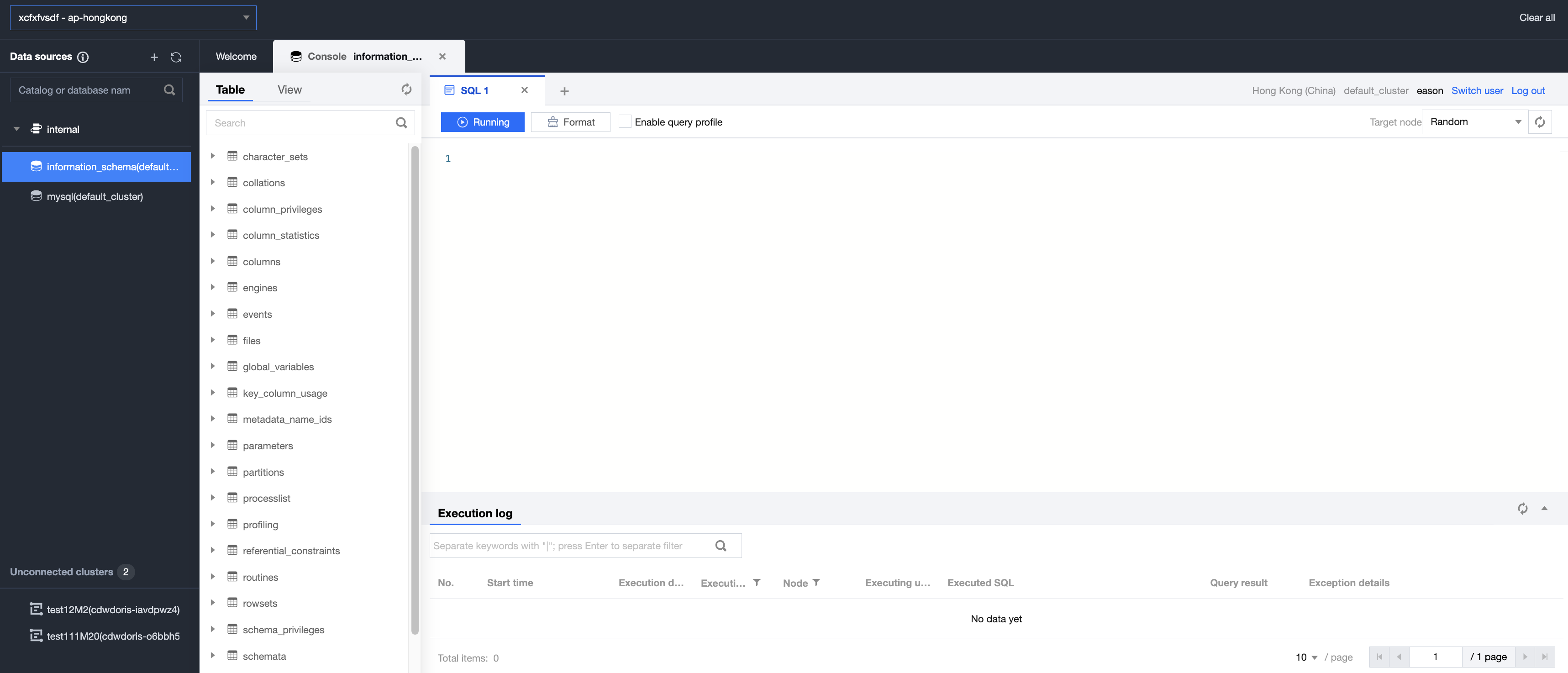
1. In the SQL workspace, you can quickly connect to the cluster and use SQL commands to perform a series of operations. For details, see SQL Studio. Click on the console left list to access SQL Studio. In the cluster list, select the target Resource ID/Name. You can also find the entry under Query Management.
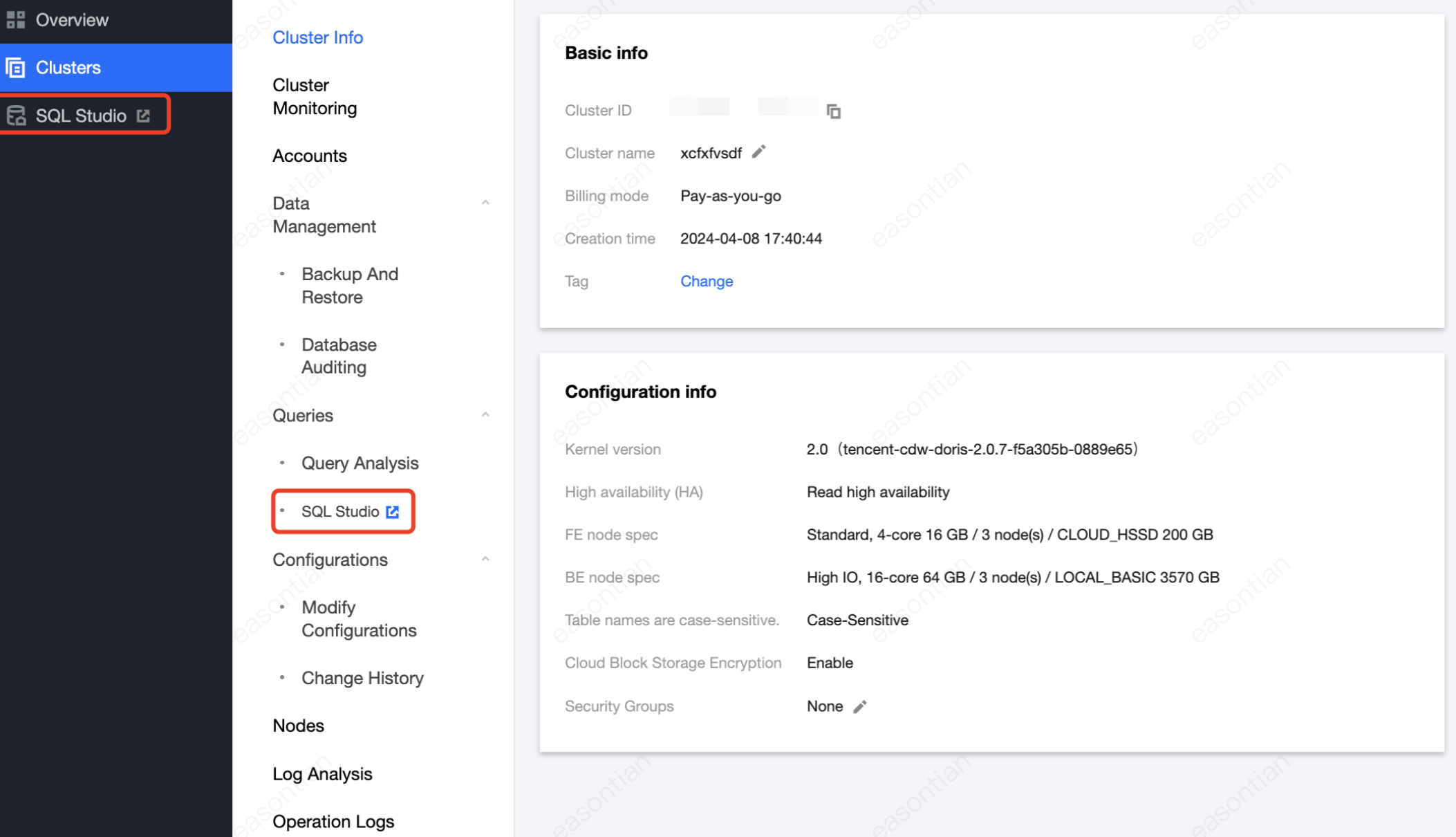
2. In the SQL studio, you can execute SQL statements, view execution records, and perform other operations.
Bantuan dan Dukungan
Apakah halaman ini membantu?
Anda juga dapat Menghubungi Penjualan atau Mengirimkan Tiket untuk meminta bantuan.
masukan