Voice recognition may provide a low recognition accuracy for place names, product names, company names, and specialized vocabulary in a certain field, such as brand name Zhi Ling, building name Empire State Building, technology name Redis, insurance vocabulary underwriting, cloud storage vocabulary bucket, original food name JJ Pizza, etc. For these specialized words, we provide the boosted word feature for users, which can significantly improve the recognition accuracy of these specialized words by adding boosted words.
Usage Recommendations
Common words are not recommended to be added to boosted keywords , for example, "customer", "friend", and other words. Adding too many common words will reduce the recognition rate of specialized words.
The greater the weight of boosted keywords, the greater the probability of being recognized. Boosted keyword weight is an integer between [1,10].
Adding boosted keywords can greatly improve recognition accuracy and is one of the important ways to quickly improve specialized vocabulary. However, there may still be a probability that it cannot be correctly recognized. In this case, first confirm whether the clarity and quality of the audio meets the standard, and the standard is that a layman can correctly recognize the text after listening to the recording once.
Use Limits
Up to 1,000 boosted keywords can be added to each application, and each boosted keyword can contain up to 10 Chinese characters or 20 characters. Do not exceed the limit.
The size of the boosted keyword file must not exceed 100 KB, and the file must be in txt format, where each line contains only one boosted keyword and the corresponding weight. Boosted keyword format is boosted keyword name|weight (boosted keyword and weight are separated by the English symbol |). Boosted keyword name cannot contain punctuations or special characters, and it only supports _, -, Chinese and English characters, and digits. For details, see Hot Word Example.
How to Use
1. Create Hot Words
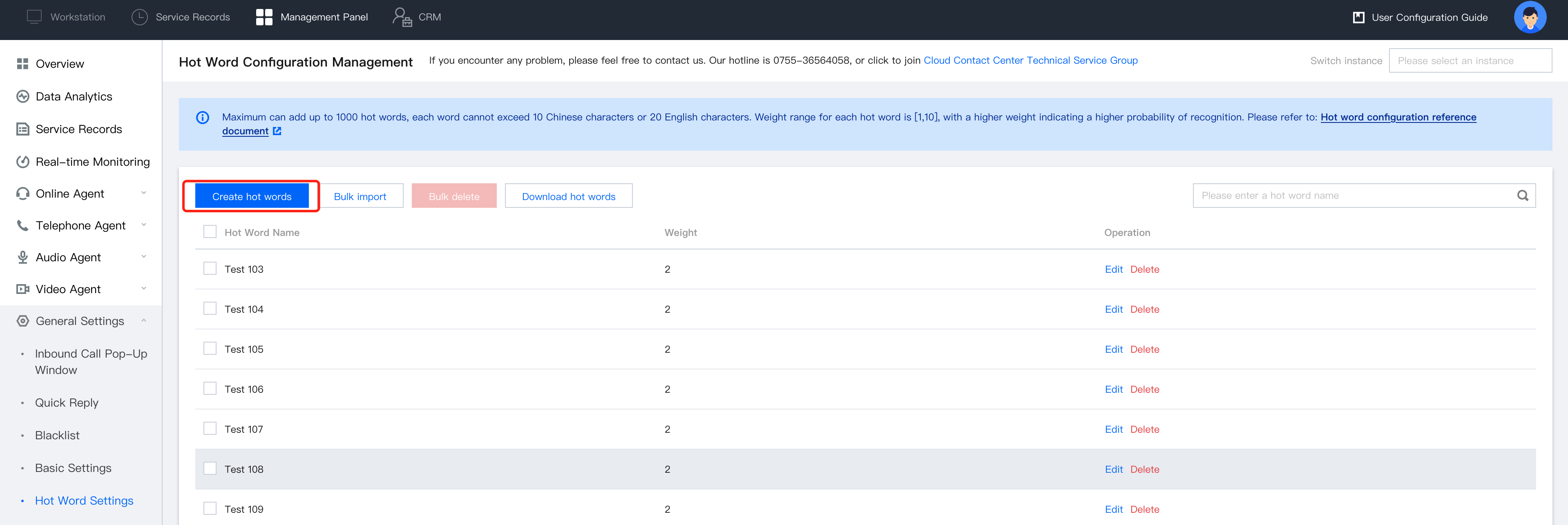
(1) Log in to the Cloud Contact Center Management Panel, choose General Settings > Boosted Keyword Settings from the left menu to go to the boosted keyword settings page, and then click Create Hot Words.
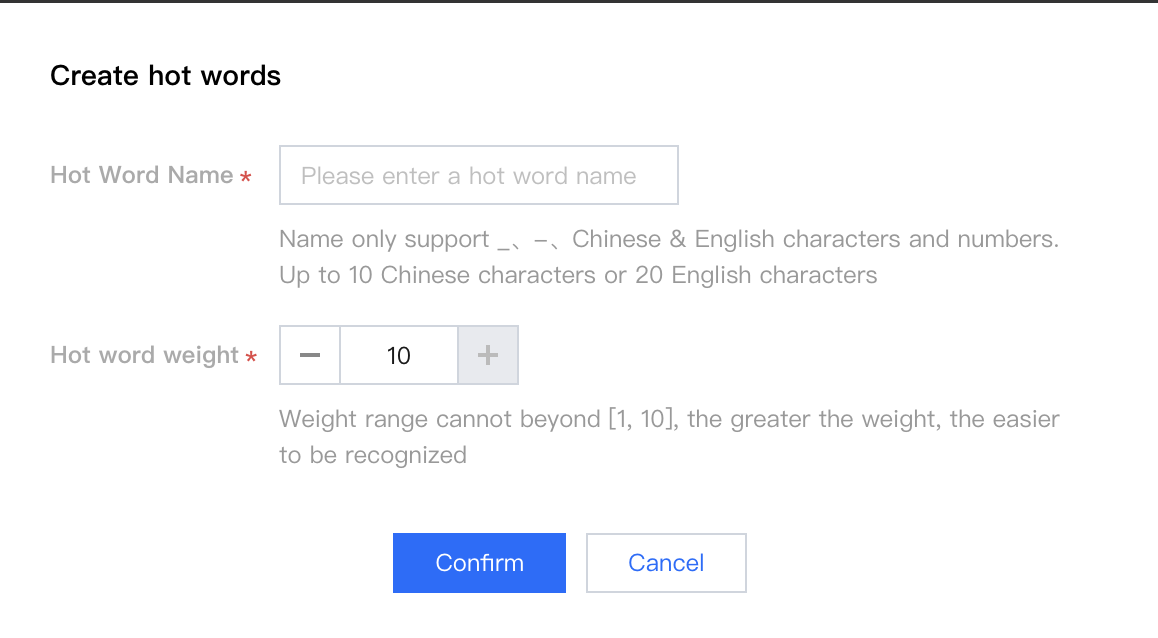
(2) On the page that is displayed, enter the boosted keyword name and weight, and click Confirm. Then a new boosted keyword is successfully created. See Use Limits for name rule.
2. Bulk Import
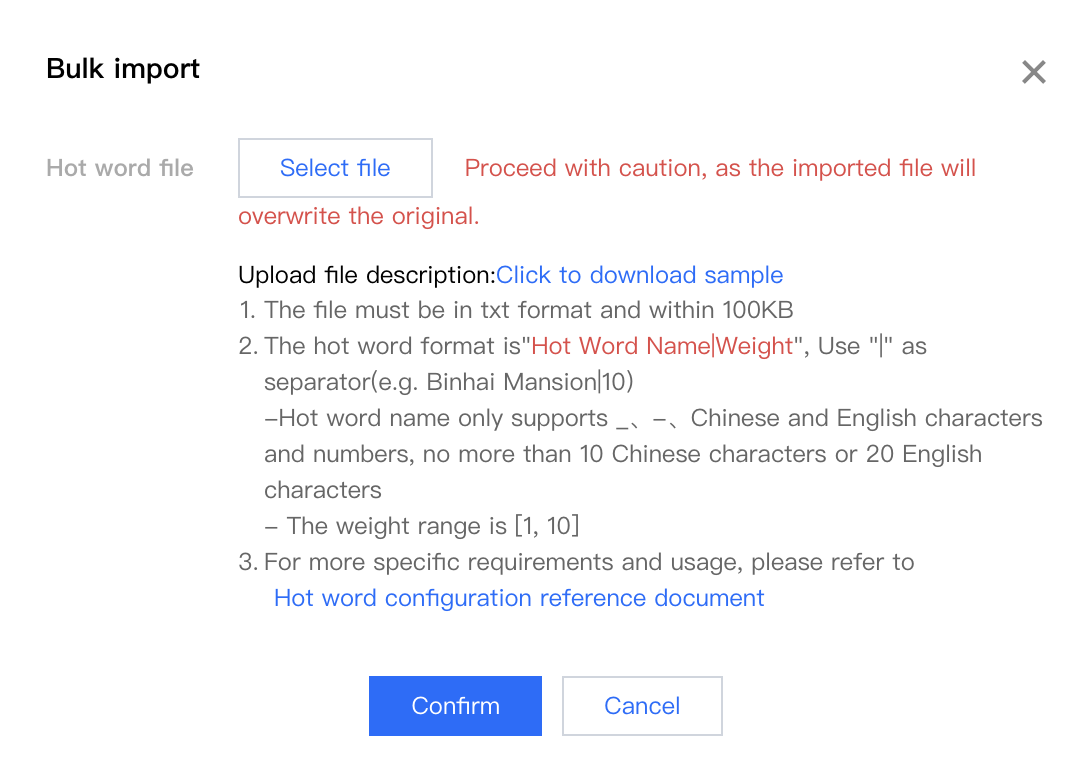
(1) On settings page, click Bulk Import.
(2) On the page that is displayed, select file for upload. Once upload is complete, click Confirm to import the new keyword.
Note:
Proceed with caution, as the uploaded file will overwrite the original keyword file.
3. Edit Boosted Keywords
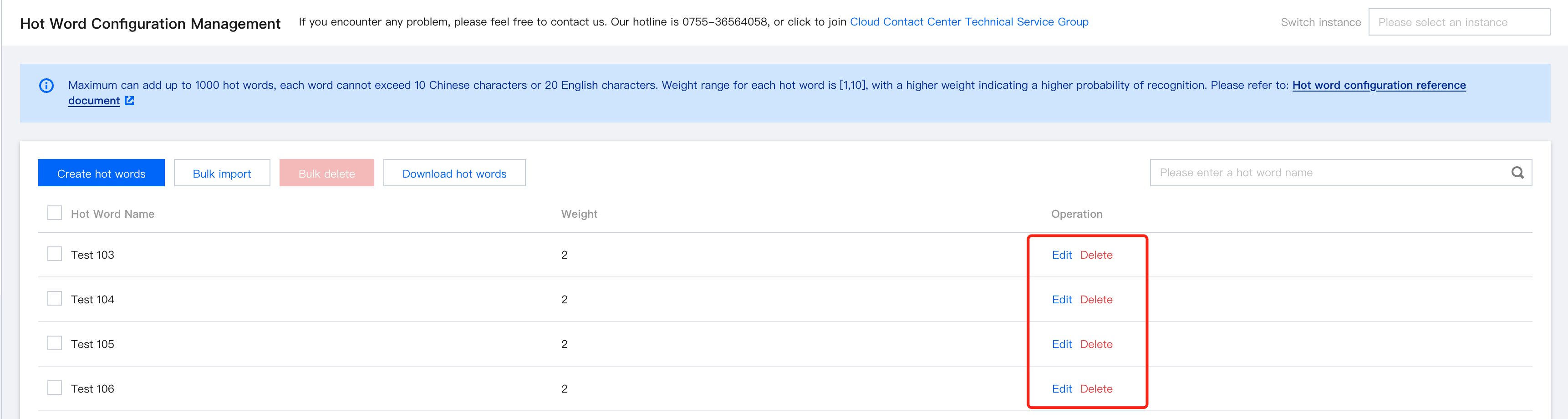
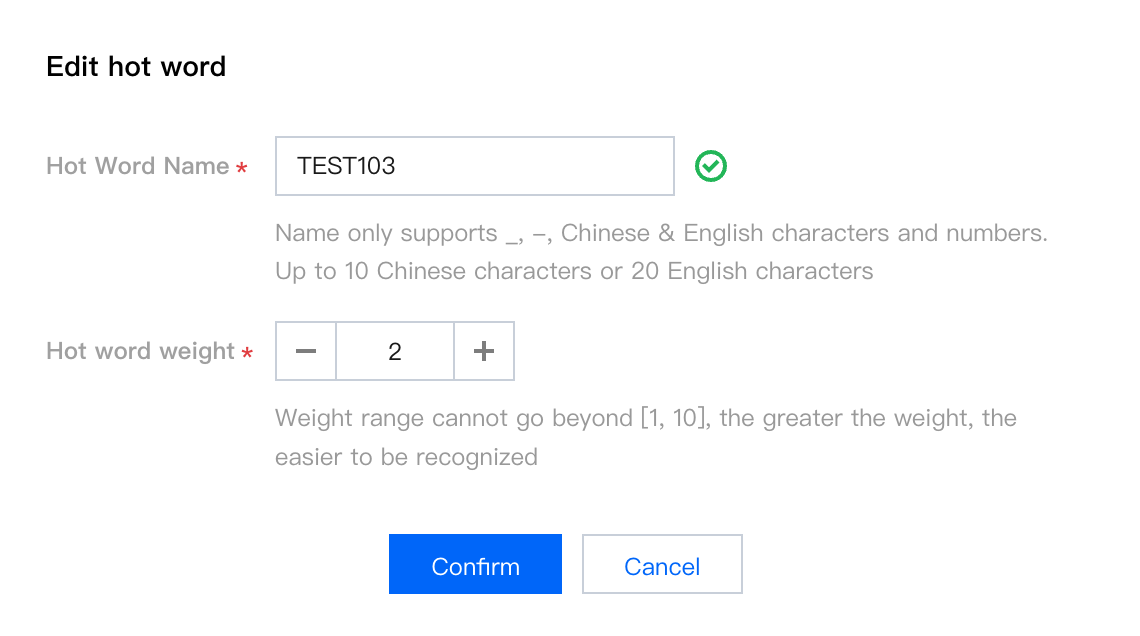
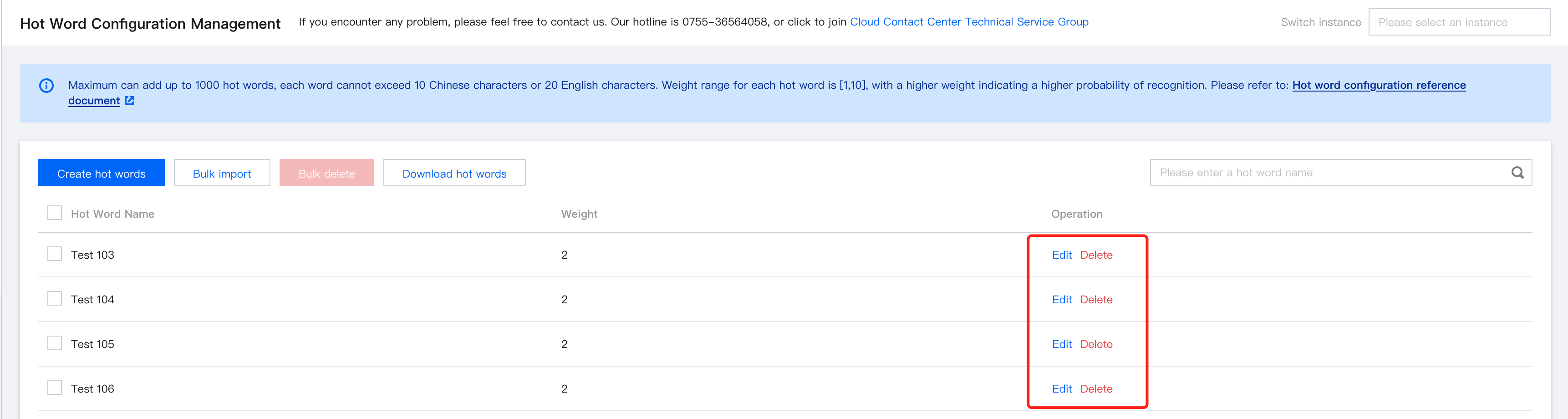
(1) On boosted keyword page, select keyword you want to edit, and click Edit.
(2) On the page that is displayed, enter the keyword name and weight, and click OK to update keyword. See Use Limits for the word name rule.
4. Delete Keywords
On settings page, select keyword to be deleted. Be aware that once keyword is deleted, it cannot be restored.
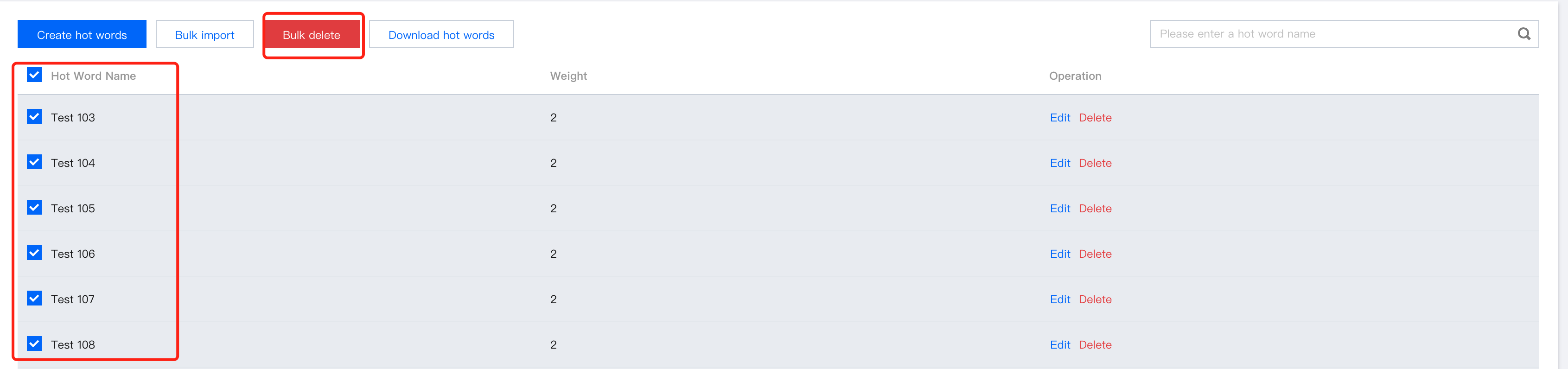
5. Bulk Delete
On settings page, select the hot words you want to delete, click Bulk Delete. Bulk deletion operation cannot be performed when no word is selected.
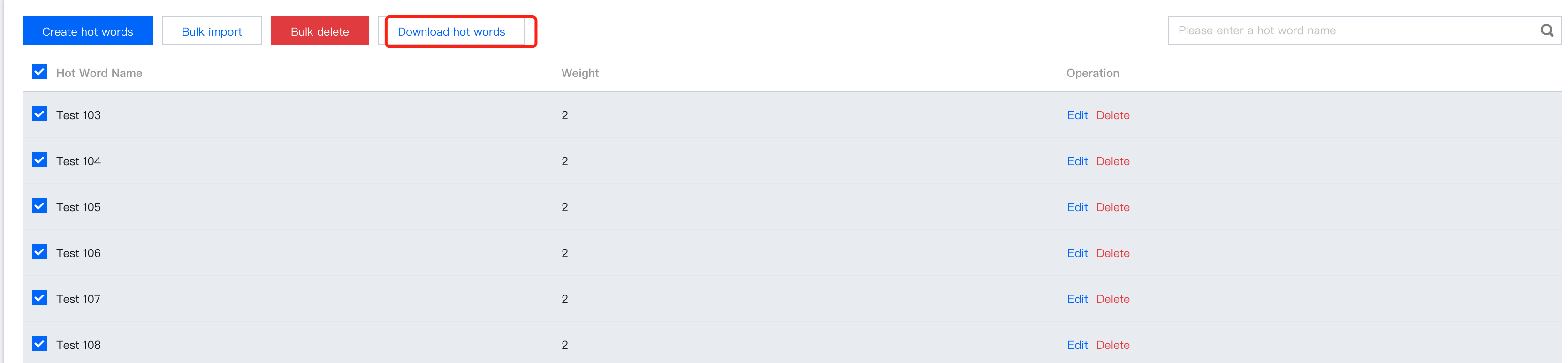
6. Download Keywords
Download Boosted Keywords to download all words directly.
7. Example
Bulk Import, and upload the word list file to add words. The example of a word file is as follows:
For example: "Python", "high concurrency", "JavaScript", "Robinson", "Wild Goose Pagoda Campus", and other such professional terms, can be added to keywords using the above example. The higher the weight of the keyword, the better the recognition result.