Q&A Database
Download
Mode fokus
Ukuran font
Access the management console, click Chat Bot > Q&A Database in the left sidebar to enter the intelligent bot Q&A database settings page.
You can configure some common Q&A here. The chatbot will reply to user questions based on your configured common Q&A.
Q&A Database
Manually Add Q&A
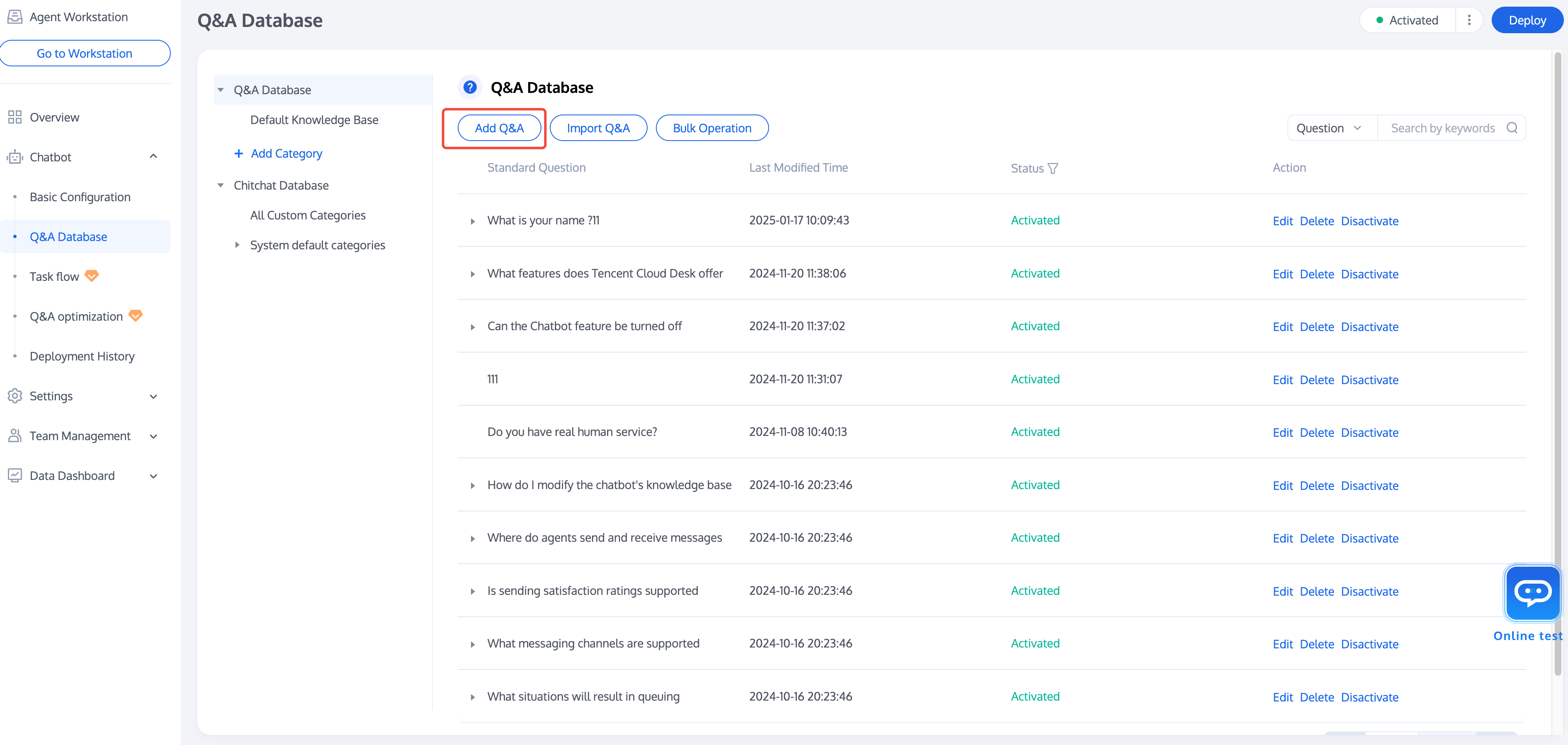
Click Add Q&A below the Q&A database. In the add Q&A pop-up window that appears, select the category to which the question belongs, enter the standard question, similar questions (optional), and the answer.
Click Finish. Then the QA is completed. At this point, the QA will be default enabled in a test environment. You can test the QA effect through online testing.
Import Q&A
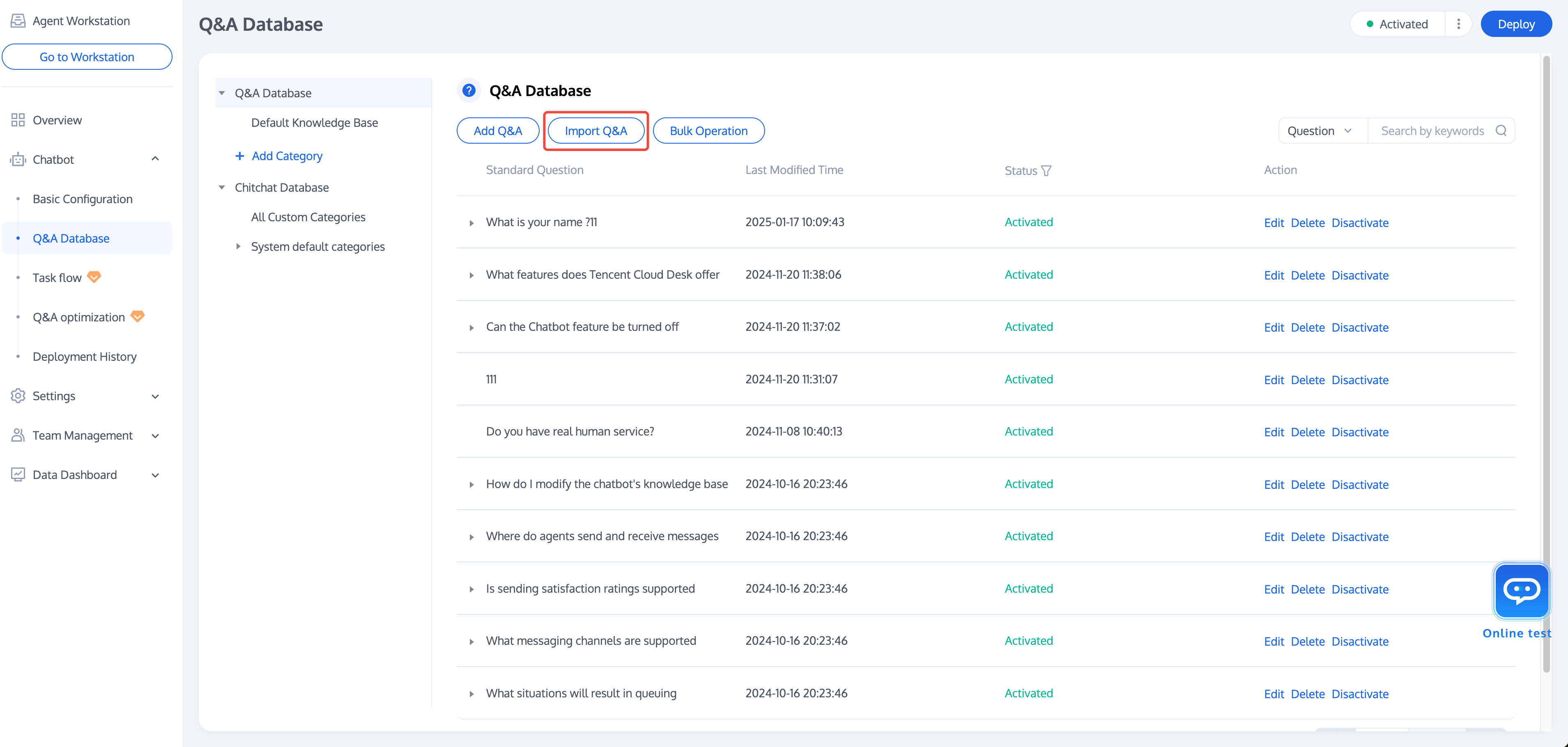
Click Import Q&A below the Q&A database. In the add Q&A pop-up window awakened, download the bulk upload template. Complete the information related to the Q&A pair according to the template content and complete the upload.
Modify Q&A
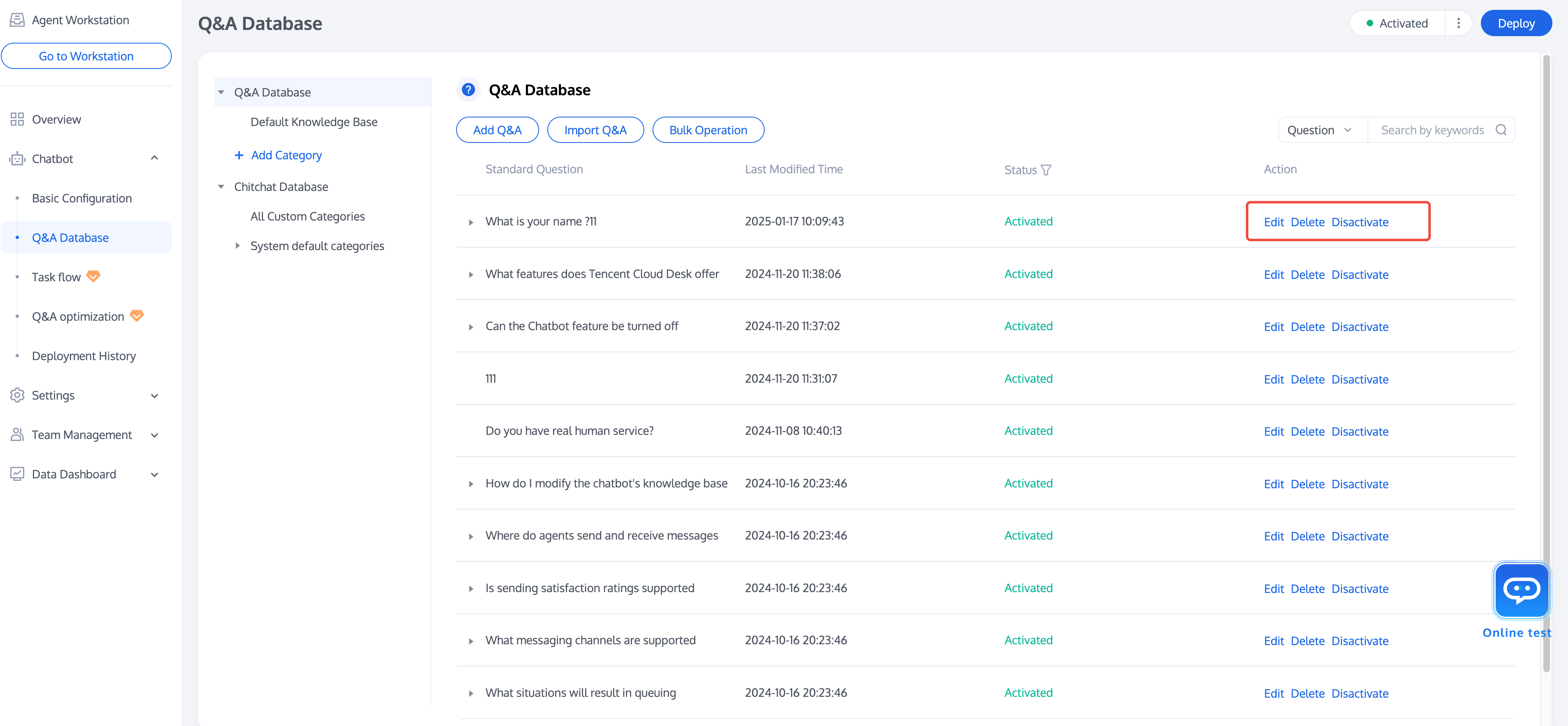
After uploading the Q&A, you can perform Edit, Delete, Disactivate operations on the Q&A in the operation area on the right side of the question. If you need to perform batch operations, you can also click Bulk Operation below the Q&A database to perform batch operations on the selected Q&A.
Chichat Database
You can use the Chitchat Database to enable your Chatbot to reply to users' casual chats and greetings. The Q&A strategy of the Small Talk Library is different from that of the Q&A database. For detailed information, see Basic Configuration > Q&A Strategy settings.
You can configure Chitchat Database in the Chitchat Strategy. Before configuration, go to Basic Configuration > Q&A Strategy > Chitchat Strategy to enable the chitchat feature.
Note:
Only standard Chatbots can enable the Chitchat Database feature. Intelligent Agents (large model mode) will automatically answer Chitchat questions based on large model capabilities.
Default Chitchat Database
The default chitchat database has been provided for you. You can click the button on the right of the system preset classification in the operating system to enable or disable the Q&A of the system preset classification with one click. For a single question, you can also click the edit on the right of the question to modify the answer or click disable to end the answer.
Custom Categories
You can also configure your own Chitchat Database. See related operations in the Q&A Database.
Bantuan dan Dukungan
Apakah halaman ini membantu?
Anda juga dapat Menghubungi Penjualan atau Mengirimkan Tiket untuk meminta bantuan.
masukan