Task Flow
Download
Mode fokus
Ukuran font
Feature Introduction
Log in to the Management Side. In the left sidebar, click Intelligent Bot > Task Flow and use this feature. Task Flow is designed for complex scenarios requiring multi-round dialogue. It provides a simple and easy-to-operate visual interface. You can quickly configure the required task flow by dragging and dropping nodes.
Provide two task flow modes:
Intelligent Task Flow: Obtain required information through smart follow-up and other methods, retrieve the knowledge base to provide answers.
Standard Task Flow: Perform the specified next step according to the user's information or selection, such as transferring to a human agent, api calls, form collection, etc.
Task Management
Creating Task
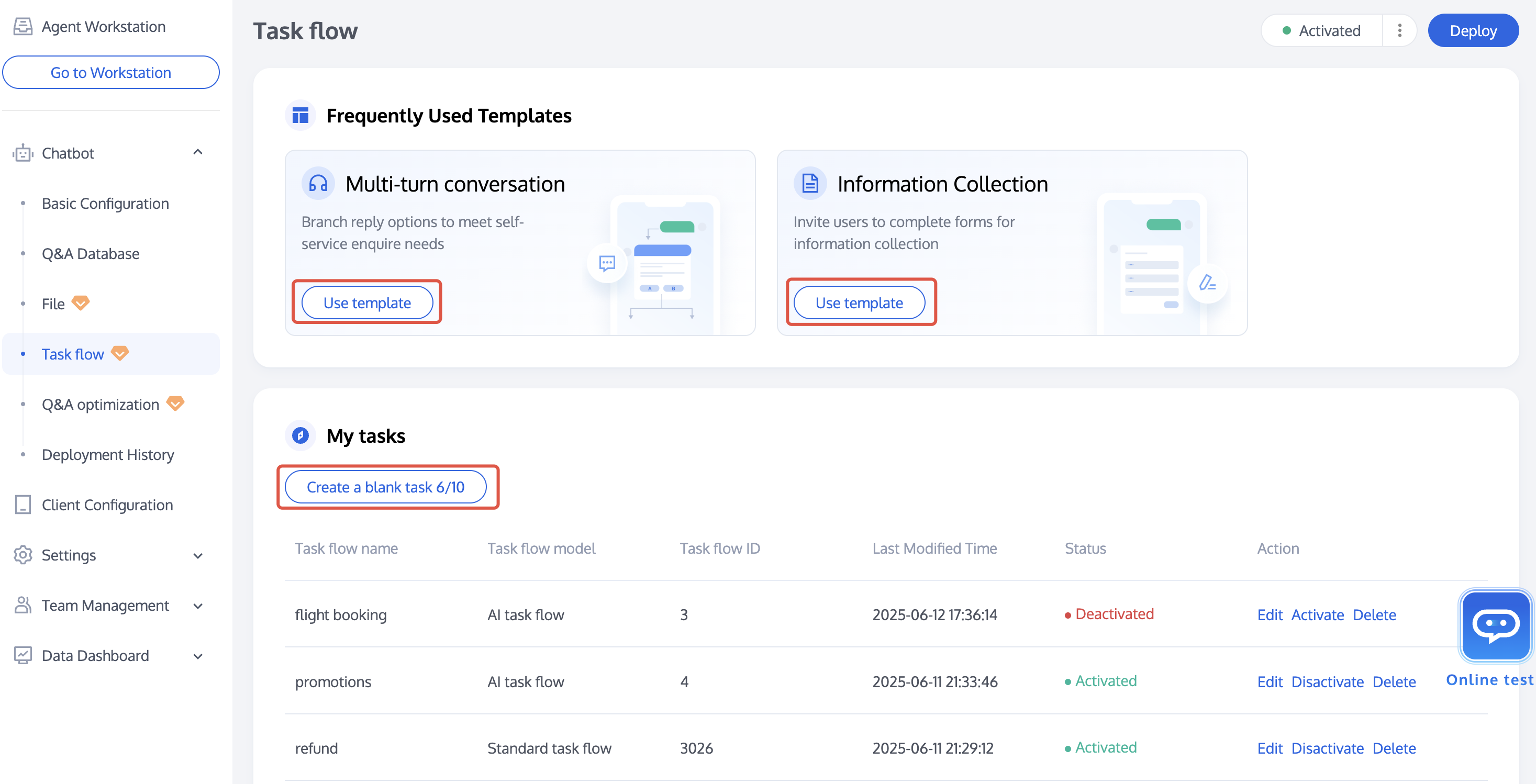
Support two methods to create a new task: create from template, create from blank task.
Creating From Template
Select a template from Frequently Used Templates, click Use Template on the template card. Clicking will open the task flow containing this template.
Creating From Blank Task
Click Create a Blank Task under My Tasks. A blank canvas will open after clicking.
Note:
Trial version supports the creation of 10 tasks, advanced edition supports the creation of 50 tasks, and standard version does not support task flow functionality.
Task List
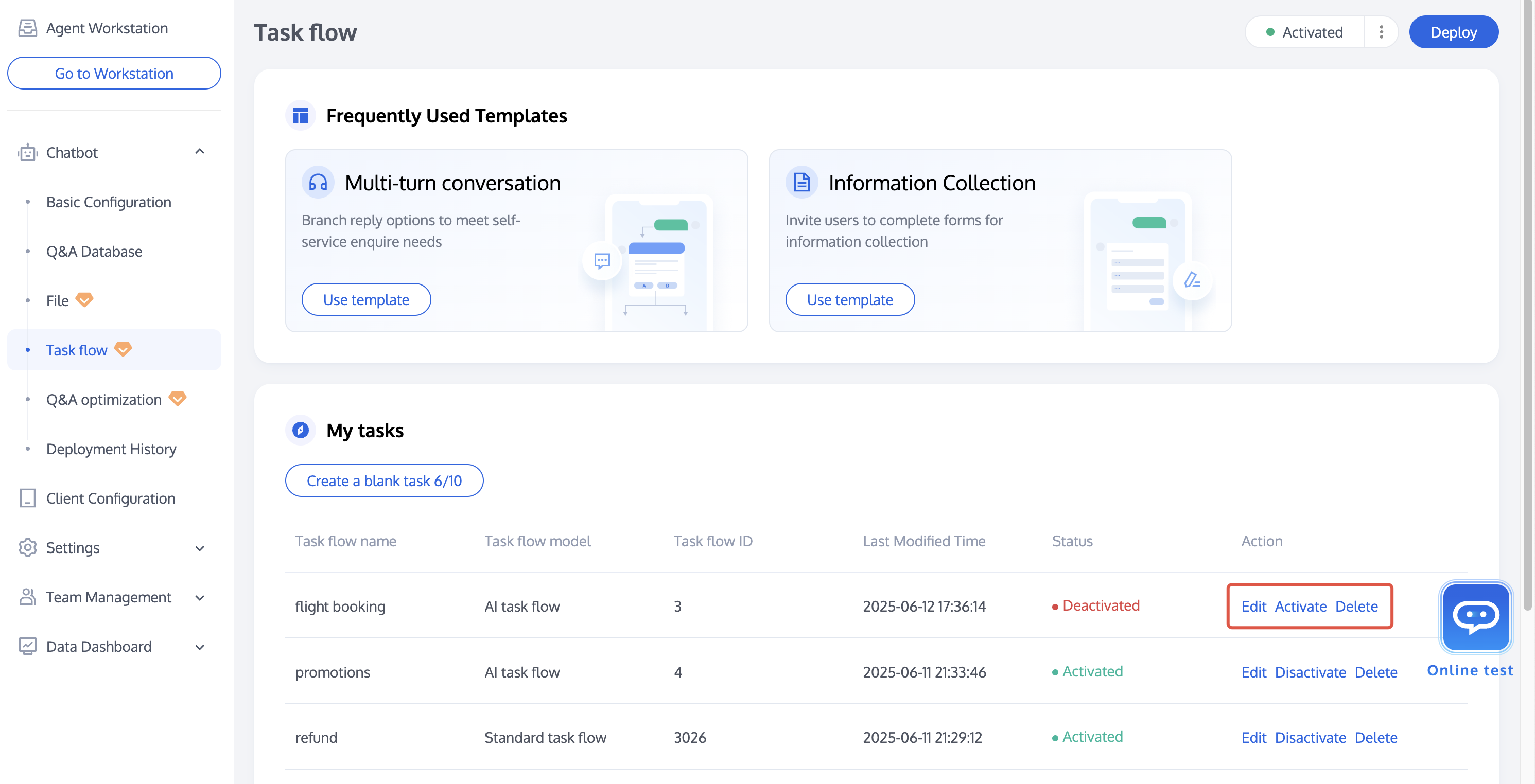
You can edit, activate, delete in the operation area under My tasks.
Intelligent Stream Node
Start Node
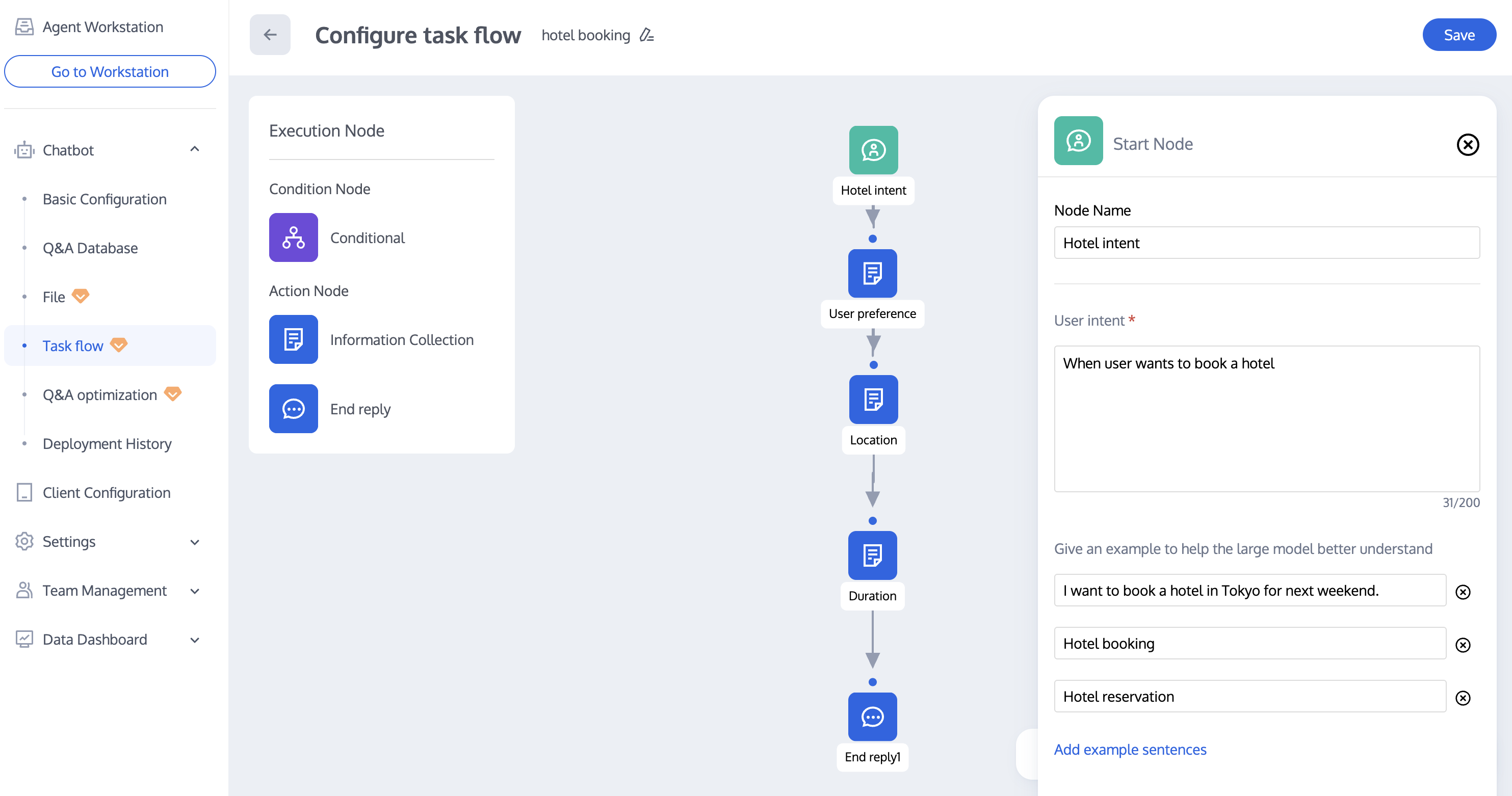
Start Node is used to configure trigger conditions for a task flow. A task flow can be triggered by user intention. You can describe the intent that triggers this task here, or provide an example to help the large model better understand.
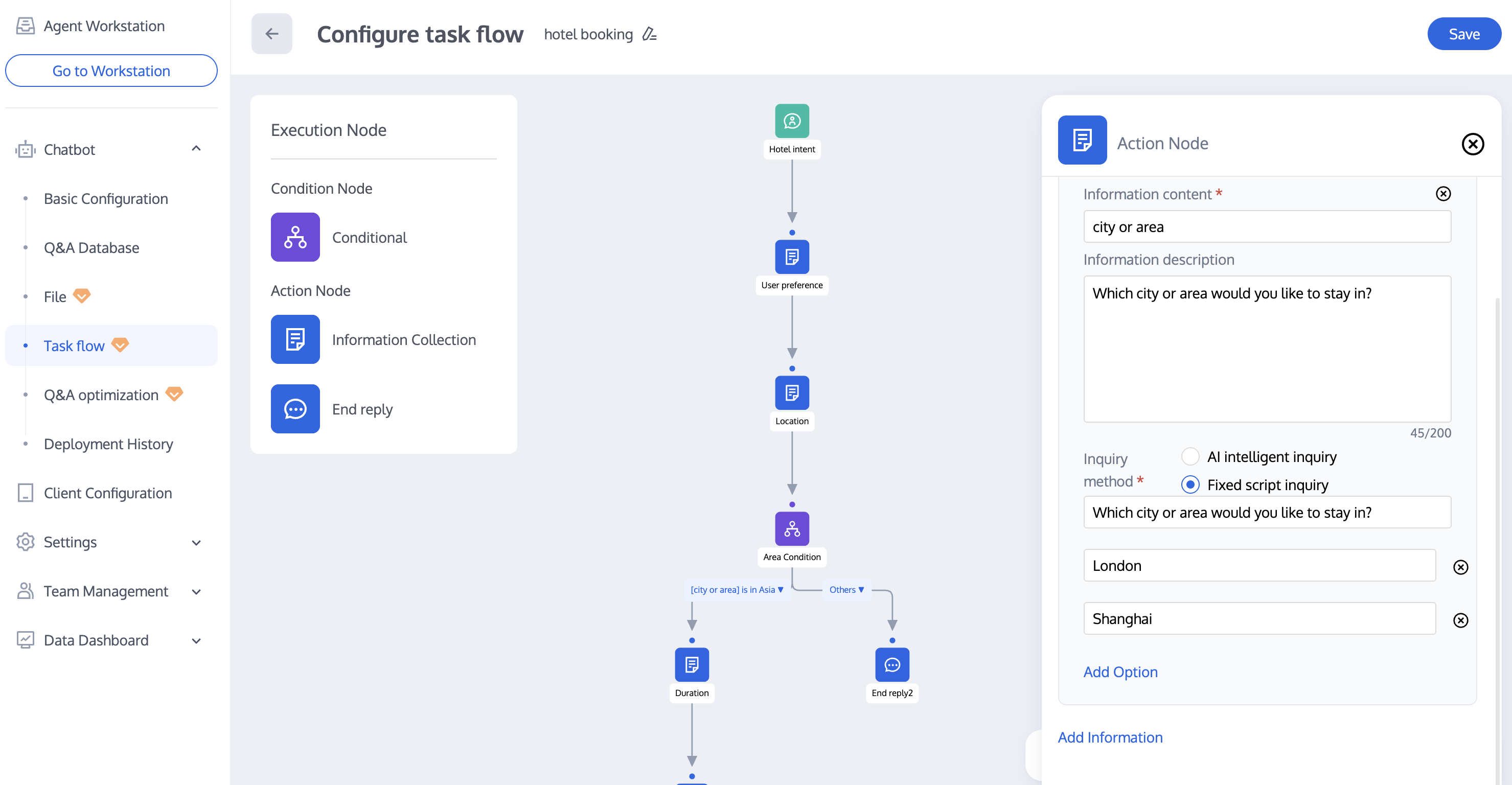
Information Collection
Information Collection node is used to collect information from users. The chatbot collects information via intelligent extraction and follow-up questions in context. After collecting all information, it will enter the next node.
After entering the Information Collection node, the chatbot will judge whether the conversation context contains the required information. If no information is extracted, it will follow up with the user. Two kinds of asking methods are supported.
AI Intelligent Inquiry: The large model will automatically generate follow-up questions based on the information and description filled here, combined with the conversation context, and send them to users.
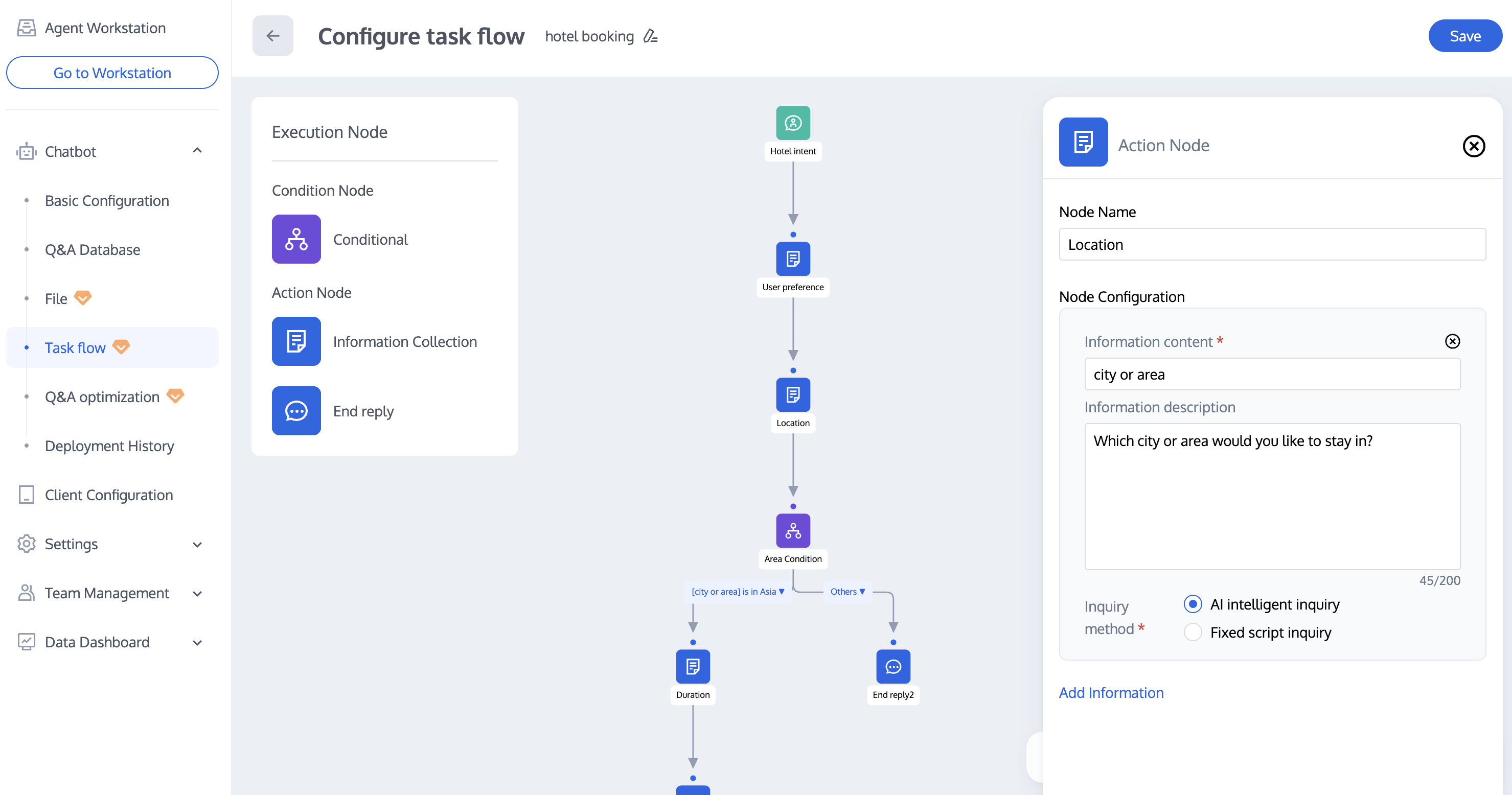
Fixed script inquiry: Ask users using the fixed script configured here, supporting quick input options added by users.
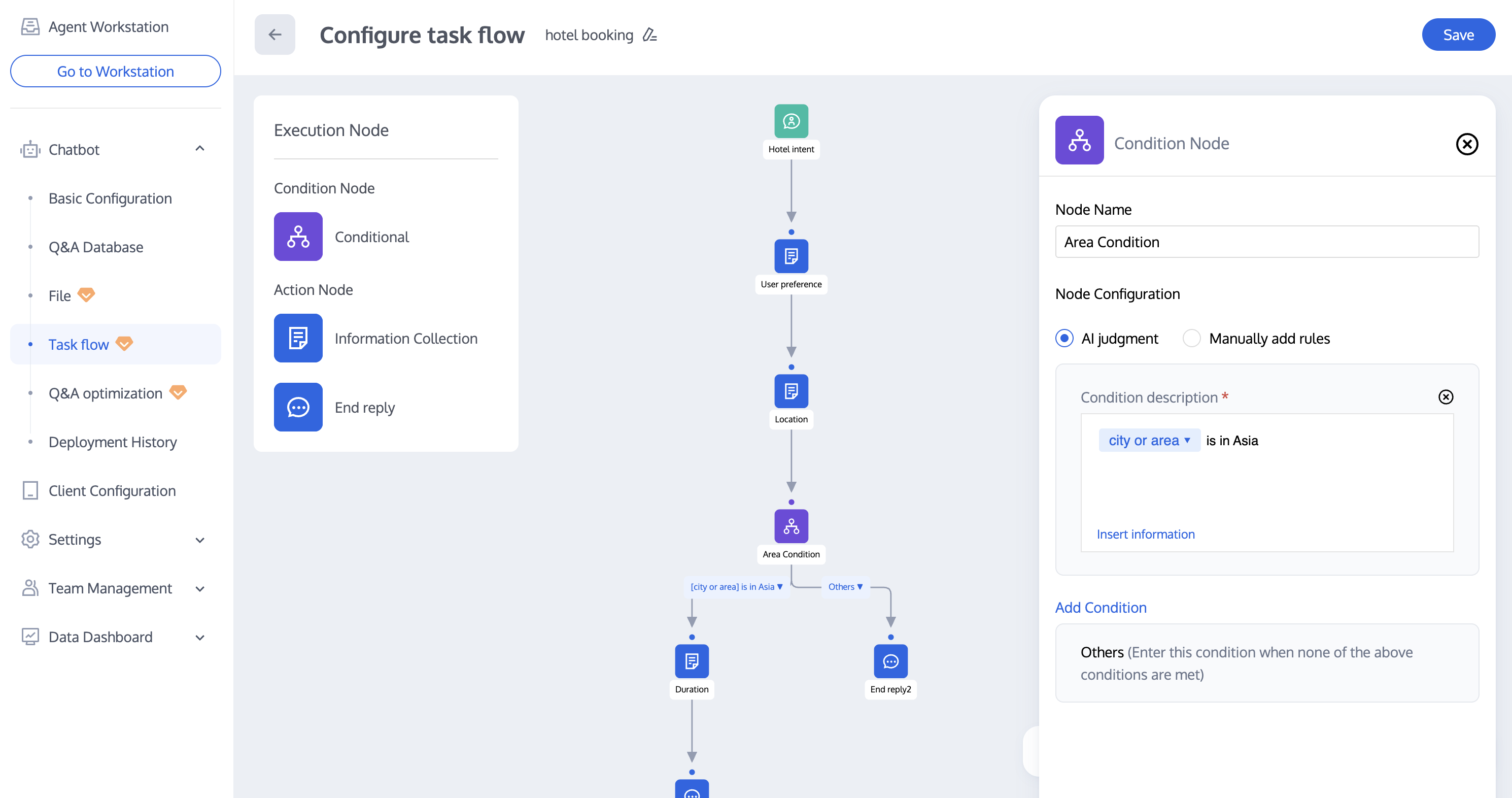
Conditional
The Conditional node can combine information collected by the Information Collection node to make judgments, evaluate all conditions sequentially, and proceed to the corresponding sub-process when one condition is met.
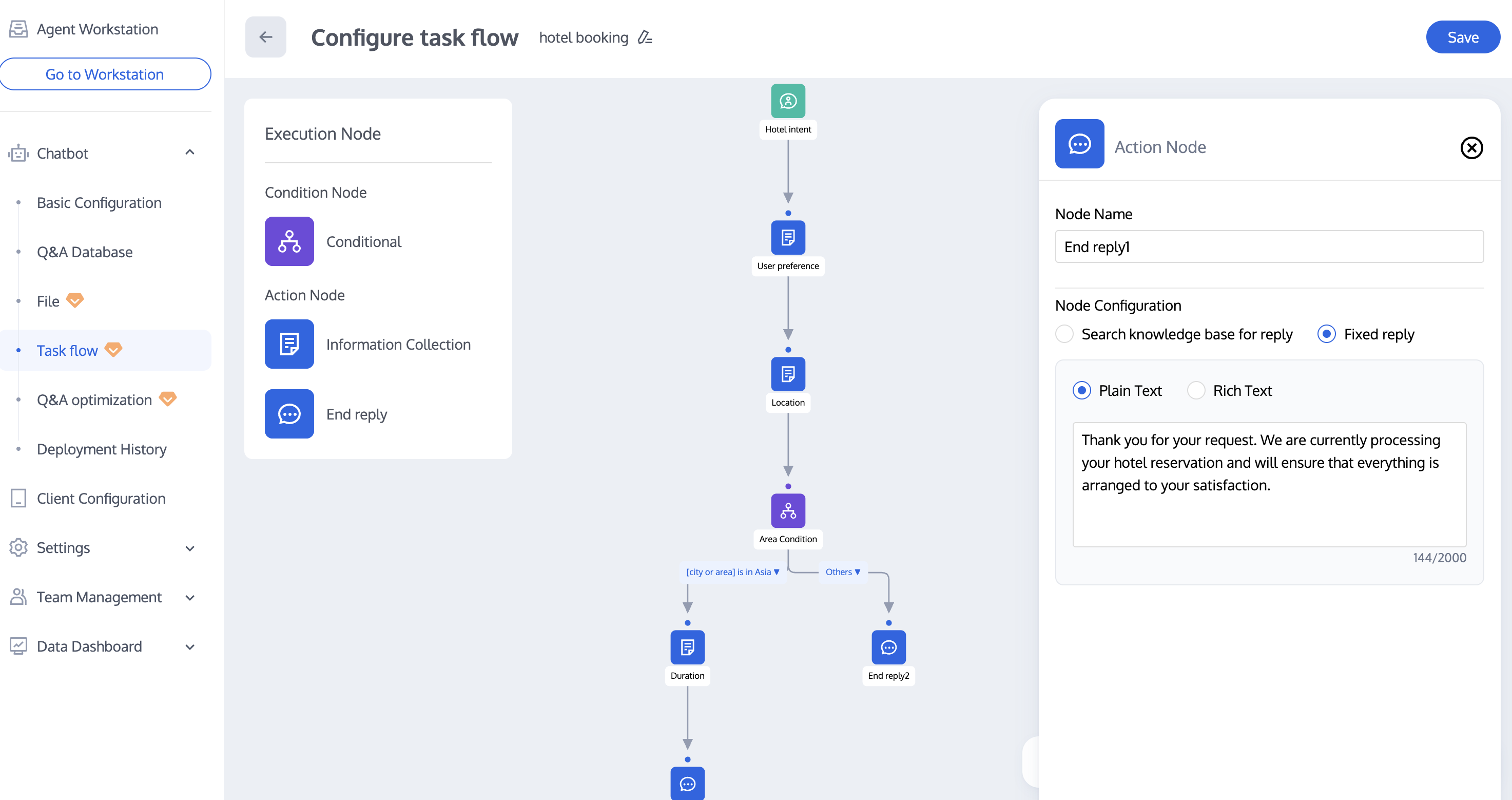
End Reply
The End Reply node can only be used as the last node in a task flow. There are two ways to reply:
Retrieve knowledge base to reply: The Chatbot combines context and collected information to retrieve the knowledge base and generate a response.
Fixed reply: The Chatbot replies with the fixed script configured here.
Standard Stream Node
Start Node
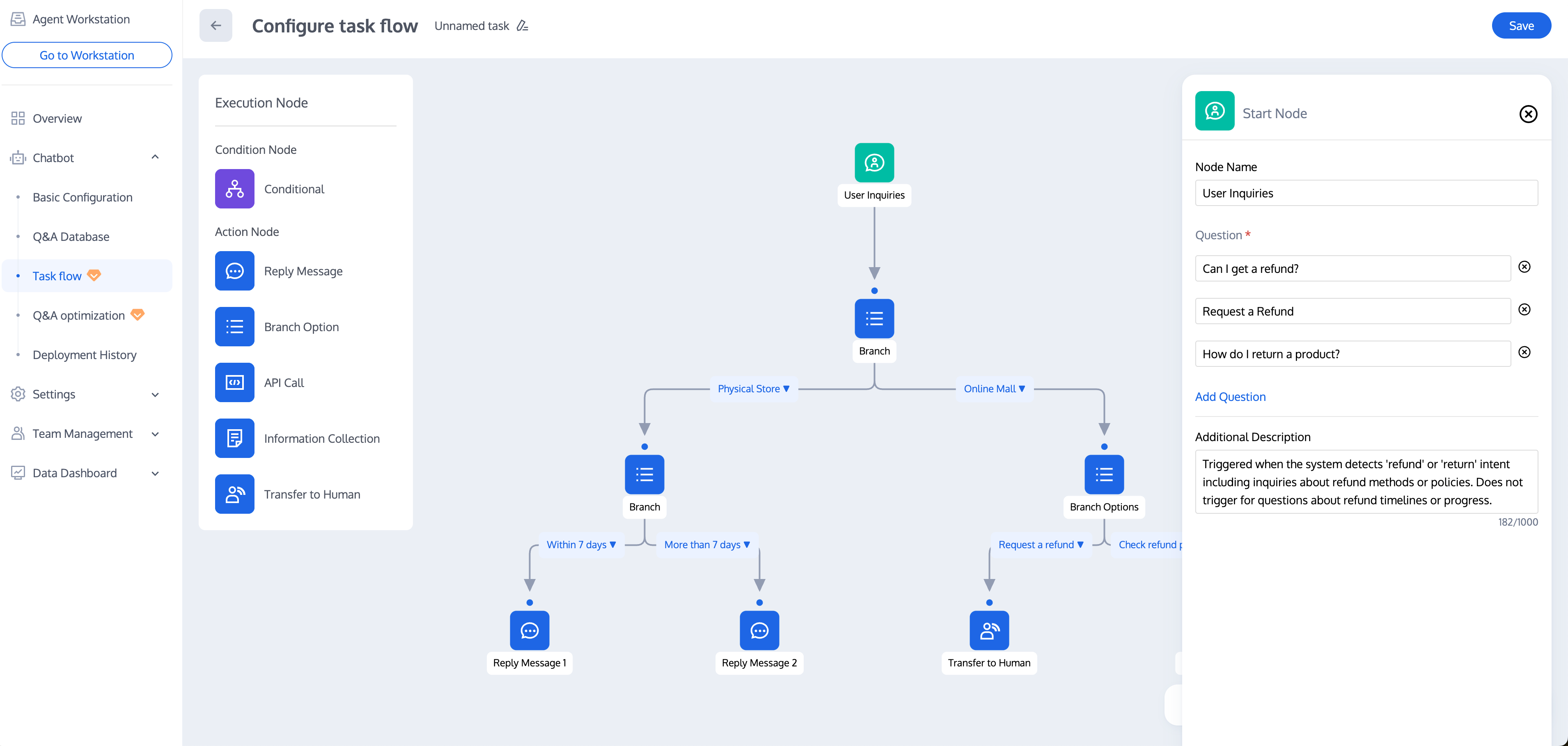
Start Node is used to configure trigger conditions for a task flow. A task flow can be triggered by user intention. You can configure possible user queries and supplementary descriptions for the task here.
Note:
It is advisable to add multiple question variations to improve intent recognition accuracy. Each task can be configured with up to 20 question variations, and each variation must not exceed 200 characters.
Adding supplementary description can further improve intent recognition accuracy. The supplementary description must not exceed 1000 characters.
Reply Message
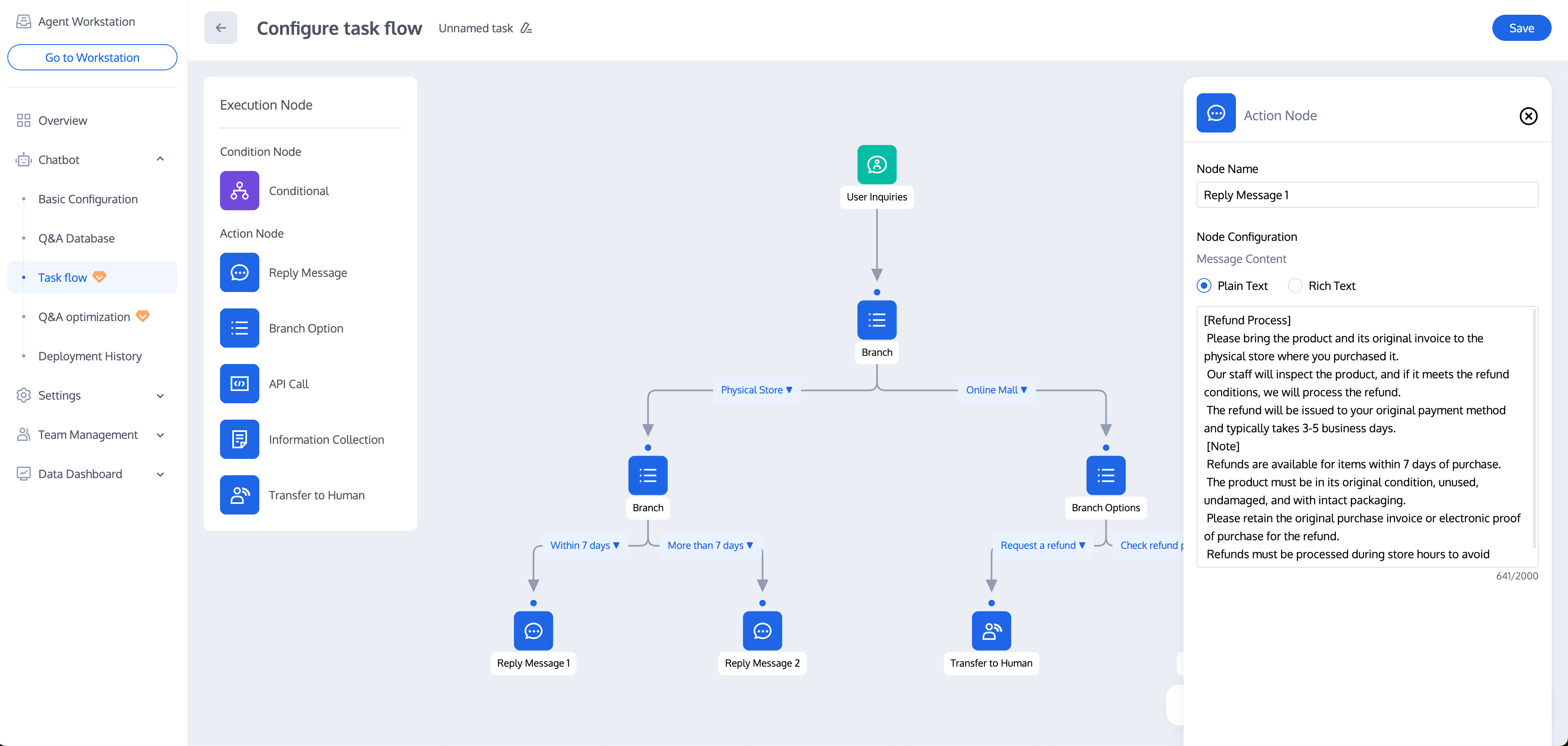
Reply Message node is for configuration of the Chatbot's reply content, supporting addition of plain text messages and rich text messages.
Branch Options
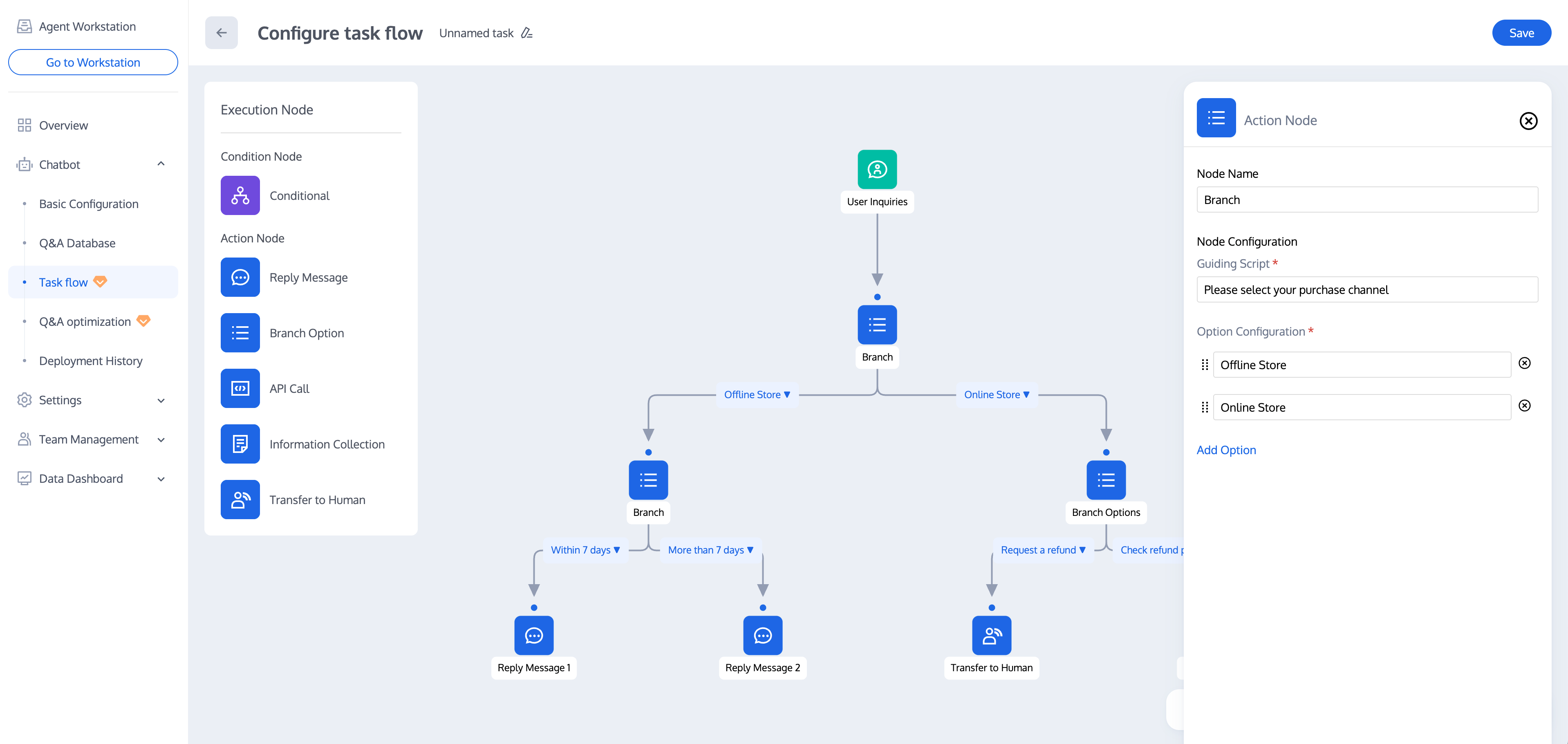
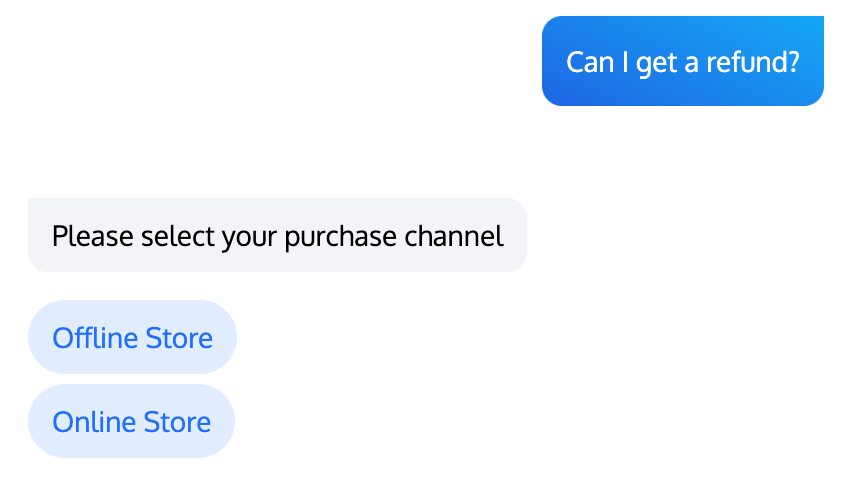
Branch Option node is used to divert different user selections. Each branch node can be configured with up to 20 options, and each option must not exceed 200 characters.
Management Console Configuration | User End Example |
 |  |
Information Collection
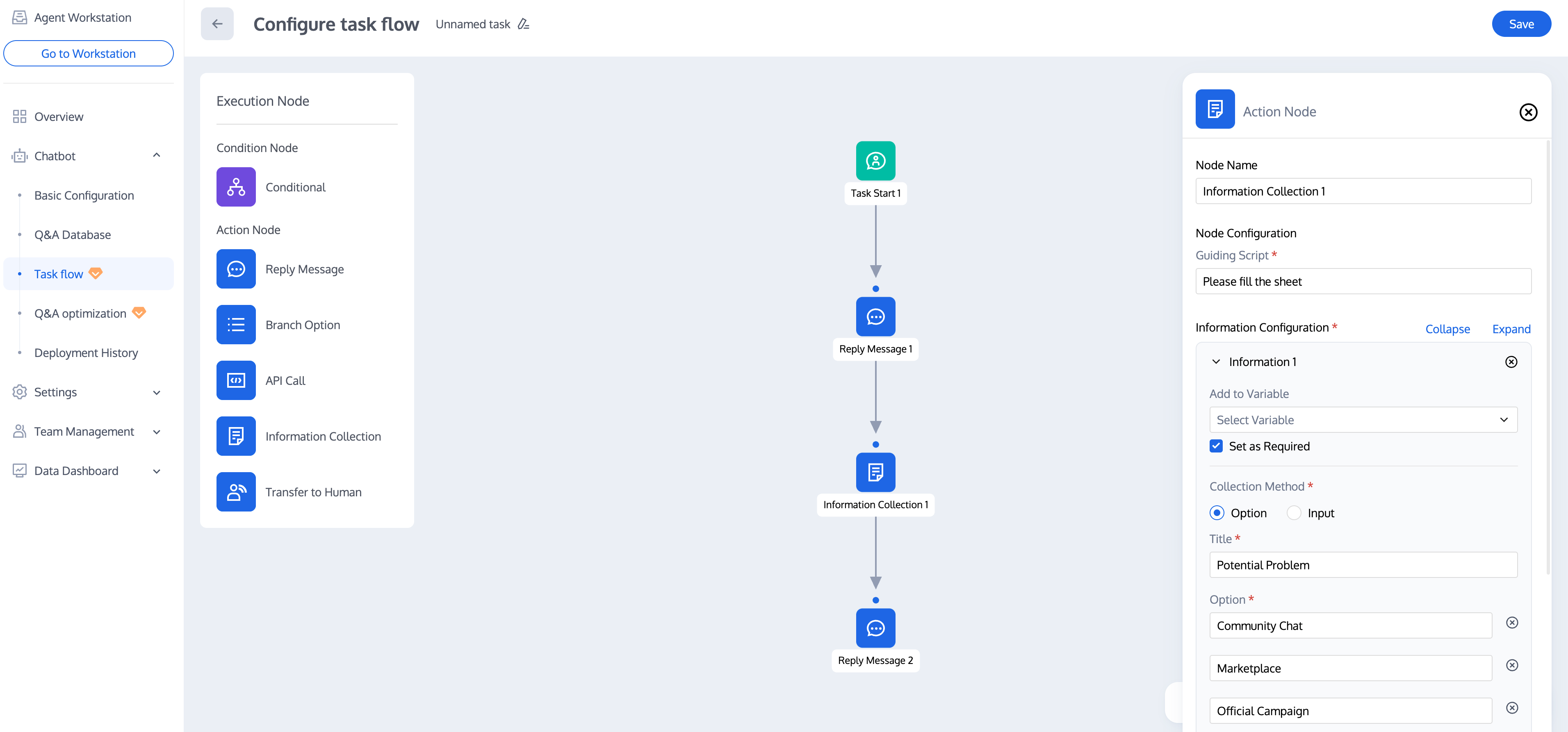
Information Collection node is used to collect information from users. The chatbot sends a question form. After the user clicks "Submit", it will enter the next node; if the user does not submit the form, the process will end automatically.
Management Console Configuration | User End Example |
 | 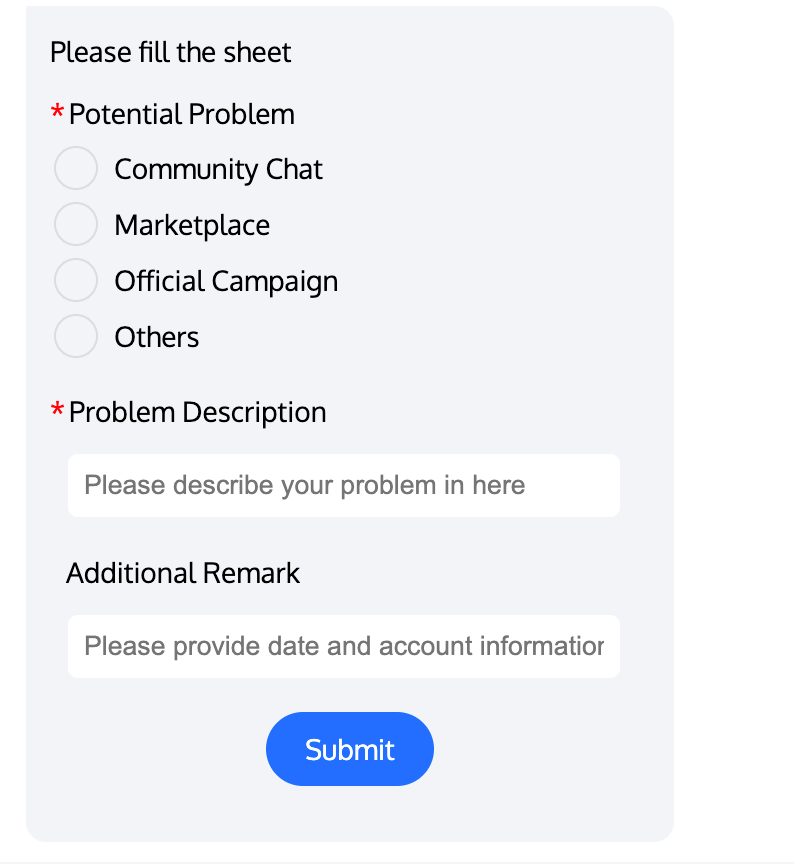 |
Configuration Item | Description |
Guided question prompt script | Required, displayed in the title position of the form, the maximum length is 200 characters |
information configuration | Required, used for adding form collection info, each form supports up to 10 info items |
add to variable | Optional, used for saving user input to a Custom Variable. After saving to the variable, it can be used in conjunction with Conditionals and API calls. |
Collection Method | Select one of the following collection methods for each piece of information. Options: Single selection, up to 20 options, each option is a string of up to 200 characters. Input: text input box |
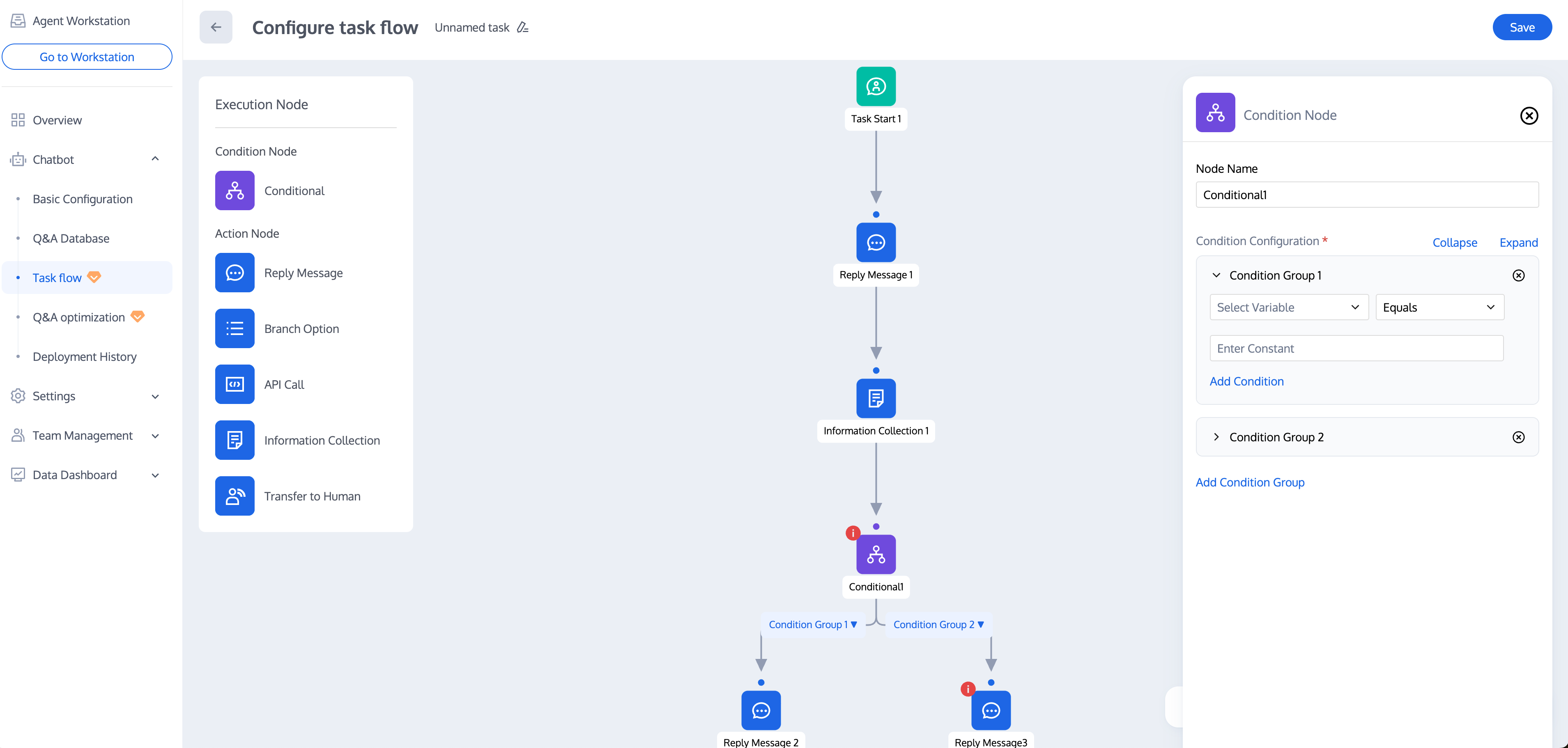
Conditionals
The Conditional node is used for the user's account information or provided information, evaluates all condition groups sequentially, and proceeds to the corresponding sub-process when one condition group is met.
The Conditional Judgment node can connect up to 10 condition groups. Each condition group can consist of up to 10 conditions, and the condition group supports two methods to add conditions:
and: all conditions in the condition group are satisfied simultaneously
or: any one of the conditions in the condition group is satisfied
Calling the API
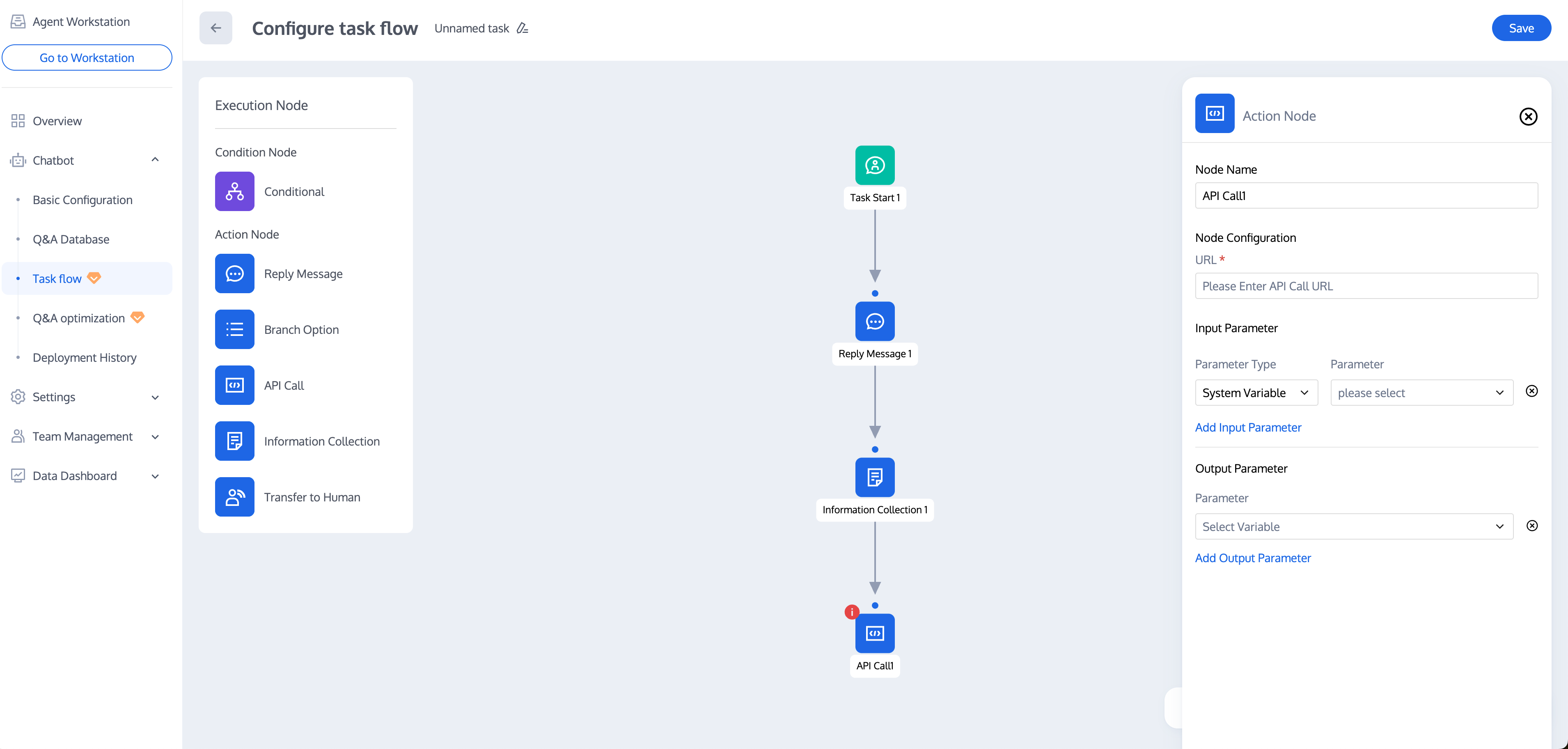
API call nodes are used to callback user's account information or provided information to the developer backend for query or store operation.
URL: callback URL, starting with https or http.
input parameter: supports passing system variables, Custom Variables, and fixed values.
output parameter: supports filling the return result of the request into a Custom Variable.
Transfer to Human
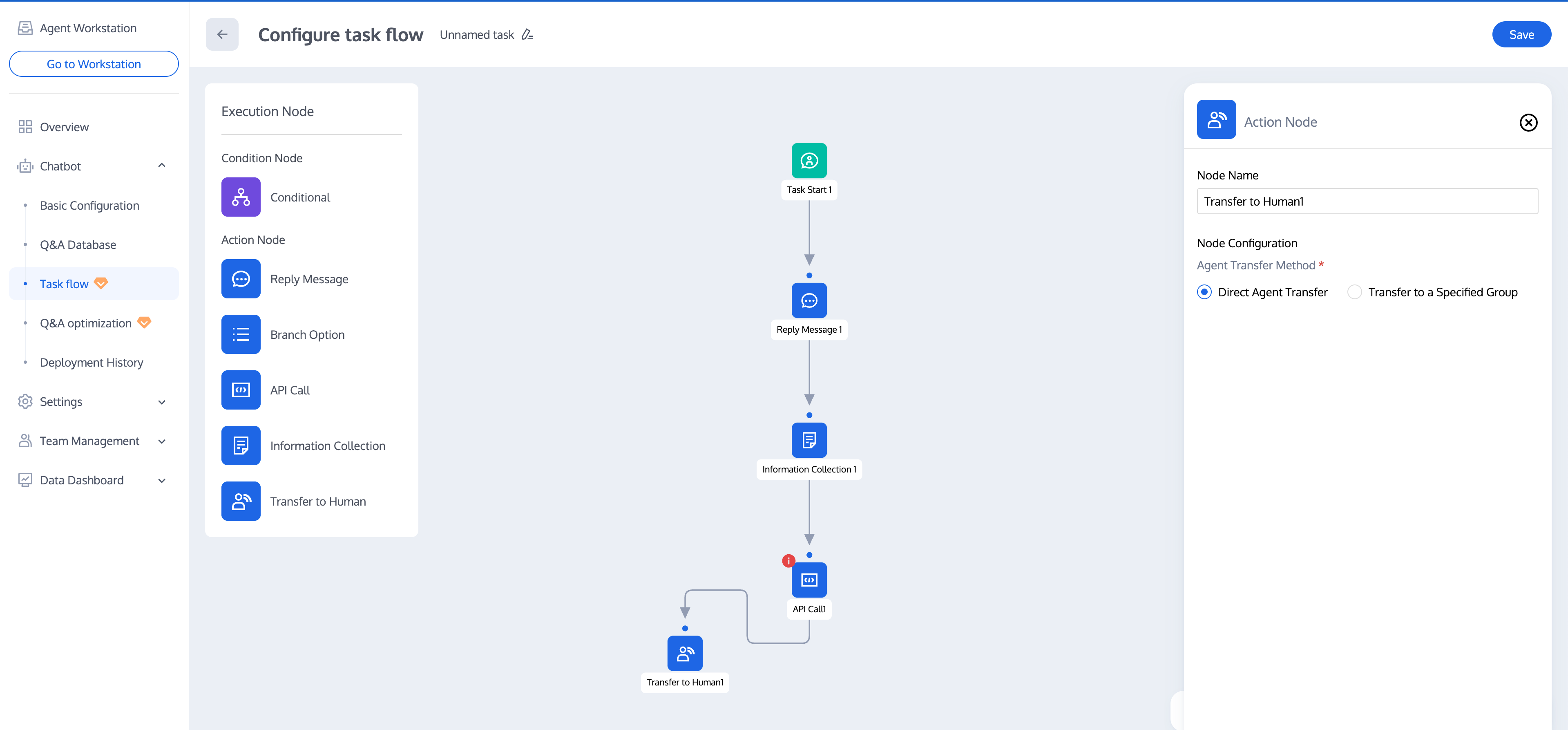
Transfer to Human node is used to transfer an in-progress session from a Chatbot to a human customer service. Two methods are supported: direct transfer to an agent and transfer to a specified agent group.
Direct transfer to agent: Select this method. When the task flow enters the Transfer to Human node, it will be assigned to an idle customer service based on the allocation policy configured in the session configuration.
Transfer to a specified agent group: After creating an agent group, you can select an agent assigned to a specific group for reception here.
Bantuan dan Dukungan
Apakah halaman ini membantu?
Anda juga dapat Menghubungi Penjualan atau Mengirimkan Tiket untuk meminta bantuan.
masukan