1. Log in to TSF console, click Polaris (Polaris) in the left sidebar to go to the instance list details page.
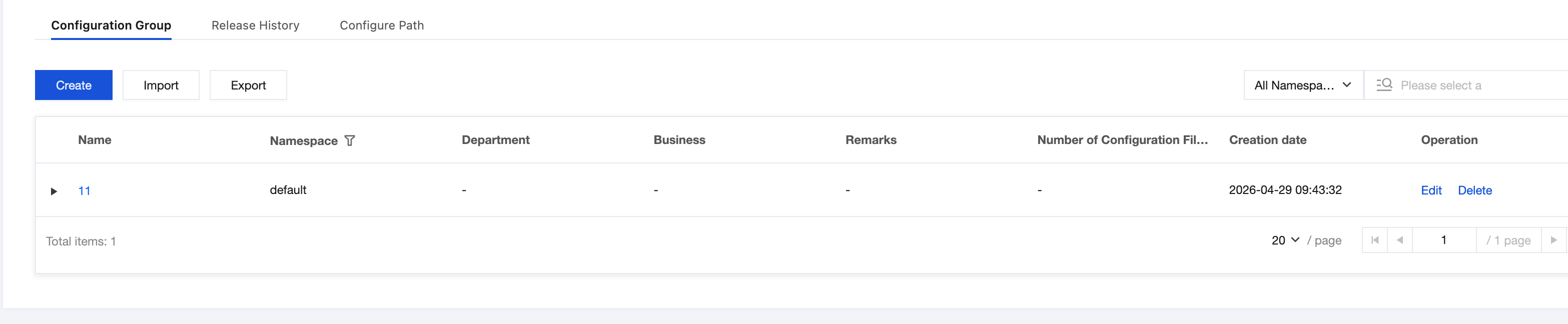
2. Click the target instance ID to go to the engine instance information page. Then, in the left sidebar, select Configuration Management to go to the configuration group page.
3. Select the target configuration group and click to go to the following page.
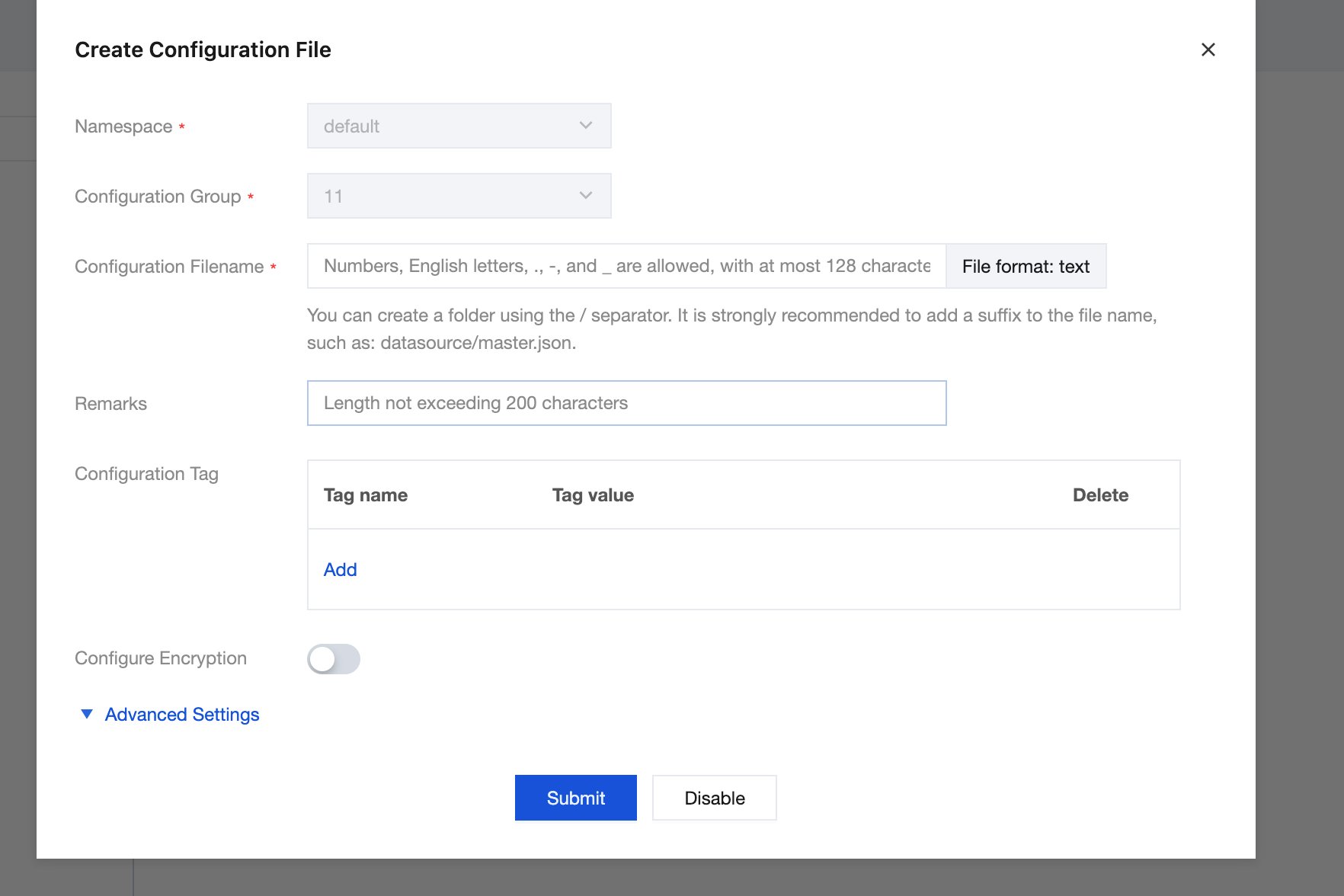
4. Click Add to create a configuration file.
Namespace: The namespace where the target configuration group is located.
Configuration group: The name of the configuration group.
Configuration file name: The name of the configuration file; allows digits, English letters, -, and _, limited to 128 characters. You can create folders using the / separator. It is strongly recommended to include a suffix in the file name, for example: datasource/master.json.
Remarks: Optional. Fill in the description information of the configuration file.
Configuration Tag: Optional. Configuration tags can be used to identify the purpose or characteristics of the configuration, in the format key:value.
Configuration encryption: Optional. Supports the AES configuration encryption algorithm.
Advanced Settings:
Delivery method: SDK only / Agent only / Both SDK and Agent.
When "Agent only" is selected:
File encoding: UTF-8/gbk.
Configuration delivery path: The path where the configuration is distributed to servers.
Post-script command: Commands executed after the configuration is delivered to the server. (should not include #! /bin/bash).
5. Click Submit to create a new configuration file.
Edit Configuration File
1. On the configuration file page, select the target configuration file.
2. Select the configuration file you wish to edit, and click the Edit button.
3. After editing the configuration file content, click Save.
Release Configuration File
1. On the configuration file page, select the target configuration file.
2. Select the configuration file you wish to release, and click Release.
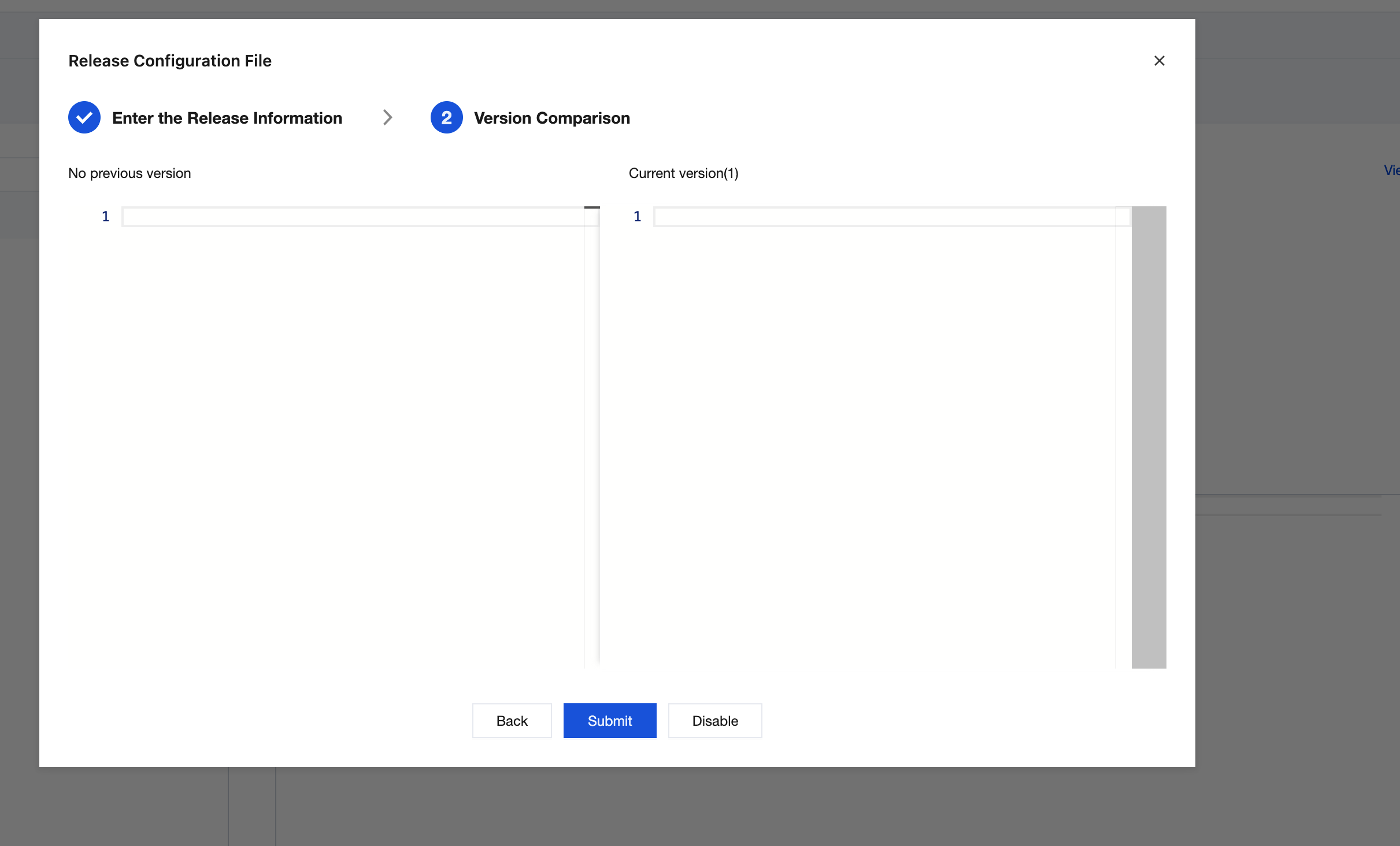
3. Enter the configuration version number in the pop-up window and perform a secondary confirmation to release it.
Viewing Product Release History Page
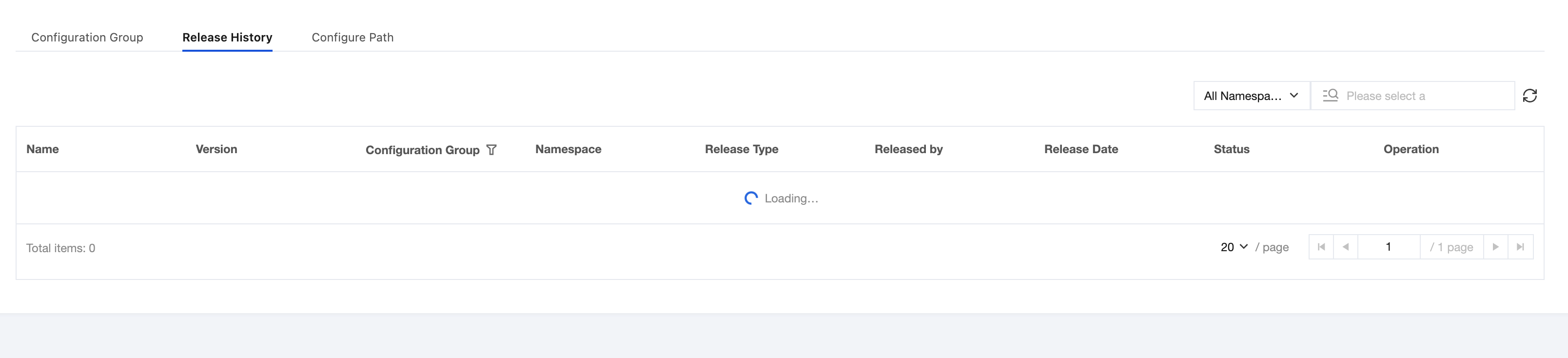
1. In the left sidebar, click Configuration Management, after selecting the region and instance, click the Release History tab.
2. On the release history page, you can view configuration release records. You can also query the configuration release records you want to view by namespace and group name/configuration file name in the upper right corner.
Configuration Rollback
1. In the left sidebar, click Configuration Management, after selecting the region and instance, click the target configuration group to go to the configuration file page.
2. At the top of the page, select Configuration Version to view historical configuration versions.
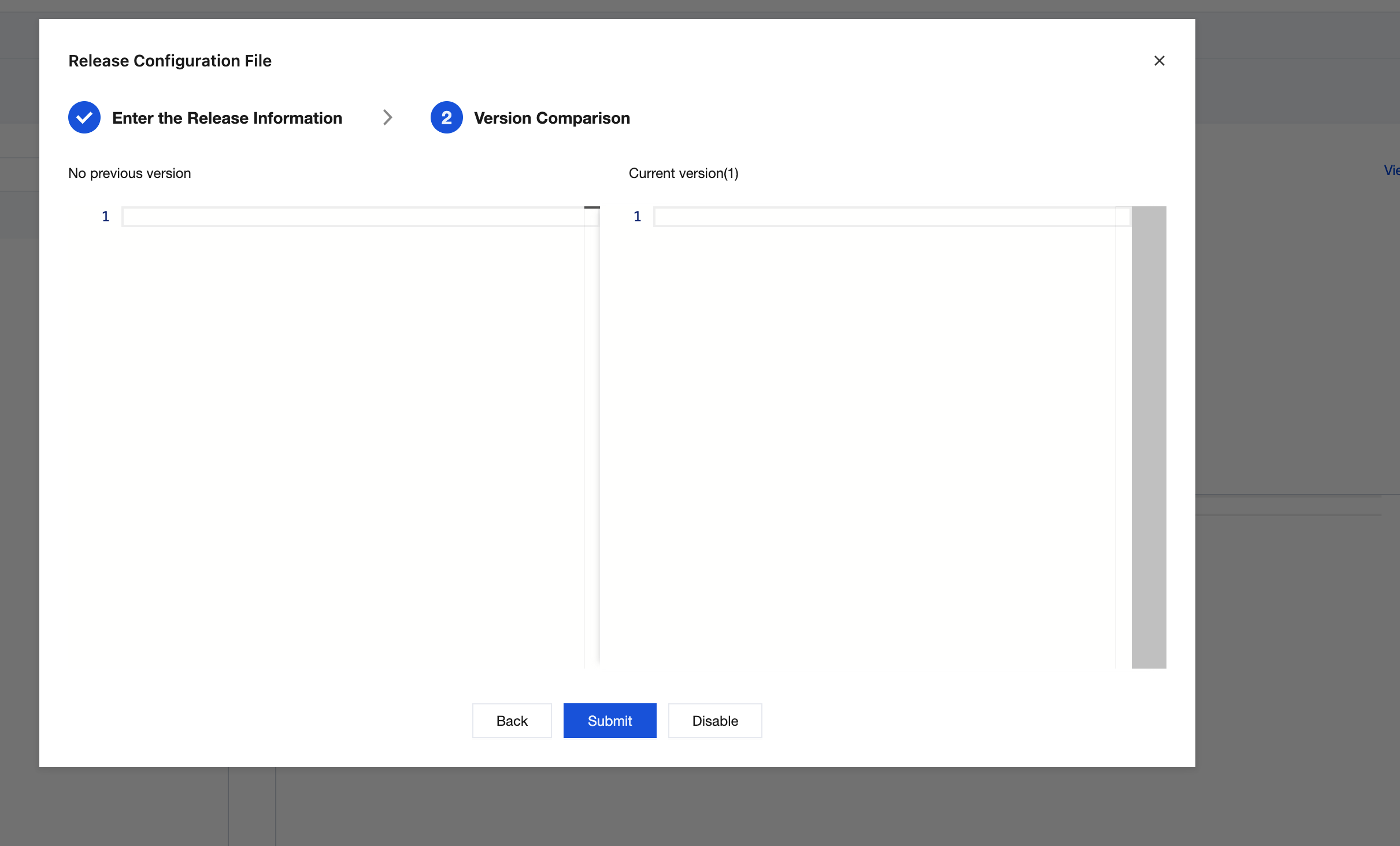
3. In the operation column, click Version Comparison to view the differences between the current version and historical versions.
4. In the operation column, click Rollback, and after secondary confirmation in the pop-up window, the configuration can be rolled back.