This document targets users accessing Polaris (North Star) who wish to utilize the secondary addressing capability of the Polaris client.
Warning:
If you are using Tencent's self-developed (OA version) Polaris SDK, because the OA version SDK has the secondary addressing mechanism enabled by default (and cannot be disabled), see this document for access.
Currently, compatibility verification has only been performed for the registration and discovery capability of Tencent's self-developed cloud migration (OA version) Polaris SDK. No compatibility guarantee for other governance capabilities.
Access Mechanism Description
Polaris SDK Secondary Addressing
The secondary addressing mechanism of the Polaris SDK depends on the two services: polaris.discover and polaris.healthcheck. Therefore, after the Polaris engine instance is created, it is necessary to manually create these two services, polaris.discover and polaris.healthcheck, in the console.
Why It Is Necessary for Users to Manually Create
User access methods include two scenarios: multi-VPC and public network access. Users from different access sides need to see different server IPs, and the relevant Polaris system services cannot be automatically created.
2. In the left sidebar, select Polaris (Polaris) to go to the Polaris instance list page.
3. Click the "ID" of the target engine to go to the basic information page.
4. Console based on instance information
Engine Instance Client Public Network Access Is Not Enabled
Create polaris.discover and polaris.healthcheck Services
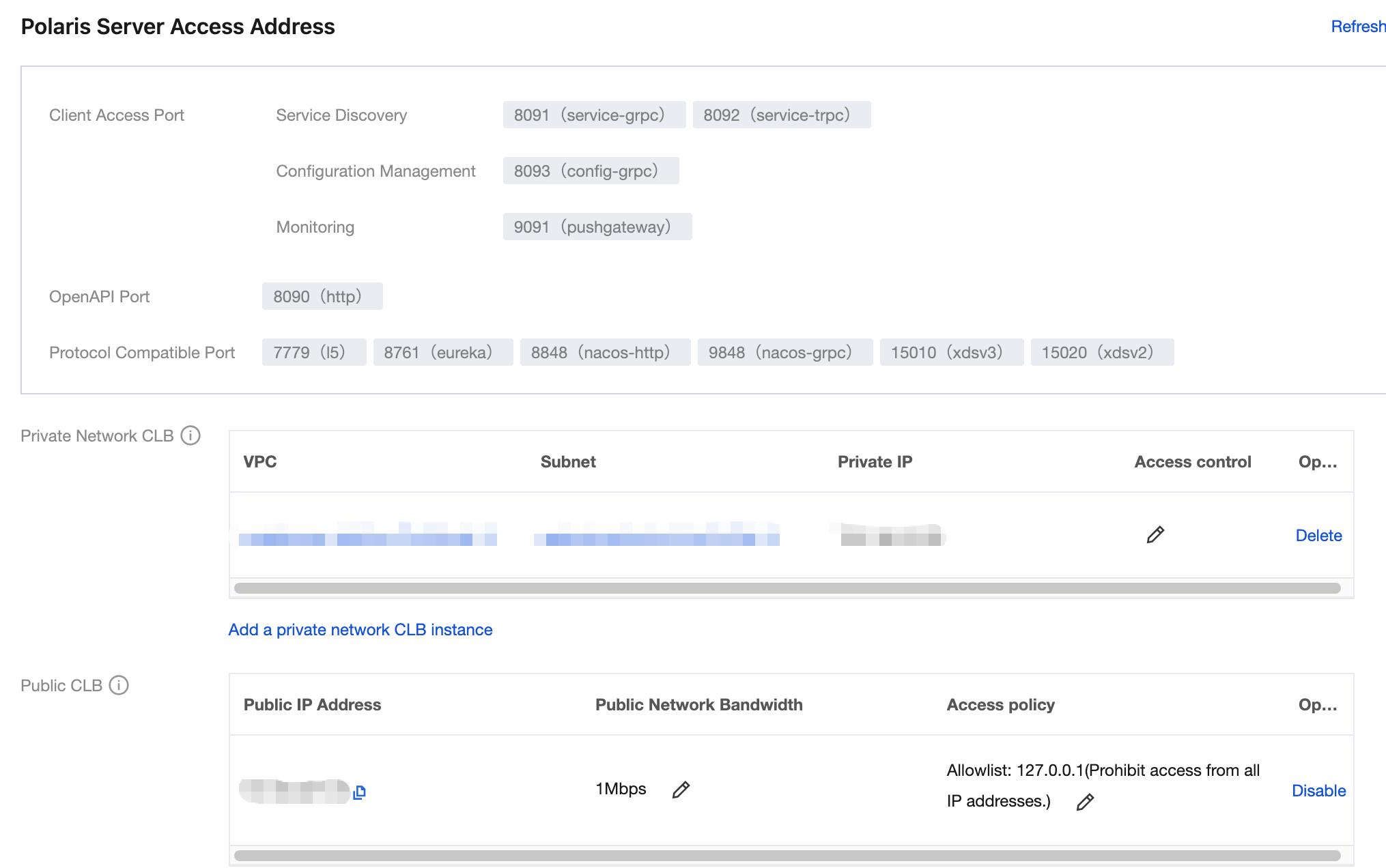
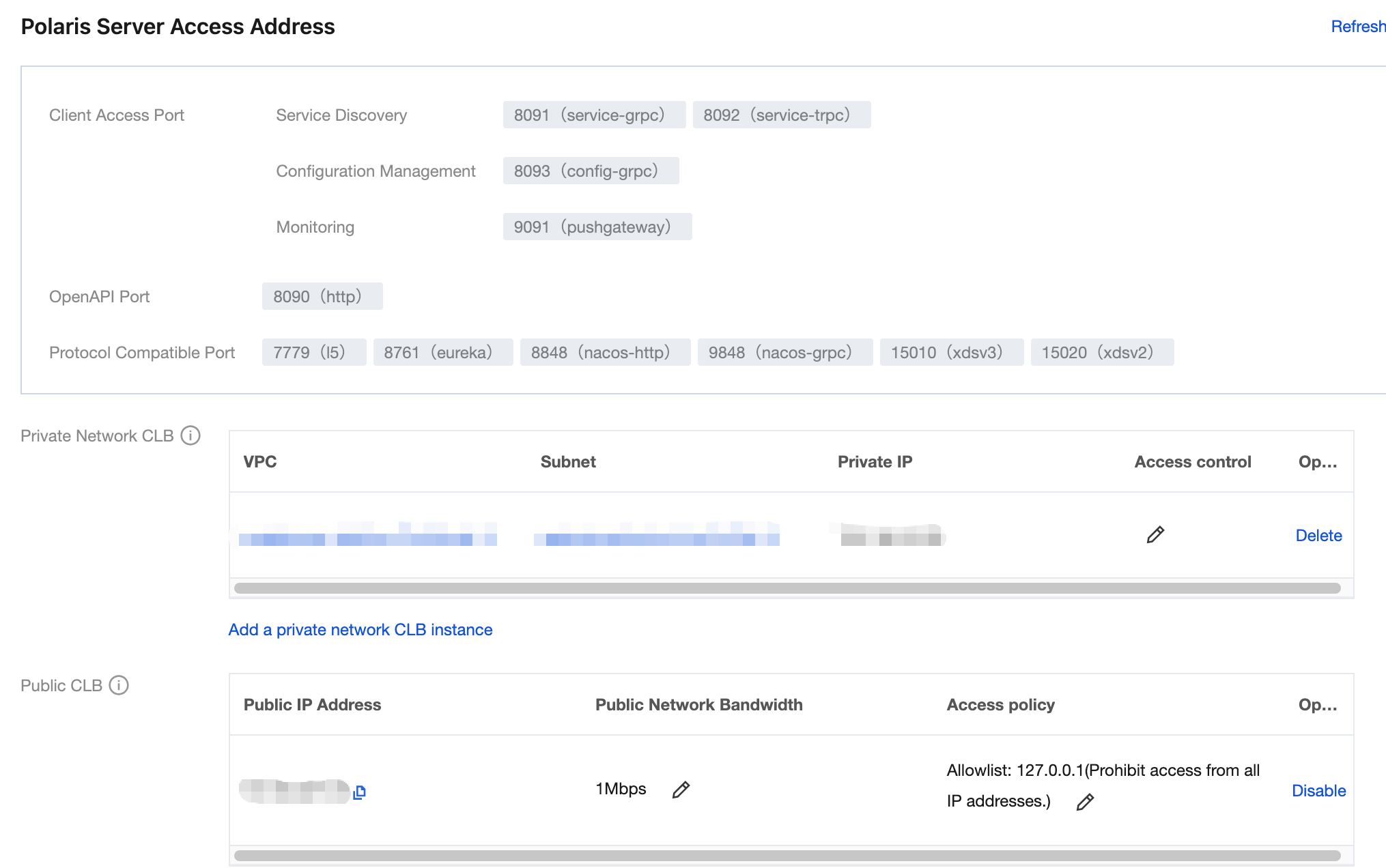
1. On the basic information page of the instance, remember each VPC private IP address and access port in the access address.
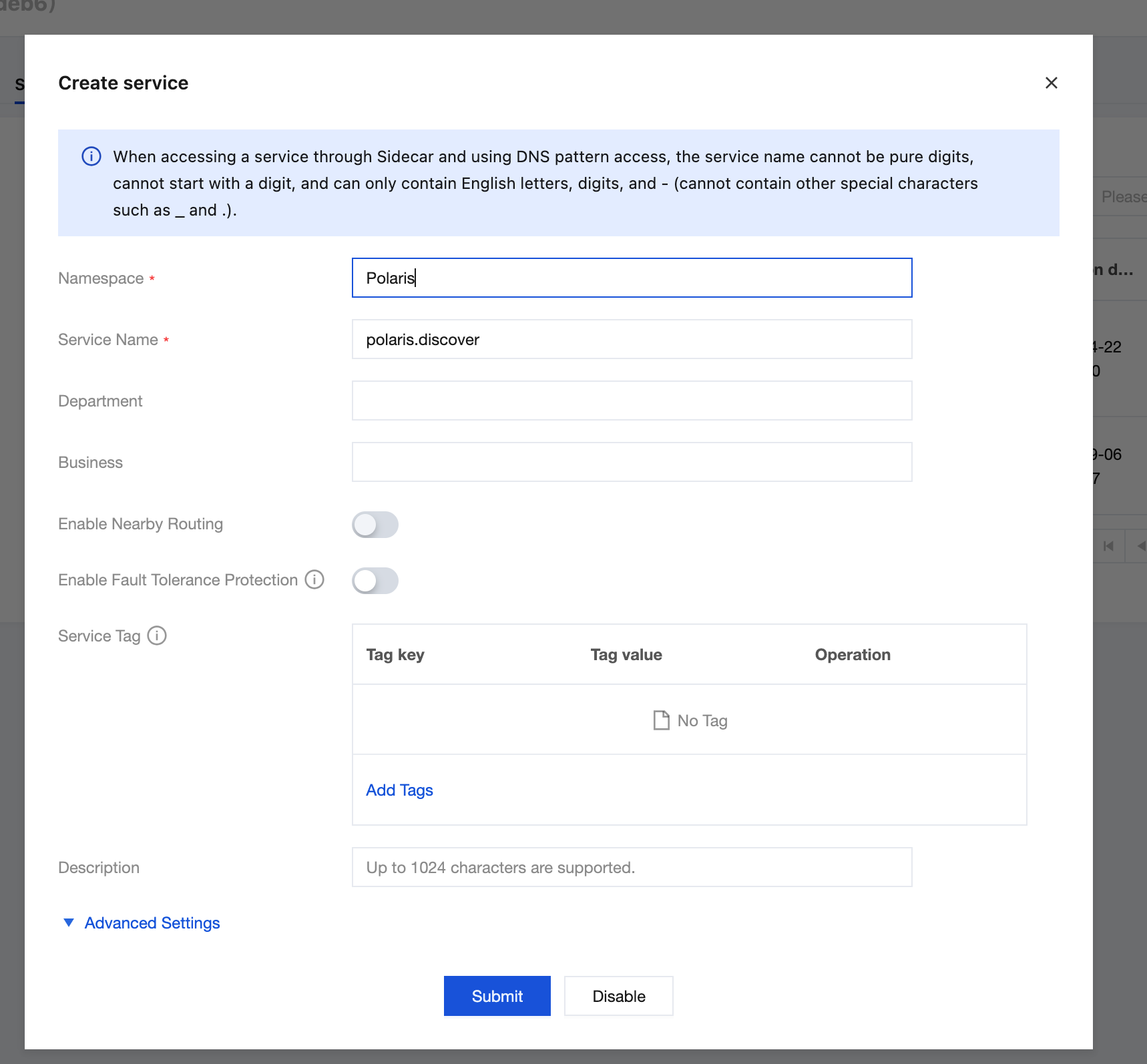
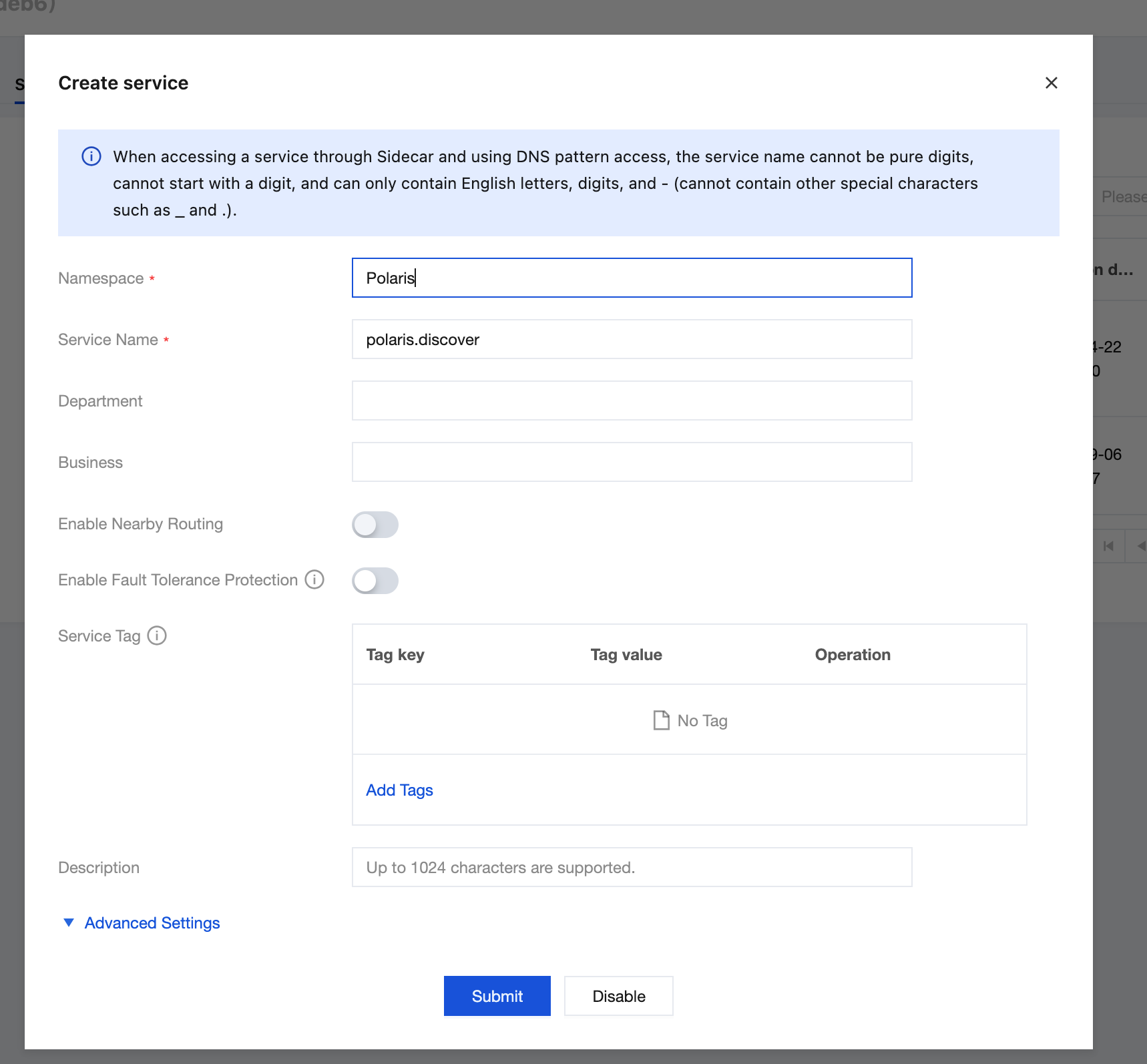
2. For each private network VPC IP address, create the services polaris.discover-{vpc name} and polaris.healthcheck-{vpc name} in the namespace Polaris.
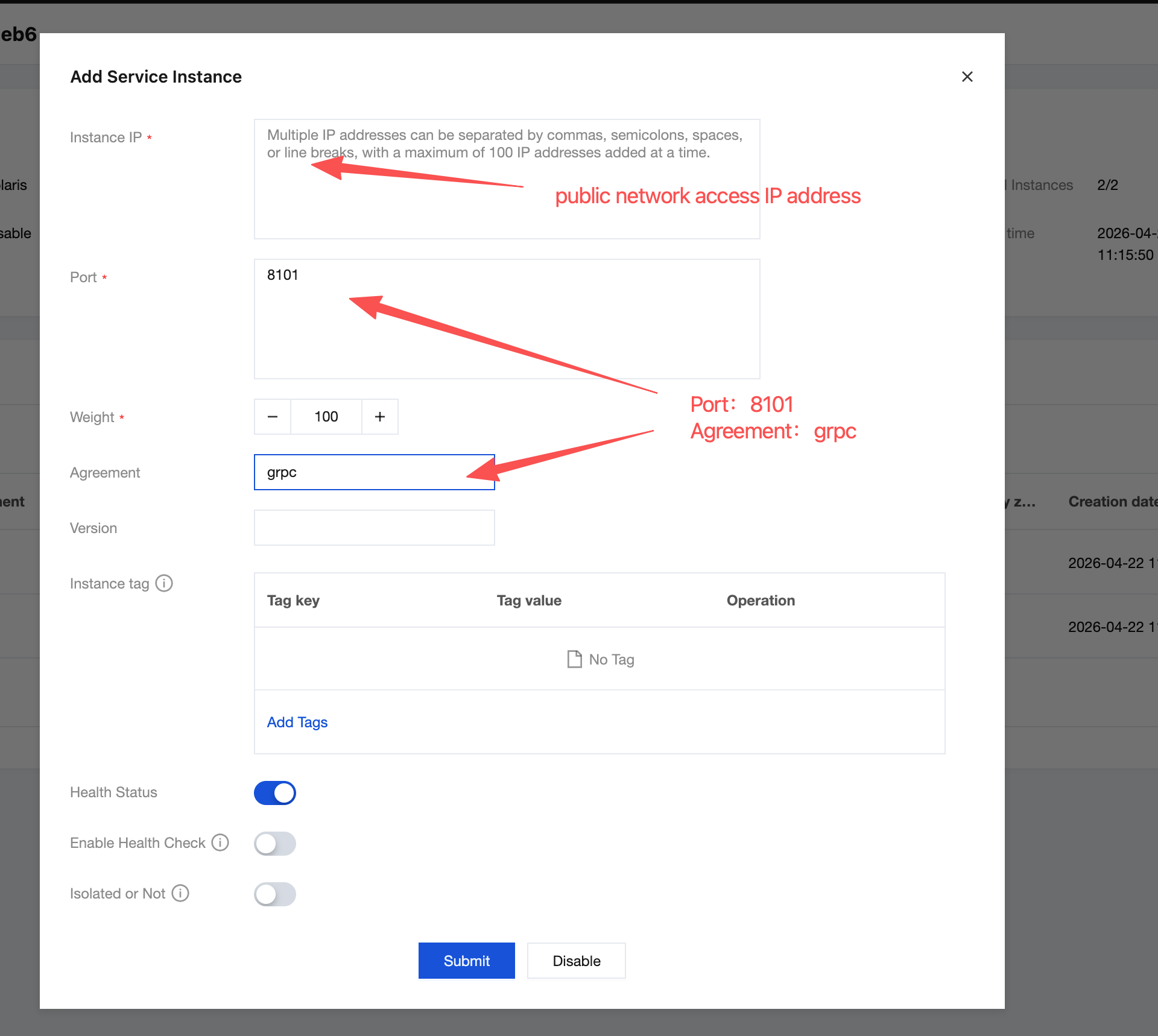
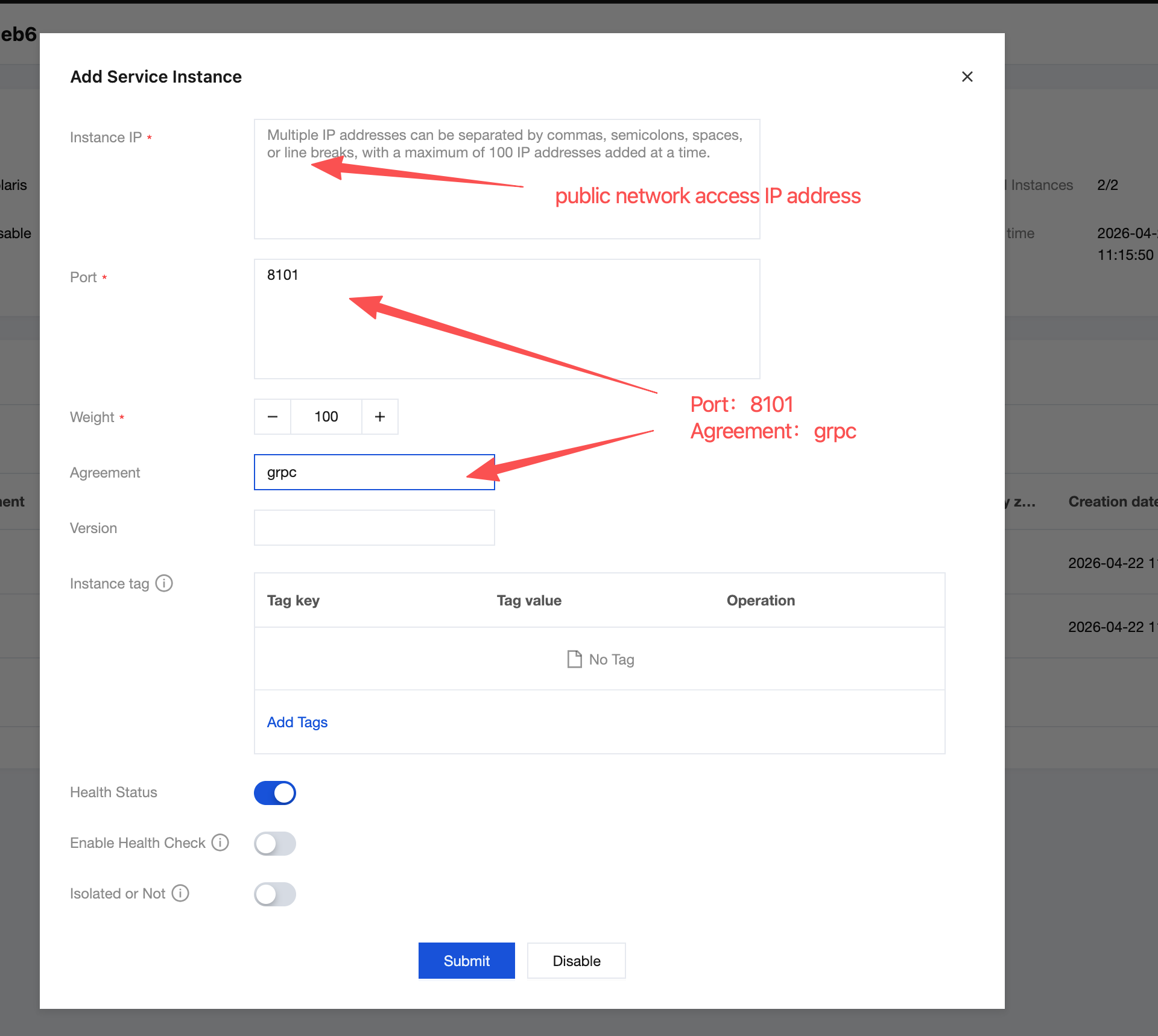
3. Click the service polaris.discover-{vpc name}, go to the service's instance page, and based on the VPC private IP address recorded in the first step above and the port protocol grpc, trpc create instances respectively.
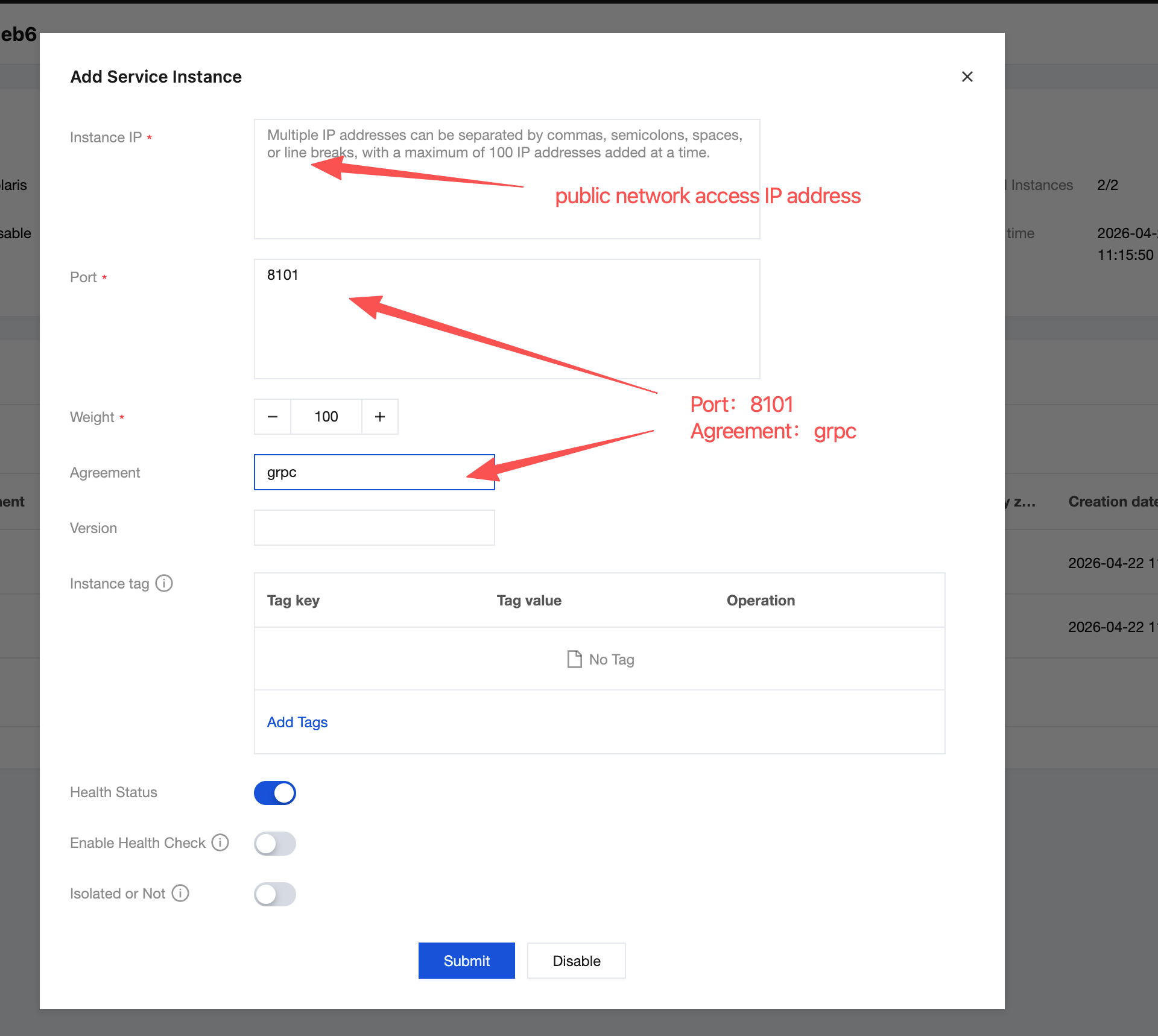
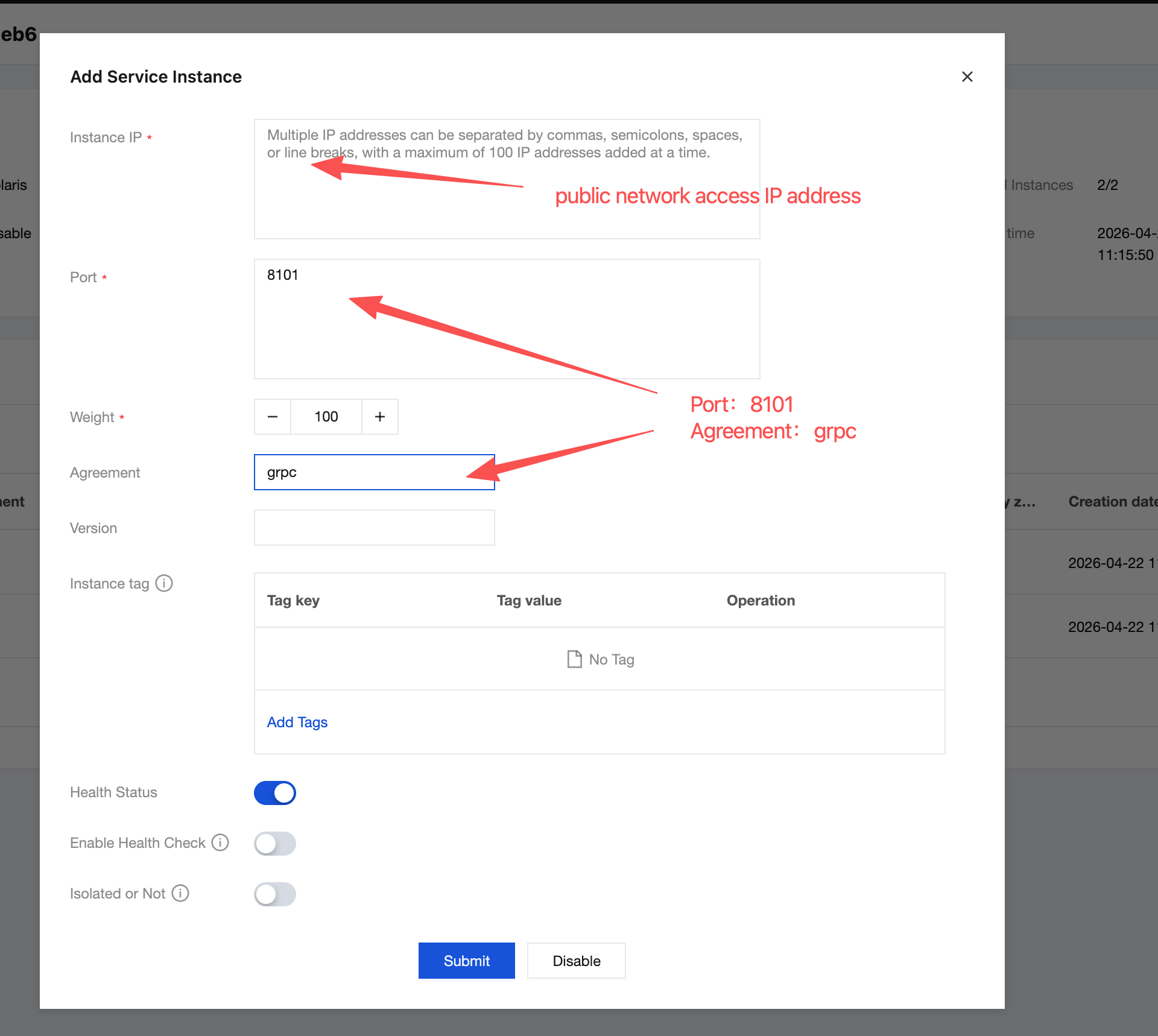
4. Click the service polaris.healthcheck-{vpc name}, go to the service's instance page, and based on the VPC private IP address recorded in the first step above and the port protocol grpc, trpc create instances respectively.
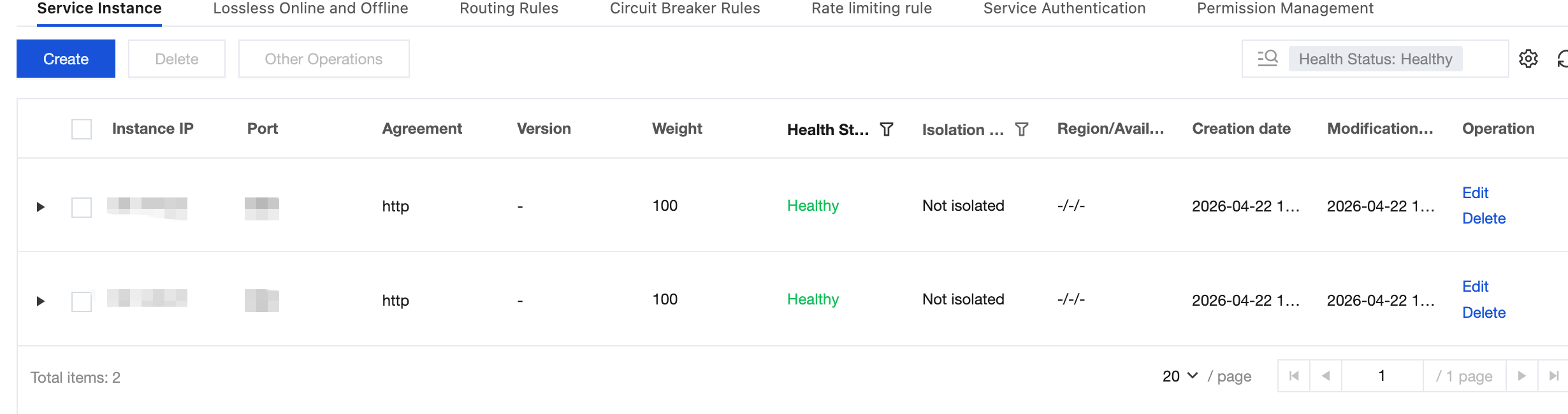
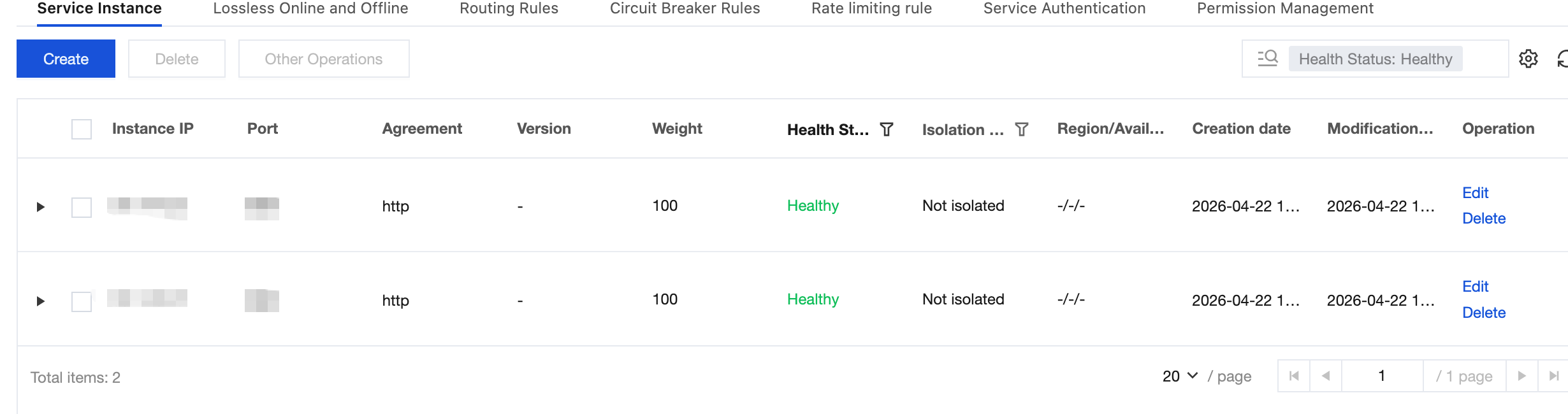
5. The instance list for the service polaris.discover-{vpc name} should be as follows after completing the above steps:
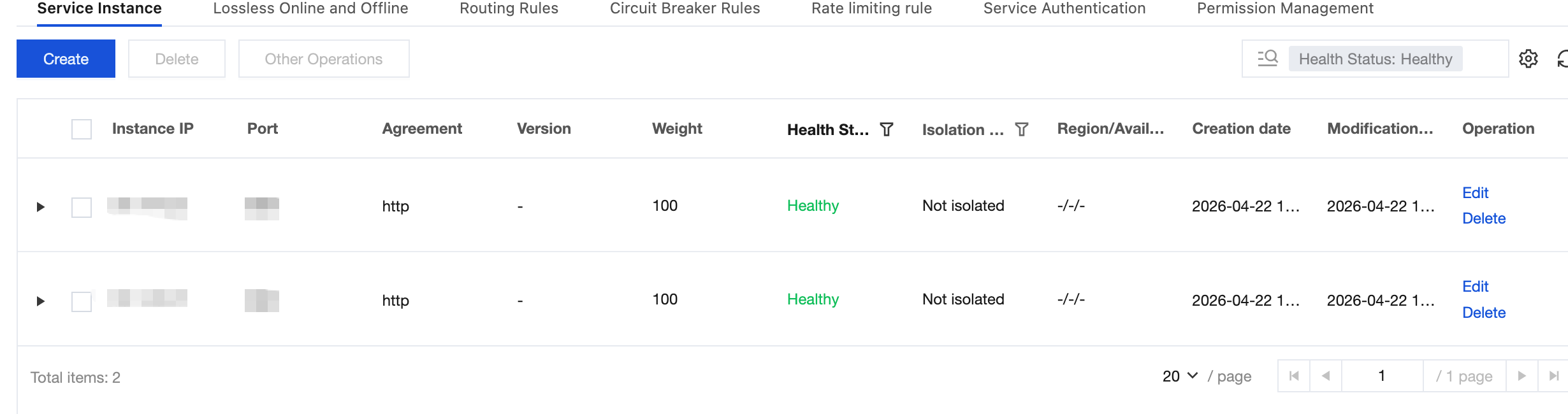
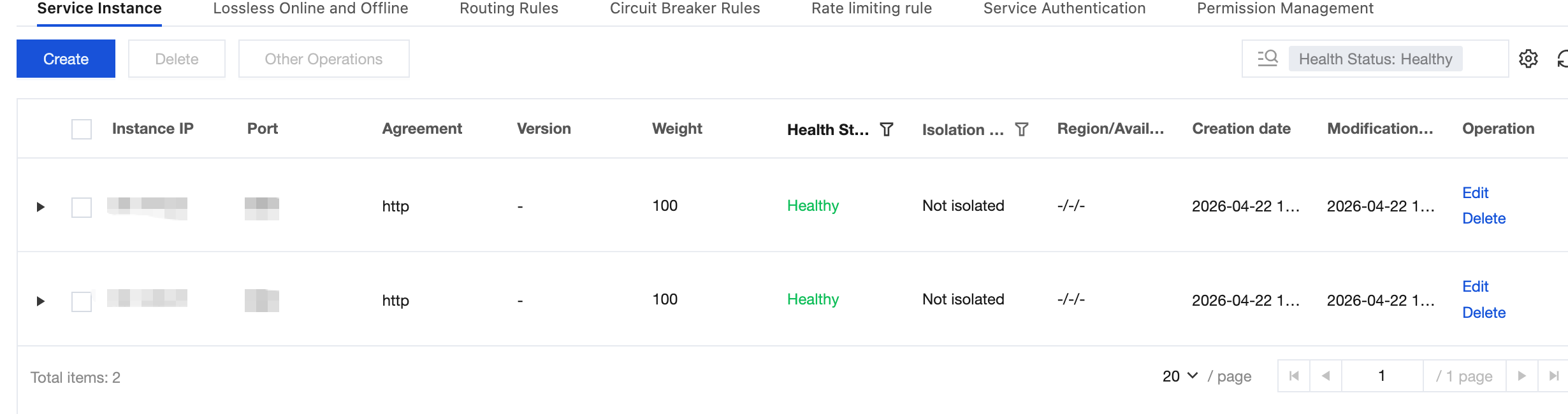
6. The instance list for the service polaris.healthcheck-{vpc name} should be as follows after completing the above steps:
Note:
If it is a single VPC access scenario, you do not need to refer to the naming convention polaris.discover-{vpc name}. Use polaris.discover directly instead. Similarly, use polaris.healthcheck directly instead of polaris.healthcheck-{vpc name}.
Creates a routing rule
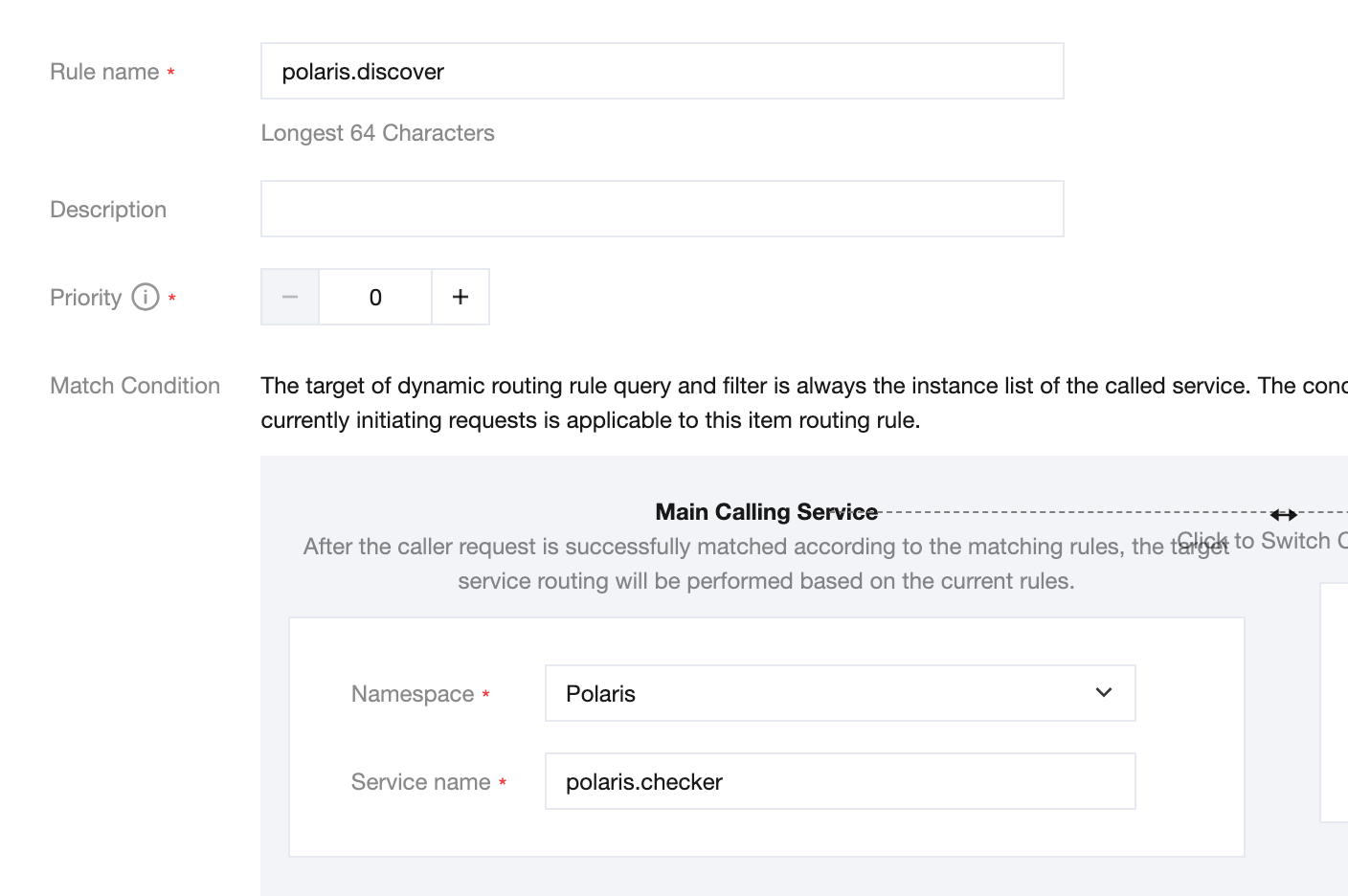
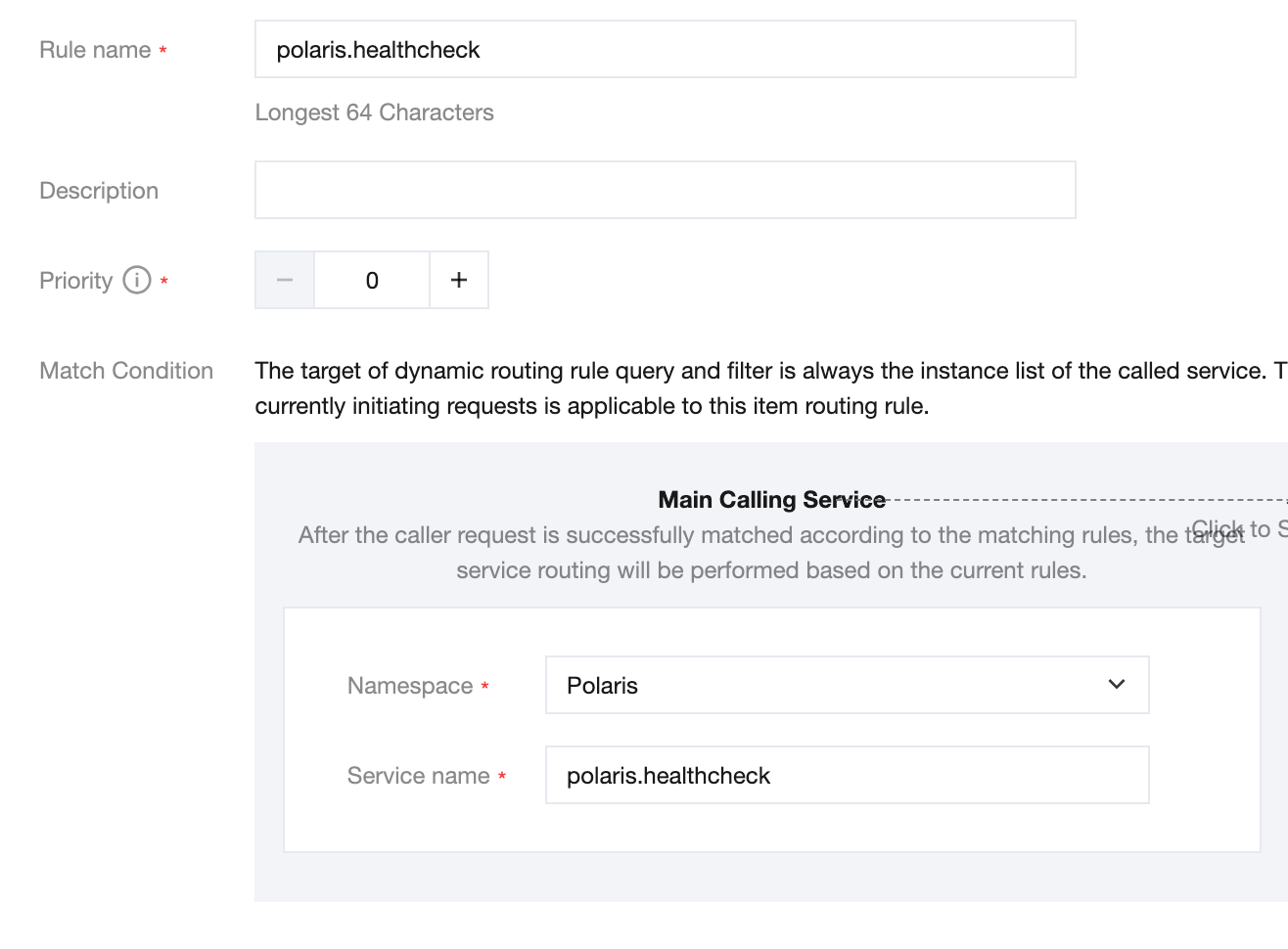
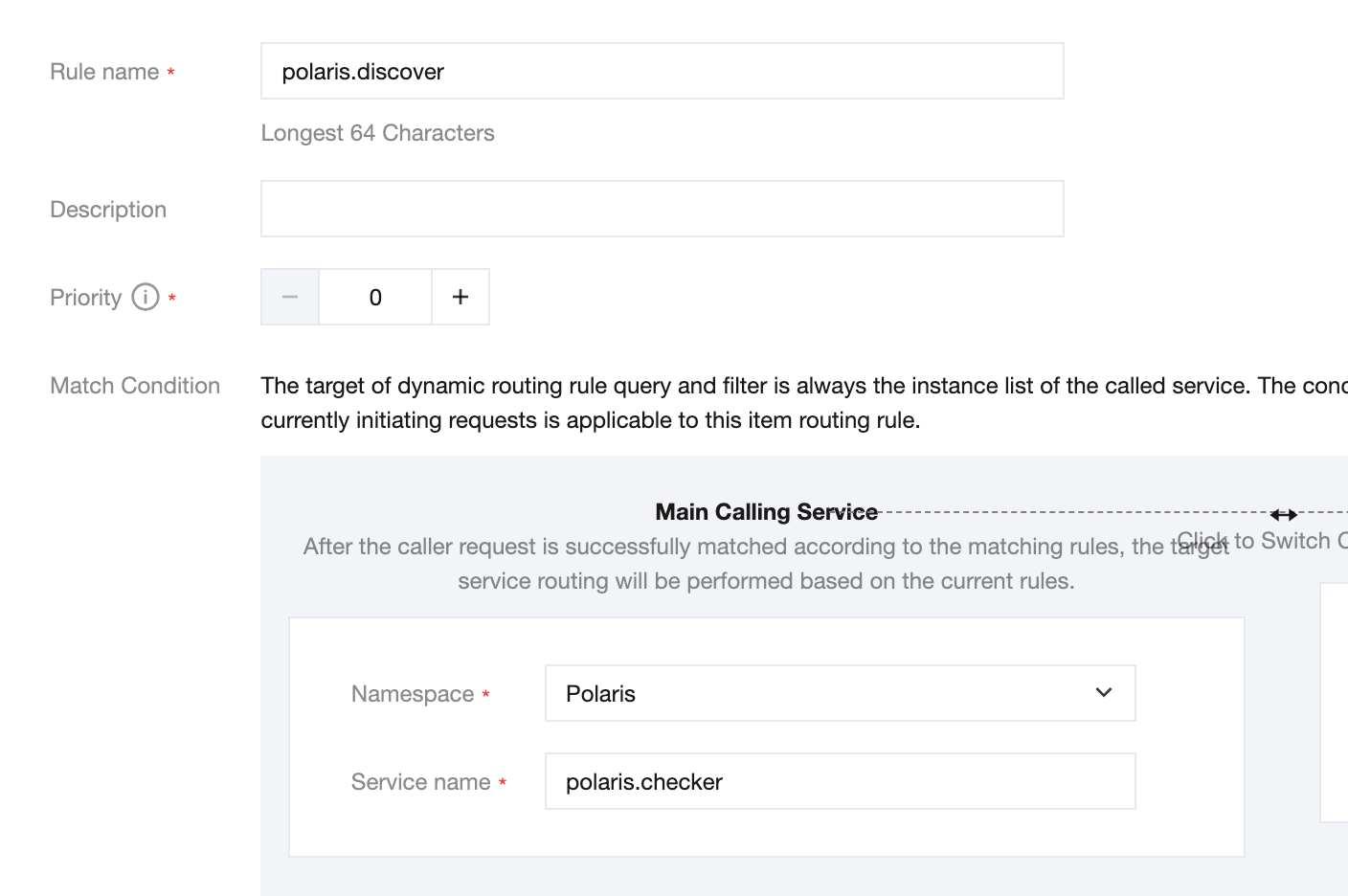
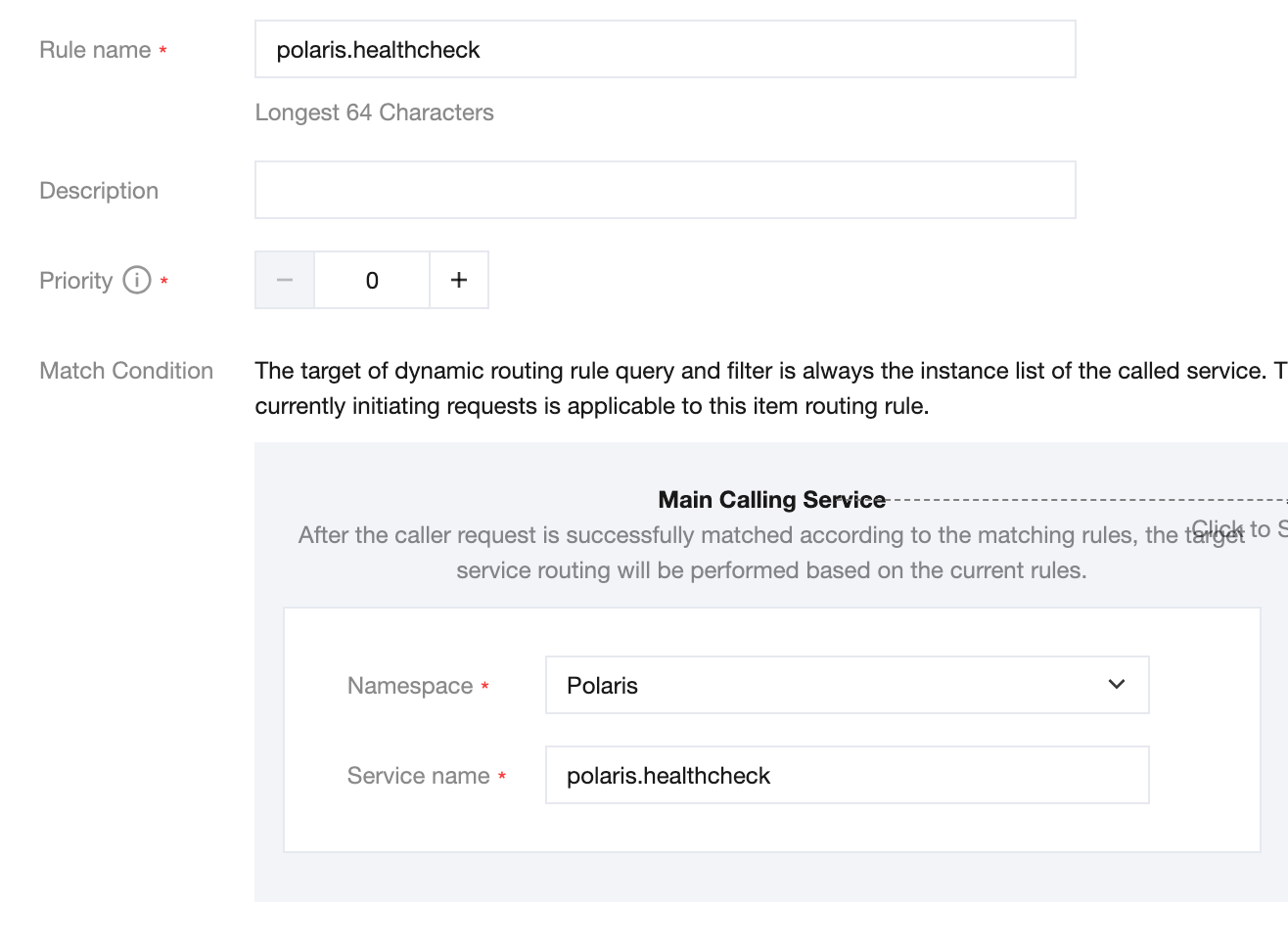
Create Routing Rules Example
polaris.discover-{vpc Name}
polaris.healthcheck-{vpc Name}
polaris-go Access Related Configuration File Description
In the polaris.yaml file, configure secondary addressing according to the following example:
global:
serverConnector:
addresses:
- '{corresponding VPC's private network access IP address}:8091'
system:
discoverCluster:
namespace: Polaris
service:'polaris.discover-{vpc name}'
healthCheckCluster:
namespace: Polaris
service:'polaris.healthcheck-{vpc name}'
trpc-go Access Related Configuration Files Description
plugins:
registry:
polaris:
heartbeat_interval:3000
protocol: grpc
address_list: '{corresponding VPC's private network access IP address}:8091 '
cluster_service:
discover:'polaris.discover-{vpc name}'
health_check:'polaris.healthcheck-{vpc name}'
selector:
polaris:
address_list: '{corresponding VPC's private network access IP address}:8091'
protocol: grpc
cluster_service:
discover:'polaris.discover-{vpc name}'
health_check:'polaris.healthcheck-{vpc name}'
Enable Client Public Network Access for Engine Instances
Create polaris.discover and polaris.healthcheck Services
1. On the basic information page of the instance, remember the public IP address and access port in the access address.
2. Create the services polaris.discover and polaris.healthcheck. in the namespace Polaris.
3. Click the service polaris.discover, go to the service's instance page, and based on the client's public network access IP address and port protocols grpc and trpc, create instances respectively.
4. Click the service polaris.healthcheck, go to the service's instance page, and based on the client's public network access IP address and port protocols grpc and trpc, create instances respectively.
5. After performing the above steps, the instance list for the service polaris.discover should be as follows:
6. After performing the above steps, the instance list for the service polaris.healthcheck should be as follows:
Creates a routing rule
polaris.discover
polaris.healthcheck
polaris-go Access Related Configuration File Description
In the polaris.yaml file, configure secondary addressing according to the following example:
global:
serverConnector:
addresses:
-'{corresponding public network access IP address}:8091'
system:
discoverCluster:
namespace: Polaris
service: polaris.discover
healthCheckCluster:
namespace: Polaris
service: polaris.healthcheck
trpc-go Access Related Configuration Files Description
plugins:
registry:
polaris:
heartbeat_interval:3000
protocol: grpc
address_list:'{corresponding public network access IP address}:8091'
cluster_service:
discover: polaris.discover
health_check: polaris.healthcheck
selector:
polaris:
address_list:'{corresponding public network access IP address}:8091'