Enabling Public Network Address
Download
Mode fokus
Ukuran font
TencentDB for PostgreSQL supports private and public network addresses. By default, a private network address is provided for you to access your instance over the private network. If you want to enable public network access, you can enable it in the console to build a public network address.
Note:
Currently, the Beijing, Chengdu, Guangzhou, Hong Kong (China), Nanjing, Shanghai, Tokyo, and Silicon Valley regions support the public network feature and support enabling the public network address through the console.
Note: There are risks of attacks once the public network is enabled. Operate with caution.
To enable the public network address, you need to configure security group rules to access it.
Enabling Public Network Address in Console
Note:
Failures occurring during public network access will not be included in the overall availability calculation of the TencentDB for PostgreSQL service.
Access over public network reduces instance security. It is only recommended for management, database testing, or auxiliary management. No availability SLA guarantee is provided. Use private network for business access.
Recommend you use the public network domain name instead of the IP for access. Because adjustment of database instance specifications, reactivation of the public network, and network upgrades may cause changes to the public network IP. Using the public network domain name for access can ensure minimal impact on business and eliminates the need to modify the application.
1. Log in to the TencentDB for PostgreSQL console and select the region. In the instance list, click the Instance ID or Manage in the Operation column to enter the instance management page.
2. On the Instance Details page, click Enable in Basic Info > Public IPv4 Address.
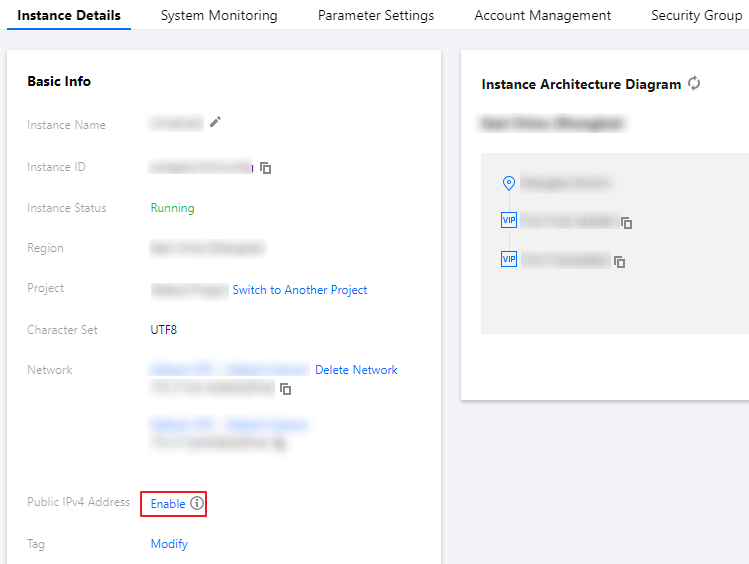
3. In the pop-up window, read the notes and click OK.
4. After the instance status is updated to Running, you can view the public network address on the instance details page.
Configure a TencentDB for PostgreSQL security group
1. Log in to the TencentDB for PostgreSQL console and select the region. In the instance list, click the Instance ID or Manage in the Operation column to enter the instance management page.
2. On the instance management page, select the Security Group tab, click Configure Security Group, configure the security group rule to open all ports, and confirm that the security group allows access from public IPs. For more information on configuration, see Managing Security Groups.

Check public network connectivity
You can use a client tool to access TencentDB for PostgreSQL. For detailed directions, see Connecting to PostgreSQL Instances.
Bantuan dan Dukungan
Apakah halaman ini membantu?
Anda juga dapat Menghubungi Penjualan atau Mengirimkan Tiket untuk meminta bantuan.
masukan