Enabling Public Network Services Through CLB
Download
Mode fokus
Ukuran font
TencentDB for PostgreSQL supports two address types: private network address and public network address. The private network address is provided by default for internal access to the instance. If public network access is required, you can enable the public network address via the Console or enable public network services through Cloud Load Balancer (CLB).
This introduces the method to enable public network services through CLB and connect to the instance via the pgAdmin client.
Note:
Currently, public network addresses can be enabled through the console in the following regions: Beijing, Chengdu, Guangzhou, Hong Kong (China), Nanjing, Shanghai, Tokyo, and Silicon Valley.
- After enabling the public network address, you must configure security group rules to access.
Prerequisites
Applied for backend service feature usage. Please submit a ticket to CLB to apply for backend service feature usage.
The CLB service has been purchased. For specific steps, please see CLB purchase method.
Note:
When purchasing the CLB service, select the service region where TencentDB for PostgreSQL is located.
Only public network CLB instances support backend service functionality. The network type must be set to public network.
Note: When creating a CLB instance, please ensure it belongs to the same VPC as the TencentDB for PostgreSQL instance. If they are in different VPCs, configure CCN to connect the private networks after creating the CLB instance. For details, please refer to Configure CCN.
Step 1: Enable CLB Backend Service
Enable cross-VPC access so that the CLB instance can be bound to another private IP.
Log in to the CLB console, select the region, and click the target instance ID in the instance list to enter the instance management page.
On the Basic Info page, click Configure in the Real Server section.
In the pop-up window, click Submit.
Step 2: Configure CLB Service
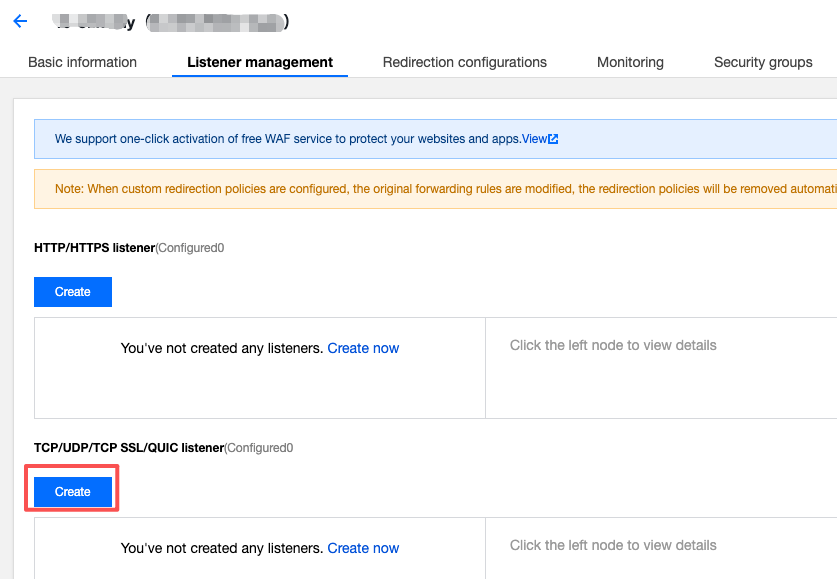
On the instance management page, select Listener Management, and click Create under TCP/UDP/TCP SSL/QUIC listener.
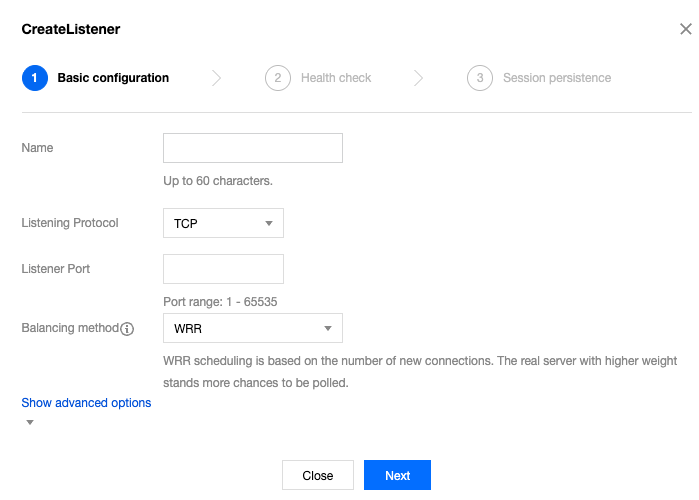
In the pop-up dialog box, complete the settings step by step, and finally click Submit to complete the creation.
After creation, click the just created listener, then click Bind.
In the pop-up dialog box, select the target type as IP Type, click Add Private IP, input the private IP address and port of the PostgreSQL instance to be connected, then click OK to complete the binding.
Note:
Step 3: Configure TencentDB for PostgreSQL Security Group
Log in to the TencentDB for PostgreSQL console, select a region, and click Instance ID or Operation > Manage in the instance list to enter the instance management page.
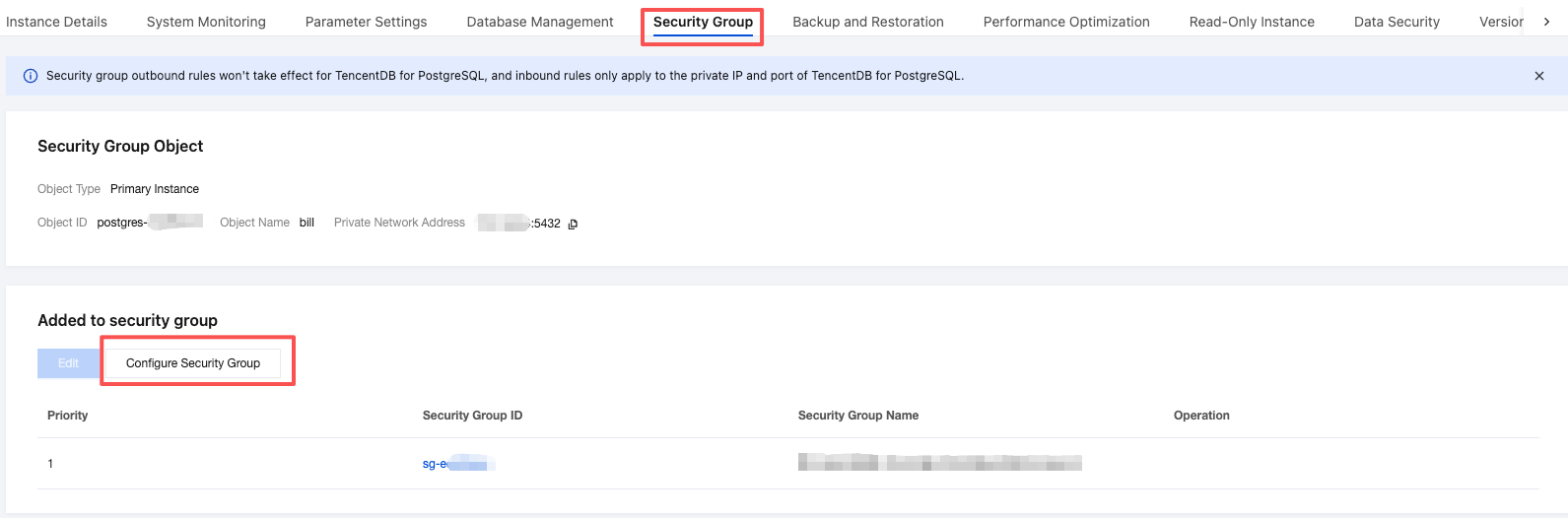
On the instance management page, select the Security Group tab, click Configure Security Group, add a new security group, set the security group rules to allow all ports, and confirm the security group permits public IP access. For detailed configuration methods, please refer to Manage Security Group.

Step 4: Connecting to an Instance Via pgAdmin Client
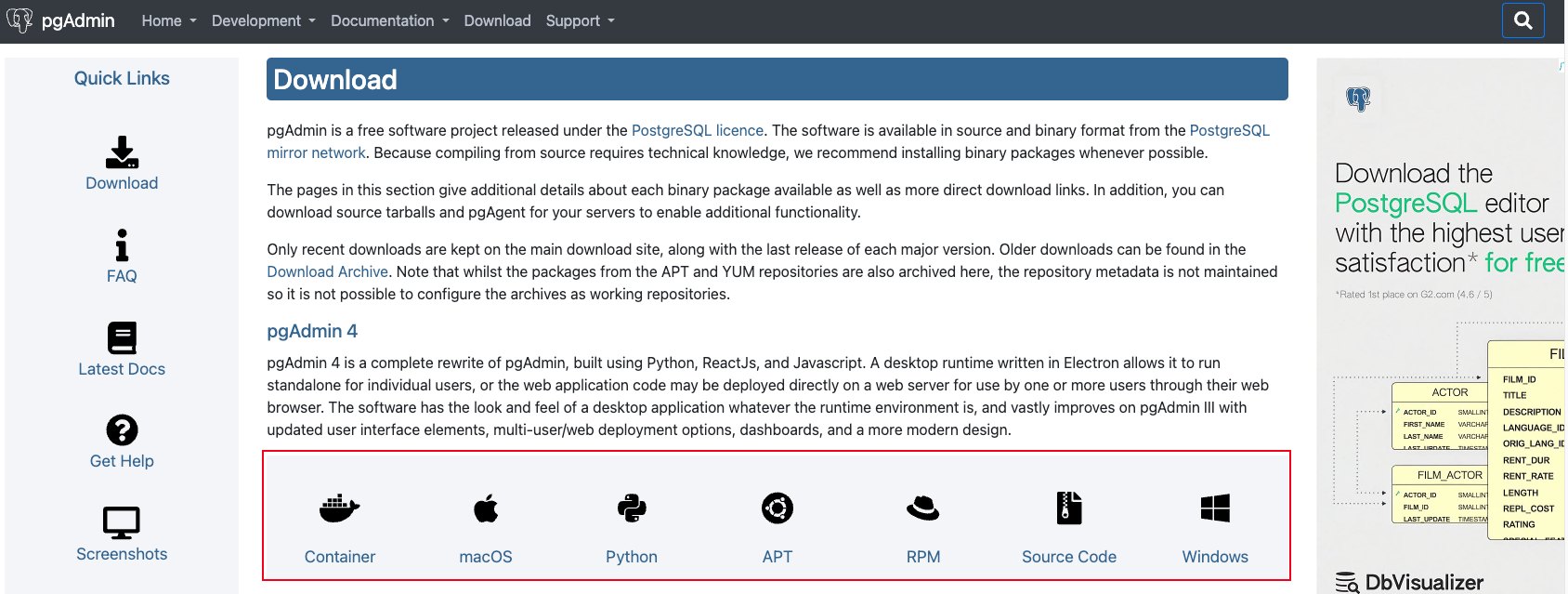
Enter the pgAdmin client official download page, choose to download based on your OS type, and complete installation.
After installation, open pgAdmin4, click Add New Server on the homepage, and fill in the instance information to be connected.
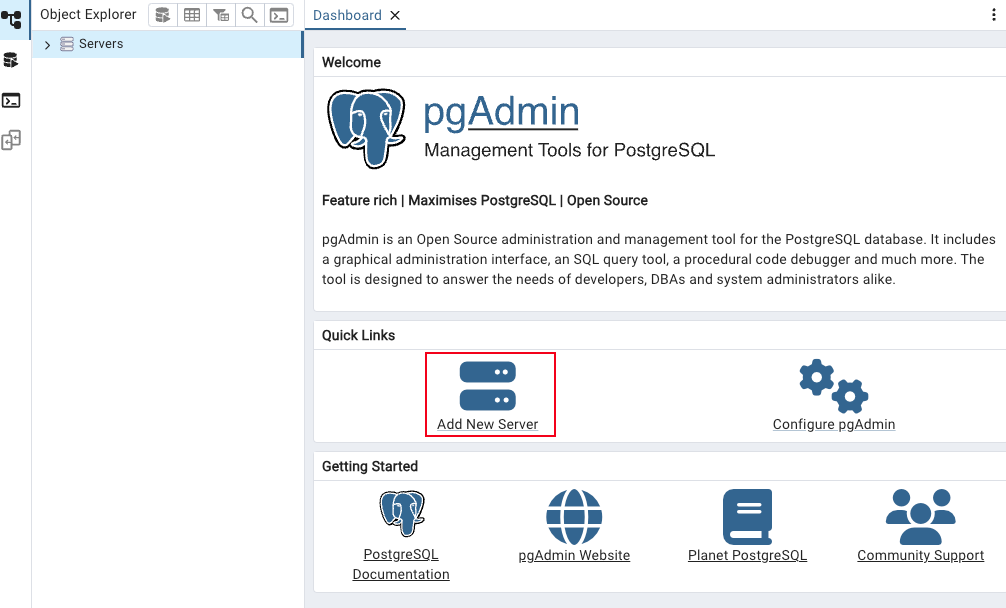
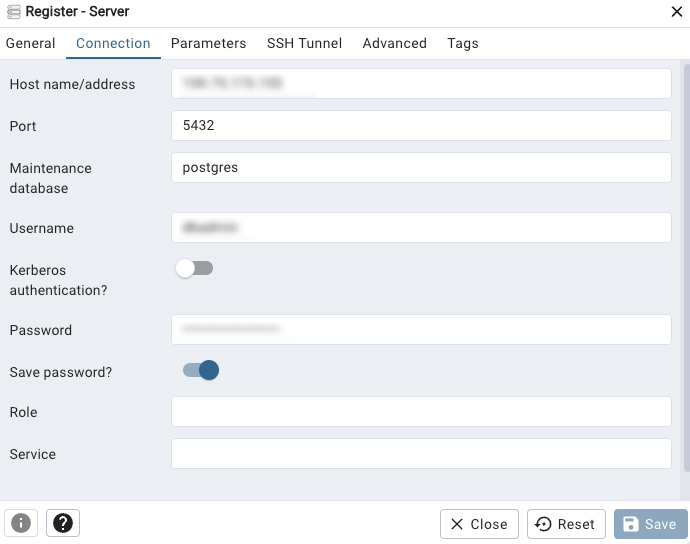
The information description is as follows:
Parameter | Description |
Host name/address | Enter the address of the CLB instance. You can view the VIP information in the basic info on the CLB instance details page. |
Port | Enter the port of the CLB instance. You can view the TCP port number under Monitor Management on the CLB instance details page. |
Username | Enter the account name of the PostgreSQL instance to be connected. The account is created under Instance Management > Database Management > Account Management. |
Password | Enter the password corresponding to the filled-in Username, then click Save. |
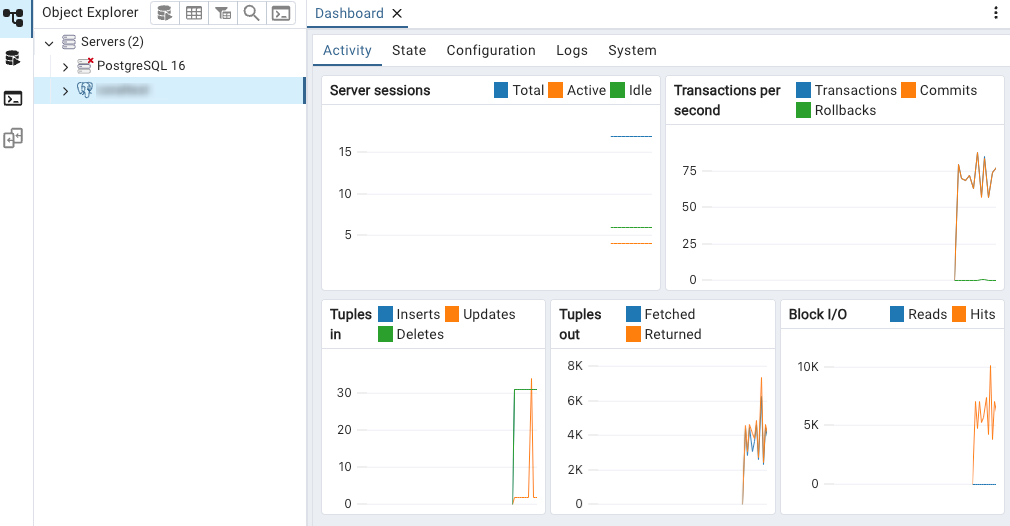
Connection successful. The interface is shown in the figure below.
Bantuan dan Dukungan
Apakah halaman ini membantu?
Anda juga dapat Menghubungi Penjualan atau Mengirimkan Tiket untuk meminta bantuan.
masukan