This document describes how to view an existing node pool of a cluster and query the details of the node pool via the TKE console for subsequent node pool management.
Prerequisites
You have created a node pool for the cluster. For more information on how to create a node pool, see Creating a Node Pool.
2. On the “Cluster Management” page, click the desired cluster ID to open the “Deployment” page.
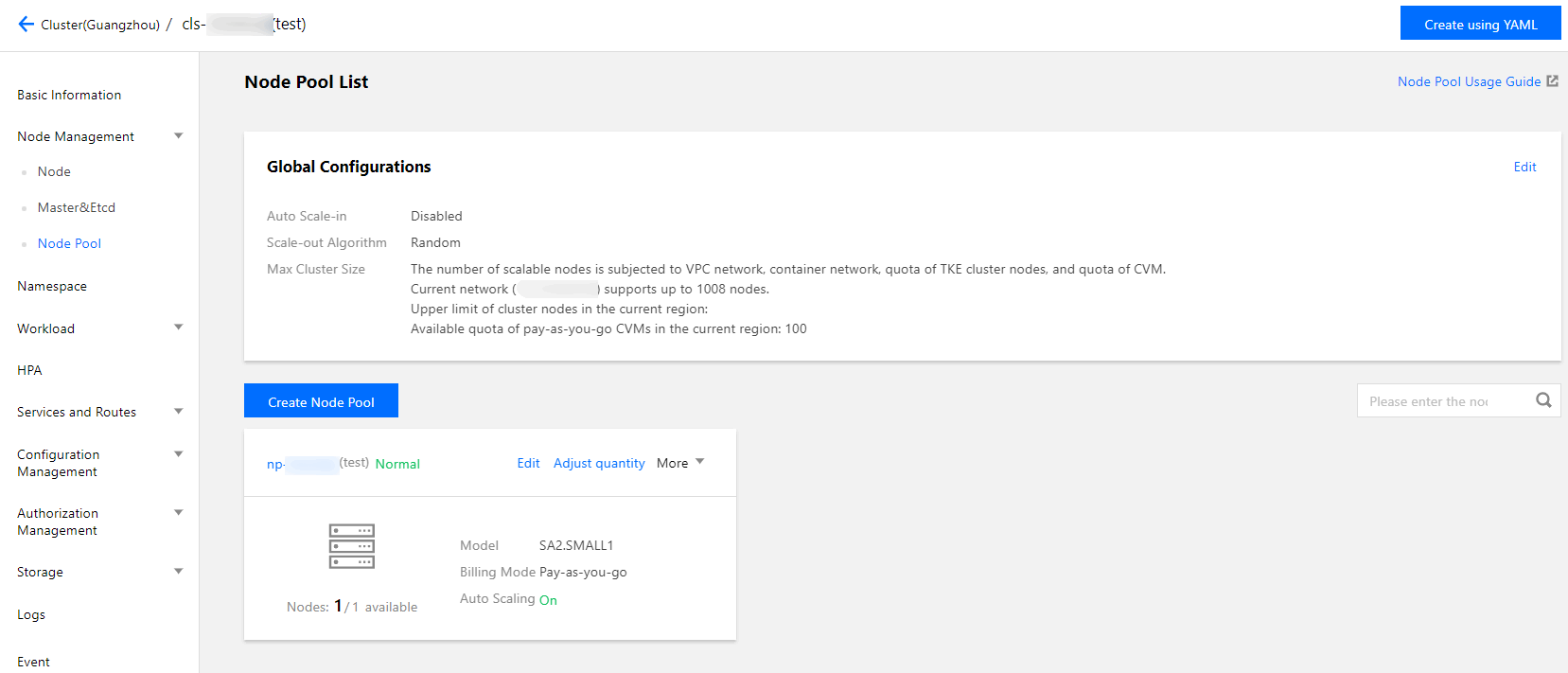
3. On the left sidebar, choose Node Management -> Node Pool to open the “Node pool list” page. You can view existing node pools and global node pool configurations, as shown in the following figure.
Node pool information and configurations are as follows:
Global Configuration: the common configuration items for all node pools of the cluster. You can click Edit in the upper-right corner of the module to modify the values. For more information, see Adjusting Global Node Pool Configurations.
Auto scale-down: this feature is disabled in this example. If this feature is enabled, auto scale-down is triggered when a large amount of node resources in the cluster is idle. For more information, see Cluster Scaling.
Scale-up Algorithm: the value is “Random” by default in this example, indicating that a scaling group in the node pool is randomly selected for scale-up. TKE further supports the following scale-up algorithms and you can modify the value as required:
most-pods: scales up the scaling group that can schedule the most Pods.
least-waste: scales up the scaling group that has the fewest remaining resources after Pod scheduling.
Max cluster size: displays the size information of the current cluster. When you adjust the number of existing node pools or recreate a node pool, note the size limit specified by this parameter and properly specify the number of nodes in a node pool.
Node pool card page: the node pool sorting area is located under the Global Configuration area. Each node pool is displayed as a card that includes the following information:
Note:
When many node pools are displayed, you can enter the node pool ID or node pool name in the search box in the upper-right corner of the area to filter node pools.
Node pool ID (which is the name of the node pool): the value is np-***(test) in this example. Click the ID to open the details page of the node pool. You can view more information about the node pool on the page.
Node pool status: the value is “Normal” in this example, indicating that the node pool is in the normal state.
Node pool operation: the operations include Edit, Adjust Number, and More. For more information, see Adjusting Node Pool Configurations.
Number of available nodes/Total number of nodes in the node pool: the value is “1 available/1 in total” in this example.
Model: the model of all the nodes in the node pool.
Billing Mode: the billing mode of all the nodes in the node pool. The value is “Pay-as-you-go” in this example, indicating that the instance is billed based on actual usage. For more information on billing, see Payment Modes.
Auto scaling: the value is “On” in this example.
Viewing a single node pool
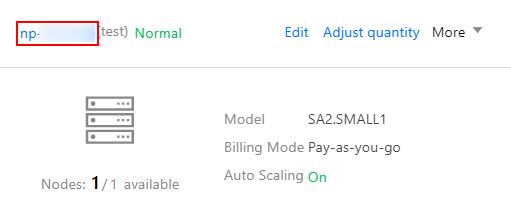
1. On the “Node pool card” page, click the desired node pool ID, as shown in the following figure.
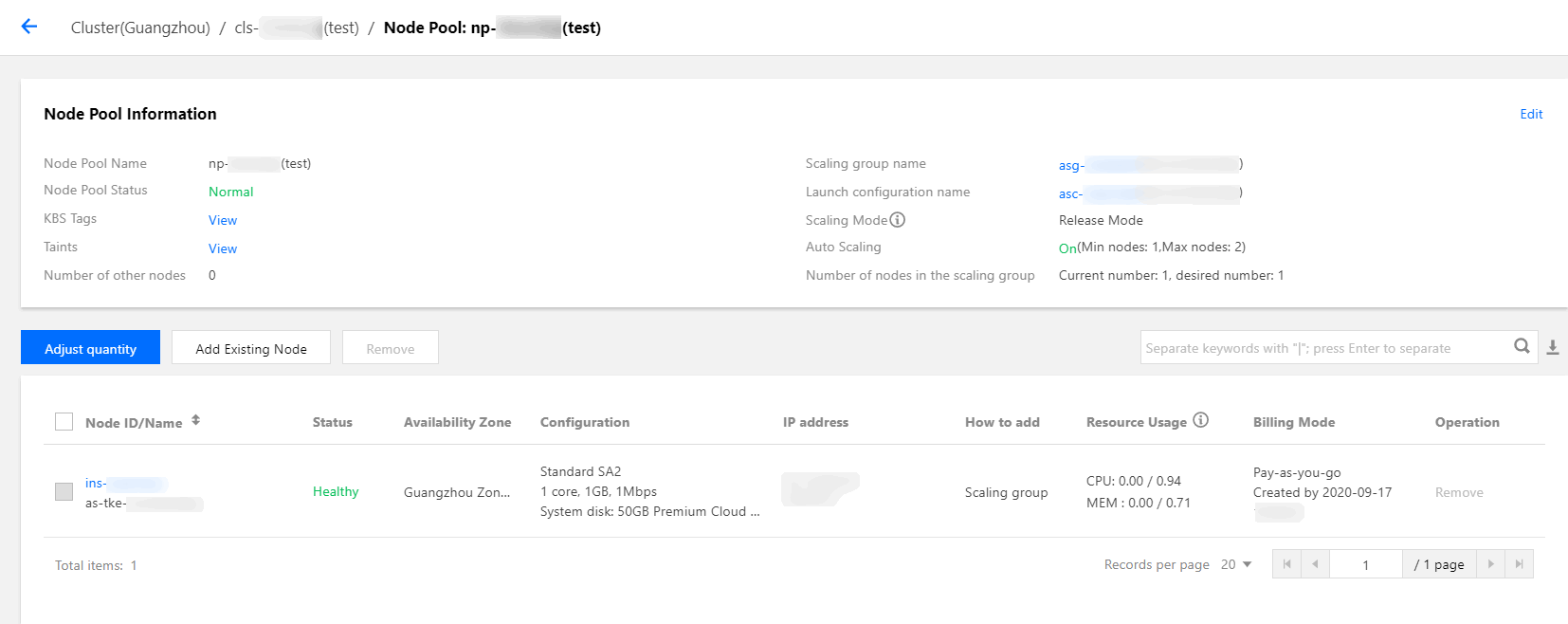
2. On the details page of the node pool, you can view more basic information and node information of the node pool, as shown in the following figure.
Relevant Operations
For more information on the features of node pools, see the following documents: