This document describes how to adjust the configuration of a node pool through the TKE console, including adjusting the global node pool configurations, configurations of the node pool, and the number of nodes in the node pool, enabling/disabling auto scaling, and setting removal protection for a node.
Prerequisites
You have created an available node pool. For more information, please see Creating a Node Pool.
You have opened the Node pool list page. For more information, see Viewing a Node Pool.
Directions
Adjusting the global configuration of node pool
1. On the “Node Pool List” page, click Edit in the top-right corner of the Global Configuration module as shown below:
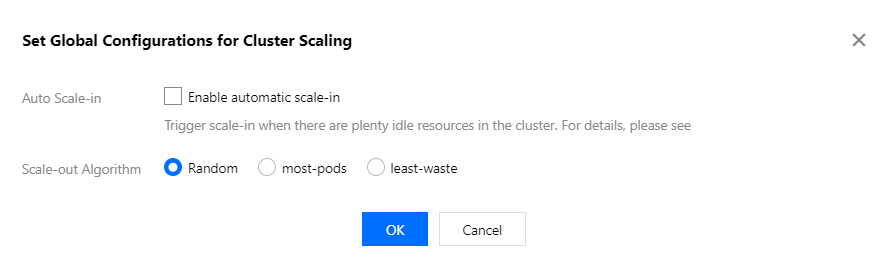
2. In the “Set Cluster Scaling Global Configuration” window, specify the configuration settings according to the following descriptions.
The main parameters are described as follows:
Auto Scale-down: this option is not selected by default. If this option is selected, auto scale-in is triggered when a large amount of node resources in the cluster is idle. For more information, see Cluster Scaling.
Scale-down Configuration: this configuration item appears only when Auto Scale-down is selected. Specify the configuration settings as required.
Max Concurrent Scale-in Volume: this parameter indicates the maximum number of nodes that can be scaled in concurrently. The default value is 10. You can specify the value as required.
Note:
Only completely idle and empty nodes are removed here. If any node in the node pool contains a Pod, a maximum of one node will be removed each time.
When Occupied Resources/Allocable Resources Are Smaller Than: you can specify this value to trigger a check of scale-in conditions when the ratio of Resources occupied by Pods or allocable resources is less than the value. Value range: 0 to 80.
Node Idle Time Threshold: you can specify this parameter to terminate a node when the continuous idle time of a node exceeds the specified value by several minutes.
Rechecking Scale-up Conditions: this parameter allows you to specify the time when the cluster first checks the scale-up conditions.
Nodes Not to Be Scaled Down: select the following configuration items as required to ensure that the following types of nodes will not be scaled in:
Nodes with locally stored Pods
Nodes with Pods that are located in the kube-system namespace and are not managed by DaemonSet
Scale-up Algorithm: the algorithm based on which the cluster is scaled up. Valid values:
Random: randomly scales up a node pool when there are multiple node pools.
most-pods: scales up the node pool that can schedule the most Pods when there are multiple node pools.
least-waste: scales up the node pool that can ensure the fewest remaining resources after Pod scheduling when there are multiple node pools.
3. Click OK.
Adjusting configurations of a node pool
Adjusting node pool operating system, alternative model, and container runtime
1. On the Node Pool List page, click a node pool ID to enter the node pool details page.
2. On the node pool basic information page, you can modify the node pool attributes.
Operating system
You can click
on the right of the operating system to change the node pool operating system.
The change of operating system takes effect only for newly added, reinstalled, and upgraded nodes but not running nodes.
Model
You can click
on the right of Model to change the alternative models of the node pool (the primary model cannot be changed). Setting alternative models can effectively reduce the risks of scale-out failure when the primary models are sold out.
The order of alternative models corresponds to the priority order of the models. Set the model order as needed and confirm it at the bottom of the pop-up window.
The alternative models must have the same specification (CPU, memory, and CPU architecture) as the primary model.
You can select up to 10 models (including the primary model) in the same node pool. Plan the models as needed.
Runtime component
Click
on the right of Runtime Component to change the runtime component and version of the node pool. For more information, see How to Choose Containerd and Docker.
Adjusting the number of nodes, label, and taints
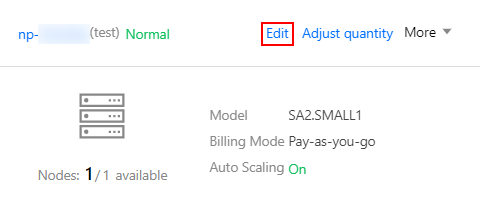
1. On the card page of the target node pool, click Edit in the top-right corner.
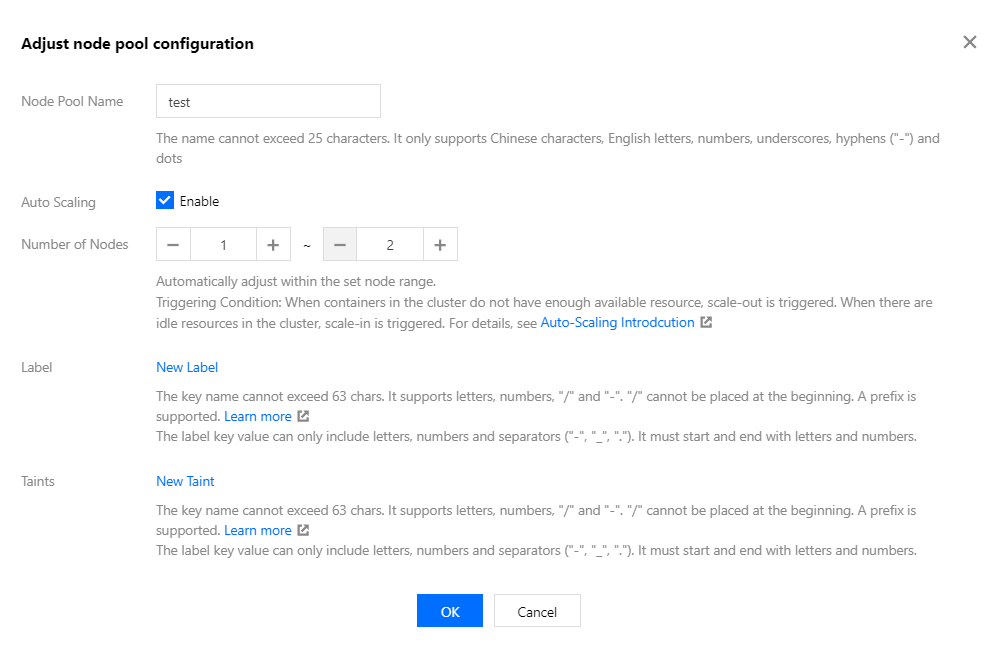
2. On the “Adjust node pool configurations” page, specify the configuration settings according to the following descriptions.
Node pool name: you can customize the name of the node pool based on service requirements to facilitate subsequent resource management.
Auto scaling: you can select this option as required.
Node Quantity Range: the number of nodes will be automatically adjusted within the specified node quantity range, which will not exceed the specified range.
Note:
This number range affects the operation of Adjusting the number of nodes in a node pool. For example, when the number of nodes in the current node pool has reached the maximum value within the range, the number of nodes cannot be increased again.
Label: the specified label here will be automatically added to nodes created in the node pool to help filter and manage nodes using labels. Click New Label to customize the label.
Taints: the attributes of the node. This parameter is usually used with Tolerations. You can specify this parameter for all the nodes of the node pool so that Pods that do not meet conditions cannot be scheduled to these nodes and are drained from these nodes.
Note:
The value of Taints usually consists of key, value, and effect. Valid values of effect:
PreferNoSchedule: optional condition. A Pod is not likely to be scheduled to a node with a taint that cannot be tolerated by the Pod.
NoSchedule: when a node contains a taint, a Pod without the corresponding toleration to the taint will never be scheduled to the node.
NoExecute: when a node contains a taint, a Pod without the corresponding toleration to the taint will not be scheduled to the node and will be drained from the node if any.
Assume that Taints is set to key1=value1:PreferNoSchedule. The following figure shows the configurations in the TKE console:
3. Click OK and wait until the update is completed.
Adjusting the number of nodes in node pool
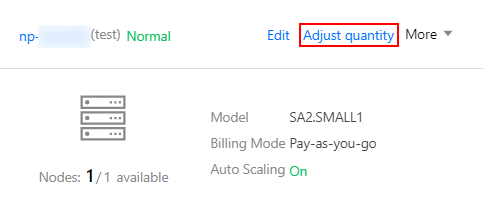
1. On the card page of the desired node pool, click Adjust quantity in the top-right corner as shown below:
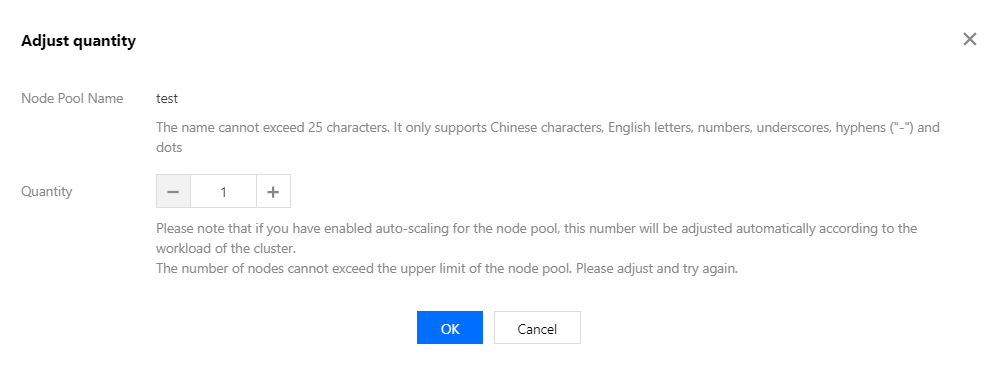
2. On the Adjust quantity page that pops up, adjust the node quantity as needed. The quantity must be within the range of node quantity set in the node pool as shown below:
Note:
When auto scaling is enabled for the node pool, this number is automatically adjusted according to the workload of the cluster. However, the actual number of nodes may be inconsistent with the number that is specified during adjustment.
3. Click OK and wait until the number is adjusted.
Enabling or disabling auto scaling
Note:
We recommend you enable or disable auto scaling in the node pool on the TKE side to ensure that the status can be synced to Cluster-autoscaler.
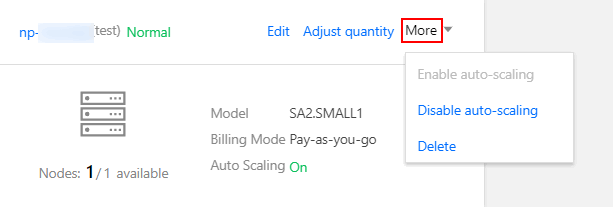
1. On the card page of the target node pool, click More in the top-right corner as shown below:
2. Select Enable auto-scaling or Disable auto-scaling based on your actual conditions and click OK in the pop-up window.
Related Operations
For more information on the features and operations of node pools, see the following documents: