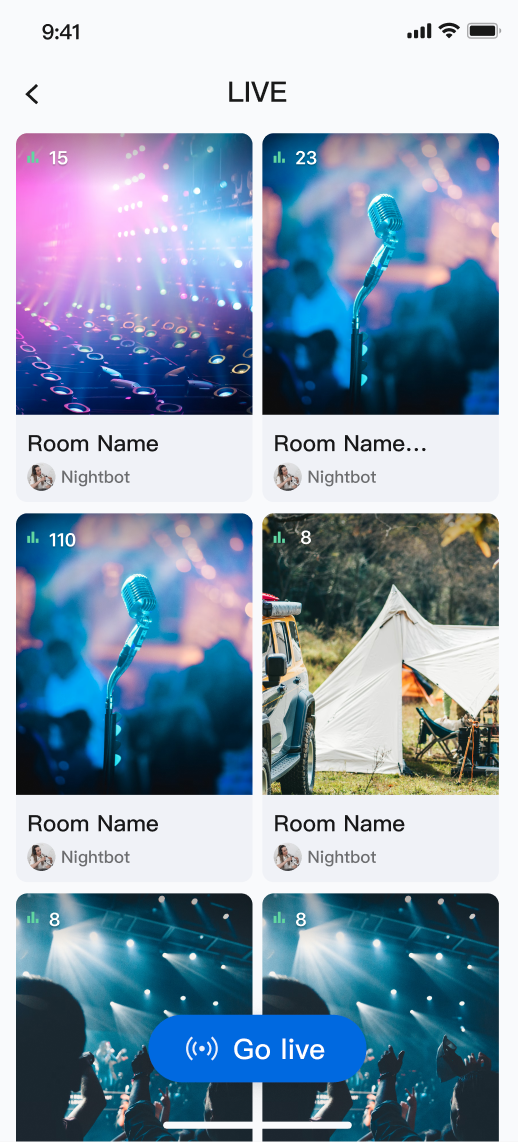
This document provides a detailed introduction to the Live Stream List Page feature within TUILiveKit. You can directly integrate our pre-built live stream list page into your existing project by referring to this guide. This page supports features such as pull-to-refresh, load-more on scroll, and clicking to join a live room.
Quick Start
Step 1. Activate the Service
Refer to the Activate Service document to enable the Free trial or official package.
Step 2. Code Integration
Refer to Preparations guide to integrate the TUILiveKit SDK.
Step 3: Add the Live Stream List Page
At the entry point where you need to access the live stream list page (determined by your business logic), perform the following operation to either navigate to the live list page or integrate it into your existing Widget tree:
Direct Navigation
Integrate Into Widget Tree
// navigate to live list page
Navigator.push(context,MaterialPageRoute(
builder:(context){
returnLiveListWidget();
}));
// --- Select one integration method based on your Widget tree structure ---
// [option one] as the only child Widget (single subtree)
// Suitable for containers such as Container, Padding that usually only contain one child Widget
Container(
child:LiveListWidget()// Integrate the live stream list here
)
// [option two] as one of multiple child Widgets (multi-subtree)
// Suitable for layouts such as Column, Row, Stack that can contain multiple child Widgets
Stack(
children:[
YourOtherWidget(),// Your other child Widget
LiveListWidget(),// Integrate the live stream list here
YourOtherWidget(),// Your other child Widget
])
Next Steps
Congratulations! You have successfully integrated the Live Stream List feature. Next, you can implement features such as Host Live Streaming and Audience Viewing. Please refer to the table below:
Feature
Description
Integration Guide
Host Streaming
The complete workflow for a host to start a stream, including pre-stream setup and various in-stream interactions.
Audience can watch live streaming after entering the anchor's live streaming room, with features like audience mic connection, live room information, online audience, and bullet screen display.
What should I do if the page shows no live streams after integrating the live list feature?
If you see a blank page, you need to check whether you have completed the Complete Login. To test the feature, you can use two devices: one device for starting live streaming, and the other device on the list page to pull the live streaming room that has gone live.