Audience Viewing (Flutter)
ダウンロード
フォーカスモード
フォントサイズ
TUILiveKit's audience viewing page provides users with various and convenient live streaming and interaction features, enabling quick integration into your application to meet diverse audience needs.
Feature Overview
Live streaming: Clear and smooth viewing of the host's real-time live stream.
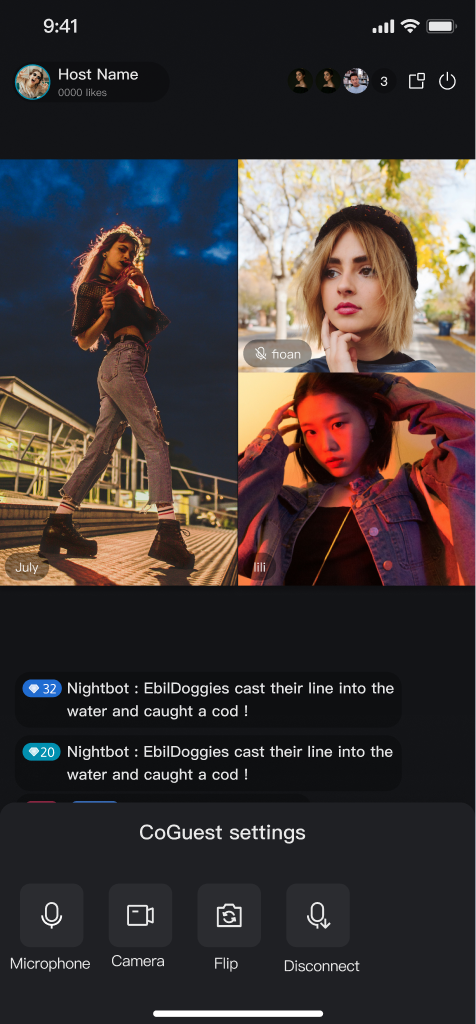
Interactive co-guest: Apply for mic connection to interact with the host via audio and video.
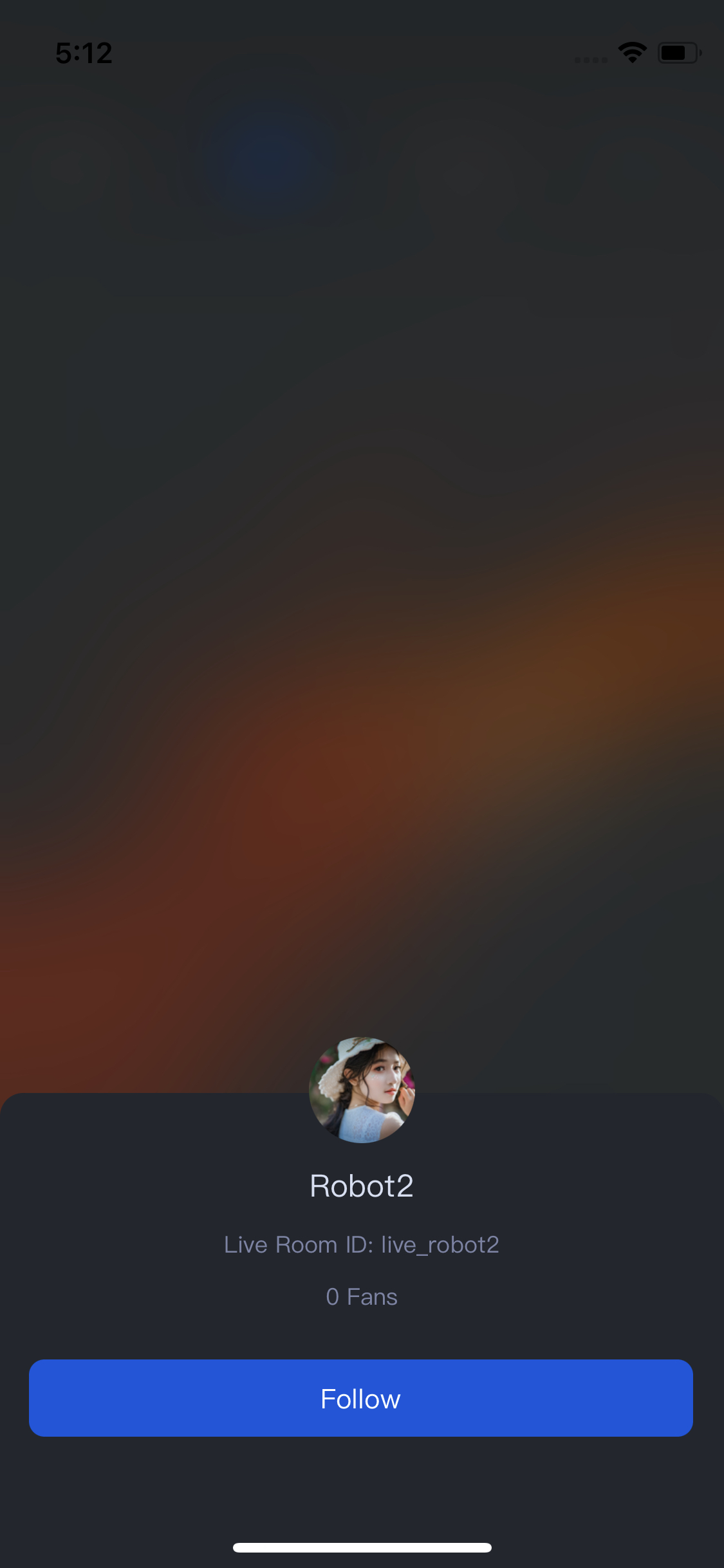
Live information: View the live streaming room title, description, and audience list, etc.
Live interactive: Send a gift (with animation effects and host notification), like (with animation and real-time statistics), and interact via bullet screen.
Live Streaming | Interactive co-guest | Live Information | Live Interactive |
 |
 |  |  |
Quick Start
Step 1. Activate the Service
Step 2. Code Integration
Step 3: Add an Audience Viewing widget
At the call entry for audience entering the room (determined by your business), perform the following operations to pull up the audience viewing webpage or integrate it into your own Widget tree.
// Navigate to the audience viewing pageNavigator.push(context, MaterialPageRoute(builder: (context) {return TUILiveRoomAudienceWidget(roomId: roomId);}));
// --- Select one integration method based on your Widget tree structure ---// [Option one] As the only child Widget (single subtree)// Suitable for containers like Container, Padding that usually only contain one child WidgetContainer(child: TUILiveRoomAudienceWidget(roomId: roomId) // Integrate audience viewing here)// [Option two] As one of multiple child Widgets (multiple subtrees)// Suitable for layouts like Column, Row, Stack that can contain multiple child WidgetsStack(children: [YourOtherWidget(), // Your other child WidgetTUILiveRoomAudienceWidget(roomId: roomId), // Integrate audience viewing hereYourOtherWidget(), // Your other child Widget])
Customize Your UI Layout
Text Customization (ARB)
TUILiveKit uses ARB files and the Flutter standard internationalization (i18n) solution to manage the UI text display. You can directly edit the ARB files in the
livekit/lib/common/language/i10n/ directory to modify the text: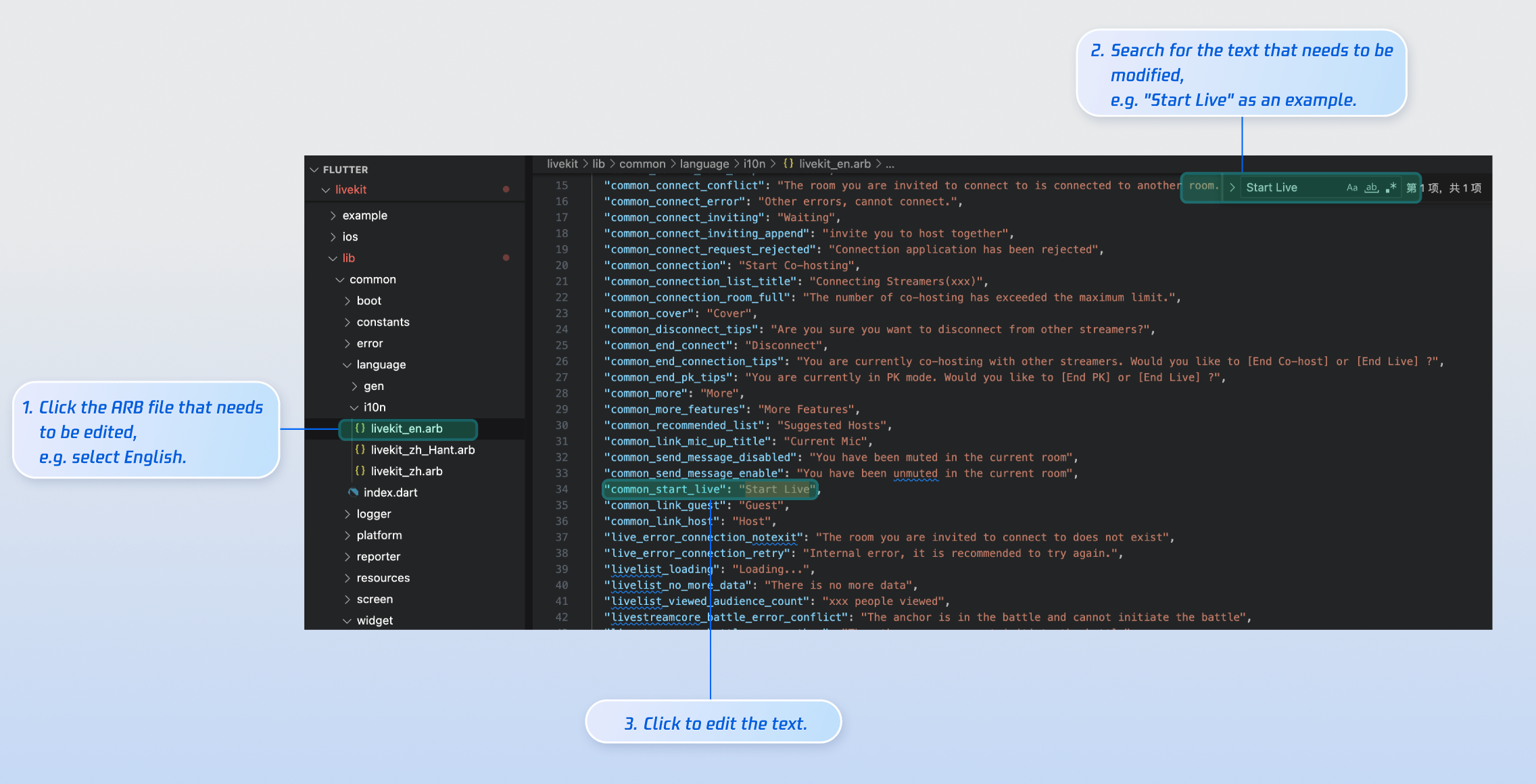
livekit_en.arb - English Textlivekit_zh.arb - Simplified Chinese Textlivekit_zh_Hant.arb - Traditional Chinese TextAfter making changes, execute
flutter gen-l10nin the command line to regenerate the localization code.Icon Customization (Image Assets)
The image resources required by the TUILiveKit UI are managed in the
livekit/assets/images/ directory. You can quickly modify the custom icons needed for your interface by directly replacing the PNG image files in this directory.
Next Steps
Congratulations! You have successfully integrated Audience Viewing. Next, you can implement features such as Host Live Streaming and the Live Stream List. Please refer to the table below:
Feature | Description | Integration Guide |
Host Streaming | The complete workflow for a host to start a stream, including pre-stream setup and various in-stream interactions. | |
Live Stream List | Display the live stream list interface and features, including the live stream list and room information display. |
FAQs
Why is the video screen black when a viewer selects video co-hosting?
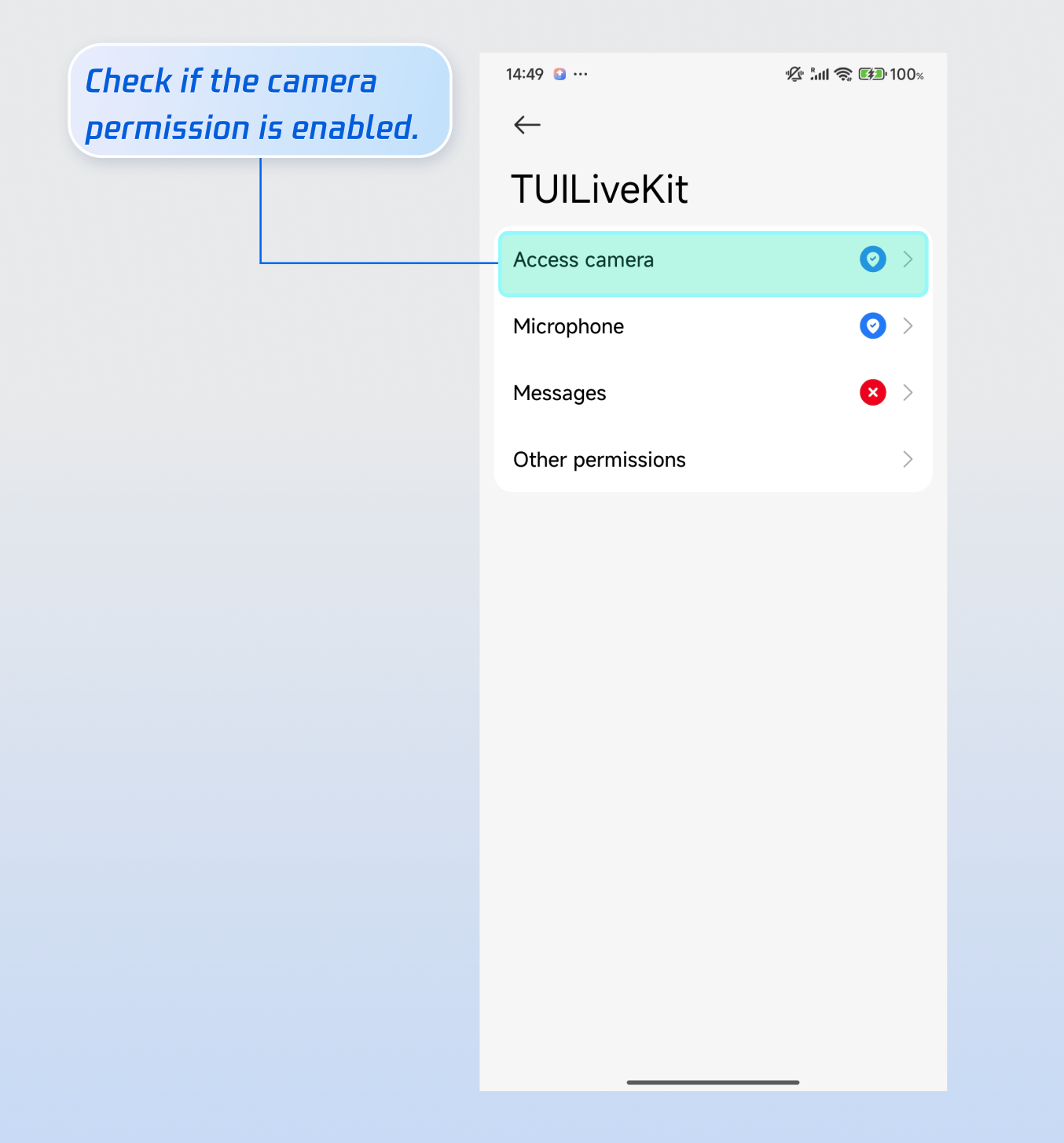
Please go to Phone Settings > App > Camera and check whether camera permission is enabled. Refer to the image below:
iOS | Android |
 |  |
Why can't other viewers in the live room see the barrage content sent by a viewer?
Reason 1: First check the network connection to ensure the viewer's device network is normal.
Reason 2: The viewer has been muted (banned) by the host and cannot send barrage.
Reason 3: The viewer's barrage content involves keyword blocking. Please confirm whether the content sent by the viewer complies with the live room rules.
フィードバック