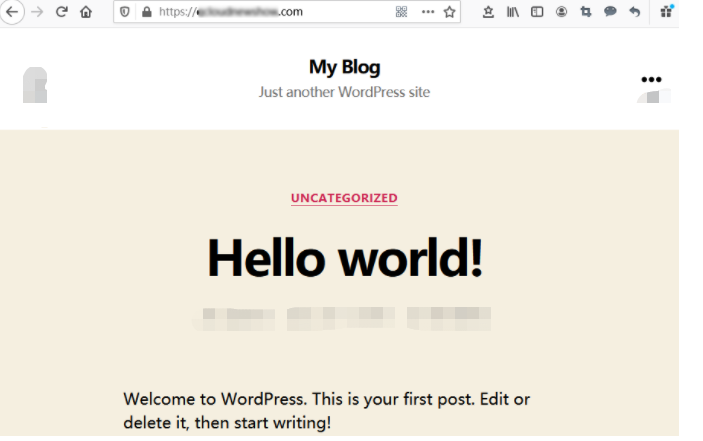
This document describes how to install an SSL certificate in a Lighthouse instance and enable HTTPS access, with a WordPress 5.7.1-based instance as an example. NGINX software programs have been preinstalled in the instance by default.
Note:
The SSL certificate used in the document is provided by Tencent Cloud. For more information on this service, see Overview and Purchase Guide.
Prerequisites
Install the remote file copy tool such as WinSCP.
Install the remote login tool such as PuTTY or Xshell.
Open port 443 in your firewall policy. For more information, see Managing Firewall.
The data required to install the SSL certificate includes the following:
Name
Description
Lighthouse instance's public IP address
Instance IP address used to connect a local computer to the instance.
Username
The username used to log in to the Lighthouse instance, such as `root`.
Password or SSH key
The password matching the username used to log in to the Lighthouse instance, or the bound SSH key.
Note:
To get the public IP of the instance, you can log in to the Lighthouse console, find the target instance, and enter its details page to view its public IP address. After the instance is created, first reset the password and remember it, or bind an SSH key and save the private key file. For more information, see Resetting Password and Managing Keys.
Directions
Installing the certificate
1. Log in to the SSL Certificates Service console, download and decompress the SSL certificate file (with the name cloud.tencent.com as an example here) to a local directory.
After decompression, you can get the certificate files in the relevant types, including Nginx folders and CSR files:
Folder name: Nginx
Files in the folder:
cloud.tencent.com_bundle.crt: Certificate file
cloud.tencent.com.key: Private key file
CSR file: cloud.tencent.com.csr file
Note:
You can upload the CSR file when applying for a certificate or have it generated online by the system. It is provided to the CA and irrelevant to the installation.
2. Use a remote login tool (such as WinSCP) on the local computer to log in to the Lighthouse instance with the username and password or SSH key pair. For more information, see Logging in to Linux Instance via Remote Login Software.
3. Copy the obtained cloud.tencent.com_bundle.crt and cloud.tencent.com.key files from the local directory to NGINX's default configuration file directory of the Lighthouse instance. For more information, see Uploading Local Files to Lighthouse.
Note:
The default configuration file directory of the WordPress image is /www/server/nginx/conf.
4.
For instances created with the WordPress image
, run the following command to edit the nginx.conf file in NGINX's default configuration file directory.
sudovim /www/server/nginx/conf/nginx.conf
Find server {...} and replace the configuration information inside the braces ({}) with the following content.
Note:
This configuration is for reference only. You can modify it as needed according to the comments or NGINX documentation based on your actual environment.
server {
listen 443 ssl;
server_tokens off;
keepalive_timeout 5;
root /usr/local/lighthouse/softwares/wordpress;# Enter the root directory of your website, such as `/usr/local/lighthouse/softwares/wordpress`
index index.php index.html;
access_log logs/wordpress.log;
error_log logs/wordpress.error.log;
server_name cloud.tencent.com;# Enter the domain name bound to your certificate, such as `www.cloud.tencent.com`
ssl_certificate cloud.tencent.com_bundle.crt;# Enter the name of your certificate file, such as `cloud.tencent.com_bundle.crt`
ssl_certificate_key cloud.tencent.com.key;# Enter the name of your private key file, such as `cloud.tencent.com.key`
ssl_session_timeout 5m;
ssl_protocols TLSv1 TLSv1.1 TLSv1.2;# You can see this SSL protocol for configuration
ssl_ciphers ECDHE-RSA-AES128-GCM-SHA256:HIGH:!aNULL:!MD5:!RC4:!DHE;# You can use this encryption suite configuration written in line with the OpenSSL standard
ssl_prefer_server_ciphers on;
location ~* \\.php$ {
fastcgi_pass 127.0.0.1:9000;
include fastcgi.conf;
client_max_body_size 20m;
fastcgi_connect_timeout 30s;
fastcgi_send_timeout 30s;
fastcgi_read_timeout 30s;
fastcgi_intercept_errors on;
}
}
5. Find http{...} and enter the following configuration information.
ssl_certificate cloud.tencent.com_bundle.crt;# Enter the name of your certificate file, such as `cloud.tencent.com_bundle.crt`
ssl_certificate_key cloud.tencent.com.key;# Enter the name of your private key file, such as `cloud.tencent.com.key`
6. Save the modified nginx.conf file and exit.
7.
Run the following command to verify that there is no problem with the configuration file.
sudo nginx -t
If the following output information is displayed, the configuration is successful. Proceed to step 8.
If there is an error message, reconfigure or fix the problem as prompted.
8.
Run the following command to restart NGINX.
sudo systemctl reload nginx
At this point, the installation is successful. You can use https://cloud.tencent.com (sample) for access.
(Optional) Setting automatic redirect of HTTP request to HTTPS
You can configure the instance to automatically redirect HTTP requests to HTTPS in the following steps:
1. NGINX supports rewrite. If you did not remove pcre during compilation, you can add return 301 https://$host$request_uri; to the HTTP server to redirect requests made to the default port 80 to HTTPS.
You need to modify the nginx.conf file by adding the following configuration after Step 4 in the Installing the certificate section.
server {
listen 80;
server_name cloud.tencent.com;# Enter the domain name bound to your certificate, such as `cloud.tencent.com`
return301 https://$host$request_uri;# Redirect HTTP requests to HTTPS
}
2. Save the modified nginx.conf file and exit. Verify and restart NGINX according to Step 7 and Step 8 in the Installing the certificate section.
At this point, you have successfully set the automatic redirect to HTTPS. You can use http://cloud.tencent.com (sample) to redirect to the HTTPS page as shown below: