Set Up Your Knowledge Base
Download
フォーカスモード
フォントサイズ
Overview
The Knowledge Base is the main tool for managing information in the intelligent conversation system, helping provide accurate and efficient answers by using preset Q&A pairs. You can categorize common issues in the Knowledge Base and set standard answers. When a user asks a question that matches one in the Knowledge Base, the system will automatically provide the preset answer, ensuring consistent and professional service.
Adding Q&A to the Knowledge Base
1. Log in to the Tencent Cloud Contact Center (TCCC) Management Panel. From the left sidebar, select Knowledge Base > All Categories > +Add Category. In the popup, enter a Category Name (e.g., "Pre-sales Issues") and click Save.
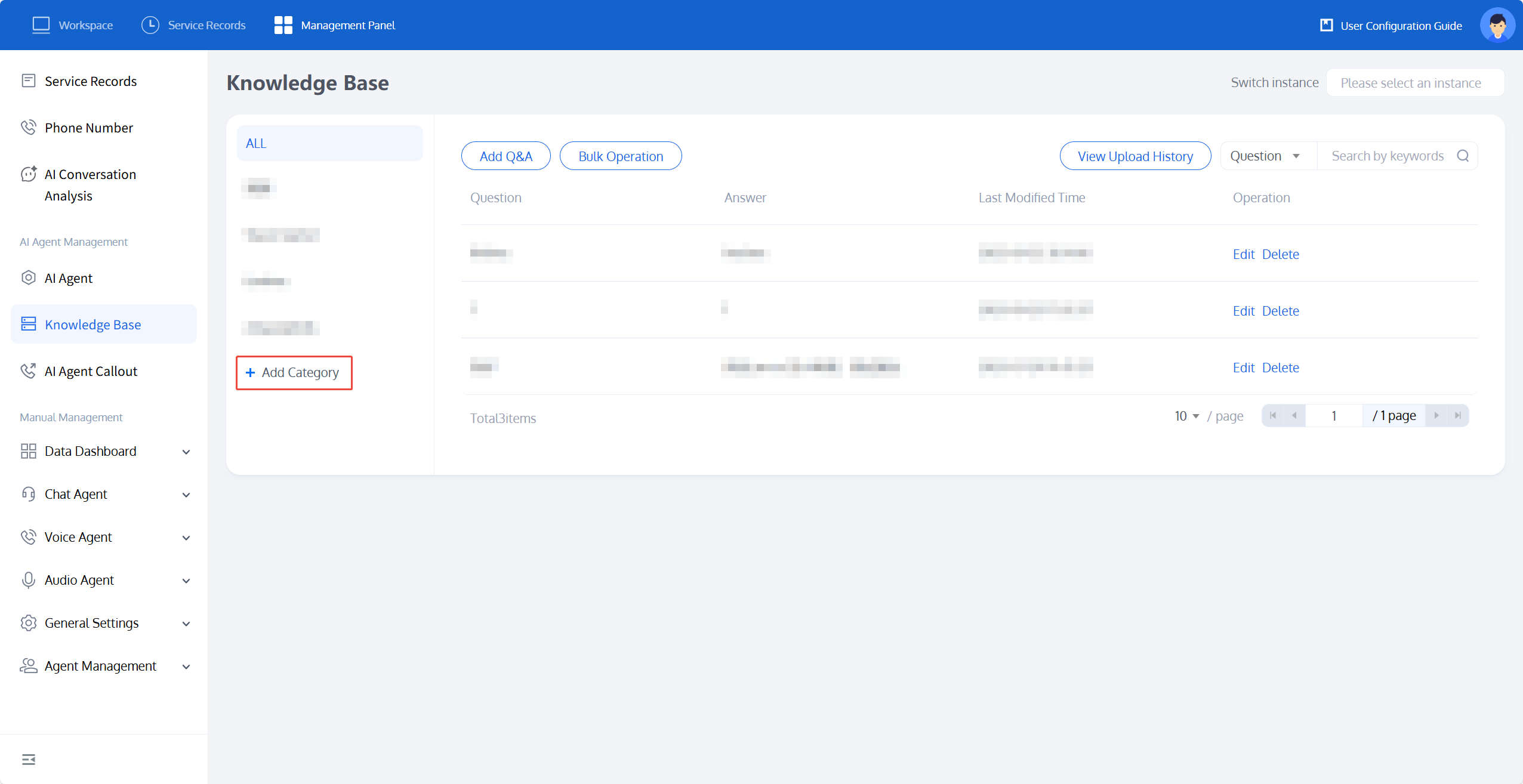
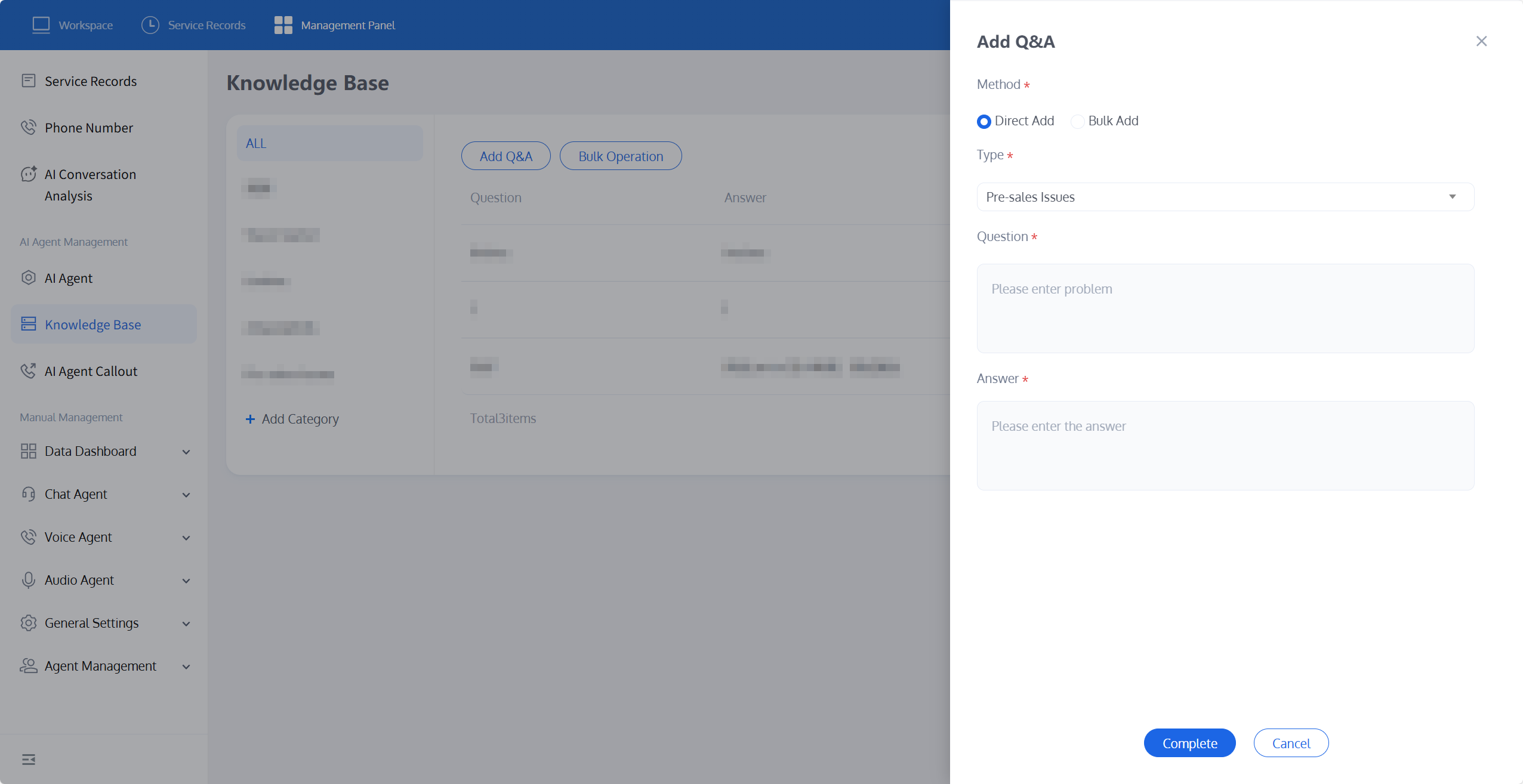
2. After adding a category, click Add Q&A to go to the Q&A settings page. You can add Q&A either by Direct Add or Bulk Add using files.
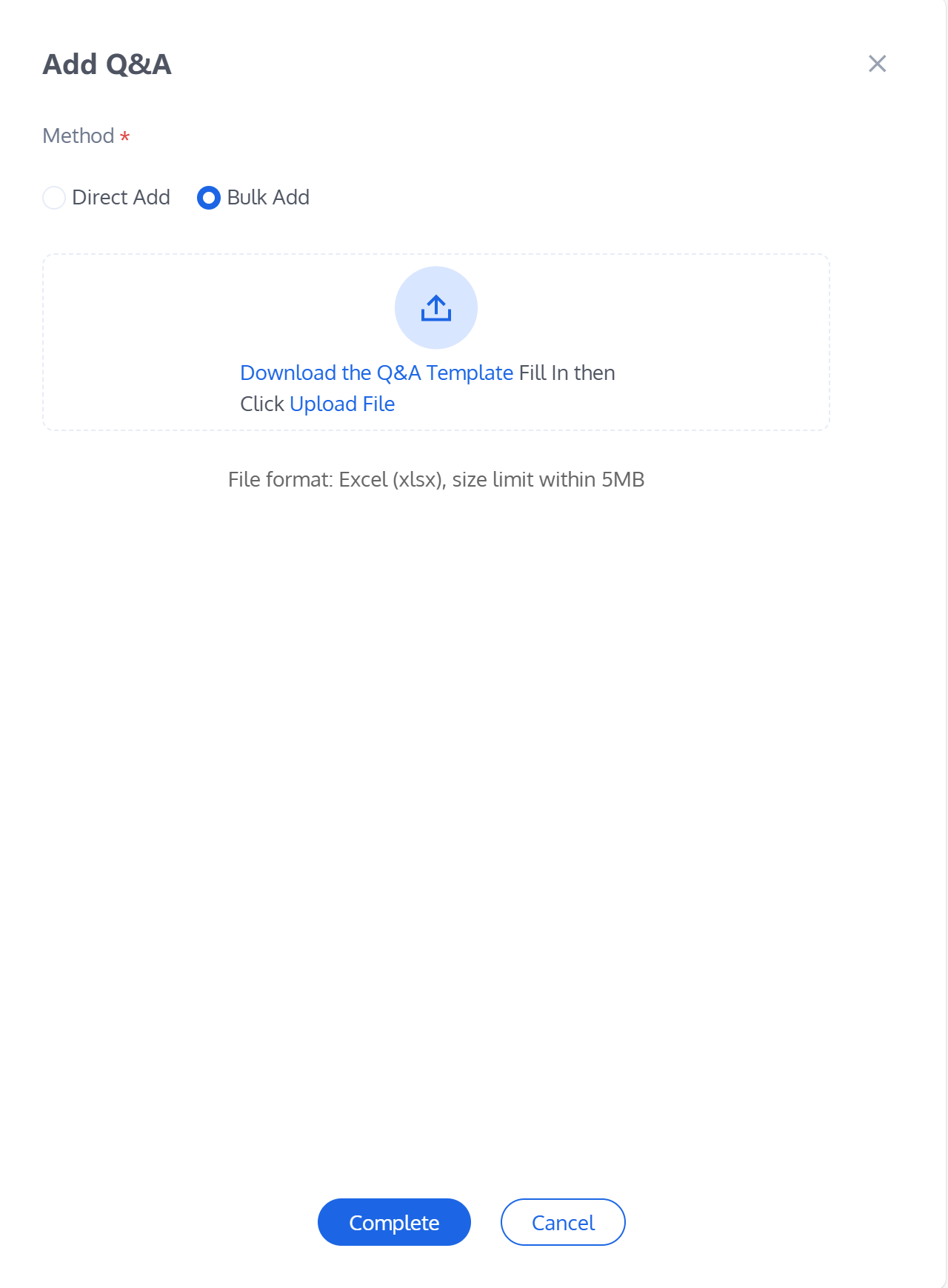
Bulk Add
Step 1: If you need to add in batches, select Bulk Add and click Download the Q&A Template to start the download.
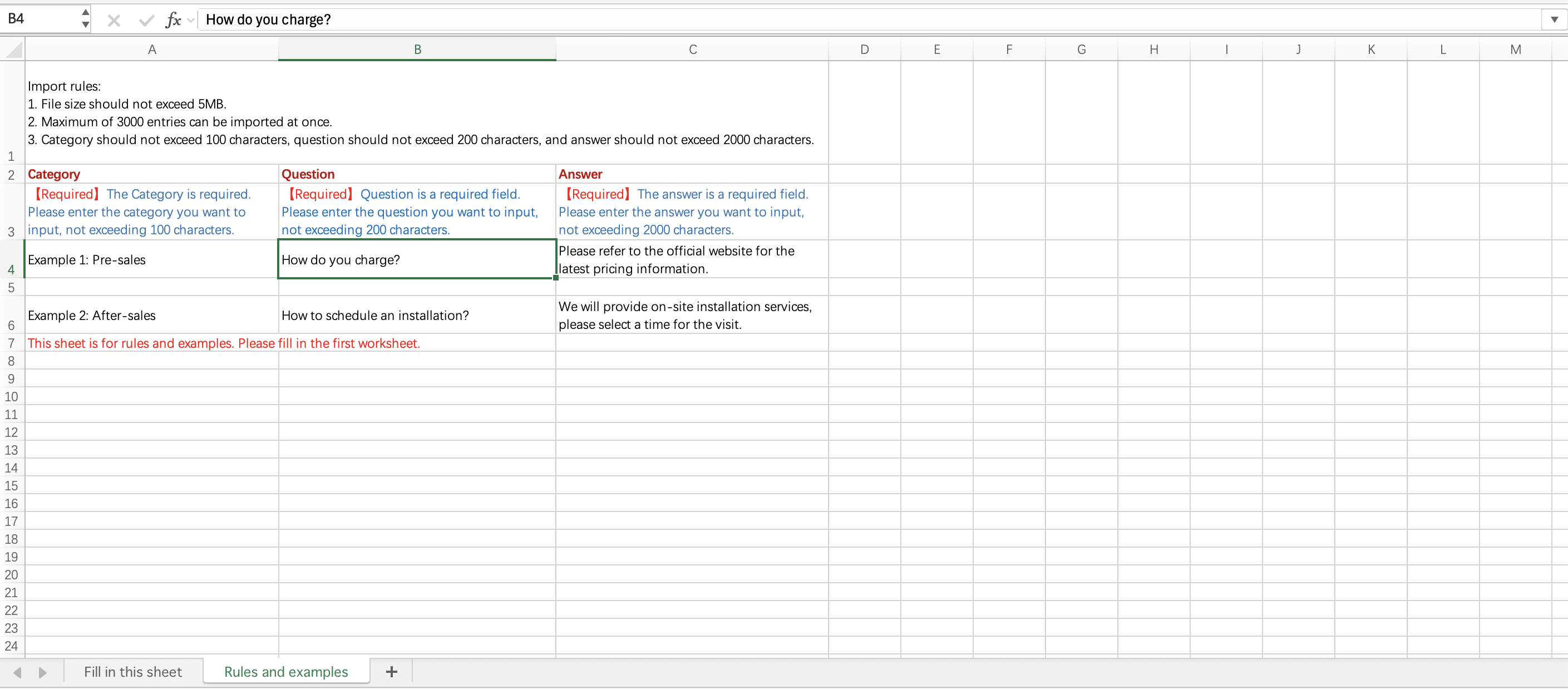
Step 2: Once the download is complete, open the Excel file. The first worksheet is for entering the Q&A, while the second worksheet contains the rules and examples. Follow the instructions to fill in the template accordingly.
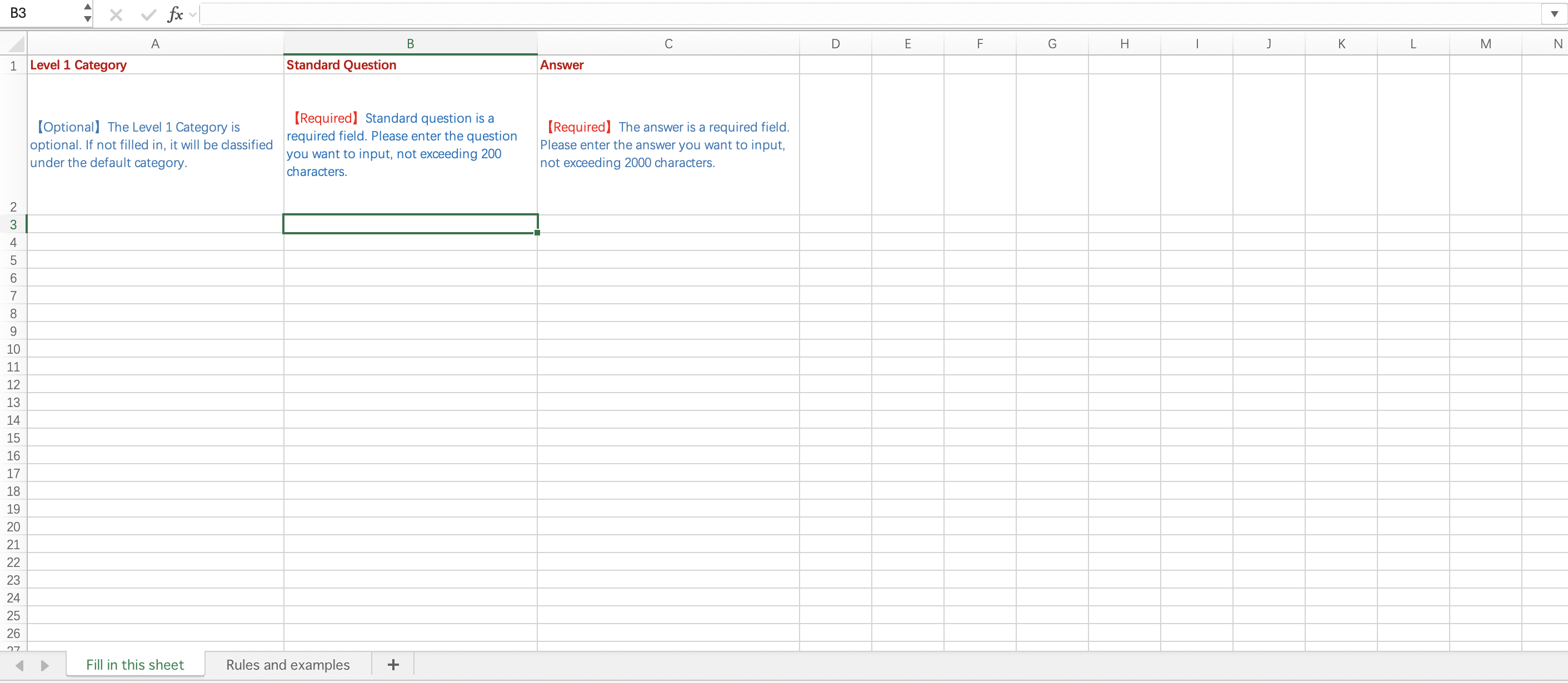
Step 3: Once all the information is provided, click File in the upper left corner, select Save or Save As, then select the storage location (e.g., desktop or folder), enter the file name, and finally click Save to complete.
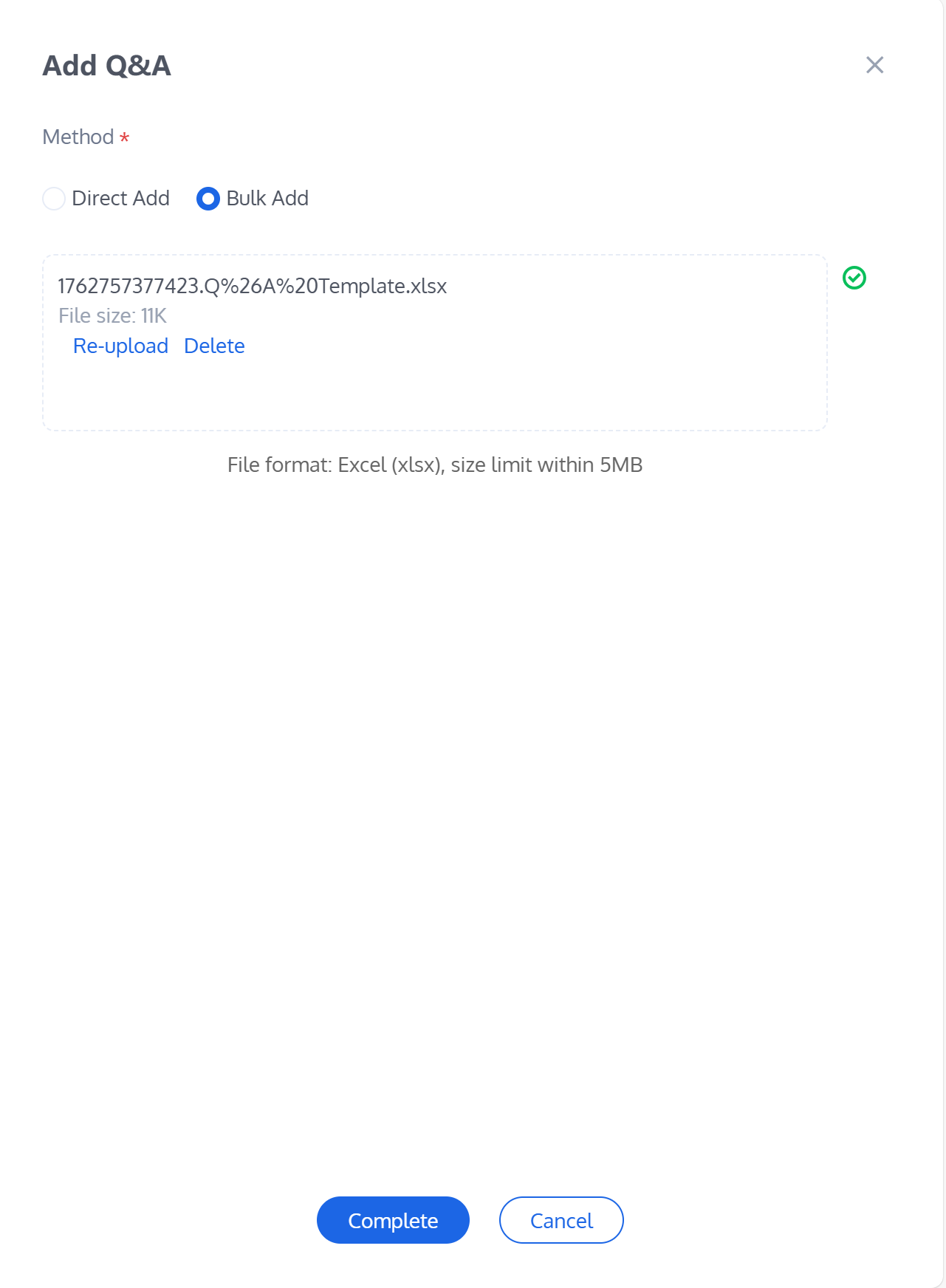
Step 4: After saving the file, go to the Add Q&A page, click Upload File, and upload your saved Q&A template.
Direct Add
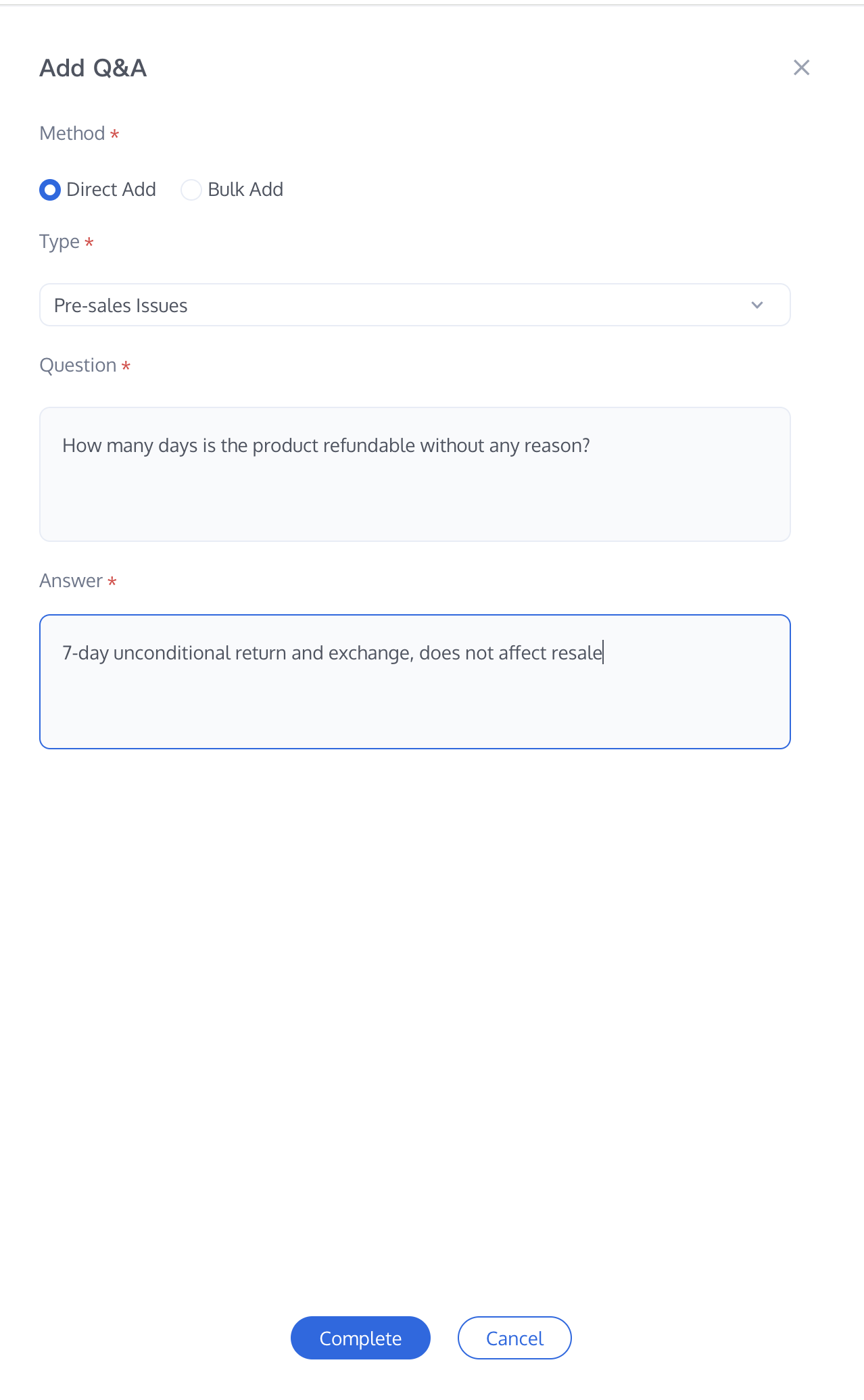
If you select Direct Add, fill in the specific Question and its corresponding Answer (e.g., Question "How many days is the product refundable without any reason?", Answer "7-day unconditional return and exchange, does not affect resale"). Once finished, click the Complete button below to save your changes.
Bind a Knowledge Base
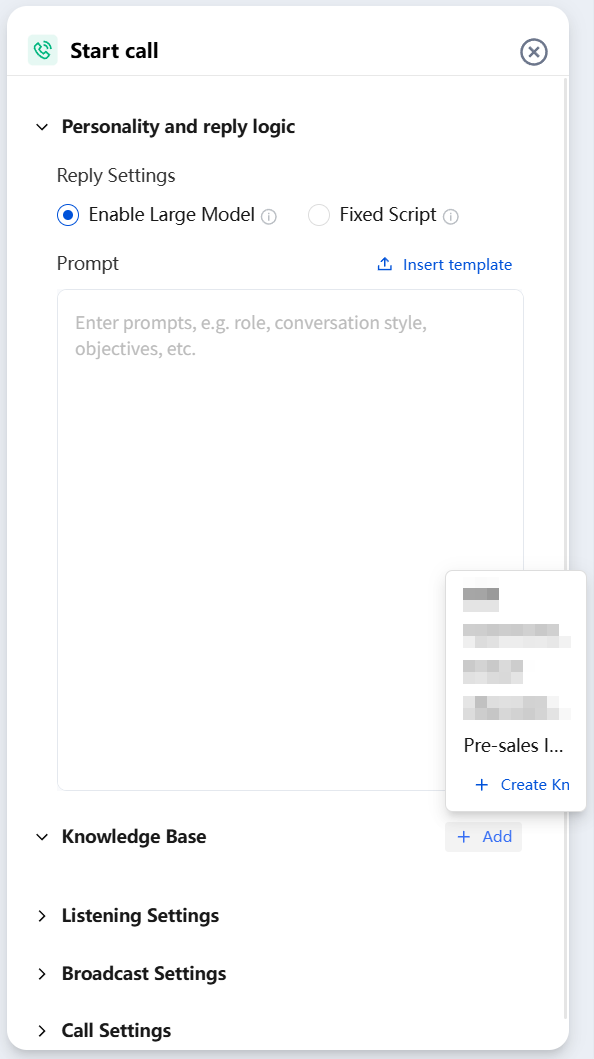
1. After adding the Q&A, select AI Agent from the left sidebar, choose the AI Agent you need to bind to the Knowledge Base (e.g., "Customer Service"), click Start Call, and you will see the Start Call settings appear on the right.
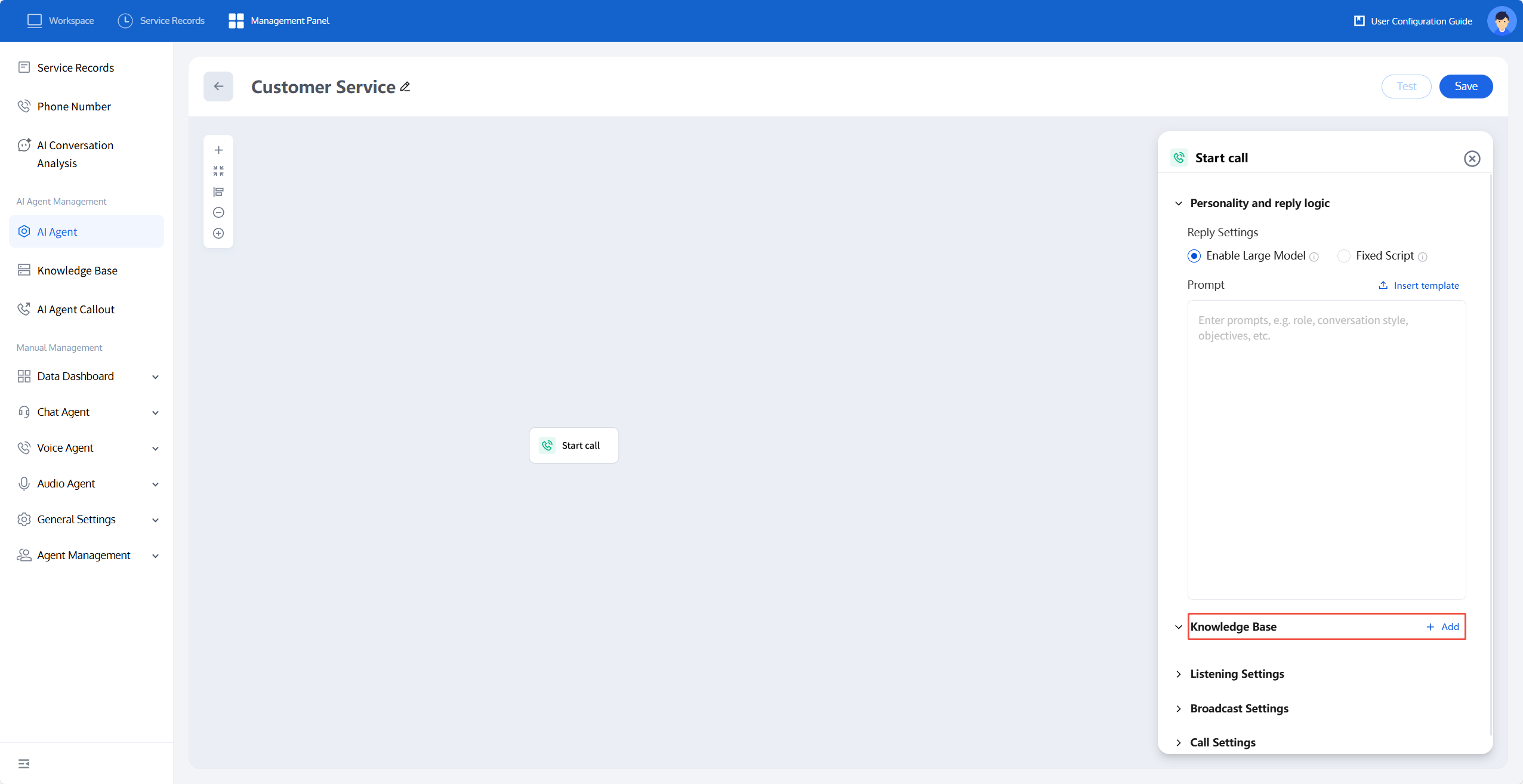
2. In the Start Call settings, click the + Add button next to the Knowledge Base and select the relevant knowledge base. When a user’s question during the call matches a preset question in the knowledge base, the system will automatically provide the corresponding answer to reply. After the answer is given, the system will continue executing the original conversation flow.
フィードバック