Connecting to TencentDB for SQL Server Instance from Windows CVM Instance
Download
フォーカスモード
フォントサイズ
最終更新日: 2024-11-12 16:28:36
Overview
This document describes how to connect to a TencentDB for SQL Server instance through SQL Server Management Studio (SSMS) on a Windows CVM instance and run a simple query.
Note:
The CVM and TencentDB instances are better to be under the same account and in the same VPC in the same region.
CVM and TencentDB instances in the same VPC in different AZs in the same region can directly interconnect through private IPs.
CVM and TencentDB instances in different regions or VPCs or under different accounts can interconnect through Peering Connection or CCN.
Directions
1. Log in to the TencentDB for SQL Server console, click the instance ID of the target instance to enter the instance management page.
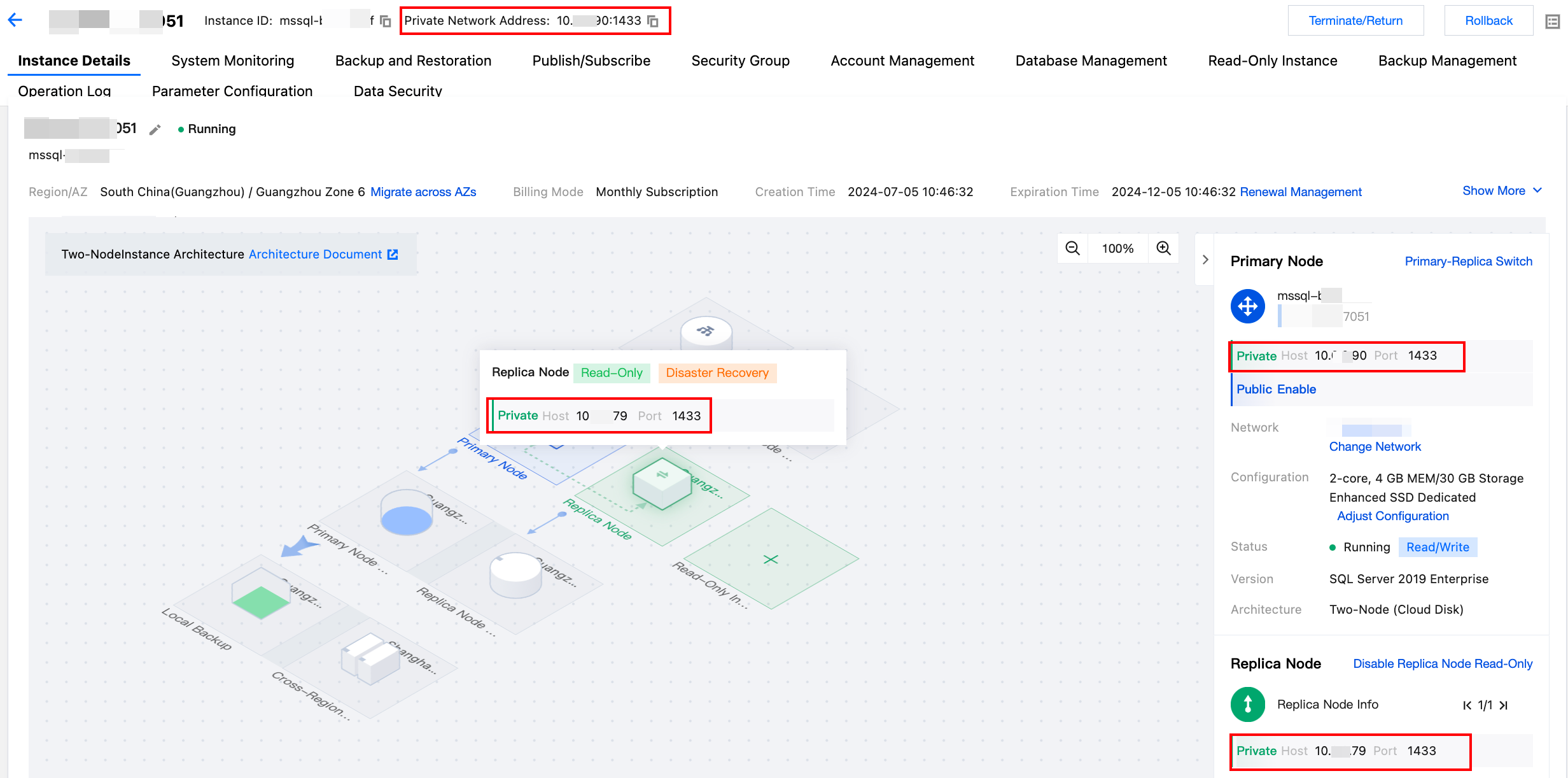
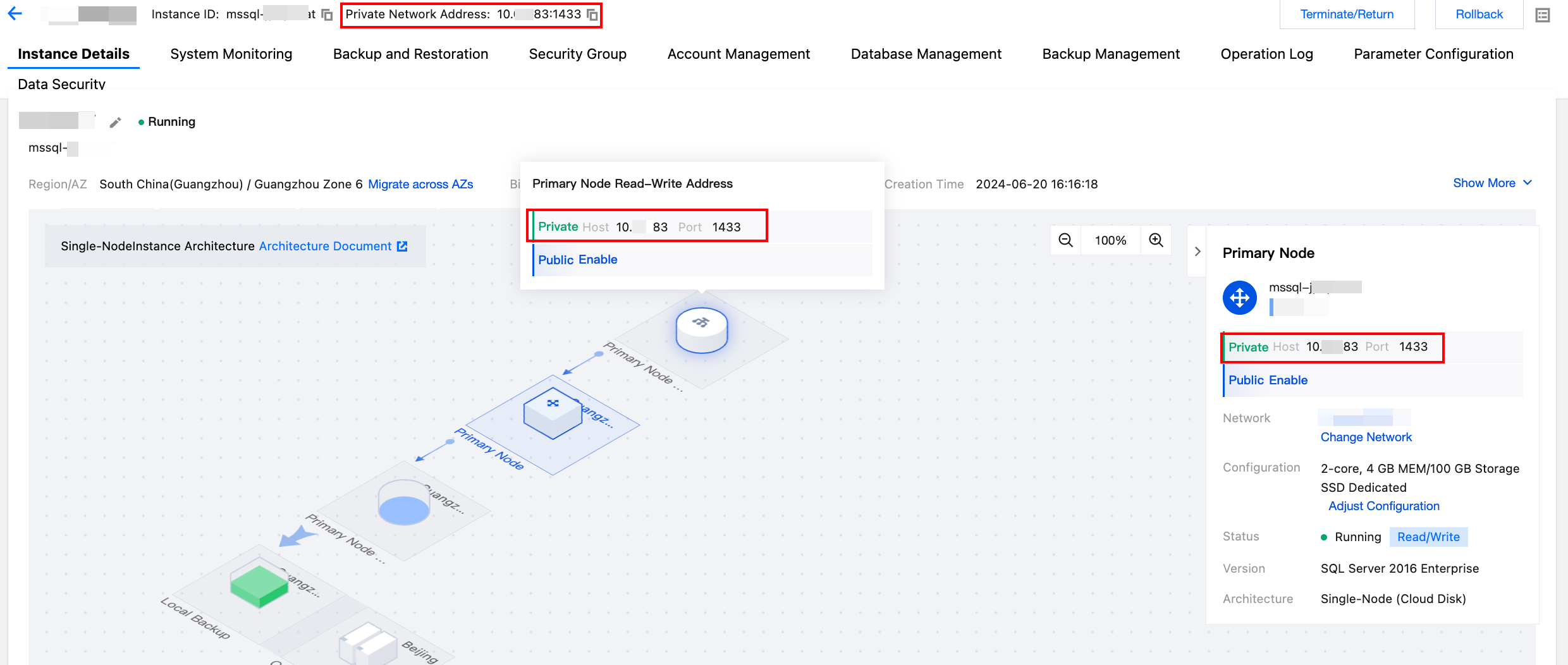
2. Based on the actual connection needs, you can view the private IP and port number of the instance at the top of the instance management page, in the instance information on the right side of the Instance Details page, or in the topology diagram. The specific scenarios are as follows.
If the current instance is a two-node instance, you can view the private IP and port number of the primary node at the top. By hovering the mouse over the corresponding area in the topology diagram, you can view the private IP and port number of the corresponding node. In the instance information on the right side, you can view the private IP and port number of the primary node, replica node (if the replica node read-only feature is enabled), and read-only instances (if any).
If the current instance is a single-node instance, you can view the private IP and port number of the primary node at the top, by hovering the mouse over the primary node read-write address in the topology diagram, or in the instance information on the right side.
If the current instance is a read-only instance, you cannot view the private IP and port number of the read-only instance in the topology diagram, but can view them at the top or in the instance information on the right side.
3. Log in to the Windows CVM instance. For more information, see Customizing Windows CVM Configurations. This document uses Windows Server 2012 R2 Standard Edition (64-bit) as an example.
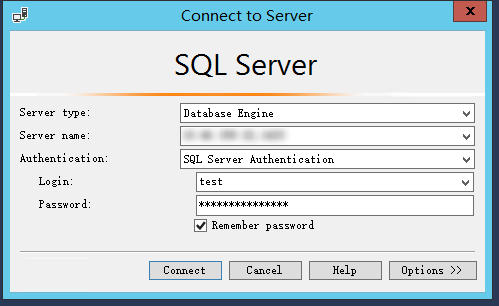
5. Start SSMS in the Windows CVM instance. On the Connect to server page, enter the relevant information to connect to TencentDB. Click Connect and wait a few minutes before SSMS connects to your database instance.
Server type: Select Database Engine.
Server name: Enter the private IP and port number of the instance and separate them by comma. For example, if the private IP of the instance is 10.10.10.10 and the port number is 1433, then enter 10.10.10.10,1433 here.
Authentication: Select SQL Server Authentication.
Login and Password: Enter the account name and password you configured when creating the instance account on the Account Management page.
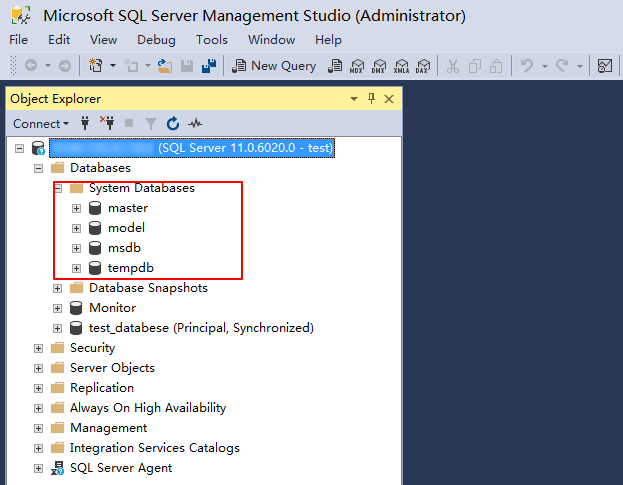
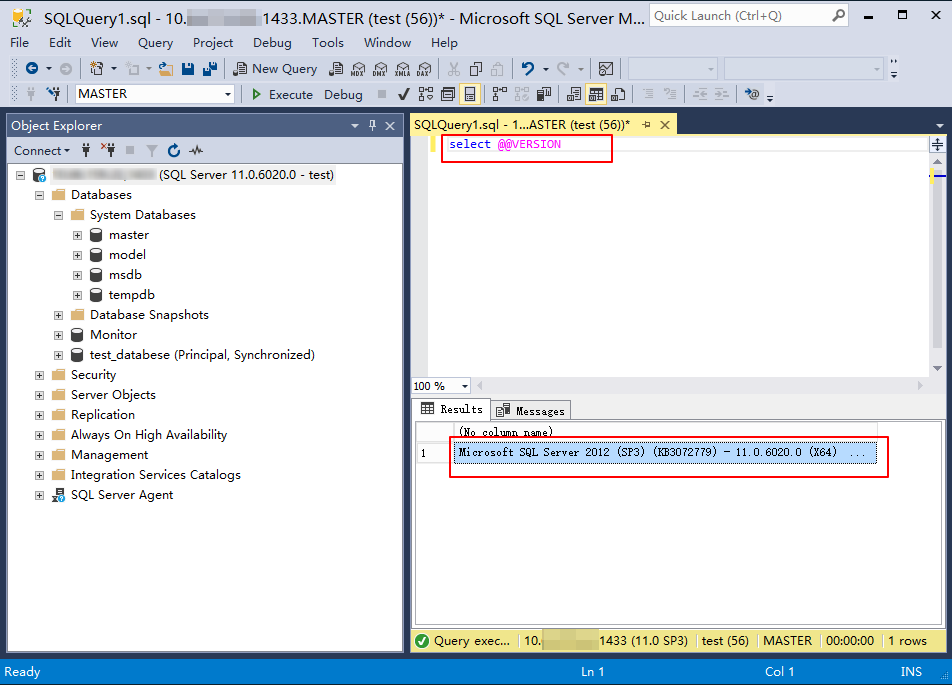
6. Once connected to the database, you can view the standard built-in system databases (master, model, msdb and tempdb) of SQL Server.
7. You can start creating your own databases and running queries for them. Select File > New > Query with Current Connection and type the following SQL query:
select @@VERSION
Run the query. SSMS returns the TencentDB for SQL Server instance.