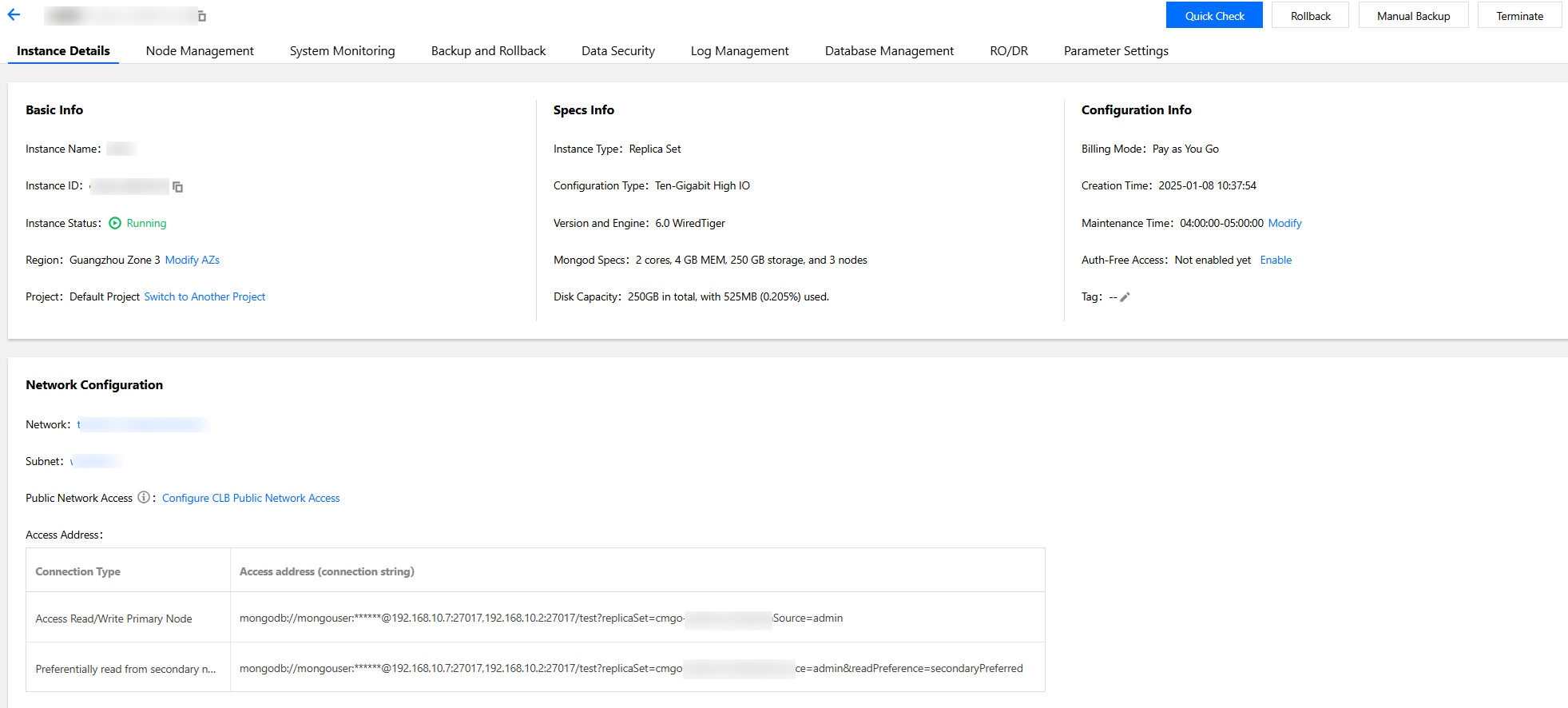
After purchasing a TencentDB for MongoDB instance, you can gain a comprehensive overview of the instance's operational status and resource configurations on the Instance List and Instance Details pages in the console, which provide an intuitive reference for routine Ops and management decisions.
Instance List
This page displays all instances in a specific region in a list format. This helps you quickly obtain an overview of core information, including instance names/IDs, database versions, network types, billing modes, and so on, facilitating quick instance search, status comparison, and batch management.
Instance Details
This page provides an in-depth display of the comprehensive configurations and real-time status of a single instance, including the instance status, the project to which the instance belongs, configurations, specifications, network information, version information, and so on. It also provides multiple management features, such as configuration adjustment, system monitoring, network switching, availability zone (AZ) adjustment, project management, tag management, and so on. It serves as the unified entry point for you to perform Ops operations on an instance efficiently.
2. In the MongoDB drop-down list on the left sidebar, select Replica Set Instance or Shard Instance. The directions for the two types of instances are similar.
3. Above the Instance List on the right, select the region.
4. In the instance list, find the target instance.
In the search box in the top-right corner, you can search for the target instance by instance ID, instance name, private IP, or tag key.
If you can't find the target instance in the instance list, select Recycle Bin on the left sidebar to check whether it is isolated there due to overdue payments. For more information, see Recycle Bin.
5. View the target instance information, such as the status, specification, and storage engine.
Parameter
Description
Instance ID/Name
Instance ID: The instance's unique ID.
Name: The instance name set during instance creation. You can hover over the instance name and click
to rename the instance for easier identification and management.
Monitoring/Status
Monitoring: You can click
to enter the monitoring panel and view the instance monitoring data. For more information, see Viewing Monitoring Data.
Status: Instance status. The normal status is Running. If a task is being executed in the instance, the task name, such as Changing configuration, will be displayed here.
Configure/Network
Specification Type: Supports High IO 10G Type and Cloud Edition. For more information, see Product Specification Types.
Specification: The specification of each instance node.
Supports database versions of 7.0, 6.0, 5.0, 4.4, 4.2, 4.0, 3.6, and 3.2. The 3.2 version is no longer available for sale.
Storage Engine: It is WiredTiger by default.
Private Network Address
The private IPv4 address and port of all primary and secondary mongod nodes in the TencentDB instance. A TencentDB instance can be accessed only over the private network.
Instance billing mode, which is pay-as-you-go. For more information, see Billing Overview.
Used/Total
The used/total disk capacity of the instance. This parameter helps you quickly check the disk utilization of the current instance.
Oplog/Shard Info
You can click View/Adjust to view the disk capacity reserved for oplog or adjust it based on your business needs. For detailed directions, see Adjusting Oplog Capacity.
Project
Instance project. You can view the information of all instances in this project. You can also move the instance to another project as instructed in Specifying Project for Instance.
Operation
Select Adjust Specification to adjust the instance's memory and disk capacity as instructed in Adjusting Instance Specification.
Select Adjust Specification > Node Management to manage the mongod and mongos nodes of the instance as instructed in Viewing Node Information.
Select More > Security Group to change security group inbound rules.
Select More > Restart to restart the instance as instructed in Restarting Instance.
Select More > Manage to view the instance details.
Select More > Edit Tag to edit the instance tag keys and values as instructed in Editing Instance Tag.
Viewing Instance Details
In the Instance ID/Name column of the target instance, click the Instance ID to enter the Instance Details page.
Section
Parameter
Description
Basic Info
Instance Name
Custom instance name.
Instance ID
The instance's unique ID.
Instance Status
The instance's current status. The normal status is Running.
Region
Instance region and AZ. You can click Modify AZs to switch to another AZ in the same region. For more information, see Changing Instance AZ.
Project
The project to which the instance belongs. You can click Switch to Another Project to assign the instance to another project as instructed in Specifying Project for Instance.
Specs Info
Instance Type
You can set the instance cluster architecture type as Replica Set or Shard Cluster. For more information, see System Architecture.
Configuration Type
Product specification types include High IO 10G Type and Cloud Edition. For more information, see Specification Type.
Version and Engine
The version and the storage engine of the instance. Version upgrade is supported. For detailed directions, see Version Upgrade.
Mongod Node Specification
The specification of a single mongod node, including the CPU core quantity, memory, disk capacity, and node quantity. For the detailed specifications supported by replica set and sharded cluster instances, see Product Specifications.
Mongos Node Specification
The specification of a single mongos node, including the CPU core quantity, memory, and node quantity. For the detailed specifications supported by replica set and sharded cluster instances, see Product Specifications.
Disk Capacity
The total disk capacity of the instance.
Configuration Info
Billing Mode
Billing mode of the instance: Pay-as-you-go.
Creation Time
Creation time of the instance.
Maintenance Time
Instance maintenance period. To ensure the stability of the database, the backend system will periodically perform maintenance operations on the instance. You can click Modify to adjust the maintenance period as instructed in Setting Instance Maintenance Period. We recommend you schedule maintenance during off-peak hours.
Auth-Free Access
You can view whether auth-free access to databases is enabled. If the status is Not enabled yet, you can click Enable to enable this feature as instructed in Accessing Instance Without Authentication.
Tag
Tags associated with the instance. You can change them as instructed in Editing Instance Tag.
Network Configuration
Network
Instance VPC name. You can click Switch Network to switch the VPC and subnet as instructed in Switching Instance Network. If needed, you can also create a VPC as instructed in Creating VPC.
Subnet
AZ-specific subnet in the instance VPC. A VPC allows for subnets in different AZs, which can communicate with each other over the private network by default. After you modify the instance AZ, we recommend that you also switch the subnet to reduce the access latency.
Connection Type
The node type for database access.
Access read/write primary node: Access the database through the primary node of the instance, which allows both read and write operations.
Access read-only node only: Access the database exclusively through read-only nodes. If no read-only nodes are configured when creating an instance, they will not be displayed.
Access secondary node only: Access the database exclusively through a secondary node.
Access secondary node and read-only node: Access the database through a secondary node preferentially. If all secondary nodes are unavailable, the database will be accessed through a read-only node.