tencent cloud

Cloud Block Storage

User Guide
Announcements
Announcement of the Commercial Charges of Tencent Cloud CBS Snapshot
Announcement of the Commercial Charges of Tencent Cloud CBS Snapshot Cross-Region Replication
Product Introduction
Overview
Strengths
Scenarios
Regions and AZs
Cloud Disk Instances
Cloud Disk Snapshots
Access Management
Related Products
Predecessor
Service Regions and Service Providers
Billing
Billing Overview
Price Overview
Purchase Instructions
Renewal Guide
Overdue Payment
Getting Started
Step 1. Creating Cloud Disks
Step 2. Attaching Cloud Disks
Step 3. Initializing Cloud Disks
User Guide
Operation Overview
Usage Limits
Creating Cloud Disks
Attaching Cloud Disks
Initializing Cloud Disks
Expanding Cloud Disks
Detaching Cloud Disks
Terminating Cloud Disks
Viewing Cloud Disk Information
Adjusting Cloud Disk Types
Adjusting Cloud Disk Performance
Cloud Disk Data Protection Configuration
Cloud Disk Data Backup Point
Managing Snapshots
Monitoring and Alarms
Use Cases
Measuring Cloud Disk Performance
Building LVM Logic Volumes with Multiple Elastic Cloud Disks
Expanding MBR Cloud Disks to Greater Than 2 TB
Troubleshooting
Failed to Unmount Cloud Disks from Windows CVM Instances
Disk Not Mount upon Linux CVM Restart
API Documentation
History
Introduction
API Category
Making API Requests
Snapshot APIs
Cloud Disk APIs
Data Types
Error Codes
FAQs
Features
Billing
Performance FAQs
Snapshot
Usage
Cross-region Replication
CBS Service Level Agreement
Contact Us
Glossary

Determining the Expansion Method

PDF
フォーカスモード
フォントサイズ
最終更新日: 2023-12-21 21:36:32

Overview

A cloud disk is an expandable storage device on cloud. After a cloud disk is created, you can expand its capacity at any time to increase its storage capacity without losing any data in it. After expanding cloud disk capacity on the console, you need to log in to the CVM instance to assign its expanded capacity to an existing partition using an appropriate method as needed. This document describes how to determine the expansion method on a Linux CVM.
Note:
Extending the file system may affect the existing data. We recommend you manually create a snapshot to back up your data before the operation.

Prerequisite

You have mounted the cloud disk to a Linux CVM and created a file system.
You have logged in to the Linux instance that requires extending partitions and file systems.

Directions

1. 
Run the following command as the root user to view the partition format of the cloud disk.

fdisk -l
If the result only shows /dev/vdb without a partition, you need to extend the file system.


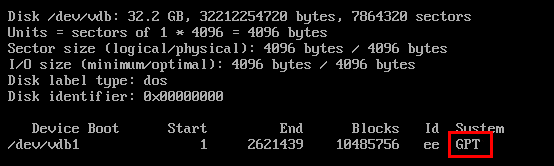
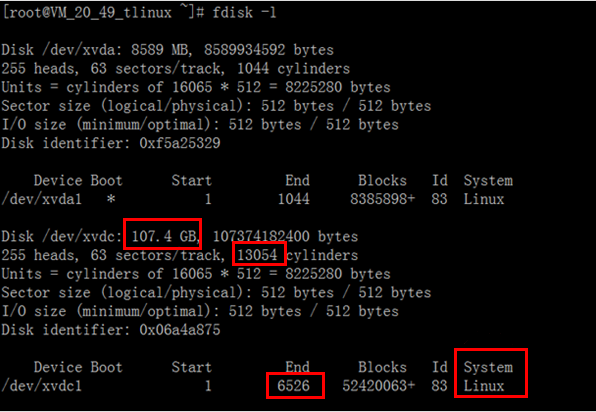
If the result is as shown in the following two figures (which may vary according to the operating system), the GPT partition format should be used.


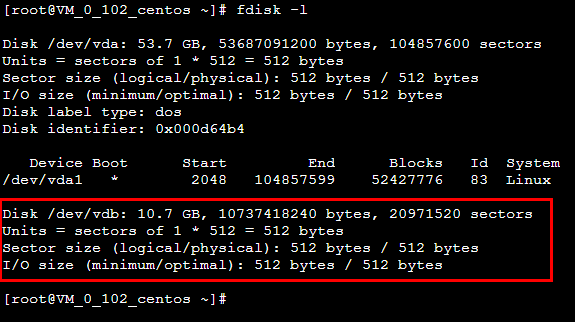
If the result is as shown in the following figure (which may vary according to the operating system), the MBR partition format should be used.


2. Choose the expansion method corresponding to the partition format obtained in step 1.
Note:
MBR partition supports disk with a maximum capacity of 2 TB.
When you partition a disk with a capacity greater than 2 TB, we recommend you create and mount a new data disk and use the GPT partition format to copy data.
Partition format
Expansion method
Remarks
N/A
Applicable to scenarios where a file system is created directly on a bare device and no partition is created.
GPT
Applicable to scenarios of direct formatting when no partition is created.
Applicable to scenarios where the original partitions remain unchanged and a new GPT partition is created for expansion.
MBR
Applicable to scenarios of direct formatting when no partition is created.
Applicable to scenarios where the original partitions remain unchanged and a new MBR partition is created for expansion.


ヘルプとサポート

この記事はお役に立ちましたか?

フィードバック