When your cloud disk has an MBR partition with a created file system and has been expanded to greater than 2 TB, the file system cannot be expanded to greater than 2 TB. This document describes how to convert the MBR partition to the GPT partition to implement the expansion.
Notes
To convert the partition format, you need to replace the original partition. The original partition data will not be deleted in normal cases. However, as the original partition needs to be unmounted, online businesses will be affected.
Maloperation may cause data losses or exceptions. Proceed with caution. Create a snapshot of the cloud disk for data backup. For detailed directions, see Creating Snapshots. If data is lost due to maloperation, you can roll back the data for restoration.
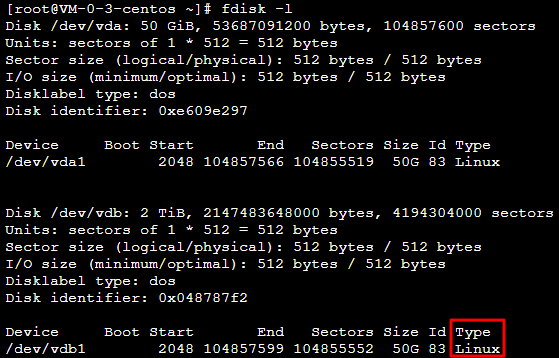
2. Run the following command to check whether the partition format is MBR.
fdisk -l
If the following result is shown (which may vary by operation system), the partition format is MBR.
3. Run the following command to unmount the partition.
umount<Mount point>
Taking the /data mount point as an example, run the following command:
umount /data
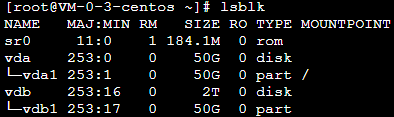
4. Run the following command to view the unmount result.
lsblk
If the MOUNTPOINT of the original partition is empty, the unmount is successful. This document takes the /dev/vdb1 partition as an example. Below is the returned result.
5. Run the following command to use the parted partition tool.
parted<Disk path>
Taking the disk path /dev/vdb as an example, run the following command:
parted /dev/vdb
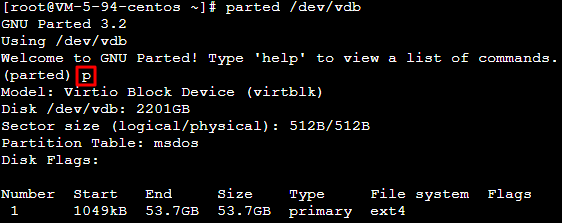
6. Enter p and press Enter to view the current partition information. Below is the returned information:
7. Enter rm partition number and press Enter to delete the last partition to be replaced.
In this example, there is only one partition, so you can enter rm 1 and press Enter to delete partition 1.
8. Enter p and press Enter to view the current partition information. Check whether the last partition has been deleted.
9. Enter mklabel GPT and press Enter to create a partition in GPT format.
10. Enter Yes and press Enter.
11. Enter mkpart primary 2048s 100% and press Enter to create the partition.
Here, 2048s indicates the initial disk capacity, and 100% indicates the maximum disk capacity. This is for reference only. You can choose the number of disk partitions and their capacities based on your business needs.
Note:
Data may be lost in the following cases:
The configured initial capacity differs from the original partition capacity.
The configured maximum capacity is smaller than the original partition capacity before the expansion.
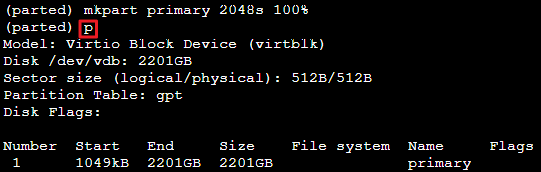
12. Enter p and press Enter to check whether the partition has been replaced successfully. If the following result is shown, the replacement is successful:
13. Enter q and press Enter to exit the parted partition tool.
14. Run the following command to mount the partition.
mount<Partition path><Mount point>
Taking the /dev/vdb1 partition path and /data mount point as an example, run the following command:
mount /dev/vdb1 /data
15. Run the command to extend the file system.
Extending the EXT file system
Extending the XFS file system
Run the following command to extend the EXT file system.
resize2fs /dev/corresponding partition
Taking the /dev/vdb1partition path as an example, run the following command:
resize2fs /dev/vdb1
Run the following command to extend the XFS file system.
xfs_growfs /dev/corresponding partition
Taking the /dev/vdb1partition path as an example, run the following command: