CFS is suitable for two use cases in a container environment:
Use case 1. Persistent storage of Pod/container data (dynamic mounting of CFS recommended)
CFS provides a space for persistent storage where the data is still stored when a Pod or container is terminated. In this way, the original space can be quickly mounted through PVCs to implement data reads/writes quickly when another Pod or container is started.
Compared with other schemes, a single-FS instance allows you to store the data from multiple Pods or containers and assign different subdirectories in the CFS instance to different Pods. Standard and High-Performance CFS instances are pay-as-you-go with no requirement for the minimum purchase capacity. This helps reduce the costs of persistent data storage for large-scale containers.
Use case 2. Multi-Pod/container data sharing (static mounting of CFS recommended)
CFS provides shared access to a directory space from multiple Pods or containers over NFS or private protocols for efficient data sharing. Compared with other schemes, this provides higher bandwidth and IOPS capabilities.
This section describes how to deploy a container workload in the Tencent Cloud console. For more information on how to write a YAML file, refer to the YAML file automatically generated after a StorageClass is created in the console.
Note:
Make sure that the CSI component in the TKE cluster is on v1.0.4 or later; otherwise, update it in the TKE console. The update operation does not affect the normal use of the container.
Directions
Dynamically mounting CFS
Note:
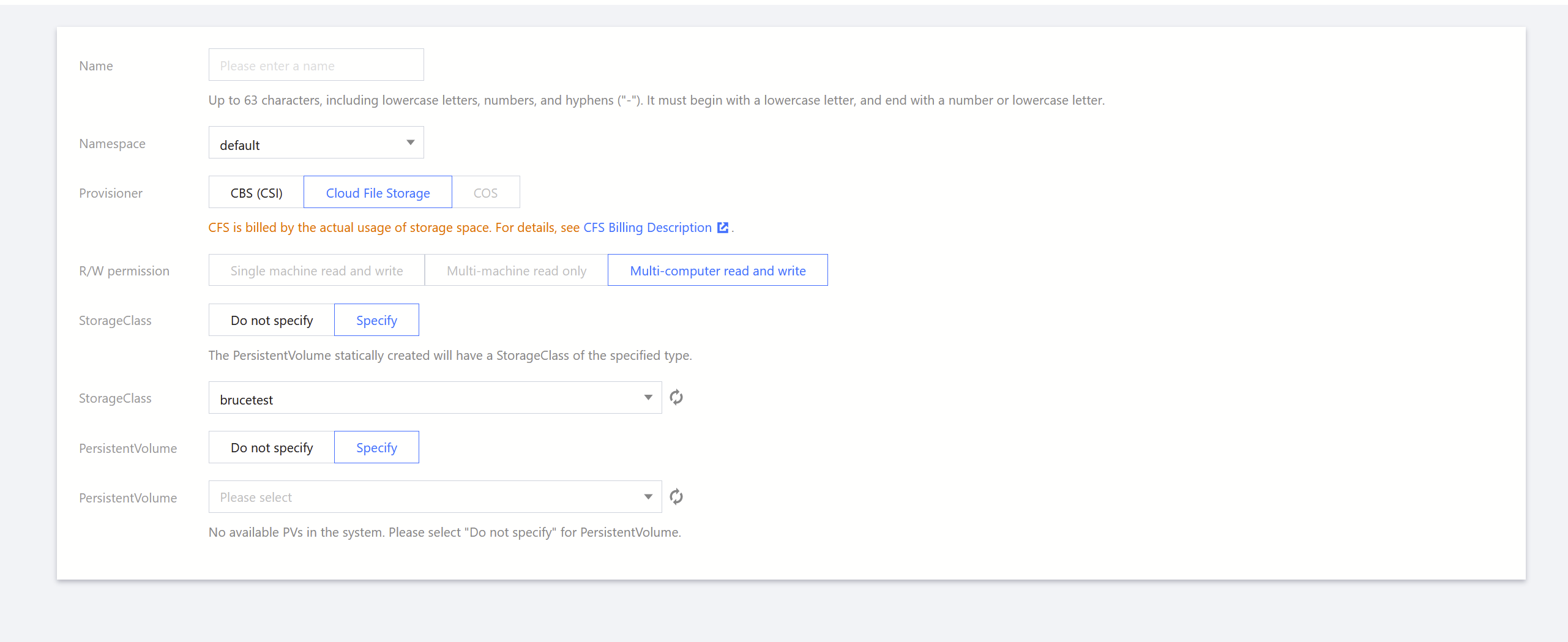
This mounting option is recommended for persistent storage of Pod/container data.
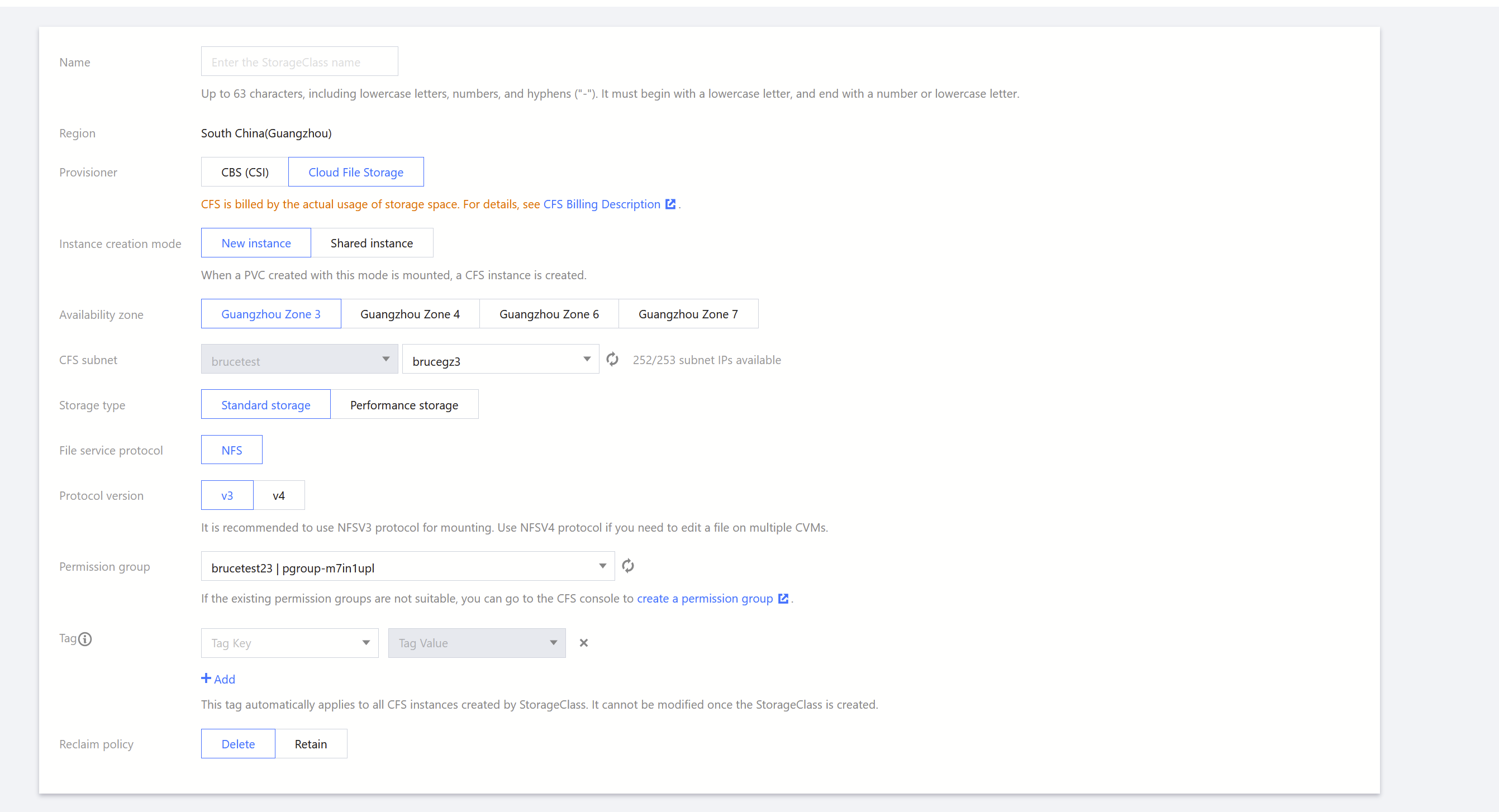
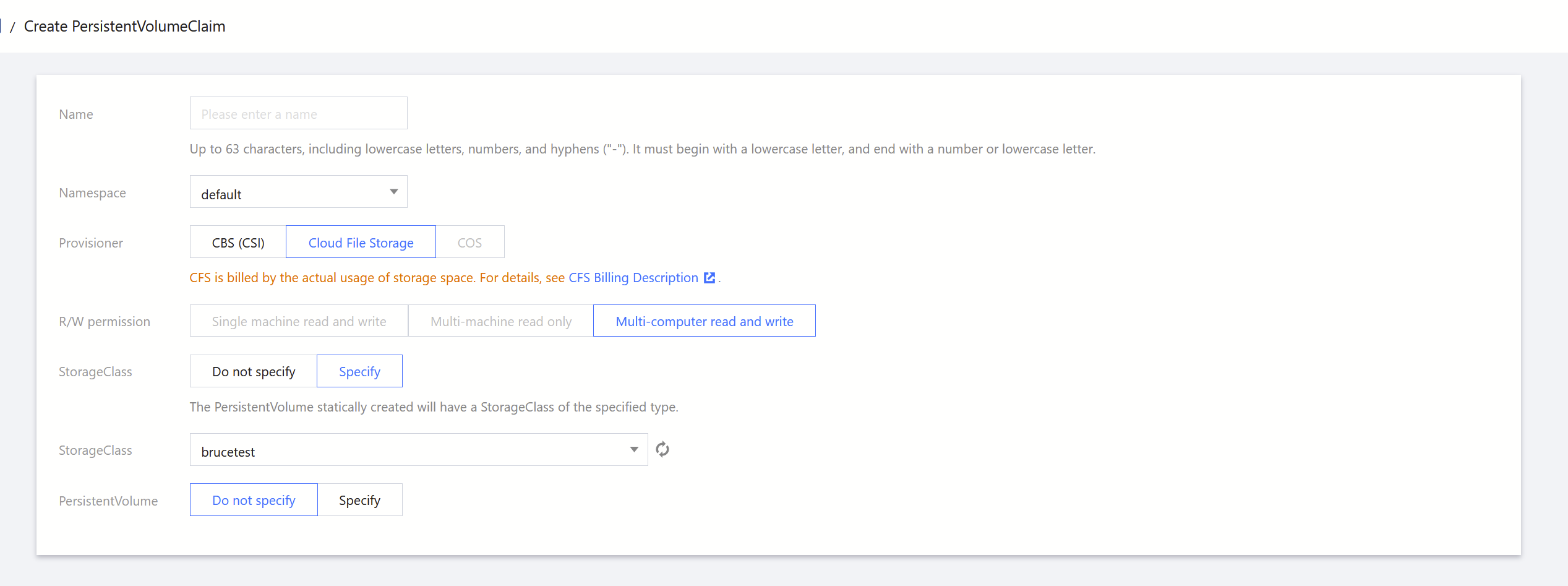
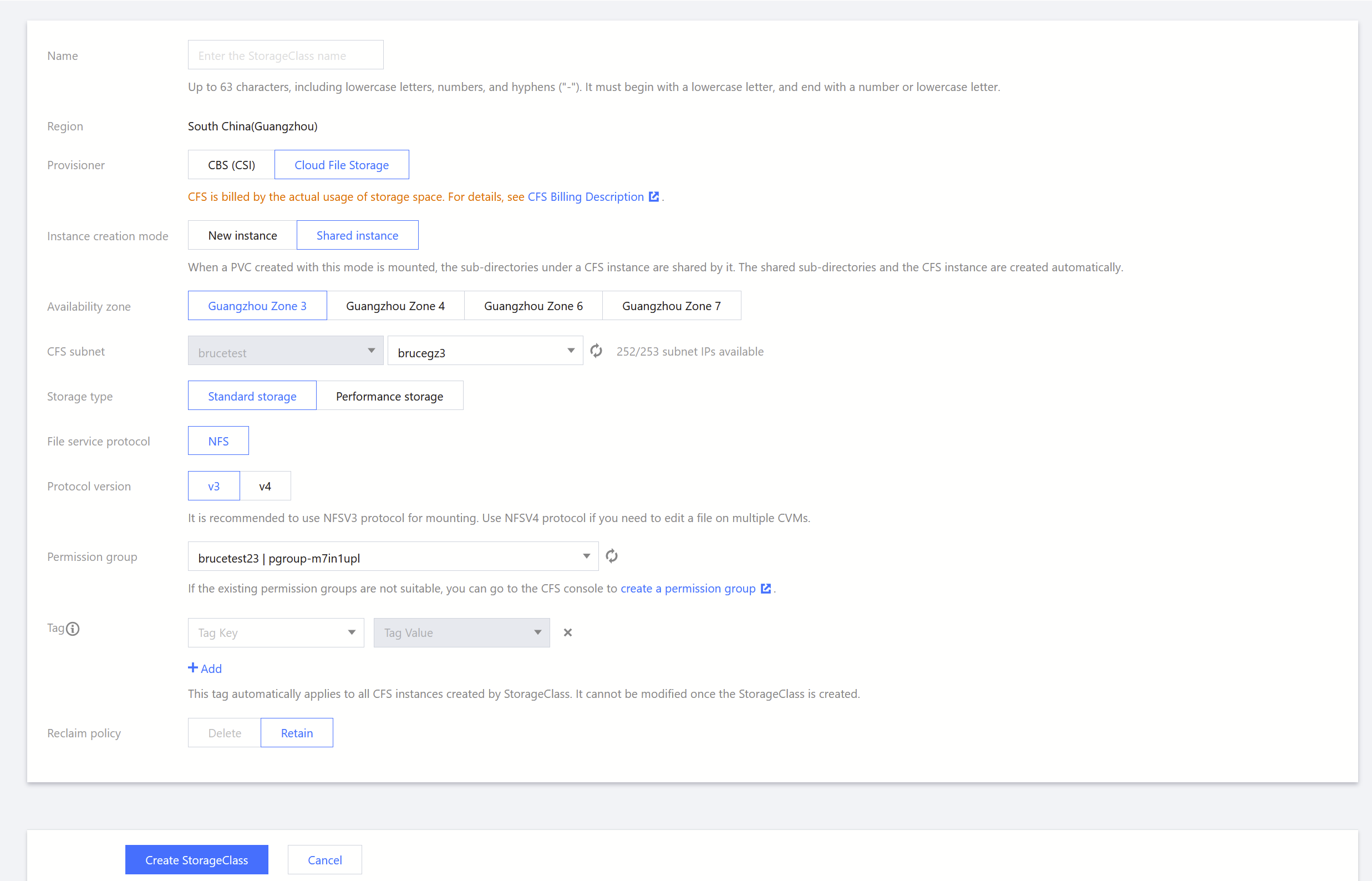
You don't need to specify a PV for dynamic creation. Note: For a StorageClass based on a shared CFS instance, if you don't specify a PV when creating a PVC, the CSI plugin will automatically create a pay-as-you-go CFS instance when creating a PVC. This instance will be deleted when the PVC is deleted. Therefore, process PVCs created in this way with caution.
Name the volume as needed and select the PVC you just created.
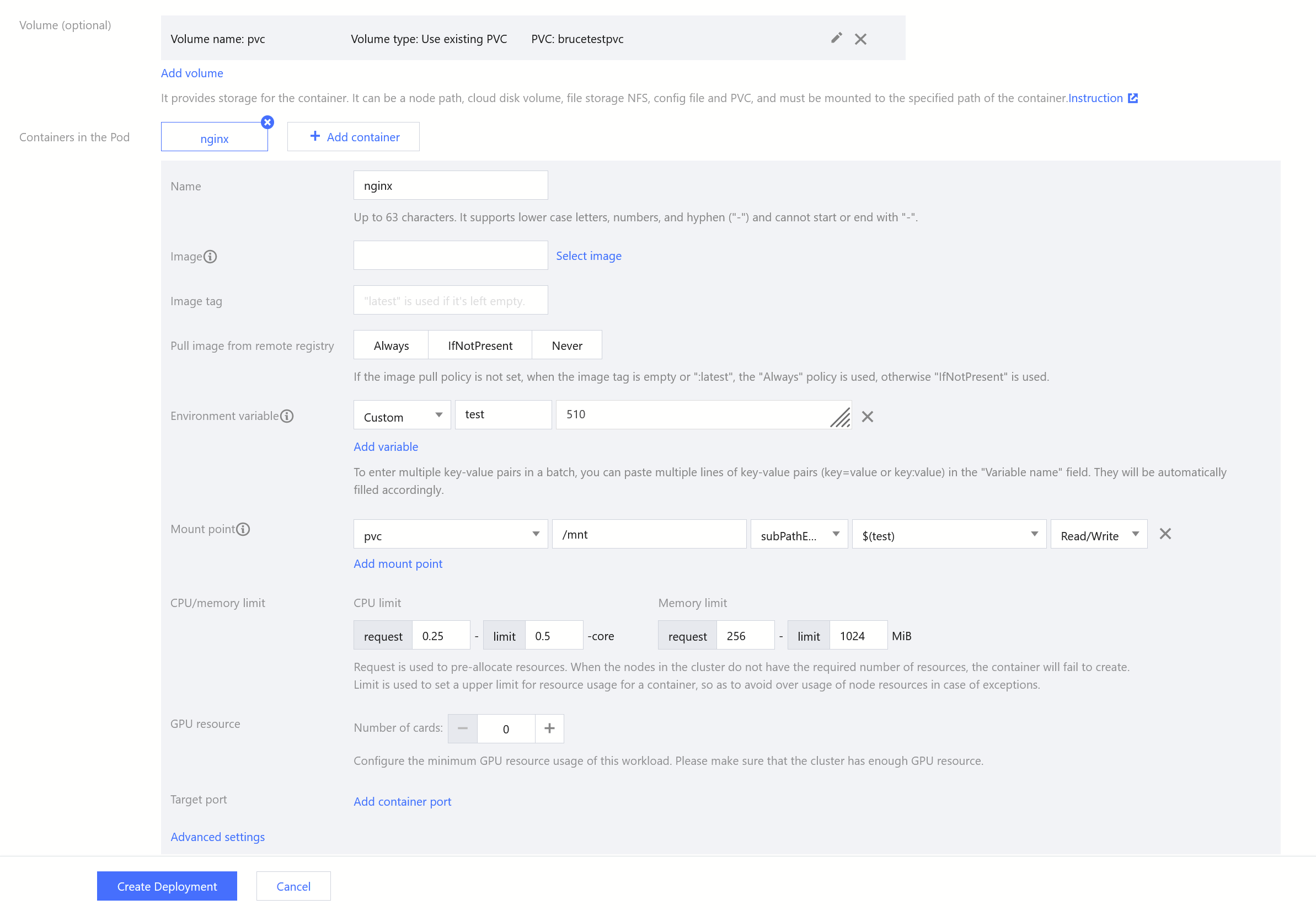
Mount point
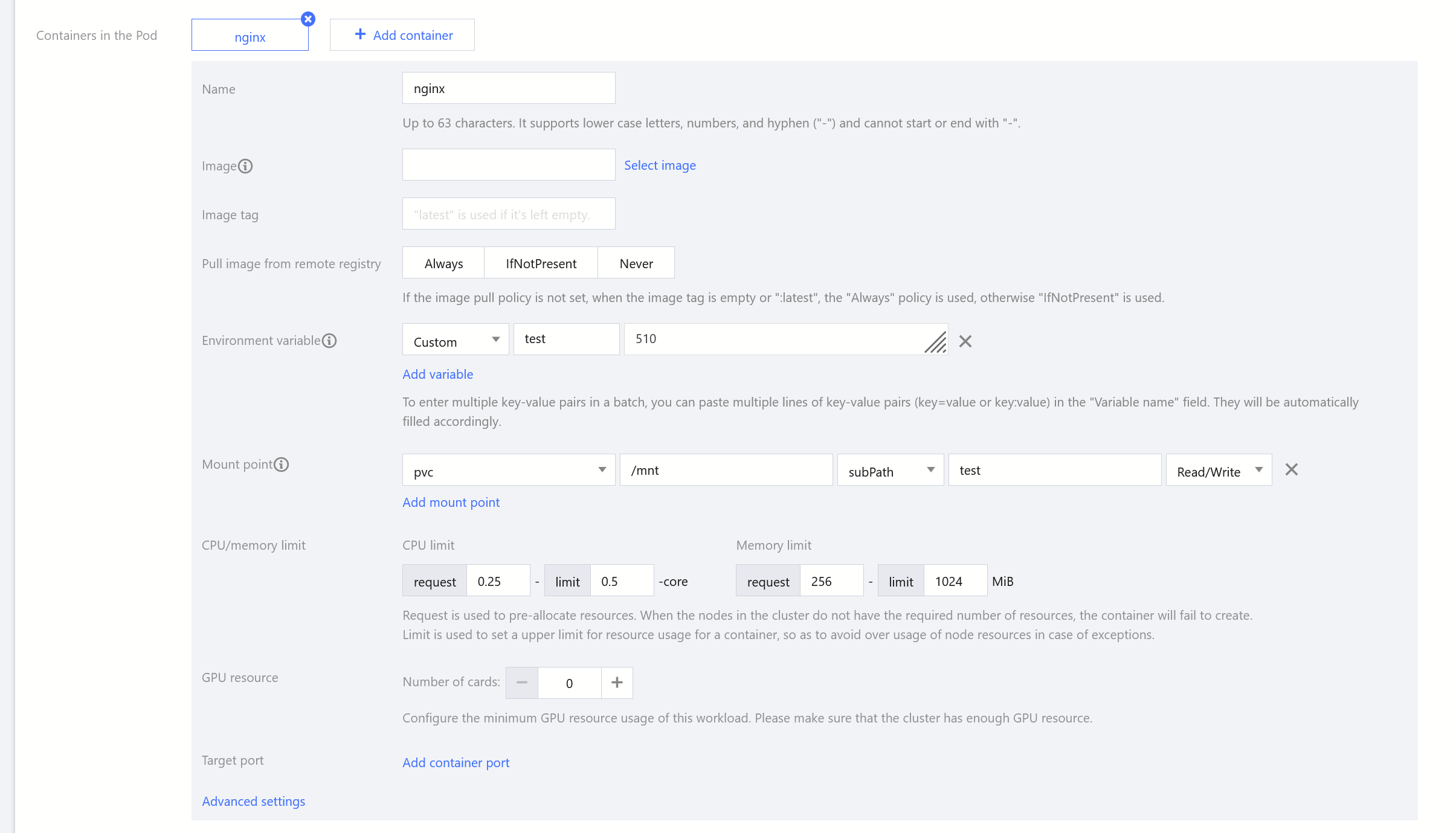
Select the volume and specify the path for mounting to the container. When you dynamically create a shared CFS instance, you need to specify an environment variable, and the CSI plugin will create a directory in the CFS instance corresponding to the selected PVC based on the value of the configured environment variable for the container to mount.
After completing the configuration, click Create Workload, and the system will create a container based on this configuration and mount CFS.
Statically mounting CFS
Note:
This mounting option is recommended for multi-Pod/container data sharing.
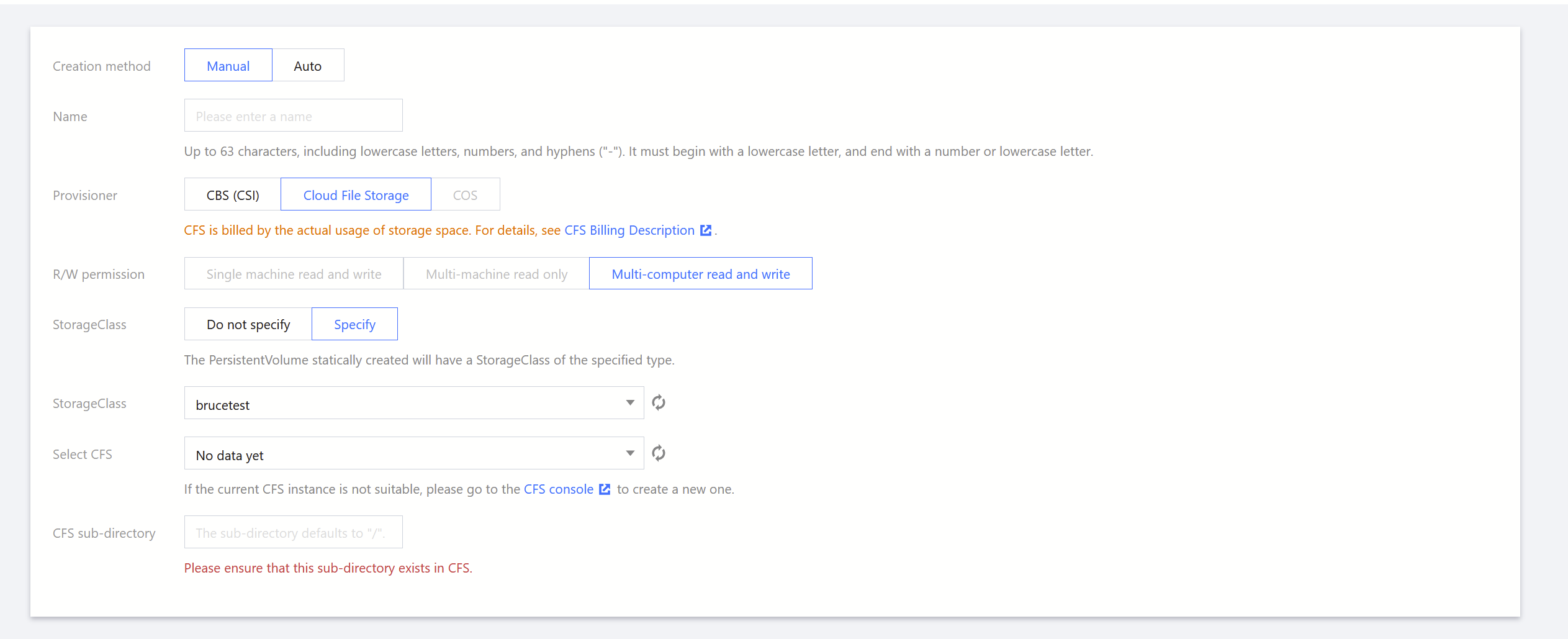
Select Manual; that is, specify a CFS instance for PV configuration.
StorgeClass
Select the StorageClass you just created.
Select CFS
Select a specified CFS instance. Note: During static creation, make sure that you already have a CFS instance in the same VPC as the container.
CFS subdirectory
CFS allows you to mount subdirectories. You can select different subdirectories and bind them to one or multiple PVs as needed to implement different degrees of data sharing.
Name the volume as needed and select the PVC you just created.
Mount point
Select the volume and specify the path for mounting to the container. To achieve automatic subdirectory creation, you can use two methods. Method 1: Select subPath as the mount point and enter the name of the path you want to mount, such as test. Then, the CSI plugin will automatically create the test directory under the root path of the file system and automatically mount it to the specified directory of the container. Method 2: Add an environment variable and assign a value to it. Select subPathExpr as the mount point and select the environment variable. The CSI plugin will use the value of the environment variable as the directory name, automatically create the directory under the root path of the file system, and automatically mount it to the specified directory of the container.
After completing the configuration, click Create Workload, and the system will create a container based on this configuration and mount CFS.