CFS provides the scheduled snapshot feature that allows developers to flexibly configure backup task policies.
The following table describes the scheduled snapshot policies recommended for different business scenarios.
Scenario
Snapshot Policy
Snapshot Retention
Core product/service
Use scheduled snapshots, with the policy set to once per day.
7 to 30 days
Non-core and non-data product/service
Use scheduled snapshots, with the policy set to once per week.
7 days
Archive
Scheduled snapshot is not required. You can create snapshots manually whenever needed.
One month to several months
Test
Scheduled snapshot is not required. You can create snapshots manually whenever needed.
Deleted after being used
Policy description
The following table describes the content and features of scheduled snapshot policies, which help you better use snapshots in your businesses.
Item
Description
Object
All file systems
Policy
The point in time for scheduled snapshot creation can be accurate to every hour or every day. A scheduled snapshot policy is valid permanently after being set. If you modify a scheduled snapshot policy, it takes effect immediately.
Scheduled termination (Important)
Scheduled snapshots can be terminated periodically. After you set a snapshot lifecycle (1–30 days), scheduled snapshots are automatically deleted upon expiration, which reduces the backup costs. If you do not set a scheduled termination policy, scheduled snapshots will be stored permanently.
Batch
You can select multiple file systems and batch apply the same scheduled snapshot policy to them.
Naming rule
Scheduled snapshots are named in the format of "auto_policy_cfsidyyyyMMddHH", where "cfsid" is the file system ID, "yyyyMMdd" is the snapshot creation date, and "HH" is the hour. You can also modify snapshot names. For example, "auto_policy_cfs-2cj5yj0f2021090923" indicates a snapshot that was automatically created on 2021-09-09 23:00:00 for the file system cfs-2cj5yj0f.
Lifecycle (Important)
Snapshot lifecycles vary depending on the snapshot creation method:
Manually created snapshots are permanently stored by default as long as the account balance is sufficient.
Scheduled snapshots can be terminated periodically or permanently stored.
Snapshot conflict
Scheduled snapshots do not conflict with custom snapshots in use. However, they may conflict with each other on the creation time.
When a snapshot is automatically created for a file system, you can create a custom snapshot only after automatic snapshot creation is complete, and vice versa.
If there is a large amount of data in the file system and the time required for automatically creating a snapshot exceeds the interval between two time points for automatic snapshot creation, a snapshot is not automatically created at the next time point. For example, if you set 9:00, 10:00, and 11:00 as the time points for scheduled snapshot creation and it takes 70 minutes to create the snapshot at 9:00 (that is, the creation of this snapshot will be completed at 10:10), the next snapshot will not be created at 10:00, but at 11:00.
Snapshot quota
Each file system has a certain snapshot quota. If the number of snapshots on a file system has reached the quota limit, the scheduled snapshot task will be suspended or blocked. The snapshot quota is used to prevent continuous increase in the storage costs if developers forget a scheduled snapshot policy.
ASP
Indicates the scheduled snapshot policy, that is, Auto Snapshot Policy.
ASP quota
A single Tencent Cloud account can set a maximum of 30 ASPs in each region. An ASP can be associated with a maximum of 200 file systems.
Retention period
The console displays the repossession countdown for scheduled snapshots. You can manually change the retention period of scheduled snapshots to permanent.
Manually created snapshots are permanently stored.
ASP pause
An ASP can be manually paused. After it is paused, snapshots are no longer automatically created. However, lifecycles of previously created snapshots are not affected. They will be periodically terminated or permanently stored based on configured rules.
Operations log
Displays the creation process of all scheduled snapshots, same as that of manually created snapshots.
Directions
Creating a scheduled snapshot policy
Note:
A single Tencent Cloud account can set a maximum of 30 scheduled snapshot policies in each region.
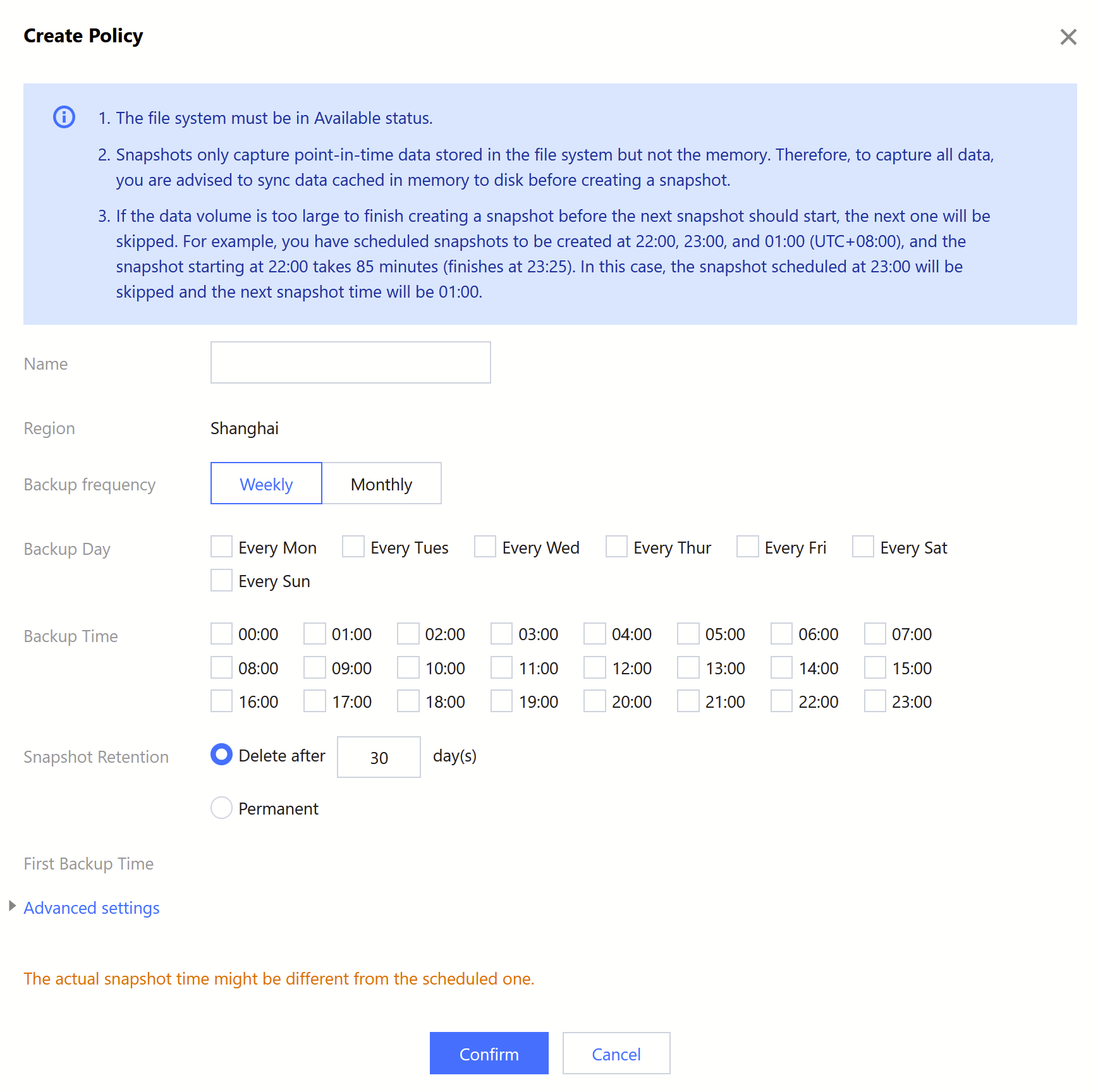
pop-up window, set parameters as needed and click Confirm.
Parameter
Description
Name
Required.
The name of a scheduled snapshot policy. It can contain up to 60 characters.
Region
Required.
This parameter cannot be changed on the current page. For more information on how to set this parameter, see Step 2.
Backup Day
Required.
The days to automatically create snapshots. Value range: Every Sun to Every Sat
Backup Time
Required.
The time to automatically create snapshots. Value range: 00:00 - 23:00. Due to server performance issues, the actual scheduled snapshot creation time may be slightly different from the time set here. In this case, data in a snapshot is based on the actual creation time.
Snapshot Retention
Required.
Retained for a fixed number of days. The value range is 1 to 30 days. The default value is 30 days.
Permanent
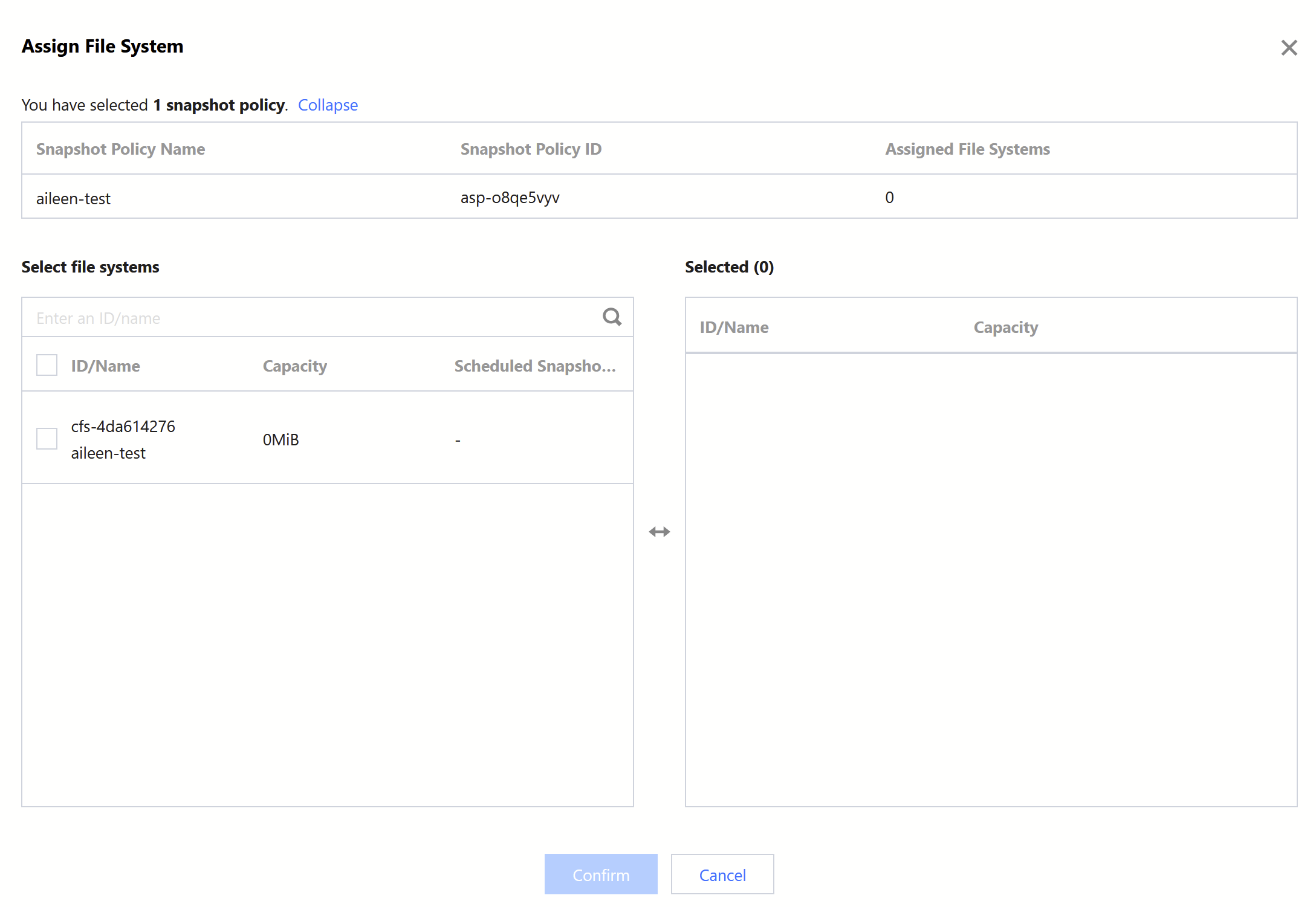
Assigning a file system
Note:
A scheduled snapshot policy can be associated with a maximum of 200 file systems.
Click More > Delete Policy in the row of the target policy.
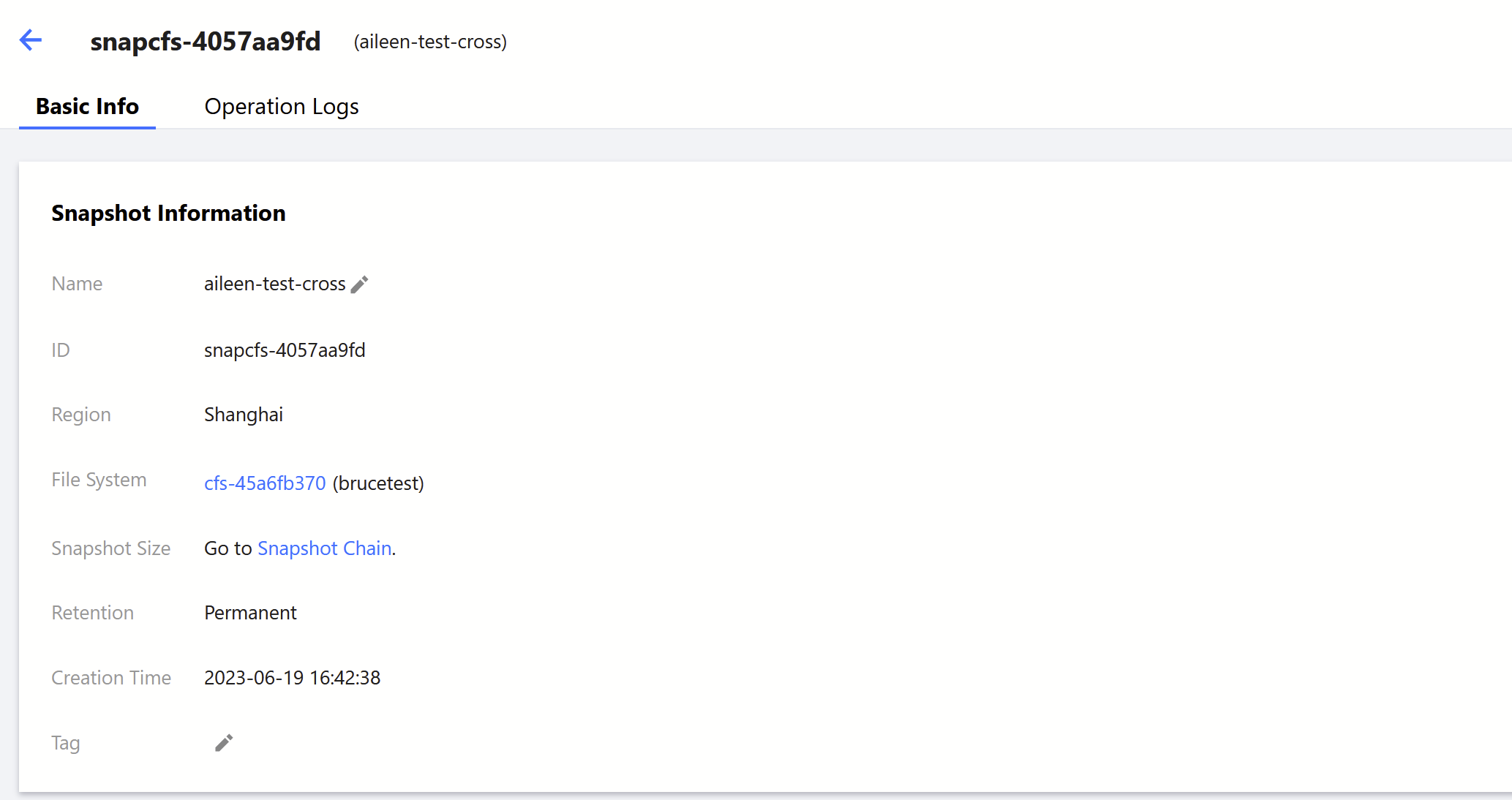
Setting permanent storage for scheduled snapshots
Note:
If Snapshot Retention is set to Permanent for a scheduled snapshot policy, you do not need to perform the following operations for snapshots automatically created using this policy.