Storage Management
Download
フォーカスモード
フォントサイズ
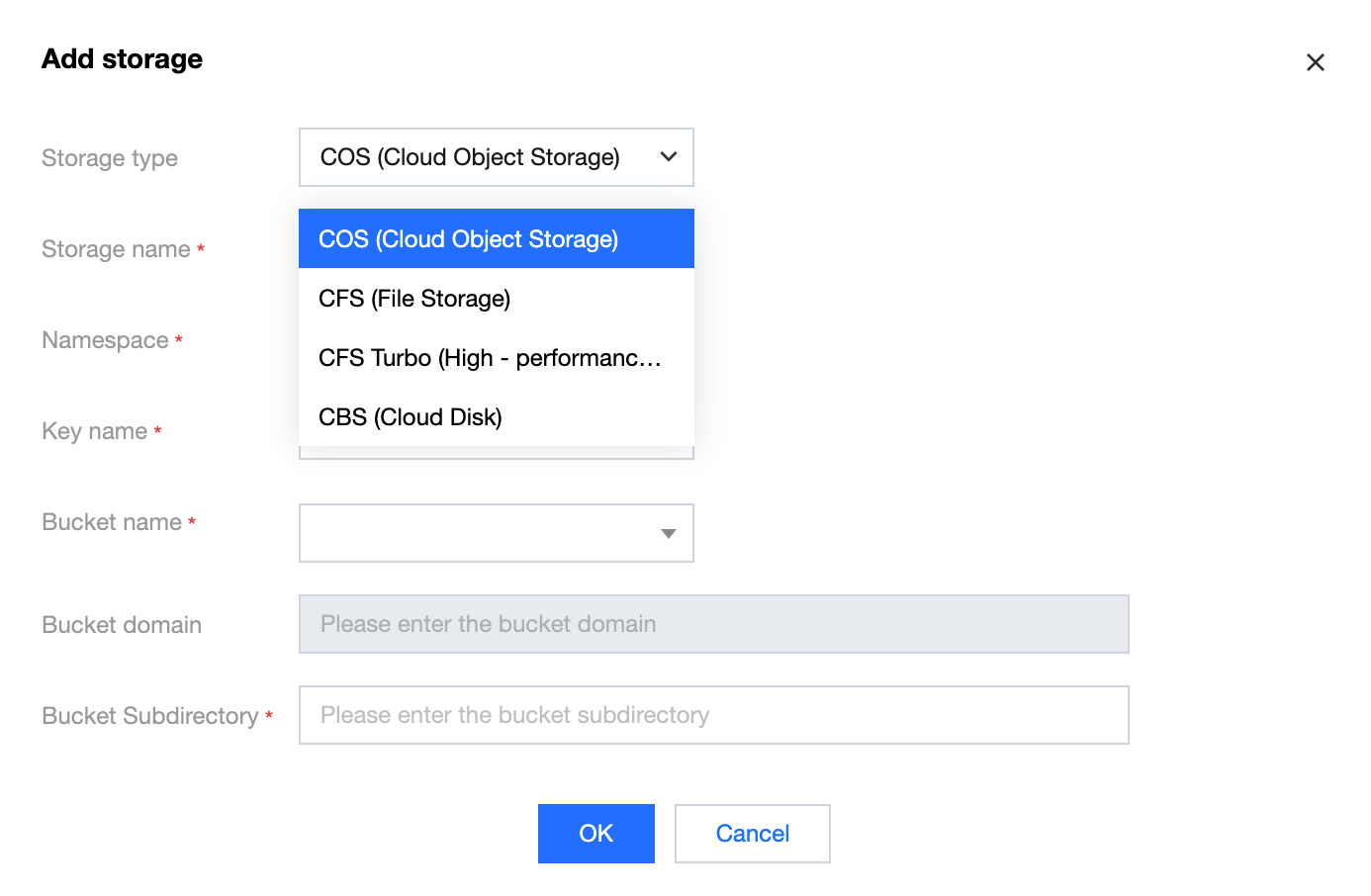
Storage Management supports configuration for Cloud Object Storage (COS), Cloud File Storage (CFS), CFS Turbo (High-Performance File Storage), and CBS (Cloud Disk).
Note:
Only static mounting is supported. You need to create the corresponding storage instances in advance and add the storage resources here.
Operation Steps
1. Log in to the Serverless Cloud Function (SCF) console. In the left sidebar, choose Data Engineering > Workflow.
2. On the Workflow page, click the service name to go to the workflow details page.
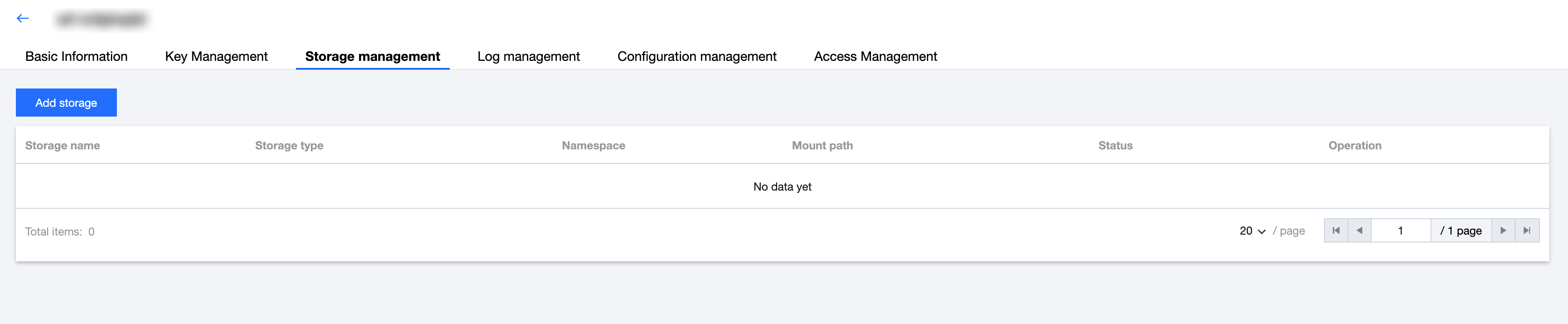
3. Select the Storage Management tab and click Add Storage, as shown in the following figure:
4. In the Add Storage window, select and add the desired storage type.
Cloud Object Storage
Declare the storage name here, and then configure a
volumes with the same name in the YAML file to directly mount the resource.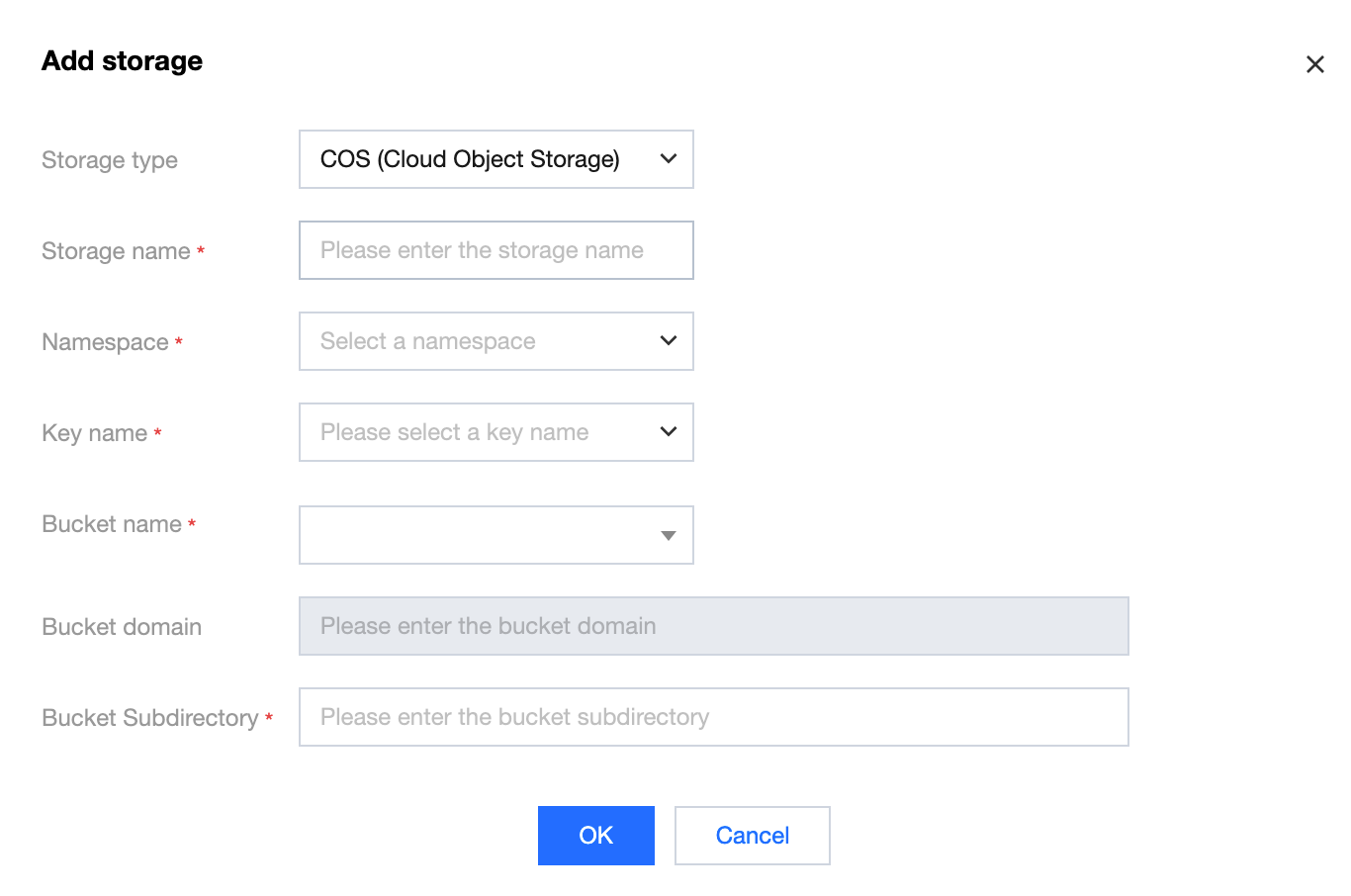
Storage Type: Select COS (Cloud Object Storage).
Storage Name: Enter a custom storage name. The name must be unique within the same workflow service and must be the same as the
volumes name in the YAML file.Namespace: Namespace to which this resource can be mounted.
Key Name: Select from the drop-down list a key name that has operation permissions on the bucket. The data is obtained from Key Management > COS Storage Key.
Bucket Name: Select a bucket in the same region from the drop-down list.
Bucket Domain: The domain name of the selected bucket is automatically displayed.
Bucket Subfolder: Subfolder of the bucket to be mounted.
Cloud File Storage
Declare the storage name here, and then configure a
volumes with the same name in the YAML file to directly mount the resource.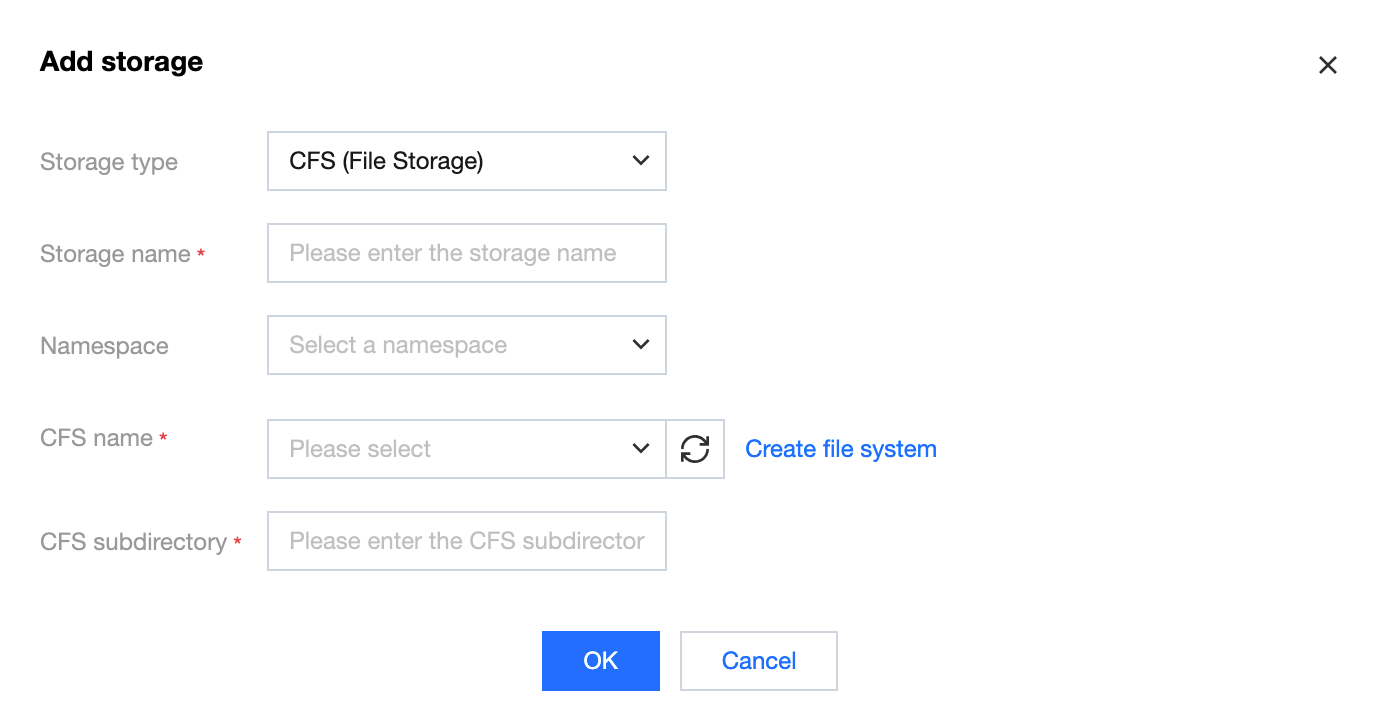
Storage Type: Select CFS (File Storage).
Storage Name: Enter a custom storage name. The name must be unique within the same workflow service and must be the same as the
volumes name in the YAML file.Namespace: Namespace to which this resource can be mounted.
CFS Name: Select a file system in the same region from the drop-down list.
CFS Subfolder: Subfolder of the file system to be mounted.
CFS Turbo (High-Performance File Storage)
Declare the storage name here, and then configure a
volumes with the same name in the YAML file to directly mount the resource.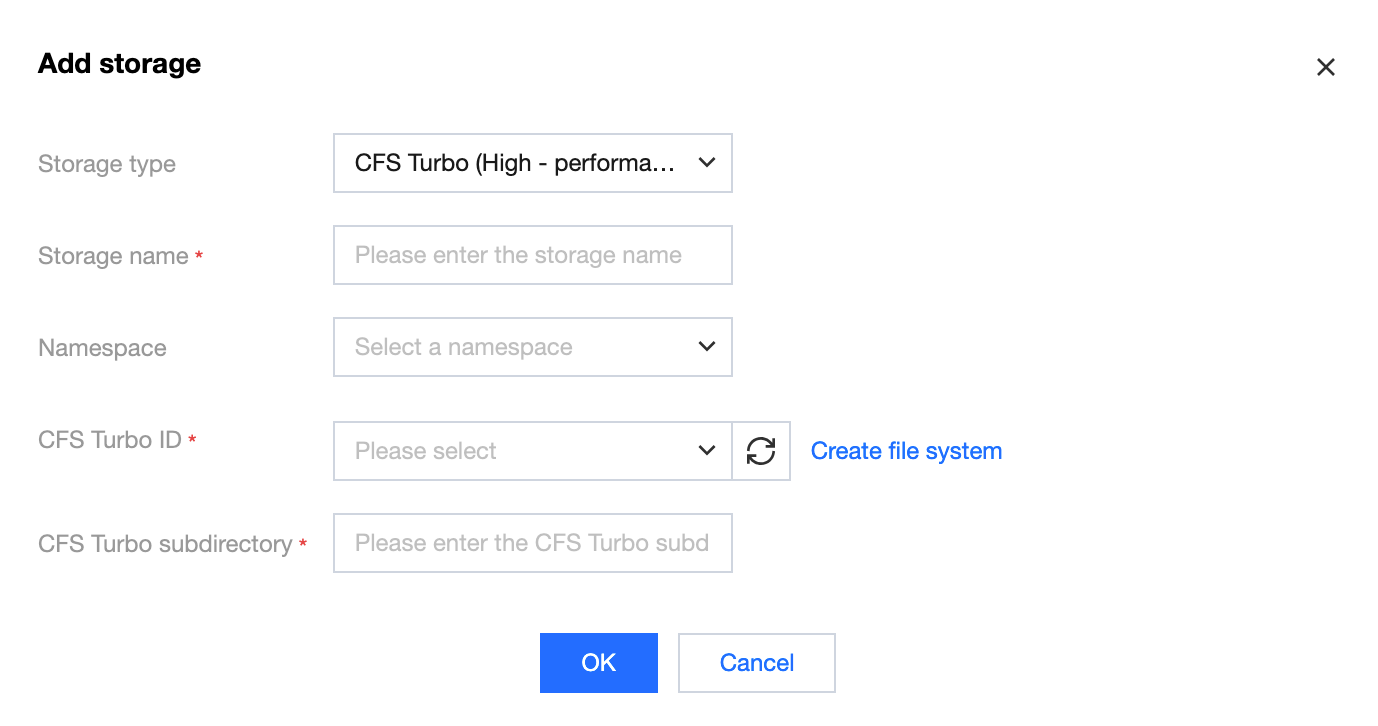
Storage Type: Select CFS Turbo (High-Performance File Storage).
Storage Name: Enter a custom storage name. The name must be unique within the same workflow service and must be the same as the
volumes name in the YAML file.Namespace: Namespace to which this resource can be mounted.
CFS Turbo ID: Select a file system in the same region from the drop-down list.
CFS Turbo Subfolder: Subfolder of the file system to be mounted.
Cloud Block Storage
Declare the storage name here, and then configure a
volumes with the same name in the YAML file to directly mount the resource.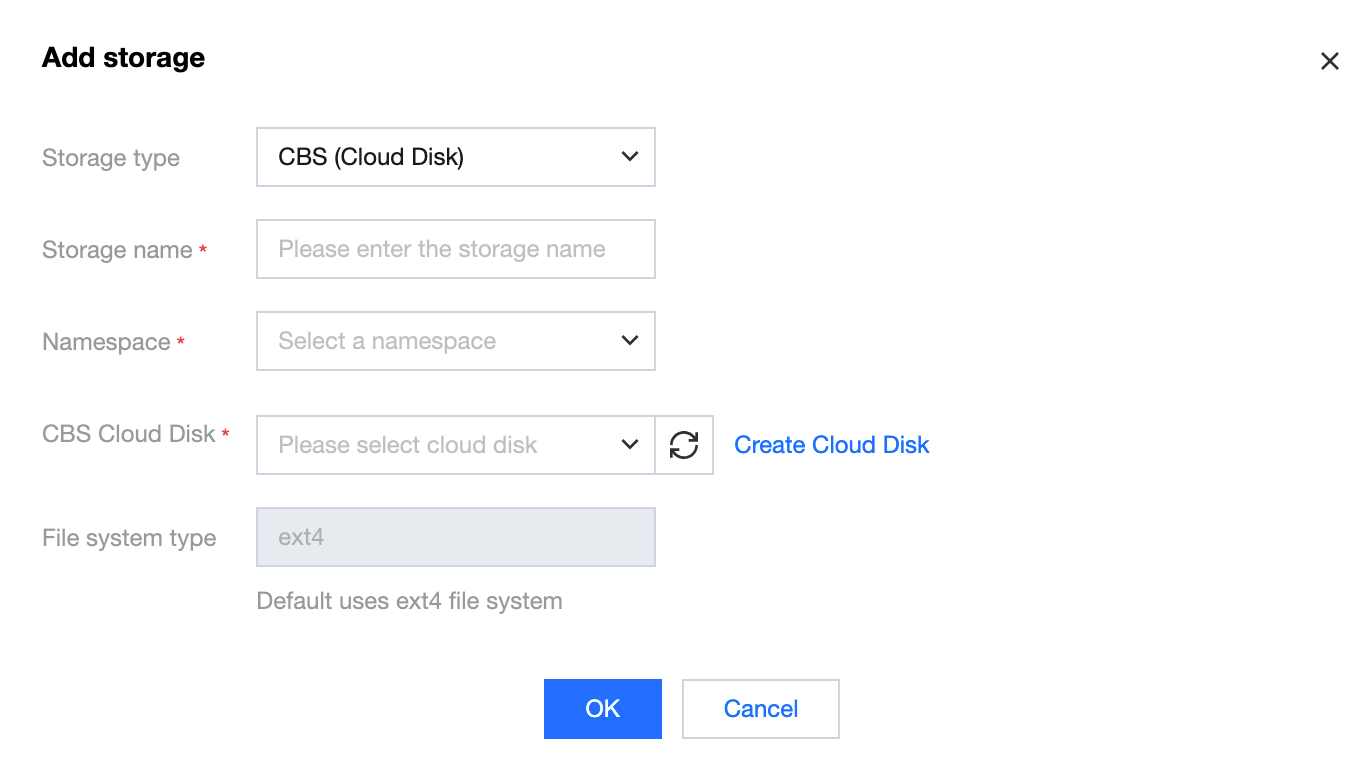
Storage Type: Select CBS (Cloud Disk).
Storage Name: Enter a custom storage name. The name must be unique within the same workflow service and must be the same as the
volumes name in the YAML file.Namespace: Namespace to which this resource can be mounted.
Cloud Disk: Select a cloud disk to be mounted in the same region from the drop-down list.
フィードバック