Configuration Management
Download
フォーカスモード
フォントサイズ
In Configuration Management, you can update the configuration file of the
Workflow Controller. The platform provides the capabilities to edit, publish, and roll back configurations.By customizing the
workflow-controller-configmap, you can enable native capabilities supported by open-source Argo Workflows, such as configuring artifacts and archiving workflow status for persistence.Operation Steps
1. Log in to the Serverless Cloud Function (SCF) console. In the left sidebar, choose Data Engineering > Workflow.
2. On the Workflow page, click the service name to go to the workflow details page.
3. Select Configuration Management. The current
workflow-controller-configmap is displayed here. Click Edit Configuration, as shown in the following figure: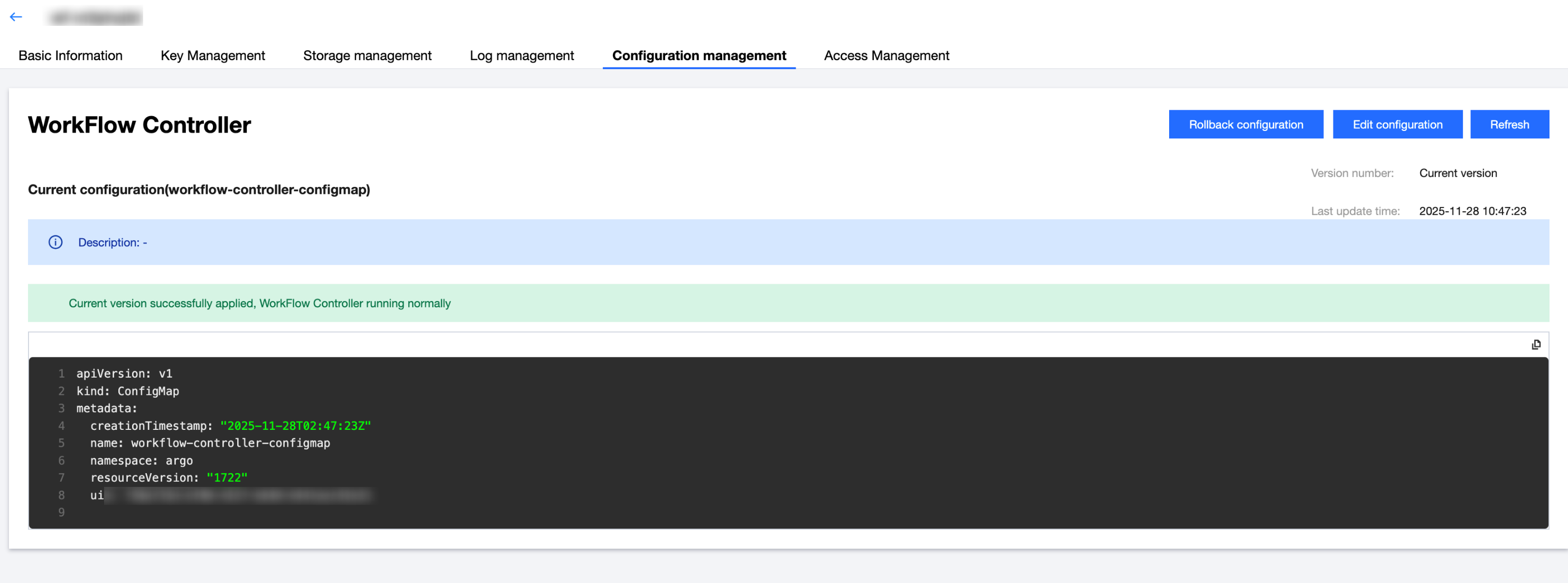
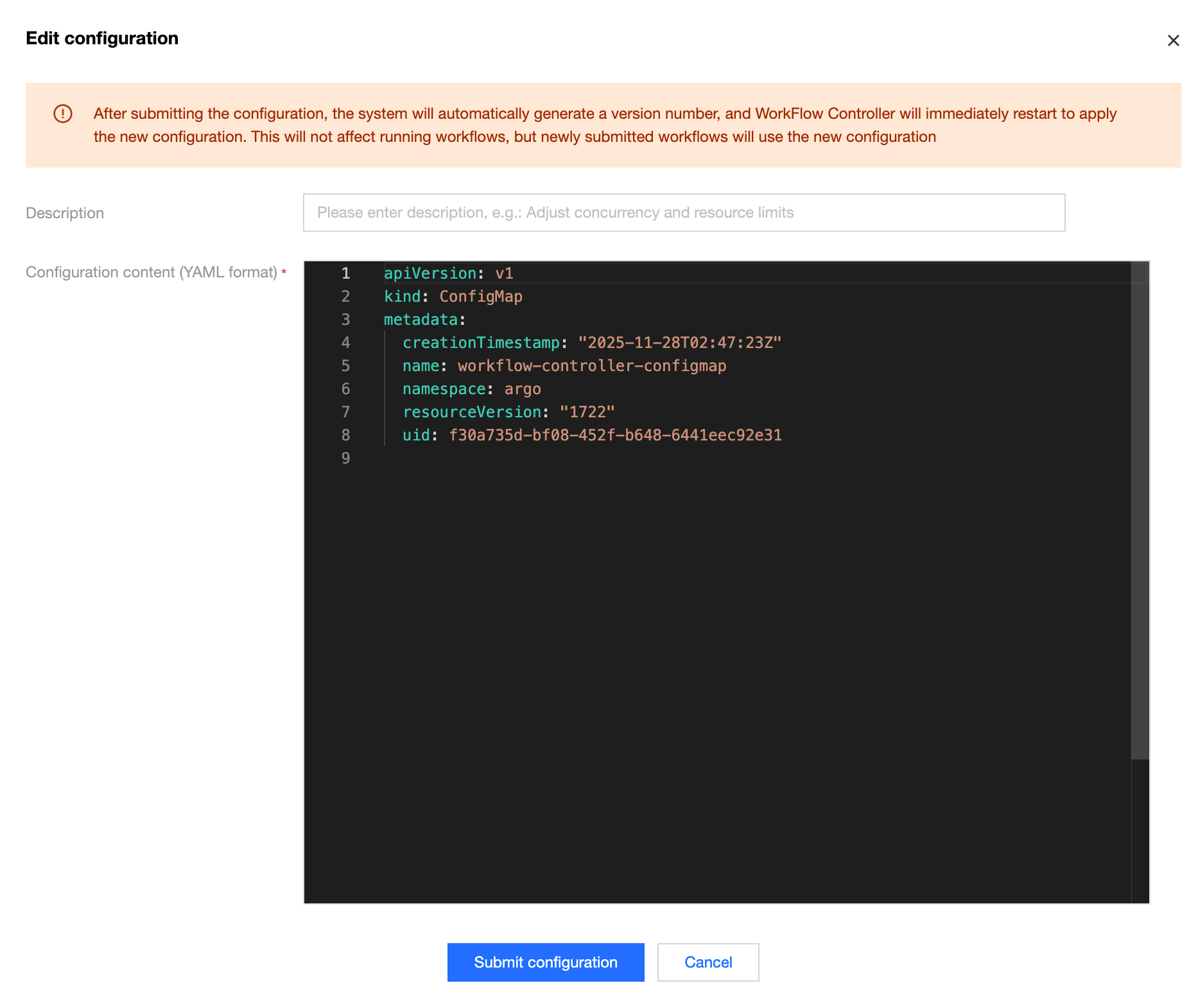
4. In the Edit Configuration pop-up window, update the description and configuration content, as shown in the following figure:
Note:
The platform stores the most recent workflow versions that have been published, allowing you to select one for rollback.
5. Click Submit Configuration.
6. After publishing, the platform displays the application status of this configuration and the operation status of
Workflow Controller. If the new configuration causes abnormal workflow execution, you can click Rrollback Configuration to restore to a historical version of the configuration.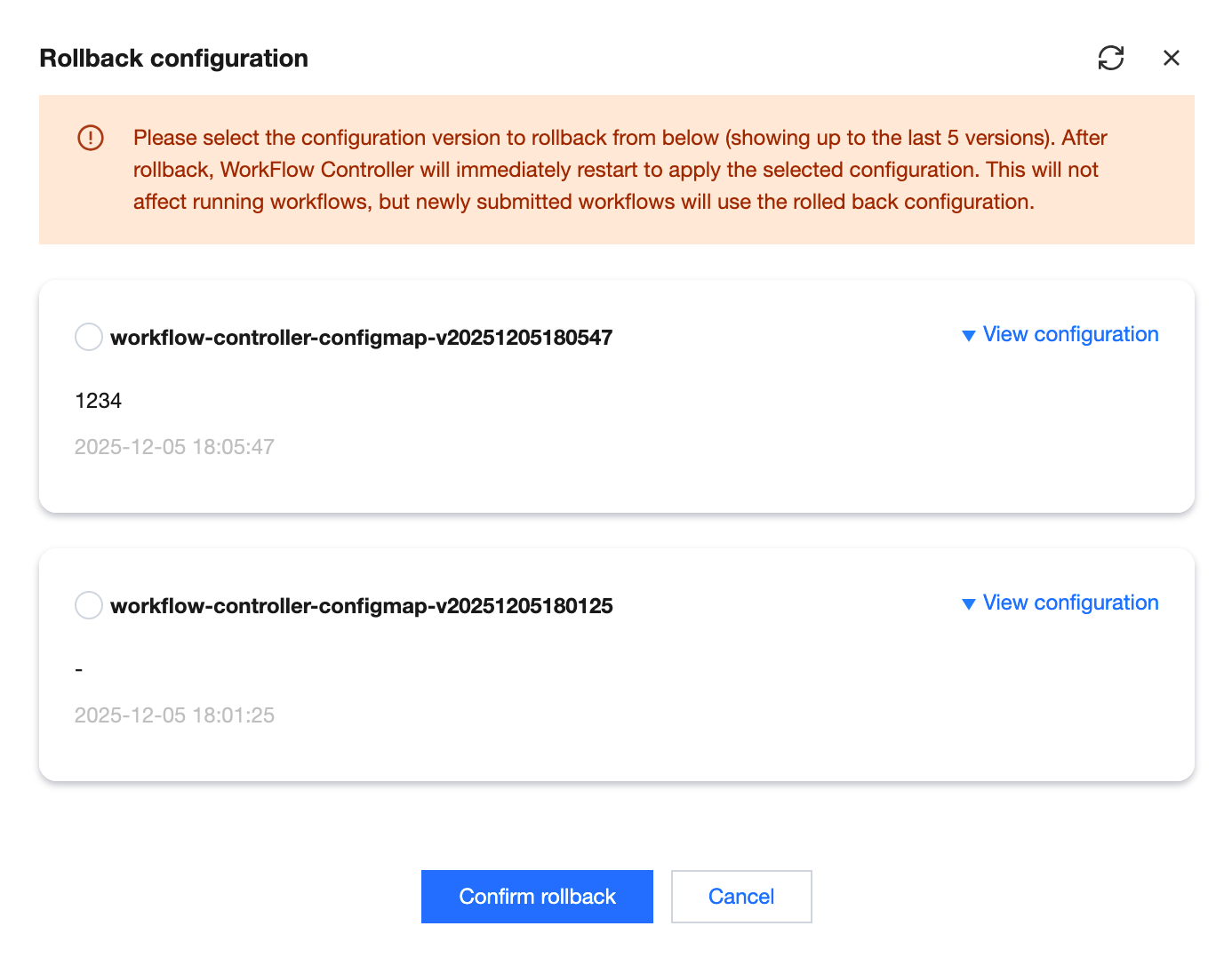
In the Roll Back Configuration pop-up window, click View Configuration to obtain the specific YAML configuration of a version. This helps you confirm the final configuration file for rollback.
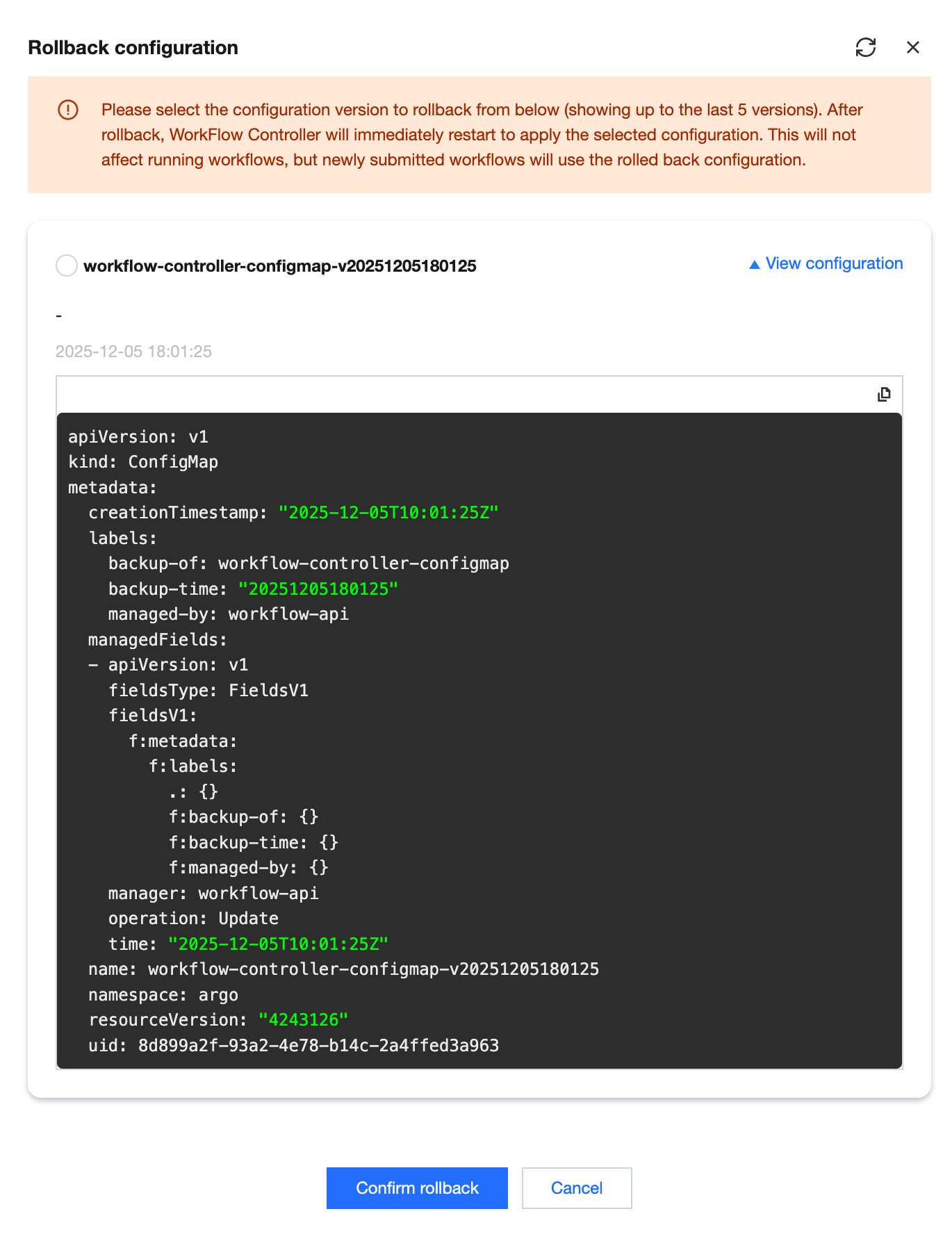
After rollback, the Workflow Controller will immediately restart to apply the selected configuration. This will not affect running workflows, but newly submitted workflows will use the rolled-back configuration.
Scenarios
Configuring Artifacts
By configuring the use of workflow cluster artifacts, you can pass parameters between different steps of a workflow. The output of one step can serve as the input for another, enabling the orchestration of complex workflow steps.
Note:
The key used in artifacts can only be declared as the Custom Key type.
Configuring Workflow Status Archiving for Persistence
Workflow-related resources are periodically cleaned up in the workflow cluster. If you need to analyze or review the workflow execution process, you can configure a persistence policy to store workflows in a database persistently. This allows you to view workflow logs even after the workflow is deleted or the Pods running the workflow are deleted.
フィードバック