tencent cloud

Tencent Real-Time Communication

お知らせ・リリースノート
製品アップデート情報
Tencent Cloudオーディオビデオ端末SDKの再生アップグレードおよび承認チェック追加に関するお知らせ
TRTCアプリケーションのサブスクリプションパッケージサービスのリリースに関する説明について
製品の説明
製品概要
基礎概念
製品の機能
製品の強み
ユースケース
性能データ
購入ガイド
Billing Overview
無料時間の説明
Monthly subscription
Pay-as-you-go
TRTC Overdue and Suspension Policy
課金に関するよくあるご質問
Refund Instructions
初心者ガイド
Demo体験
Call
コンポーネントの説明(TUICallKit)
Activate the Service
Run Demo
クイック導入
オフライン通知
Conversational Chat
クラウドレコーディング(TUICallKit)
AI Noise Reduction
インターフェースのカスタマイズ
Calls integration to Chat
Additional Features
No UI Integration
Server APIs
Client APIs
Solution
ErrorCode
公開ログ
よくある質問
ライブ配信
Billing of Video Live Component
Overview
Activating the Service (TUILiveKit)
Demo のクイックスタート
No UI Integration
UI Customization
Live Broadcast Monitoring
Video Live Streaming
Voice Chat Room
Advanced Features
Client APIs
Server APIs
Error Codes
Release Notes
FAQs
RTC Engine
Activate Service
SDKのダウンロード
APIコードサンプル
Usage Guidelines
クライアント側 API
高度な機能
RTC RESTFUL API
History
Introduction
API Category
Room Management APIs
Stream mixing and relay APIs
On-cloud recording APIs
Data Monitoring APIs
Pull stream Relay Related interface
Web Record APIs
AI Service APIs
Cloud Slicing APIs
Cloud Moderation APIs
Making API Requests
Call Quality Monitoring APIs
Usage Statistics APIs
Data Types
Appendix
Error Codes
コンソールガイド
アプリケーション管理
使用統計
監視ダッシュボード
開発支援
Solution
Real-Time Chorus
よくあるご質問
課金関連問題
機能関連
UserSig関連
ファイアウォールの制限の対応関連
インストールパッケージの圧縮に関するご質問
AndriodおよびiOS関連
Web端末関連
Flutter関連
Electron関連
TRTCCalling Web関連
オーディオビデオ品質関連
その他のご質問
旧バージョンのドキュメント
TUIRoom(Web)の統合
TUIRoom (Android)の統合
TUIRoom (iOS)の統合
TUIRoom (Flutter)の統合
TUIRoom (Electron)の統合
TUIRoom APIのクエリー
クラウドレコーディングと再生の実現(旧)
Protocols and Policies
セキュリティコンプライアンス認証
セキュリティホワイトペーパー
情報セキュリティの説明
Service Level Agreement
Apple Privacy Policy: PrivacyInfo.xcprivacy
TRTC ポリシー
プライバシーポリシー
データ処理とセキュリティ契約
用語集

Live Stream List (React Native)

PDF
フォーカスモード
フォントサイズ
最終更新日: 2026-01-23 11:13:45
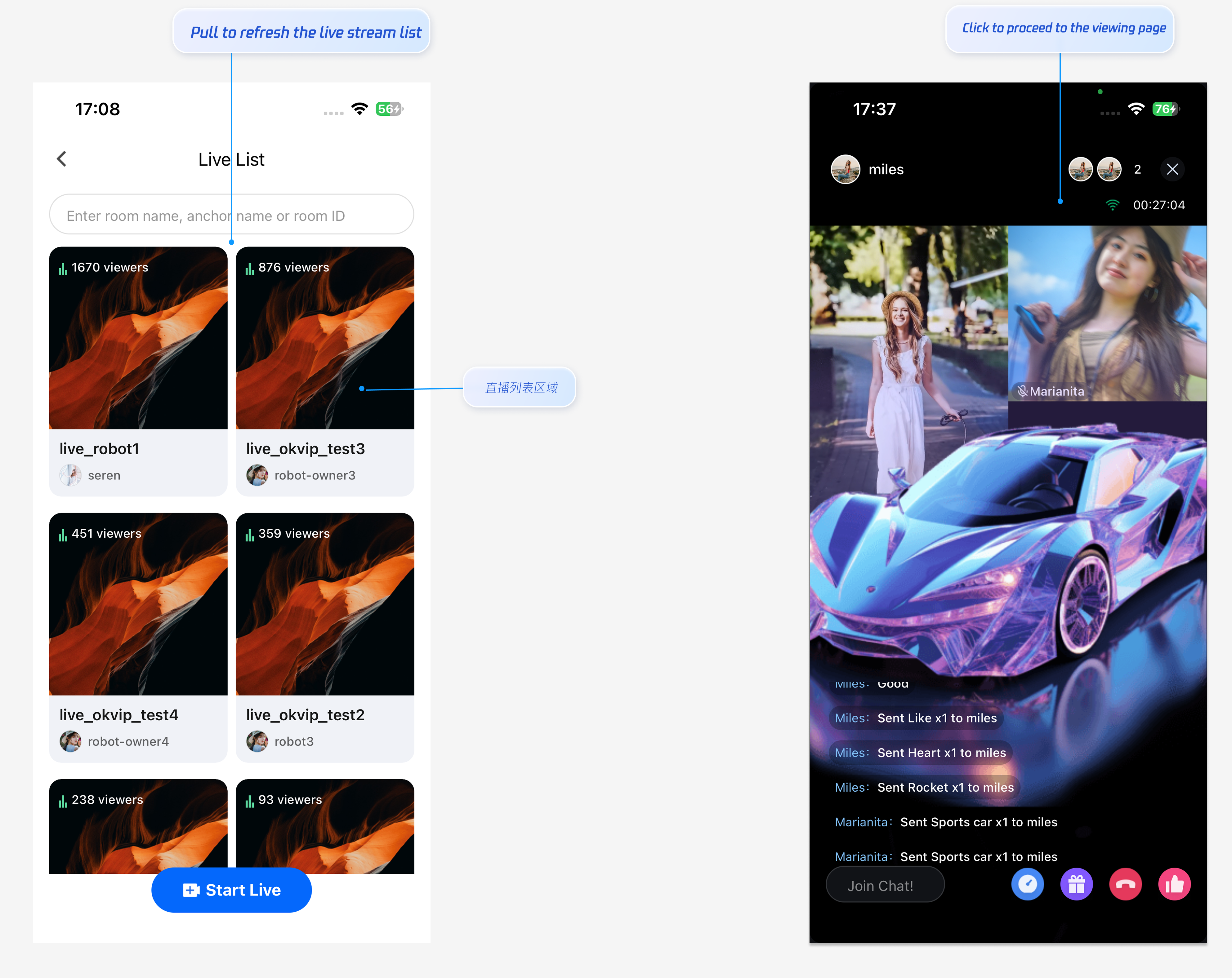
This guide shows you how to quickly integrate the Live Stream List page, enabling users to browse available live streams and preview live room details.

Feature Preview


Quick Integration

Step 1: Activate the Service

Refer to the Activate Service document to enable the trial version or activate the Pro Edition package.

Step 2: Code Integration

See Preparation for instructions on integrating TUILiveKit.
Ensure that react-native-safe-area-context is installed. If it is missing, install it with:
yarn add react-native-safe-area-context

Step 3: Add the Live Stream List Page

TUILiveKit provides a ready-to-use UI and business logic for the Live Stream List in live streaming scenarios. Simply configure the entry point to call LiveListPage according to your business logic, then use the following steps to navigate to the Live Stream List page.
Note:
This example uses useState to demonstrate simple page switching. For production apps, it is recommended to use navigation libraries like React Navigation for page management. To understand how to integrate navigation libraries, refer to React Navigation official documentation.

/**
* Simple navigation example - using useState to manage page transitions
*/
import React, { useState } from 'react';
import { View, Button, StyleSheet } from 'react-native';
import { SafeAreaProvider } from 'react-native-safe-area-context';
import { LiveListPage } from 'react-native-tuikit-live';

type PageType = 'home' | 'liveList' | 'liveEnd' | 'liveAudience';

function MyApp() {

const [currentPage, setCurrentPage] = useState<PageType>('home');

// Navigate to the Live Stream List page
const handleJumpLiveList = async () => {
setCurrentPage('liveList');
};

// Return from the Live Stream List page
const handleBackFromLiveList = () => {
setCurrentPage('home');
};

return (
<SafeAreaProvider>
{currentPage === 'home' && (
<View style={styles.container}>
<Button title="Go to Live Stream List" onPress={handleJumpLiveList} />
</View>
)}

{currentPage === 'liveList' && (
<LiveListPage
onBack={handleBackFromLiveList}
/>
)}

{currentPage === 'liveEnd' && (
<View style={styles.container}>
<Button title="Back to Home" onPress={() => setCurrentPage('home')} />
</View>
)}
</SafeAreaProvider>
);
}


const styles = StyleSheet.create({
container: {
flex: 1,
justifyContent: 'center',
alignItems: 'center',
},
});


export default MyApp;

Customize UI Layout

TUILiveKit supports flexible customization of the Live Stream List page’s features and appearance, allowing you to tailor the layout to your business requirements.

Adjust the Number of Live Rooms Per Row

You can set how many live rooms appear in each row by modifying the element count in the tuikit-atomic-x/src/components/LiveList.tsx file. The default configuration is as follows:
const CARD_WIDTH = (SCREEN_WIDTH - CONTAINER_PADDING * 2 - CARD_GAP) / 2; // two per line

// Group the live stream list with two elements per line
const groupedLiveList = useMemo(() => {
const groups: LiveInfoParam[][] = [];
for (let i = 0; i < filteredLiveList.length; i += 2) {
groups.push(filteredLiveList.slice(i, i + 2));
}
return groups;
}, [filteredLiveList]);
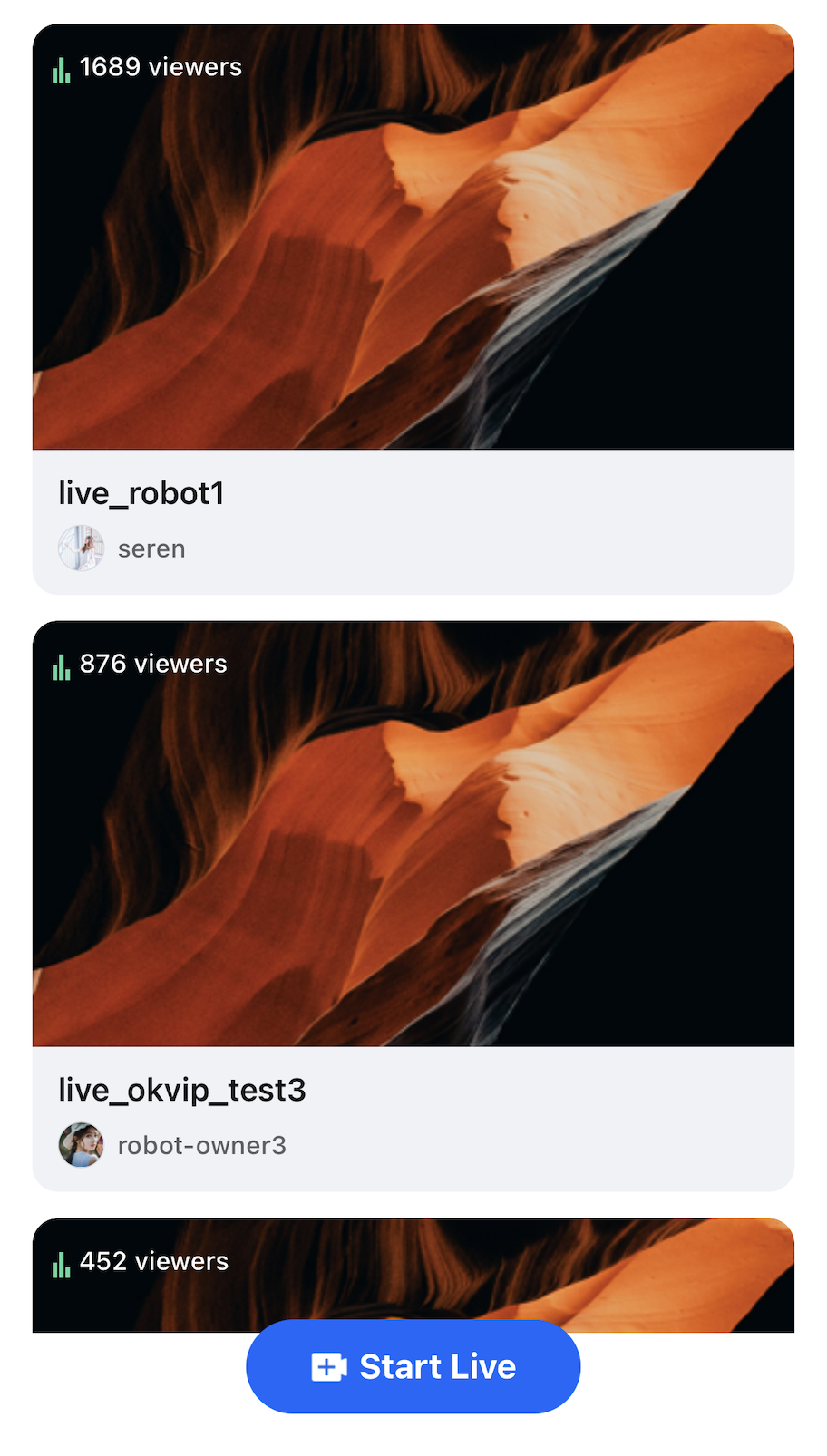
To show one live room per row, update the logic as follows:
const CARD_WIDTH = (SCREEN_WIDTH - CONTAINER_PADDING * 2); // one per line

const groupedLiveList = useMemo(() => {
const groups: LiveInfoParam[][] = [];
for (let i = 0; i < filteredLiveList.length; i += 1) { // change 2 to 1
groups.push(filteredLiveList.slice(i, i + 1)); // change 2 to 1
}
return groups;
}, [filteredLiveList]);
Resulting UI is as follows:


Next

You’ve now integrated the Live Stream List feature. To continue, add host streaming and audience viewing capabilities. See the table below for details:
Feature
Description
Integration Guide
Host Streaming
Implements the complete host streaming workflow, including pre-stream setup and interactive features after going live.
Audience Viewing
Enables audience members to enter the host’s live room and watch the stream, supporting guest co-hosting, live room details, online audience list, and live comments.

FAQs

Why is the Live Stream List page empty after integration?

If the Live Stream List page is blank, verify that you have completed the login steps. For testing, use two devices: start a live stream on one device as the host, and use the other device to open the Live Stream List page and view available live rooms.

ヘルプとサポート

この記事はお役に立ちましたか?

フィードバック