This document describes how to modify a table in the TcaplusDB console. If you want to modify the structure definition of a table, you can do so by modifying the table under the condition that the new definition meets the TcaplusDB table modification rules.
Prerequisite
You have created a table. For more information, see Creating Table.
Directions
1. On the Table List page, either locate the desired table and select More > Modify in the Operation column or select multiple tables and select Batch Operation > Modify Table at the top.
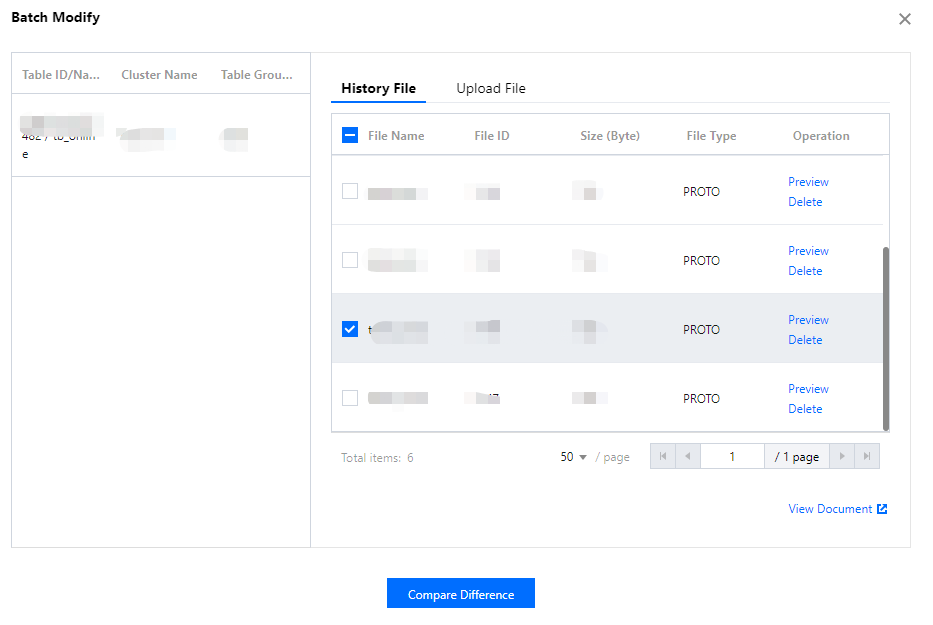
2. In the pop-up window, upload or select a new table definition file and click Compare Difference.
Note:
The primary key field cannot be deleted.
The name and type of the primary key field cannot be modified.
You cannot add new primary key fields.
A general field marked as required cannot be deleted.
The name and type of fields with the same identifier cannot be modified.
A new general field should be named according to the naming convention.
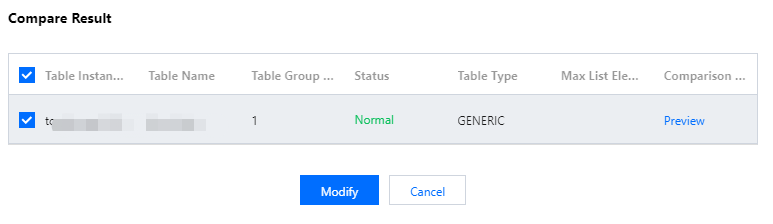
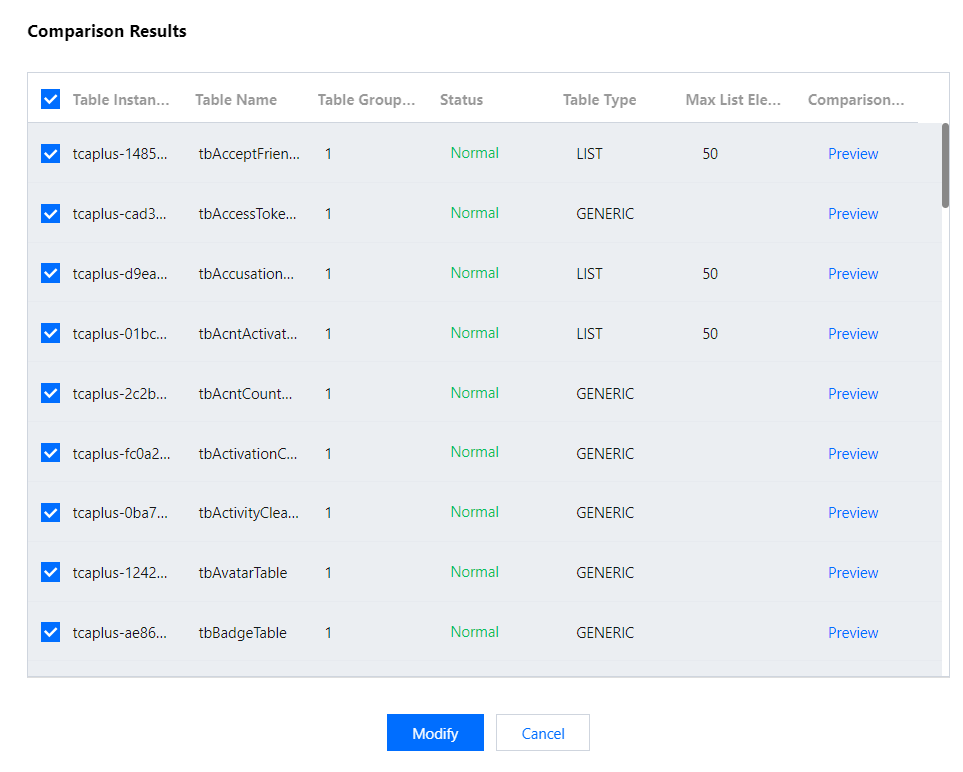
3. In the pop-up dialog box, you can view the comparison result. If your new table definition does not meet the TcaplusDB table modification rules, a prompt will appear.
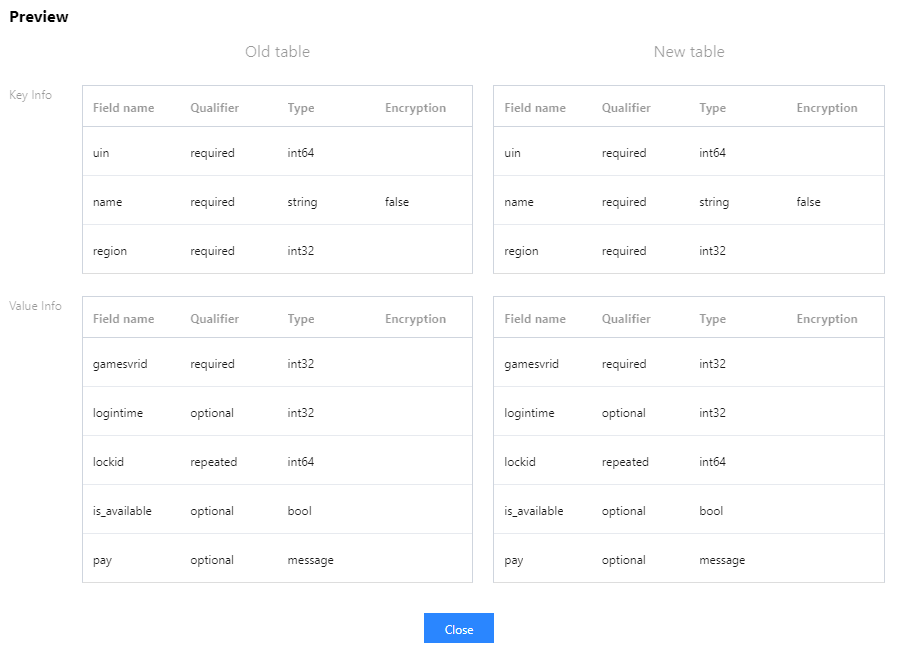
4. Click Preview in the Comparison Preview column to view the comparison between the new and old table structures.
5. After confirming that everything is correct, click Modify to submit your request to modify the table, and a prompt will be returned if the modification is successful.
After modification, you can view the structure of the new table on the Table Configuration page.