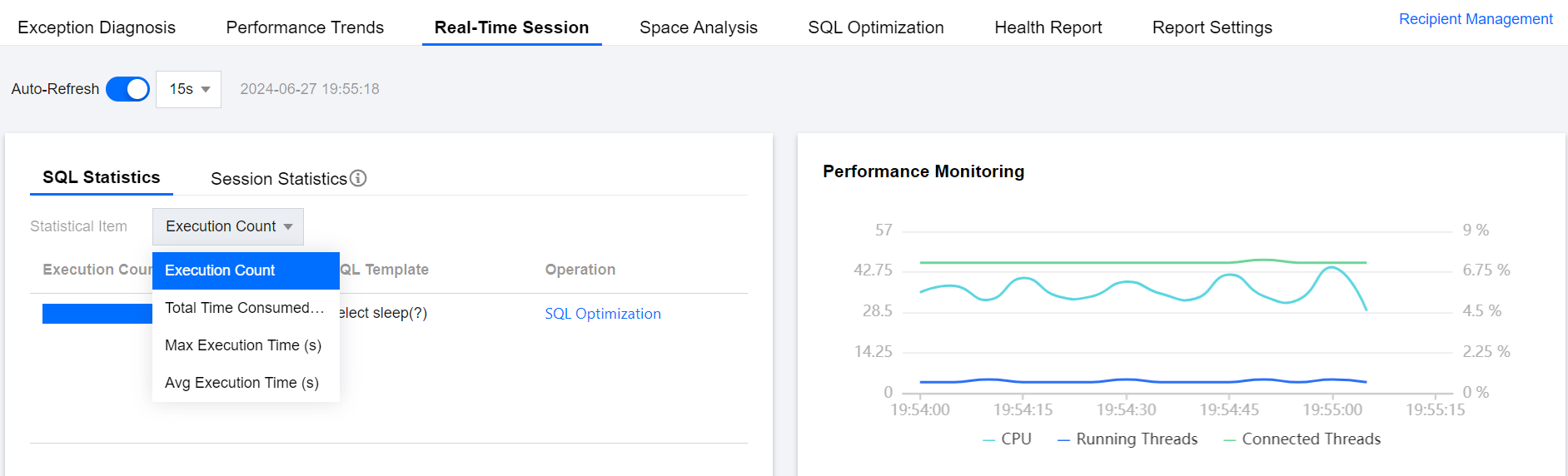
The DBbrain real-time session page supports features such as SQL statistics, session statistics, active sessions, performance monitoring, and killing sessions. It helps Ops personnel quickly grasp the session information of the instance, manage instance sessions, and efficiently locate logical issues related to database session connections that are difficult to detect manually.
2. In the left sidebar, select Performance Optimization.
3. At the top of the page, select the database type, instance ID, or shard ID, and select the Real-Time Session tab.
4. Select the page refresh frequency. You can select 5 seconds, 15 seconds, and 30 seconds. The default value is 15 seconds. You can also stop refreshing.
5. View SQL statistics, session statistics, active sessions, and performance monitoring information.
Note:
SQL statistics and session statistics are consistent with the active session data below.
View SQL statistics
Select the SQL Statistics tab, and select the statistics items (including the number of times for execution, total duration, maximum execution time, and average execution time) to view real-time statistics of SQL statements in different dimensions.
You can click SQL Optimization in the operation column to view the execution example, execution plan, SQL optimization suggestion, and SQL optimization comparison on the pop-up Analysis page. For detailed SQL optimization introduction and usage, see SQL Optimization.
View and download session statistics
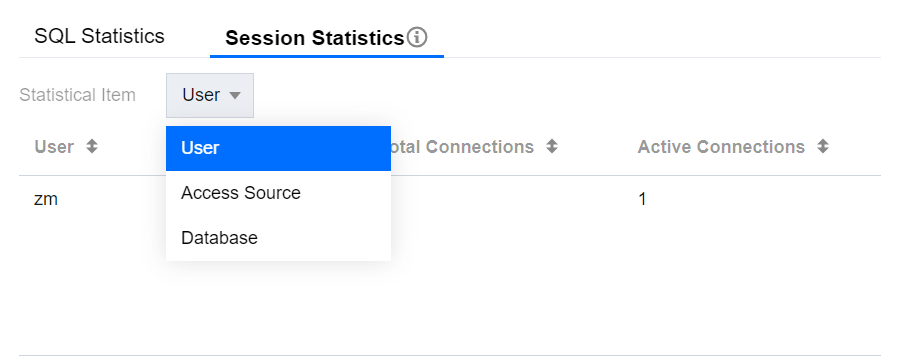
Select the Session Statistics tab, and select the statistics items (including user, access source, database) to collect real-time session data in different dimensions.
View active sessions
1.Select the Active Session tab.
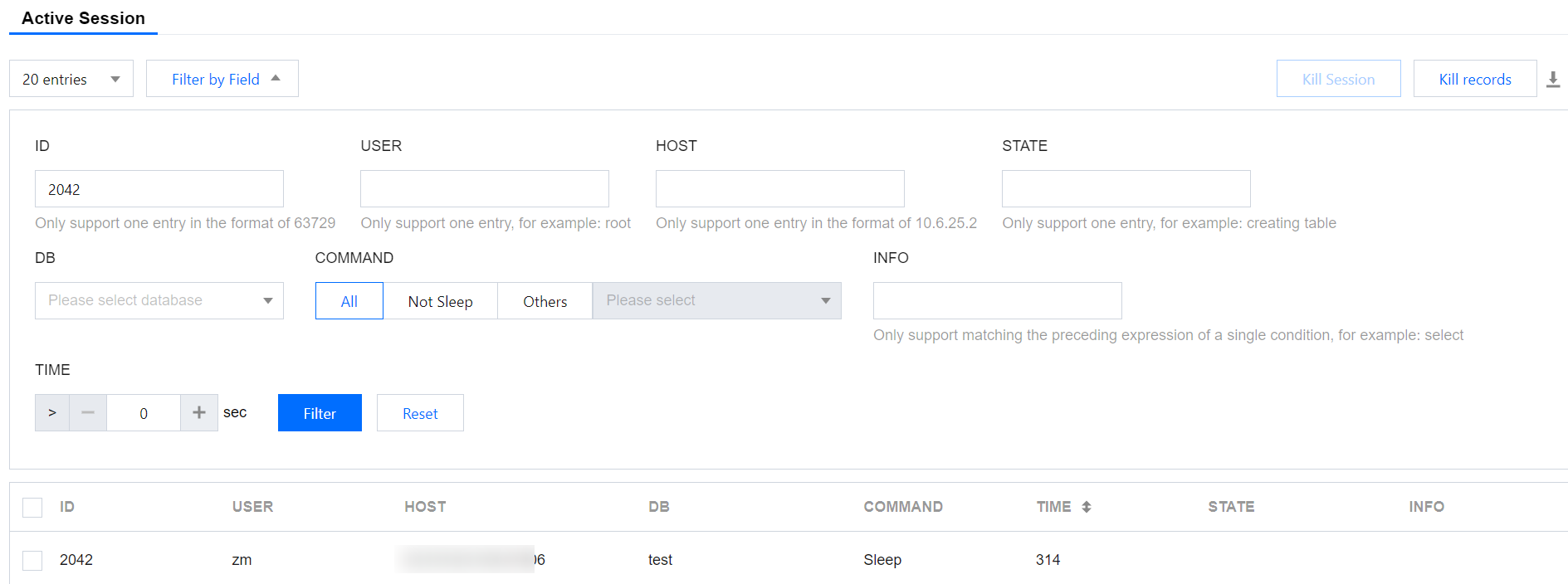
2.Set the following conditions to view real-time sessions.
Select the number of sessions to display: It includes limiting to 20, 50, or 100, with a default value of 20.
Filter sessions by field: The default COMMAND field is set to Not Sleep. The specific field descriptions are shown in the table below.
Field
Note:
ID
Session ID.
USER
The user who initiates the session.
HOST
The IP address and port number of the client that initiates the session.
STATE
The status of the current SQL statement. An SQL statement, such as a query, may need to go through statuses like copying to tmp table, sorting result, and sending data to complete.
DB
The database name of the session current connection.
COMMAND
SQL command type, including ALL, Not Sleep, and others.
ALL
Not Sleep
Others: Including Binlog Dump, Change user, Close stmt, Connect, Connect Out, Create DB, Daemon, Debug, Delayed insert, Drop DB, Error, Execute, Fetch, Field List, Init DB, Kill, Long Data, Ping, Prepare, Processlist, Query, Quit, Refresh, Register Slave, Reset stmt, Set option, Shutdown, Sleep, Statistics, Table Dump, and Time.
INFO
The SQL statement that is executed.
TIME
The session duration. Real-time refresh is based on the selected page refresh frequency.
Select whether to display sleep connections: It is disabled by default.
3.View the filtered real-time sessions based on the filtering conditions.
The following operations are also supported by hovering over the corresponding INFO column of the session:
View or copy the complete SQL statement: You can click View or Copy.
SQL optimization: You can click SQL Optimization to view the execution example, execution plan, SQL optimization suggestion, and SQL optimization comparison on the pop-up Analysis page. For detailed SQL optimization introduction and usage, see SQL Optimization.
4.(Optional) You can click
on the upper right side of the list to download the real-time session list in .csv format.
View performance monitoring data
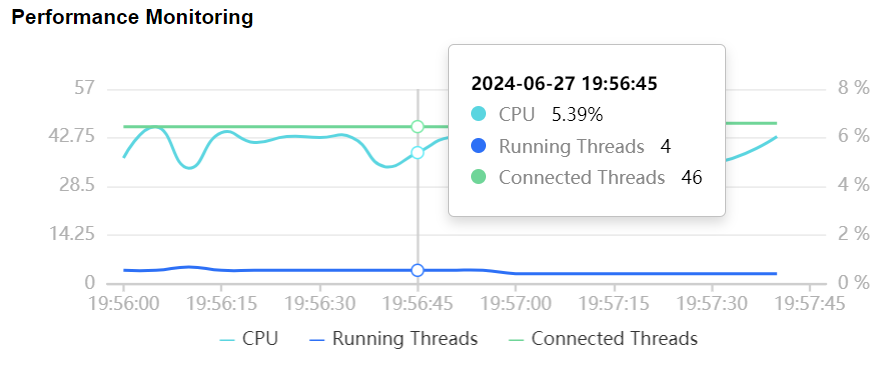
You can enter the Real-Time Session page, and view real-time performance monitoring data and trends within 2 minutes in the Performance Monitoring area.
Performance monitoring data includes Running Threads (the number of running threads), CPU (CPU utilization), and Connected Threads (the number of connected threads).
Hover over a specific time point to display the detailed data of the three performance metrics.
2. In the left sidebar, select Performance Optimization.
3. At the top of the page, select the database type, instance ID, or shard ID, and select the Real-Time Session tab.
4. On the Real-Time Session page, select the Active Session tab.
5. At the top of the list, select Real-Time Session.
6. In the real-time session list, check the session to be killed, click Kill Session at the top right of the list, and click OK in the pop-up dialog box.
After killing the session, you can click Kill records at the top of the list to view the killed sessions.
Viewing the History of Killed Sessions
1. Go to the Active Session page.
2. Click Kill records at the top right of the list, select a time period (including the last 1 hour, last 24 hours, last 7 days, last 30 days, or a custom time period), and view the history of killed sessions.
Related Operations
If you need to send the kill session report via Simple Email Service (SES), see Kill Session Report SES for detailed operations.