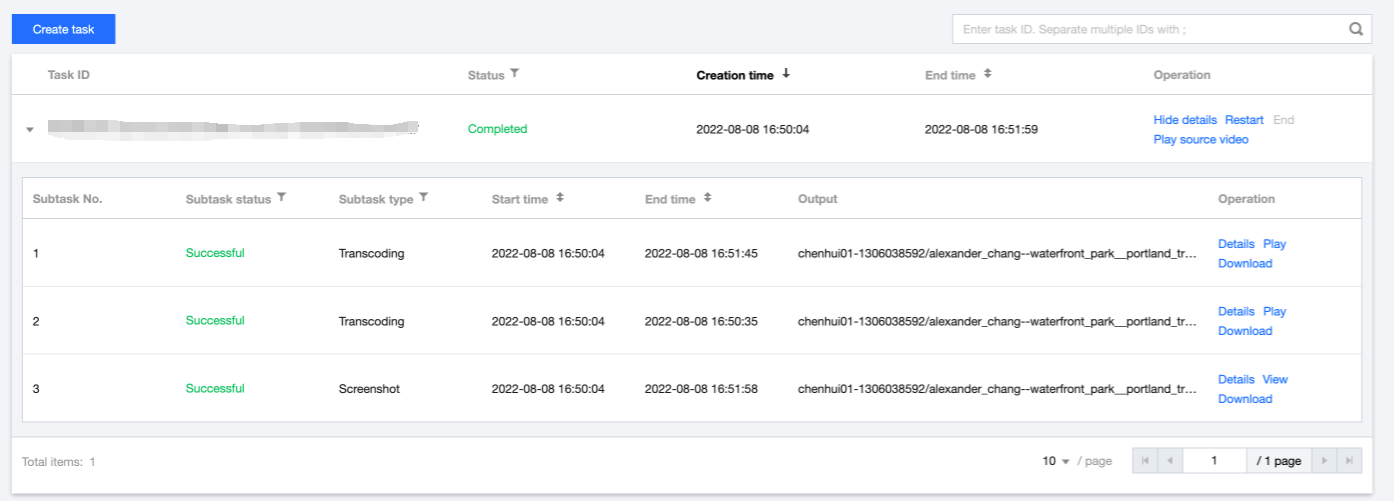
After you initiate a media processing task through file upload to COS bucket, running manual transcoding scripts, or API calls, you can view and manage the task in the VOD module.
Operation Descriptions
Task List
Column Name
Description
Task ID
ID of the initiated primary task.
Status
The current status of the primary task, which can be: Waiting, In progress, and Completed.
Waiting: The task is in the queue waiting for processing.
In progress: The primary task status is In progress as long as any of its subtasks is running.
Completed: The task status is Completed when no subtask is running.
1. Click VOD to go to the task management page. The list on this page displays the record of primary tasks initiated by this account.
2. You can filter the required primary task by entering a task ID in the search box in the upper right corner of the list or selecting the task status in the list.
Task Creation
1. Go to the VOD page and click Create task to enter the task creation page.
2. Select the video file to be processed, specify the output path, transcoding template, and other necessary information, and initiate the task.
Task Operation
The operations supported for task management include: Details, Restart, End, and Play source video.
Details: You can click Details to view the information about all subtasks of the primary task.
Restart: Tasks with the status of "Completed" can be restarted. You can click Restart to re-execute all the subtasks of the primary task.
Terminate: Tasks with the status of "Waiting" can be ended. You can Click \\*\\*End \\*\\* to cancel waiting tasks and further execution.
Play source video: You can click Play source video to obtain and play the input video file of the task.
Subtask List
In the task list, you can click Details to display the information about all subtasks of the primary task. Detailed information is as follows:
Column Name
Description
Subtask No.
The incremental serial numbers that distinguish the subtasks of the primary task.
Subtask status
Status of subtasks, including: Waiting, In progress, Successful, and Failed.
Subtask type
Type of subtasks, which can be: Audio/Video Transcoding, Audio/Video Enhancement, Screenshot, etc..
Start time
Initiation time of the subtask.
End time
Completion time of the subtask.
Output
Output location of the subtask. (No output location is required when the subtask type is Intelligent Analysis, Identification, or Auditing, you can use the DescribeTaskDetail API to query the details of execution status and the result of the subtasks)
Supported subtask operations include Details, Play/View, and Download.
Operation Name
Description
Details
You can check the details of a subtask.
Play/View
You can check the result of subtask processing and play the video after the subtask is processed.
Download
You can click Download to download the output file of this subtask. This operation is supported only for subtasks of audio/video transcoding, screenshot, and audio/video enhancement.
Note: If multiple screenshots are generated, only the first screenshot can be downloaded currently. In future versions, you can package multiple screenshots for download.