Subtitle Editing Tool
Download
포커스 모드
폰트 크기
Applicable Scenario
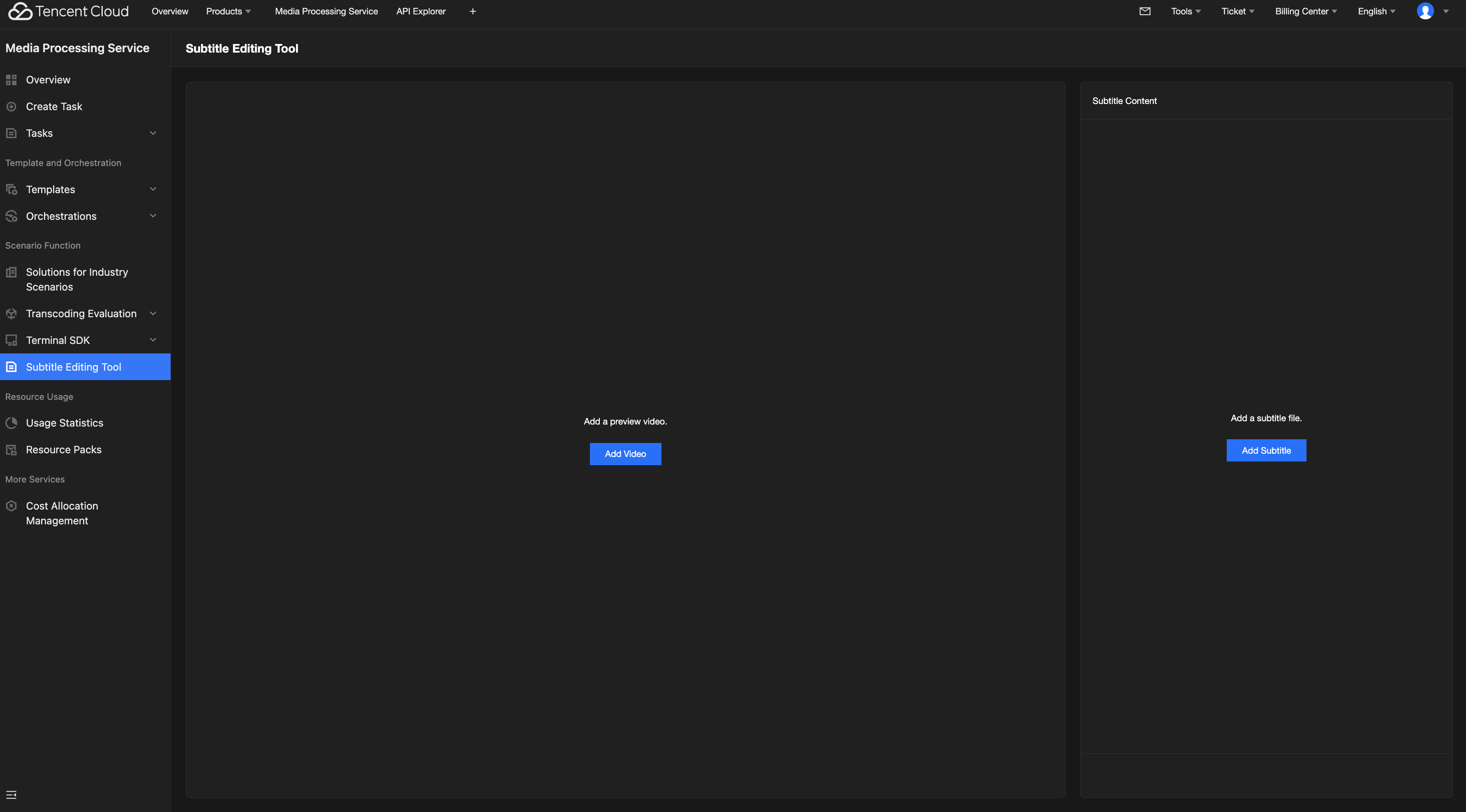
This tool can be used to calibrate subtitle files. It supports uploading subtitle files, editing the text content, and adjusting the timeline. You can also add videos for preview to ensure subtitle synchronization with the image.
Operation Instructions
1. Adding Subtitle and Video Files
Add a local subtitle file or a subtitle file in Tencent Cloud Object Storage (COS) for subsequent editing. WebVTT and SRT formats are supported.
Add a local video file or a video file in COS for preview. MP4, MOV, AVI, M4V, and MPG formats are supported.
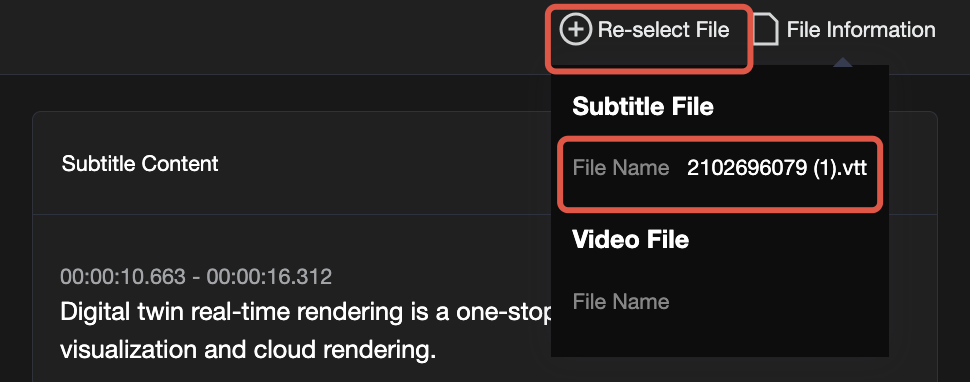
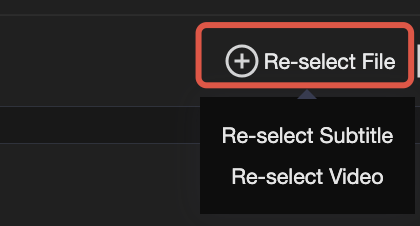
Click File Information in the upper right corner to view the paths of the added files. For local files, only the file name is displayed. You can click Re-select File in the upper right corner to select and add other subtitle/video files.
2. Editing and Saving Subtitles
(1) Editing Subtitles
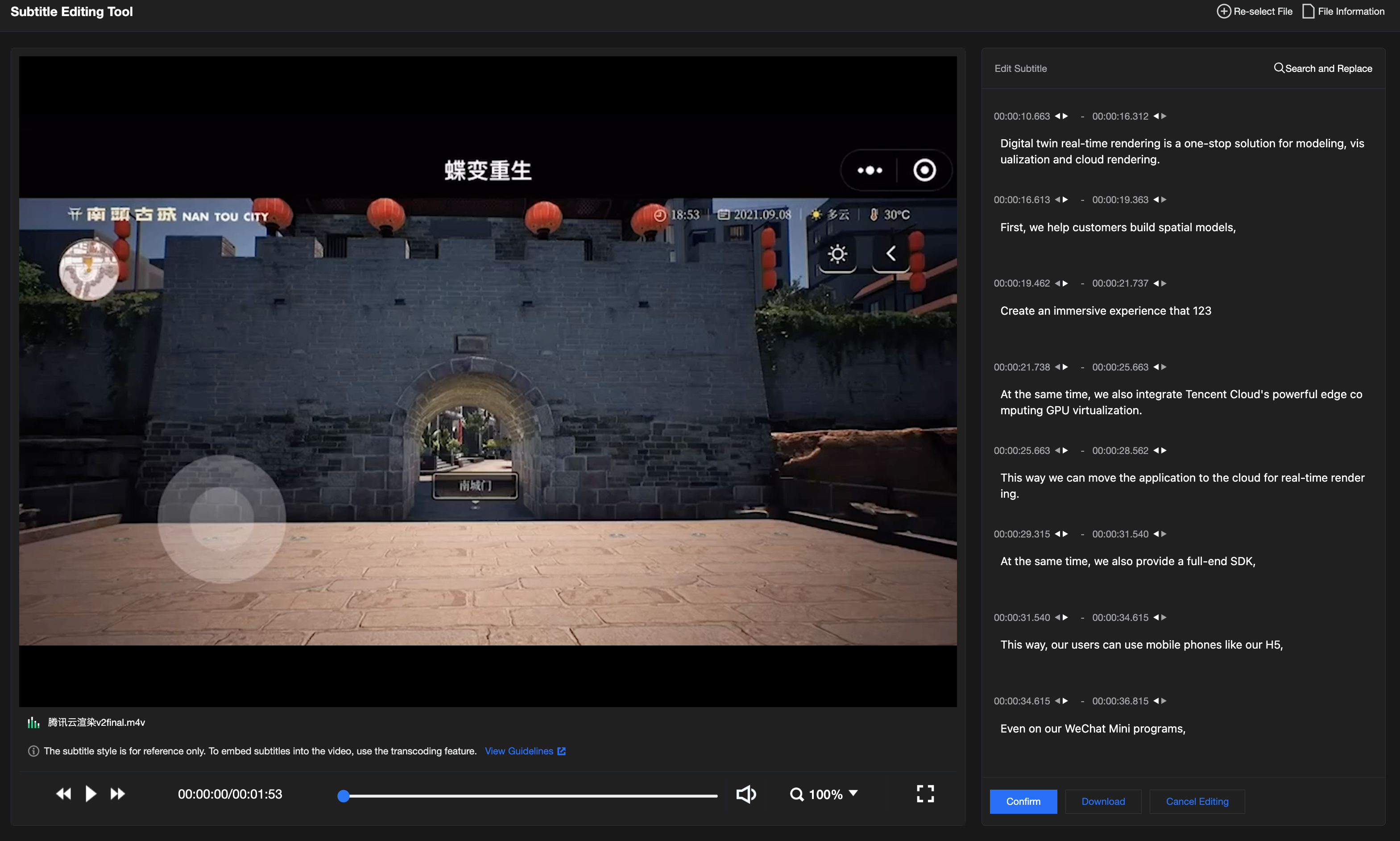
Click Edit to enter editing mode after a subtitle file is added. You can edit the timeline and subtitle content of the subtitle file.
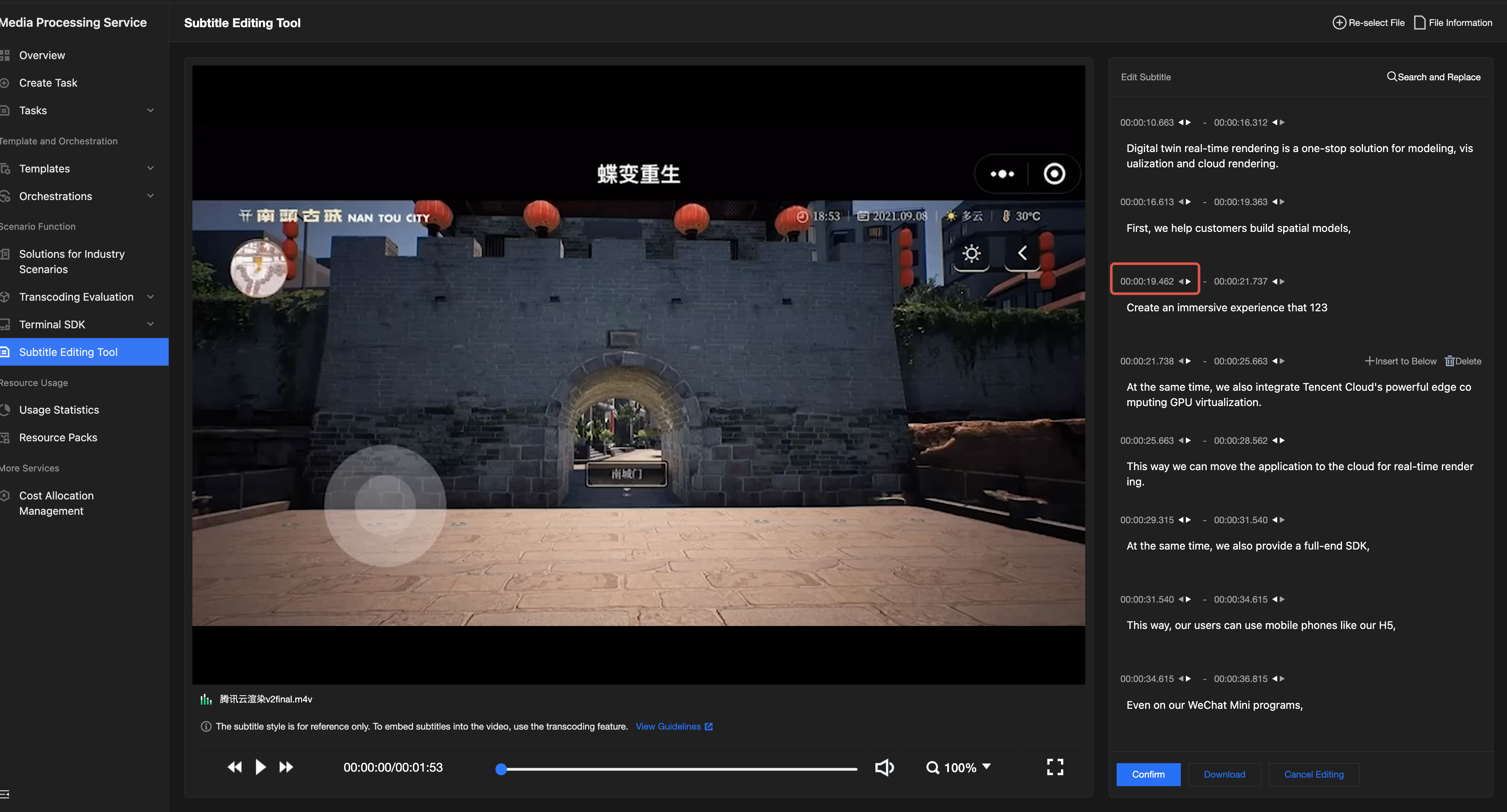
Adjusting the timeline
Select a subtitle line you want to adjust. Then, click the adjustment button or manually enter exact time points to adjust the start time and end time of this subtitle line. This ensures precise alignment between subtitles and the video content.
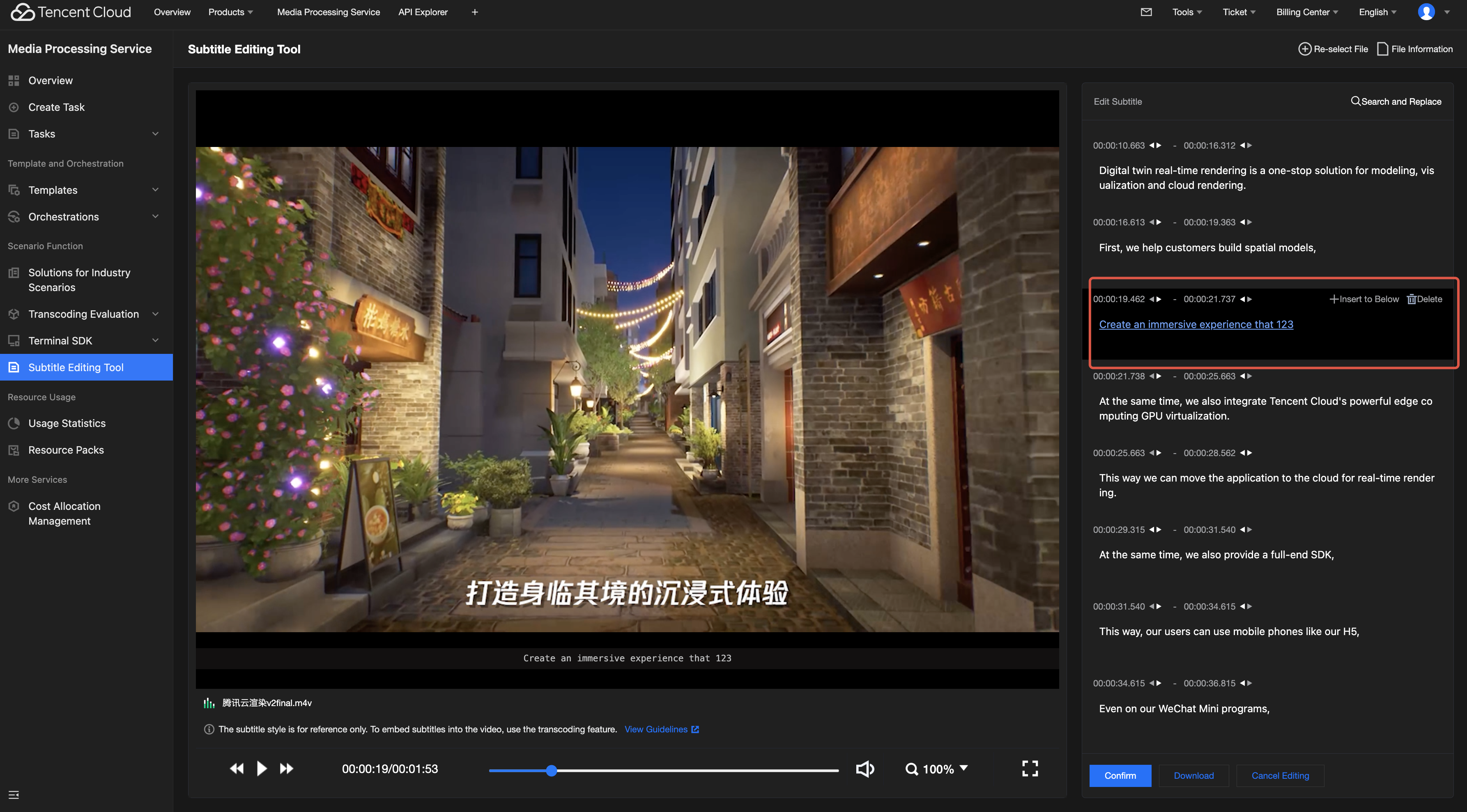
Modifying the subtitle content
Select a subtitle line you want to adjust and manually edit the subtitle content. You can press Enter to add a blank subtitle line for the current time point.
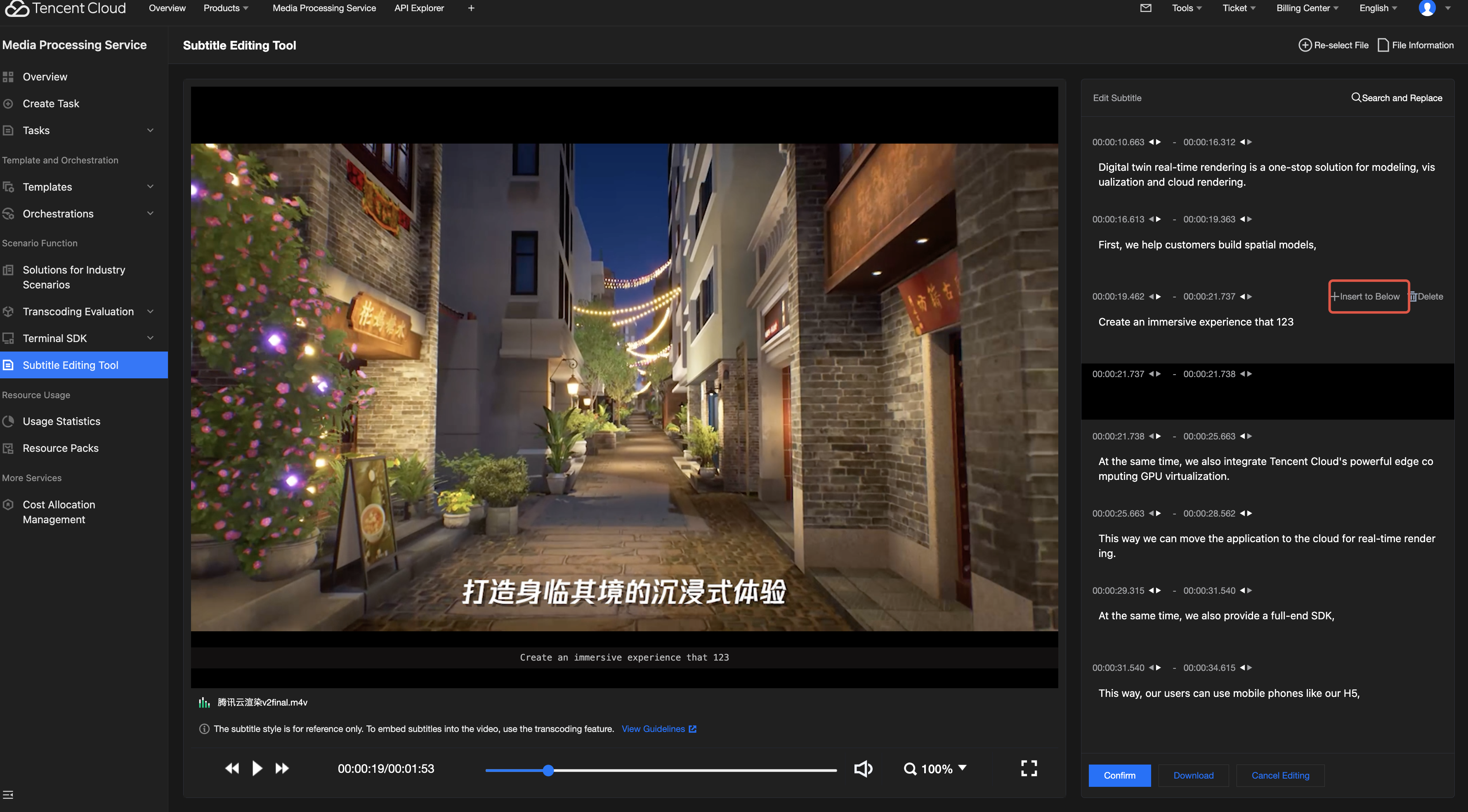
Adding/Deleting subtitle lines
Hover over a subtitle line to invoke the Insert to Below and Delete buttons. Click them to add a subtitle line or delete the selected subtitle line.
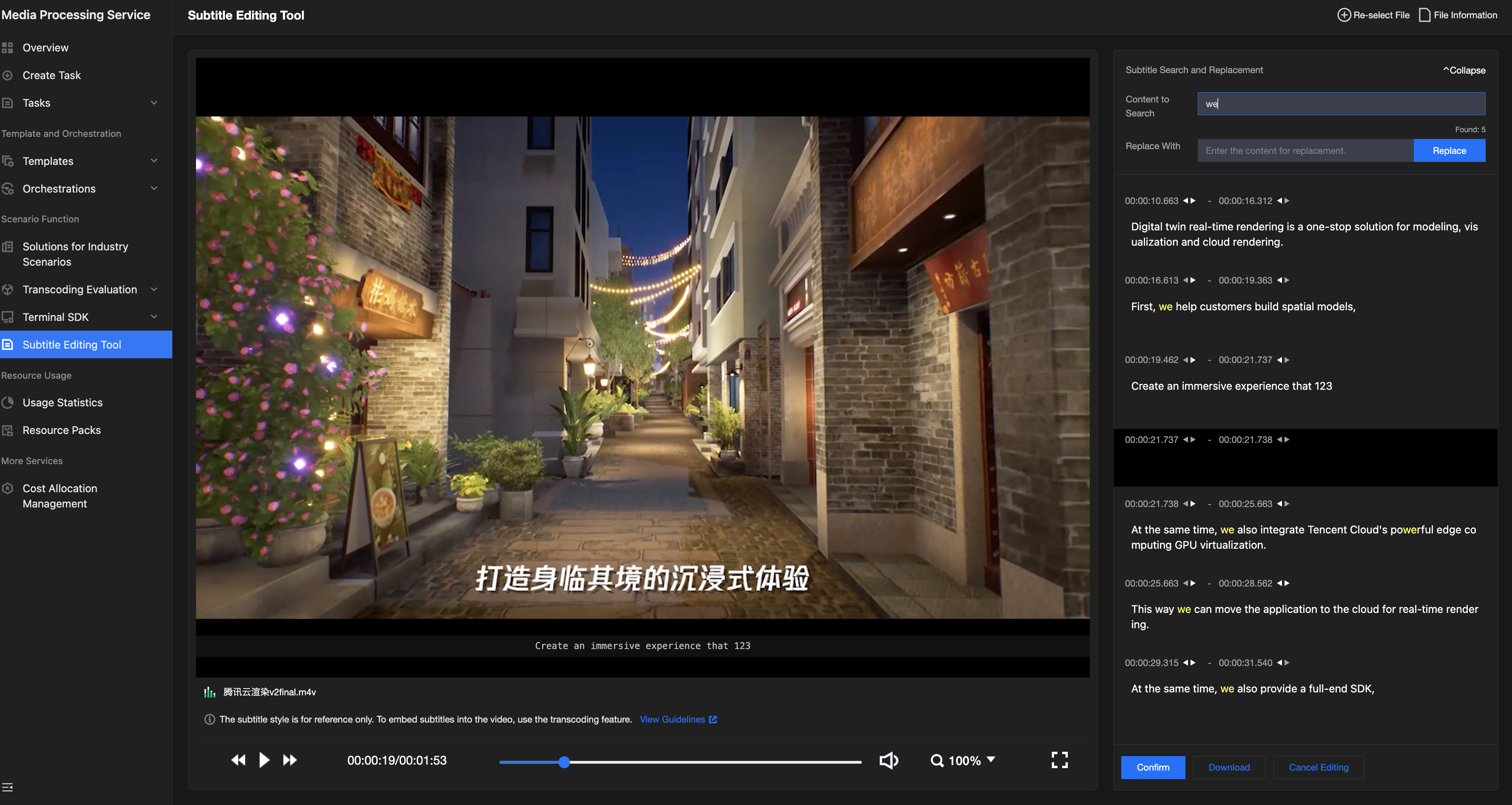
Search and replacement
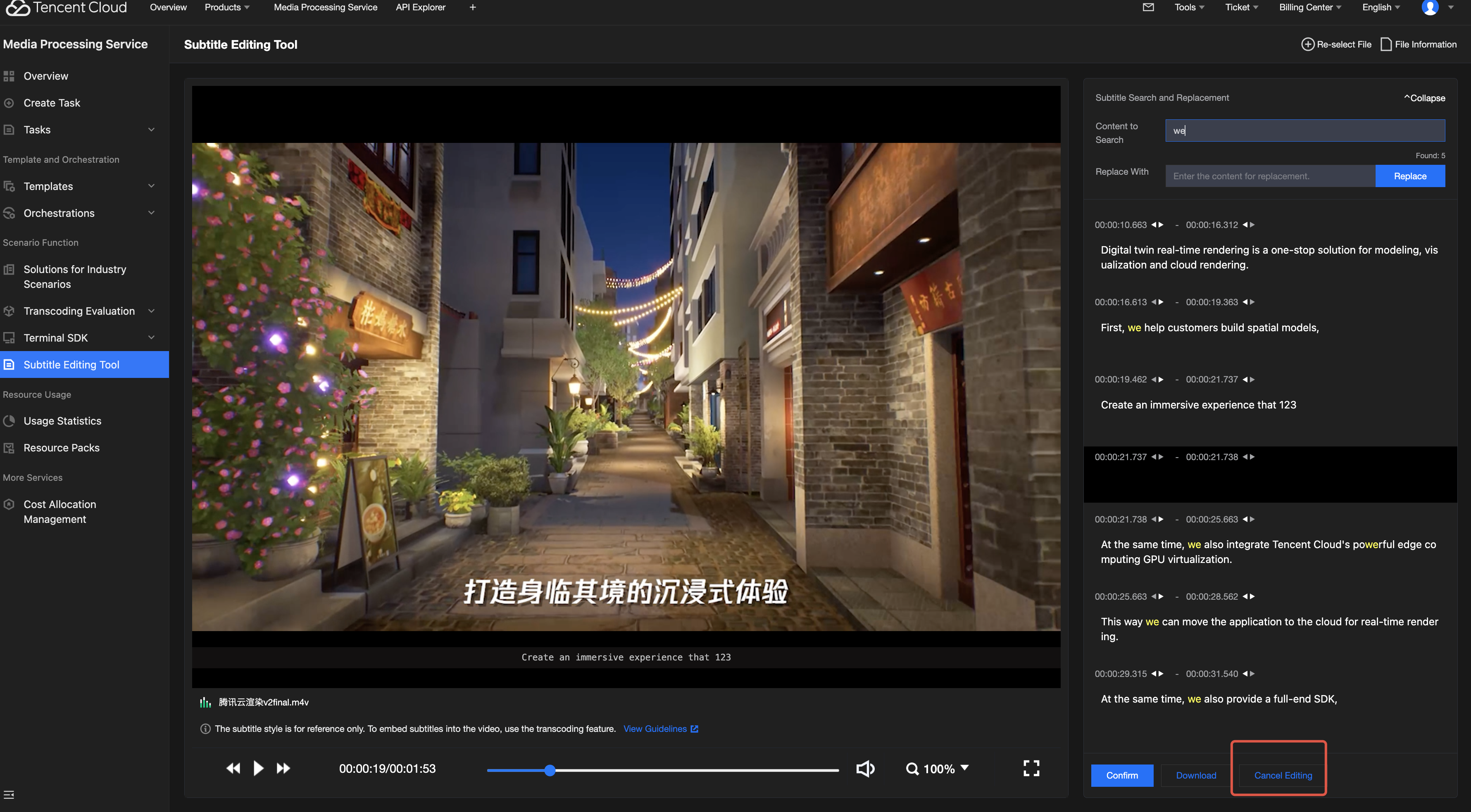
Click Find and Replace in the upper right corner and enter the content for search. The system will display the number of matching entries (X entries) and automatically highlight all results. Enter the content for replacement and click Replace to complete the replacement in one click.
Canceling editing
Click Cancel Editing to discard all current modifications. The subtitles will be restored to their original status before editing.
(2) Saving After Editing
For a local subtitle file:
Click Confirm after editing to save changes. You can enter the editing mode again for modification or directly click Download to save the edited subtitle file to a local path.
Note:
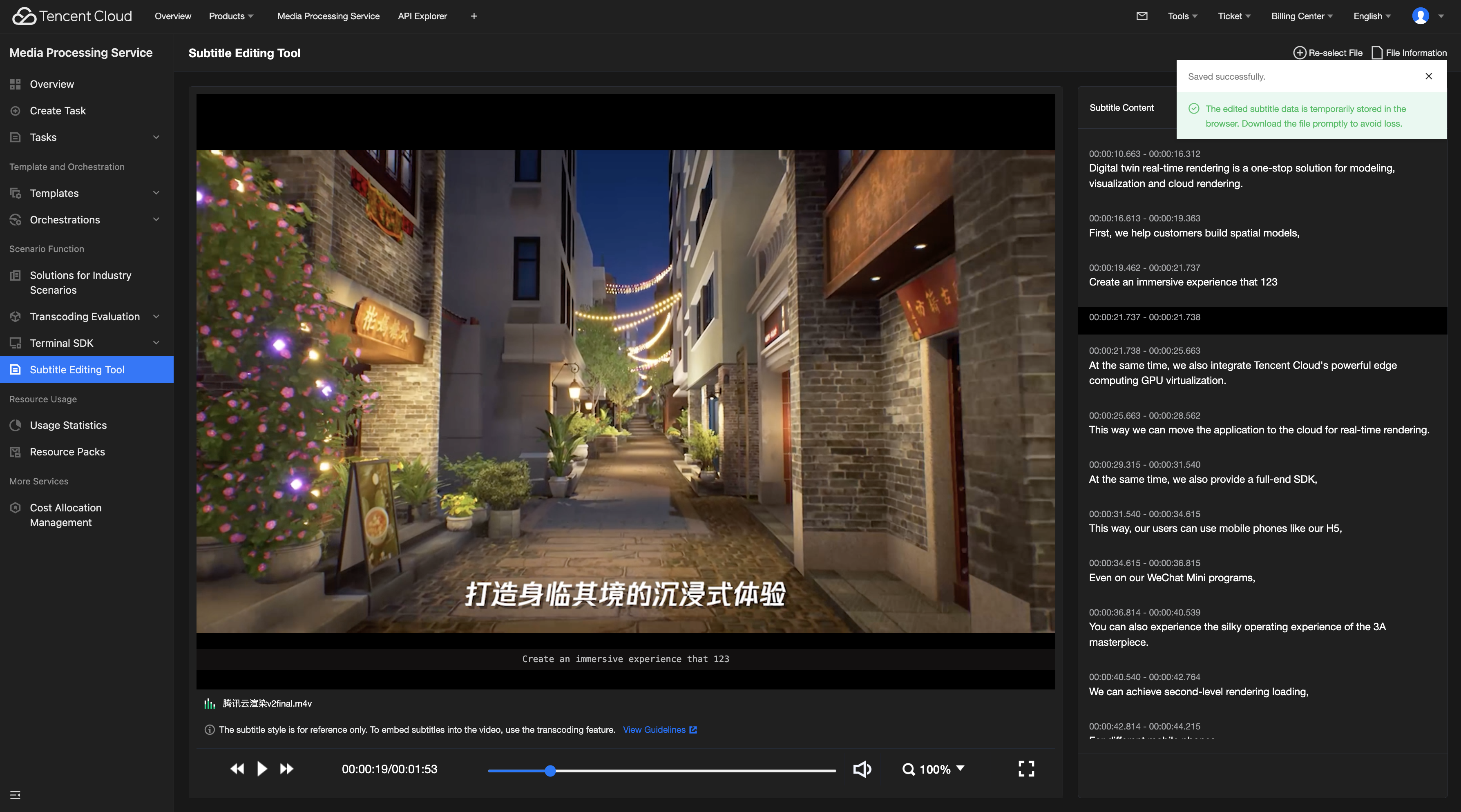
The edited subtitle data will be temporarily stored in the browser after being saved successfully. The temporarily stored data will be lost when you leave the page (close or refresh it). Do not leave the page. It is recommended that you click Download to promptly save the file to a local path.
For a subtitle file in COS:
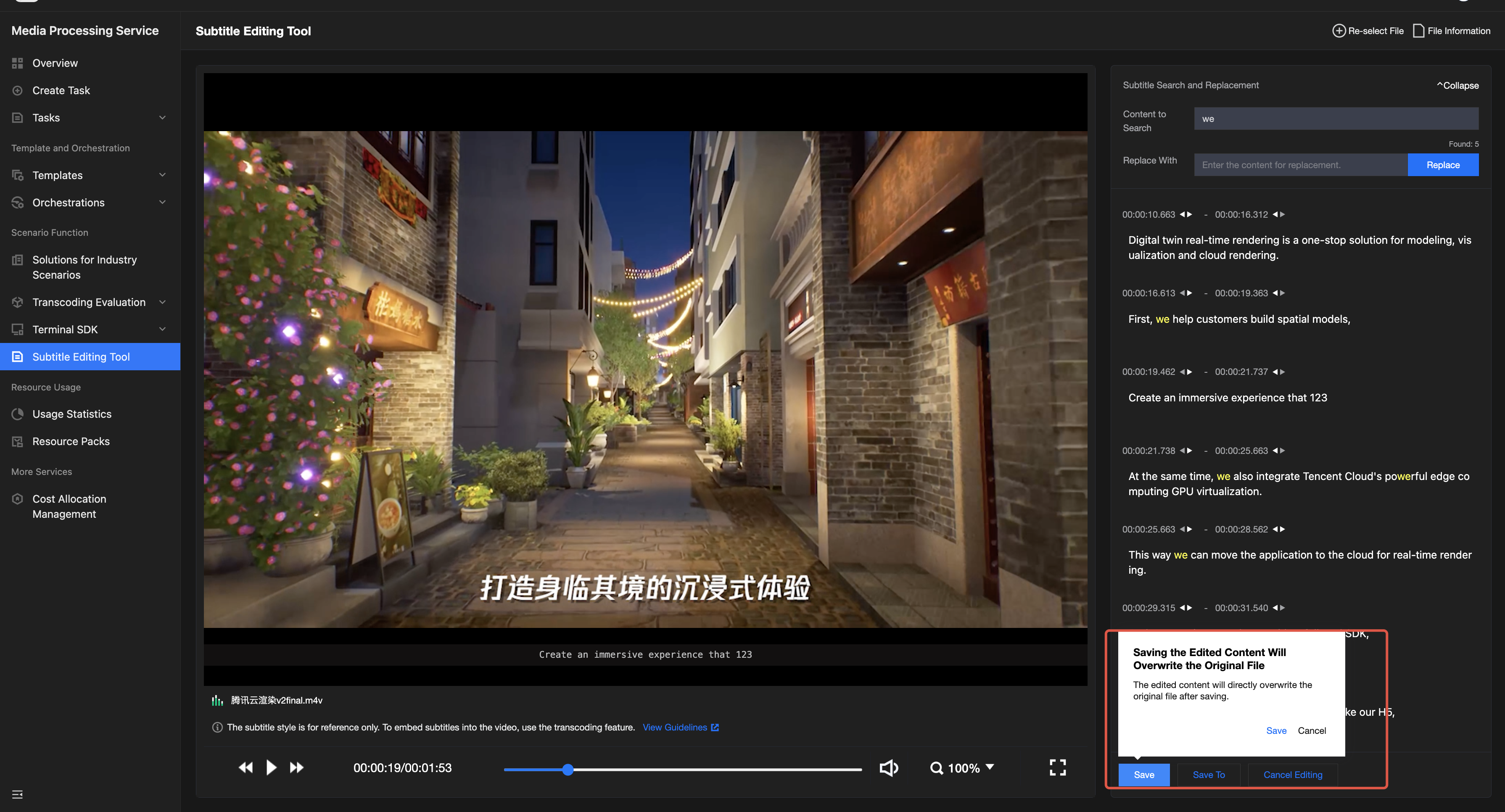
Click Save to directly overwrite the original subtitle file in COS.
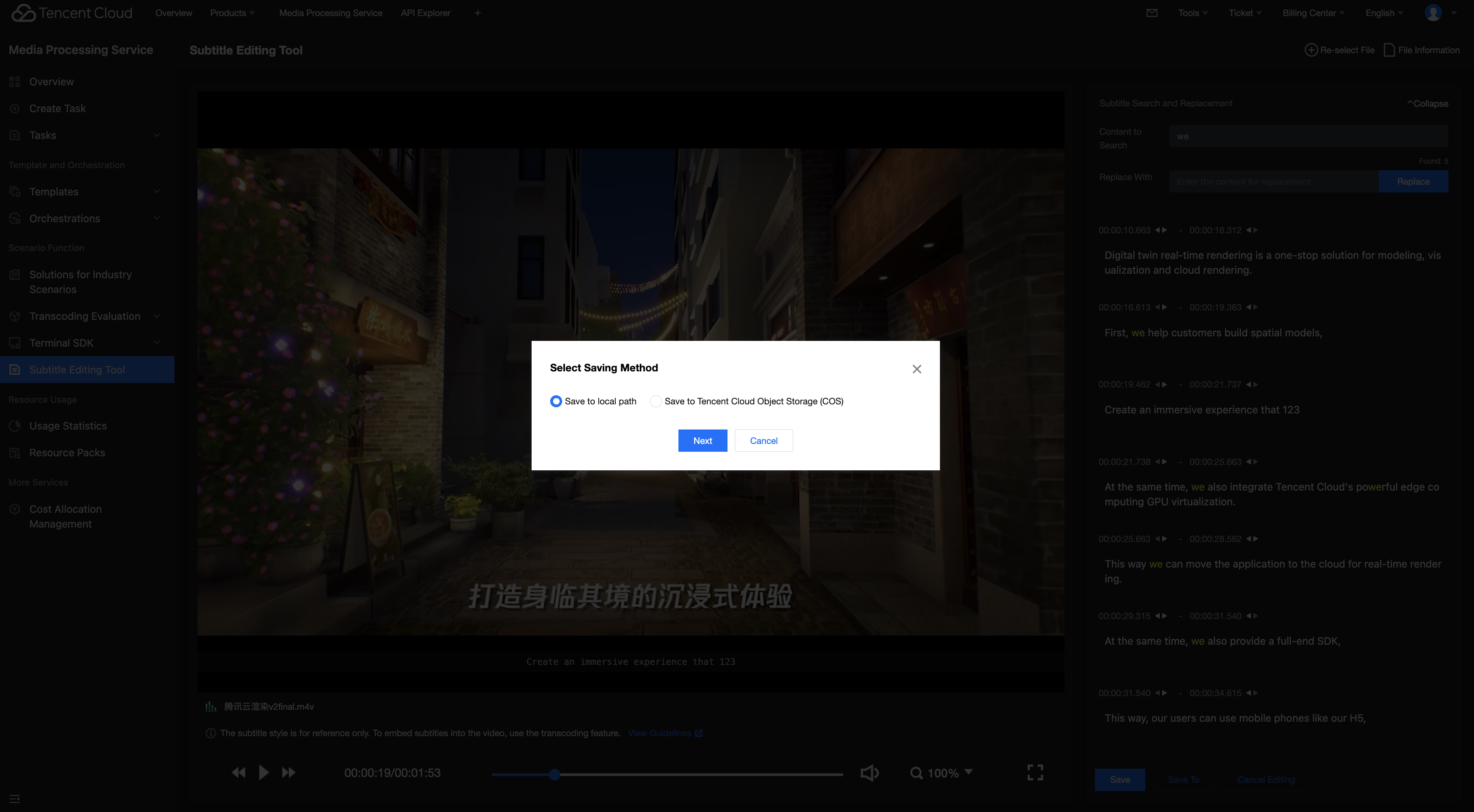
Click Save As. You can choose to save the edited subtitle file to a local path or store it as a new file in COS (without overwriting the original file).
피드백