Audio/Video Enhancement Integration
Download
포커스 모드
폰트 크기
I. Audio/Video Enhancement Feature Overview
Overview
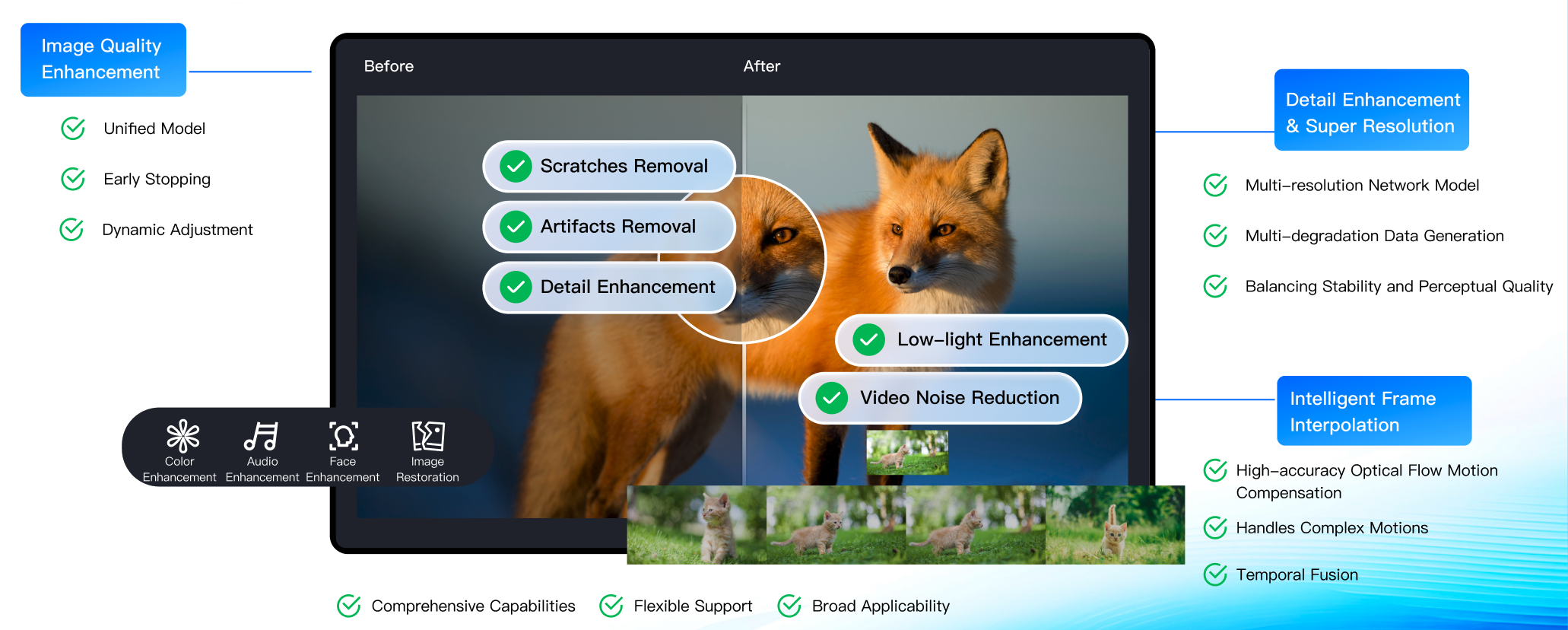
The audio/video enhancement feature relies on the leading audio/video AI processing models of MPS and its rich accumulation of business data to provide professional-level audio/video enhancement solutions. This feature supports distributed real-time image quality enhancement, such as video artifacts removal, denoising, color enhancement, face enhancement, SDR2HDR, and large model enhancement, which can significantly improve the quality of audio and video. It is widely used in OTT, e-commerce, sports events, and other scenarios, effectively achieving dual-dimensional improvement in QoE and QoS, creating significant business value.
Technical Strengths
Full-scenario AI enhancement algorithm: It is an industry-leading AI enhancement algorithm customized for different scenarios such as gaming, UGC content, PGC high-definition films and TV shows, online education, live shows, e-commerce, and old film sources, comprehensively improving audio and video quality.
Comprehensive audio enhancement: It supports voice denoising, audio separation, audio quality enhancement, and volume equalization, significantly improving audio clarity and quality, meeting the demand for high-quality audio in various scenarios.
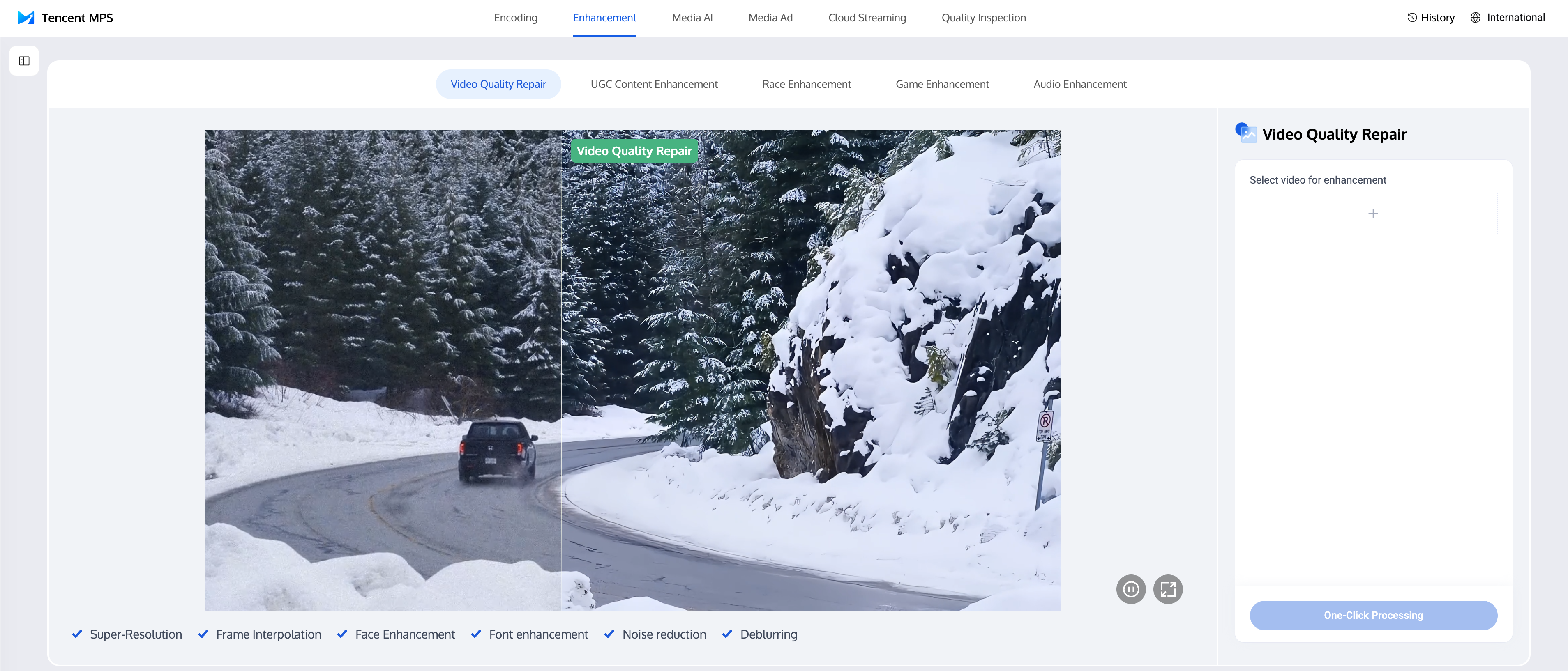
Free Trial
Open Experience Hall, where you can quickly experience the effects of the audio/video enhancement feature.
How to Use the Audio/Video Enhancement Feature
(1) Note before Use Access Frontend
Before using this feature, you need to complete the following preliminary operations:
Register/Log in to a Tencent Cloud account, activate MPS, and complete the service role authorization.
If you use a Tencent Cloud sub-account, ensure the account has sufficient permissions to use MPS.
For detailed guidance, see Quick Start. For account authorization issues, see Account Authorization.
(2) Creating Audio/Video Enhancement Tasks
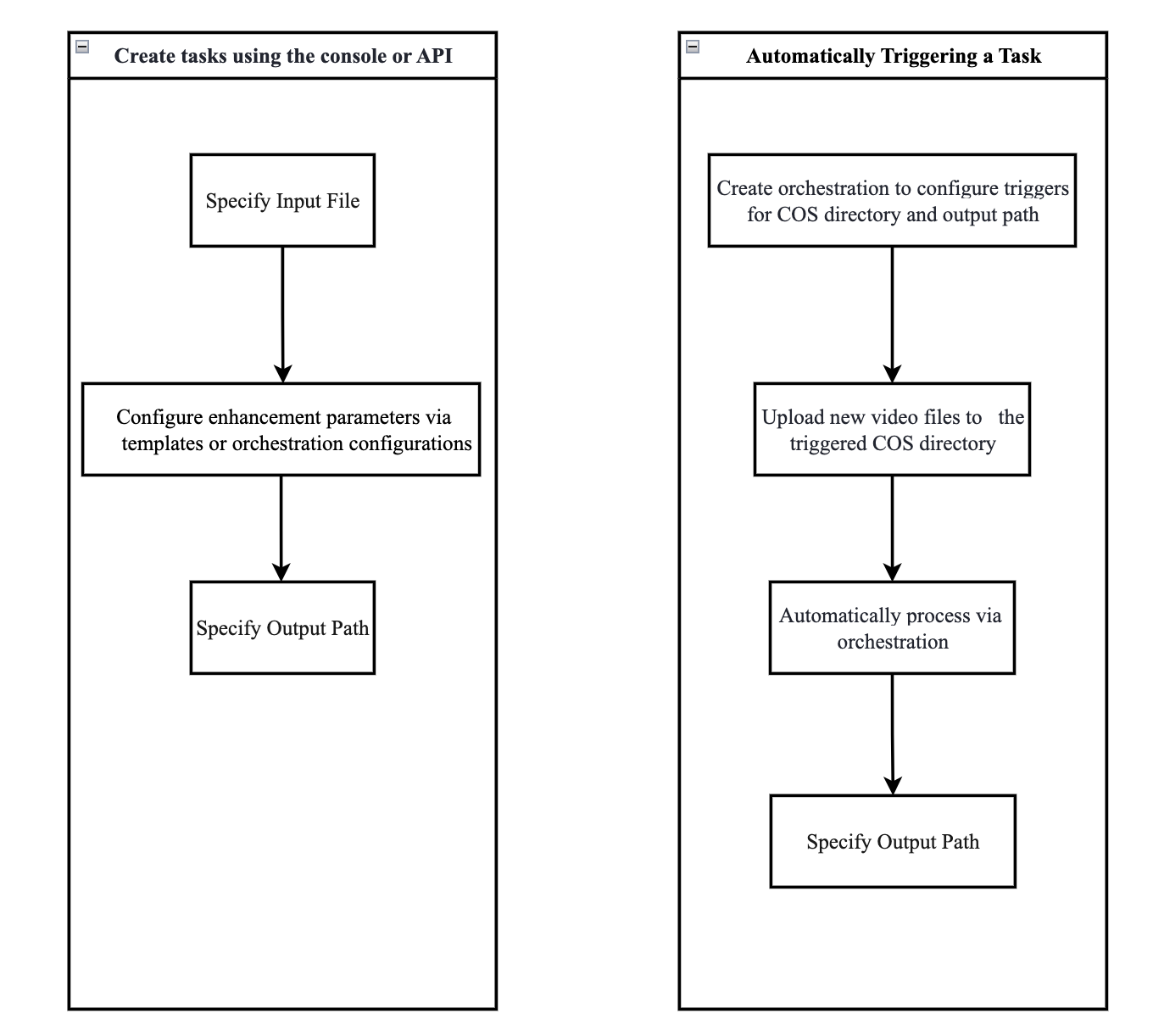
Tencent Cloud Media Processing Service (MPS) provides three task initiation methods: quickly creating tasks through the console, initiating tasks through the API, and automatically triggering tasks. The following flowchart shows the general operation process for each task initiation method. For a sample of how to trigger a specific task, see the detailed instructions in the Creating Audio/Video Enhancement Tasks section below.
II. Creating Audio/Video Enhancement Tasks
Method 1. Quickly Creating Tasks Through the Console
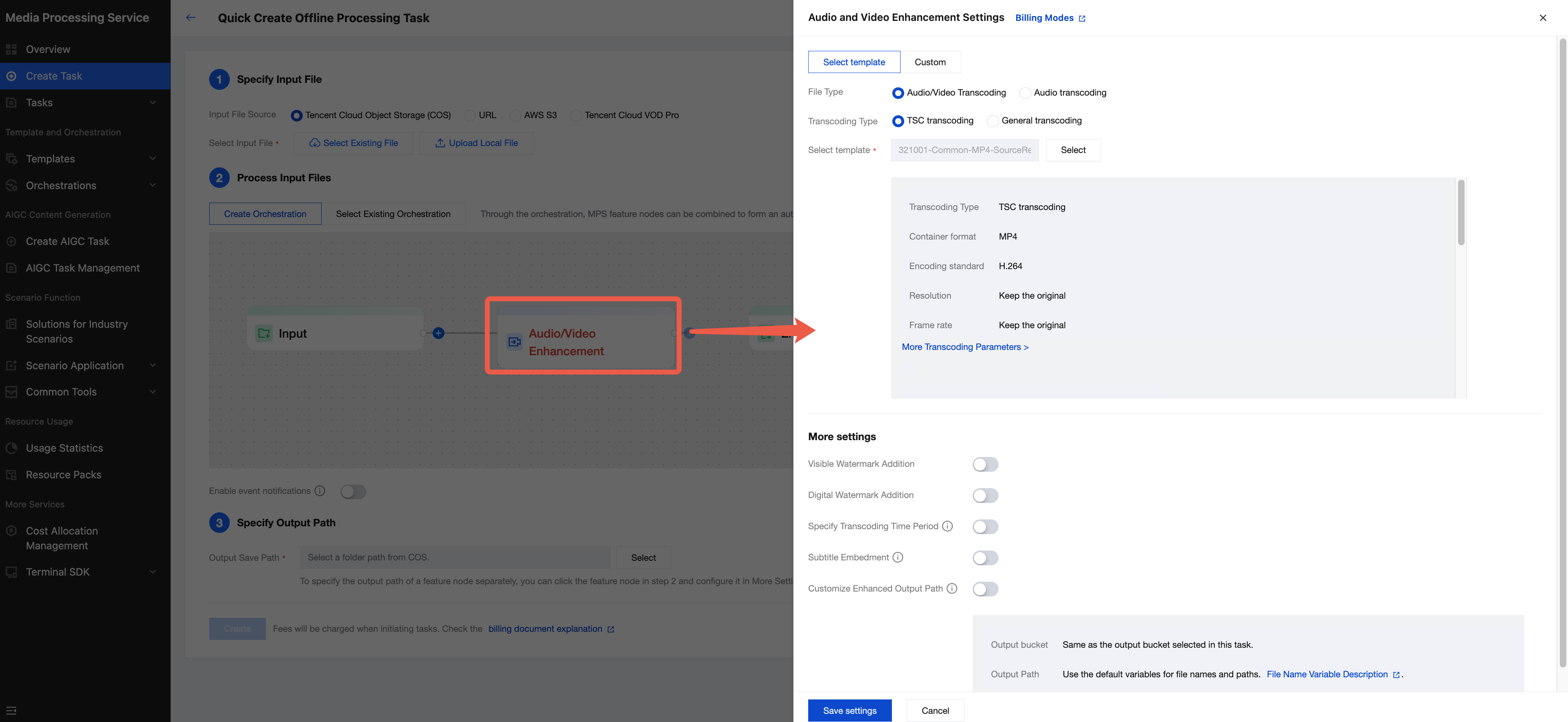
1. Enter the MPS console Create Task webpage, select the "audio and video enhancement" node, and choose an enhancement template from the pop-up interface on the right. You can choose a preset template or custom template. For detailed configuration guide, refer to audio/video enhancement template.
2. Specify the input file path and output path, then click "Create" to initiate the task.
Method 2. Initiating a Task via the API
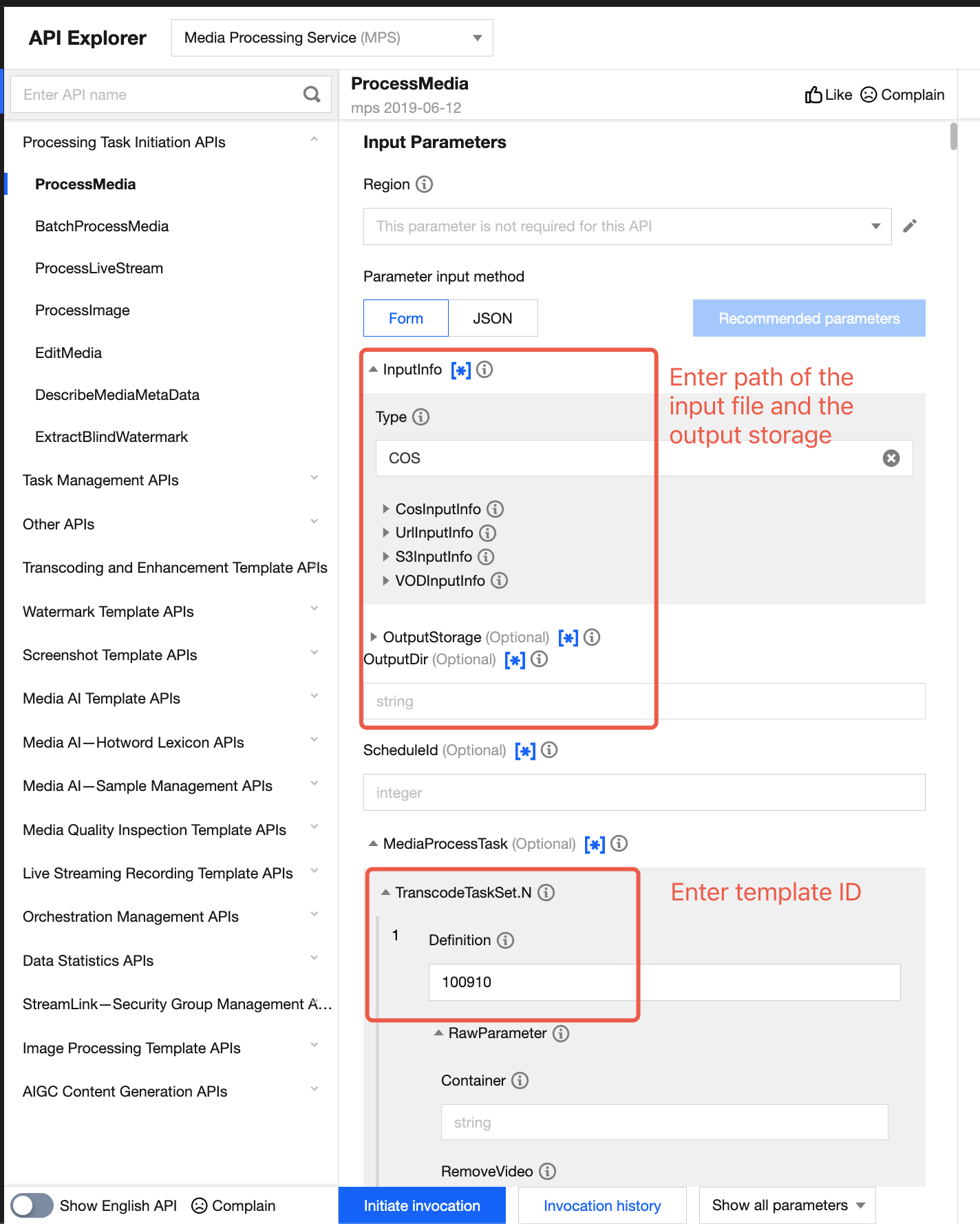
Call the ProcessMedia API, configure the input and output paths, and input the template ID in
MediaProcessTask -> TranscodeTaskSet -> Definition to initiate the task. Example:{"InputInfo": {//Input file path, supports sources such as COS, URL"Type": "URL","UrlInputInfo": {"Url": "xxxxx"}},"OutputStorage": { //Output path, supports COS, VODPro"Type": "COS","CosOutputStorage": {"Bucket": "xxx",// Example: media-1300111"Region": "xxx" // for example ap-beijing}},"OutputDir": "/output/","MediaProcessTask": {"TranscodeTaskSet": [{"Definition": 100910,// Required. 100910 is the preset template ID. Replace with your custom audio/video enhancement template ID."OverrideParameter": { // Overwrite parameter, override corresponding parameter values in template, can be deleted if not needed"Container": "m4a",// For example, specify output as m4a"AudioTemplate": {"Codec": "aac","Bitrate": 64,"SampleRate": 44100,"AudioChannel": 2}},"OutputObjectPath": "{inputName}_transcode_{definition}.{format}" // Optional. Specify file output name}]},"TaskNotifyConfig": {"NotifyType": "URL","NotifyUrl": "xxx" // Optional. Callback URL}}
Method 3. Automatically Triggering an MPS Task After a File Is Uploaded to COS
If you want to upload a video file to the COS bucket and achieve automatic audio/video enhancement according to preset parameters, you can:
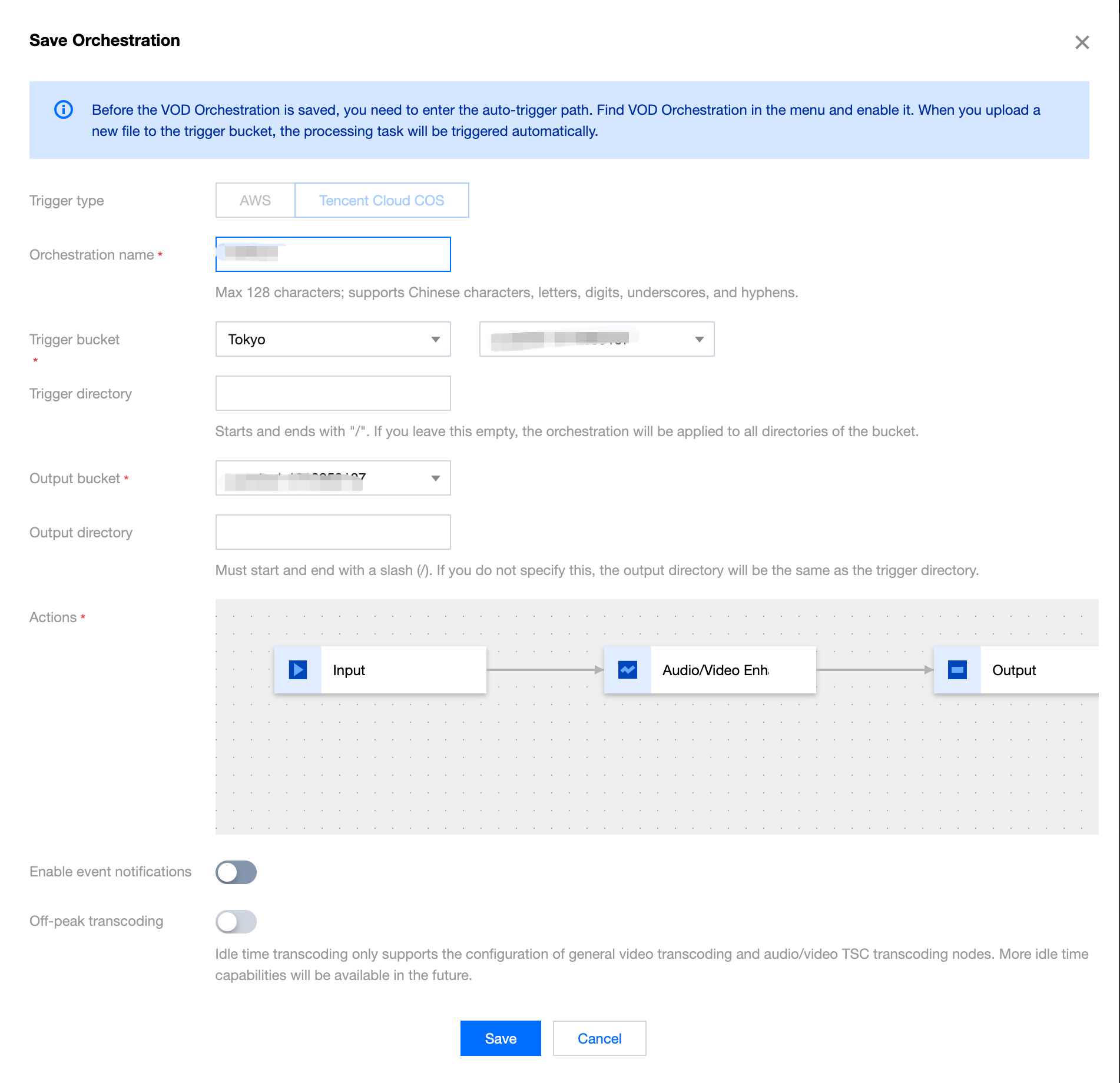
1. Click Save the Orchestration when creating a task, and configure parameters such as the triggered bucket and triggered directory in the pop-up window.
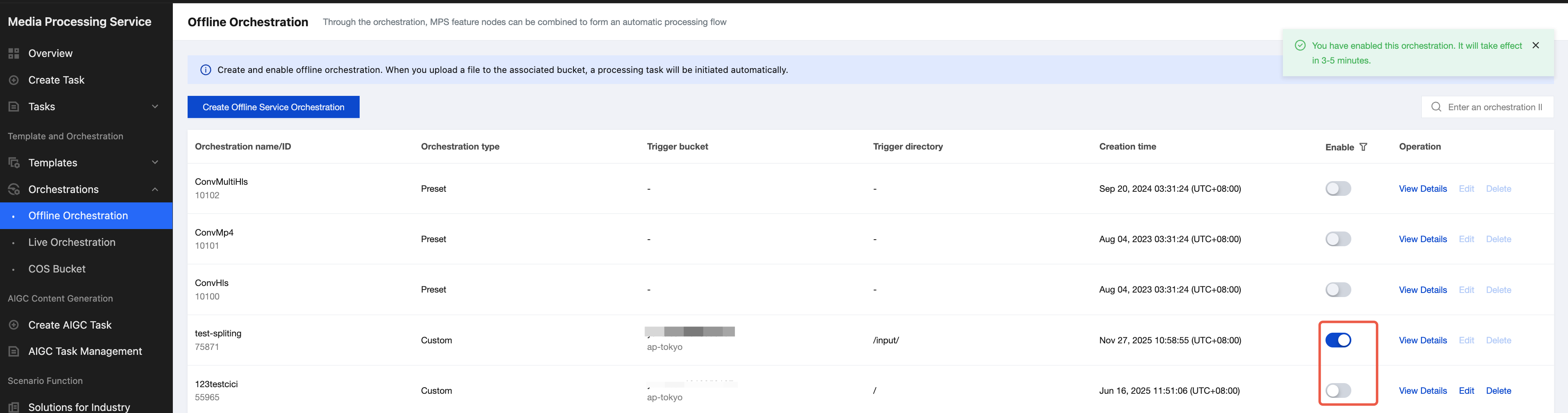
2. Then, go to the Offline Orchestration list, find the new orchestration, and enable the switch at Startup. Subsequently, any video files added to the triggered directory will automatically initiate tasks according to the preset process and parameters of the orchestration, and the processed video files will be saved to the output path configured in the orchestration.
Note:
It takes 3-5 minutes for the orchestration to take effect after being enabled.
III. Querying Task Results
Querying the Task Result in the Console
Go to the Offline Task Management console, and the task you just initiated will be listed in the task list.
When the subtask status is "successful", you can preview, download, or navigate to the corresponding COS Bucket directory for the output file.

Task Callback
When initiating an MPS task using ProcessMedia, you can set callback information through the
TaskNotifyConfig parameter. After the task processing is completed, the task result will be callback through the configured callback information. You can parse the event notification result through ParseNotification.Querying the Task Result by Calling an API
Call the DescribeTaskDetail API and enter the task ID (for example, 24000022-ScheduleTask-774f101xxxxxxx1tt110253) to query the task result.
IV. FAQs
How to Create an Audio/Video Enhancement Template
The system provides several preset enhancement templates for your selection. You can also create custom audio/video enhancement templates according to business needs, presetting different processing parameters for various application scenarios to facilitate subsequent reuse. You can create an audio/video enhancement template through the console and API. For detailed configuration guide, check Audio/Video Enhancement Template.
Does the Enhancement Feature Support Configuring Encoding-Related Parameters Such As Bitrate and GOP?
The enhancement template supports selecting standard transcoding or TSC transcoding, and allows configuring encoding-related parameters.
How to Achieve the Best Enhancement Effect?
Audio/video enhancement includes features such as video artifacts removal, denoising, color enhancement, detail enhancement, face enhancement, and SDR2HDR. If you are still not satisfied with the results of the combination tests by yourself, directly contact us to obtain detailed configuration recommendations and perform advanced parameter tuning.
Billing Overview
Audio/video enhancement is implemented based on transcoding. Therefore, initiating an audio/video enhancement task will incur two charges: audio/video enhancement and audio/video transcoding (standard transcoding or TSC transcoding). For details, see Audio/Video Enhancement Billing.
피드백