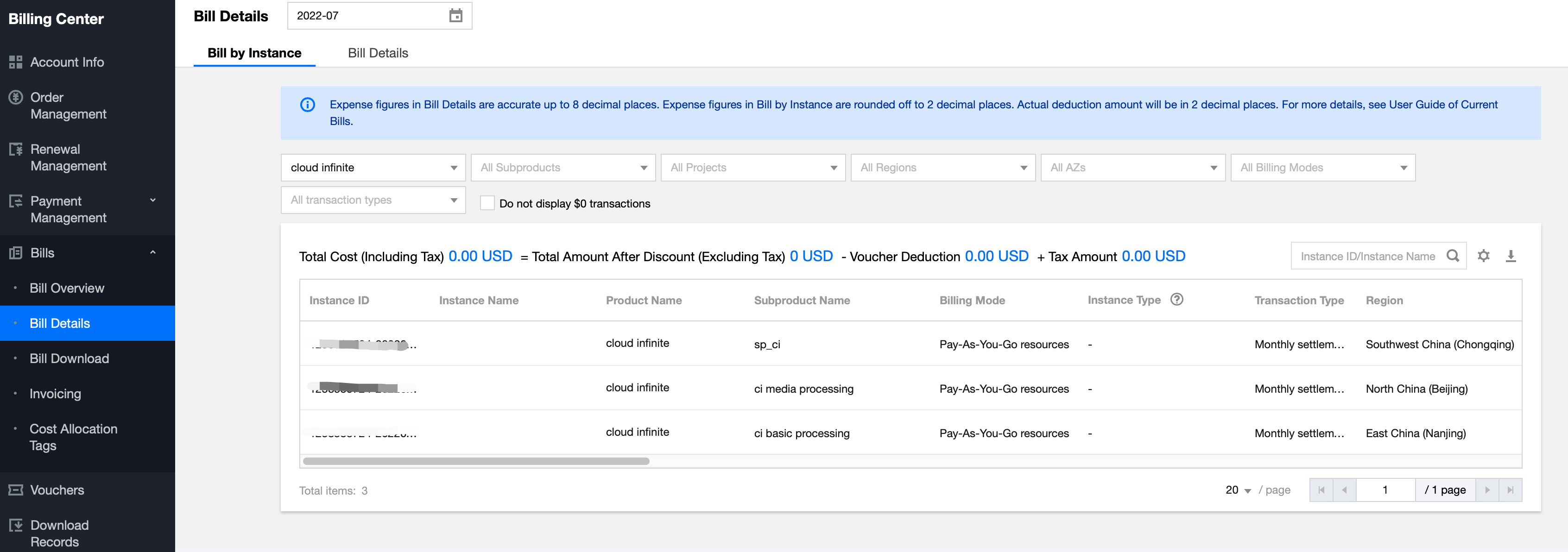
To check the details of CI fees under your account, log in to the Billing Center.
To check the usage of resource packs, log in to the Resource Pack Management page.
Note:
Bills are settled in the order of free tier > resource pack > pay-as-you-go billing.
By default, the system uses the pay-as-you-go billing mode for bill settlement; that is, the system will deduct the free tier (if available) first and then bill the excessive usage in a pay-as-you-go manner.
If you have purchased a resource pack, during the validity period of the pack, the system will deduct the free tier and pack first. Then, it will bill the excessive usage in a pay-as-you-go manner and deduct the amount payable from your account.
For more information on the free tier and billable items, see Free Tier and Billing Overview respectively.
Querying Bill
If you have activated the new version of resource billing, you can query bill details in the Billing Center.
2. Click Billing Center in the top-right corner to enter the Billing Center overview page.
3. In the Billing Center, select Bills > Bill Details on the left sidebar.
4. On the Bill Details page, select Cloud Infinite as the product to view CI bills by instance and detailed bills.
Note:
Select
Bill Overview
to view the billing trends and summary. Select
Bill Download
to download generated bills by month.
5. On the Bill by Instance tab, view your fees by sub-product, region, AZ, or billing mode. If you select Hide 0 USD Items, the Billing Center will automatically hide the bills of 0 USD items.
Available options are as described below:
Region: Select different regions in the region drop-down list to view the bill details by region.
Billing Mode: Select different billing modes in the billing mode drop-down list to view the bill details under pay-as-you-go or yearly/monthly subscription billing mode.
Transaction Type: Select different transaction types in the transaction type drop-down list to view the bill details by transaction type such as pay-as-you-go purchase, new yearly/monthly subscription, and renewal.