Documents already stored in Buckets can be converted to images or PDF by creating processing tasks.
Note:
When initiating a document transcoding task, ensure you enter the complete file name and file format; otherwise, the format cannot be recognized or processed.
2. In the left sidebar, click Bucket Management to go to the Bucket Management page.
3. Click the Bucket Name or Manage in the right operation bar to go to the corresponding Bucket page.
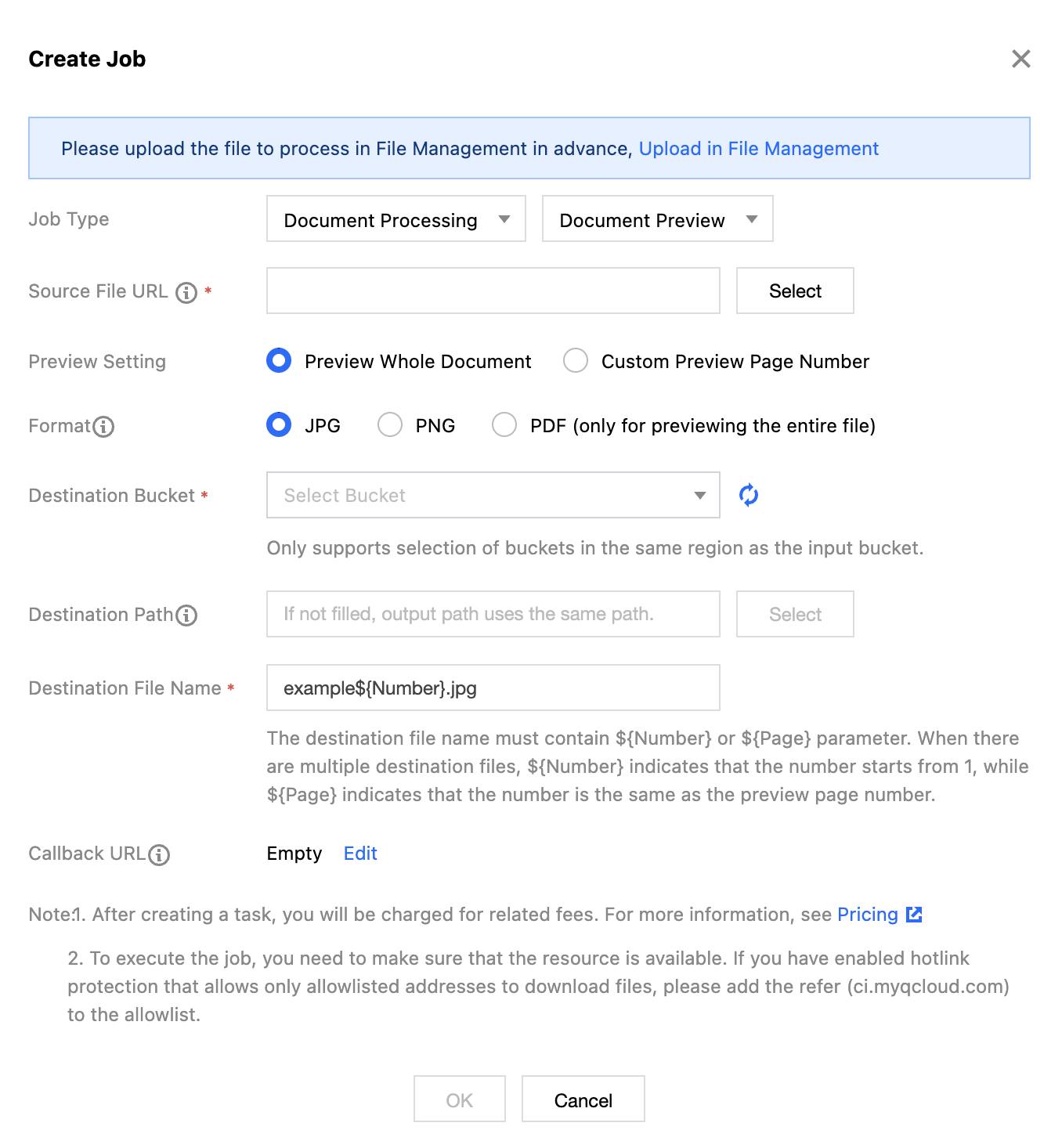
4. In the left sidebar, select Tasks and Workflows > Task Management, and select the Document Preview tab at the top of the page.
5. Click Create Task, configure according to the following settings, and then click OK.
Task type: Select Document Preview.
Source file path: Enter the path of the file to be processed. Note that the file path must not begin or end with /.
Preview Settings: You can choose to preview the entire document or specific pages. Currently, a single task supports a maximum of 5,000 pages. If the selected pages exceed this limit, only the first 5,000 pages will be processed.
Output format: Currently supports two output image formats, JPG and PNG. You can also set it to PDF format.
Target Bucket: You can select Buckets in the same Region that have the document processing service enabled as the output bucket.
Target path: Optional. If left blank, the output path will be the same as the input file path.
Target filename: The document transcoding service converts each page of the original document into an image, so placeholders need to be added to the output filename to encode the output images. You can choose ${Number} or ${Page} as the placeholder, where the output sequence number corresponds to the document's page number. For example, if you preview a 3-page document and specify the output filename as output${Number}.jpg, it will output three images named output1.jpg, output2.jpg, and output3.jpg.
Callback URL: the callback address information bound to the Queue. For details, see Queue and Callback.