tencent cloud

Mobile Live Video Broadcasting

Release Notes and Announcements
TUILiveKit Release Notes
Live SDK Release Notes
User Guide
Product Introduction
Overview
Strengths
Performance Statistics
Concepts
Purchase Guide
TRTC Live Billing Overview
Billing of Video Live Component
Activating the Service (TUILiveKit)
Free Demo
Demo
Run Demo(TUILiveKit)
Integration Guide
Video Live Streaming
Preparation
Host Live Streaming
Audience Viewing
Live Stream List Live Stream List
Voice Chat Room
Preparation
Host Live Streaming
Audience Viewing
Live Stream List
Live Streaming Kit
Live Streaming Kit(Electron Desktop Application)
Live Streaming Kit(Web Desktop Browser)
Live Broadcast Monitoring
Monitoring Webpage (Web Desktop Browser React)
Monitoring Webpage (Web Desktop Browser Vue)
UI Customization
Live Stream Video Component
Video Source Editing Canvas
Audience List Component
Barrage Component
Media Source Configuration Panel
Link Management Panel
Live Gift Component
No UI Integration
Video Live Streaming
Voice Chat Room
Feature Guide
Follow Anchors (TUILiveKit)
Ultimate Image Quality (TUILiveKit)
Push Media Stream Into Room (TUILiveKit)
Gift System (TUILiveKit)
Client APIs
Android
iOS
Web
Server APIs (TUILiveKit)
Account System
REST API
Third-Party Webhooks
Error Codes (TUILiveKit)
FAQs
Platform Compilation
User Authentication
Live SDK
Product Introduction
Purchase Guide
Free Demo
Free Trial License
SDK Download
Licenses
Advanced Features
Client API
FAQs
Integration (No UI)
API Documentation
OSS information
OSS Attribution Notice

Flutter

포커스 모드
폰트 크기
마지막 업데이트 시간: 2024-01-13 15:49:41
This document describes how to quickly integrate live_flutter_plugin (Tencent Cloud RT-Cube MLVB Flutter plugin) into your project. For the demo project, visit GitHub.

Environment Requirements

Flutter 2.0 or later
Developing for Android:
Android Studio 3.5 or later
Devices with Android 4.1 or later
Developing for iOS and macOS:
Xcode 11.0 or later
OS X 10.11 or later
A valid developer signature for your project

Quickly Integrating the SDK

The SDK for Flutter has been released to the Pub repository. You can configure pubspec.yaml to download the update automatically.
1. Add the following dependencies to pubspec.yaml of your project:
dependencies:
live_flutter_plugin: latest version number
2. Get camera and mic permissions to enable the audio and video call features.
iOS
Android
1. Add requests for camera and mic permissions in Info.plist:
<key>NSCameraUsageDescription</key>
<string>Video calls are possible only with camera permission.</string>
<key>NSMicrophoneUsageDescription</key>
<string>You can make audio calls only if you grant the app mic permission.</string>
2. Get camera and mic permissions to enable the audio and video call features.
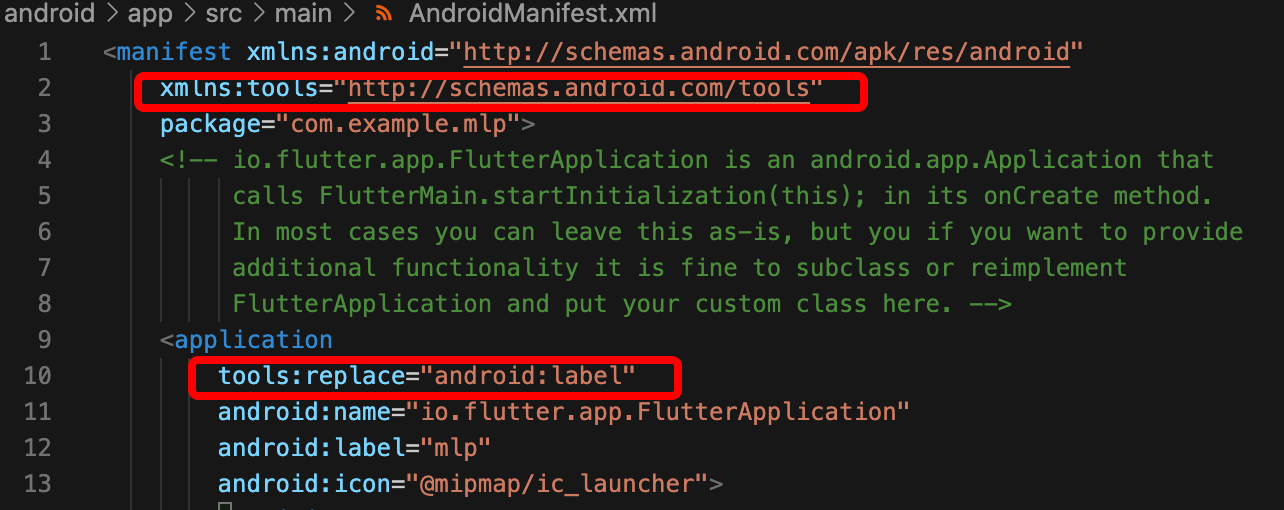
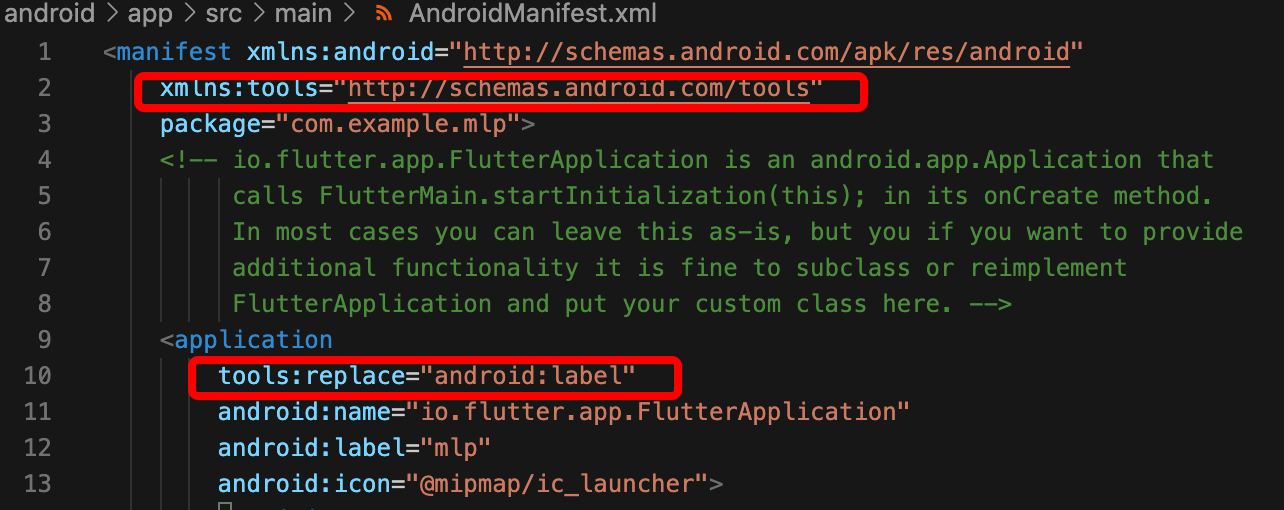
1. Open /android/app/src/main/AndroidManifest.xml.
2. Add xmlns:tools="http://schemas.android.com/tools" to manifest.
3. Add tools:replace="android:label" to application.
Note
Without the above steps, the "Android Manifest merge failed" error will occur and the compilation will fail.


Getting Started

1. Click Apply for License to get a trial license. You will get two strings: a license URL and a decryption key.
2. Before your application calls features of live_flutter_plugin, complete the following configuration:
import 'package:live_flutter_plugin/v2_tx_live_premier.dart';

/// Tencent Cloud license management page (https://console.tencentcloud.com/live/license)
setupLicense() {
// The license URL of the current application
var LICENSEURL = "";
// The license key of the current application
var LICENSEURLKEY = "";
V2TXLivePremier.setLicence(LICENSEURL, LICENSEURLKEY);
}


FAQs

For more FAQs, see Flutter.

How do I get a valid stream push URL?

Activate CSS. In the CSS console, go to Auxiliary Tools > Address Generator to generate a stream push URL. For more information, see Publishing/Playback URL.

What should I do if videos do not show on iOS but do on Android?

Check whether io.flutter.embedded_views_preview in info.plist is YES.

What should I do if the "Manifest merge failed" error occurs in Android Studio?

1. Open /example/android/app/src/main/AndroidManifest.xml.
2. Add xmlns:tools="http://schemas.android.com/tools" to manifest.
3. Add tools:replace="android:label" to application.

Illustration


도움말 및 지원

문제 해결에 도움이 되었나요?

피드백