tencent cloud

Mobile Live Video Broadcasting

Release Notes and Announcements
TUILiveKit Release Notes
Live SDK Release Notes
User Guide
Product Introduction
Overview
Strengths
Performance Statistics
Concepts
Purchase Guide
TRTC Live Billing Overview
Billing of Video Live Component
Activating the Service (TUILiveKit)
Free Demo
Demo
Run Demo(TUILiveKit)
Integration Guide
Video Live Streaming
Preparation
Host Live Streaming
Audience Viewing
Live Stream List Live Stream List
Voice Chat Room
Preparation
Host Live Streaming
Audience Viewing
Live Stream List
Live Streaming Kit
Live Streaming Kit(Electron Desktop Application)
Live Streaming Kit(Web Desktop Browser)
Live Broadcast Monitoring
Monitoring Webpage (Web Desktop Browser React)
Monitoring Webpage (Web Desktop Browser Vue)
UI Customization
Live Stream Video Component
Video Source Editing Canvas
Audience List Component
Barrage Component
Media Source Configuration Panel
Link Management Panel
Live Gift Component
No UI Integration
Video Live Streaming
Voice Chat Room
Feature Guide
Follow Anchors (TUILiveKit)
Ultimate Image Quality (TUILiveKit)
Push Media Stream Into Room (TUILiveKit)
Gift System (TUILiveKit)
Client APIs
Android
iOS
Web
Server APIs (TUILiveKit)
Account System
REST API
Third-Party Webhooks
Error Codes (TUILiveKit)
FAQs
Platform Compilation
User Authentication
Live SDK
Product Introduction
Purchase Guide
Free Demo
Free Trial License
SDK Download
Licenses
Advanced Features
Client API
FAQs
Integration (No UI)
API Documentation
OSS information
OSS Attribution Notice

Live Gift Component (iOS UIKit)

포커스 모드
폰트 크기
마지막 업데이트 시간: 2026-01-14 21:19:33
This guide introduces how to quickly integrate the TUILiveKit live gifting component into your project.

Component Overview

The gifting feature in TUILiveKit consists of two main UI components:
Component Name
Class Name
Description
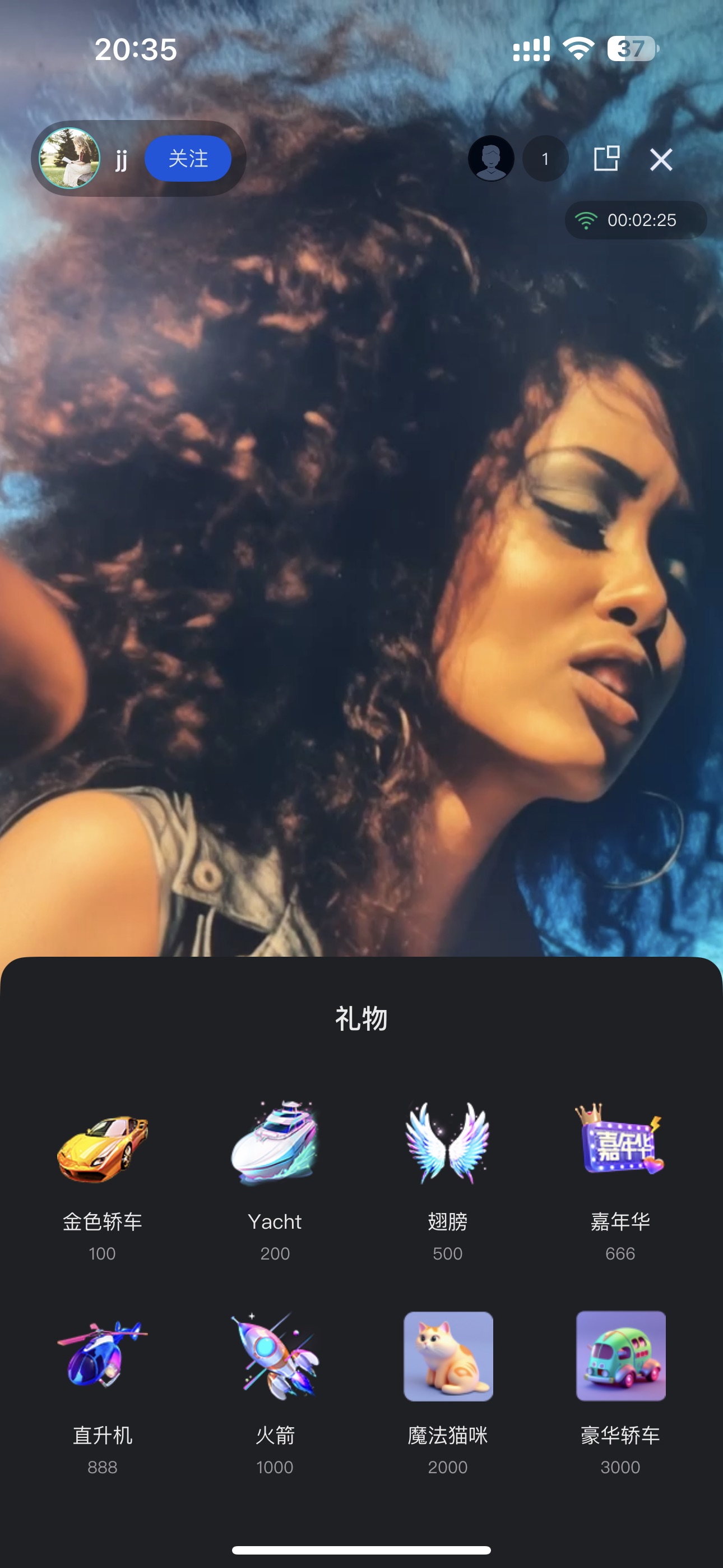
Gift Selection Panel
GiftListView
Shows the available gifts and handles user selection and sending actions.
Gift Animation Display
GiftPlayView
Receives gift messages and renders animations (e.g., SVGA) on screen.

Demo Effects

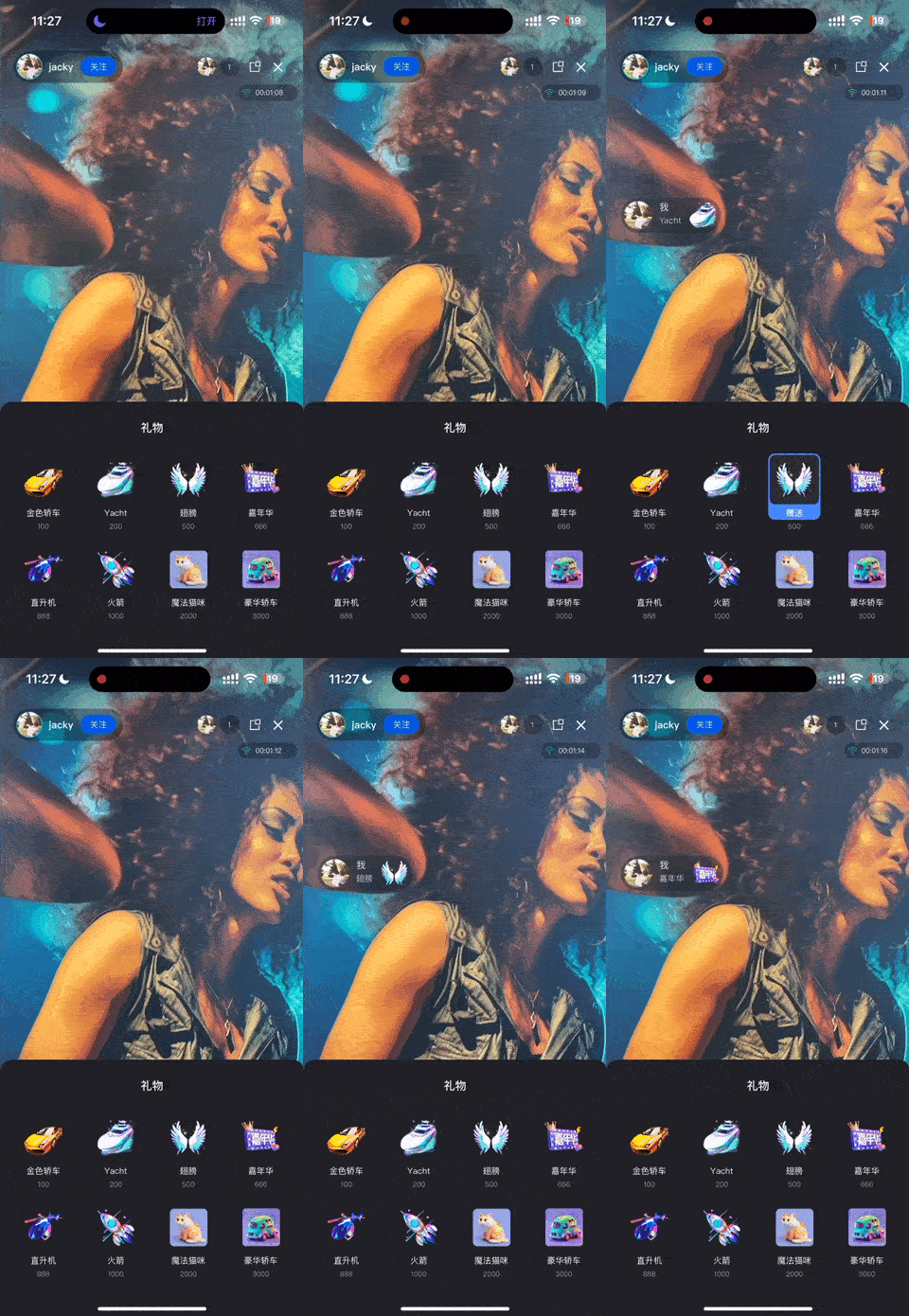
Gift Panel
Live Comment Gifts
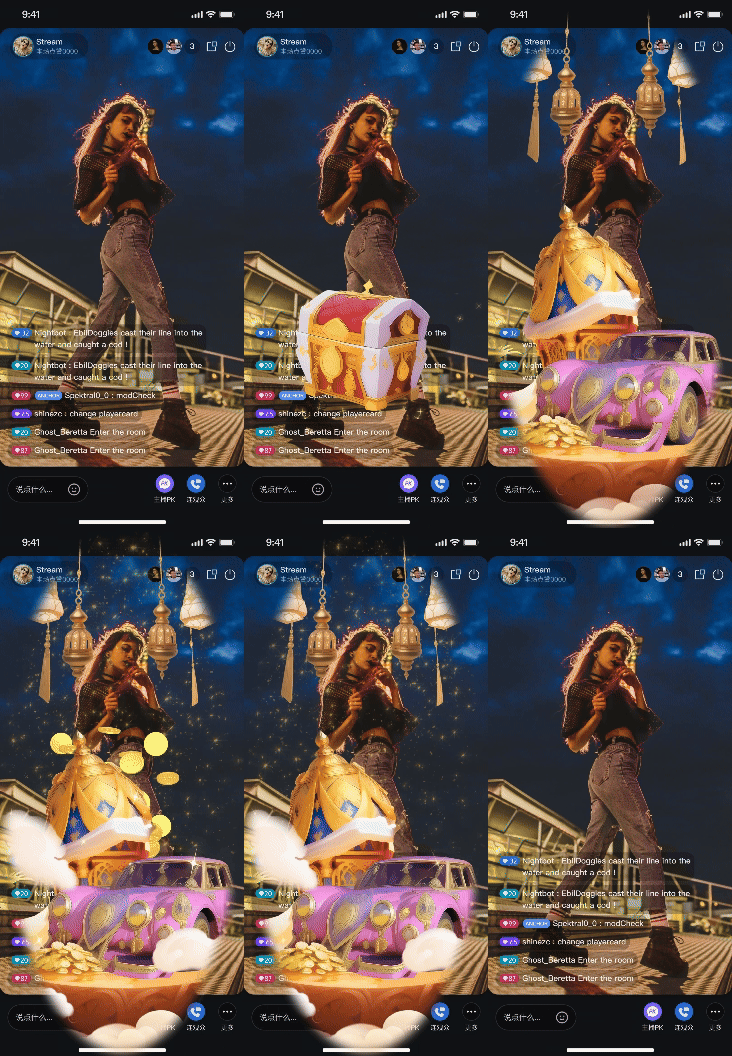
Full-Screen Gifts


Quick Start

Step 1. Activate the Service

Follow the Activate the Service guide to enable TUILiveKit.
Note:
To use the gifting system, activate either the Free Trial, or Pro edition. The number of configurable gifts depends on the selected package. For details, see the Gift System section in Feature and Billing Description and choose the package that fits your needs.

Step 2: Configure Your Project

Project Configuration:
Video Live Streaming: Follow Video Live Streaming - Preparation to complete TUILiveKit integration.
Voice Chat Room: Follow Voice Chat Room - Preparation to complete TUILiveKit integration.
Version Requirement: TUILiveKit >= 3.2.0.

Step 3. Add Gift List Display Page

Add the gift list display page to your app so the audience can browse available gifts. Use the sample code below to create the GiftListView component and add it to your view:
import TUILiveKit

class YourGiftViewController: UIViewController {
// 1. Create GiftListView object
// - roomId: Should match the roomId of the live stream the audience has joined
lazy var giftListView = {
let view = GiftListView(roomId: liveId)
return view
}()

private let liveId: String
// ... additional code ...

public override func viewDidLoad() {
super.viewDidLoad()
// 2. Add the component to your view and set up the layout
view.addSubView(giftListView)
giftPlayView.snp.remakeConstraints { make in
make.leading.trailing.equalToSuperview()
make.height.equalTo(256)
make.bottom.equalToSuperview()
}
}
}

Step 4. Add Gift Animation Playback Page

Add the gift animation playback page to your app. The GiftPlayView component automatically receives gift messages and plays the corresponding animations. Use the sample code below to create the GiftPlayView component and add it to your view:
import TUILiveKit
// YourAnchorViewController represents your host view controller. Audience side can refer to the following example:
class YourAnchorViewController: UIViewController {
// 1. Create and initialize GiftPlayView object
// - roomId: Should match the roomId of the live stream the audience has joined
lazy var giftPlayView = {
let view = GiftPlayView(roomId: liveId)
return view
}()

private let liveId: String
// ... other code ...

public override func viewDidLoad() {
super.viewDidLoad()
// 2. Add the component to your view and set up the layout
view.addSubView(giftPlayView)
giftPlayView.snp.remakeConstraints { make in
make.edges.equalToSuperview()
}
}
}

Next Steps

After completing the UI integration, your app will support basic gifting functionality. To build a production-ready gifting system, refer to the Backend Integration and Advanced Features guide to implement the following:
Custom Gift Configuration: Upload custom gift icons, animations, and pricing via Server APIs.
Payment Integration: Configure callback URLs to handle balance verification and payment processing through your billing backend.
PK Score Sync: Convert gift values to PK scores in real-time during host battles.
Analytics: Access gift transaction records, revenue metrics, and other operational data.
Upgrade Gift Effect SDK: If SVGA does not meet your needs, you can integrate advanced animation players to support MP4, PAG, or other high-quality transparent animation formats.


도움말 및 지원

문제 해결에 도움이 되었나요?

피드백