Role Management
Download
포커스 모드
폰트 크기
This document describes how to view and add roles in the Partner Center console.
Applicable Objects
This article is suitable for resellers, distributors and second-level resellers to read. The copywriting uses "reseller" for description.
Prerequisites
Reseller identity already available.
Preset Role
After entering the Partner Center console, the reseller's preset roles and permissions will automatically perform initialization. Employee management will be temporarily unavailable during this ongoing process.
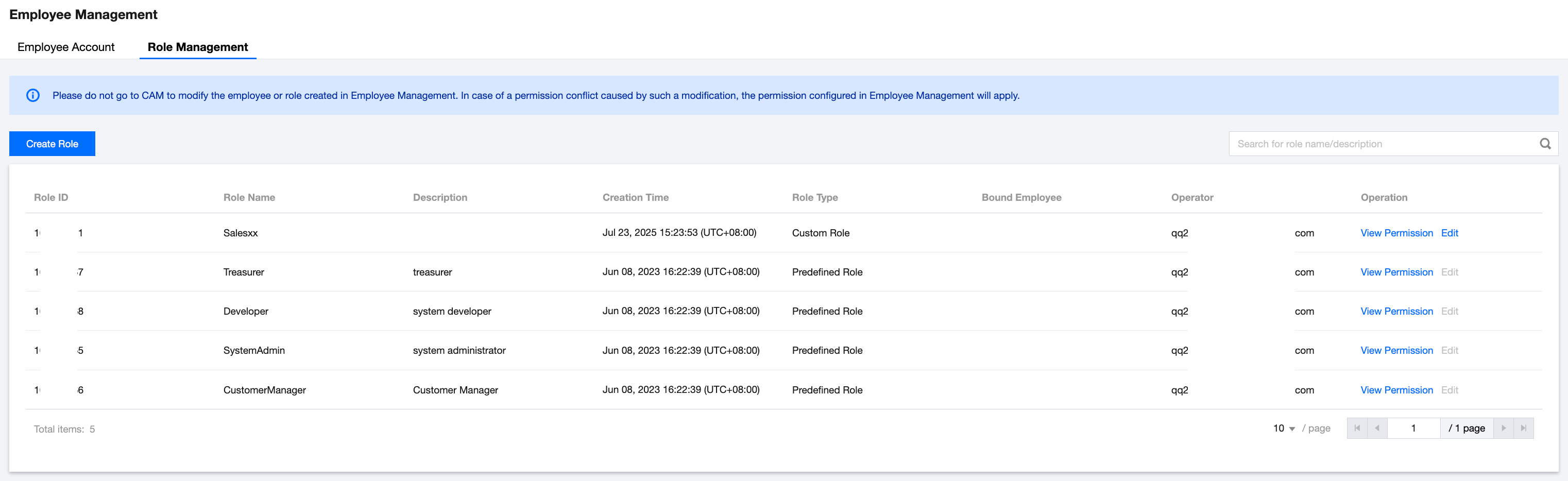
You can use a partner account to enter the Employee Management > Role Management page to view system preset roles. When allocating roles to employees, you can select from the preset roles and permissions provided by the system.
Preset Role List
Preset Role | Preset Permissions |
SystemAdmin | Includes ALL functions provided by the distributor platform. |
dedicated account manager | Second-level reseller, customer invitation and manage, customer spend, commission voucher, bill view. |
Financial Management | Company information maintenance, second-level reseller credit, voucher asset management, bill reconciliation. |
Platform R&D (Developer) | Invite customers to the platform, credit management API calls. |
Adding a Role
When adding organization members, a reseller must associate a role. The reseller can associate with a platform preset role or create and associate a custom role.
New role operations are as follows:
1. Log in to the Partner Center Console using a partner account.
2. On the left sidebar, select Company Information > Employee Management.
3. Enter the Role Management page and click Create Role.
4. Set the basic info of the role and select the permission to be allocated by menu level.
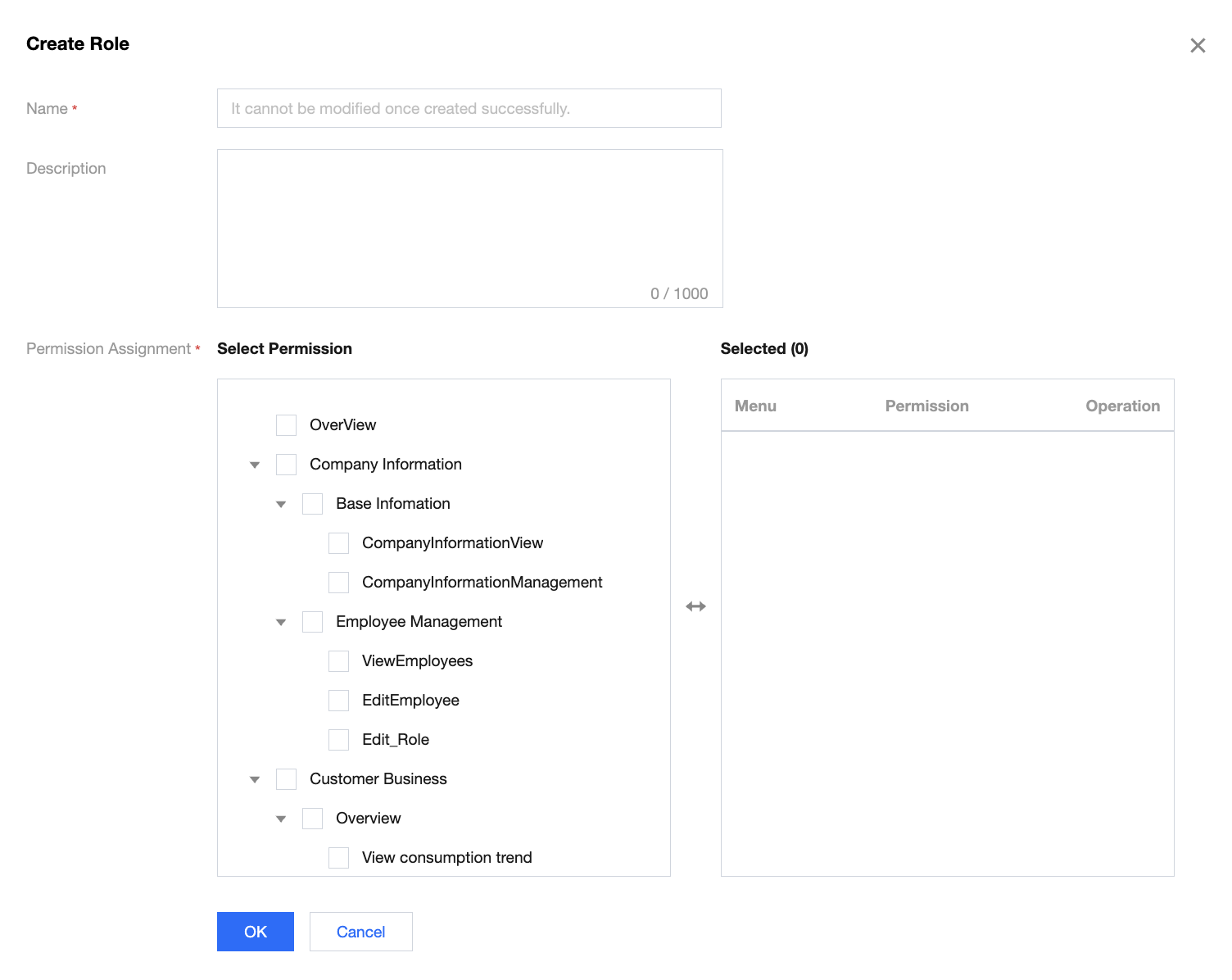
5. Click Confirm. The page prompt shows the operation is successful. You can see the newly-added role in the role list.
Role-Related Operation
Query role list: You can query the role list by certain query condition.
View permission: You can click View Permission in the Operation column of the role list to view a role’s permission details.
Edit permission: You can click Edit in the Operation column of the role list to modify the custom role you created.
피드백