If you no longer need a Lighthouse instance, you can terminate it. Once its status becomes Returned or To be repossessed, it no longer incurs fees. For instances to be repossessed, you can renew (restore) or completely terminate them based on different scenarios and needs.
This document describes how to terminate Lighthouse instances in different status in the console.
Note:
Currently, Lighthouse supports the sensitive operation protection feature to effectively protect the security of account resources. It can be enabled in security settings. Instance termination is a sensitive operation.
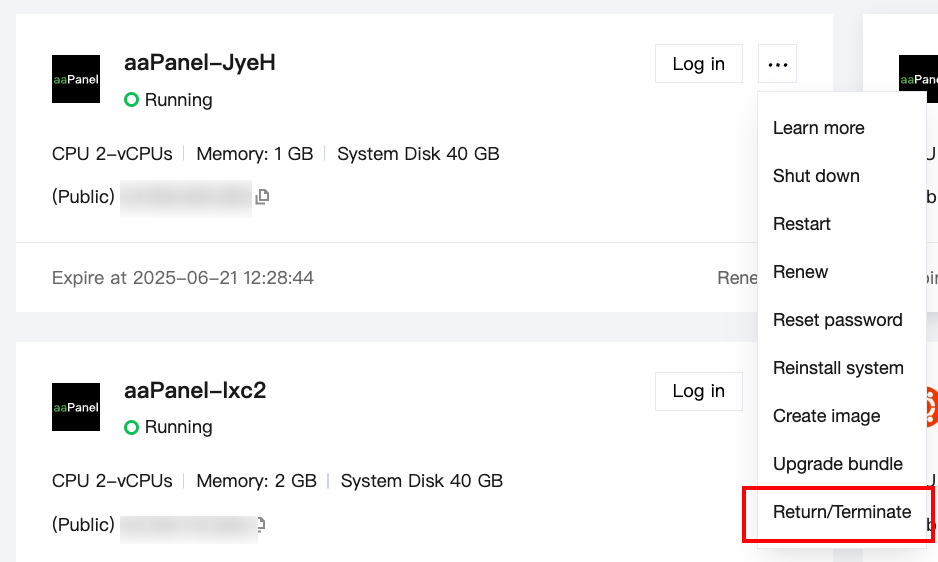
2. Find the target Lighthouse instance in the instance list and enter its details page.
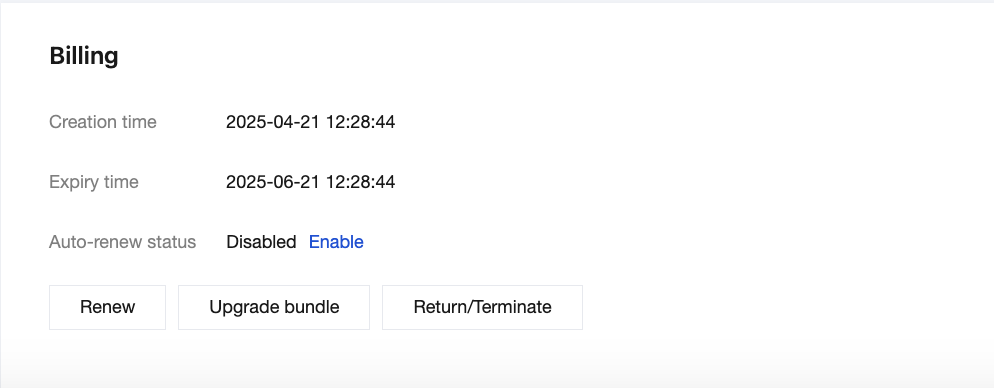
3. In the Billing information section on the Overview tab on the instance details page, select Return/Terminate as shown below:
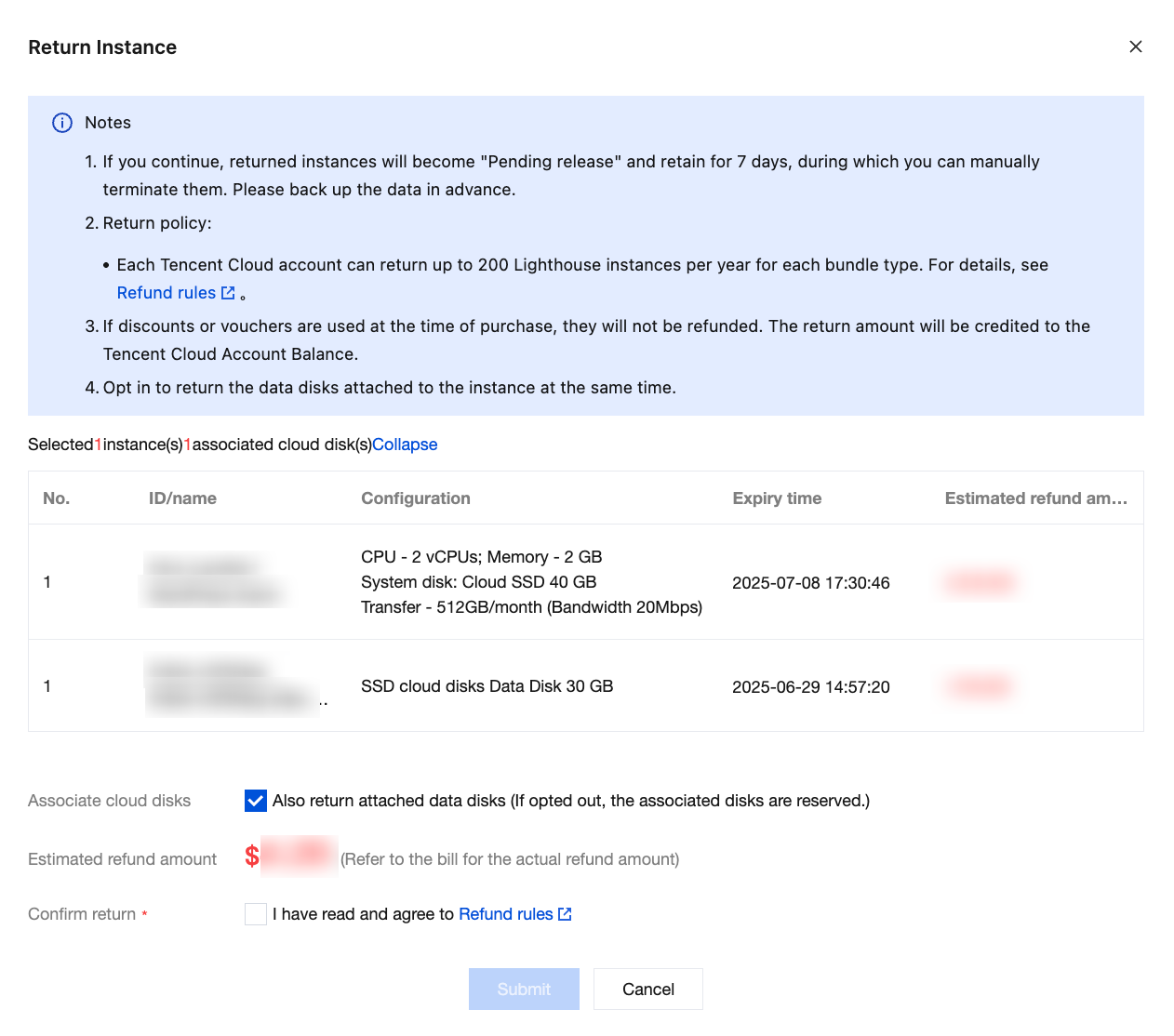
4. In the pop-up window, if the instance is mounted with data disks, you can select Also return attached data disks to terminate the data disks at the same time as shown below:
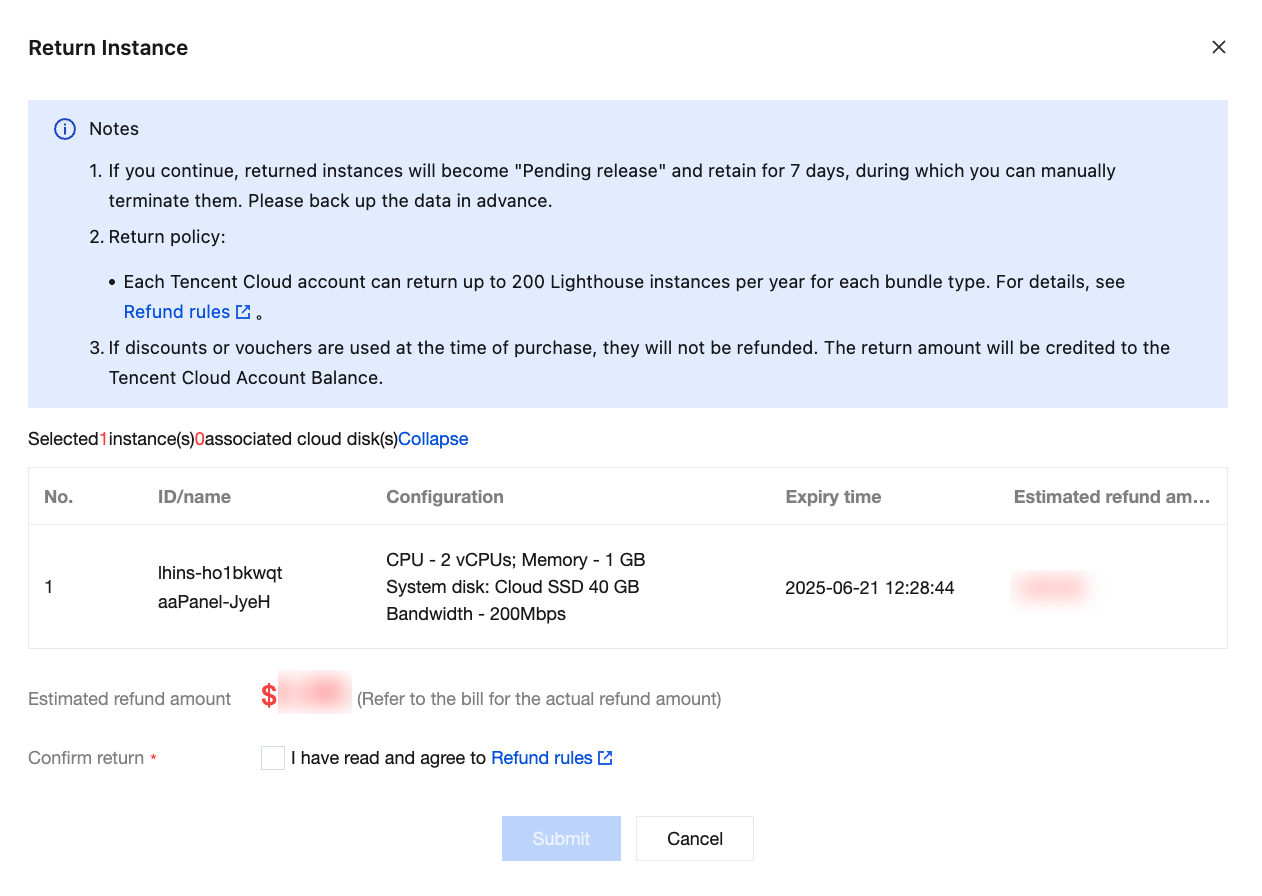
5. Select I have read and agree to Refund rules and click Submit.
6. Check and confirm the Lighthouse refund information and click OK. After the information is submitted, the system will refund and terminate the instance. Once terminated, the instance will enter the To be repossessed status.
Note:
If your instance is not renewed within 15 (included) days after entering the To be repossessed status, the system will release it in around 24 hours. After release, all data on the instance will be cleared and cannot be recovered.
Instances in To be repossessed status are unavailable, which indicates that they can neither be managed nor accessed.
If the Lighthouse instance to be terminated contains a renewal order that hasn't taken effect, the order will also be refunded after instance termination.
After a data disk is terminated, it will enter the To be repossessed status and be retained for 15 days. If you confirm that you don't need to retain the data, you can completely terminate the cloud disk.
Terminating to-be-repossessed Lighthouse instance
Note:
This operation will terminate an instance completely from the account's instance list, and the instance cannot be restored through renewal or other methods. Therefore, proceed with caution.