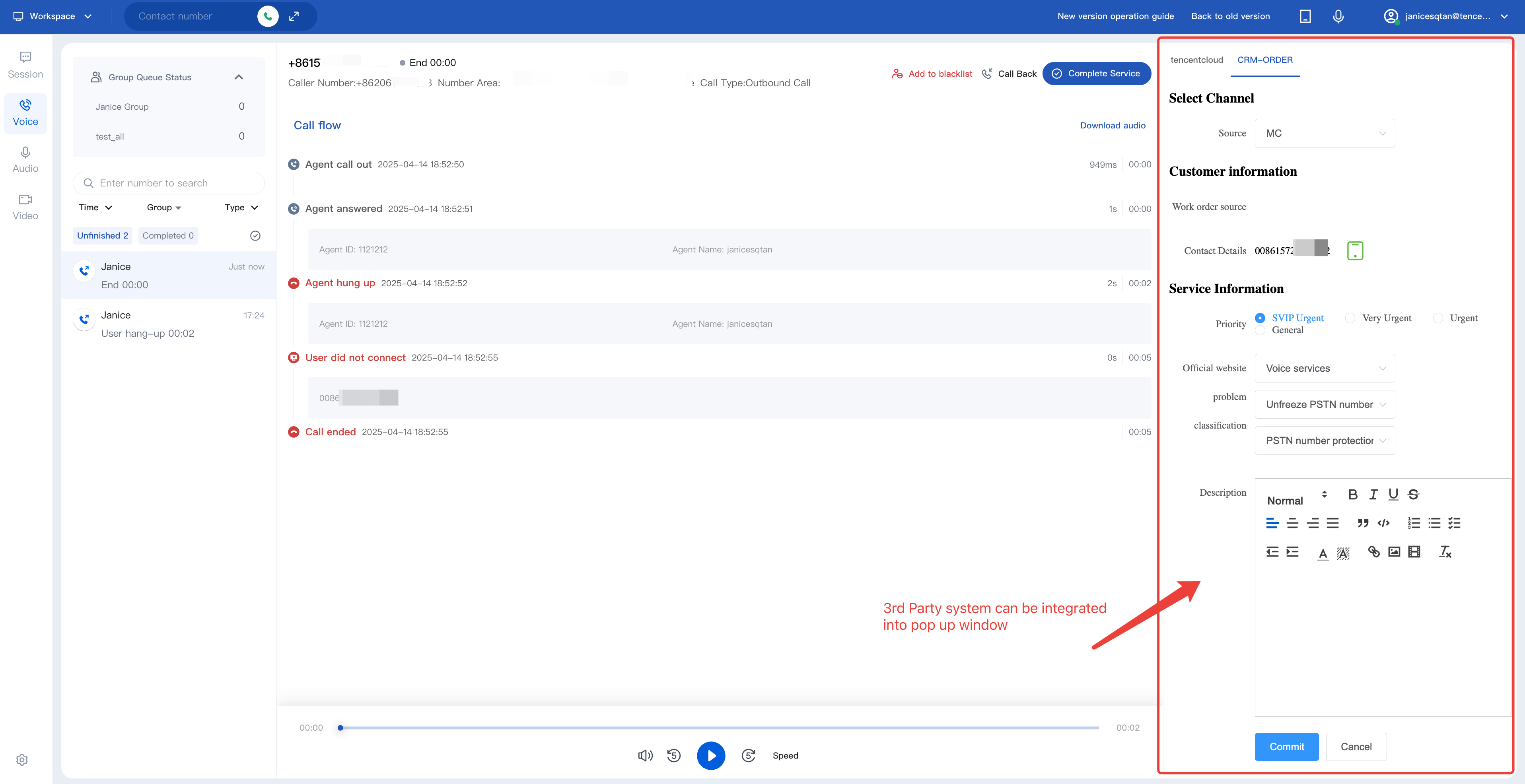
Screen Pop feature can interact with business system data and supports iframe integration. System triggers a screen pop that displays the relevant record for the caller.
Inbound: when inbound call comes in, system fetch and display business data for agents to better handle incoming calls.
Outbound: agents can use dialer directly make calls within business system.
Popup Screen Example
Guide
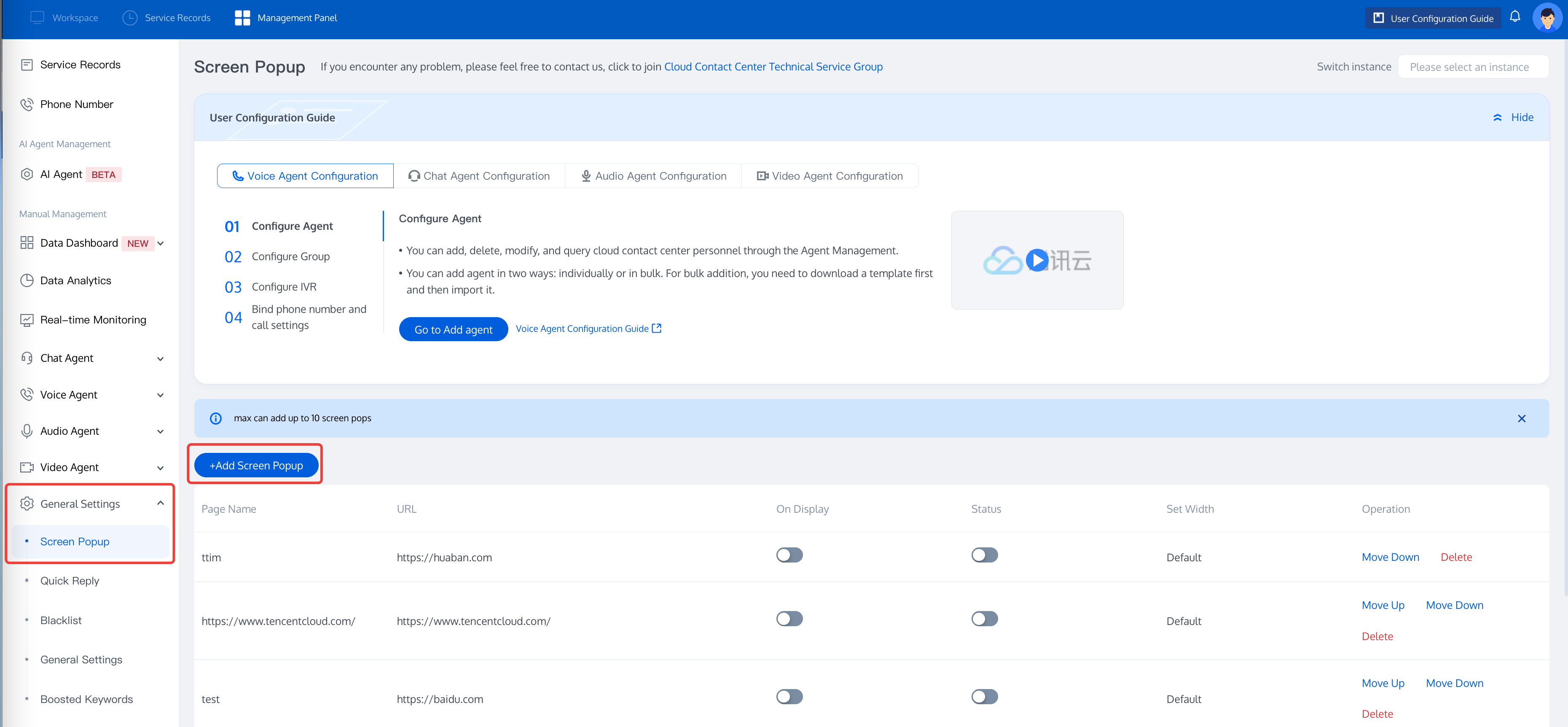
1. Go to the Cloud Contact Center Management Console, choose General Settings > Inbound Call Pop-up in the left navigation bar to enter the page for the inbound call pop-up, and in the upper left corner click Add Inbound Call Pop-Up.
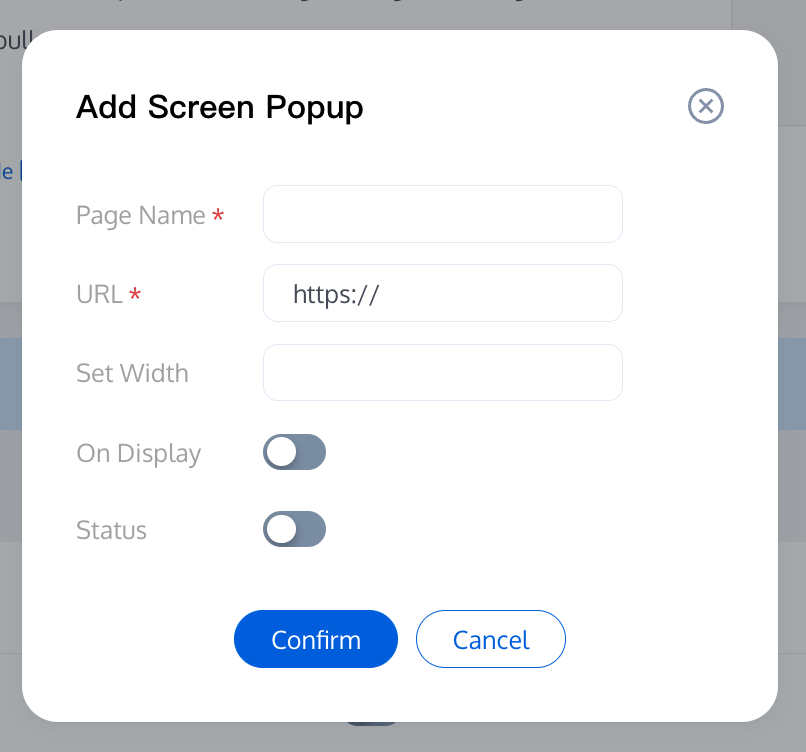
2. In the Add Inbound Call Pop-Up dialog box, enter the following information:
Page name: The information filled out will be displayed in the inbound call pop-up tag of the agent workstation.
URL: To ensure the security of your call data, Cloud Contact Center only supports logging in via HTTPS protocol, so the inbound call pop-up only supports URLs with the HTTPS protocol. For example: https://andon.xxx.com/ticket/list/
Always Visible: Once enabled, the inbound call pop-up page will always be displayed; otherwise, it will only pop up when there is an inbound call.
Status: To make the inbound call pop-up effective, you need to turn this on.
3. After you finish the configuration, you can see the effect immediately by refreshing the page on the workstation, as shown in the following figure.
Get Voice Call Data
When a new call or session occurs, relevant parameters are appended to the URL hash and monitored via HashChange.
Example: use Tencent website as an example. if the provided page URL is: https://www.qq.com, the URL requested for each incoming call will be https://www.qq.com#?mobile=18888888888&type=phone.
Inbound Call Pop-Up Parameters:
// The current event is completed, indicating the session is done
}
})
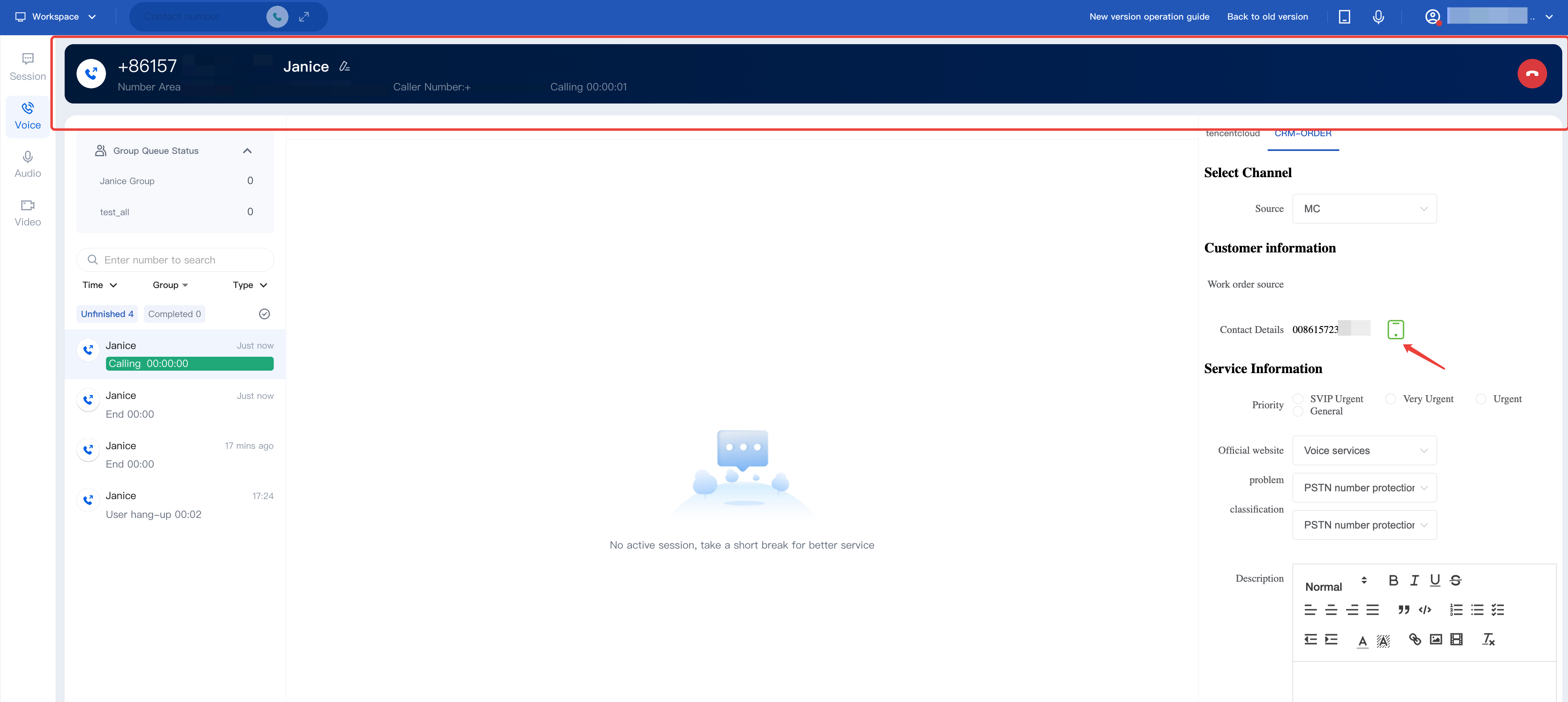
Outbound Call Example
Example
Guidance
To configure a call button in your business system and enable outbound calling: Use the ccc-sdk in your business system to invoke Cloud Contact Center dialer. This supports retrieving call-related parameters during outbound calls, which can be utilized in your business system. The method for invoking this is shown below:
window.parent.postMessage({
source:'ccc-sdk',
payload:{
event:'callOut',
message:{
phoneNumber:'15889xxxxxx',// Required
desc:'Mr. Liu'// The system displays the field during an outbound call. It is optional. Displays phoneNumber when not present.