This document offers the download method and operation guide for the Demo App. You can quickly experience the Multiple Network Acceleration product and service through the Demo App. Currently, the Android version of DemoApp supports self-service download experience, while the iOS version is not currently supported.
The key returned after you create a device in the product console corresponds to the "key" field in the DemoApp.
If you wish to use self-built devices for experience testing, fill in the corresponding key in the corresponding settings of DemoApp. Using self-built devices may incur traffic charges.
If you currently have no self-built devices or do not wish to use them for testing, request a test key from the Multiple Network Acceleration team.
Demo App Operation Guide
Operation Overview
You can quickly experience the Multiple Network Acceleration product and service through the Demo App. Please refer to this document for the trial. Currently, the Android version of DemoApp supports self-service download experience, while the iOS version is not currently supported.
Definitions
Test Key
The corresponding field in DemoApp is "Key", which is the key returned after you create a device on the product console. If you wish to use self-built devices for experience testing, fill in the corresponding key in the appropriate settings of DemoApp. Using self-built devices may incur traffic charges. If you currently have no self-built devices or do not wish to use them for testing, request a test key from the Multiple Network Acceleration team.
Acceleration Mode
We provide three different acceleration modes based on service scenarios requirement. You can choose as needed. Other options can be ignored.
Mode
Description
Aggregation mode
Aggregates multiple links to achieve high bandwidth.
Redundancy mode
Sends packets over two links and forwards the packet that arrives first.
RTC mode
Optimizes for RTC (Real-Time Communication) by simultaneously enhancing both TCP and UDP.
Operation Steps
Selecting a Feature to Trial
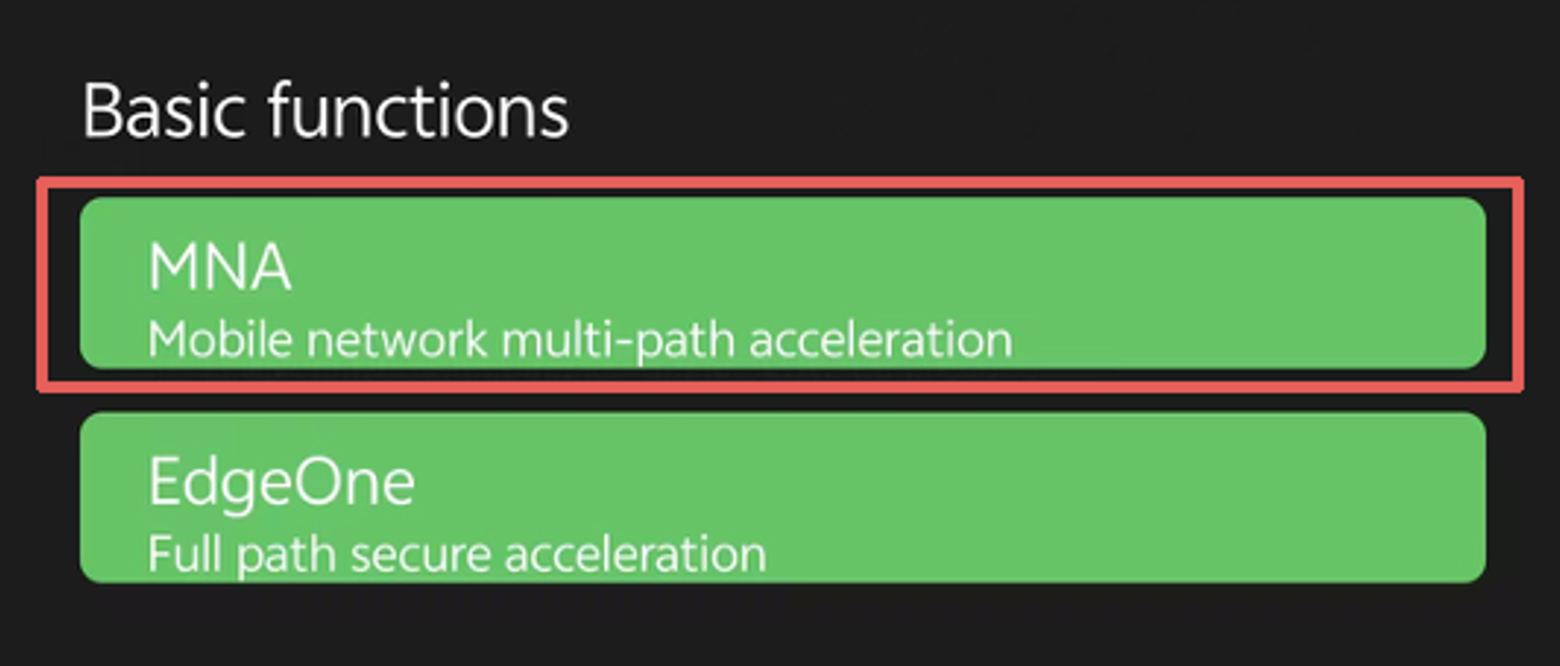
Select the MNA feature for a trial.
Enter Settings
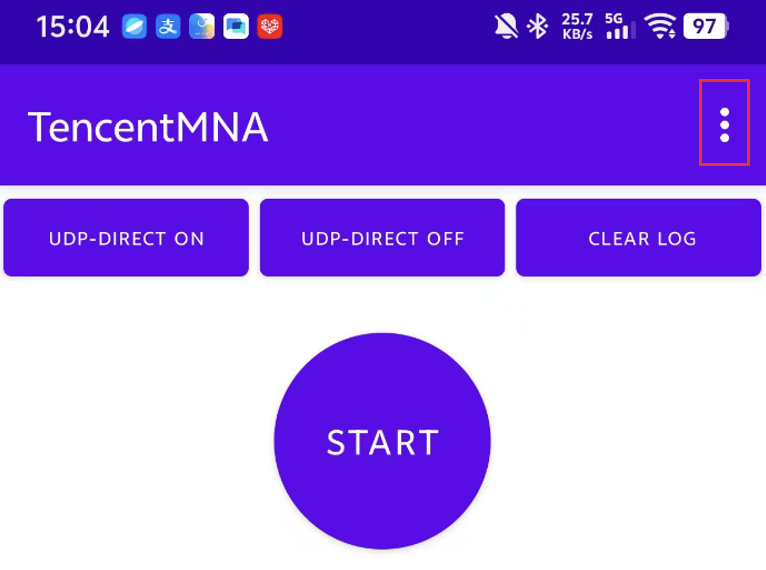
Open DemoApp. The three dots in the upper-right corner are Settings. Click to enter the configuration page.
3. Access Gateway
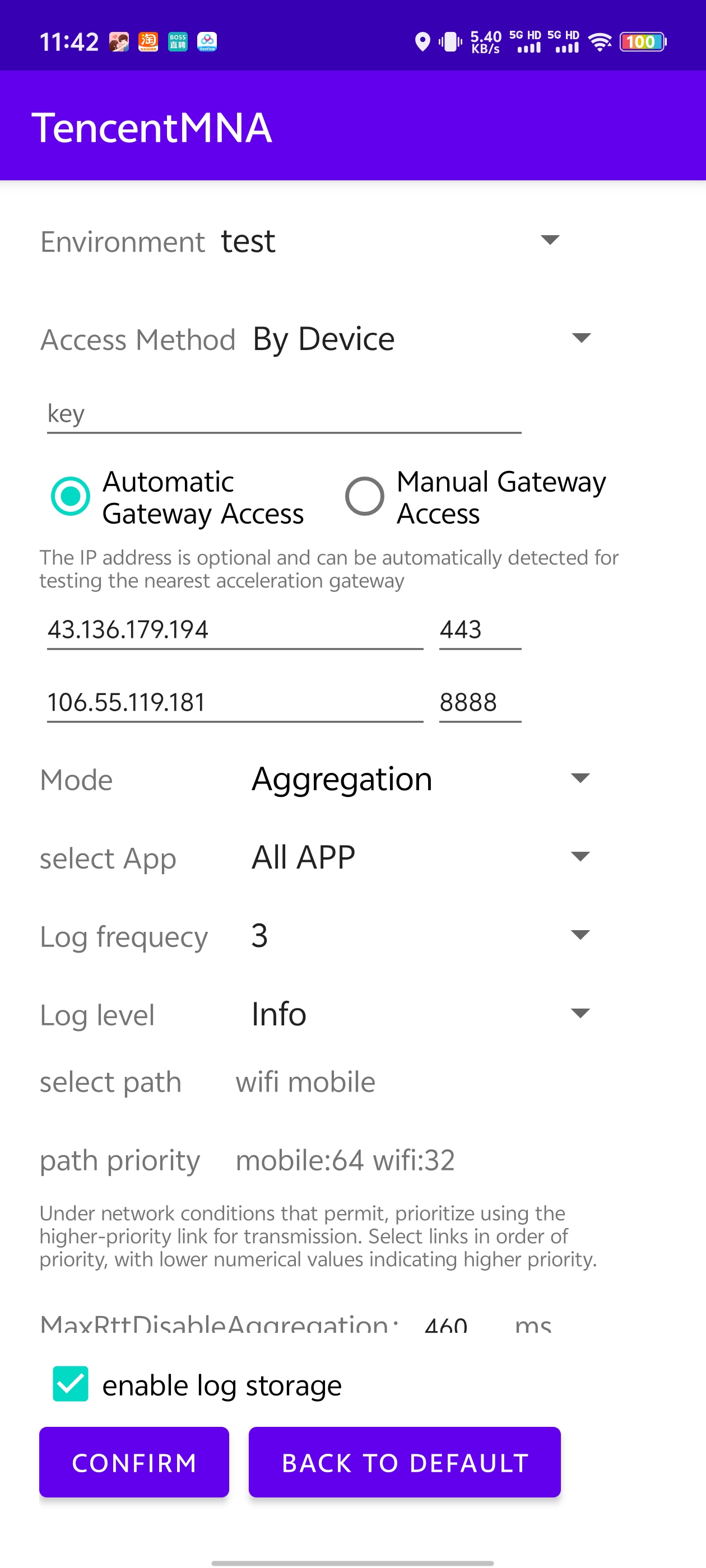
The access gateway supports the following two access methods:
Automatic connection: recommended to use the gateway mode for trial. The service will automatically detect your most recent gateway for accessing.
Manual access: You can also fill in manually. Enter the configuration interface and fill the gateway address in the configuration address input box.
The filling rules are as follows:
First line: Fill in the IP and port 443 of the nearby region.
Second line: Fill in the IP and port 8888 of the nearby region. As shown in the figure below:
4. Selecting a Mode
We provide three different acceleration modes based on business needs. You can test different algorithm modes according to your requirements. Other options can be ignored.
Click Acceleration Mode and select the mode you want to use.
Mode
Description
Aggregation mode
Aggregates multiple links to achieve high bandwidth.
Redundancy mode
Sends packets over two links and forwards the packet that arrives first.
RTC mode
Optimizes for RTC (Real-Time Communication) by simultaneously enhancing both TCP and UDP.
5. Configuring Other Options
Acceleration Application
Normal choose ALL applications to accelerate all mobile phone applications.
You can also select the designated application from the drop-down list to perform acceleration.
log level
Please select INFO severity. It records key events of normally running programs.
Accelerated Link
Multi-network aggregation service requires at least one network to take effect. Generally, recommend you select Wi-Fi and MOBILE. During the test period, keep the test phone's cellular network enabled and connected to a Wi-Fi network.
Link Priority
You can configure the priority of accelerated links, arranged from high to low based on the selection order. Ensure the configured priority matches the accelerated links at the top. Select them in order from high to low priority, otherwise the priority configuration will not take effect.
Note:
This setting impacts aggregation mode and real-time mode.
In aggregation mode, messages preferentially use higher-priority links. When high-priority links reach the bottleneck, low-priority links are used for transmission. If high-priority links have poor quality and cannot be aggregated, they will not be able to participate in aggregation.
In real-time mode, priority is given to link delay quality, then high-priority links are selected for transmission based on priority sorting.
When the priority number is ≥128, it means the link is a backup link. Normally, only primary and secondary links are used, not backup links. Currently, backup links are only used when both primary and secondary links are unavailable.
Exception escape
When enabled, if the acceleration performance is poor with ultra high latency or packet loss rate, the acceleration service will automatically interrupt.
TCP traffic direct access
When enabled, TCP traffic in the accelerated application will bypass acceleration and directly return to origin.
Designated network card direct access
When enabled, if the accelerated application's link needs to transit the designated network card, it will bypass acceleration and directly return to origin.
Select whether to store logs
If you select the log storage option, acceleration logs will be stored in the directory: Android/data/com.android.tencentvpn/files/Documents after acceleration is enabled.
You can also obtain ping logs using the Android ADB tool. The command is as follows:
adb logcat -b all | grep PING > $(date +\\%m\\%d-\\%H:\\%M:\\%S).log.
6. Starting Acceleration
After completing the configuration, click OK and return to the acceleration page.
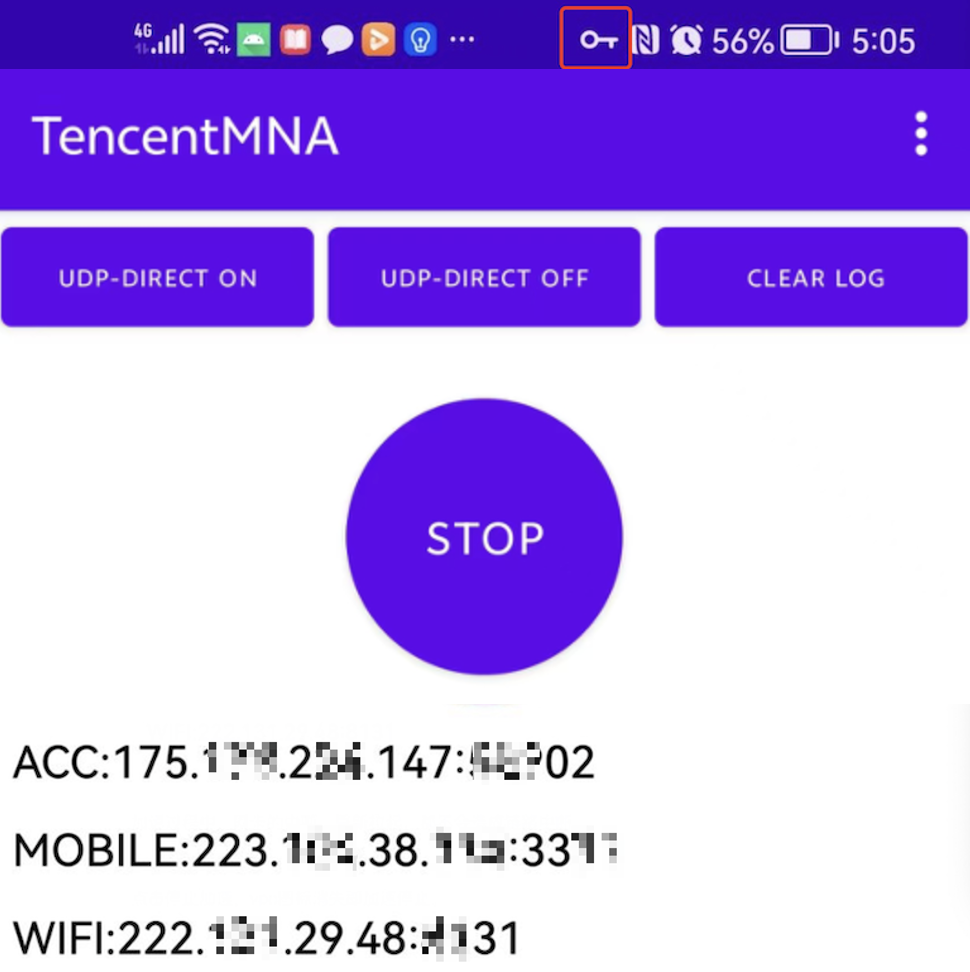
Click Start , grant VPN permission, and the VPN icon will appear (varies by mobile phone vendor), as shown in the figure below:
Note:
DemoApp will stay and display three addresses, at this point representing successful startup acceleration.
ACC: Aggregation service gateway IP.
MOBILE: Cellular network operator egress IP.
Wi-Fi: Wi-Fi network operator egress IP.
CID: Identification of this accelerated connection.
During the acceleration process, network interface card interruption and restart will not lead to link interruption.
7. Stopping Acceleration
Click Stop , and the VPN icon will disappear, indicating that acceleration has stopped.