Changing Instance Specification
Download
포커스 모드
폰트 크기
Overview
Tencent Cloud Distributed Cache supports instance specification changes, providing flexible scaling operations. You can adjust the specifications of your Redis instance based on actual business needs, enabling better resource utilization and real-time cost optimization. This document describes how to change instance specifications in the Tencent Cloud Distributed Cache console.
Expand or reduce nodes: This refers to adjusting the memory capacity of instance nodes to meet ever-changing memory needs and avoid lags caused by insufficient memory.
Add or delete replicas: This refers to adjusting the number of instance replicas. Replicas are nodes other than the master node. All replicas play a role in supporting the system's high availability, so the more replicas, the higher the availability. If the number of replicas is greater than or equal to 1, read/write separation can be enabled to improve read performance through replica nodes.
Add or delete shards: For cluster architecture instances in sharding mode, different keys are distributed across multiple shard nodes. You can adjust the number of shard nodes to horizontally scale system performance.
Version Description
CurrentlyCurrently, Redis 4.0, 5.0, 6.2, 7.0, and Valkey 8.0 standard architecture instances support expanding or reducing node capacity as well as adding or deleting replicas.
Currently, Redis 4.0, 5.0, 6.2, 7.0, Memcached 1.6, and ValKey 8.0 cluster architecture instances support expanding or reducing node capacity, adding or deleting replicas, and adding or deleting shards.
Currently, Redis 2.8 standard architecture instances only support expanding or reducing node capacity.
Billing Overview
Monthly subscription
Configuration upgrade: The system will calculate the price difference between instance specifications and charge it to your account. You need to top up first if your account balance is insufficient. Subsequently, usage fees will be calculated based on the new instance specification.
Configuration downgrade: The price difference is calculated as follows: Refund = residual value of the original configuration - purchase price of the new configuration.
Residual value of original configuration: It equals to the effective order amount of the original configuration minus the used value of the original configuration.
Effective order amount of original configuration: It equals to the amount paid for the effective order, excluding discounts and vouchers.
Used value of the original configuration: As of the day when downgrade is initiated, if the usage has lasted for one month or longer, fees will be calculated at the corresponding monthly subscription price and discount listed on the official website; otherwise, fees will be calculated at the pay-as-you-go price. The usage is accurate down to the second.
Purchase value of new configuration: It equals to the current official price of the new configuration multiplied by the remaining validity period.
Pay-as-you-go
The instance will be billed hourly based on the new specification on the next hour under tier 1, and fees will be settled on each hour (Beijing time). The pay-as-you-go billing mode adopts tiered pricing in three tiers as detailed in Billing Overview. For tiered prices, see Pricing.
Scale-Down Rules
The scale-down limit is calculated based on the maximum usage of a single shard, with the following coefficient mapping:
If the maximum usage of a single shard is less than or equal to 4 GB, the minimum capacity after scale-down is 1.3 times the maximum usage.
If the maximum usage of a single shard is greater than 4 GB but less than or equal to 8 GB, the minimum capacity after scale-down is 1.2 times the maximum usage.
If the maximum usage of a single shard is greater than 8 GB, the minimum capacity after scale-down is 1.1 times the maximum usage.
Example: If the current memory specification of a single shard is 8 GB and the maximum used capacity is 2 GB, the minimum capacity after scale-down is 2 × 1.3 = 2.6 GB, which corresponds to a minimum shard specification of 4 GB.
Note:
Tencent Cloud Distributed Cache supports the following shard specifications (GB): 1, 2, 4, 8, 12, 16, 20, 24, 32, 40, 48, 64.
Standard architecture supports shard specifications of 256 MB and 512 MB, while cluster architecture does not.
Changing instance specifications will apply to all nodes in the instance. After the operation is completed, the storage capacity of all nodes will be updated to the target specification.
Prerequisites
You have created a Tencent Cloud Distributed Cache instance. For more information, see Creating Tencent Cloud Distributed Cache Instance.
The instance and its associated instances are in Running status and are not executing any tasks.
You have calculated the required specifications and understood the fees. Make sure that your Tencent Cloud account balance is sufficient.
Standard Architecture
Note:
After the configuration is adjusted, the instance will be charged at the price of the new configuration.
During capacity expansion in the standard architecture, if the local remaining capacity is insufficient to meet expansion requirements, migration will occur. The migration process does not affect service access. After migration completes, a second-level service flash interruption may occur. It is recommended that the service side of this version implements a reconnection mechanism.
Since the maximum capacity of the standard architecture is 64 GB, the memory edition (standard architecture) cannot be further expanded once it reaches 64 GB.
To avoid failure in capacity reduction, the capacity after reduction must be at least 1.3 times the amount of existing data. After the capacity reduction, you will receive an automatic refund.
As a trial version, the 256 MB specification of Tencent Cloud Distributed Cache Redis 4.0 or 5.0 is only suitable for product verification in testing environments. It is available only in the following AZs:
Guangzhou (Zones 6 and 7), Shanghai (Zones 2, 3, 4 and 5), Beijing (Zones 1, 2, 3, 4, 5, 6, and 7), and Shenzhen Finance (Zones 1, 2, and 3). Other 1 GB and above specifications can be smoothly downgraded to the 256 MB specification.
Guangzhou (Zone 6, Zone 7), Shanghai (Zone 2, Zone 3, Zone 4, Zone 5), Beijing (Zone 1, Zone 2, Zone 3, Zone 4, Zone 5, Zone 6, Zone 7), Shenzhen Finance (Zone 1, Zone 2, Zone 3), and supports smooth scale-down from 1 GB and above to 256 MB specifications.
1. Log in to the Tencent Cloud Distributed Cache console.
2. Above the instance list on the right, select the region.
3. In the instance list, find the target instance.
4. In the Operation column, expand or reduce nodes or add or delete replicas.
Select Configure > Expand Node to enter the Configure page and select the desired node capacity.
Select Configure > Reduce Node to enter the Configure page and select the desired node capacity. The parameters for node reduction are similar to those for node expansion. Capacity After reductio refers to the capacity specification of each shard after reduction. The instance capacity after reduction must be at least 1.3 times the used capacity. You should compare the capacity specification before and after reduction to check whether this requirement is met.
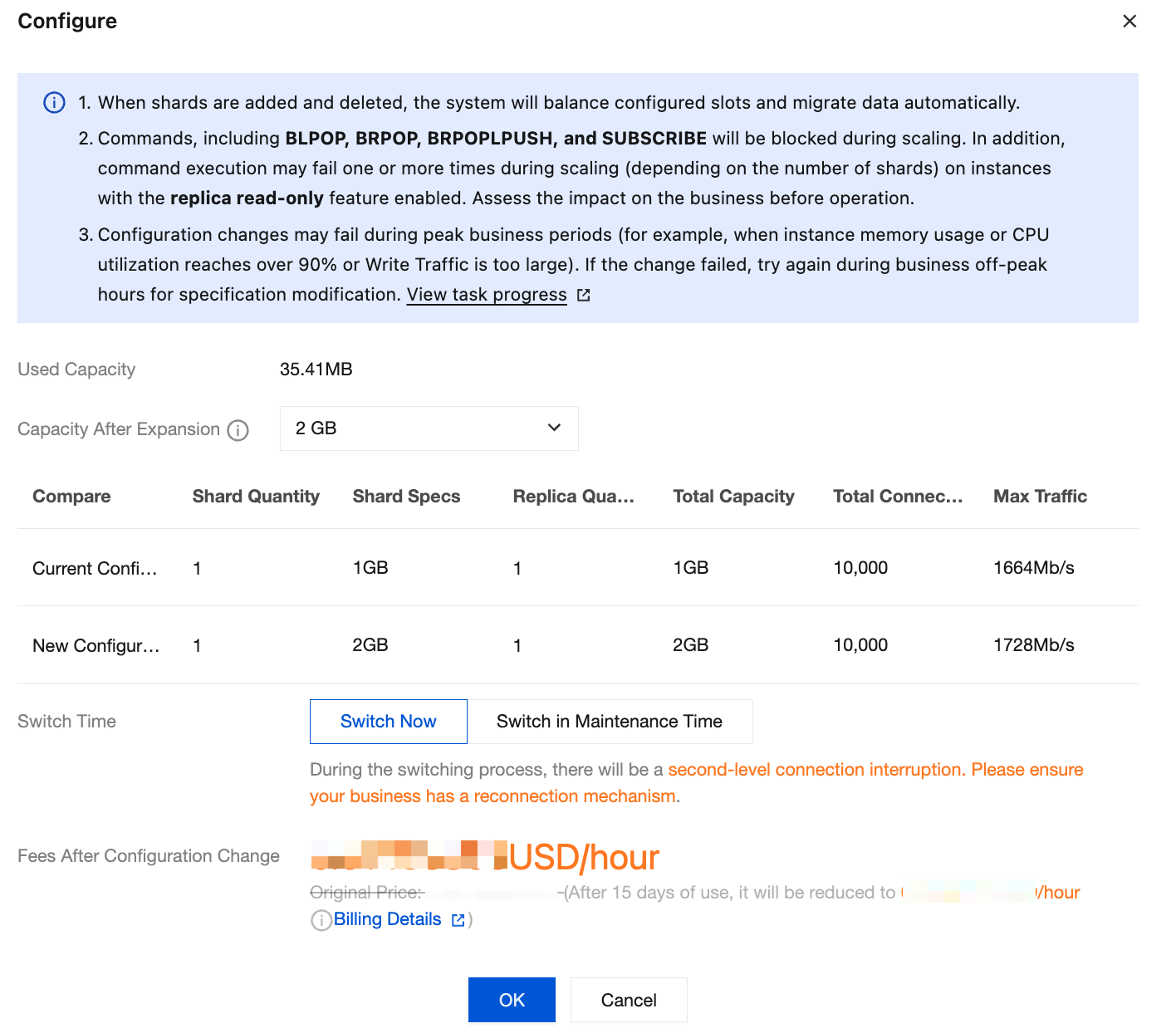
Parameter | Description |
Used Capacity | The used capacity of the current instance. |
Capacity After Expansion | The capacity specification per shard after scaling. |
Compare | Compare the current configuration with the new configuration, including Shard Quantity, Shard Specs, Replica Quantity, Total Capacity, Total Connections, and Max Traffic. |
Configuration Change Fee | This parameter will be displayed if the billing mode is monthly subscription. You need to pay the price difference in case of capacity expansion, and subsequent fees will be charged based on the new specification. In case of capacity reduction, the amount to be refunded will be displayed. |
Fees After Configuration Change | This parameter will be displayed if the billing mode is pay-as-you-go, indicating the hourly unit price after instance configuration adjustment. You can click Billing Details to view the billable items and billing formula and confirm the fees. |
Select Configure > Add Replica to enter the Configure page. Select the desired number of replicas in the drop-down list next to Replica Quantity. Other parameters are similar to those for node expansion. For more information on how to add replicas to a multi-AZ deployed instance, see Adding Replicas to Multi-AZ Deployed Instance.
Select Configure > Delete Replica to enter the Configure page. Select the desired number of replicas in the drop-down list next to Replica Quantity. Other parameters are similar to those for node expansion.
5. Confirm the configuration adjustment and click OK.
6. Return to the instance list. After the instance becomes Running in the status , you can use it normally.
Cluster Architecture
Note:
After the configuration is adjusted, the instance will be charged at the price of the new configuration.
To avoid failure in capacity reduction, the capacity after reduction must be at least 1.3 times the amount of existing data. After the capacity reduction, you will receive an automatic refund.
When shards are added or deleted, the system will automatically balance the slot configuration and migrate data, which may fail in rare cases. We recommend you perform such operations during off-peak hours to avoid the impact of migration on business access.
Note:
Tencent Cloud Distributed Cache capacity expansion solution adopts a slot-based synchronization approach, migrating slots requiring relocation by generating RDB files to the target node and incrementally synchronizing through master-slave propagation, enabling the target node to catch up with the source node in data. Once data is fully synchronized, it performs a Failover switch and updates the slot-node mapping, effectively resolving the issue where big keys block the main thread during migration, causing business jitter, while avoiding errors in Lua and multi-key operations, ensuring high business availability.
1. Log in to the Tencent Cloud Distributed Cache console.
2. Above the instance list on the right, select the region.
3. In the instance list, find the target instance.
4. In the Operation column, expand or reduce nodes or add or delete replicas or shards.
Select Configure > Expand Node to enter the Configure page and select the desired node capacity per shard.
Select Configure > Reduce Node to enter the Configure page and select the desired node capacity per shard. The parameters for node reduction are similar to those for node expansion. Shard Size refers to the capacity specification of each shard after reduction. The instance capacity after reduction must be at least 1.3 times the used capacity. You should compare the capacity specification before and after reduction to check whether this requirement is met.
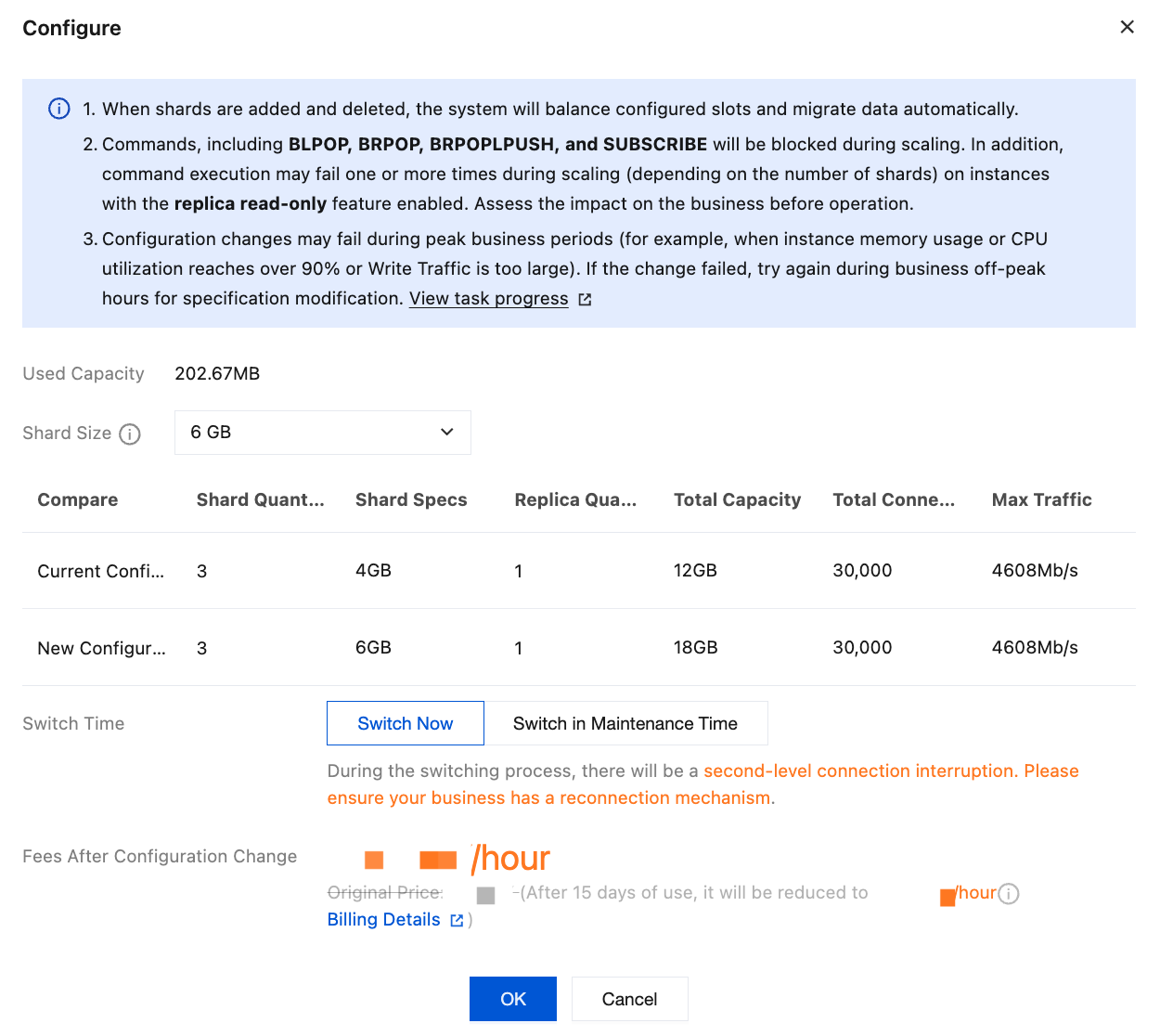
Parameter | Parameter Description |
Used Capacity | The used capacity of the current cluster instance. |
Shard Size | The capacity specification per shard after scaling. |
Compare | Compare the current configuration with the new configuration, including Shard Quantity, Shard Specs, Replica Quantity, Total Capacity, Total Connections, and Max Traffic. |
Configuration Change Fee | This parameter will be displayed if the billing mode is monthly subscription. You need to pay the price difference in case of capacity expansion, and subsequent fees will be charged based on the new specification. In case of capacity reduction, the amount to be refunded will be displayed. |
Fees After Configuration Change | This parameter will be displayed if the billing mode is pay-as-you-go, indicating the hourly unit price after instance configuration adjustment. You can click Billing Details to view the billable items and billing formula and confirm the fees. |
Select Configure > Add Replica to enter the Configure page. Select the desired number of replicas in the drop-down list next to Replica Quantity. Other parameters are similar to those for node expansion. For more information on how to add replicas to a multi-AZ deployed instance, see Adding Replicas to Multi-AZ Deployed Instance.
Select Configure > Delete Replica to enter the Configure page. Select the desired number of replicas in the drop-down list next to Replica Quantity. Other parameters are similar to those for node expansion.
Select Configure > Add Shard to enter the Configure page. Select the desired number of shards in the drop-down list next to Shard Quantity. Other parameters are similar to those for node expansion.
Select Configure > Delete Shard to enter the Configure page. Select the desired number of shards in the drop-down list next to Shard Quantity. Other parameters are similar to those for node expansion.
5. Confirm the configuration adjustment and click OK.
6. Return to the instance list. After the instance becomes Running in the status , you can use it normally.
Related APIs
API Name | API Feature |
Upgrades the instance configuration |
피드백