Downloading Backup Files
Download
포커스 모드
폰트 크기
Features and Scenarios
Tencent Cloud Distributed Cache supports securely downloading backup files to the local environment or CVM in the same region. The system quickly generates a dedicated download link for the target backup file based on your pre-configured download method. In the private network download mode, you can re-specify the VPC ID and private IP address for accessing the file on the current download page as needed, to easily redirect the file to other machines in the private network.
Prerequisites
You have configured the backup file download method in the current region.
You have completed an automatic or manual backup task. For directions, see Backing up Data.
Directions
1. Log in to the Tencent Cloud Distributed Cache console.
2. Enter the Backup List page by any of the following methods.
On the top of the instance list, select a region, and find the target instance in the instance list. Then, click the instance ID to enter the Instance Details page, and select the Backup and Restoration tab to enter the backup list.
On the left sidebar, select Database Backup to enter the backup list.
3. In the backup list, find the backup file to be downloaded, and click Download in the Operation column.

4. In the Download Backup pop-up window, copy the download address or click Download to download the backup file. Cross-AZ download is not supported.
Public network download is disabled
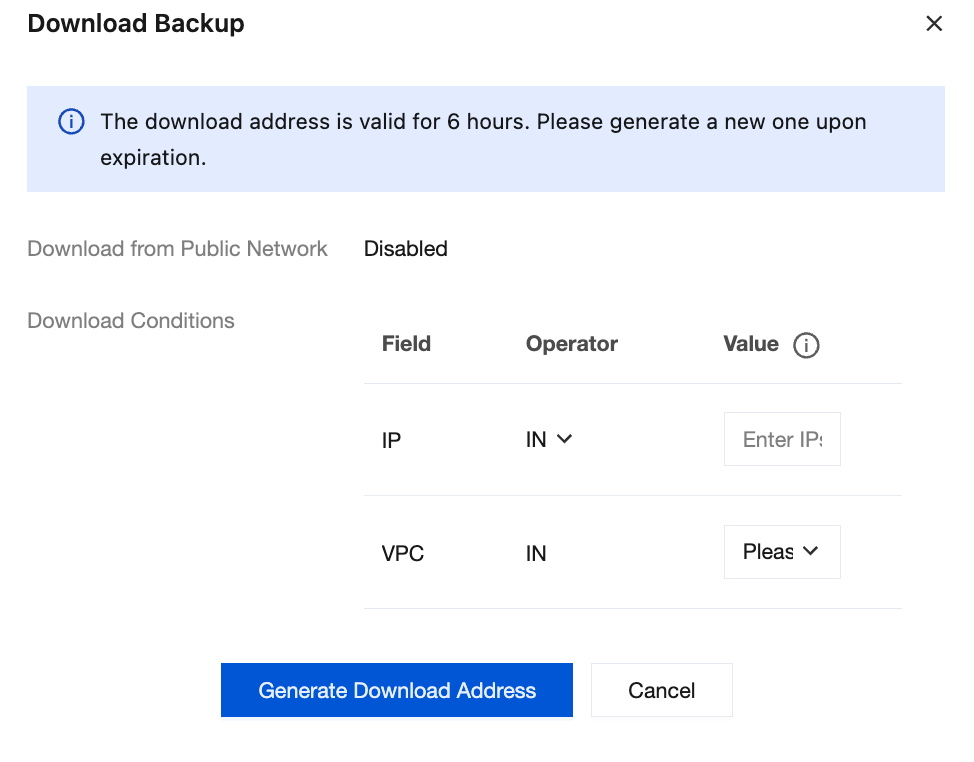
a. In Download Conditions, the default values are the VPC ID and IP address configured in the current region, which can also be changed based on your needs.
b. If the instance is on a standard architecture, click Generate Download Address, and click Copy in the Download Address area.
If the instance is on a cluster architecture, click Generate Download Address. In the Download Address area, the download address of each backup will be displayed in a list, click Copy download URL to get the download address of backup data for each shard.
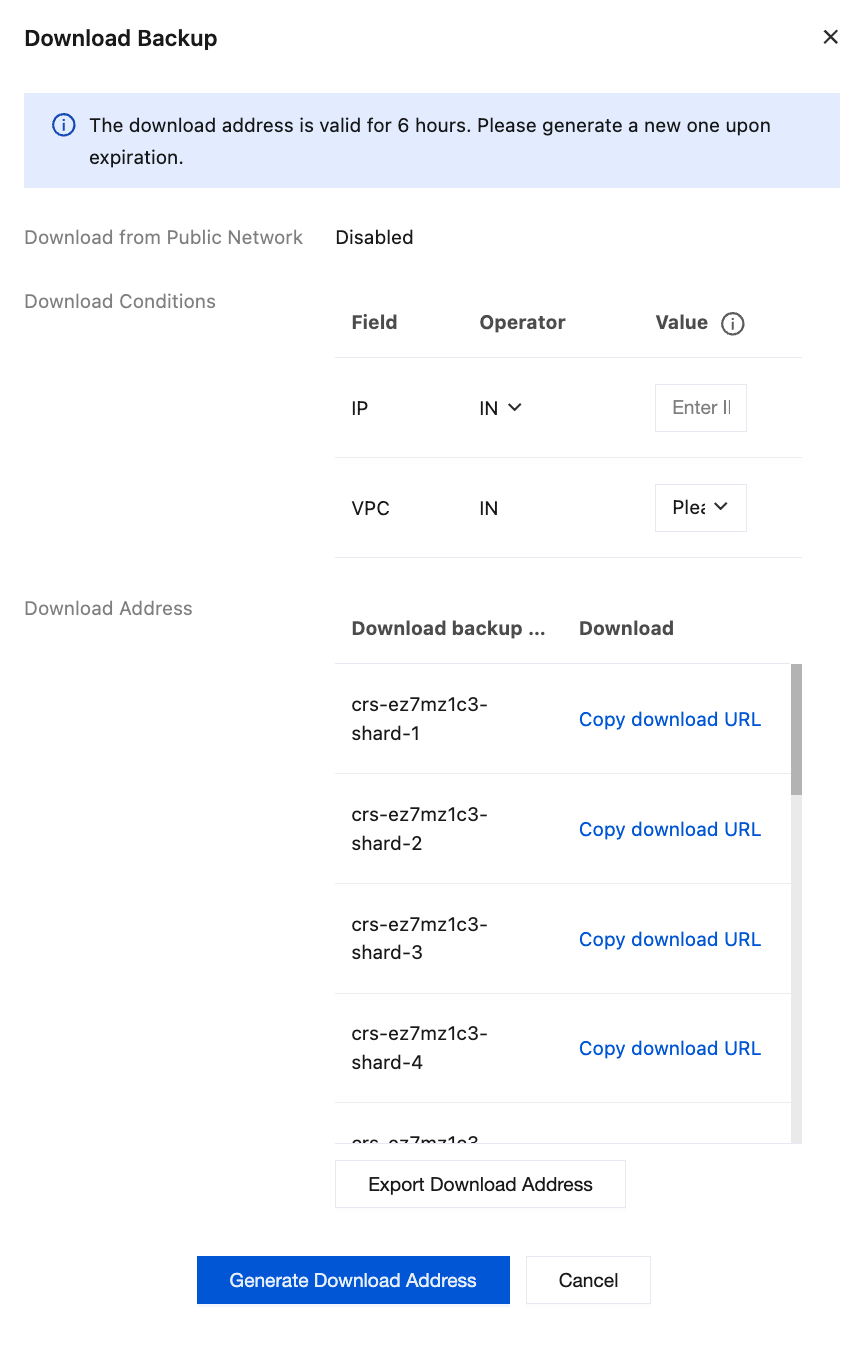
c. Click Export Download Address to obtain the Shell script that contains the download URLs of all backup shards.
Note:
To change Download Conditions, you need to click Generate Download Address to regenerate Download Address.
The download address is valid for 6 hours. Get a new one after it expires.
Downloaded backup shard lists the shard node information of each shard, which is in the format of
instance ID-node-shard ID. The shard IDs are sequenced from 0.Public network download is enabled
a. Click Copy next to the Download Address.
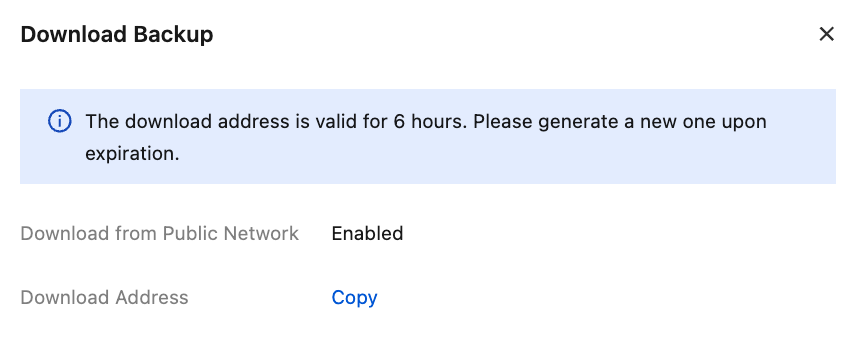
For cluster architecture, as shown in the figure below, click Copy Download Address to copy the address for downloading backup files.
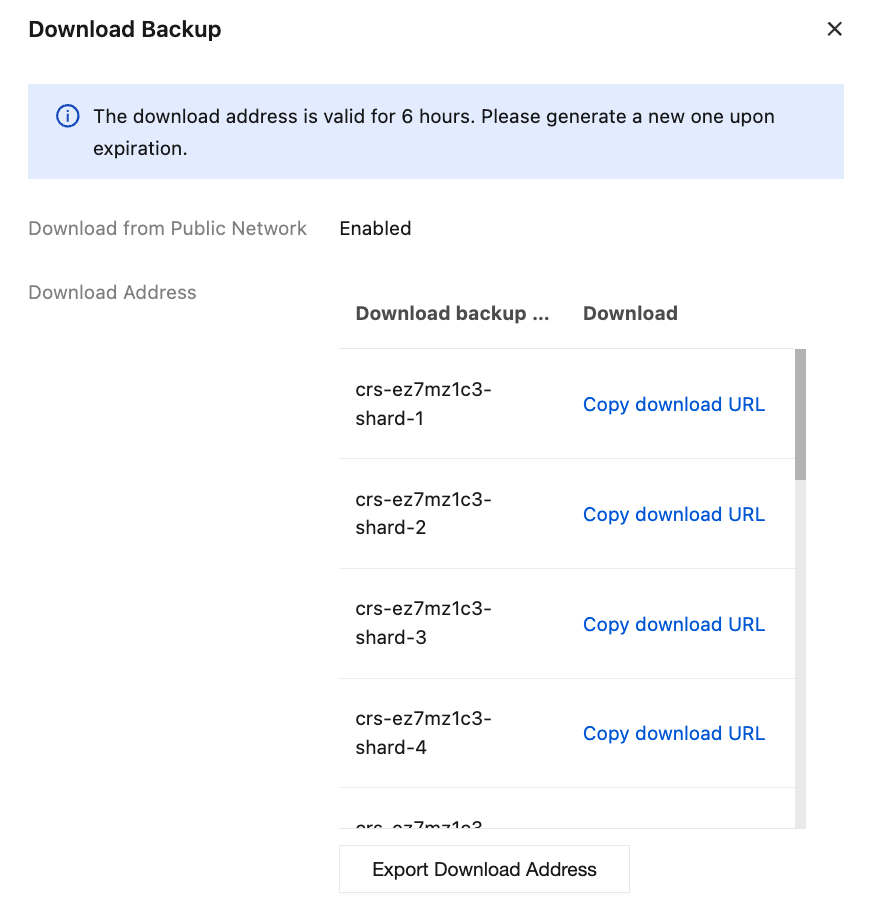
5. b. Copy the download address and open it in a browser to download the backup file.
Related APIs
API | Feature Description |
Query download source restrictions for backup files | |
Modify download source restrictions for backup files | |
Query backup Rdb download address |
피드백