Storage Encryption
다운로드
포커스 모드
폰트 크기
Overview
TencentDB for MongoDB provides the storage encryption feature, which is also known as Transparent Data Encryption (TDE) or static data encryption. It encrypts data before the data is written to disk and automatically decrypts data when the data is read from disk and then written to memory. This process is implemented by the database management system, meeting the compliance requirements of data encryption.
Prerequisites
The instance version is MongoDB 4.4, 5.0, or 6.0.
The operation account has enabled Key Management Service (KMS). If it is not enabled, you can enable it according to the guidance when you enable TDE.
The operation account has permissions of the role
MongoDB_QCSLinkedRoleInKMS. This role and its associated policy have permission granted by MongoDB to create and manage keys by using KMS. If no permission is granted, you can complete authorization according to the guidance when you enable TDE.Notes:
The keys used for encryption are generated and managed by KMS. TencentDB for MongoDB does not provide the keys or certificate required for encryption.
The storage encryption feature does not incur additional fees, but KMS may incur additional fees. For details, see Billing Overview.
When your account is in arrears, you cannot obtain keys from KMS, which may cause tasks such as migration and upgrade to fail. For details, see Arrears Explanation.
Must-Knows
TencentDB for MongoDB uses the AEGIS-256 encryption algorithm for storage encryption.
If the KMS authorization is invoked, the MongoDB database becomes unavailable after an instance is restarted.
Before storage encryption is enabled, the automatic backup method cannot be physical backup. After it is enabled, the automatic backup method cannot be modified to physical backup, and manual physical backup is not supported.
Once the storage encryption feature is enabled, it cannot be disabled, and key modification is not supported.
After the storage encryption feature is enabled, the encrypted data cannot be accessed if the corresponding key is disabled or deleted.
After the storage encryption feature is enabled, data security can be enhanced, but the read/write performance of accessing the encryption database may be affected. Please choose whether to enable the storage encryption feature according to the actual situation.
After the storage encryption feature is enabled, you cannot obtain keys from KMS when your account is in arrears, which may cause tasks such as migration and upgrade to fail.
After the storage encryption feature is enabled, the existing data in databases and tables will not be encrypted. To encrypt such data, it is recommended to create an instance with storage encryption enabled and migrate the existing data to this instance.
Directions
1. Log in to the TencentDB for MongoDB console.
2. In the dropdown list under MongoDB in the left sidebar, select Replica Set Instance or Shard Instance. The operations of replica set instances and sharded instances are similar.
3. Select a region at the top of the instance list page on the right.
4. Find the target instance in the instance list. You can enter an instance ID, an instance name, a private IP address, or a tag key in the search box at the upper right corner of the instance list to search for the target instance.
5. In the Instance ID/Name column of the target instance, click Instance ID to enter the Instance Details page.
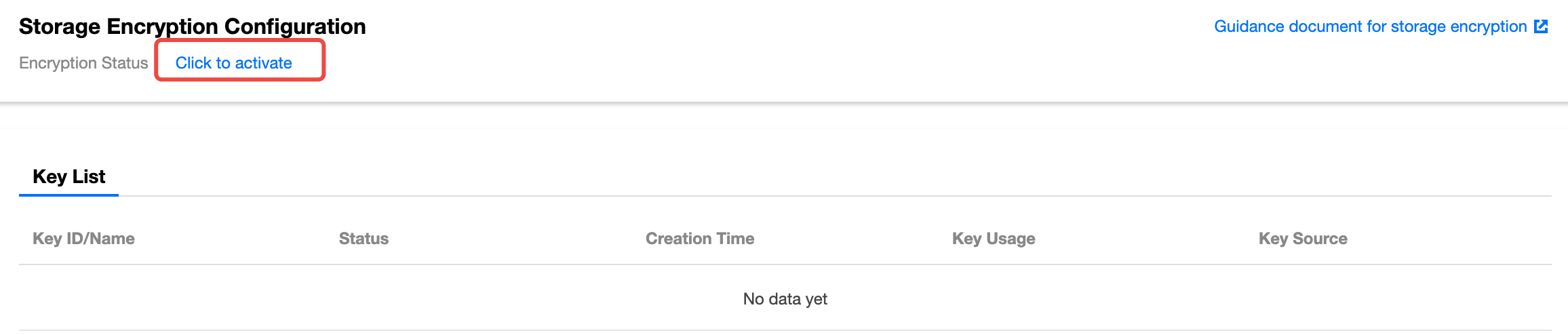
6. Switch to the Data Security page, and select the Storage Encryption tab. Click Click to activate for Encrypted Status under Storage Encryption Configuration.
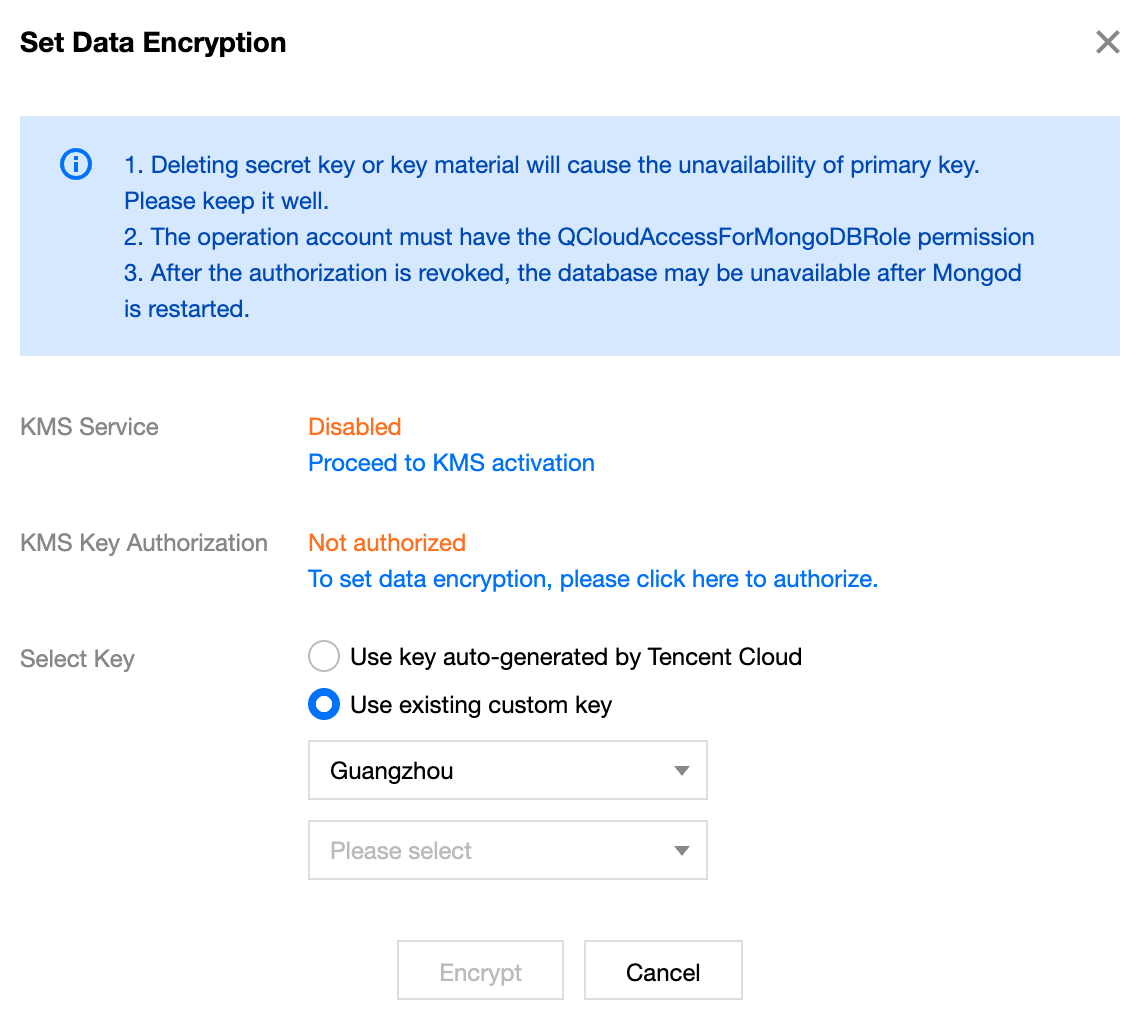
7. In the Set Data Encryption window, enable KMS, complete KMS key authorization, and select the key generation method in the Select Key field.
Use key auto-generated by Tencent Cloud: Tencent Cloud will automatically generate the key.
Use existing custom key: Select a key that has been created on the KMS Key Management page, and select the region where the instance is located and the name of the key in the dropdown list below.
Notes:
If you use a custom key to enable storage encryption, you need to specify key usage as symmetric encryption and decryption. For details, see Creating a Key.
If no custom key is available, click Go to Create to create a key in the KMS console. For details, see Creating a Key.
8. Click Encrypt to complete the configuration. In the left sidebar, click Task Management and wait for the task to finish execution.

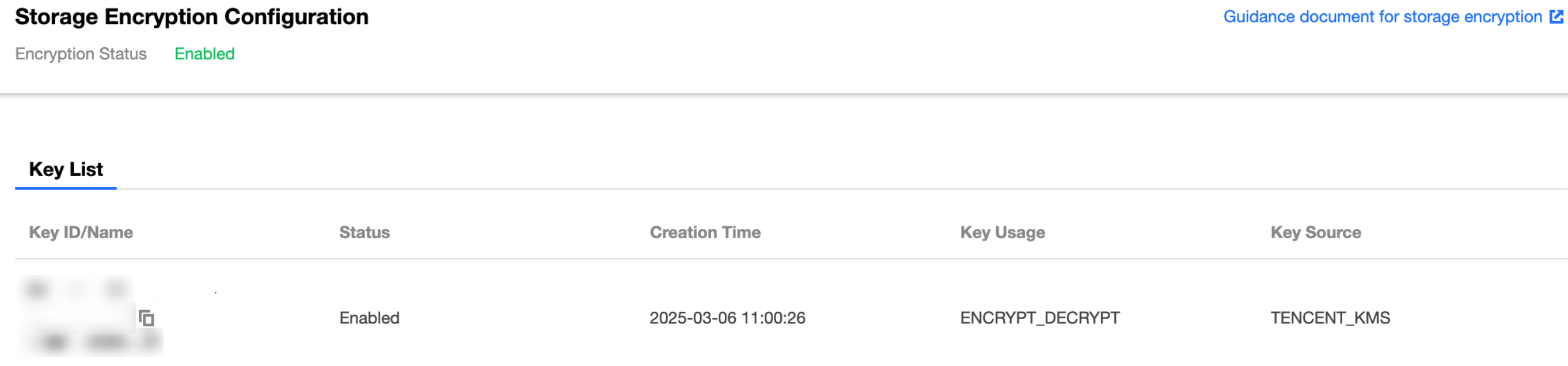
9. Switch to the Storage Encryption page, and you can see that the Encryption Status has been updated to Enabled, and in the Key List, you can see the created key.
피드백