tencent cloud

TencentDB for MongoDB

Release Notes and Announcements
Release Notes
Announcements
User Guide
Product Introduction
Overview
Strengths
Use Cases
Cluster Architecture
Product Specifications
Features
Regions and AZs
Terms
Service Regions and Service Providers
Purchase Guide
Billing Overview
MongoDB Pricing
Billing Formula
Payment Overdue
Backup Space Billing
Configuration Adjustment Billing
Getting Started
Quickly Creating an Instance
Connecting to a TencentDB for MongoDB Instance
Reading/Writing Database
Operation Guide
Access Management
Instance Management
Node Management
Version Upgrade
Network Configuration
Monitoring
Backup and Rollback
Database Audit
Data Security
SSL Authentication
Log Management
Database Management
Multi-AZ Deployment
Disaster Recovery/Read-Only Instances
Parameter Configuration
Recycle Bin
Task Management
Performance Optimization
Data Migration Guide
Practical Tutorial
Optimizing Indexes to Break Through Read/Write Performance Bottlenecks
Troubleshooting Mongos Load Imbalance in Sharded Cluster
Considerations for Using Shard Clusters
Sample of Reading and Writing Data in MongoDB Instance
Methods for Importing and Exporting Data Based on CVM Connected with MongoDB
What to Do for Errors of Repeated Instance Creation and Deletion of Databases with the Same Names?
Troubleshooting MongoDB Connection Failures
Shard Removal Task: Guide for Confirming the Progress and Troubleshooting Issues
Performance Fine-Tuning
Ops and Development Guide
Development Specifications
Command Support in Sharded Cluster v3.2
Command Support in v3.6
Development Ops
Troubleshooting
Increased Slow Queries
Number of Connections Exceeding Limit
API Documentation
History
Introduction
API Category
Making API Requests
Instance APIs
Backup APIs
Account APIs
Other APIs
Task APIs
Introduction
Data Types
Error Codes
Instance Connection
Shell Connection Sample
PHP Connection Sample
Node.js Connection Sample
Java Connection Sample
Python Connection Sample
Python Read/Write Sample
Go Connection Sample
PHP Reconnection Sample
Product Performance
Test Environment
Test Method
Test Result
FAQs
Cost
Features
Sharded Cluster
Instance
Rollback and Backup
Connection
Data Migration
Others
Service Agreement
Service Level Agreement
Terms of Service
Glossary
Contact Us

Manual Backup

PDF
포커스 모드
폰트 크기
마지막 업데이트 시간: 2025-11-24 17:13:41

Scenarios

When major changes, version upgrades, or potential risks occur, the manual backup feature allows you to initiate a backup task immediately, precisely capture the status at a specific moment, and support temporary protection and recovery point verification. In addition, when the automatic backup system is invalid due to unexpected interruptions, configuration errors, or catastrophic faults, the manual backup feature allows you to obtain the latest and controllable data replicas.

Feature Description

Note:
The backup service of TencentDB for MongoDB will be officially commercialized starting from 00:00:00, November 20, 2025 (UTC+8), and advanced backup features will be launched. You can flexibly set the retention period of manual backup files.

Operation Steps

2. In the left sidebar, choose MongoDB > Replica Set Instance or Shard Instance. The operations for replica set instances and sharded cluster instances are similar.
3. At the top of the instance list page on the right, select a region.
4. In the instance list, locate the target instance.
5. Click the target instance ID to go to the Instance Details page.
6. In the upper-right corner of the Instance Details page, click Manual Backup.
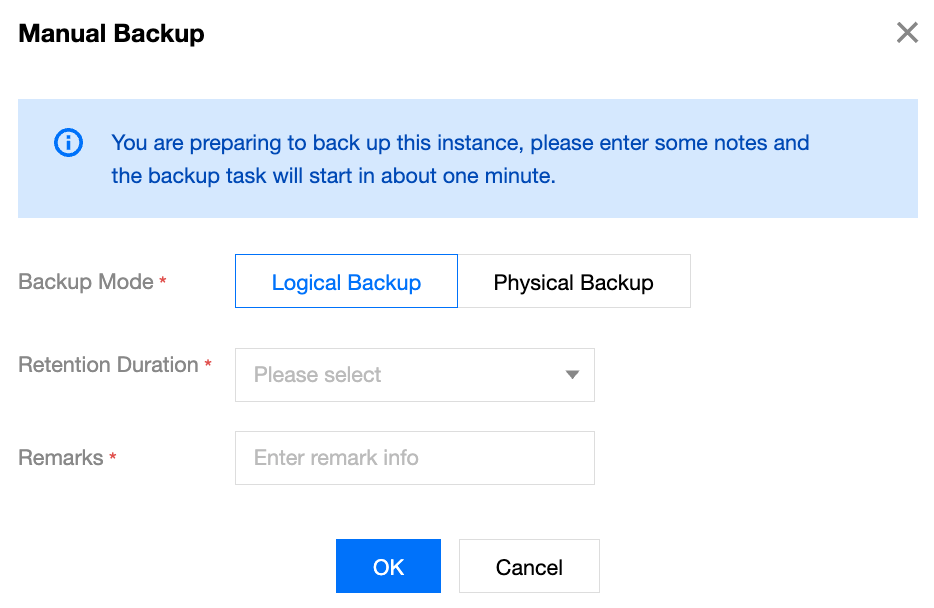
7. In the Manual Backup dialog box, set the backup policy.

Parameter
Parameter Description
Configuration Suggestion
Backup Mode
General edition: The options include Logical Backup and Physical Backup, and the default value is Logical backup.
Cloud disk edition: The options include Snapshot Backup and Physical Backup, and the default value is Snapshot backup.
For versions supported by different backup methods, see Backup Introduction.
Retention Duration
In the drop-down list, select the retention period for manual backup files.
Note:
Backup Retention Period is an advanced backup feature.
Instances of the general edition: After Advanced Backup is enabled for the backup service, the backup retention period can be set for manual backup files.
Instances of the cloud disk edition: Backup Retention Period is not supported. Backup data is retained for seven days by default.
Follow the full backup duration: The retention period of manual backup files is the same as that set for full backup files in the automatic backup policy.
Long-Term retention period: The retention period of manual backup files is the same as that set for long-term backup files in the automatic backup policy.
Custom retention period: Set the retention period as required in the input box. The value range is 1 to 1095 days. Set it based on actual requirements.
After the set backup retention period expires, manual backup files are deleted automatically.
Remarks
In the input box, enter remarks of a string of 30 characters without symbols to identify the business requirements of the manual backup operation.
-
8. Click OK. The manual backup policy is set. The system starts the backup task in approximately one minute. In the right sidebar, select Task Management to view the backup progress of the manual backup task and wait for it to complete.

9. After the backup task is completed, you can locate the generated backup files in the full backup task list on the Backup and Rollback page. As shown in the following figure, you can click Download in the Operation column to download the backup files.


Related APIs

API
Description
Querying the Backup Task List of an Instance
Backing up an Instance
Querying Information About a Backup Download Task
Creating a Backup Download Task

도움말 및 지원

문제 해결에 도움이 되었나요?

피드백

