tencent cloud

Tencent Real-Time Communication

소식 및 공지 사항
제품 업데이트
Tencent Cloud 오디오/비디오 단말 SDK 재생 업그레이드 및 권한 부여 인증 추가
TRTC 월간 구독 패키지 출시 관련 안내
제품 소개
제품 개요
기본 개념
제품 기능
제품 장점
응용 시나리오
성능 데이터
구매 가이드
Billing Overview
무료 시간 안내
Monthly subscription
Pay-as-you-go
TRTC Overdue and Suspension Policy
과금 FAQ
Refund Instructions
신규 사용자 가이드
Demo 체험
Call
개요(TUICallKit)
Activate the Service
Run Demo
빠른 통합(TUICallKit)
오프라인 푸시
Conversational Chat
온클라우드 녹화(TUICallKit)
AI Noise Reduction
UI 사용자 정의
Calls integration to Chat
Additional Features
No UI Integration
Server APIs
Client APIs
Solution
ErrorCode
릴리스 노트
FAQs
라이브 스트리밍
Billing of Video Live Component
Overview
Activating the Service (TUILiveKit)
Demo 실행
No UI Integration
UI Customization
Live Broadcast Monitoring
Video Live Streaming
Voice Chat Room
Advanced Features
Client APIs
Server APIs
Error Codes
Release Notes
FAQs
RTC Engine
Activate Service
SDK 다운로드
API 코드 예시
Usage Guidelines
API 클라이언트 API
고급 기능
RTC RESTFUL API
History
Introduction
API Category
Room Management APIs
Stream mixing and relay APIs
On-cloud recording APIs
Data Monitoring APIs
Pull stream Relay Related interface
Web Record APIs
AI Service APIs
Cloud Slicing APIs
Cloud Moderation APIs
Making API Requests
Call Quality Monitoring APIs
Usage Statistics APIs
Data Types
Appendix
Error Codes
콘솔 가이드
애플리케이션 관리
사용량 통계
모니터링 대시보드
개발 보조
Solution
Real-Time Chorus
FAQs
과금 개요
기능 관련
UserSig 관련
방화벽 제한 처리
설치 패키지 용량 축소 관련 질문
Andriod 및 iOS 관련
Web 관련
Flutter 관련
Electron 관련
TRTCCalling Web 관련
멀티미디어 품질 관련
기타 질문
Protocols and Policies
컴플라이언스 인증
보안 백서
정보 보안에 관한 참고 사항
Service Level Agreement
Apple Privacy Policy: PrivacyInfo.xcprivacy
TRTC 정책
개인 정보 보호 정책
데이터 처리 및 보안 계약
용어집

Flutter

PDF
포커스 모드
폰트 크기
마지막 업데이트 시간: 2024-02-02 18:48:51
This document primarily delineates the process of sharing system sounds. At present, TRTC defaults not to collect the audio of the local application.

Call Guidelines

Android
iOS
This document primarily delineates the process of sharing system sounds. At present, TRTC defaults not to collect the audio of the local application.
Note:
Only Android 10.0 or higher supports sharing system audio.

Initiate system sound sharing

Step 1: Initiate Screen Sharing

Follow the steps in Enable screen sharing - Based on Android platform to turn on screen sharing.

Step 2: Initiate Share System Audio

By invoking the TRTCCloud's startSystemAudioLoopback interface, the collected system audio will be automatically mixed into the upstream.

Step 3: Terminate Share System Audio

Invoke the TRTCCloud's stopSystemAudioLoopback interface.

Step 1: Enable the microphone

Within the App, invoke startLocalAudio to kickstart microphone collection, and it's suggested to utilize TRTCAudioQualityDefault for audio quality.
Note:
This action is indispensable; by initiating microphone collection, the App can preserve its functioning even when relegated to the background.

Step 2: Initiate screen sharing

Due to the restrictions of iOS, system sounds can only be collected during screen recording. Therefore, to implement this feature, the iOS screen sharing function must be connected first.
Follow the steps in Enable Screen Sharing - Based on iOS platform to start screen recording, and system sound will be automatically collected.
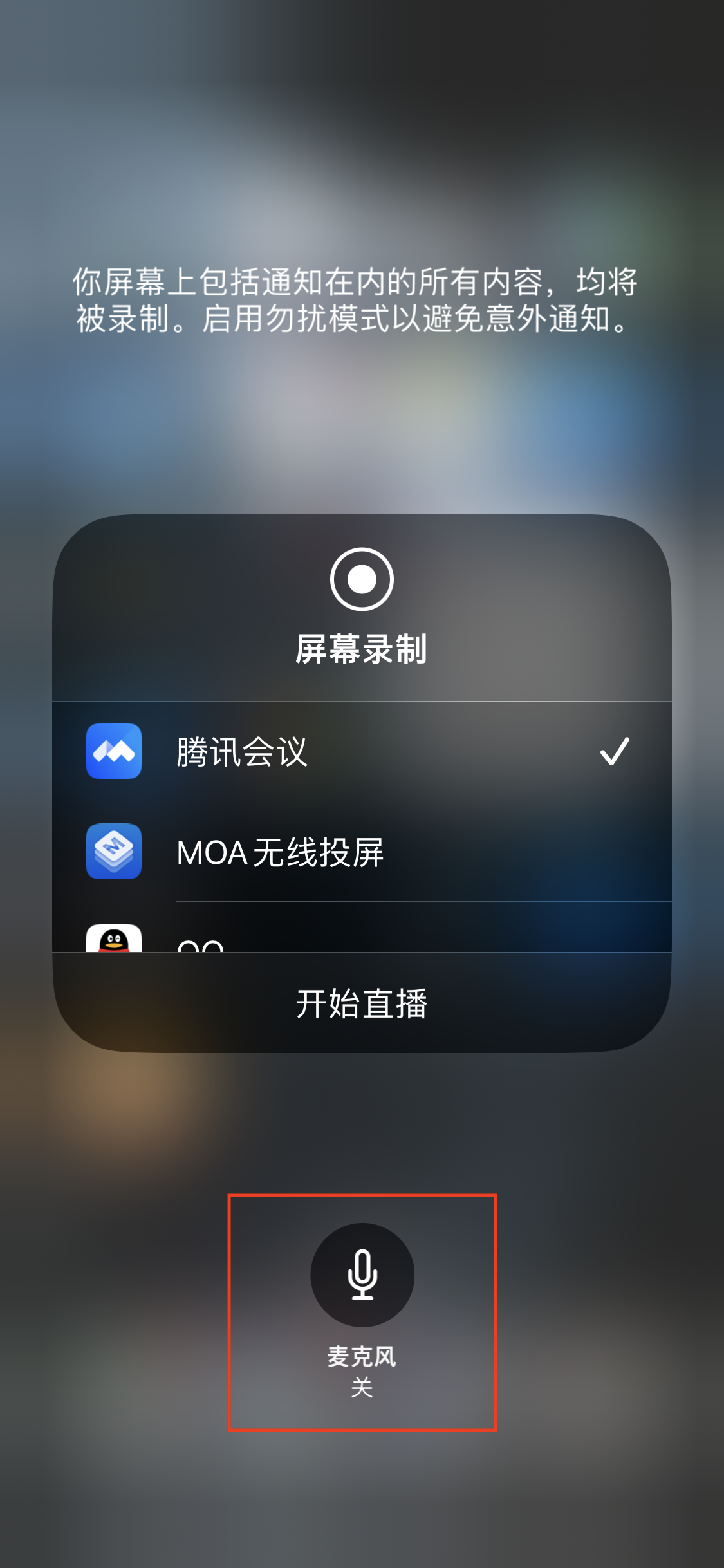
Note:
When starting screen recording, do not light up the microphone icon. Voice collection has already been started in the app.


Step 3: Midway open and close system sound

The system audio capture and screen recording are done concurrently, initiating automatically with the start of the recording and ceasing alongside the recording termination. It is not feasible to independently switch on or mute the system audio.
TRTCCloud proffers the setSystemAudioLoopbackVolume method for system audio volume conditioning. When there is no desire to output the system audio, the volume can be set to 0.


도움말 및 지원

문제 해결에 도움이 되었나요?

피드백