You can follow these steps to activate Tencent RTC-Engine product service and create an application with the default trial version. Enjoy free usage to experience basic audio and video features, including: Audio/Video Call, cloud recording, Cloud-based Mixed-stream Transcoding, Relay to CDN for Cloud Live Streaming (CSS), and AI conversation service.
All Tencent Cloud accounts (UINs) with a monthly subscription package for Tencent RTC (including Call, Conference, Live, RTC-Engine) can receive a free usage package of 10,000 minutes per month within 1 year. A maximum of one free usage package can be received per month, and all TRTC (including Call, Conference, Live, RTC-Engine) generated usage is deductible. For details, see Free Minutes Description.
Note:
Remaining minutes per month will expire on the last day of the current cycle and cannot be used in the next cycle.
For example, the free usage package received on November 15, 2022 has a validity time from November 15, 2022 to December 14, 2022.
Note: You can view the specific effective time in the package management section of the console.
If the deducted minutes do not exceed 10,000, the service is free this month. If the 10,000-minute free quota is exhausted and no RTC-Engine monthly package, Call monthly package, Conference monthly package, or Live monthly package is purchased, the application will be suspended. After suspension, the service cannot be automatically restored. You need to purchase a package to reactivate it. After service resumption, the complimentary free minutes can continue to be used.
Note:
For UINs registered on or after July 25, 2024 (UTC+8), the free package is deductible for Audio/Video Call, Interactive Streaming, cloud recording, On-Cloud MixTranscoding, recording delivery to Tencent Cloud, recording delivery to third party, page recording, and Live video streaming audience duration.
You can enable Tencent RTC-Engine product service by following the procedure below:
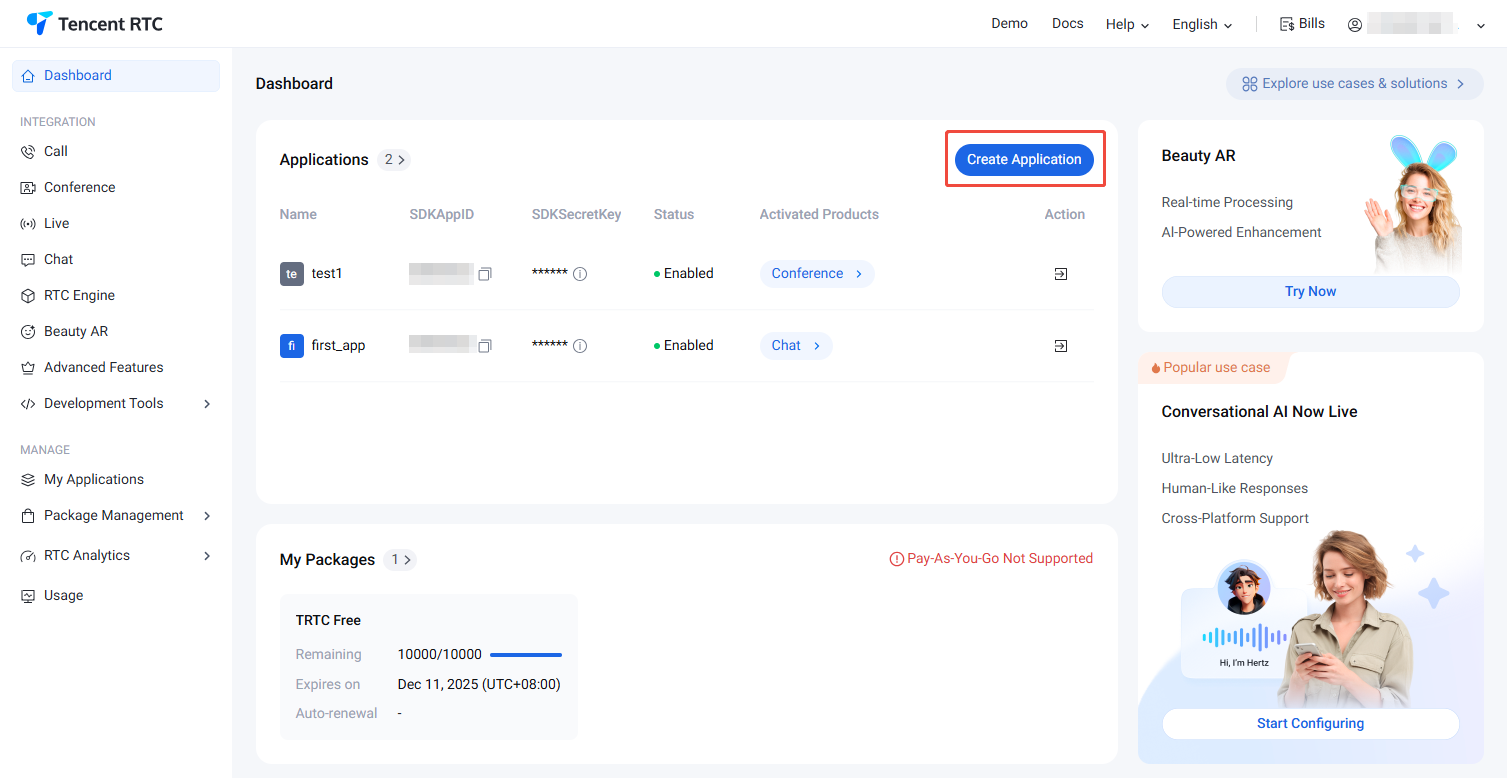
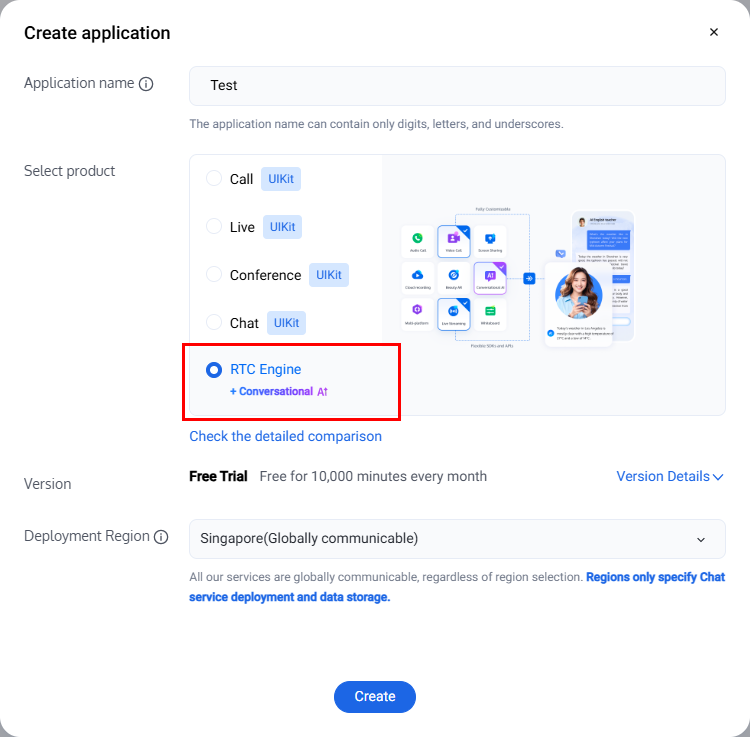
2. In the popup, enter an application name, select RTC-Engine, and choose the appropriate deployment region. Then click Create. This will create a TRTC application bound to the trial edition of TRTC Room.
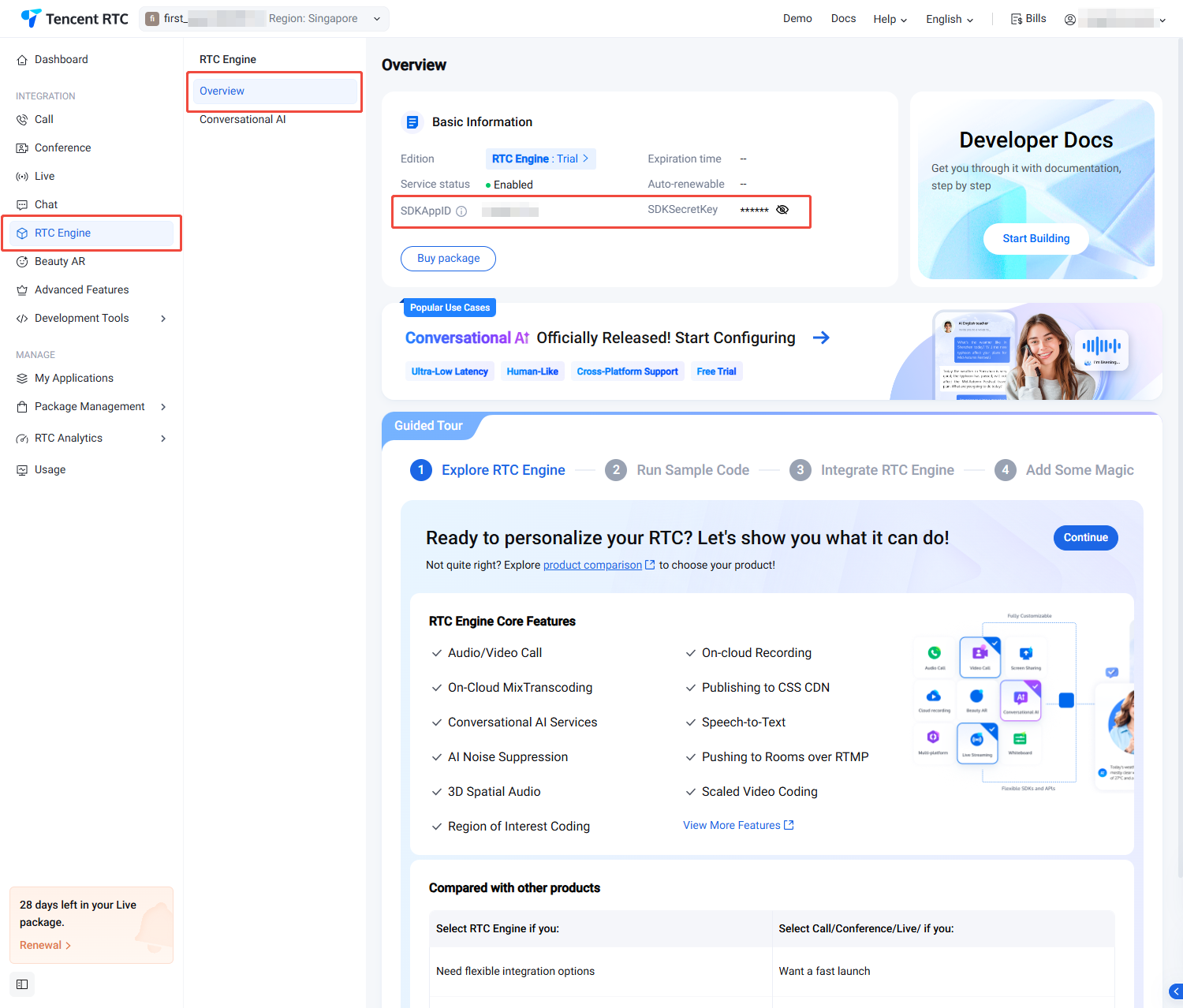
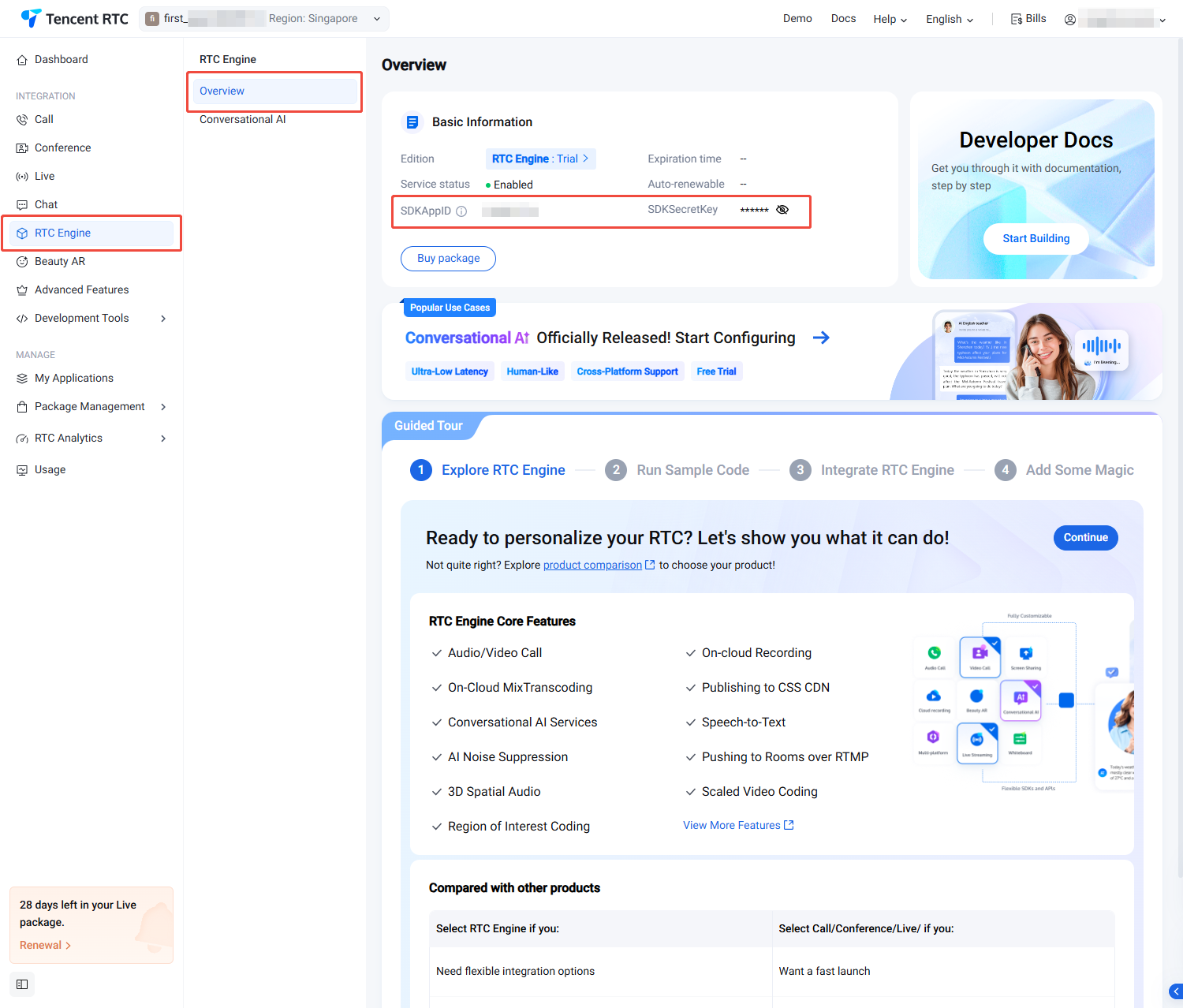
3. After completing application creation, you will enter the RTC-Engine product details page by default. At this point, you have quickly created an application and successfully claimed the TRTC (RTC-Engine SDK) trial version. You can view information on the current RTC-Engine Product Details Page or My Applications, and refer to the RTC-Engine Integration Guide to integrate. The SDKAppID and SDKSecretKey here will be used in the integration guide.
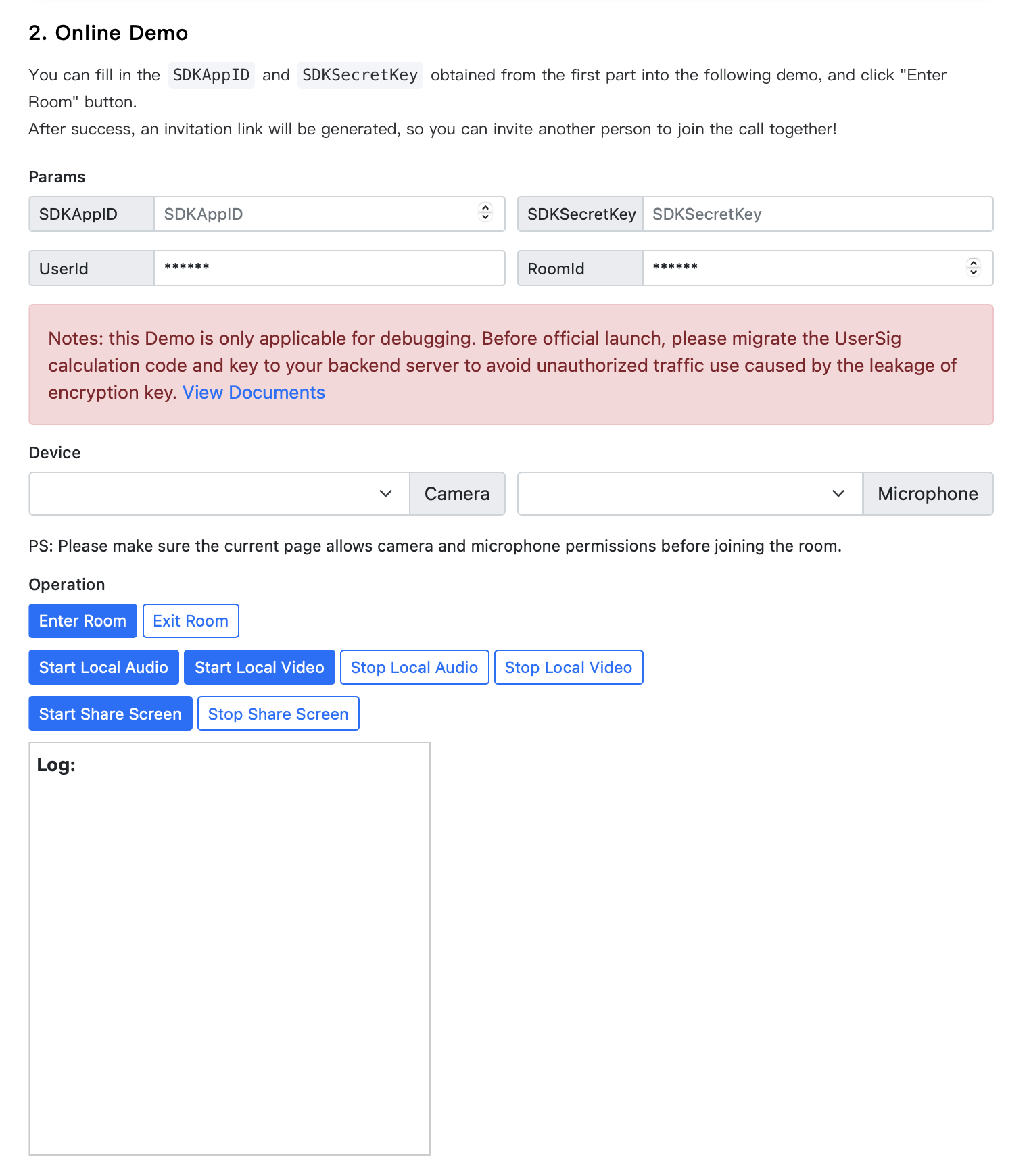
1. Refer to Enabling Trial Service to create an application in the Tencent RTC console. Users within the same application can enter the same room to perform audio and video calls. The SDKAppID and SDKSecretKey are the unique identifiers of this application. Obtain the SDKAppID and SDKSecretKey on the RTC-Engine Product Details Page or My Applications. We will use this information to log in to the Demo below.
2. You can enter the SDKAppID and SDKSecretKey obtained in step one into the corresponding input boxes on the Running Demo Page, then click the enter room button.
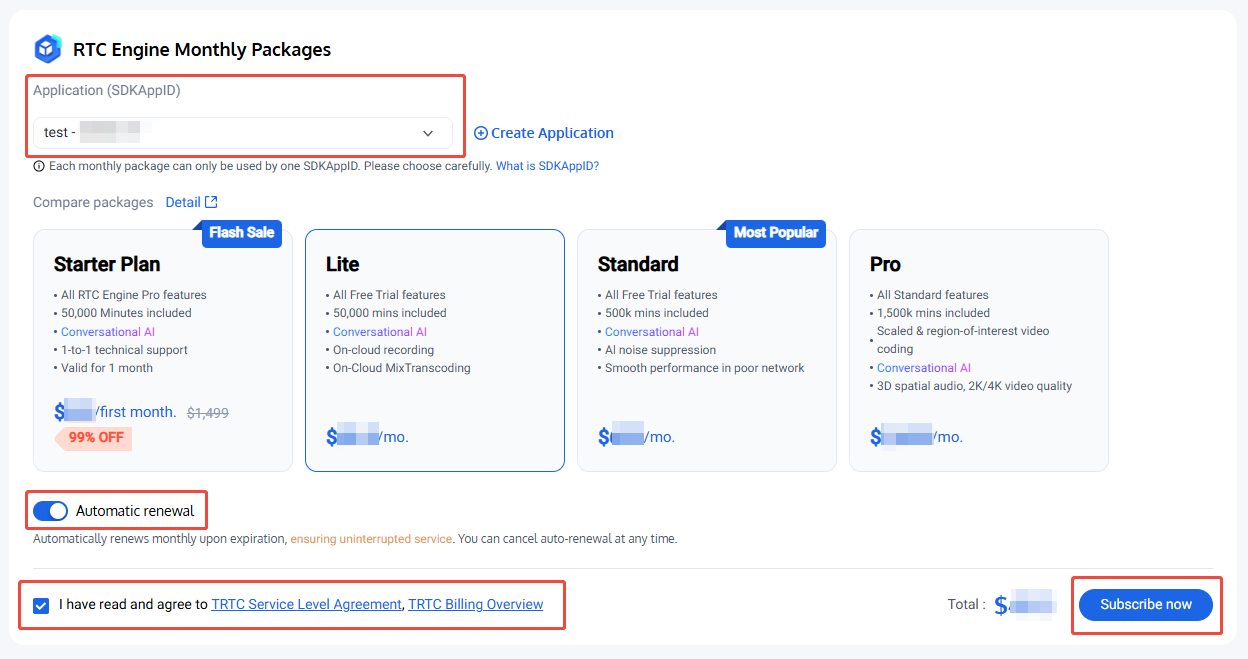
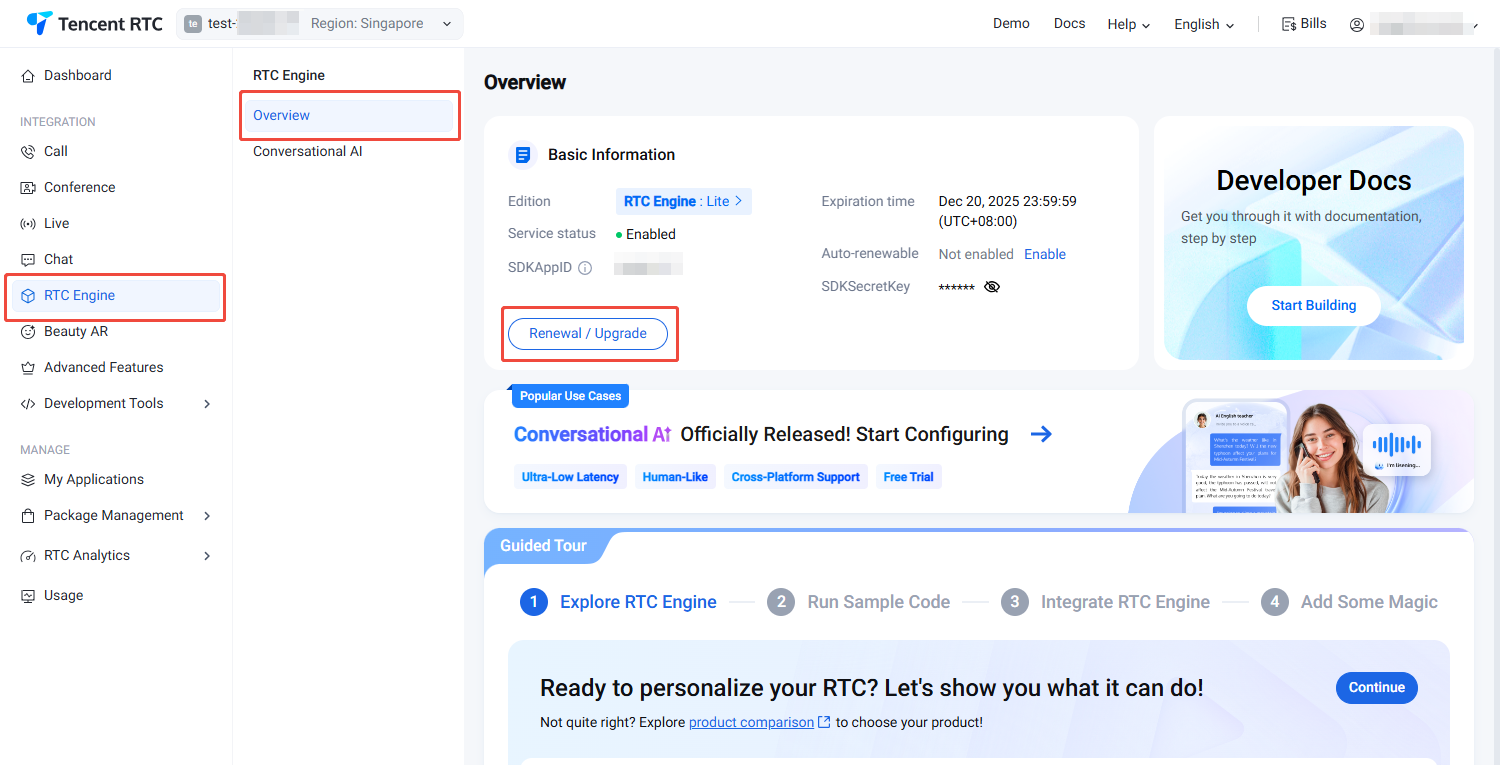
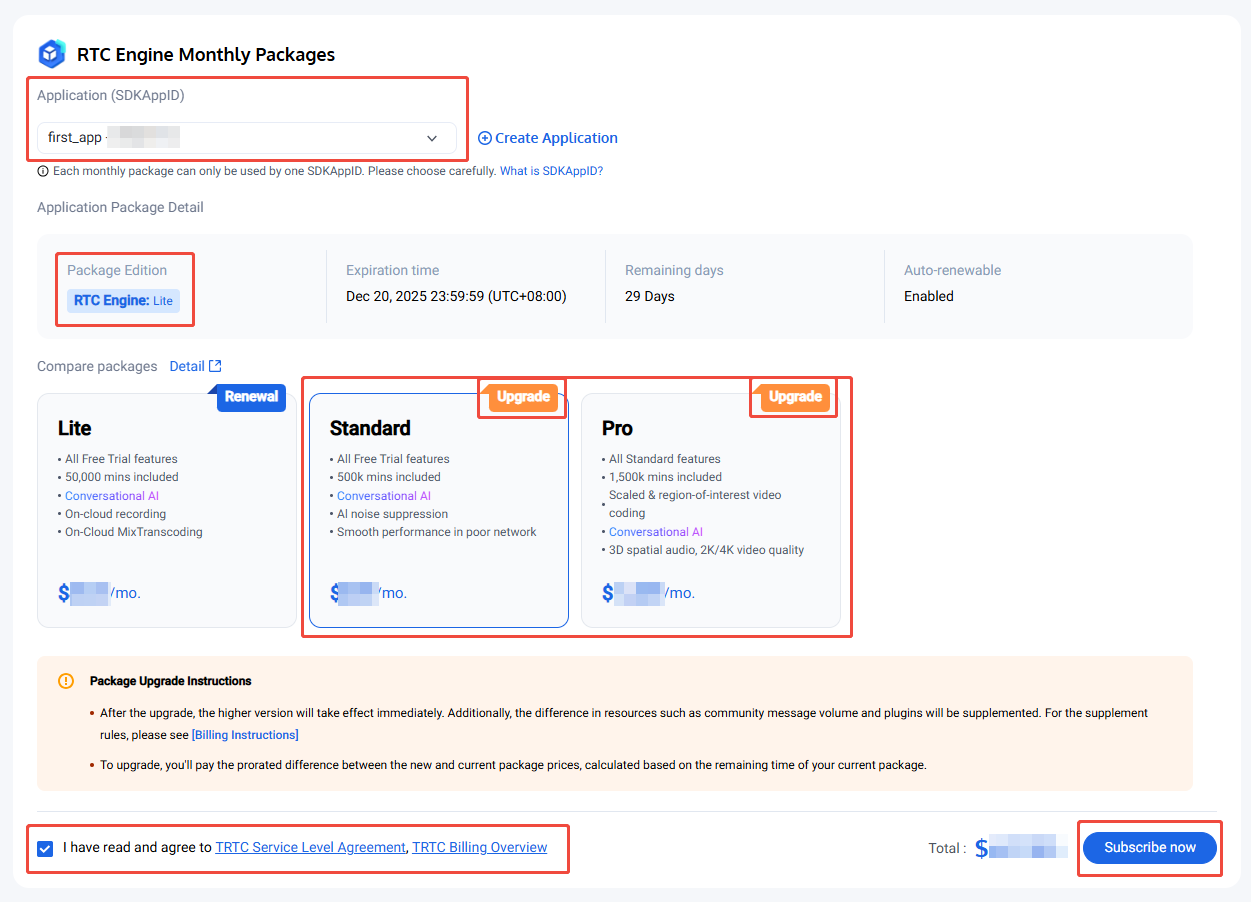
You need to purchase the RTC-Engine monthly subscription to use the RTC-Engine SDK. For price and feature comparison details of the RTC-Engine monthly subscription, see RTC-Engine Monthly Subscription. To purchase, follow the steps below:
1. Visit RTC-Engine Purchase Page, select the application (SDKAppID) and version to purchase, and it is recommended to enable auto-renewal to avoid impacting business usage. After confirming purchase information and agreeing to the relevant agreement, click Subscribe now.
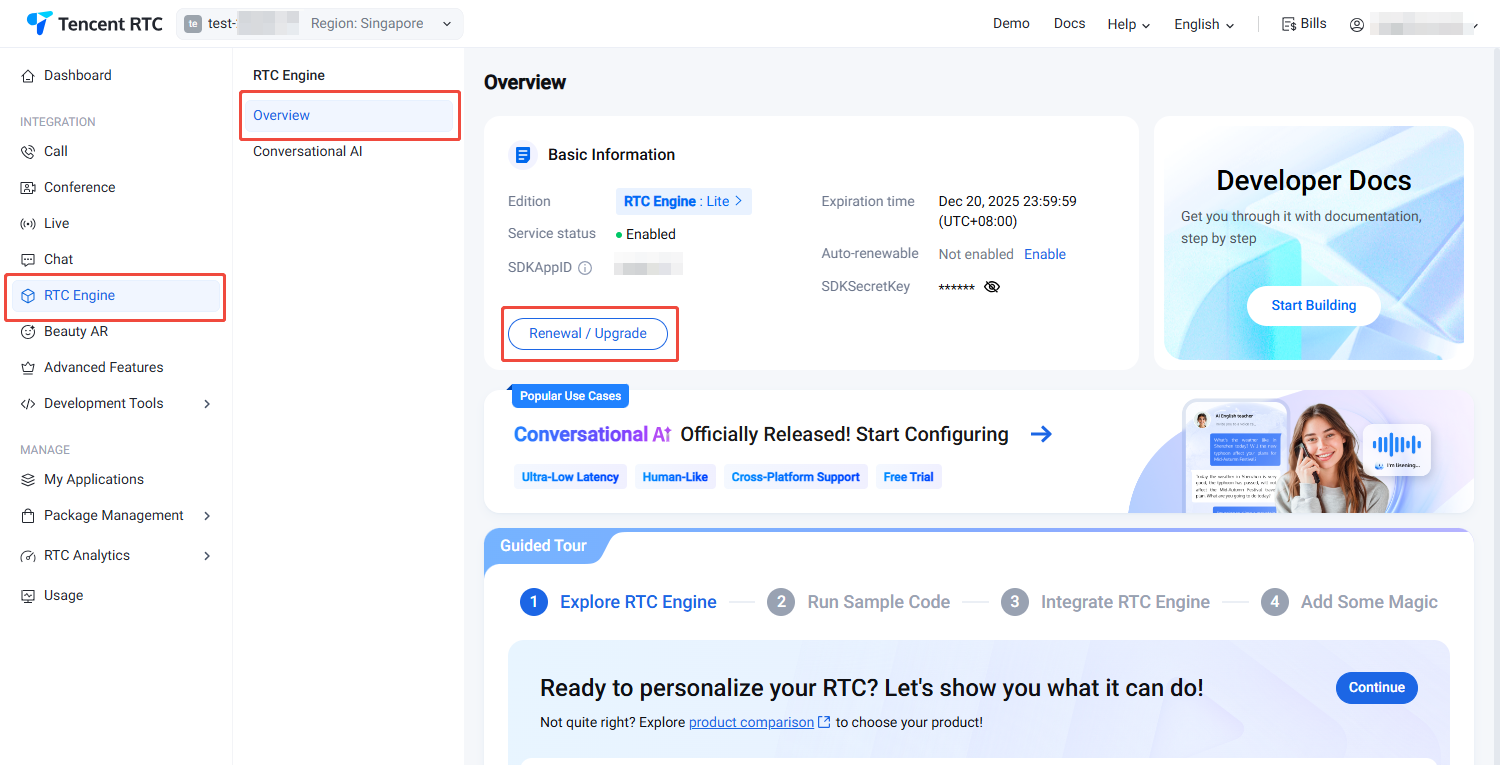
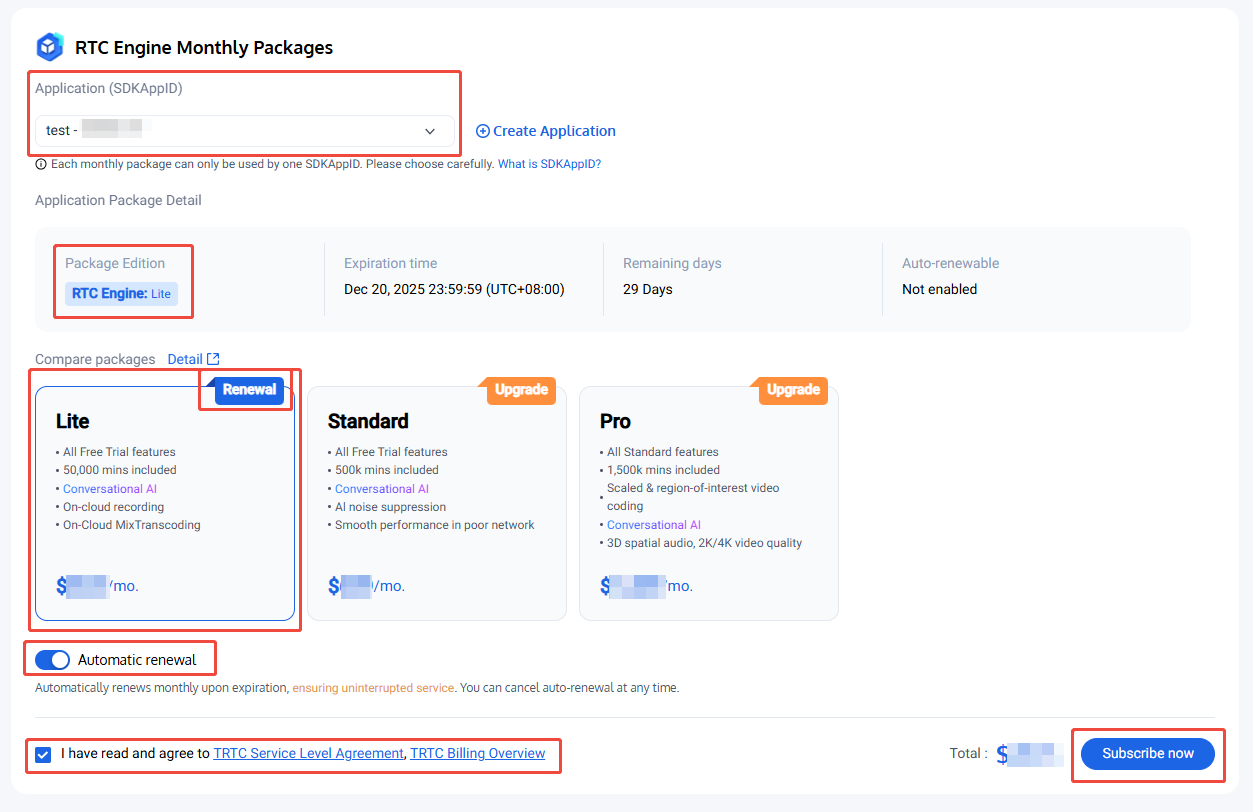
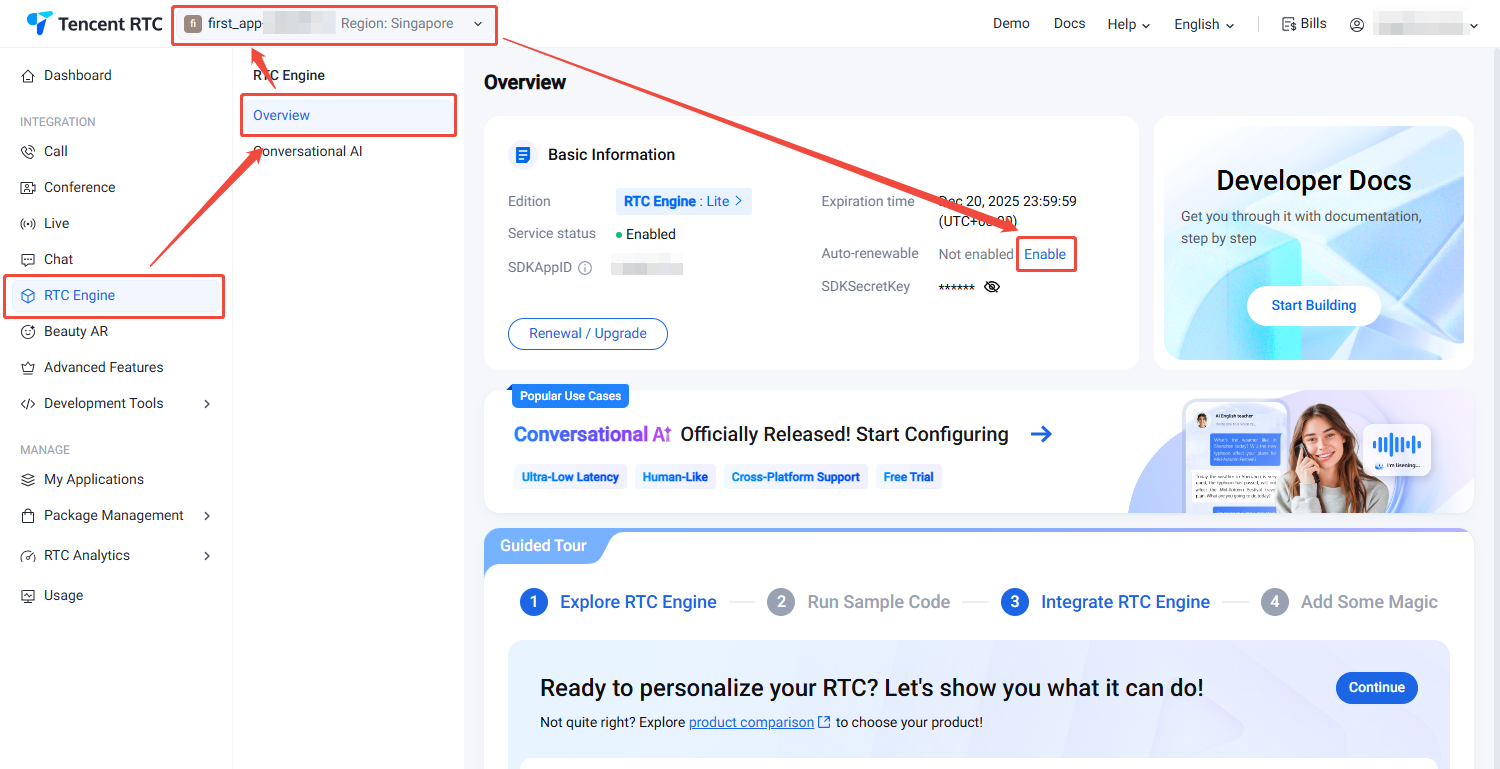
2. Visit RTC-Engine Purchase Page, confirm the application (SDKAppID) to purchase, select the version of the same application package, and it is recommended to enable auto-renewal to avoid impacting business usage. Once enabled, when the account balance is sufficient, it will automatically renew monthly upon expiration. After confirming purchase information and agreeing to the relevant agreement, click Subscribe now.
2. Visit RTC-Engine Purchase Page, confirm the application (SDKAppID) requiring upgrade, select a more advanced version than the application package, and it is recommended to enable auto-renewal to avoid impacting business usage. Once enabled, when the account balance is sufficient, it will automatically renew monthly upon expiration. After confirming purchase information and agreeing to the relevant agreement, click Subscribe now.