Host Live Streaming(Web Desktop Browser)
Download
포커스 모드
폰트 크기
This article provides a detailed introduction to the anchor start page in TUILiveKit Demo. You can directly refer to this document to integrate the anchor start page we developed in your existing project, or you can deeply customize the page style, layout, and functional items according to your needs according to the content in the document.
Function Overview
Functional classification | Specific capabilities |
Video Source Control | Supports the integration of multiple elements, including cameras, screen sharing, and images. The component also features powerful built-in canvas editing capabilities, allowing for rotation, movement, scaling, mirroring, and layer adjustments, making your livestreams more creative and professional. |
Call-in Function | Supports real-time audio and video interaction between hosts and viewers, offering multiple layouts such as a nine-grid layout, 1v6, and floating windows, easily adapting to various interactive scenarios. |
Audience Interaction | Integrated features such as real-time commenting, gifting, and likes enhance engagement between hosts and viewers. |
Live broadcast in both landscape and portrait modes | Meet the needs of various live broadcast scenarios |
Viewer management | Convenient viewer list and mute management |
Function Display
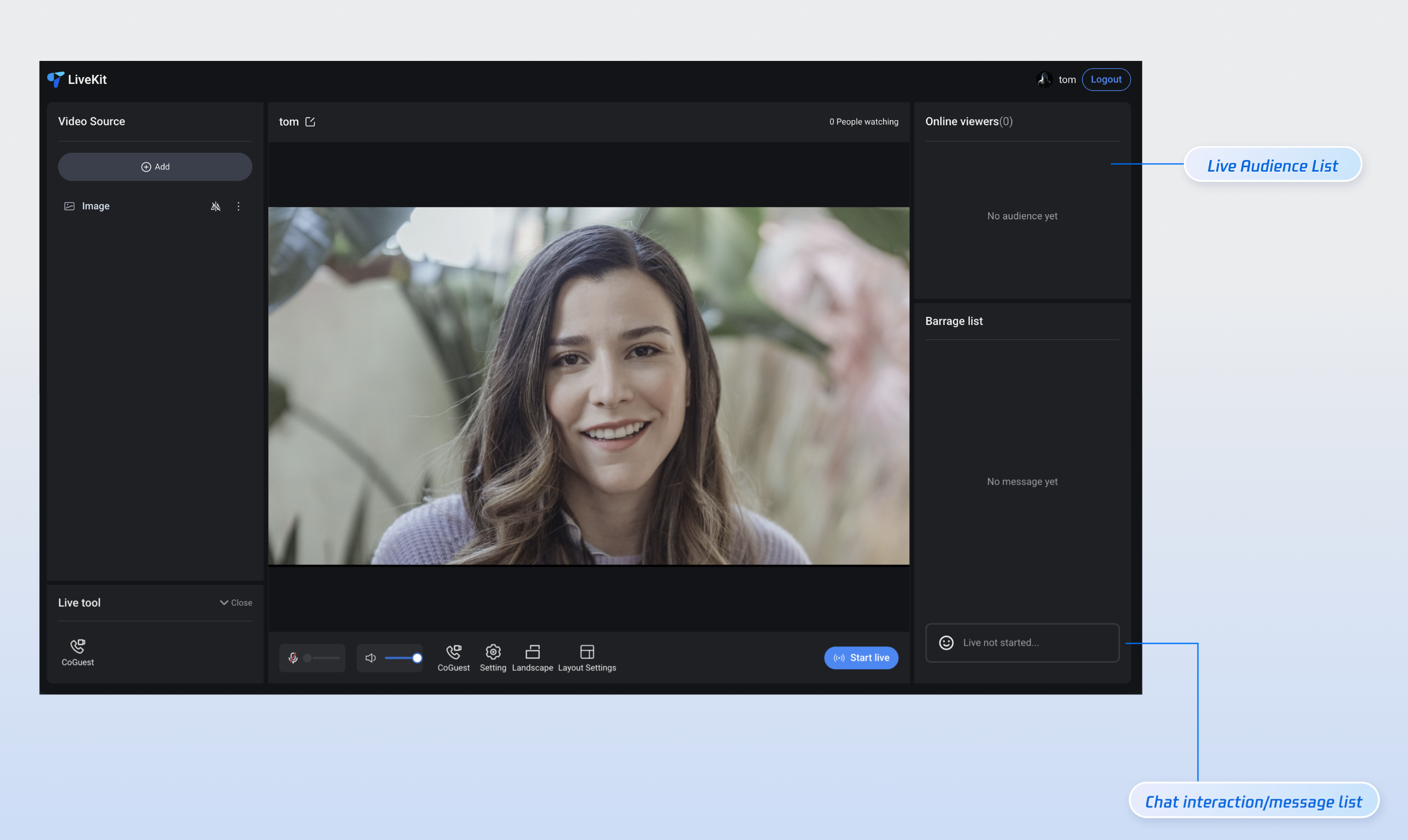
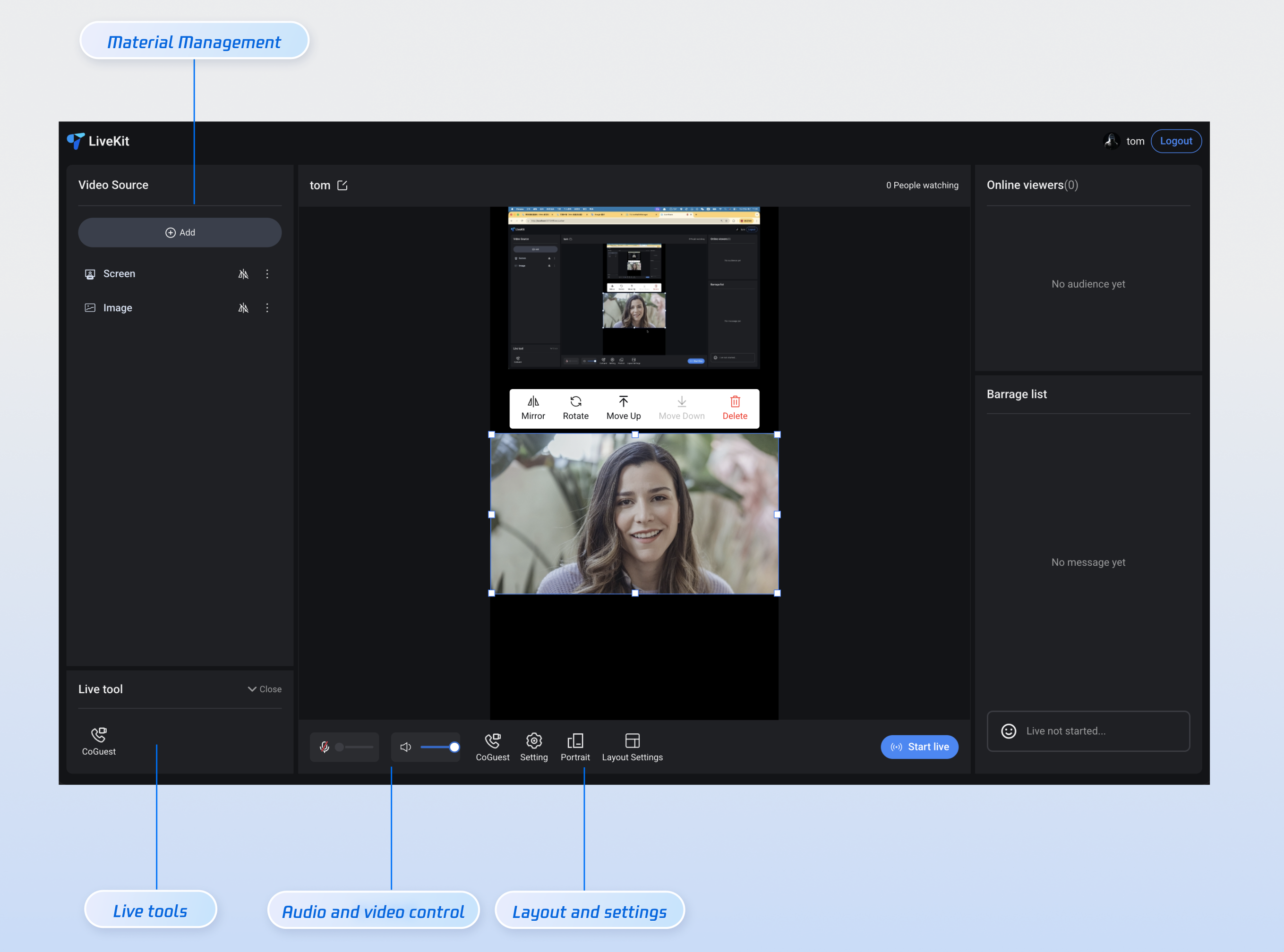
The anchor start page provides default behaviors and styles. However, if the default behaviors and styles don't fully meet your needs, you can customize the UI as described in the Customize section of this article. As shown in the figure below, the anchor start page features include asset management, live streaming tools, audio and video control, source output, asset editing tools, bullet chat, and viewer list.
Start broadcasting in horizontal screen |
 |
Start broadcasting in vertical screen |
 |
Quick Access
Step 1: Environment Configuration and Service Activation
Before using Quick Access, you need to refer to Preparations configuration requirements and activate the corresponding services.
Step 2: Install dependencies
npm install tuikit-atomicx-vue3 @tencentcloud/uikit-base-component-vue3 --save
pnpm add tuikit-atomicx-vue3 @tencentcloud/livekit-web-vue3 @tencentcloud/uikit-base-component-vue3
yarn add tuikit-atomicx-vue3 @tencentcloud/livekit-web-vue3 @tencentcloud/uikit-base-component-vue3
Step 3: Access the anchor's live broadcast page
Create a
live-pusher.vue file in your project and copy the following code into it to integrate the complete live-pusher start page.<template><UIKitProvider language="zh-CN" theme="dark"><div class="custom-live-pusher"><!-- Top control bar --><div class="top-controls"><div class="live-title">{{ liveName }}</div><div class="audience-count">{{ audienceCount }} people watching</div></div><!-- Main content area --><div class="main-content"><!-- Left: Video source and tools --><div class="left-panel"><LiveScenePanel /><div class="tools-section"><CoGuestButton /></div></div><!-- Center: Live broadcast --><div class="center-panel"><StreamMixer /><div class="live-controls"><button @click="handleStartLive">Start live streaming</button></div></div><!-- Right: Audience interaction --><div class="right-panel"><LiveAudienceList /><BarrageList /><BarrageInput /></div><!-- Bottom: Anchor operation --><div class="bottom-panel"><!-- <MicVolumeSetting /> // For media setting capabilities, please refer to the Advanced Function Integration section of this article.<SpeakerVolumeSetting /><CoGuestButton /> // For more information on the ability to connect to the audience, please refer to the Advanced Function Integration section of this article.<OrientationSwitch /> // For layout settings, please refer to the advanced function integration section of this article.<LayoutSwitch /> --> // For the streaming capabilities of horizontal and vertical screens, please refer to the advanced function integration section of this article.</div></div></div></UIKitProvider></template><script setup lang="ts">import { onMounted } from 'vue';import {LiveScenePanel,StreamMixer,LiveAudienceList,BarrageList,BarrageInput,useLiveState,useLiveAudienceState,useLoginState} from 'tuikit-atomicx-vue3';import { UIKitProvider } from '@tencentcloud/uikit-base-component-vue3';const { login } = useLoginState();const { createLive } = useLiveState();const { audienceCount } = useLiveAudienceState();const liveName = 'MyLiveRoom';const handleStartLive = async () => {await createLive({liveId: 'my-live-room',liveName: liveName,});};async function initLogin() {try {await login({sdkAppId: 0, // SDKAppId, refer to step 1 to obtainuserId: '', // UserID, refer to step 1 to obtainuserSig: '', // userSig, refer to step 1 to obtain});} catch (error) {console.error('Login Failed:', error);}}onMounted(async () => {await initLogin();});</script><style scoped>:global(::before){box-sizing:border-box;margin:0;padding:0}:global(body){line-height:1.6;color:var(--text-color-primary);background:var(--bg-color-default)}.custom-live-pusher{display:flex;flex-direction:column;height:100vh;width:100vw;background:linear-gradient(135deg,var(--bg-color-default) 0,var(--bg-color-function) 100%);color:var(--text-color-primary);overflow:hidden}.top-controls{display:flex;justify-content:space-between;align-items:center;padding:12px 20px;background:var(--bg-color-operate);backdrop-filter:blur(10px);border-bottom:1px solid var(--stroke-color-primary);z-index:100;min-height:60px}.live-title{font-size:18px;font-weight:600;color:var(--text-color-primary);text-shadow:0 2px 4px var(--shadow-color)}.audience-count{font-size:14px;color:var(--text-color-error);background:var(--uikit-color-red-1);padding:6px 12px;border-radius:20px;border:1px solid var(--uikit-color-red-3)}.main-content{display:flex;flex:1;height:calc(100vh - 60px);gap:16px;padding:16px;overflow:hidden}.left-panel{display:flex;flex-direction:column;width:280px;gap:16px;flex-shrink:0}.tools-section{background:var(--bg-color-operate);border-radius:12px;padding:16px;border:1px solid var(--stroke-color-primary);backdrop-filter:blur(10px)}.center-panel{display:flex;flex-direction:column;flex:1;gap:16px;min-width:0}.live-controls{display:flex;justify-content:space-between;align-items:center;padding:16px;background:var(--bg-color-operate);border-radius:12px;border:1px solid var(--stroke-color-primary);backdrop-filter:blur(10px);gap:16px}.live-controls button{background:linear-gradient(135deg,var(--text-color-error) 0,var(--uikit-color-red-5) 100%);color:var(--text-color-button);border:none;padding:12px 32px;border-radius:25px;font-size:16px;font-weight:600;cursor:pointer;box-shadow:0 4px 15px var(--shadow-color)}.right-panel{display:flex;flex-direction:column;width:320px;gap:16px;flex-shrink:0}.center-panel>*,.left-panel>*,.right-panel>*{background:var(--bg-color-operate);border-radius:12px;border:1px solid var(--stroke-color-primary);backdrop-filter:blur(10px);overflow:hidden}.left-panel>*{padding:16px}.right-panel>*{padding:16px}.center-panel>:first-child{flex:1;min-height:300px;padding:0;background:var(--uikit-color-black-1);border:2px solid var(--stroke-color-secondary)}.bottom-panel{display:flex;align-items:center;gap:16px;flex:1}.device-setting{display:flex;align-items:center;gap:8px;padding:8px 12px;background:var(--bg-color-function);border-radius:8px;border:1px solid var(--stroke-color-secondary)}.device-icon{cursor:pointer;color:var(--text-color-primary);transition:color .2s ease}.device-icon:hover{color:var(--text-color-link)}.device-slider{width:80px}.custom-icon-container{display:flex;align-items:center;gap:6px;padding:8px 12px;background:var(--bg-color-function);border-radius:8px;border:1px solid var(--stroke-color-secondary);cursor:pointer;transition:all .2s ease;position:relative}.custom-icon-container:hover{background:var(--list-color-hover);border-color:var(--stroke-color-primary)}.custom-icon-container.disabled{opacity:.5;cursor:not-allowed}.custom-icon-container.disabled:hover{background:var(--bg-color-function);border-color:var(--stroke-color-secondary)}.custom-icon{width:16px;height:16px;display:inline-block;background-size:contain;background-repeat:no-repeat;background-position:center}.horizontal-icon{background-image:url("data:image/svg+xml,%3Csvg xmlns='http://www.w3.org/2000/svg' viewBox='0 0 24 24' fill='none' stroke='currentColor' stroke-width='2'%3E%3Crect x='3' y='6' width='18' height='12' rx='2'/%3E%3Cpath d='M7 10h10'/%3E%3C/svg%3E")}.portrait-icon{background-image:url("data:image/svg+xml,%3Csvg xmlns='http://www.w3.org/2000/svg' viewBox='0 0 24 24' fill='none' stroke='currentColor' stroke-width='2'%3E%3Crect x='6' y='3' width='12' height='18' rx='2'/%3E%3Cpath d='M10 7h4'/%3E%3C/svg%3E")}.layout-icon{background-image:url("data:image/svg+xml,%3Csvg xmlns='http://www.w3.org/2000/svg' viewBox='0 0 24 24' fill='none' stroke='currentColor' stroke-width='2'%3E%3Crect x='3' y='3' width='7' height='7'/%3E%3Crect x='14' y='3' width='7' height='7'/%3E%3Crect x='14' y='14' width='7' height='7'/%3E%3Crect x='3' y='14' width='7' height='7'/%3E%3C/svg%3E")}.co-guest-icon{background-image:url("data:image/svg+xml,%3Csvg xmlns='http://www.w3.org/2000/svg' viewBox='0 0 24 24' fill='none' stroke='currentColor' stroke-width='2'%3E%3Cpath d='M17 21v-2a4 4 0 0 0-4-4H5a4 4 0 0 0-4 4v2'/%3E%3Ccircle cx='9' cy='7' r='4'/%3E%3Cpath d='M23 21v-2a4 4 0 0 0-3-3.87'/%3E%3Cpath d='M16 3.13a4 4 0 0 1 0 7.75'/%3E%3C/svg%3E")}.custom-text{font-size:12px;color:var(--text-color-secondary);white-space:nowrap}.unread-count{position:absolute;top:-4px;right:-4px;background:var(--text-color-error);color:var(--text-color-button);border-radius:10px;padding:2px 6px;font-size:10px;font-weight:600;min-width:16px;text-align:center;line-height:1}.layout-dialog{max-width:600px}.layout-label{font-size:16px;font-weight:600;color:var(--text-color-primary);margin-bottom:16px}.template-options{margin-bottom:16px}.options-grid{display:grid;grid-template-columns:repeat(auto-fit,minmax(120px,1fr));gap:12px}.option-card{padding:16px;background:var(--bg-color-function);border:2px solid var(--stroke-color-secondary);border-radius:8px;cursor:pointer;transition:all .2s ease;text-align:center}.option-card:hover{border-color:var(--stroke-color-primary);background:var(--list-color-hover)}.option-card.active{border-color:var(--text-color-link);background:var(--bg-color-operate)}.option-info h4{margin:8px 0 0 0;font-size:12px;color:var(--text-color-primary)}.option-icon{width:32px;height:32px;margin:0 auto;color:var(--text-color-secondary)}.co-guest-dialog{max-width:500px}.co-guest-panel{min-height:300px}</style>
Step 4: Start live streaming
Start your first live stream.
npm run dev
Advanced feature integration
Media setting capabilities
If you need to support media settings, including speaker and microphone volume settings, please refer to the following code example and copy it into the
live-pusher.vue file.<template><!-- MicVolumeSetting Microphone Settings --><div class="device-setting"><IconAudio :size="16" :audioVolume="audioVolume" :isMuted="microphoneStatus === DeviceStatus.Off" @click="switchMicrophoneStatus" /><TUISlider v-if="microphoneStatus !== DeviceStatus.Off" v-model="microphoneVolume" class="device-slider" :min="0" :max="100" @change="handleMicrophoneVolumeChange" /><TUISlider v-else class="device-slider" :min="0" :max="100" disabled /></div><!-- SpeakerVolumeSetting Speaker Settings --><div class="device-setting"><TUIIcon class="device-icon" :icon="speakerIsOn ? IconSpeakerOn : IconSpeakerOff" @click="switchSpeaker(!speakerIsOn)" /><TUISlider v-if="speakerIsOn" v-model="speakerVolume" class="device-slider" :min="0" :max="100" @change="handleSpeakerVolumeChange" /></div></template><script lang="ts" setup>import { ref, watch } from 'vue';import { TUIIcon, TUISlider, IconSpeakerOn, IconSpeakerOff, IconAudio } from '@tencentcloud/uikit-base-component-vue3';import { DeviceStatus, useDeviceState } from 'tuikit-atomicx-vue3';const {captureVolume,setCaptureVolume,microphoneStatus,openLocalMicrophone,closeLocalMicrophone,audioVolume,} = useDeviceState();const { outputVolume, setOutputVolume } = useDeviceState();const microphoneVolume = ref(captureVolume.value);const speakerVolume = ref(outputVolume.value);const speakerIsOn = ref(true);const templateSpeakerVolume = ref(outputVolume.value);const handleMicrophoneVolumeChange = (value: number) => {if (value !== captureVolume.value) {setCaptureVolume(value);}};const switchMicrophoneStatus = () => {if (microphoneStatus.value === DeviceStatus.On) {closeLocalMicrophone();} else {openLocalMicrophone();}};const switchSpeaker = (open: boolean) => {speakerIsOn.value = open;if (!open) {templateSpeakerVolume.value = outputVolume.value;setOutputVolume(0);} else {setOutputVolume(templateSpeakerVolume.value);}};const handleSpeakerVolumeChange = (value: number) => {if (value !== outputVolume.value) {setOutputVolume(value);}};watch(captureVolume, (newVal) => {microphoneVolume.value = newVal;});watch(outputVolume, (newVal) => {speakerVolume.value = newVal;});</script>
Horizontal and vertical screen streaming capabilities
If you need to support streaming in both horizontal and vertical modes, including switching between horizontal and vertical modes, please refer to the following code example and copy it into the
live-pusher.vue file.<template><!-- LayoutSwitch Horizontal and vertical screen streaming settings --><div class="custom-icon-container":class="{ 'disabled': localLiveStatus === LiveStatus.Live }" @click="handleOrientationSwitch"><span v-if="currentOrientation === LiveOrientation.Landscape" class="custom-icon horizontal-icon" /><span v-else class="custom-icon portrait-icon"/><span class="custom-text co-guest-text">{{ currentOrientation === LiveOrientation.Portrait ? t('Portrait') : t('Landscape')}}</span></div></template><script setup lang="ts">import { ref, watch } from 'vue';import { useUIKit, TUIToast, TOAST_TYPE } from '@tencentcloud/uikit-base-component-vue3';import { useLiveState, LiveOrientation, LiveStatus } from 'tuikit-atomicx-vue3';const { t } = useUIKit();enum TUISeatLayoutTemplate {LandscapeDynamic_1v3 = 200,PortraitDynamic_Grid9 = 600,PortraitDynamic_1v6 = 601,PortraitFixed_Grid9 = 800,PortraitFixed_1v6 = 801,PortraitFixed_6v6 = 802,}const { currentLive, localLiveStatus, updateLiveInfo } = useLiveState();const currentOrientation = ref(LiveOrientation.Portrait);watch(() => currentLive.value?.layoutTemplate,(newVal) => {if (newVal === TUISeatLayoutTemplate.LandscapeDynamic_1v3) {currentOrientation.value = LiveOrientation.Landscape;} else {currentOrientation.value = LiveOrientation.Portrait;}},{ immediate: true },);const handleOrientationSwitch = () => {if (localLiveStatus.value === LiveStatus.Live) {TUIToast({message: t('Cannot switch orientation during live streaming'),type: TOAST_TYPE.ERROR,});return;}if (currentOrientation.value === LiveOrientation.Portrait) {updateLiveInfo({ layoutTemplate: TUISeatLayoutTemplate.LandscapeDynamic_1v3 });} else {updateLiveInfo({ layoutTemplate: TUISeatLayoutTemplate.PortraitDynamic_Grid9 });}};</script>
Audience connection capabilities
If you need to support audience co-hosting, including setting up co-hosting applications and co-hosting management, please refer to the following code example and copy it into the
live-pusher.vue file.<template><!-- CoGuestSetting take seat settings --><div class="custom-icon-container" @click="handleCoGuest"><span v-if="receivedCoGuestUserList.length > 0" class="unread-count">{{ receivedCoGuestUserList.length }}</span><span class="custom-icon co-guest-icon" /><span class="custom-text co-guest-text">{{ t('CoGuest') }}</span></div><TUIDialog :title="t('CoGuest')" :visible="coGuestPanelVisible" :customClasses="['co-guest-dialog']" @close="coGuestPanelVisible = false" @confirm="coGuestPanelVisible = false" @cancel="coGuestPanelVisible = false"><CoGuestPanel class="co-guest-panel" /><template #footer><div /></template></TUIDialog></template><script lang="ts" setup>import { ref } from 'vue';import { useUIKit, TUIDialog } from '@tencentcloud/uikit-base-component-vue3';import { CoGuestPanel, useCoGuestState } from 'tuikit-atomicx-vue3';const { t } = useUIKit();const { receivedCoGuestUserList } = useCoGuestState();const coGuestPanelVisible = ref(false);const handleCoGuest = () => {coGuestPanelVisible.value = true;};</script>
Layout setting capabilities
If you need to support video stream switching layout capabilities, including setting dynamic grid layout, static grid layout, static small window layout, floating small window layout, etc., please refer to the following code example and copy it into the
live-pusher.vue file.<template><!-- OrientationSwitch Layout Settings --><div class="custom-icon-container" @click="handleSwitchLayout"><span class="custom-icon layout-icon" /><span class="custom-text setting-text">{{ t('Layout Settings') }}</span></div><TUIDialog :customClasses="['layout-dialog']":title="t('Layout Settings')" :visible="layoutSwitchVisible" @close="handleCancel" @confirm="handleConfirm" @cancel="handleCancel"><div class="layout-label"> {{ t('Audience Layout') }}</div><div class="template-options"><div class="options-grid"><template v-for="template in layoutOptions" :key="template.id"><div class="option-card" :class="{ active: selectedTemplate === template.templateId }" @click="selectTemplate(template.templateId)"><div class="option-info"><component :is="template.icon" v-if="template.icon" class="option-icon"/><h4>{{ template.label }}</h4></div></div></template></div></div></TUIDialog></template><script lang="ts" setup>import { ref, computed, watch } from 'vue';import { TUIErrorCode, } from '@tencentcloud/tuiroom-engine-js';import { useUIKit, TUIDialog, TUIToast, TOAST_TYPE } from '@tencentcloud/uikit-base-component-vue3';import { LiveStatus, useLiveState } from 'tuikit-atomicx-vue3';import { TUISeatLayoutTemplate } from '../types/LivePusher';const { t } = useUIKit();const { localLiveStatus, currentLive, updateLiveInfo } = useLiveState();watch(localLiveStatus,() => {if (localLiveStatus.value === LiveStatus.IDLE) {updateLiveInfo({ layoutTemplate: TUISeatLayoutTemplate.PortraitDynamic_Grid9 });}},{ immediate: true },);const layoutSwitchVisible = ref(false);const handleSwitchLayout = () => {layoutSwitchVisible.value = true;};const portraitLayoutOptions = computed(() => [{id: 'PortraitDynamic_Grid9',templateId: TUISeatLayoutTemplate.PortraitDynamic_Grid9,label: t('Dynamic Grid9 Layout'),},{id: 'PortraitFixed_1v6',templateId: TUISeatLayoutTemplate.PortraitFixed_1v6,label: t('Fixed 1v6 Layout'),},{id: 'PortraitFixed_Grid9',templateId: TUISeatLayoutTemplate.PortraitFixed_Grid9,label: t('Fixed Grid9 Layout'),},{id: 'PortraitDynamic_1v6',templateId: TUISeatLayoutTemplate.PortraitDynamic_1v6,label: t('Dynamic 1v6 Layout'),},]);const horizontalLayoutOptions = computed(() => [{id: 'LandscapeDynamic_1v3',templateId: TUISeatLayoutTemplate.LandscapeDynamic_1v3,label: t('Landscape Template'),},]);const layoutOptions = computed(() => {if (currentLive.value && currentLive.value?.layoutTemplate >= 200 && currentLive.value?.layoutTemplate <= 599) {return horizontalLayoutOptions.value;}return portraitLayoutOptions.value;});const selectedTemplate = ref<TUISeatLayoutTemplate | null>(currentLive.value?.layoutTemplate ?? null);function selectTemplate(template: TUISeatLayoutTemplate) {selectedTemplate.value = template;}watch(() => currentLive.value?.layoutTemplate, (newVal) => {if (newVal) {selectedTemplate.value = newVal;}});async function handleConfirm() {if (selectedTemplate.value) {try {await updateLiveInfo({ layoutTemplate: selectedTemplate.value });layoutSwitchVisible.value = false;} catch (error: any) {let errorMessage = t('Layout switch failed');if (error.code === TUIErrorCode.ERR_FREQ_LIMIT) {errorMessage = t('Operation too frequent, please try again later');}TUIToast({ type: TOAST_TYPE.ERROR, message: errorMessage });}} else {layoutSwitchVisible.value = false;}}function handleCancel() {selectedTemplate.value = currentLive.value?.layoutTemplate ?? null;layoutSwitchVisible.value = false;}</script>
Free customization
As shown in the functional diagram above, we also support the ability to customize the UI of the anchor start page according to your project needs. In addition to adjusting the page UI layout, we also support adding, deleting, and modifying color themes, fonts, rounded corners, buttons, icons, input boxes, pop-up boxes, and other content to meet your UI customization needs.
Category | Function | Description |
Asset Management | Customize the asset management area display | Supports: Adjust the size, color, or replace the display icon |
Live Streaming Tools | Customize the live streaming tool information display | Supports: Adjust the size, color, or replace the display icon |
Online Viewers | Customize viewer information display | Supports: Show/hide viewer level Customize viewer information font and color UI settings Replace the icon with your desired style |
Message List | Custom message barrage area display | Supports: Show/hide chat input area Supports UI customization for chat bubble style, audience level, etc. |
Color Theme
See the code example in Step 3. You can manipulate the value of theme to switch color themes.
<UIKitProvider theme="dark"> // When theme is passed to dark, the overall color theme of the interface is blackxxx // When theme is set to light, the overall color of the interface is white.</UIKitProvider>
Buttons / Icons
If you need to customize the UI by adding or replacing buttons or icons, you can do so using the following methods. Using the buttons and icons in the
live-pusher.vuefile as an example, refer to the image below to find the source code for the corresponding button or icon. You can then add, delete, or replace these controls.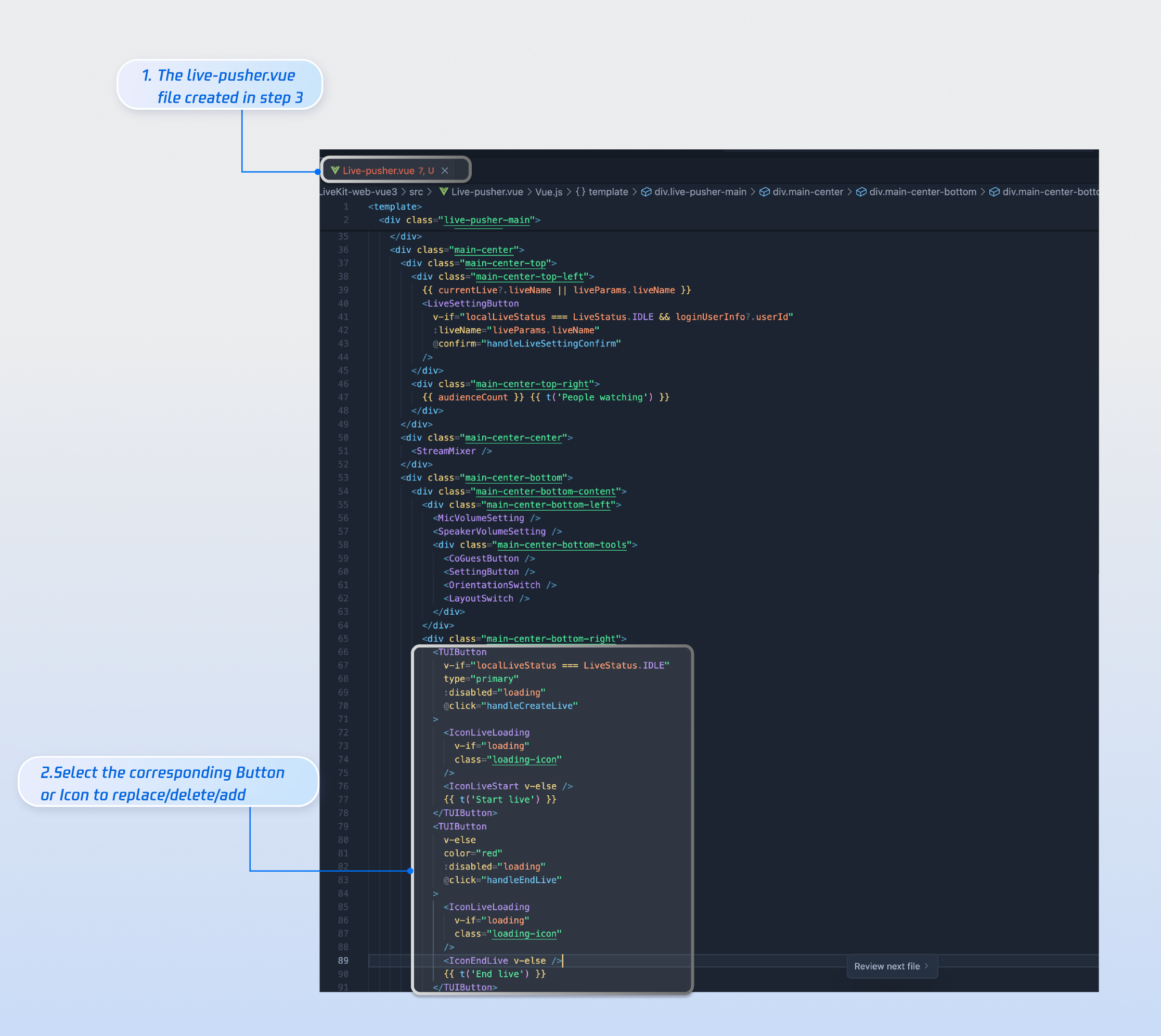
Next Steps
Congratulations! You've successfully integrated the Live Stream Start Page. Next, you can implement content such as the viewer page and live stream list page. Please refer to the table below:
Function | Description | Integration Guide |
Audience Viewing | Enable everyone to enter the anchor's live broadcast room to watch the live broadcast, and realize functions such as audience connection, live broadcast room information, online audience, and barrage display | |
Live Stream List | Display the live broadcast list interface and functions, including live broadcast list and room information display function |
피드백